

Log leads, unanswered questions, feedback, and demo requests straight to a Google Sheet with a one-click AI Action. No Zapier, no webhooks, no code.
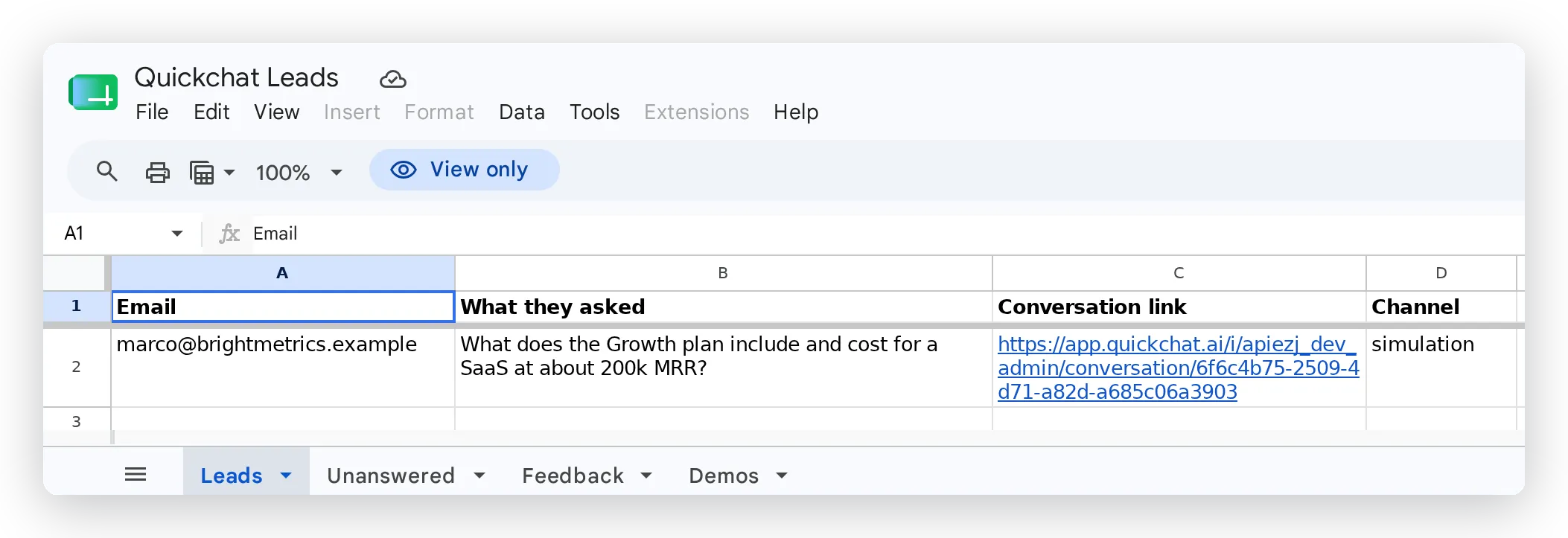
Connect your AI Agent to Google Sheets so the useful moments in a conversation, a qualified lead, a question it couldn’t answer, a feature request, a demo ask, become rows in a sheet your team already uses. There’s no Zapier, no webhook, and no code: the connection is one click, and what it creates is a normal AI Action you can edit.
Optional example checks
Section titled “Optional example checks”-
Preview metadata keys. Check how supplied field names become variable keys, including duplicate names and reserved-key errors. This does not inspect values or account-specific permissions.
-
Check Action run conditions. Evaluate conditions against supplied sample metadata without running an Action.
How it works
Section titled “How it works”An AI Action is a described HTTP request, and a Google Sheet row is one such request. Google Sheets has an append endpoint that adds a row to a tab; each report is a POST to that endpoint with the row values in the body.
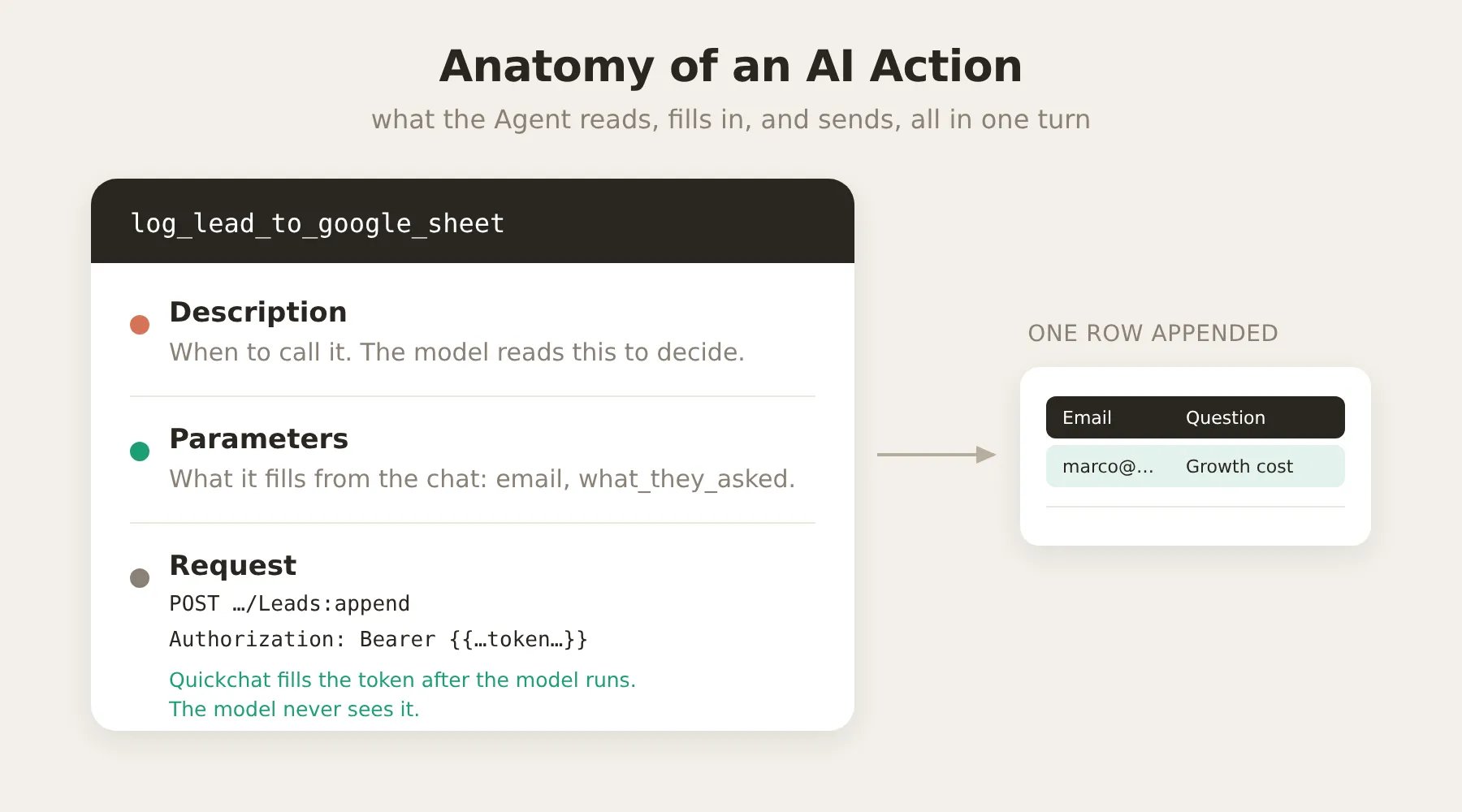
A few things worth knowing up front:
- The columns aren’t fixed. They’re whatever the Action sends. You decide them by editing the Action’s request body and the sheet’s header row, so the same integration can log leads, bug reports, or anything else.
- Least-privilege access. The Google connection requests only the
drive.filescope, which grants access exclusively to files the integration creates. It can’t see the rest of your Drive. - The AI never sees your credentials. The request carries an
Authorizationheader set to the placeholder{{google_sheets_access_token}}. Quickchat fills it with a real, auto-refreshed token after the model has done its part; the token never enters the prompt.
Connect Google Sheets
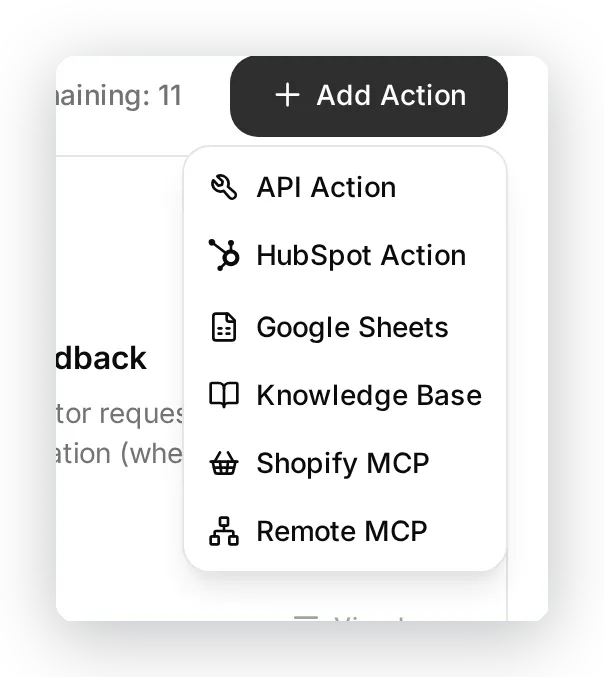
Section titled “Connect Google Sheets”Open Actions & MCPs in the sidebar, click Add Action, and choose Google Sheets.
The connect dialog explains what the one click will set up before you grant any access: a new Google Sheet in your Drive, and a ready-to-use logging action, preset for leads. Click Connect, choose the Google account whose Drive the sheet should live in, and approve the drive.file permission.
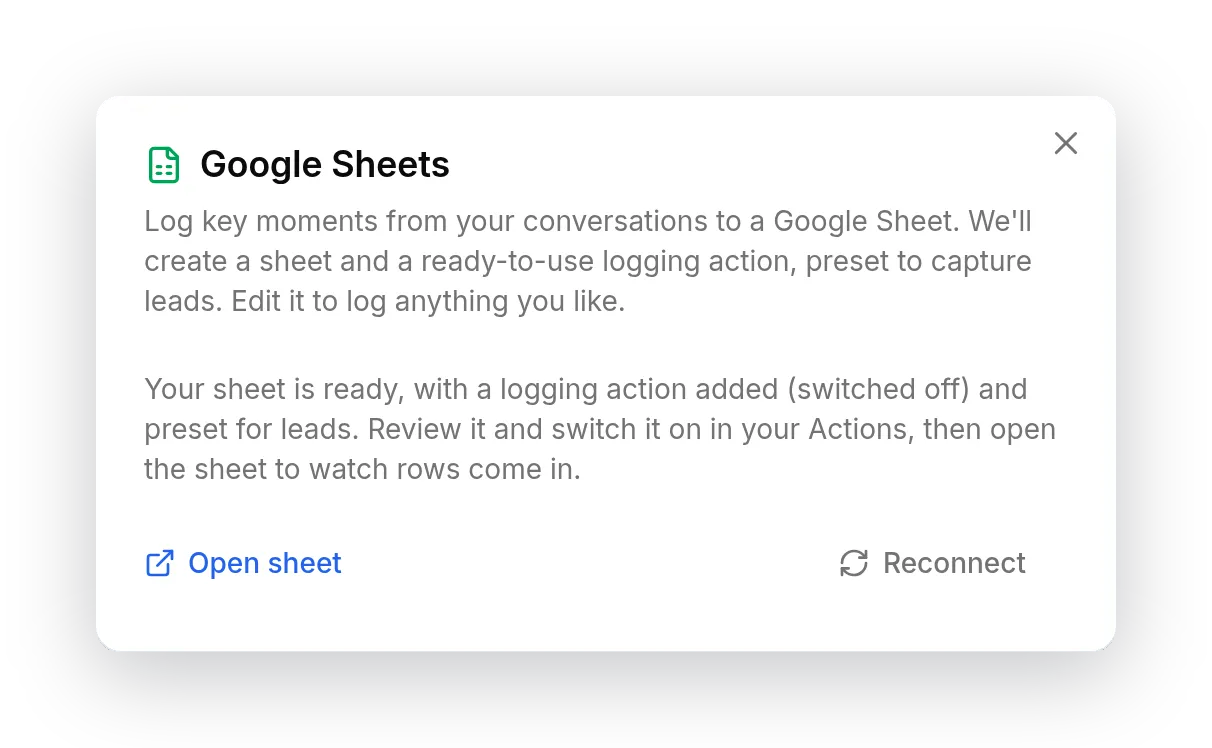
That one click does two things automatically:
- Creates a spreadsheet in your Google Drive, with a
Leadstab and a header row. - Adds a single, disabled AI Action (
log_lead_to_google_sheet), already wired to that sheet.
The generated logging action
Section titled “The generated logging action”The starter action is a normal, fully editable API Action. It’s listed under Custom Actions, switched off, so you can review it before enabling it.
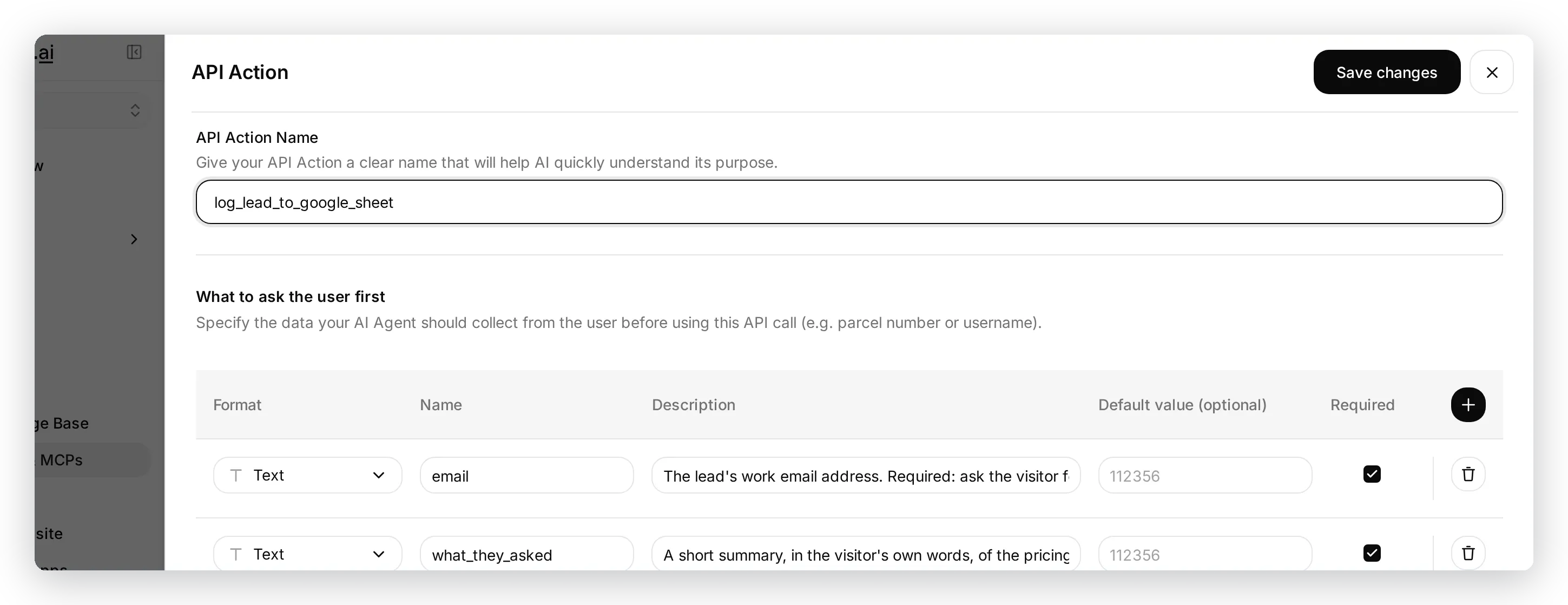
Because Quickchat created the sheet and the action together, the endpoint URL already contains your spreadsheet’s ID:
https://sheets.googleapis.com/v4/spreadsheets/<your sheet ID>/values/Leads:append?valueInputOption=RAWKeep valueInputOption=RAW so a message starting with = or + is stored literally rather than parsed as a formula. The headers are the same for every report:
| Key | Value |
|---|---|
Authorization | Bearer {{google_sheets_access_token}} |
Content-Type | application/json |
The request body is a single row, and each cell is one parameter. The cells run in the same order as the sheet’s columns:
{ "values": [["{{email}}", "{{what_they_asked}}", "{{conversation_url}}", "{{conversation_channel}}"]] }So the columns are defined by this body plus the tab’s header row, not hardcoded by the integration. {{conversation_url}} (a deep link back to the Inbox) and {{conversation_channel}} (where the visitor came from) are built-in variables available to any Action.
Review the parameters and the description (the description is what the AI reads to decide when to log a row), then switch the action on.
Log anything, not just leads
Section titled “Log anything, not just leads”To add another report, give your sheet a new tab and add another API Action that appends to it. Copy the full URL from the lead action and change only the tab name, then adjust the parameters, body, and description:
https://sheets.googleapis.com/v4/spreadsheets/<your sheet ID>/values/Unanswered:append?valueInputOption=RAWCommon reports teams build alongside leads:
| Report | When the Agent writes a row |
|---|---|
| Unanswered questions | The Agent can’t answer a factual question, the visitor asks for a human, or seems unsatisfied |
| Feedback | A visitor requests a feature, reports a bug, or gives praise |
| Demo requests | A visitor explicitly asks for a demo, a call, or to talk to sales |
Frequently asked questions
Section titled “Frequently asked questions”Do I need Zapier, a webhook, or any code? No. Quickchat connects to Google Sheets directly through an AI Action, a native HTTP request the Agent makes during the conversation. One click creates the sheet and the first logging action for you.
Is my Google Drive data safe?
Yes. The integration requests only the drive.file OAuth scope, which grants access exclusively to files it creates, such as the sheet it makes for you. It can’t read or change anything else in your Drive, and the access token is never exposed to the AI model.
Which channels does it work on?
All of them. The same Actions run wherever your Agent is deployed (web widget, Slack, WhatsApp, and more), and the {{conversation_channel}} column records where each row came from.
Related
Section titled “Related”- Custom Actions: how AI Actions work and how to edit one.
- AI Action Variables: the
{{...}}placeholders you can put in a row. - Connect your AI Agent to Google Sheets: a full, worked tutorial that builds all four reports and tunes them.