

Connect Quickchat AI to Telegram. Add the shared Quickchat AI bot to a group in one click, or create your own bot with BotFather via Advanced setup for custom branding and AI Actions.
There are two ways to connect your AI Agent to Telegram:
- Add to a Telegram group: the recommended one-click flow. No BotFather and no bot token, live in under a minute.
- Use your own bot: the advanced flow where you create a bot with BotFather and supply its token yourself.
We recommend the one-click flow. You can switch to your own bot later if you need the advanced features.
If you get stuck, jump to Troubleshooting & FAQs or contact us.
Connect with Telegram (recommended)
Section titled “Connect with Telegram (recommended)”In the Quickchat AI dashboard, open External Apps in the left sidebar, find Telegram, and open it. Click Add to a Telegram group.
Telegram opens and asks which group to add the shared Quickchat AI bot to. Pick the group and confirm. You need permission to add members to that group.
Confirm the group in the dashboard
Section titled “Confirm the group in the dashboard”Back in the dashboard, the group appears under Waiting for your confirmation. Click Confirm next to it.
This step is deliberate. The invite is delivered as an ordinary message in the group, which everyone in that group can read, so Quickchat AI does not treat it as proof on its own. Until you confirm, the AI Agent stays completely silent in that group. The entry shows who added the bot, so a group you did not expect is easy to spot and remove instead of confirming.
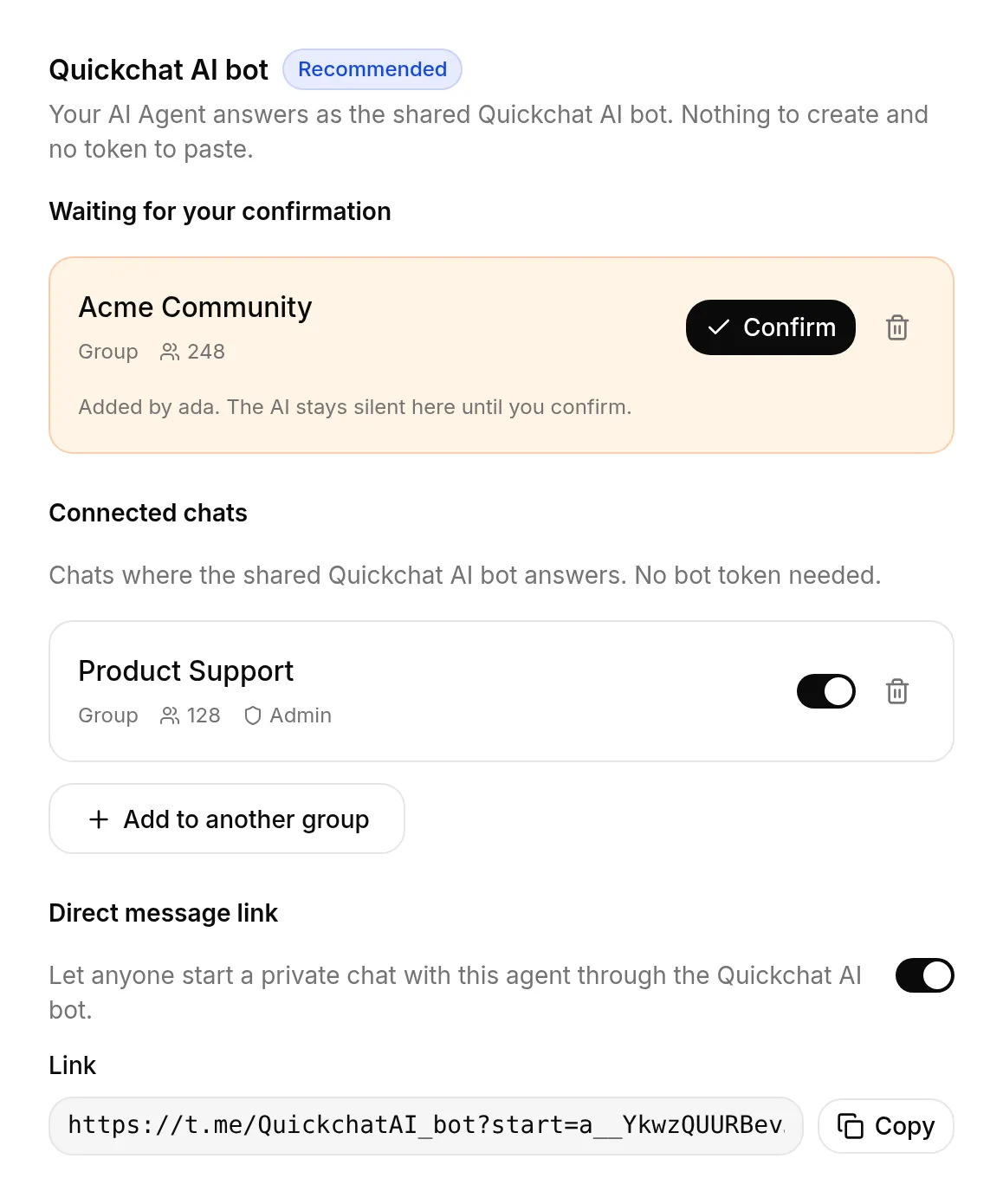
That’s it! 🎉 Your AI Agent is live on Telegram. Members start a conversation by @mentioning it in the group, or by replying to one of its messages.
Direct message link
Section titled “Direct message link”Each AI Agent also gets a personal link that opens a one-to-one chat with it on Telegram. On the Telegram page, switch on Direct message link and copy the link that appears. Anyone who opens it can message your Agent privately, and it replies straight away with no confirmation step, because a private chat is between one person and the bot.
The link is off by default. Switch it off again at any time to stop new private chats.
Managing your chats
Section titled “Managing your chats”The Telegram page lists every chat the shared bot serves under Connected chats. From there you can:
- Add to another group with the same one-click flow, so one AI Agent can serve several groups.
- Switch a chat off to pause replies there without disconnecting it.
- Disconnect a chat. The bot leaves that group and stops replying, and you can add it again anytime.
A Telegram chat can be connected to one AI Agent at a time. If a group is already connected to another Agent, disconnect it there first, or choose a different group.
When to use your own bot
Section titled “When to use your own bot”The one-click bot runs as the shared Quickchat AI identity, which is perfect for going live fast. Create your own bot (see below) when you want:
- A custom bot name, username and profile picture
- Telegram AI Actions. The shared bot does not expose its token as the
{{telegram_bot_token}}System Token that these Actions need, so they require your own bot. - A bot that replies to every message in a group rather than only when addressed
The shared bot and your own bot can run side by side, in different groups. Keep them out of the same group: they are separate Telegram bots with separate connections, so if your own bot has privacy mode off it replies alongside the shared one and both answer the same message.
Use your own bot (Advanced setup)
Section titled “Use your own bot (Advanced setup)”Create your Telegram bot
Section titled “Create your Telegram bot”Telegram bots are created through BotFather, Telegram’s official bot for managing bots. Everything happens inside a normal Telegram chat, so there’s no developer portal to sign up for.
- Open Telegram and start a chat with @BotFather (look for the blue verified checkmark).
- Send
/newbot. - Choose a name for your bot. This is the display name people see in the chat, for example “Acme Support”.
- Choose a username. It must be unique and end in
bot, for exampleacme_support_bot.

BotFather replies with your bot token, a string that looks like 5175890488:AAEI8qpz.... You’ll paste it into Quickchat in the next step, so keep the chat open.
Connect your bot to Quickchat AI
Section titled “Connect your bot to Quickchat AI”- Open the Quickchat AI App and go to External Apps.
- Click Telegram.
- Under Your own bot, click Connect to Telegram and paste your bot token.
- Switch Enable your own bot on.
- Save.
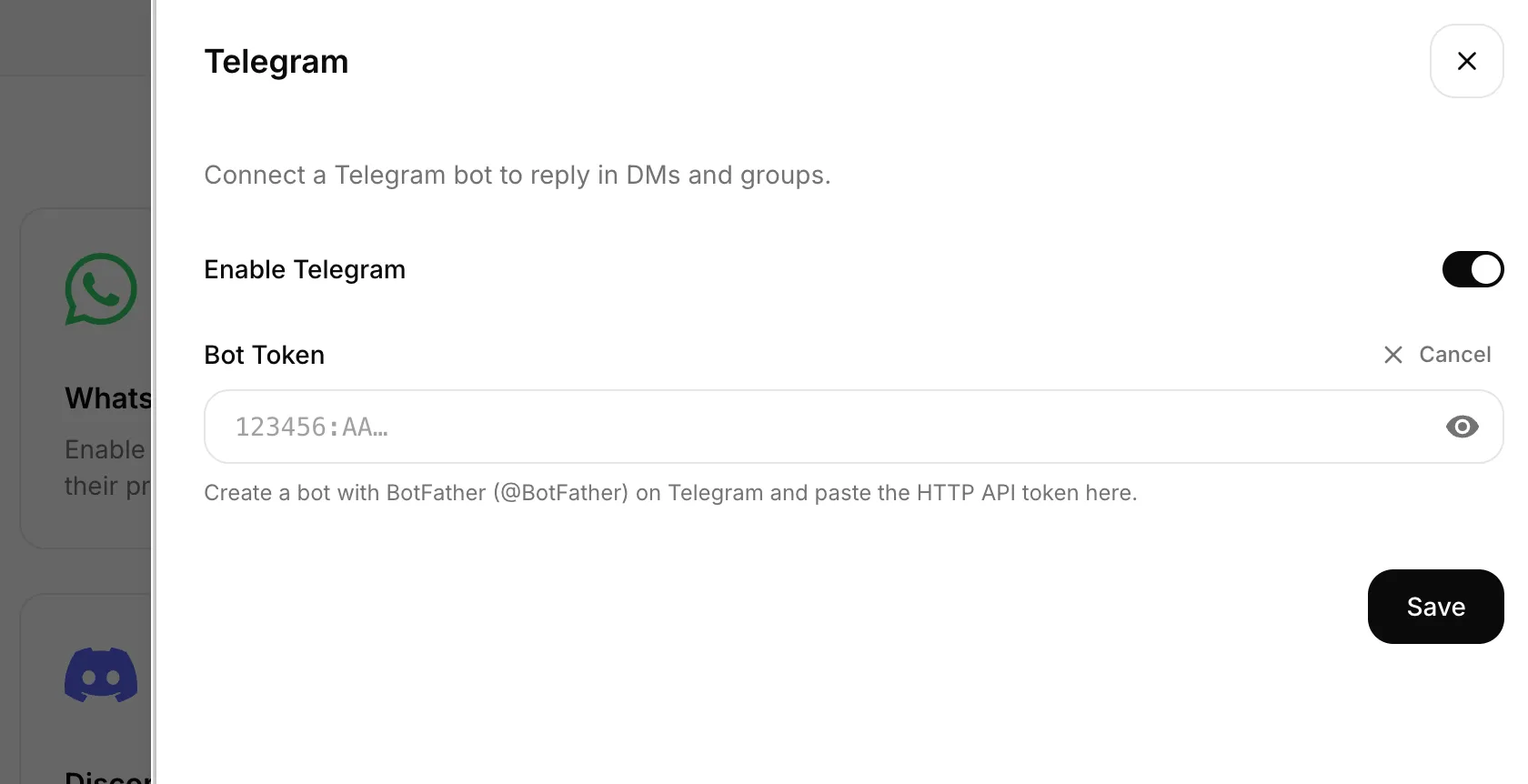
That’s it. Your AI Agent is now live on Telegram! 🎉
Try it out
Section titled “Try it out”Open your bot in Telegram and send /start. Your AI Agent replies with its welcome message and then answers anything you ask. With the shared bot, use your Direct message link; with your own bot, BotFather gives you a t.me/<your_bot_username> link.
Every conversation also appears in your Quickchat AI Inbox, where you can read the full transcript, see the visitor’s Telegram name, and take over from the AI at any time.
Troubleshooting & FAQs
Section titled “Troubleshooting & FAQs”I added the bot to a group but nothing happens.
- Check the Telegram page for a Waiting for your confirmation entry and click Confirm. The AI Agent stays silent in a group until you do.
- In a group, the shared bot replies when you @mention it or reply to one of its messages. It ignores ordinary conversation between members on purpose, so it doesn’t interrupt.
- If that group is already connected to a different AI Agent, the bind is refused and no entry ever appears. Disconnect the group from that Agent first, or pick another group.
My own bot doesn’t reply.
- Make sure the Enable your own bot is on and the bot token is pasted correctly (no extra spaces). If in doubt,
/revokein BotFather and paste the fresh token. - Send
/startto the bot first. This is how Telegram activates the chat. - One bot connects to one AI Agent. Don’t reuse the same token across multiple Quickchat AI Agents.
Can I paste the shared Quickchat AI bot’s token into the Advanced setup?
- No, and Quickchat AI refuses it. That token belongs to the bot serving every one-click customer, so accepting it would break their Telegram at once. Use the one-click flow, or create your own bot with BotFather.
Does the bot work in group chats?
- Yes. The shared bot replies when @mentioned or replied to. Your own bot runs in Telegram’s privacy mode by default, so it only sees messages that mention it or start with
/. To let your own bot respond to every message in a group, open BotFather, send/setprivacy, pick your bot and choose Disable, then remove and re-add the bot to the group.
How do I change the welcome message?
- The message sent on
/startis your AI Agent’s greeting, configured in the Quickchat AI App. Update it there and it applies to every channel, including Telegram.
Can I connect a bot I already have?
- Absolutely. Open it in BotFather, run
/tokento retrieve (or/revoketo reset) its token, and paste that into the Telegram integration. No need to create a new bot.
Can the bot handle images and files?
- Photos are analyzed by your AI Agent, which can describe them and answer questions about what they show. For other files (PDFs, documents), the Agent is told a file was sent and its filename, but it does not read the file’s contents. See Images & files for details.
Watch the Video
Section titled “Watch the Video”Need Help?
Section titled “Need Help?”Still stuck? Reach out on Discord or contact us and we’ll help you get your bot live.