

Connect Quickchat AI to Discord. Add the shared Quickchat AI bot in one click, give it a name for each server, or use your own Discord app for a custom avatar, direct messages, and AI Actions. Includes what to do when both bots end up in the same server.
There are two ways to connect your AI Agent to Discord:
- Add to your Discord server: the recommended one-click flow. No Developer Portal and no bot token, live in under a minute.
- Use your own Discord app: the advanced flow where you create a Discord application and supply a bot token yourself.
We recommend the one-click flow. You can switch to your own app later if you need the advanced features.
New to Quickchat AI? Create a free account first, then come back here. You can also read more about Quickchat AI for Discord.
Connect with Discord (recommended)
Section titled “Connect with Discord (recommended)”In the Quickchat AI dashboard, open External Apps in the left sidebar, find Discord, and open it. Under Connect, review Bot name in the new server, which is prefilled with your AI Agent’s name. You can edit it or leave it empty to use Quickchat AI, then click Add to your Discord server. You need the Manage Server permission on the target server.
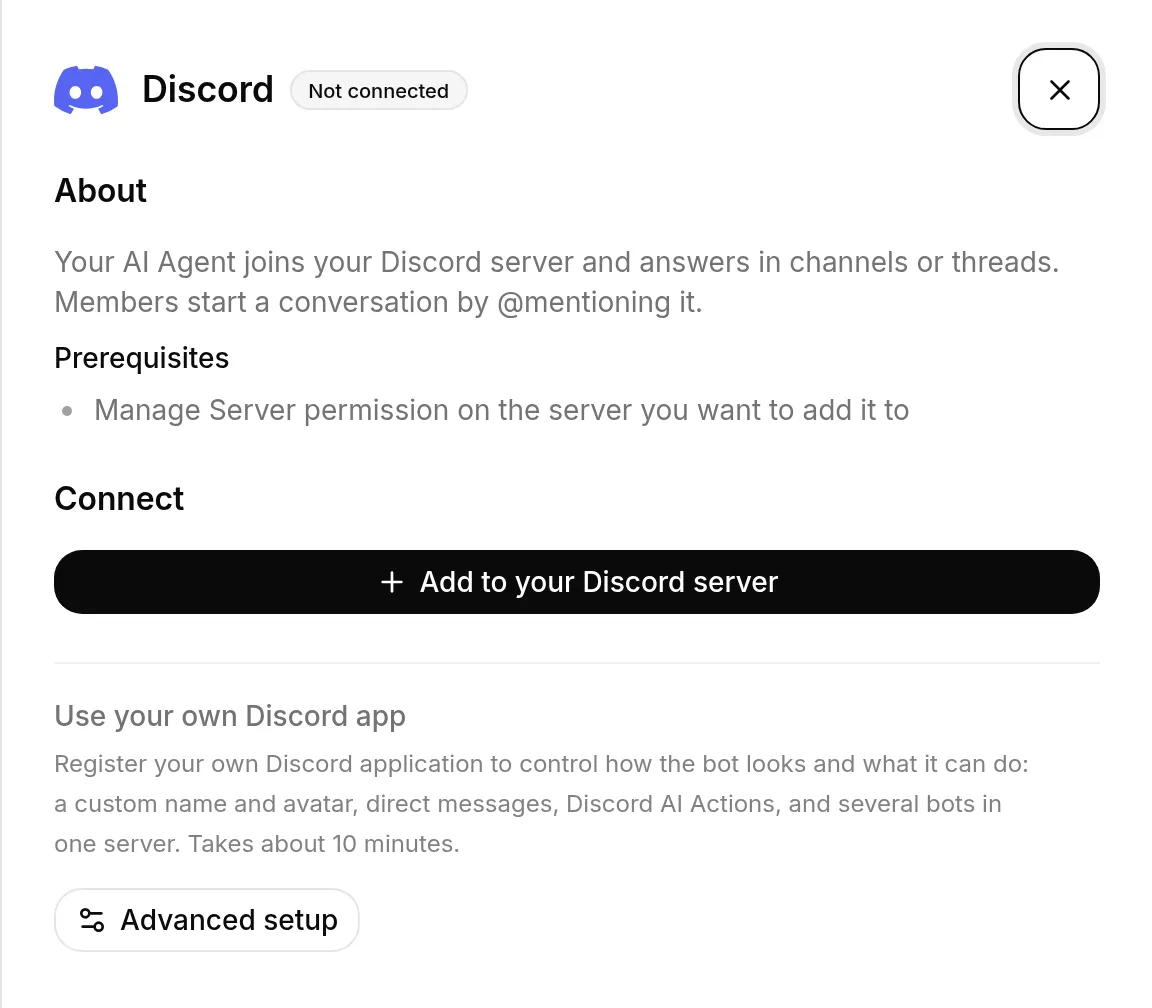
You are redirected to Discord to authorize the shared Quickchat AI app. Pick the server you want and click Authorize. Quickchat applies the name you chose before the bot posts its one-time introduction: “Ready! @mention me or use /ask to chat. Powered by Quickchat AI.” You are then brought back to Quickchat AI.
What happens next depends on your setup progress. If you are still setting up a new account, Quickchat confirms the connected server and shows Describe the AI Agent you want to build. Describe the bot’s purpose in one sentence, then click Create my AI Agent. Quickchat creates its name, Main Prompt, Guidelines, and conversation starters for you.
Once the core identity is ready, add sources to the Knowledge Base for more accurate answers and add Actions when you want the bot to perform tasks. Continue to Choose your plan. Because Discord is already connected, Quickchat does not ask you to deploy it again. If setup was already complete when you authorized Discord, you return to the dashboard instead.
Authorization is complete at this point. 🎉 Your AI Agent is live on Discord. Members start a conversation by @mentioning it in a channel, and it replies in channels or threads.
Every Discord conversation appears in the Quickchat AI Inbox. When your AI Agent hands a conversation to a teammate, they can take over in the Inbox and reply directly to the same Discord channel, thread, or DM.
New Quickchat AI signups get a Discord-branded setup where they can describe the Agent they want or add it to Discord first. Whichever action they choose first, setup guides them through the other before the plan step.
How members talk to the bot
Section titled “How members talk to the bot”The bot does not reply to every message in a channel. It answers when it is @mentioned, when someone uses the /ask command, when someone replies to one of its messages, and inside threads it created. Everything else it ignores on purpose, so it stays quiet in a busy server.
This is worth telling your members, because a plain message that gets no answer looks like a broken bot rather than a bot waiting to be addressed.
/ask is often the easier one to discover: typing / in any channel lists “Ask the Quickchat AI agent a question”, and it works where message content is restricted. It is available on the one-click bot only, so if you run your own Discord app, use @mentions.
Only people can talk to it. On both setups, the bot ignores messages written by other bots, apps and webhooks, even when such a message @mentions it. A post from Zapier, n8n, Make or another bot never gets a reply, so another bot cannot hold a conversation with it. Automated messages work differently: they follow server events, such as a ticket bot opening a channel, not messages.
It does not post on a schedule. Everything the bot posts follows something that just happened: a member’s message, a teammate’s reply from the Inbox, or a Discord event that one of your Automated messages rules watches, plus the one-time introduction the one-click bot posts when it joins a server. Nothing is posted on a timer or a recurring schedule.
Mentioning the person in AI replies
Section titled “Mentioning the person in AI replies”On Discord, your AI Agent knows who wrote the message it is answering and how to mention them, so a Guideline only has to say when. For example:
If the message is off topic, reply with "Invalid prompt!" and mention the member who wrote it.The reply then contains a real Discord mention of that member, which Discord renders as a clickable mention chip. The bot never adds mentions on its own: it only does so when the Main Prompt or a Guideline asks it to mention or tag the member.
Good to know:
- Say “mention the member” rather than spelling out a format. In particular, do not ask for
<#...>around the user ID: that is Discord’s channel syntax, it mentions nobody, and the bot follows such an instruction literally. - The mention renders as a chip but does not notify the member yet. A later update to the Discord bot will add the ping.
- In AI Preview and on other channels there is no Discord member to mention, so the bot answers without one.
Message allowance
Section titled “Message allowance”Every reply is generated by a language model and counts against your plan’s AI message allowance. A busy server gets through a free allowance quickly, and once it runs out the bot says so in the channel instead of answering. The allowance resets each month.
Managing your servers
Section titled “Managing your servers”The Discord page lists every server the shared bot is active in under Connected servers. From there you can:
- Change the bot’s name later. Enter up to 32 characters under Bot name in this server, then click Apply. Clear it and click Apply to restore the shared Quickchat AI name.
- Add to another server with the same one-click flow. Review Bot name in the new server before authorizing, so one AI Agent can use a different name in each server.
- Remove the bot from a server. It leaves that server and stops replying, and you can add it again anytime.
Each connected server also has Automated messages, described in Automated messages below.
With the one-click bot, a Discord server can be connected to one AI Agent at a time. If you see “This server already has an AI Agent” (or a message naming that Agent), the shared bot is already connected there. To keep both AI Agents in that server, click Use Advanced setup and follow Run several AI Agents in one server. To move the shared bot to this AI Agent instead, remove it from the first Agent before connecting again.
If Discord connects but does not apply the bot name, use Apply on that connected server to retry. If Discord reports a permission problem, click Add to another server, choose the same server, and authorize it again. This updates the bot’s permissions in place, so you do not need to remove it first.
When to use your own Discord app
Section titled “When to use your own Discord app”The one-click bot always uses the shared Quickchat AI application and its avatar. Quickchat AI has no avatar setting for it, and the AI Agent Avatar you set for your website chat is not used on Discord. The only thing you can change is the bot’s name in each server, with Bot name in this server and Apply (up to 32 characters, see above). Set up your own Discord app (see below) when you want:
- A custom bot avatar (see Set your bot’s avatar)
- Direct messages
- Discord AI Actions. The shared bot does not expose its token as the
{{discord_bot_token}}System Token that these Actions need, so they require your own app. - Several bots on one server, for example one per character. See Run several AI Agents in one server.
The shared bot and your own bot can run side by side. Your own app only takes over a server once you remove the shared bot from that server.
Use your own Discord app (Advanced setup)
Section titled “Use your own Discord app (Advanced setup)”This is the advanced path, and it takes about 10 minutes. In the dashboard, open External Apps → Discord and open Use your own Discord app through the Advanced setup link. You create your own Discord application, add it to your server, and connect it to Quickchat AI with a bot token.
Create a Discord Server
Section titled “Create a Discord Server”To initiate the integration process, you’ll need a Discord Server. If you don’t have a Discord account, visit discord.com and create one. Once logged in, follow this guide to create your Discord server.
Create a Discord Application
Section titled “Create a Discord Application”Go to discord.com/developers/applications while logged in to your Discord account and create a new application.
Configure Your Discord Application
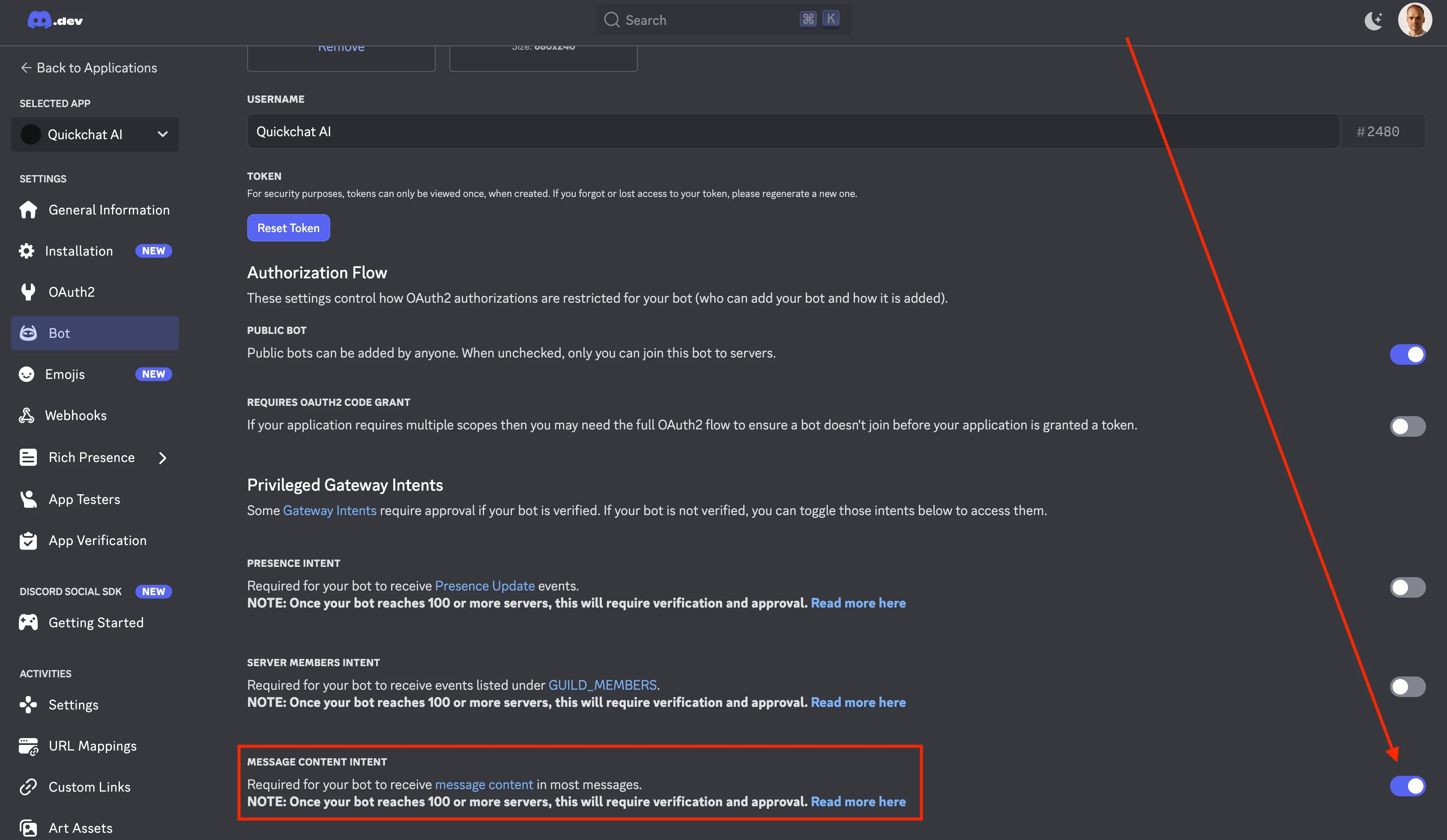
Section titled “Configure Your Discord Application”Before adding your bot to the server, enable the Message Content Intent for your application. This allows your bot to read messages sent by users on your server.
Set your bot’s avatar
Section titled “Set your bot’s avatar”With your own Discord app, the bot shows the avatar you give it in Discord. Open your application in the Developer Portal, go to Bot, upload the image you want as the bot’s icon, and save your changes. The app icon on General Information is a separate image: it is your app’s public icon, not the picture members see next to your bot’s messages. Quickchat AI does not change either one.
Add the Bot to Your Discord Server
Section titled “Add the Bot to Your Discord Server”Now you need to add your bot to your server. The way to do it is to construct a Discord URL and paste it into your browser:
https://discord.com/api/oauth2/authorize?client_id=<YOUR CLIENT ID>&permissions=309237713920&scope=botWhere does the permissions number come from?
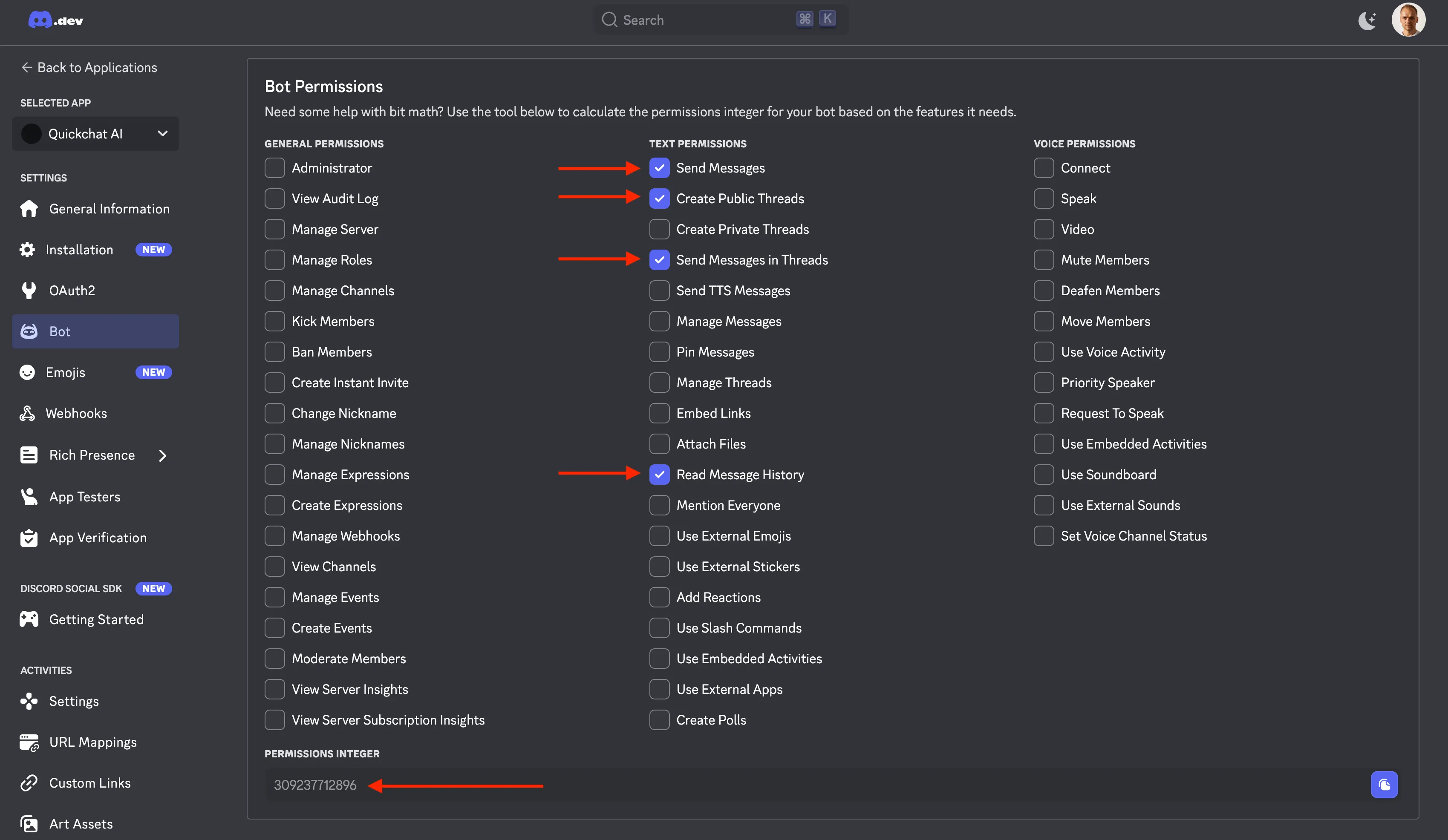
The permissions number (309237713920) comes from requesting the following permissions:
View ChannelsSend MessagesCreate Public ThreadsSend Messages in ThreadsRead Message History
Those are the minimal set of permissions required for your bot to operate correctly. You can see it for yourself by going to discord.com/developers/applications, selecting your application, clicking on Bot on the left and scrolling down:
Where to find YOUR CLIENT ID?
The easiest way will be to look at the address bar in your browser and copy the long number which is part of the address:
https://discord.com/developers/applications/<YOUR CLIENT ID>/bot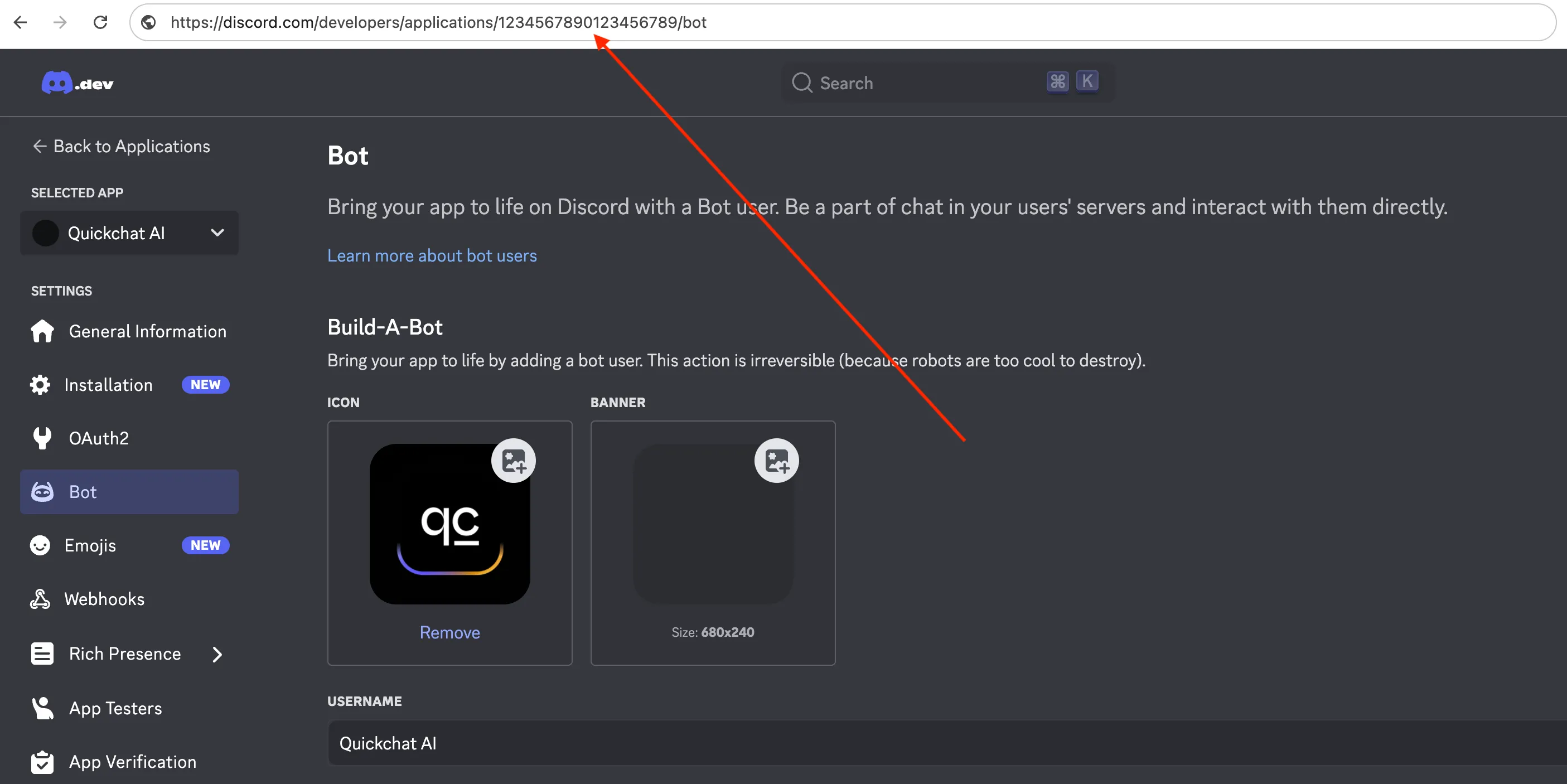
In this case the client id is 1234567890123456789 which means that the full URL you need to go to to add the server will be:
https://discord.com/api/oauth2/authorize?client_id=1234567890123456789&permissions=309237713920&scope=botConnect Your Own Bot to Quickchat AI
Section titled “Connect Your Own Bot to Quickchat AI”To connect your bot with Quickchat AI, retrieve your Discord Bot Token from the Developer Portal.
- Go to Bot Settings → Reset Token → Copy Token
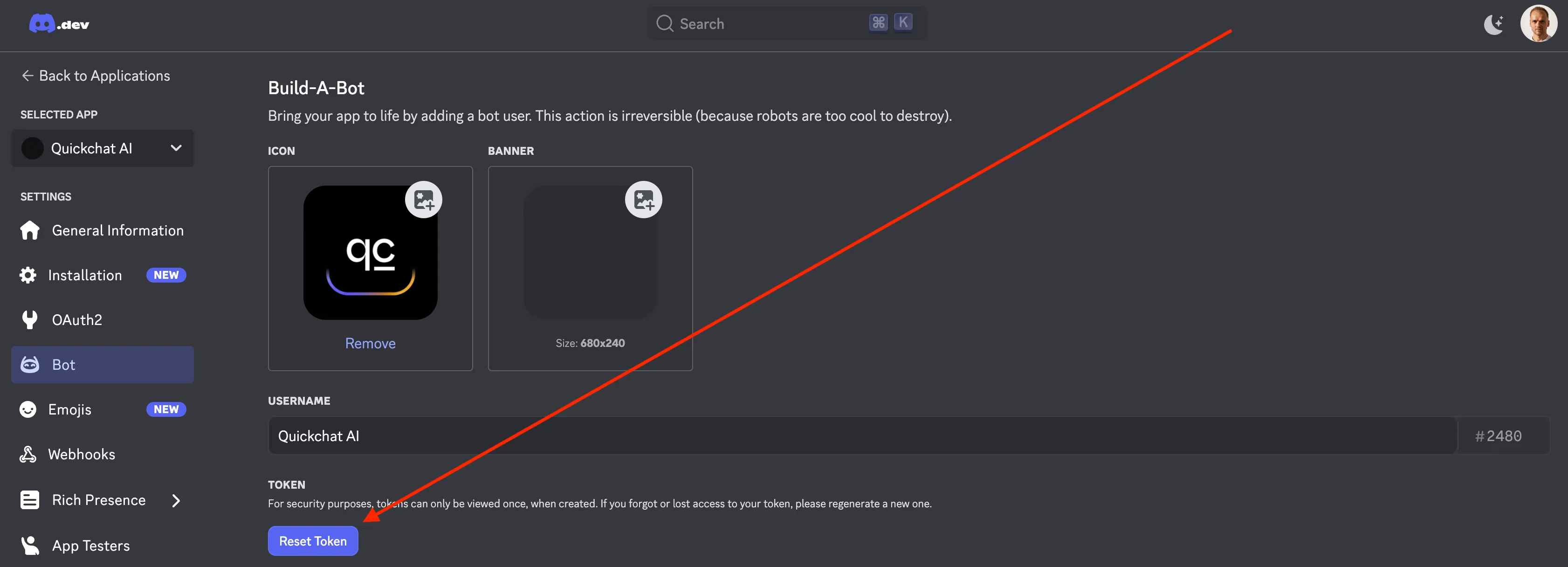
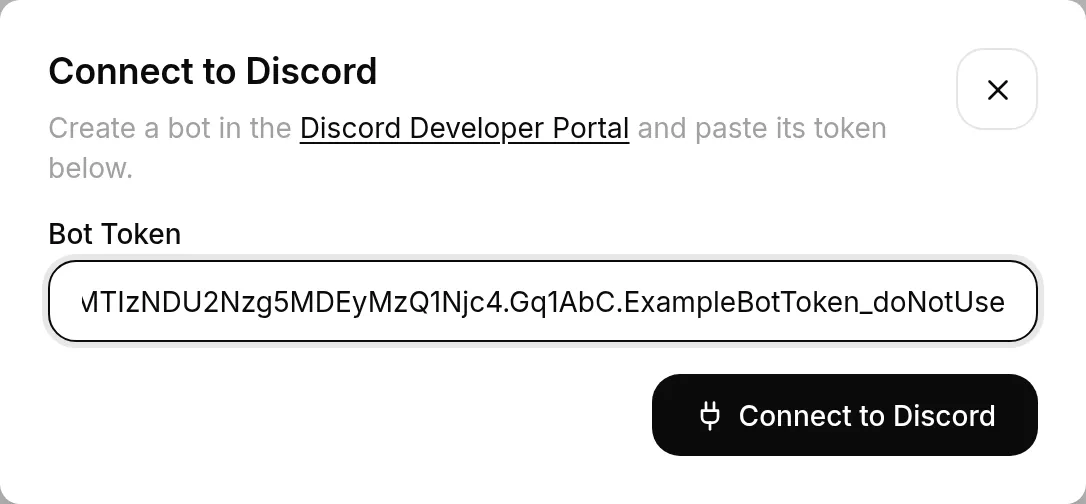
- In the Quickchat AI Dashboard, open External Apps → Discord, choose Use your own Discord app through Advanced setup, and paste your token. Quickchat AI turns the bot on and reports its status as it starts up.
One Discord app can be connected to only one AI Agent at a time. If you see “This Discord app is already connected to another AI Agent.”, disconnect it from that Agent before connecting it here.
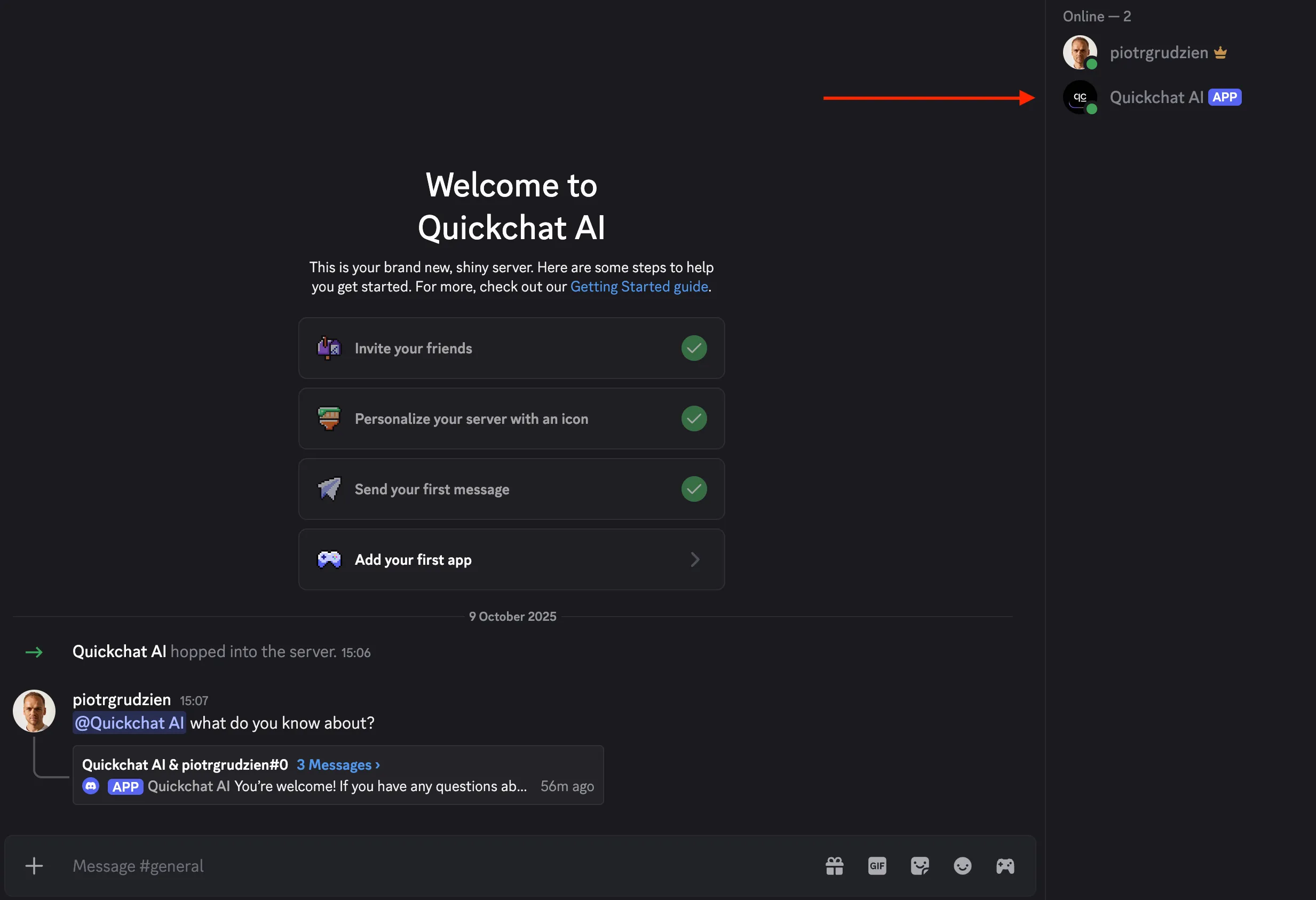
Your AI Bot is Live!
Section titled “Your AI Bot is Live!”Head back to Discord - your bot should be online and ready to chat! Just @mention it to start a conversation. 🤖💬
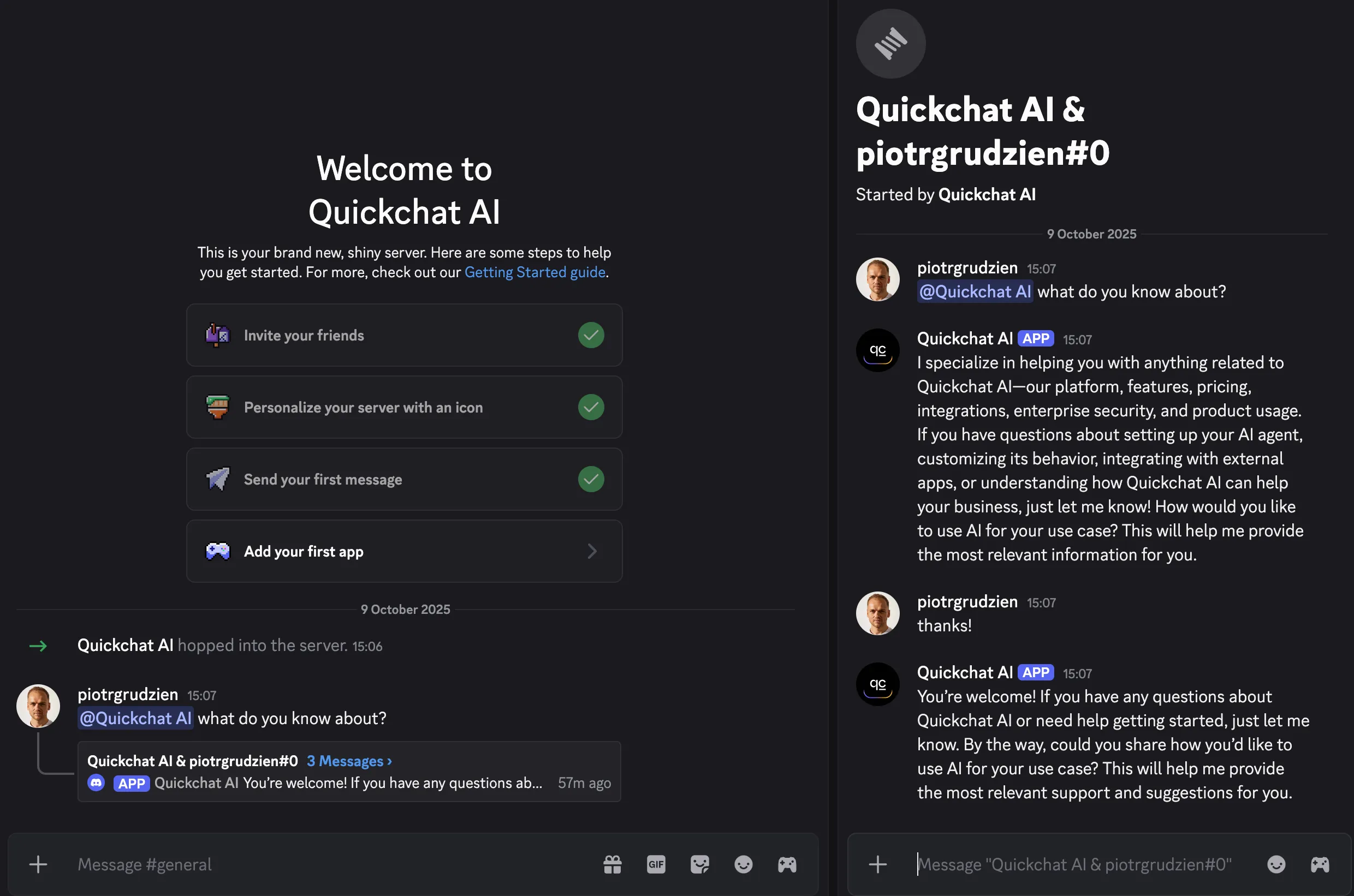
By default, when @mentioned the bot replies in the same channel. You can change this with the Reply mode setting in the integration: Reply in channel (the default) or Reply in threads. With Reply in threads, the bot answers inside a thread and users can continue the conversation there without mentioning it again.
Run several AI Agents in one server
Section titled “Run several AI Agents in one server”Every one-click AI Agent answers through the same shared Quickchat AI bot, and that bot is a single member of your server. So a server can hold one one-click AI Agent at a time, and Quickchat refuses to connect a second one there.
To run several AI Agents in one server, for example a different character in each, give every extra AI Agent its own Discord app and connect it with Advanced setup:
- In the Developer Portal, create one application per AI Agent and give each bot the name and avatar members should see.
- For each one, follow Use your own Discord app above: turn on Message Content Intent, add the bot to your server, and paste its token into that AI Agent’s Advanced setup.
A Discord app connects to one AI Agent only, so each AI Agent needs its own. An AI Agent you already connected with one click can stay in the server: the shared bot keeps answering for it, and each of your own bots answers for its own AI Agent.
How the bots share the server:
- Each bot answers only messages addressed to it: an @mention of that bot, a reply to one of its messages, or a message in a thread it opened. The other bots ignore them, and inside a thread only the bot that opened it answers.
- Bots never answer other bots, so your AI Agents do not talk to each other.
- All of them can use the same channels. To keep a bot out of a channel, remove its View Channel permission there.
- Each AI Agent has its own Reply mode. Reply in threads gives every conversation its own thread, which keeps the bots apart in a busy channel.
- Give each bot a distinct name. A bot answers any message that contains ”@” followed by its name, so a bot named Luna also answers a mention of Luna Prime.
Character and roleplay bots
Section titled “Character and roleplay bots”A character is an AI Agent with its own persona. Write it in Identity: who the character is, how it talks, and what it never says belong in the Main Prompt and Guidelines.
Each character needs its own AI Agent and its own bot. One character can use the one-click bot; to put several characters in one server, see Run several AI Agents in one server. To start a new character from an existing one, duplicate the AI Agent: the copy keeps the persona but not the Discord connection.
Every AI Agent has its own plan. The Free plan is for personal, non-commercial use; see Plans & limits.
Automated messages
Section titled “Automated messages”Automated messages post a fixed, editable message after a Discord event: a member joining, a new thread or forum post, or a new channel. They do not call the AI Agent and do not use conversation credits, and every rule is off until you turn it on. No rule runs at a set time or on a recurring schedule. They work on both setups:
- One-click: under Connected servers, select Automated messages on the server you want.
- Your own Discord app: open Advanced setup, find Automated messages, then select Configure on the server you want. Your bot must already be in the server for it to appear.
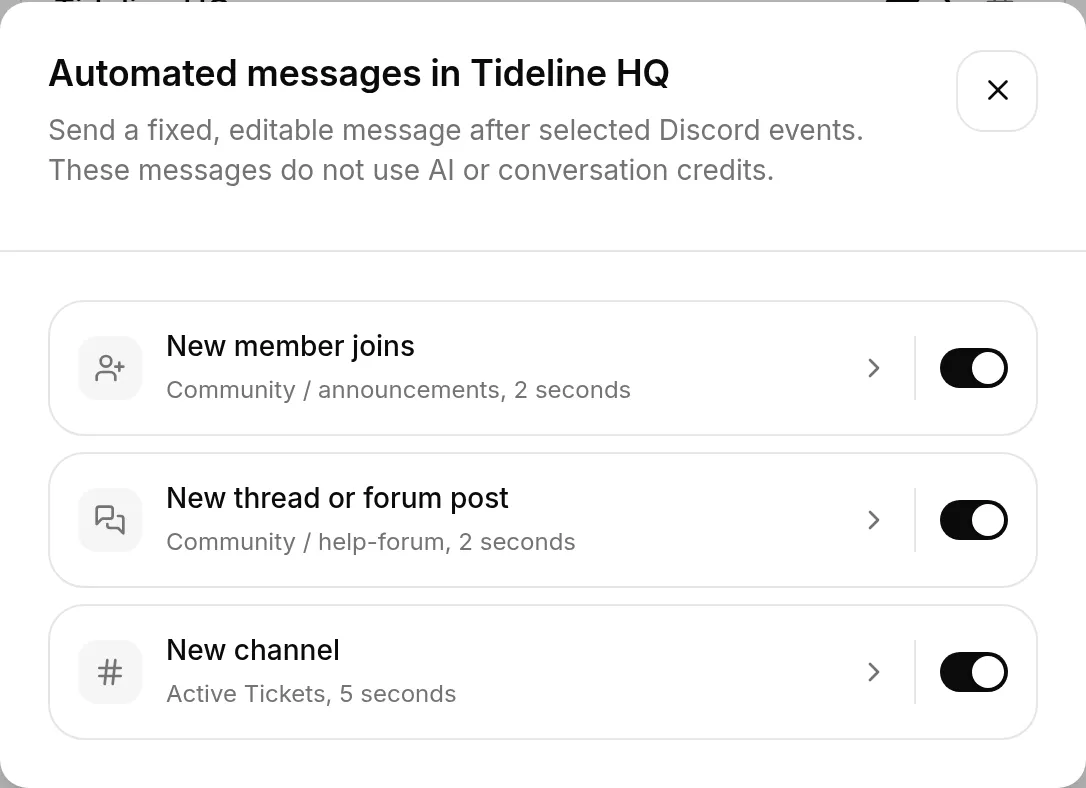
Three rules are available, each with its own switch:
- New member joins: pick a Welcome channel where the bot greets each new member. Other bots joining the server are ignored.
- New thread or forum post: pick a Parent channel (text, announcement, forum, or media). The bot posts inside each new public thread under it, and ignores private threads.
- New channel: the bot posts in every new text channel. To narrow it, change Any category to Only in this category. Pairing it with a ticket bot’s Active Tickets category is the common setup.
Select a rule to open it. Turning on a rule that has no destination yet opens it too, so you can choose one.
Inside a rule, edit the Message template and pick a Delay: No delay, or 2, 5, 10, or 30 seconds. The default 2-second delay lets a ticket or onboarding bot post first. Select any placeholder to insert it where the cursor is:
{display_name}: the member’s server nickname, then global display name, then username.{username}: a backward-compatible alias for{display_name}, kept so existing templates continue to greet people the same way. Use{display_name}in new templates.{user_handle}: the member’s raw Discord username, such asmarta.nebula.{user_mention}: a mention that notifies the member.{user_id}: the member’s numeric Discord user ID.{bot_name}: the bot’s display name on the server.{server_name}: the server name.{channel_name}: the channel name.
In a channel opened by another bot, the person is inferred from a single member-specific View Channel permission when possible. If the requester is ambiguous, {display_name}, {username}, {user_handle}, and {user_mention} become there, the mention notifies nobody, and {user_id} is empty. Write the message so it reads naturally in either case.
Each rule saves on its own. Save stores that rule and returns you to the list, and the switches on the list save the moment you flip one. Leaving a rule any other way discards the edits you made in it.
For the one-click bot, a saved change applies immediately. A bot connected through Advanced setup refreshes these rules within about one minute. Changing New member joins can also restart that bot to update Server Members Intent.
The bot must be able to view and send messages in every selected destination. If a category or channel is later deleted in Discord, saving the rule that points at it tells you which selection is gone; your other rules keep saving normally.
Server Members Intent
Section titled “Server Members Intent”New member joins is the only rule that needs anything from the Discord Developer Portal, and only if you use your own Discord app. Discord treats “who joined this server” as a privileged intent that is off by default, so without it your bot never sees a member arrive.
Quickchat AI checks this for you. When you open the rule, it tells you if the intent is off and says nothing once it is on. To enable it, open your application in the Developer Portal, go to Bot → Privileged Gateway Intents, turn on Server Members Intent, save, then save the rule again in Quickchat AI. Your bot keeps replying normally throughout; only this one rule waits.
If your own bot is in more than 100 servers, Discord requires your application to be verified before it will grant the intent.
The other two rules need nothing extra, and the one-click bot needs nothing at all: the shared Quickchat AI application already has the intent enabled.
Discord AI Actions
Section titled “Discord AI Actions”With your own Discord app connected, open Actions & MCPs, click + Add Action, and choose Discord Action. The gallery installs complete support and moderation Actions:
- Support & Tickets: select a server and text channel, then optionally select a mentionable support role. One installation creates three editable Actions that open a private thread, add the requester, and optionally notify support.
- Moderation: timeout, kick, ban, unban, assign role, set slowmode, and send announcement. Each template creates one editable Action.
Quickchat fills in each Action’s method, URL, headers, body, parameters, description, response handling, and Run only when conditions on the backend. The resulting Actions use the normal editor and remain fully editable.
Every moderation template starts with author_is_admin is true. Discord supplies this value for the current message author, and Quickchat checks it before calling the Action. Public chat and API metadata cannot set it. Keep this condition unless you have designed another trusted authorization gate. The templates do not add confirmation messages, replay protection, retry handling, or a separate permission and role-hierarchy policy. Discord still checks the bot’s own permissions and role position.
What the moderation Actions do not do: they never act on their own. Timeout, kick and ban run only when a server administrator asks for them in the conversation (the Action descriptions tell the Agent to act when an admin asks). There is no strike counting or memory of earlier warnings across conversations, no scheduled or automatic sanctions, no confirmation step before kick or ban, and no verification of evidence: if a member posts a screenshot, the Agent cannot establish whether it is genuine. The shared one-click bot cannot run moderation Actions at all.
Support Ticket uses Save to memory and Run only when instead of a special workflow runtime. The first Action saves Discord’s returned thread ID as discord_ticket_thread_id. The next two read that value to add the requester and post the notification. Describe the same order in the Agent’s main prompt. If a result is uncertain, inspect Discord and the Action log before retrying. The saved thread ID is not cleared automatically, so the starter supports one ticket per Quickchat conversation. Start a new Discord conversation or thread for another ticket, or edit the Actions to add the memory lifecycle you need.
For Support Ticket, grant the bot View Channels, Send Messages, Read Message History, Create Private Threads, Send Messages in Threads, and Manage Threads in the selected ticket channel. Role notification is optional. If you select a support role, make it mentionable and give its members access to private threads. If no mentionable roles are available, tickets still open normally without notifying a role. The picker lists text channels and mentionable roles, but it does not verify all channel permission overrides.
See Actions for the generated configuration and MVP limitations.
Troubleshooting
Section titled “Troubleshooting”If Quickchat AI reports an error on the Discord integration page, it links straight here to the matching section below.
One-click connect
Section titled “One-click connect”The one-click flow rarely errors. If the connection does not complete:
- “This server already has an AI Agent”: the shared bot is connected to a different Agent (the message names it when it is on your account). Click Use Advanced setup to connect the second Agent with its own Discord app: see Run several AI Agents in one server. To move the shared bot instead, remove it from the first Agent, then connect again.
- “That Discord link has already been used”: each authorization link works once, so going back or reloading after Discord returns you lands here. Nothing was connected. Click Add to your Discord server on this page to start again.
- “You do not have permission to connect Discord for this AI Agent”: connecting a channel is an editor action. Ask an admin or editor on the account to connect it, and make sure you have the Manage Server permission on the Discord server you picked.
- “Discord authorization was cancelled”: you closed Discord’s authorize screen before finishing. Nothing was connected, so click Add to your Discord server and try again.
The bot is in my server but never replies
Section titled “The bot is in my server but never replies”Almost always this means nobody has addressed it yet. The bot answers @mentions, replies to its own messages, and messages inside threads it created, and ignores everything else. The one-click bot also answers /ask. @mention it and see whether it responds.
If it still does not reply, check that its role and the channel’s permission overrides allow View Channel, Send Messages and Read Message History in that specific channel.
If it replied before and has now gone quiet, check whether the AI message allowance for the month has run out.
Posts from Zapier, n8n or another bot get no reply
Section titled “Posts from Zapier, n8n or another bot get no reply”This is by design. On both setups the bot ignores every message written by a bot, an app or a webhook, so an automation cannot start a conversation by posting in a channel or @mentioning the bot. Only messages from people reach your AI Agent.
The bot cannot post on a schedule either, so a scheduled post has to come from the automation tool itself. To include an answer from your AI Agent, the tool can request one from the Chat API, which needs the Business plan.
/ask does not appear when I type /
Section titled “/ask does not appear when I type /”Discord can take up to an hour to distribute commands to every client after a bot joins. Restarting your Discord client usually surfaces it sooner. In the meantime, @mention the bot instead.
Both bots are in the same server
Section titled “Both bots are in the same server”If you connect your own Discord app while the shared Quickchat AI bot is still in the same server, the shared bot keeps answering there and your own bot stays silent. Both bots can sit in one server, but only one of them replies, and the shared bot takes precedence.
External Apps → Discord flags this on both setups. To hand a server to your own bot, remove that server from Connected servers in the one-click setup. Your own bot takes over straight away, and nothing about its token or intents needs to change.
Running both on purpose is supported: keep the shared bot in the servers you want it to answer in, and let your own bot serve the rest.
The sections below apply to the Use your own Discord app path.
Message Content Intent
Section titled “Message Content Intent”PrivilegedIntentsRequired: your bot connected, but its Message Content Intent is off, so it cannot read messages. In the Developer Portal, open your application, go to Bot → Privileged Gateway Intents, turn on Message Content Intent, and save. The bot restarts automatically, so allow about a minute.
Invalid bot token
Section titled “Invalid bot token”InvalidToken: the token Quickchat AI has is wrong or was regenerated. A bot token is shown only once, and resetting it invalidates the old one. In the Developer Portal, open your application, go to Bot, click Reset Token, copy the new token, then click Reconnect in Quickchat AI and paste it.
Require OAuth2 Code Grant
Section titled “Require OAuth2 Code Grant”If you see “Integration requires code grant” when adding the bot, your application has Require OAuth2 Code Grant enabled, which blocks the simple bot invite flow. In the Developer Portal, open your application, go to Bot, turn Require OAuth2 Code Grant off, save, and open the invite URL again.
The authorization page shows a cake or “baked” message
Section titled “The authorization page shows a cake or “baked” message”That quirky screen is Discord’s success page: the bot was added. To confirm, open your server’s Server Settings → Integrations → Bots and Apps and look for your bot in the list.
Bot not responding after setup
Section titled “Bot not responding after setup”The bot restarts whenever you change its token or settings, so give it up to a minute after saving. If it still does not come online or reply:
- In the Quickchat AI dashboard, open External Apps → Discord and check the connection status. An invalid token or a missing intent is reported there, with a link to the exact fix.
- Confirm Message Content Intent is on (see above) and the token is current (use Reset Token if in doubt).
- @mention the bot in a channel it can access, and verify its role and channel permissions include Send Messages, Create Public Threads, Send Messages in Threads, and Read Message History.
- Choose whether it answers in the channel or in a thread with the Reply mode setting under External Apps → Discord.
Join our Discord server to learn more about how to make the most of Quickchat AI 👉 discord.gg/KqkHwvPRNH