

Wstawiaj dynamiczne wartości do swoich API Actions za pomocą placeholderów `{{...}}`. Parametry AI, wbudowane zmienne konwersacji i metadane konwersacji.
Wszędzie tam, gdzie w API Action możesz wpisać wartość (URL, nagłówki, body lub query parameters), możesz wstawiać dynamiczne wartości przy użyciu składni {{...}}. Quickchat zamienia te placeholdery w momencie żądania, tuż przed wywołaniem Twojego endpointu.
Kliknij przycisk + Add AI Data obok dowolnego pola wartości, aby przejrzeć wszystkie zmienne dostępne w bieżącym scenariuszu.
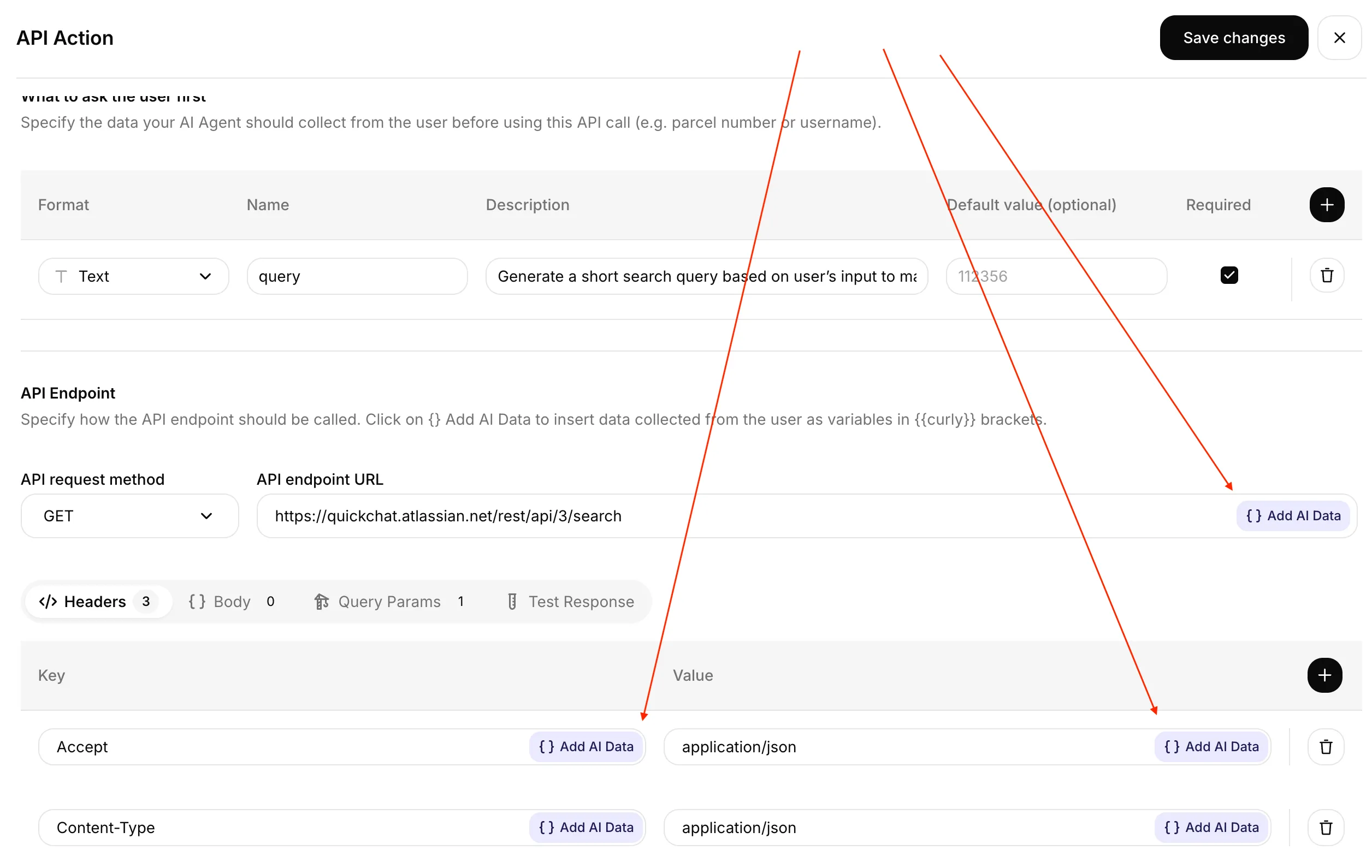
Przycisk + Add AI Data jest dostępny obok każdego pola wartości: URL endpointu, wartości każdego nagłówka, pól body i query parameters.
Opcjonalne narzędzia konfiguracji
Dział zatytułowany „Opcjonalne narzędzia konfiguracji”-
Sprawdź warunki uruchomienia Akcji. Oceń warunki na podstawie podanych przykładowych metadanych bez uruchamiania Akcji.
-
Podejrzyj żądanie Akcji API. Wypełnij podany szablon żądania syntetycznymi wartościami bez wysyłania go. Pomiń nagłówki z danymi uwierzytelniającymi.
-
Sprawdź klucze metadanych. Sprawdź zamianę podanych nazw pól na klucze zmiennych, w tym powtarzające się nazwy i klucze zastrzeżone. Narzędzie nie analizuje wartości ani uprawnień określonego konta.
Formularze są po angielsku.
Trzy kategorie zmiennych
Dział zatytułowany „Trzy kategorie zmiennych”| Kategoria | Składnia | Kiedy się wypełnia |
|---|---|---|
| Parametry AI. Wartości, które Twój Agent AI wyciąga z rozmowy. Definiujesz je w sekcji Parameters każdej Akcji. | {{order_number}}, {{customer_email}} | Agent AI wypełnia je w momencie wywołania, na podstawie reguł, które zapiszesz w opisie każdego parametru. |
| Zmienne wbudowane. Kontekst konwersacji, który Quickchat wstawia automatycznie. | {{scenario_id}}, {{conversation_id}}, {{language}}, {{country}}, … | Zawsze dostępne. Quickchat zamienia je przy każdym żądaniu. |
| Metadane konwersacji. Własne pary klucz-wartość przypisane do konwersacji. | {{metadata_<key>}} | Gdy odpowiedni klucz istnieje na konwersacji (ustawiony przez widget, integrację kanału, Smart Data Gathering lub API). |
Dropdown ”+ Add AI Data”
Dział zatytułowany „Dropdown ”+ Add AI Data””Dropdown wyświetla wszystkie zmienne dostępne dla bieżącego scenariusza, pogrupowane w pięć sekcji:
- Parameters: parametry AI zdefiniowane w tej Akcji.
- Visitor: cztery klucze metadanych zbierane automatycznie dla każdego użytkownika, gdy jego kanał je dostarcza.
- Metadata (used in recent conversations): niestandardowe klucze metadanych zauważone w ostatnich 20 konwersacjach tego scenariusza, każdy z przykładową wartością.
- Built-in: siedem zmiennych konwersacji zawsze dostępnych, z bieżącą wartością lub przykładem inline.
- System Tokens: dane uwierzytelniające dostarczane przez podłączoną integrację (np. HubSpot, Telegram). Pojawia się tylko wtedy, gdy integracja jest podłączona. Zobacz System Tokens poniżej.
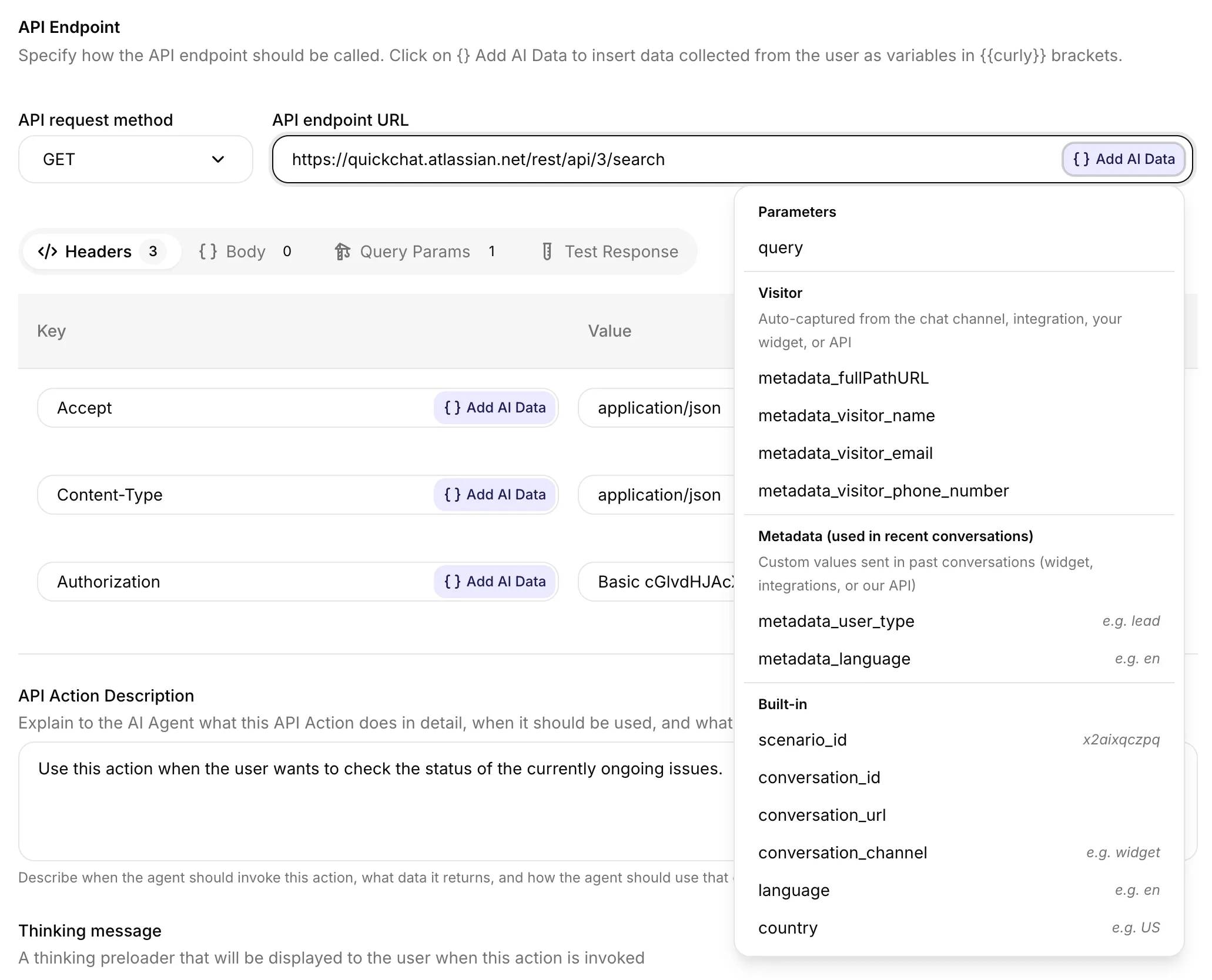
Dropdown grupuje zmienne w sekcje. Wiersze Built-in pokazują wartość na żywo, jeśli jest już znana (scenario_id), oraz przykłady e.g. … dla pozostałych. Grupa Metadata (used in recent conversations) jest odbudowywana dla każdego scenariusza na podstawie rzeczywistych ostatnich konwersacji. Sekcja System Tokens (tu niewidoczna) pojawia się tylko wtedy, gdy integracja jest podłączona.
Zmienne wbudowane
Dział zatytułowany „Zmienne wbudowane”Te siedem zmiennych jest zawsze dostępnych. Dropdown + Add AI Data pokazuje obok każdego wiersza wartość na żywo (jeśli jest już znana) lub wartość przykładową.
| Zmienna | Przykład | Czym jest |
|---|---|---|
{{scenario_id}} | abc123xyz | ID Agenta AI, do którego należy konwersacja. |
{{conversation_id}} | conv-d8a8… | Unikalny identyfikator konwersacji. |
{{conversation_url}} | https://app.quickchat.ai/.../conv-d8a8… | Bezpośredni link do tej konwersacji w Inboxie. |
{{conversation_channel}} | widget, telegram, slack, whatsapp, … | Kanał, na którym odbywa się konwersacja. |
{{current_timestamp}} | 2026-09-02T12:00:00+00:00 | Bieżąca data i godzina UTC w formacie ISO 8601. |
{{language}} | en, nl, de, fr, … | Kod ISO 639-1 (małe litery) języka konwersacji. |
{{country}} | US, GB, NL, DE, … | Kod kraju ISO 3166-1 alpha-2 (wielkie litery). |
Kilka rzeczy, które warto wiedzieć:
{{scenario_id}}jest również widoczne w adresie URL przeglądarki podczas edycji Akcji. Dropdown + Add AI Data pokazuje żywy ID edytowanego scenariusza, nie przykład.{{conversation_url}}przydaje się do publikowania klikalnych linków w Slacku, Jirze lub każdym innym narzędziu, w którym wygodny jest bezpośredni skok do Inboxa.{{language}}jest wyprowadzane w następującej kolejności: z prefiksu URL strony (dla Shopify Markets), z metadanych konwersacji, a następnie ze skonfigurowanego języka Twojego Agenta AI.{{country}}jest wyprowadzane w następującej kolejności: z prefiksu URL strony, z TLD hosta URL, a następnie z fallbacku język-do-kraju.
Metadane konwersacji
Dział zatytułowany „Metadane konwersacji”Prefiks metadata_ jest wymagany. Quickchat szuka <key> w metadanych konwersacji i podstawia jego wartość do żądania.
{{metadata_order_id}} → ord_8a4f3…{{metadata_customer_tier}} → goldKlucze metadanych użytkownika
Dział zatytułowany „Klucze metadanych użytkownika”Te cztery klucze opisują sesję użytkownika i mają w dropdownie własną sekcję Visitor. Są zbierane automatycznie przez kanał, integrację, widget/embed lub API. Nie musisz ich sam wysyłać.
| Zmienna | Zbierane automatycznie przez |
|---|---|
{{metadata_fullPathURL}} | Widget na stronie, embed strony lub integracje kanałów chatu, które mają własny widget (HubSpot, Intercom itp.). |
{{metadata_visitor_name}} | Profil kanału chatu (Telegram, Slack itp.), integracje kanałów, Smart Data Gathering, Twój widget/embed lub Quickchat API. |
{{metadata_visitor_email}} | Profil kanału chatu, integracje kanałów, Smart Data Gathering, Twój widget/embed lub Quickchat API. |
{{metadata_visitor_phone_number}} | WhatsApp i inne kanały rozpoznające numery telefonów, integracje kanałów, Smart Data Gathering, Twój widget/embed lub Quickchat API. |
Niestandardowe klucze metadanych
Dział zatytułowany „Niestandardowe klucze metadanych”Możesz dołączyć dowolne pary klucz-wartość do konwersacji i odwoływać się do nich jako {{metadata_<key>}}.
Z widgetu lub embedu strony
Przekaż custom_params podczas inicjalizacji widgetu. Pełny snippet znajdziesz w sekcji Kanał Website: Advanced Features: Custom Parameters.
<script> _quickchat("custom_params", { "order_id": "ord_8a4f3", "customer_tier": "gold" });</script>Odwołuj się do nich w dowolnej Akcji jako {{metadata_order_id}} i {{metadata_customer_tier}}.
Ze Smart Data Gathering
Każdy włączony punkt danych w Smart Data Gathering staje się kluczem metadanych nazwanym tak jak punkt danych, małymi literami w snake_case: spacje zamieniają się w podkreślniki, polskie litery zamieniają się na zwykłe (ż na z, ł na l), a pozostała interpunkcja jest usuwana.
| Punkt danych | Zmienna |
|---|---|
Budżet | {{metadata_budzet}} |
Wielkość firmy | {{metadata_wielkosc_firmy}} |
Adres dostawy | {{metadata_adres_dostawy}} |
Wyjątkiem są dane kontaktowe. Punkt danych o nazwie Email, Name lub Phone number (albo o zbliżonej nazwie angielskiej, np. Email address, Full name czy Mobile) wypełnia zamiast tego {{metadata_visitor_email}}, {{metadata_visitor_name}} lub {{metadata_visitor_phone_number}}. Rozpoznawane są tylko nazwy angielskie: punkt danych Numer telefonu staje się osobnym kluczem numer_telefonu. Gdy Agent AI zapisze dane kontaktowe, których konwersacja jeszcze nie miała, ustawia też lead_captured na true.
- Pusty do czasu zebrania. Klucz pojawia się z pustą wartością przy pierwszej odpowiedzi Agenta AI z włączonym Smart Data Gathering i zostaje wypełniony, gdy odwiedzający poda informację. Późniejsza poprawka go aktualizuje; nigdy nie zostaje ponownie wyczyszczony.
- Użyj
is true, żeby poczekać na wartość. W sekcji Uruchom, gdy warunekbudzet is truejest spełniony dopiero po zebraniu wartości, abudzet existsjuż po pierwszym uruchomieniu Smart Data Gathering. Odpowiedzi takie jakno,falseczy0liczą się jako fałsz. - Twoje własne wartości mają pierwszeństwo. Jeśli klucz ma już wartość ustawioną przez Twoją stronę, API lub inną Akcję, Smart Data Gathering go nie zmienia. Przestaje też aktualizować klucz, gdy tylko zmieni go coś innego.
- Niektóre nazwy są zarezerwowane, np.
language,localeilead_captured. Punkt danych o jednej z tych nazw nie staje się zmienną; zmień jego nazwę, jeśli jej potrzebujesz. - Zmiana nazwy punktu danych zmienia nazwę zmiennej. Zaktualizuj Akcje, które jej używają: Akcja nie może się uruchomić, dopóki w konwersacji brakuje potrzebnej jej zmiennej.
Gdy konwersacja ma już ten klucz, pojawia się on także w dropdownie + Add AI Data.
Z integracji kanałowych
HubSpot, Intercom, Telegram, Slack, WhatsApp i podobne integracje dopisują do konwersacji własne metadane (nazwa użytkownika, email, URL strony, właściwości konta itp.). Wszystko, co jest widoczne w widoku metadanych konwersacji w Inboxie, można referencjonować przez {{metadata_<key>}}.
Z Quickchat API
Użyj POST /v1/api_core/conversations/{conv_id}/metadata, aby dołączyć metadane programowo. Zobacz Conversation Metadata w referencji API.
System Tokens
Dział zatytułowany „System Tokens”Niektóre podłączone integracje udostępniają token systemowy: dane uwierzytelniające, które Quickchat wstrzykuje do żądania po stronie serwera, w momencie wywołania, podczas uruchamiania Akcji. Token systemowy nie jest dodawany do kontekstu AI ani do metadanych konwersacji i jest ukrywany w logu żądania, w trace oraz w logu wywołań w Skrzynce odbiorczej. Zwykłe metadane nie mają takich samych gwarancji poufności. Token pojawia się w sekcji Tokeny systemowe dropdownu + Dodaj dane AI tylko wtedy, gdy odpowiednia integracja jest podłączona, i renderuje się jako pomarańczowy pill.
| System token | Dostępny, gdy | Co wstrzykuje |
|---|---|---|
{{hubspot_access_token}} | HubSpot jest podłączony | Ważny token dostępu OAuth HubSpot, odświeżany automatycznie. |
{{telegram_bot_token}} | Scenariusz ma aktywność na Telegramie | Token Twojego podłączonego bota Telegram, do wywoływania Telegram Bot API. |
Wywoływanie Telegram Bot API
Dział zatytułowany „Wywoływanie Telegram Bot API”Telegram Bot API przyjmuje token bota w ścieżce URL, więc odwołujesz się do niego bezpośrednio w URL endpointu:
https://api.telegram.org/bot{{telegram_bot_token}}/sendMessageQuickchat rozwiązuje token w momencie wywołania i ukrywa go wszędzie tam, gdzie żądanie jest prezentowane, więc sekret nigdy nie wycieka. Aby skierować wywołanie Bot API do bieżącego czatu, wiadomości lub nadawcy, połącz je z kluczami metadanych Telegram, które Quickchat ustawia na każdej przychodzącej wiadomości:
| Klucz metadanych | Wartość |
|---|---|
{{metadata_telegram_chat_id}} | Czat, z którego pochodzi wiadomość. |
{{metadata_telegram_chat_type}} | private, group, supergroup lub channel. |
{{metadata_telegram_user_id}} | ID użytkownika Telegram nadawcy. |
{{metadata_telegram_username}} | @username nadawcy, jeśli go ma. |
{{metadata_telegram_message_id}} | ID przychodzącej wiadomości. |
{{metadata_telegram_sender_is_admin}} | true, gdy nadawca jest administratorem czatu. Obliczane po stronie serwera, więc nie da się go podrobić z poziomu czatu. Użyj go w warunku uruchomienia, aby ograniczyć akcje moderacyjne do administratorów. |
{{metadata_telegram_reply_to_message_id}}, {{metadata_telegram_reply_to_user_id}}, {{metadata_telegram_reply_to_text}} | Ustawiane, gdy przychodząca wiadomość jest odpowiedzią, dzięki czemu AI może działać na wiadomości, na którą udzielono odpowiedzi (na przykład moderować jej autora). |
Kolory pillów w edytorze
Dział zatytułowany „Kolory pillów w edytorze”Każde odwołanie {{...}} jest renderowane jako kolorowy pill, abyś od razu widział, czy Quickchat rozpoznaje zmienną.
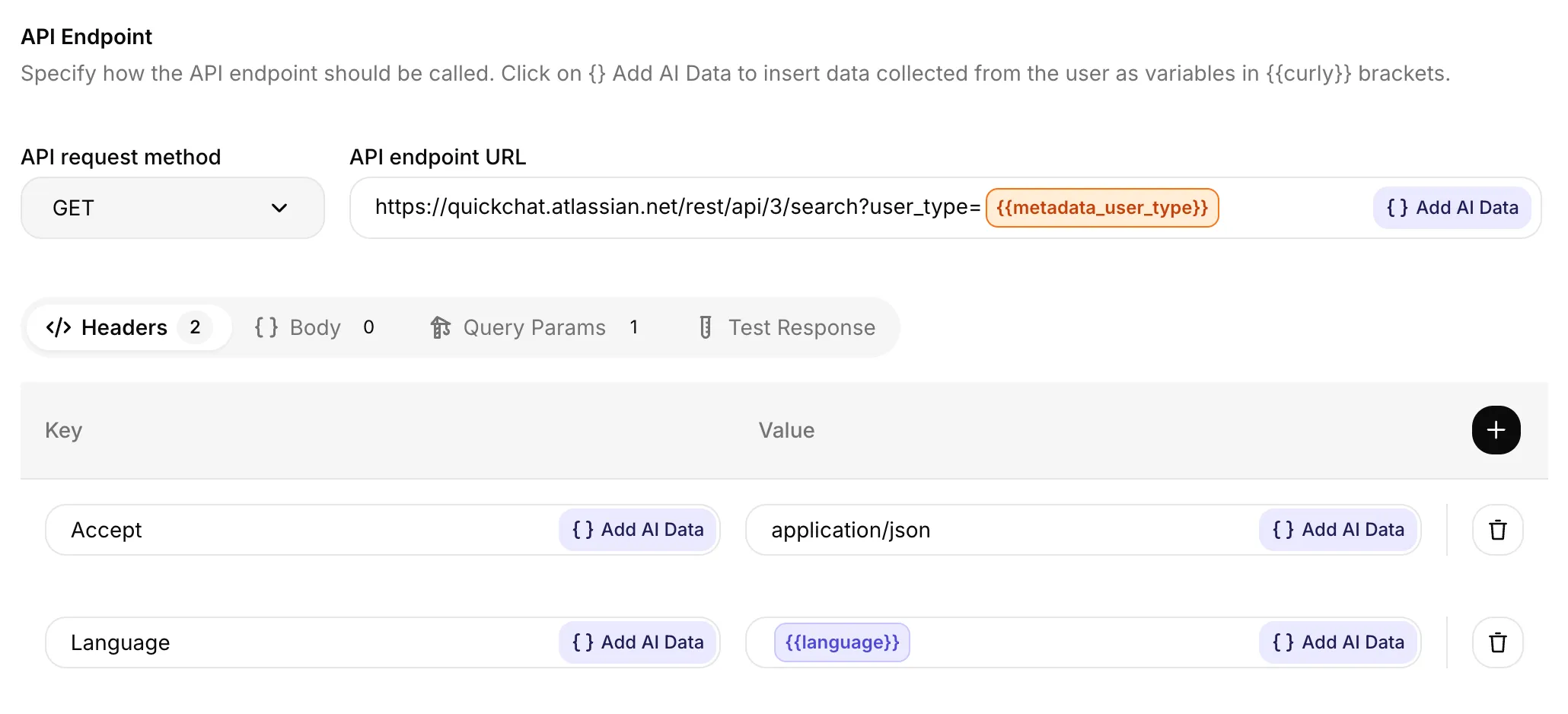
Pille działają w każdym polu wartości. Powyżej: pomarańczowy pill {{metadata_user_type}} w URL endpointu i niebieski pill {{language}} w wartości nagłówka.
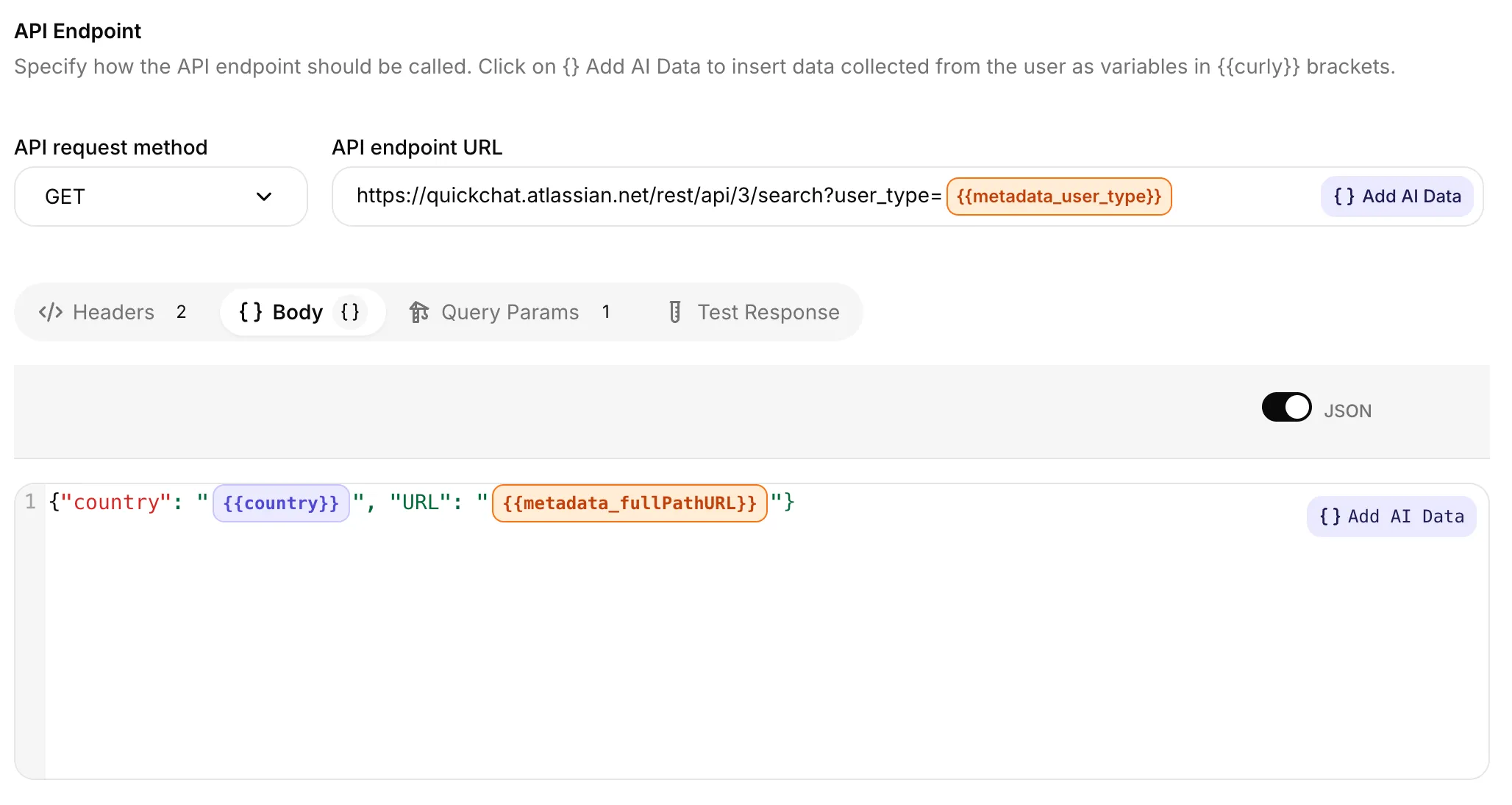
Te same reguły kolorów obowiązują wewnątrz body JSON żądania. Zmienne wbudowane jak {{country}} renderują się na niebiesko, zmienne metadanych jak {{metadata_fullPathURL}} na pomarańczowo.
- 🔵 Niebieski: zmienna wbudowana lub parametr AI, który zdefiniowałeś.
- 🟠 Pomarańczowy: zmienna metadanych (
{{metadata_*}}) lub System Token z podłączonej integracji. - 🔴 Czerwony: Quickchat nie rozpoznaje tej nazwy. Niemal zawsze literówka. Popraw pisownię, zdefiniuj zmienną jako parametr AI lub (jeśli to naprawdę klucz metadanych) upewnij się, że zaczyna się od
metadata_.
Testowanie Akcji
Dział zatytułowany „Testowanie Akcji”Panel Test Response (obok Done w edytorze Akcji) pozwala wysłać prawdziwe żądanie HTTP bez konieczności prowadzenia rozmowy. Dla każdej zmiennej referencjonowanej w Akcji zobaczysz wiersz do wpisania wartości, którą Quickchat podstawi.
Panel wstępnie wypełnia każdą zmienną wbudowaną kontekstem na żywo lub reprezentatywną wartością testową. Domyślne wartości języka, kraju i czasu obejmują:
{{language}}ma domyślnieen{{country}}ma domyślnieUS{{current_timestamp}}ma domyślnie bieżący czas UTC
Nadpisz dowolne pole, aby przetestować inną wartość. Twoje parametry AI i klucze {{metadata_*}} startują puste. Wpisz dowolną wartość, aby zasymulować, co stałoby się w żywej konwersacji.
Dlaczego moja zmienna jest czerwona?
Edytor nie rozpoznaje nazwy. Albo to literówka, albo nazwa nie pasuje do żadnego zdefiniowanego parametru AI, albo nie jest to zmienna wbudowana, albo to klucz metadanych bez prefiksu metadata_.
Czy mogę wstawić {{language}} lub {{country}}, nawet jeśli nigdy ich nie ustawiam?
Tak. Quickchat zawsze wyprowadza oba z kontekstu konwersacji (URL strony, locale przeglądarki lub skonfigurowany język Twojego Agenta AI). Zawsze otrzymasz wartość, nawet jeśli sprowadzi się do en / US.
Jaka jest różnica między {{language}} a {{metadata_locale}}?
{{language}}to zmienna wbudowana. Zawsze dostępna, zawsze w formacieen/nl/de… Używaj jej w 99% przypadków.{{metadata_locale}}istnieje tylko wtedy, gdy integracja kanału lub Twój widget jawnie ustawił kluczlocalew metadanych konwersacji, często w formaciexx_YY(np.en_GB). Sięgaj po nią tylko wtedy, gdy potrzebujesz dokładnego ciągu locale.
Czy istnieje limit liczby parametrów AI na Akcję? Tak, 30 na Akcję. Jeśli naprawdę potrzebujesz więcej, skontaktuj się z supportem.
Czy wartości wbudowane i metadanych są wysyłane do AI? Quickchat podstawia te wartości podczas tworzenia żądania HTTP; AI nie musi ich generować i nie trzeba definiować ich jako parametrów AI. W przypadku Akcji w trybie AI decyduje podstawienie następuje po wybraniu Akcji przez AI. Akcje automatyczne nie proszą AI o dokonanie tego wyboru.
Podstawianie wartości i kontekst modelu to odrębne kwestie. Metadane spełniające warunki oraz wbudowany kontekst mogą być dostępne także dla AI, a odpowiedź Akcji może zawierać te same wartości. Pozostałe metadane są odfiltrowywane z promptu. Nie zakładaj, że zwykłe metadane są zawsze widoczne albo zawsze ukryte przed modelem. Zobacz Kontekst modelu i autoryzacja.
Jak często odświeżana jest lista „Metadata (used in recent conversations)”?
Jest cache’owana przez 5 minut na Agenta AI. Klucz metadanych ustawiony na świeżo utworzonej konwersacji może pojawić się w dropdownie nawet po 5 minutach, ale {{metadata_<your_key>}} możesz zawsze wpisać bezpośrednio bez czekania.
Czy nazwy kluczy metadanych rozróżniają wielkość liter?
Tak. {{metadata_orderId}} i {{metadata_orderid}} to różne klucze. Używaj dokładnie tej samej wielkości liter, jakiej użyłeś po stronie widgetu, integracji lub API.
Czy panel Test Response zna te zmienne?
Tak. Panel Test Response wstępnie wypełnia wszystkie siedem zmiennych wbudowanych, w tym {{language}} wartością en, {{country}} wartością US oraz {{current_timestamp}} bieżącym czasem UTC. Parametry AI i zmienne metadanych startują puste. Wpisz dowolną wartość, aby zasymulować żywe wywołanie.
Powiązane
Dział zatytułowany „Powiązane”- Custom Actions: jak utworzyć i skonfigurować API Action.
- Kanał Website: Custom Parameters: jak wysyłać metadane ze swojej strony.
- API: Conversation Metadata: jak wysyłać metadane programowo.