

Injectez des valeurs dynamiques dans vos API Actions via les marqueurs `{{...}}`. Paramètres IA, variables de conversation intégrées et métadonnées de conversation.
Partout où vous pouvez saisir une valeur dans une API Action (URL, headers, body ou query parameters), vous pouvez injecter des valeurs dynamiques avec la syntaxe {{...}}. Quickchat substitue ces marqueurs au moment de la requête, juste avant d’appeler votre endpoint.
Cliquez sur le bouton + Add AI Data à côté de n’importe quel champ de valeur pour parcourir toutes les variables disponibles dans le scénario en cours.
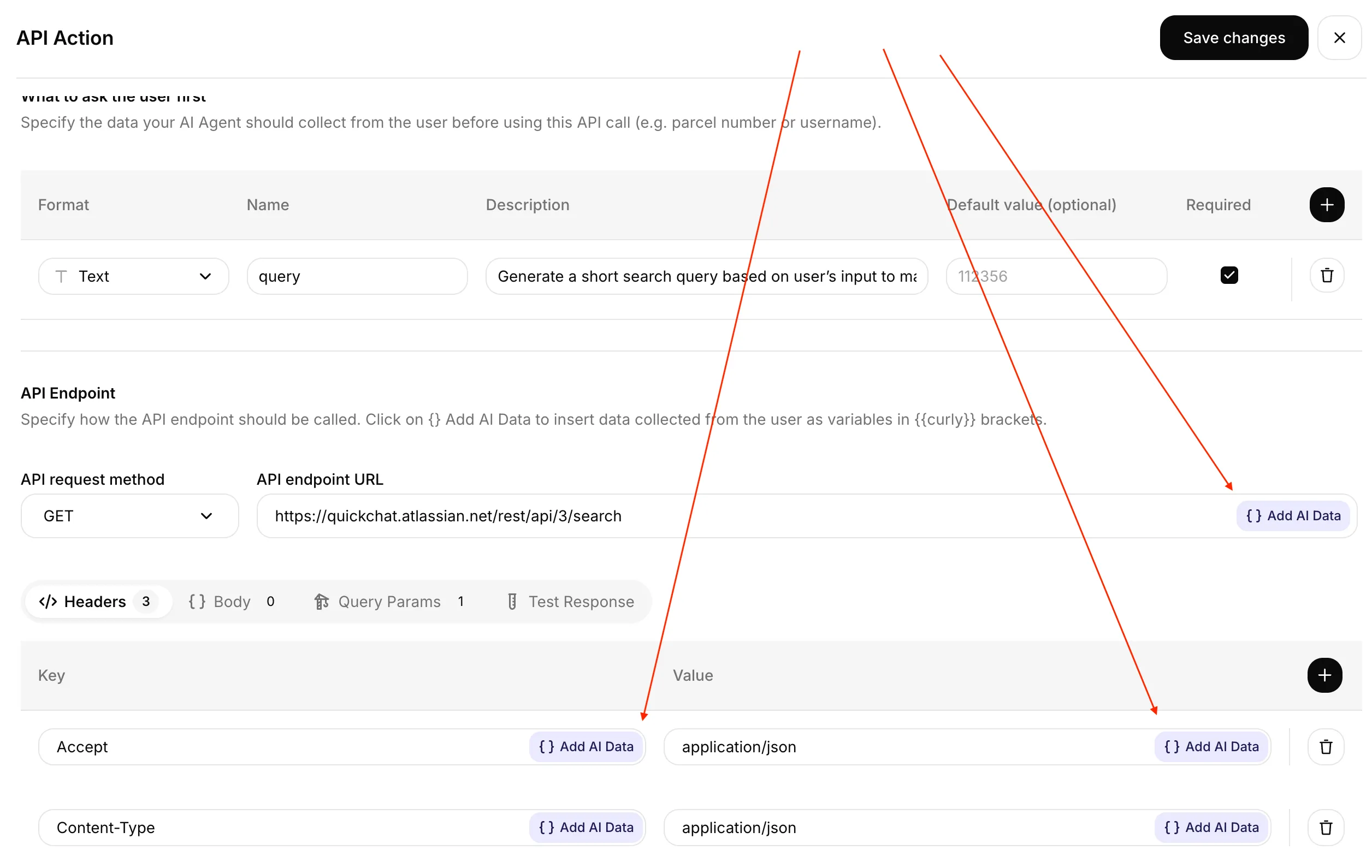
Le bouton + Add AI Data est disponible à côté de chaque champ de valeur : l’URL du endpoint, la valeur de chaque header, les champs du body et les query parameters.
Outils de configuration facultatifs
Section intitulée « Outils de configuration facultatifs »-
Vérifier les conditions d’exécution des Actions. Évaluez des conditions sur les métadonnées d’exemple fournies, sans exécuter d’Action.
-
Prévisualiser une requête d’Action API. Complétez un modèle de requête fourni avec des valeurs synthétiques sans l’envoyer. Omettez les en-têtes contenant des identifiants.
-
Prévisualiser les clés de métadonnées. Vérifiez la conversion des noms de champs fournis en clés de variables, y compris les doublons et les clés réservées. Les valeurs et les autorisations propres au compte ne sont pas examinées.
Les formulaires sont en anglais.
Trois catégories de variables
Section intitulée « Trois catégories de variables »| Catégorie | Syntaxe | Quand elle est remplie |
|---|---|---|
| Paramètres IA. Valeurs que votre Agent IA extrait de la conversation. Vous les définissez dans la section Parameters de chaque Action. | {{order_number}}, {{customer_email}} | L’Agent IA les remplit au moment de l’appel, selon les règles que vous écrivez dans la description de chaque paramètre. |
| Variables intégrées. Contexte de la conversation que Quickchat injecte automatiquement. | {{scenario_id}}, {{conversation_id}}, {{language}}, {{country}}, … | Toujours disponibles. Quickchat les substitue à chaque requête. |
| Métadonnées de conversation. Paires clé-valeur personnalisées rattachées à la conversation. | {{metadata_<key>}} | Dès que la clé correspondante existe sur la conversation (définie par le widget, une intégration de canal, Smart Data Gathering ou l’API). |
Le dropdown ”+ Add AI Data”
Section intitulée « Le dropdown ”+ Add AI Data” »Le dropdown liste toutes les variables disponibles pour le scénario en cours, regroupées en cinq sections :
- Parameters : les paramètres IA que vous avez définis sur cette Action.
- Visitor : quatre clés de métadonnées auto-capturées pour chaque visiteur, lorsque son canal les fournit.
- Metadata (used in recent conversations) : clés de métadonnées personnalisées observées dans les 20 dernières conversations de ce scénario, avec un exemple de valeur pour chacune.
- Built-in : les sept variables de conversation toujours disponibles, avec leur valeur actuelle ou un exemple affiché en ligne.
- System Tokens : identifiants fournis par une intégration connectée (p. ex. HubSpot, Telegram). N’apparaît que si l’intégration est connectée. Voir System Tokens ci-dessous.
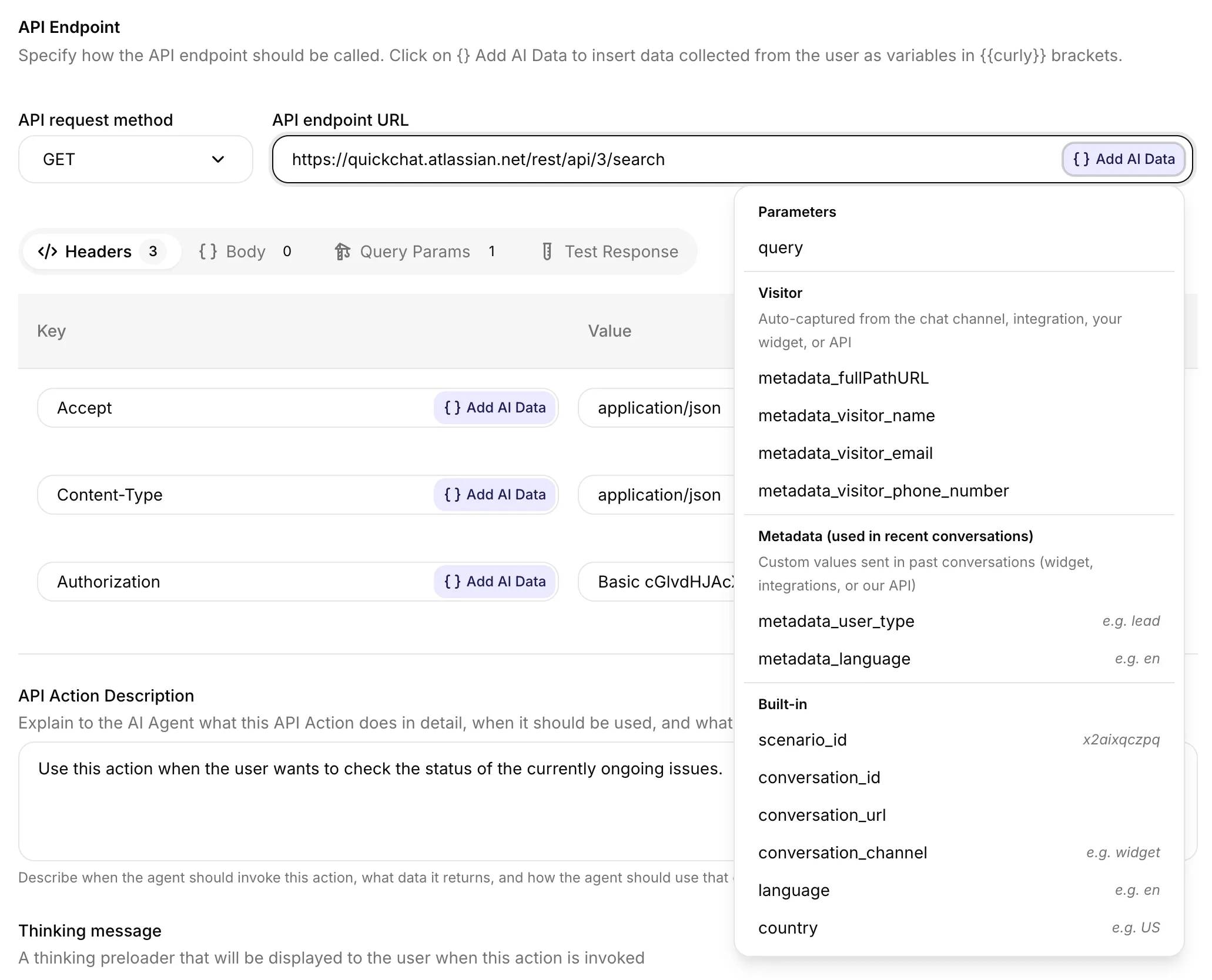
Le dropdown regroupe les variables par section. Les lignes Built-in affichent la valeur en direct lorsqu’elle est déjà connue (scenario_id) et des exemples e.g. … pour les autres. Le groupe Metadata (used in recent conversations) est reconstruit par scénario à partir des conversations récentes réelles. La section System Tokens (non illustrée ici) n’apparaît que lorsqu’une intégration est connectée.
Variables intégrées
Section intitulée « Variables intégrées »Ces sept variables sont toujours disponibles. Le dropdown + Add AI Data affiche la valeur en direct (lorsqu’elle est déjà connue) ou un exemple de valeur à côté de chaque ligne.
| Variable | Exemple | Ce que c’est |
|---|---|---|
{{scenario_id}} | abc123xyz | ID de l’Agent IA auquel appartient la conversation. |
{{conversation_id}} | conv-d8a8… | Identifiant unique de la conversation. |
{{conversation_url}} | https://app.quickchat.ai/.../conv-d8a8… | Lien direct vers cette conversation dans la Boîte de réception (Inbox). |
{{conversation_channel}} | widget, telegram, slack, whatsapp, … | Canal sur lequel se déroule la conversation. |
{{current_timestamp}} | 2026-09-02T12:00:00+00:00 | Date et heure UTC actuelles au format ISO 8601. |
{{language}} | en, nl, de, fr, … | Code ISO 639-1 en minuscules de la langue de la conversation. |
{{country}} | US, GB, NL, DE, … | Code pays ISO 3166-1 alpha-2 en majuscules. |
Quelques précisions utiles :
{{scenario_id}}est également visible dans l’URL du navigateur pendant que vous éditez l’Action. Le dropdown + Add AI Data affiche l’ID en direct du scénario en cours d’édition, pas un exemple.{{conversation_url}}est utile pour publier des liens cliquables dans Slack, Jira ou tout autre outil qui bénéficie d’un saut direct vers la Boîte de réception.{{language}}est dérivé (dans cet ordre) : du préfixe d’URL de la page (pour Shopify Markets), des métadonnées de la conversation, puis de la langue configurée de votre Agent IA.{{country}}est dérivé (dans cet ordre) : du préfixe d’URL de la page, du TLD de l’hôte de l’URL, puis d’un fallback langue-vers-pays.
Métadonnées de conversation
Section intitulée « Métadonnées de conversation »Le préfixe metadata_ est requis. Quickchat cherche <key> dans les métadonnées de la conversation et substitue sa valeur dans la requête.
{{metadata_order_id}} → ord_8a4f3…{{metadata_customer_tier}} → goldClés de métadonnées du visiteur
Section intitulée « Clés de métadonnées du visiteur »Ces quatre clés décrivent la session du visiteur et bénéficient de leur propre section Visitor dans le dropdown. Elles sont auto-capturées par le canal, l’intégration, le widget/embed ou l’API. Vous n’avez pas besoin de les pousser vous-même.
| Variable | Auto-capturée par |
|---|---|
{{metadata_fullPathURL}} | Widget de site web, embed de site web ou intégrations de canal de chat qui incluent leur propre widget (HubSpot, Intercom, etc.). |
{{metadata_visitor_name}} | Profil de canal de chat (Telegram, Slack, etc.), intégrations de canal, Smart Data Gathering, votre widget/embed ou l’API Quickchat. |
{{metadata_visitor_email}} | Profil de canal de chat, intégrations de canal, Smart Data Gathering, votre widget/embed ou l’API Quickchat. |
{{metadata_visitor_phone_number}} | WhatsApp et autres canaux conscients du téléphone, intégrations de canal, Smart Data Gathering, votre widget/embed ou l’API Quickchat. |
Clés de métadonnées personnalisées
Section intitulée « Clés de métadonnées personnalisées »Vous pouvez attacher des paires clé-valeur arbitraires à une conversation et les référencer en tant que {{metadata_<key>}}.
Depuis le widget ou l’embed du site web
Passez custom_params lors de l’initialisation du widget. Consultez la section Canal Website : Advanced Features : Custom Parameters pour l’extrait complet.
<script> _quickchat("custom_params", { "order_id": "ord_8a4f3", "customer_tier": "gold" });</script>Référencez-les dans n’importe quelle Action en tant que {{metadata_order_id}} et {{metadata_customer_tier}}.
Depuis Smart Data Gathering
Chaque point de données activé dans Smart Data Gathering devient une clé de métadonnées nommée d’après lui, en minuscules et en snake_case : les espaces deviennent des underscores, les accents sont supprimés et les autres signes de ponctuation sont retirés.
| Point de données | Variable |
|---|---|
Budget | {{metadata_budget}} |
Taille de l'entreprise | {{metadata_taille_de_lentreprise}} |
Adresse de livraison | {{metadata_adresse_de_livraison}} |
Les coordonnées font exception. Un point de données nommé Email, Name ou Phone number (ou une variante anglaise proche comme Email address, Full name ou Mobile) remplit à la place {{metadata_visitor_email}}, {{metadata_visitor_name}} ou {{metadata_visitor_phone_number}}. Seuls les noms anglais sont reconnus : un point de données Adresse e-mail devient une clé à part, adresse_email. Lorsque l’Agent IA capture une coordonnée que la conversation n’avait pas encore, il définit aussi lead_captured sur true.
- Vide jusqu’à la capture. La clé est ajoutée avec une valeur vide à la première réponse de l’Agent IA avec Smart Data Gathering activé, puis remplie dès que le visiteur donne l’information. Une correction ultérieure la met à jour ; elle n’est jamais vidée à nouveau.
- Utilisez
is truepour attendre une valeur. Dans Exécuter lorsque, la conditionbudget is truen’est remplie qu’une fois la valeur capturée, alors quebudget existsl’est dès que Smart Data Gathering a été exécuté. Des réponses commeno,falseou0comptent comme fausses. - Vos propres valeurs l’emportent. Si la clé contient déjà une valeur définie par votre site, l’API ou une autre Action, Smart Data Gathering n’y touche pas. Il cesse aussi de mettre à jour une clé dès que quelque chose d’autre la modifie.
- Quelques noms sont réservés, comme
language,localeetlead_captured. Un point de données portant l’un de ces noms ne devient pas une variable ; renommez-le si vous en avez besoin. - Renommer un point de données renomme sa variable. Mettez à jour les Actions qui l’utilisent : une Action ne peut pas s’exécuter tant qu’une variable dont elle a besoin manque sur la conversation.
Dès qu’une conversation possède la clé, celle-ci apparaît aussi dans le dropdown + Add AI Data.
Depuis les intégrations de canal
HubSpot, Intercom, Telegram, Slack, WhatsApp et les intégrations similaires poussent leurs propres métadonnées sur la conversation (nom du visiteur, e-mail, URL de la page, propriétés de compte, etc.). Tout ce qui est visible dans la vue des métadonnées de la conversation dans la Boîte de réception peut être référencé via {{metadata_<key>}}.
Depuis l’API Quickchat
Utilisez POST /v1/api_core/conversations/{conv_id}/metadata pour attacher des métadonnées par programmation. Consultez Conversation Metadata dans la référence de l’API.
System Tokens
Section intitulée « System Tokens »Certaines intégrations connectées exposent un token système : un identifiant que Quickchat injecte dans la requête côté serveur, au moment de l’appel, lorsque l’Action s’exécute. Un token système n’est ajouté ni au contexte de l’IA ni aux métadonnées de conversation, et il est masqué dans le journal des requêtes, la trace et le journal d’appels de la Boîte de réception. Les métadonnées ordinaires n’offrent pas les mêmes garanties de confidentialité. Le token n’apparaît dans la section Tokens système du dropdown + Ajouter des données IA que lorsque l’intégration correspondante est connectée, et s’affiche sous forme de pill orange.
| System token | Disponible quand | Ce qu’il injecte |
|---|---|---|
{{hubspot_access_token}} | HubSpot est connecté | Un jeton d’accès OAuth HubSpot valide, rafraîchi automatiquement. |
{{telegram_bot_token}} | Le scénario a une activité Telegram | Le token de votre bot Telegram connecté, pour appeler l’API Telegram Bot. |
Appeler l’API Telegram Bot
Section intitulée « Appeler l’API Telegram Bot »L’API Telegram Bot prend le token du bot dans le chemin de l’URL, vous le référencez donc directement dans l’URL du endpoint :
https://api.telegram.org/bot{{telegram_bot_token}}/sendMessageQuickchat résout le token au moment de l’appel et le masque partout où la requête est exposée, de sorte que le secret ne fuite jamais. Pour cibler un appel à l’API Bot sur le chat, le message ou l’expéditeur en cours, associez-le aux clés de métadonnées Telegram que Quickchat définit sur chaque message entrant :
| Clé de métadonnées | Valeur |
|---|---|
{{metadata_telegram_chat_id}} | Le chat d’où provient le message. |
{{metadata_telegram_chat_type}} | private, group, supergroup ou channel. |
{{metadata_telegram_user_id}} | L’id utilisateur Telegram de l’expéditeur. |
{{metadata_telegram_username}} | Le @username de l’expéditeur, s’il en a un. |
{{metadata_telegram_message_id}} | L’id du message entrant. |
{{metadata_telegram_sender_is_admin}} | true lorsque l’expéditeur est administrateur du chat. Calculé côté serveur, il ne peut donc pas être usurpé depuis le chat. Utilisez-le dans une condition d’exécution pour restreindre les actions de modération aux administrateurs. |
{{metadata_telegram_reply_to_message_id}}, {{metadata_telegram_reply_to_user_id}}, {{metadata_telegram_reply_to_text}} | Définies lorsque le message entrant est une réponse, afin que l’IA puisse agir sur le message auquel il répond (par exemple, modérer son auteur). |
Couleurs des pills dans l’éditeur
Section intitulée « Couleurs des pills dans l’éditeur »Chaque référence {{...}} est rendue sous forme de pill coloré pour que vous puissiez voir d’un coup d’œil si Quickchat reconnaît la variable.
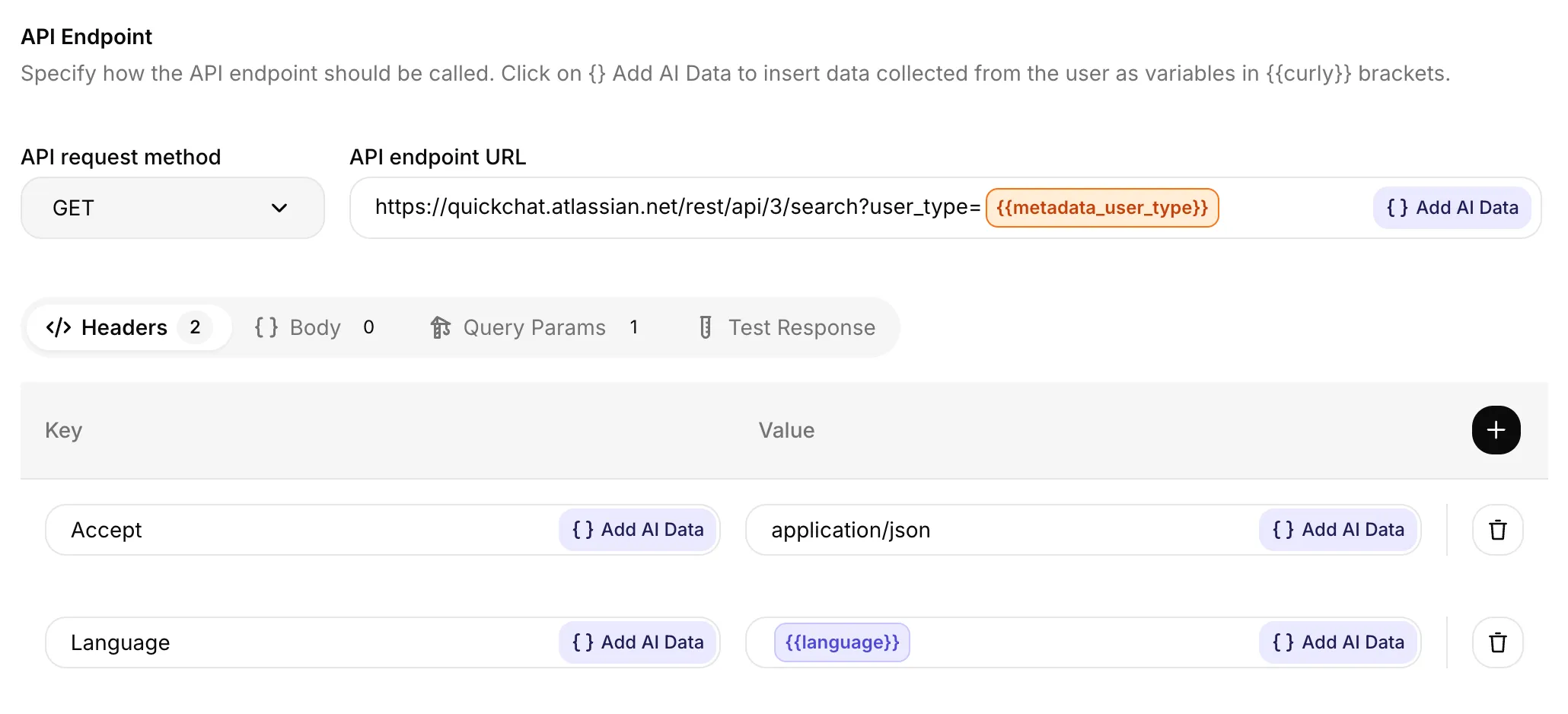
Les pills fonctionnent dans chaque champ de valeur. Ci-dessus : un pill orange {{metadata_user_type}} dans l’URL du endpoint, et un pill bleu {{language}} dans la valeur d’un header.
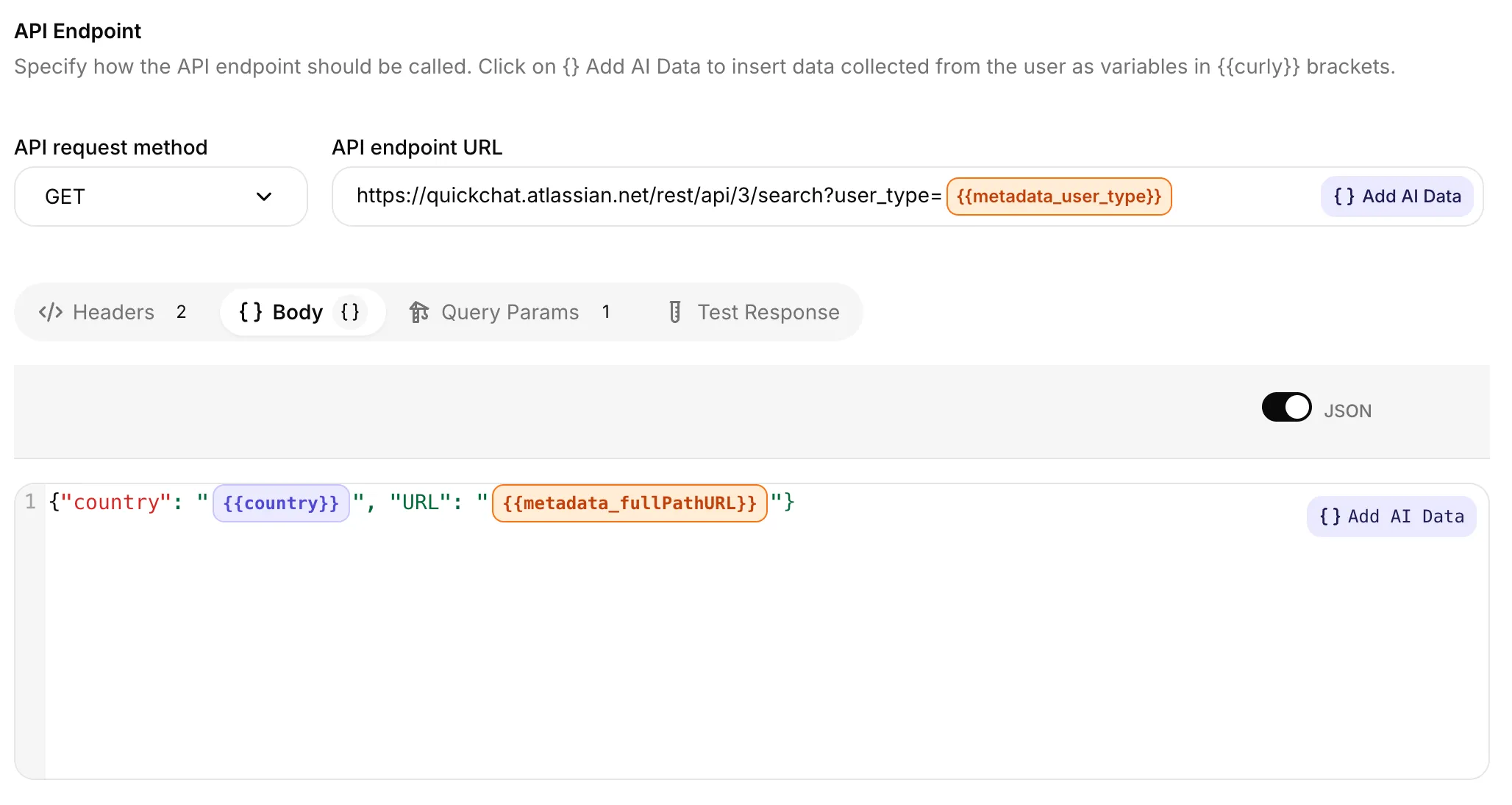
Les mêmes règles de couleur s’appliquent à l’intérieur d’un body JSON de requête. Les variables intégrées comme {{country}} apparaissent en bleu, les variables de métadonnées comme {{metadata_fullPathURL}} en orange.
- 🔵 Bleu : une variable intégrée ou un paramètre IA que vous avez défini.
- 🟠 Orange : une variable de métadonnées (
{{metadata_*}}) ou un System Token d’une intégration connectée. - 🔴 Rouge : Quickchat ne reconnaît pas ce nom. Presque toujours une faute de frappe. Corrigez l’orthographe, définissez-le comme paramètre IA, ou (s’il s’agit vraiment d’une clé de métadonnées) assurez-vous qu’il commence par
metadata_.
Tester votre Action
Section intitulée « Tester votre Action »Le panneau Test Response (à côté de Done dans l’éditeur d’Action) vous permet d’envoyer une vraie requête HTTP sans passer par un chat. Pour chaque variable référencée dans l’Action, vous verrez une ligne de saisie pour renseigner la valeur que Quickchat substituera.
Le panneau préremplit chaque variable intégrée avec le contexte en direct ou une valeur de test représentative. Parmi ses valeurs par défaut pour la langue, le pays et l’heure figurent :
{{language}}vautenpar défaut{{country}}vautUSpar défaut{{current_timestamp}}est renseigné par défaut avec la date et l’heure UTC actuelles
Remplacez n’importe quel champ pour tester une autre valeur. Vos paramètres IA et les clés {{metadata_*}} démarrent vides. Tapez n’importe quelle valeur pour simuler ce qui se passerait dans une conversation en direct.
Pourquoi ma variable apparaît-elle en rouge ?
L’éditeur ne reconnaît pas le nom. Soit c’est une faute de frappe, soit il ne correspond à aucun paramètre IA que vous avez défini, soit ce n’est pas une variable intégrée, soit c’est une clé de métadonnées à laquelle il manque le préfixe metadata_.
Puis-je injecter {{language}} ou {{country}} même si je ne les définis jamais ?
Oui. Quickchat dérive toujours les deux à partir du contexte de la conversation (URL de la page, locale du navigateur, ou langue configurée de votre Agent IA). Vous obtiendrez toujours une valeur, même si elle retombe sur en / US.
Quelle est la différence entre {{language}} et {{metadata_locale}} ?
{{language}}est la variable intégrée. Toujours disponible, toujours au formaten/nl/de… Utilisez-la dans 99 % des cas.{{metadata_locale}}n’existe que si une intégration de canal ou votre widget a explicitement défini une clélocaledans les métadonnées de la conversation, souvent au formatxx_YY(p. ex.en_GB). N’y recourez que lorsque vous avez besoin de la chaîne de locale exacte au mot près.
Y a-t-il une limite au nombre de paramètres IA par Action ? Oui, 30 par Action. Si vous avez vraiment besoin de plus, contactez le support.
Les valeurs intégrées et de métadonnées sont-elles envoyées à l’IA ? Quickchat substitue ces valeurs lors de la construction de la requête HTTP ; elles n’ont pas à être générées par l’IA ni définies comme paramètres IA. Pour une Action L’IA décide, la substitution intervient après que l’IA a choisi l’Action. Les Actions automatiques ne demandent pas à l’IA de choisir l’Action.
La substitution et le contexte du modèle sont distincts. Les métadonnées admissibles et le contexte intégré peuvent également être accessibles à l’IA, et la réponse d’une Action peut contenir les mêmes valeurs. Les autres métadonnées sont exclues du prompt. Ne supposez pas que les métadonnées ordinaires sont toujours visibles ou toujours masquées pour le modèle. Consultez Contexte du modèle et autorisation.
À quelle fréquence la liste « Metadata (used in recent conversations) » est-elle rafraîchie ?
Elle est mise en cache pendant 5 minutes par Agent IA. Une clé de métadonnées définie sur une toute nouvelle conversation peut mettre jusqu’à 5 minutes à apparaître dans le dropdown, mais vous pouvez toujours taper {{metadata_<your_key>}} directement sans attendre.
Les noms de clés de métadonnées sont-ils sensibles à la casse ?
Oui. {{metadata_orderId}} et {{metadata_orderid}} sont des clés différentes. Utilisez exactement la même casse que celle définie côté widget, intégration ou API.
Le panneau Test Response connaît-il ces variables ?
Oui. Le panneau Test Response préremplit les sept variables intégrées, notamment {{language}} avec en, {{country}} avec US et {{current_timestamp}} avec la date et l’heure UTC actuelles. Les paramètres IA et les variables de métadonnées démarrent vides. Tapez n’importe quelle valeur pour simuler un appel en direct.
En rapport
Section intitulée « En rapport »- Custom Actions : comment créer et configurer une API Action.
- Canal Website : Custom Parameters : comment pousser des métadonnées depuis votre site web.
- API : Conversation Metadata : comment pousser des métadonnées par programmation.