This is the full developer documentation for Quickchat AI # Introduction > Quickchat AI documentation — learn how to build, deploy, and manage no-code AI Agents for customer support, sales, and internal operations. Learn how Quickchat AI Platform helps businesses to build, deploy and manage advanced AI Agents for customer support, internal operations, and automated workflows. ![Quickchat AI Interface](/_astro/interface.DyXm2waX_Zs4YGE.webp) ## Optional setup tools [Section titled “Optional setup tools”](#optional-setup-tools) * [Compare deployment methods](https://app.quickchat.ai/v1/api_core/public-question/quickchat/tools/deployment-fit/?placement=docs-home-deployment-fit-v1). Check your declared channels, website access and required features against Quickchat AI setup options. This does not inspect your website or account. * [Draft a small launch pack](https://app.quickchat.ai/v1/api_core/public-question/quickchat/tools/launch-pack/?placement=docs-home-launch-pack-v1). Turn a supplied goal, channel, handoff brief and up to five FAQ pairs into setup text and synthetic tests. This does not create or evaluate an AI Agent. * [Preview extraction from a sample page](https://app.quickchat.ai/v1/api_core/public-question/quickchat/?placement=docs-home-public-extraction-v1). Fetch an excerpt from Quickchat AI pricing or Knowledge Base documentation, the only two supported samples. This uses the default filter without custom selectors or normal import retries, and does not import content. ## What is Quickchat AI? [Section titled “What is Quickchat AI?”](#what-is-quickchat-ai) Quickchat AI delivers an enterprise-grade Conversational AI platform for building [AI Agents](#what-are-ai-agents) that enhance both customer-facing and internal operations. It’s powered by a Four-Module System: * AI Identity / Personality * AI Knowledge Base * AI Actions * Insights from Conversations It enables businesses to build and deploy end-to-end AI Agents that continuously improve through smart feedback loops and AI-driven recommendations. ## What are AI Agents? [Section titled “What are AI Agents?”](#what-are-ai-agents) AI Agents are AI systems that communicate with users and execute tasks autonomously. Unlike simple chatbots, AI Agents are designed to understand natural language, provide meaningful answers, and take actions in external integrated systems. AI Agents built on the Quickchat AI Platform can: * Answer customer inquiries and provide 24/7 support. * Assist employees with finding information and streamlining processes. * Automate repetitive tasks like order tracking or appointment scheduling. * Provide detailed insights and recommendations for continuous improvement. Agents leverage advanced conversational AI to handle complex interactions while aligning with your unique business objectives. ## How does it work? [Section titled “How does it work?”](#how-does-it-work) Quickchat AI uses Large Language Models (LLMs) to create AI Agents that understand and generate natural language. The system combines LLM capabilities with tools for customization and integration to meet specific business needs. Here’s a breakdown of how it works: ## Large Language Models (LLMs) [Section titled “Large Language Models (LLMs)”](#large-language-models-llms) Quickchat AI runs on OpenAI’s GPT models. Six are available, and you pick one per AI Agent under **Identity → AI Model**: * **GPT-5.1** — the standard model, and the default for every new agent * **GPT-5.4 (Advanced)** * **GPT-5.5 (Premium)** * **GPT-5.6 Sol (Premium)** * **GPT-5.6 Terra (Advanced)** * **GPT-5.6 Luna (Fast)** The Free plan uses the standard model. Every paid plan can select any of the six; the more capable models cost more [AI credits](/understanding-ai-credits/) per reply rather than being locked to a tier. You do not bring your own model or your own API key. There is no setting for an OpenAI, Anthropic, or Google Gemini key of your own, and no self-service self-hosted option — the models above are managed by us and included in your plan. If you need a specific model, a private deployment, or your own infrastructure, that is an Enterprise conversation: [talk to us](https://quickchat.ai/contact). ## Our role [Section titled “Our role”](#our-role) Quickchat AI provides the tools and infrastructure to adapt these generic LLMs for enterprise use cases, enabling businesses to create purpose-built AI Agents. This includes: * **Knowledge Base Integration**: Extending LLMs with structured, business-specific knowledge, such as product details, FAQs, or internal documentation, ensuring accurate and context-aware responses. * **Conversation Control**: Configuring the Agent’s tone, behavior, and conversational flow to meet brand guidelines and business requirements. * **System Integration**: Connecting the AI Agent to APIs, databases, or internal tools for advanced capabilities, such as automating tasks or retrieving real-time information. * **Conversation Analytics**: Collecting and analyzing data from interactions to measure performance, detect issues, and improve the AI Agent over time. Analytics provide insights into user queries, response accuracy, and interaction trends, helping refine the AI Agent’s functionality and knowledge. ## The Output [Section titled “The Output”](#the-output) When deployed, the AI Agent processes your users’ inputs and generates responses that are: * **Natural**: Coherent and conversational, leveraging LLM language capabilities. * **Informed**: Based on your company knowledge. * **Actionable**: AI Agents can perform tasks such as retrieving data, updating records, or completing workflows when connected to external systems. This workflow ensures the AI Agent provides precise, contextually relevant, and actionable outputs while continually improving through analytics and feedback. Note If you need assistance, [reach out to us](https://quickchat.ai/contact). # Account access and password recovery > Sign in to Quickchat AI, change the email address you sign in with, recover a password account, use a Google-only account, create an account when your email is not registered, or delete your account. Use the account recovery flow when you cannot sign in or are not sure how your account was created. To move an account you can already sign in to onto a different address, see [Change your sign-in email](#change-sign-in-email). To delete your account and everything in it, see [Delete your account](#delete-account). ## Start account recovery [Section titled “Start account recovery”](#start-account-recovery) 1. Open the [Quickchat AI login page](https://app.quickchat.ai/). 2. Select **Forgot your password?** 3. Enter your email address. 4. Select **Send reset link**. Quickchat AI always shows the same **Check your inbox** confirmation after a valid request. This protects account privacy and does not confirm whether the email is registered. ## What happens next [Section titled “What happens next”](#what-happens-next) ### Password account [Section titled “Password account”](#password-account) If the email belongs to an active password account, Quickchat AI sends a password reset link. Open the link and choose a new password, then return to the login page. ### Google-only account [Section titled “Google-only account”](#google-only-account) An account created with Google does not have a password until you set one. Its recovery email offers two options: * Use **Continue with Google** on the login page. * Open the set-password link in the email if you want to sign in with an email and password in the future. ### No existing account [Section titled “No existing account”](#no-existing-account) If the email is not registered, no recovery email is sent. On the confirmation screen, select **Create an account** to register. ## If no email arrives [Section titled “If no email arrives”](#if-no-email-arrives) * Check the spam or junk folder. * Select **Try another email** if you may have used a different address or entered it incorrectly. * If you registered with Google, return with **Back to login** and select **Continue with Google**. * If you still cannot access an existing account, [contact Quickchat AI support](https://quickchat.ai/contact). ## Security and privacy [Section titled “Security and privacy”](#security-and-privacy) The confirmation screen is intentionally identical for password accounts, Google-only accounts, and unregistered email addresses. Do not treat the confirmation as proof that an account exists or that an email was delivered. ## Change your sign-in email [Section titled “Change your sign-in email”](#change-your-sign-in-email) Your sign-in email is the address you log in with, so Quickchat AI only moves it once you prove you can receive mail at the new address. 1. Open **Settings**, select the **Account** tab, and find **Sign-in email** in the Profile card. ![The Profile card in Settings, Account tab, showing the Sign-in email field](/_astro/signin-email-row.CmYcTjE__21nrPT.webp) 2. Type the new address. A password field and the **Save** button appear. 3. Enter your **Current password** and select **Save**. ![The Sign-in email field expanded, showing the Current password field and the Save button](/_astro/signin-email-expanded.B2DhgtnM_16Wu38.webp) Nothing has changed yet. Quickchat AI sends a confirmation link to the new address, and the row shows which address you still sign in with until you open it. Select **Use a different address** if you sent the link to the wrong address. ![The Sign-in email row confirming that a link was sent to the new address](/_astro/signin-email-sent.Dr5pXpQf_26AonU.webp) 4. Open the email at the new address and select **Confirm new email address**. ![The confirmation page, showing the old and new addresses and the Confirm new email address button](/_astro/signin-email-confirm.CbluuafQ_2t8wXU.webp) Sign in with the new address from now on. The old address stops working, and Quickchat AI emails it to say the change happened. ### Good to know [Section titled “Good to know”](#good-to-know) * **The link expires in 24 hours, and only the newest one works.** If you mistype the address and request the change again, the first link stops working immediately. * **Opening the link does not change anything on its own.** The change is applied only when you select the button on the page, so an email scanner that follows links cannot move your account. * **Confirming does not sign you in.** You still sign in normally, with the new address. * **Changing your password cancels any link you have not used yet.** * **Accounts without a password cannot be moved here.** If you sign in with Google or your account came from a Shopify, Intercom, or HubSpot install, [contact Quickchat AI support](https://quickchat.ai/contact) and we will move it for you. * **An address already used by another Quickchat AI account cannot be reused.** ## Delete your account [Section titled “Delete your account”](#delete-your-account) This permanently deletes your account, your AI Agents and their conversations. People you invited lose access. It cannot be undone. If you only want to remove one AI Agent and keep your account, see [Delete an AI Agent](/ai-agent/delete-agent/) instead. 1. Open **Settings** and select the **Account** tab. 2. Scroll to the **Delete account** card at the bottom of the page and select **Delete my account**. 3. If you like, answer **Why are you leaving? (optional)** and **Anything else you’d like to tell us? (optional)**. Your message goes straight to the Quickchat team. 4. Type your sign-in email to confirm and enter your **Password**. Accounts without a password, such as a Google-only account, are not asked for one. 5. Select **Delete my account**. Quickchat AI deletes the account and signs you out. ### If the account cannot be deleted yet [Section titled “If the account cannot be deleted yet”](#if-the-account-cannot-be-deleted-yet) If something still depends on your account, the dialog says what it is and nothing is deleted: * **An AI Agent on this account is on a paid plan, or the account still has an active subscription.** Cancel the subscription under **Settings → Billing** first. A cancelled plan stays active until the end of its billing period, so try again after that. On the Enterprise plan, [contact Quickchat AI support](https://quickchat.ai/contact) instead. * **An AI Agent outside your account is billed through it, or another user shares your account’s organization.** Contact to separate them first. * **A paid copy of an AI Agent is still being made or paid for.** Try again once it has finished. ### What is deleted and what is kept [Section titled “What is deleted and what is kept”](#what-is-deleted-and-what-is-kept) Deleting your account removes your sign-in, your organization and all of its AI Agents, including their Knowledge Bases, AI Actions and settings. Their conversations are erased in the background shortly afterwards. AI Agents in someone else’s account that you were invited to are not deleted: you only lose access to them. Some data is not removed when you delete your account, including: * Conversations of AI Agents you deleted earlier with **Delete this AI Agent**. * Files stored for your AI Agents, such as files attached to messages and conversation exports. * Search index data built from your AI Agents’ Knowledge Bases. * Records of the channels your AI Agents were connected to. * Records about your account in the analytics, customer relationship and payment services Quickchat AI uses. To have this data erased as well, contact . # Actions > What your AI Agent can do during a conversation: the built-in Quickchat AI Actions, and Custom Actions that call your own API, an MCP server, or a shortcut like Google Sheets. Define what your AI Agent can do during conversation. From answering questions using real-time API data, collecting leads and market research data, to performing custom tasks. Quickchat AI Agents have two kinds of Action. **Quickchat AI Actions** are built in, so you only switch them on and configure them: * [Human Handoff](/ai-agent/actions/human-handoff/) passes the conversation to a person. * [Smart Data Gathering](/ai-agent/actions/smart-data-gathering/) collects leads and other data during the chat. **Custom Actions** reach outside Quickchat AI: * **API Actions** call any HTTP endpoint. They are covered on this page. * [MCP Actions](/ai-agent/actions/mcp-actions/) connect a whole MCP server at once. * [Google Sheets](/ai-agent/google-sheets/) is a one-click shortcut that sets up a logging Action for you. Every Action can read live conversation data through [AI Action Variables](/ai-agent/variables/), and the [Jira example](/channels/jira/) builds one end to end. ## Optional setup tools [Section titled “Optional setup tools”](#optional-setup-tools) * [Check Action run conditions](https://app.quickchat.ai/v1/api_core/public-question/quickchat/tools/action-conditions/?placement=docs-actions-action-conditions-v1). Evaluate conditions against supplied sample metadata without running an Action. * [Check a sample MCP connection](https://app.quickchat.ai/v1/api_core/public-question/quickchat/tools/mcp-connection/?placement=docs-actions-mcp-connection-v1). Initialize and list tools on the Cloudflare documentation or Microsoft Learn endpoint only. No sign-in or tool execution is performed. ## Custom Actions [Section titled “Custom Actions”](#custom-actions) Custom Actions let your AI call external tools during a conversation — search internal systems, create tickets, trigger alerts, or fetch fresh data that isn’t in the Knowledge Base. Find them in **Actions & MCPs** under the **Custom Actions** section. Click **+ Add Action** to create one. The dropdown offers: * **API Action** — call any REST endpoint over HTTP. The most general option; use this for anything that has a URL and accepts JSON. * **MCP** — connect an external MCP server in one click and let the AI use the tools it exposes. See [MCP Actions](/ai-agent/actions/mcp-actions/). * **HubSpot Action**: pre-built connection to your HubSpot CRM. Use it to work with contacts, deals, and tickets, including adding private ticket notes, without managing API tokens yourself. * **Discord Action**: install editable support and moderation API Action templates. Requires your own Discord app. See [Discord Actions](#discord-actions). * **Google Sheets** — read and write a spreadsheet you connect. * **Shopify MCP** — connect a Shopify store via the Shopify Storefront MCP server so the AI can search your catalog and store policies, read product details, and build a cart. Only one Shopify MCP action per scenario. It does **not** cover order lookup — see the note below. Note The **Remaining: N** counter next to the **+ Add Action** button shows how many actions your plan lets you keep active. Separately, every agent can hold at most 15 actions overall, regardless of plan. Upgrade your plan if you need more active actions, or [contact us](mailto:contact@quickchat.ai). Order status is a separate action The Shopify Storefront MCP is customer-facing and exposes no order data, so an AI Agent connected only through it cannot look up a customer’s order. Order status comes from a separate **Check order status** API Action that reads the Shopify Admin API, and it is set up automatically when you install the Quickchat app from the **Shopify App Store**. Stores connected by pasting a URL have no Admin access and therefore no order lookup — reinstall through the App Store if you need it. ### How Custom Actions work [Section titled “How Custom Actions work”](#how-custom-actions-work) 1. Choose an action type: API Action, MCP, HubSpot Action, Discord Action, Google Sheets, or Shopify MCP. Configure the connection and instructions the AI needs. 2. During a chat, the AI normally uses the action description and available tool or parameter details to decide when to run it. An API Action can instead run automatically before the first reply or when metadata conditions first match. 3. Quickchat executes the call. For an Action the AI chooses, or one that runs before the first reply, the AI can use the response. A metadata-triggered Action runs silently and its output is not added to the chat. 4. Test or connect the action from its editor before using it in conversations. Tip Write the description as an instruction to the AI. Tell it **when** to use the action, **what** it returns, and any **guardrails** (e.g., “only call when the user provides an order number”). ### Create an API Action [Section titled “Create an API Action”](#create-an-api-action) 1. Go to **Actions & MCPs**. 2. Click **+ Add Action** in **Custom Actions** and choose **API Action**. 3. Fill in **Details**: * **Name**: clear and descriptive. * **Description**: when to use it and what to include in parameters. 4. Under **When to run**, choose **AI decides**, **Before first reply**, or **When metadata matches**. 5. Configure **Connection**: * **Action Type**: HTTP method (GET, POST, etc.). * **Action endpoint URL**: full API URL. * **Headers**: add any required headers like `Authorization` or `content-type: application/json`. 6. Define **Parameters**: give each parameter a **name**, **location** (query, body, or header), and a **description** that tells the AI how to compose the value. Path values aren’t a parameter location; insert them directly in the endpoint URL using `{{placeholder}}` templating. 7. **Test request** and verify the response. Then click **Done**. Tip Any value field (URL, header, body, or query) accepts dynamic placeholders via the **+ Add AI Data** button. You can inject your AI parameters, built-in conversation variables (`{{scenario_id}}`, `{{language}}`, `{{country}}`, …), and conversation metadata (`{{metadata_*}}`). See [AI Action Variables](/ai-agent/variables/) for the full reference. Beyond the request itself, an API Action has three optional settings worth knowing: **Save to memory**, **Run only when**, and **Response filter**. [Preview an API Action request](https://app.quickchat.ai/v1/api_core/public-question/quickchat/tools/action-request/?placement=docs-actions-request-v1) using a supplied template and synthetic sample values. Omit credential headers. The preview renders the request without sending it. ### Choose when an API Action runs [Section titled “Choose when an API Action runs”](#choose-when-an-api-action-runs) Use **When to run** to select one of three modes: The section is collapsed by default and shows the mode currently in force next to its heading; expand it to change the mode. ![The expanded When to run section showing the three modes: AI decides, Before first reply, and When metadata matches](/_astro/when-to-run-modes.Dw2pVxcD_1b4oMw.webp) * **AI decides**: the default. The AI reads the Action description and decides whether the visitor’s request needs the Action. Use this when the Action should run only for particular questions or after the AI collects information from the visitor. * **Before first reply**: Quickchat runs the Action once after the visitor sends the first message and before the AI writes its first reply. The normal AI reply receives the response and any values saved with **Save to memory**. The AI can no longer choose this Action as a tool, so it runs on the first turn only and not again later in the conversation. Use this for customer identification, account context, entitlement checks, or other setup that every real conversation needs. * **When metadata matches**: Quickchat checks the Action’s **Run when** conditions after every AI turn and runs it the first time all conditions match. Values another Action saves to memory during that turn are available immediately. The AI cannot choose this Action as a tool, and its response is not added to the chat. Use it for internal notifications, CRM updates, or follow-up requests that should happen automatically when conversation data becomes available. **Before first reply** is tied to the visitor’s first message, not conversation creation. Opening a chat or receiving a welcome message does not run it, so abandoned chats make no request. Quickchat records the run before calling the endpoint, so it is not retried in the same conversation even if the request fails or its outcome is uncertain. The first reply waits for the request, so this mode can add latency. If several Actions use this mode, they run one after another and their request times add up. If required metadata is missing, the endpoint is unavailable, or a request fails, the AI still replies. Open **Request log** on the Action to see what happened. Because the Action runs before the AI can choose parameter values, every AI parameter it uses must have a default value. Metadata and built-in variables can be inserted directly into the URL, headers, query, or body. **When metadata matches** requires at least one **Run when** condition and a default value for every AI parameter. Quickchat records the attempt before calling the endpoint, so once a request has been sent the Action is not retried in the same conversation, whether it succeeded, failed, or its outcome is uncertain. A request that could not be built at all, because a value it needs is still missing, is not recorded and stays eligible for a later turn. The Action runs right after the AI finishes its turn, so a failure never replaces the AI’s reply. On channels that do not stream the reply, the request’s round trip is added to the time the visitor waits for it. Choosing **When metadata matches** reveals the **Run when** editor inside the same section, so the trigger and its conditions stay together. ![The When to run section set to When metadata matches, with two Run when conditions: escalation\_flag is true and order\_id exists](/_astro/when-metadata-matches-conditions.D8ByEUkP_Z29pGwo.webp) Identify by email or phone For channels that may provide either an email address or a phone number, create one lookup Action for each identifier. Set both to **Before first reply**, then add a matching **Run only when** condition such as `visitor_email exists` or `visitor_phone_number exists`. Quickchat sends only the request whose metadata is present. ### HubSpot Actions [Section titled “HubSpot Actions”](#hubspot-actions) **HubSpot Action** opens a gallery of pre-filled, editable API Actions that use your connected HubSpot account. ![The HubSpot CRM Actions gallery, with Add Note to Ticket under Tickets](/_astro/hubspot-add-note-template.BEFhSFrM_tm9MR.webp) The **Add Note to Ticket** template creates a private note on the HubSpot ticket linked to the conversation. Save the note content to conversation memory as `hubspot_note_body`, then add the template and activate it. It is preconfigured with **When metadata matches** and waits until both `hubspot_note_body` and Quickchat’s server-provided `hubspot_ticket_id` are present. You can edit the `note_body` parameter’s default value to add fixed text around `{{metadata_hubspot_note_body}}`. The note is internal to HubSpot and is not shown to the visitor. The template attempts the request once per Quickchat conversation. Open the Action’s **Request log** to confirm delivery or investigate a failed request. ### Discord Actions [Section titled “Discord Actions”](#discord-actions) **Discord Action** opens a gallery of pre-filled, editable API Actions: * **Support & Tickets**: **Open Support Ticket** asks you to select a server and text channel. You can optionally select a mentionable support role. It creates three Actions that open a private thread, add the current requester, and post a summary with the optional role mention. * **Moderation**: **Timeout Member**, **Kick Member**, **Ban Member**, **Unban Member**, **Assign Role**, **Set Slowmode**, and **Send Announcement**. Each template installs with one click and uses the server, member, role, or channel from the current Discord request. Quickchat creates the HTTP method, URL, headers, body, parameters, description, response settings, and run conditions on the backend. The resulting cards are ordinary HTTP Request Actions. You can inspect and edit every field. All seven moderation templates include `author_is_admin is true` under **Run only when**. Discord calculates the current author’s Administrator permission, the Discord gateway supplies that value, and Quickchat checks it before sending the request. Public chat and API metadata cannot set this key. Test moderation Actions in Discord with both an administrator and a non-administrator account; AI Preview does not provide an authorized Discord sender. Caution The moderation Actions are editable. Removing or weakening the `author_is_admin is true` condition removes their supplied authorization boundary. Kick and Ban do not ask for confirmation before executing. The templates add no automation of their own. The Agent runs them only when an administrator asks in the conversation; there is no strike counting across conversations, no verification of screenshots or other evidence, and no scheduled or self-initiated sanctions. The bot itself still needs the Discord permission required by each request: | Action | Bot permission or access | | ------------------------ | ------------------------------- | | Timeout Member | Moderate Members | | Kick Member | Kick Members | | Ban Member, Unban Member | Ban Members | | Assign Role | Manage Roles | | Set Slowmode | Manage Channels | | Send Announcement | View Channels and Send Messages | Discord also enforces role hierarchy. Put the bot’s role above members and roles it should manage. The template does not perform an additional hierarchy or per-permission check for the requesting administrator. **Set Slowmode** and **Send Announcement** accept a channel ID parameter. Without an additional fixed target, the template does not verify that the channel belongs to the server where the administrator sent the request. If the same bot belongs to multiple servers, edit these Actions to use a fixed channel ID or separate the servers across Agents and bot credentials. The Support Ticket installation uses existing Action features to pass data: 1. `open_support_ticket` creates a private thread in the selected channel, captures `$.id`, and saves it to conversation memory as `discord_ticket_thread_id`. It requires `discord_message is true`, runs only in the selected server, and runs only while that memory key does not exist. 2. `add_ticket_requester` reads `{{metadata_discord_ticket_thread_id}}` and the Discord-supplied `{{metadata_discord_author_id}}`. It requires `discord_message is true` and runs only in the selected server after the thread ID exists. 3. `post_in_ticket` reads the same saved thread ID, posts the Agent’s one-line issue summary, and mentions the requester. If you selected a support role, it mentions that role too. It has the same Discord-message, server, and saved-thread conditions. Its Discord `allowed_mentions` body is limited to the requester and, when configured, that role. The descriptions and your Agent prompt should tell the Agent to run those Actions in that order. There is no separate workflow state, lock, confirmation, retry, recovery, reconciliation, or replay-protection layer. If a result is uncertain, inspect Discord and the Action log before retrying because Discord might already have completed the request. `discord_ticket_thread_id` is not cleared automatically. The starter therefore supports one ticket per Quickchat conversation. Start a new Discord conversation or thread for another ticket, or edit the Actions to add the memory lifecycle you need. For Support Ticket, grant the bot **View Channels**, **Send Messages**, **Read Message History**, **Create Private Threads**, **Send Messages in Threads**, and **Manage Threads** in the selected ticket channel. Leave **Notify a role (optional)** set to **Don’t notify a role** if no role should be mentioned. If you select a role, it must be mentionable and its members need access to the private threads. When no mentionable roles are available, tickets still open normally without a role notification. The gallery lists text channels and mentionable roles, but it does not validate all channel permission overrides. Caution Discord Actions need the token from **your own Discord app** under **External Apps → Discord → Advanced setup**. The shared one-click bot alone cannot supply that token. See [Discord](/channels/discord/). The gallery is a setup shortcut, not an extra policy layer. If you edit a generated Action or create a custom Discord API Action, review its credentials, targets, parameters, response exposure, and Run only when conditions before enabling it. ### Save to memory [Section titled “Save to memory”](#save-to-memory) Capture a value from the API response and store it in the conversation’s memory under a key you choose. Later Actions can reuse it as `{{metadata_}}`, and it appears in the conversation details (Inbox, the API, and exports). Reach for this when one Action produces something a later Action needs. A lookup Action can save a `customer_id` from its response; a follow-up Action then sends `{{metadata_customer_id}}` without the AI having to copy the value across. In the **Save to memory** section of the API Action editor, give the captured value a **memory key** and point it at the part of the response you want to keep. From then on it’s a metadata variable like any other. Memory keys are shared with the Agent’s Remote MCP tools. If an MCP tool already saves to the same key, the **memory key** field reports the clash when you save, so pick a different key. Tip Use snake\_case keys (letters, digits, underscores). A key like `customer_id` is referenceable as `{{metadata_customer_id}}`; keys with spaces or other punctuation can’t be used in placeholders. See [Conversation metadata](/ai-agent/variables/#conversation-metadata) for how metadata variables work. ![The Save to memory section of the API Action editor](/_astro/save-to-memory.dFSijW7g_1MlCB6.webp) ### Run only when [Section titled “Run only when”](#run-only-when) Restrict an Action so it runs **only when conditions on the conversation metadata hold**. Conditions are always checked on our side, outside the model. With **AI decides** or **Before first reply**, Quickchat checks them immediately before sending the request. With **When metadata matches**, the conditions themselves trigger the request after an AI turn, without waiting for the AI to choose the Action. This is the right tool for privileged or irreversible Actions (banning a member, issuing a refund, deleting a record). A line in your prompt that says “only admins can do this” is a helpful instruction, but it isn’t a security boundary: a determined user can argue with the model or attempt a prompt injection. A run-condition is deterministic and lives outside the prompt, so it holds regardless of what the conversation says. * **The run-condition is the boundary.** It’s evaluated server-side and isn’t part of the prompt the model reads. This is what actually stops the Action from running. * **The prompt rule is the user experience.** Keep a line in your prompt too, so the AI declines politely and explains why instead of going silent. Add conditions in the **Run only when** section of the Action editor. This section is labelled **Run when** for a **When metadata matches** Action. Click **Add condition**, pick a metadata key (for example `telegram_sender_is_admin`), and choose how to compare it: | Condition | Passes when the metadata value… | | -------------- | --------------------------------------------------------------------------------- | | is true | is truthy | | is false | is falsy | | exists | is present on the conversation | | does not exist | is absent | | equals | matches a value you specify | | does not equal | differs from a value you specify | | is one of | exactly matches any of the listed values, including capitalization and whitespace | | contains text | is text containing the specified literal, case-sensitive text | The Action runs only when **every** condition holds. The editor shows AND between rows. When a condition blocks an Action chosen by the AI, the AI can explain that the Action is unavailable. A **When metadata matches** Action remains silent until its conditions pass. Use **is one of** for alternatives on the same key, entering each as a separate value chip. For example, `modelName is one of [K-65XR95M2, K-75XR95M2, K-85XR95M2]` can sit alongside `country equals UK`; both rows must pass. You can add up to 50 alternatives of up to 500 characters each. Commas are literal parts of a value. Separate **equals** rows for different values of the same key cannot all match. **contains text** checks a literal substring, not a wildcard or regular expression. `XR95M2` also matches model-name variants beyond the three listed above. Both new conditions reject missing keys, `null`, lists and objects; **contains text** also rejects numbers and booleans. Empty comparison text is not allowed. Existing **is false**, **does not equal**, and **does not exist** conditions can match missing keys. ![The Run only when section with one condition: telegram\_sender\_is\_admin is true](/_astro/run-conditions.Dq4kYTpR_Z2lTNmH.webp) When a condition fails, no request is sent and the AI tells the user it can’t do that. Below, the same ban request is blocked for a non-admin and allowed for an admin, with nothing changed but who is asking: ![A non-admin's ban attempt blocked by the run-condition: no request is sent and the result is a denial](/_astro/gate-blocked.CHrDQiPI_Z1npYek.webp) ![The same ban request from an admin: the run-condition passes and the Action returns 200](/_astro/gate-allowed.ClC6fDEQ_Z1AFIBW.webp) Caution Only gate on metadata that **Quickchat sets** (such as a channel-verified `telegram_sender_is_admin` flag), not on values the visitor can influence. See [Conversation metadata](/ai-agent/variables/#conversation-metadata) for where each key comes from. ### Response filter [Section titled “Response filter”](#response-filter) By default the AI sees the **full API response**. Add [JSONPath](https://goessner.net/articles/JsonPath/) expressions in the **Response filter** section to limit the AI to specific parts of it. Two common reasons to filter: * **Hide sensitive fields.** Keep customer emails, payment details, or internal ids out of the model’s context when the endpoint returns more than the AI needs. * **Shrink the prompt.** Chatty APIs can return large payloads; filtering to the few fields that matter keeps the response small and the AI focused. Add one or more JSONPath expressions and the AI receives only the matched parts. For example, `$.data.items[*].name` keeps just the item names from a larger response. Tip Use the **Test Response** panel to see exactly what the AI will receive after filtering before you rely on it. See [Testing your Action](/ai-agent/variables/#testing-your-action). Caution A JSONPath that matches nothing leaves the AI with an empty response. Start without a filter, confirm the call works, then tighten it. ![The Response filter section of the API Action editor](/_astro/response-filter.D6c9224p_Xc6Lb.webp) [Preview JSONPath matches](https://app.quickchat.ai/v1/api_core/public-question/quickchat/tools/action-response/?placement=docs-actions-response-v1) in a supplied JSON response. The preview supports root, field, array-index and wildcard paths for Response filter or Save to memory rules. ### Check Action health and logs [Section titled “Check Action health and logs”](#check-action-health-and-logs) A warning beside **Actions & MCPs** in the sidebar means an Action needs attention. Open the page and hover over or focus the badge on its card to see why: * **Failing**: recent calls have repeatedly failed. The badge shows the failure count and the latest error when available. * **Not running**: the Action has repeatedly been skipped, with no executed calls in its current health window. Check the reported reason, such as missing conversation values or a configuration problem. * **Reconnect needed**: an MCP connection lost authorization and was switched off. Open **Edit**, reconnect it, and switch it back on. Health uses recent real conversations from the last seven days, or since the Action was last edited if that is more recent. It is separate from test requests. After correcting and saving an Action, check new conversations to confirm the fix; clearing an old warning alone does not prove it works. For **Failing** or **Not running**, click **View details** to open the **Request log** with **Issues only** enabled. **View logs** opens the log with all calls. Turn **Issues only** off to compare problem calls with successful ones. **Skipped conversations** lists conversations where the Action could not run, separately from calls that were executed. Use **View conversation** to inspect the context and **Show more** to load older entries. An Action can run successfully in some conversations and be skipped in others, so this list can appear even without a warning badge. When the reason lists missing values such as `{{metadata_visitor_email}}`, supply them through your website or channel metadata, or have an earlier Action save them to memory. Then check the execution mode: * **AI decides**: the Action is offered to the AI only in conversations that already have the required values. * **Before first reply**: the values must be present when the visitor sends the first message. * **When metadata matches**: add an **exists** condition for each required value so the Action waits for it. See [AI Action Variables](/ai-agent/variables/) for where conversation values come from. Activity summary emails also include an **AI Actions need attention** section when an HTTP or remote MCP Action needs attention. It lists up to five Actions, with a reason and a link to **Actions & MCPs**; an overflow count shows how many more need attention. The section is omitted when everything is healthy. The email shows current health, which can cover more than the daily summary’s activity window. After you save a corrected API Action, its health assessment starts from that edit. Reconnecting or disconnecting an affected MCP connection clears its authorization warning. Existing summary email preferences and eligibility rules apply, and no separate alert email is sent. ### Best practices [Section titled “Best practices”](#best-practices) * **Be explicit in descriptions**. Tell the AI when to use the action and what each parameter should contain. * **Keep scopes minimal**. Only include the headers and tokens the endpoint needs. For Jira, use the Basic header derived from your Atlassian email and API token. * **Test before rollout** using the Test request panel. Confirm status codes and sample payloads look right in the target tool. #### Tutorials [Section titled “Tutorials”](#tutorials) * [Connect an AI Agent to Jira tickets](/channels/jira/) (canonical reference) or the [narrated blog walkthrough](https://quickchat.ai/post/search-jira-tickets-in-ai-conversation) * [Send Slack notification with an AI Action](https://quickchat.ai/post/slack-notification-ai-action) # Human Handoff > Hand a conversation from the AI Agent to a person: when it triggers, what the visitor sees, the AI Summary your team reads, topic routing, and email notifications. The Human Handoff feature ensures that conversations requiring human attention are seamlessly transferred to a Human Agent. It is particularly useful for handling questions beyond the AI Agent’s Knowledge Base or when users explicitly request to speak to a person. During Human Handoff, the AI Agent pauses, and the Human Agent takes over the conversation via the Inbox. Here’s what happens on the user’s side: 1. The user interacts with the AI Agent. 2. If the request is beyond the AI’s capability or the user explicitly requests a human, the AI notifies the user about the transfer. 3. The AI stops replying. The conversation is assigned to a matching Human Agent if topic routing selects one, or left unassigned for the team to pick up. 4. The Human Agent resolves the query or reassigns the AI Agent to continue. ![Human handoff from Visitor perspective.](/_astro/handoff_widget.BQMjnPgS_12SUTk.webp) And here’s what you’ll see inside the Quickchat AI interface: 1. The conversation appears in the Inbox, assigned to a matched teammate or in the unassigned queue. 2. Your team member reviews the conversation and its AI Summary, if enabled. 3. The team member takes over the conversation and handles the user’s request. 4. The team member either marks the conversation as resolved or reassigns. ![Human handoff from Quickchat AI's User perspective.](/_astro/handoff_app.B0F6COYn_2eSqB7.webp) ## Optional example checks [Section titled “Optional example checks”](#optional-example-checks) * [Draft a small launch pack](https://app.quickchat.ai/v1/api_core/public-question/quickchat/tools/launch-pack/lab/post/?placement=docs-human-handoff-launch-pack-post-v1). Turn a supplied goal, channel, handoff brief and up to five FAQ pairs into setup text and synthetic tests. This does not create or evaluate an AI Agent. * [Validate a test dataset](https://app.quickchat.ai/v1/api_core/public-question/quickchat/tools/testing-dataset/lab/post/?placement=docs-human-handoff-testing-dataset-post-v1). Check a small supplied dataset against the supported format without running your AI Agent. ## Enable Human Handoff [Section titled “Enable Human Handoff”](#enable-human-handoff) Navigate to **Actions & MCPs** in the left sidebar, find the **Human Handoff** card under **Quickchat AI Actions**, and toggle the switch to “on.” Click **Edit Action** to configure the details. ![Enabling human handoff in Quickchat AI's App.](/_astro/handoff_enable.BwORr_ll_g4ddW.webp) You can then configure the following options: **Human Agent’s Availability** Define the availability of Human Agents to ensure that Handoff requests are only initiated during working hours. * Specify **Working Hours**: Set start and end times and select working days. * Select **Time Zone**: Ensure the schedule matches your region. * Configure an **Out-of-Hours Message**: Let users know when no Human Agents are available. ![Configuring Agent availability settings](/_astro/handoff_agents.BXhXX4yR_1L9Fal.webp) ## Question [Section titled “Question”](#question) Define the question the AI will ask before initiating Handoff. **\*Example**: Would you like me to connect you with our Customer Support team?\* ![Configuring handoff question](/_astro/handoff_question.DLuPnuDS_Z1VqsbQ.webp) ## Confirmation [Section titled “Confirmation”](#confirmation) The message the visitor sees when the Handoff is initiated. It is one message for all languages, so write it in the language your visitors use. * When a Handoff is triggered by a keyword, a media message or the message limit, the AI adapts this text to the conversation and writes it in the visitor’s language. * When the AI decides to hand off on its own because a Handoff Rule matched, it writes its own short confirmation. If it produces no text, this message is sent word for word. **\*Example**: I understand. I will transfer you to our Customer Support team. Please wait while I connect you.\* ![Configuring handoff confirmation message](/_astro/handoff_confirmation.BKUBo0b0_2aqPR4.webp) ## AI Summary [Section titled “AI Summary”](#ai-summary) Enable AI Summaries to automatically generate a short note summarizing the conversation so far. This summary provides the Human Agent with all the context needed to quickly address the user’s request. ![Configuring AI summary settings](/_astro/handoff_summary.BM_Rrwio_Z2uT8wA.webp) ## Handoff Rules [Section titled “Handoff Rules”](#handoff-rules) Describe the situations in which Human Handoff should be triggered. Each rule has a **Name**, a plain-language **Description**, and a **State** toggle so you can enable or disable rules without deleting them. Quickchat AI ships with a default set of rules covering the most common handoff triggers: * **Media Message** — the user sent an image, file, or other media the AI can’t process. * **User Frustration** — the user is explicitly angry, frustrated, or dissatisfied. * **Customer Support Suggestion** — the AI Agent has told the user to contact customer support as the next step, or has clearly ended AI-based assistance. * **Lack Of Knowledge** — the AI Agent has acknowledged it doesn’t have the necessary information. * **Irrelevant Advice** — the AI Agent has repeatedly tried to help but the user is still not satisfied. You can toggle any of these on or off, and add your own rules with a custom **Name** and **Description** that tells the AI when to trigger. Tip Write rule descriptions like instructions to the AI. *“The user has explicitly asked for a refund of more than $100”* is testable; *“escalate VIPs”* is not (the AI has no way to know who’s a VIP unless that’s in conversation metadata). In addition to rules, you can list **Keywords** that will **always** force a Human Handoff regardless of context — useful for compliance words like “lawsuit”, “GDPR”, or “chargeback” that you never want the AI to handle. ## Topic routing [Section titled “Topic routing”](#topic-routing) **Topic-based routing** lets the AI select a teammate when it initiates a handoff. In **Actions & MCPs > Human Handoff > Edit Action**, enter a short description of the conversations each teammate should handle and enable their routing profile. The AI compares the conversation with those descriptions and can assign it to one matching teammate. These profiles are separate from topics in Insights. If no teammate is selected, the conversation remains unassigned in the Inbox. Other handoff triggers can also leave it unassigned. Assignment does not guarantee that a teammate is online or will reply immediately. Email notifications are configured separately; topic routing does not replace the notification recipient list. ## Email Notifications [Section titled “Email Notifications”](#email-notifications) Configure email addresses to receive notifications when a new conversation requires a Human Handoff. Here’s how it looks: ![Configuring email notification settings](/_astro/handoff_email.CHrkLv-K_Z2hH9BY.webp) *** # MCP Actions > Give your AI Agent tools from an external MCP server. Connect one from the catalog or by URL, and choose exactly which tools it may use. MCP (Model Context Protocol) is an open standard that lets an AI use another service’s tools directly. Instead of you describing an endpoint and its parameters by hand, an MCP server publishes its own tools, and your AI Agent discovers and uses them. Connecting one takes a single click for most services. Go to **Actions & MCPs**, click **+ Add Action**, and choose **MCP**. [Check a sample MCP connection](https://app.quickchat.ai/v1/api_core/public-question/quickchat/tools/mcp-connection/?placement=docs-mcp-connection-v1) to the Cloudflare documentation or Microsoft Learn endpoint. The check makes initialization and tool-list requests only, with no sign-in or tool execution. ## Optional setup tools [Section titled “Optional setup tools”](#optional-setup-tools) * [Preview MCP memory mappings](https://app.quickchat.ai/v1/api_core/public-question/quickchat/tools/mcp-memory/?placement=docs-mcp-actions-mcp-memory-v1). Apply supplied memory rules to a sample MCP tool result without calling a tool or changing conversation memory. * [Compare MCP tool lists](https://app.quickchat.ai/v1/api_core/public-question/quickchat/tools/mcp-tool-diff/?placement=docs-mcp-actions-mcp-tool-diff-v1). Compare two supplied tool lists and declared activation settings for definition changes and review points. This does not connect to a server or prove compatibility. * [Check MCP connection direction](https://app.quickchat.ai/v1/api_core/public-question/quickchat/tools/mcp-config/?placement=docs-mcp-actions-mcp-config-v1). Draft setup details from a public endpoint and chosen purpose. This does not accept credentials, connect to a server or change your account. ## Connect from the catalog [Section titled “Connect from the catalog”](#connect-from-the-catalog) The MCP screen opens on a searchable catalog of well-known services, grouped by category (**Popular**, **Customer support**, **CRM & sales**, **Scheduling**, **E-commerce**, **Payments & billing**, **Marketing & email**, **Communication**, **Productivity**, **Data & analytics**, **Search & web**, **Travel & booking**, **Design**, **Developer & infra**). 1. Find the service you want, by browsing or with the search box. 2. Click its tile. Quickchat checks the server and discovers the tools it offers. 3. If the service requires you to sign in, an **Authorization required** panel appears. Click **Connect with \**, approve access in the popup that opens, and the panel switches to connected. 4. The action is created, enabled, and its tools are listed. Your AI Agent can use them from the next message on. Note After you start authorization, Quickchat keeps the action and the pending authorization if you close the Actions sheet or authorization popup. Reopen the action and click **Open authorization again** to continue, or **Cancel** to stop. If the provider finishes authorization after you close the sheet, Quickchat completes the connection in the background and enables the action when your plan has capacity. Tip Your browser must allow popups for the Quickchat dashboard, otherwise the authorization window cannot open. If it is blocked you will see a message asking you to allow popups and try again. ## Connect a server that is not in the catalog [Section titled “Connect a server that is not in the catalog”](#connect-a-server-that-is-not-in-the-catalog) Click **Enter a URL manually** below the catalog, then: 1. Paste the **MCP server URL** (must start with `https://`). 2. If the server authenticates with a static token rather than a sign-in flow, open **Connection headers (optional)** and add the header it expects, for example `Authorization: Bearer `. 3. Click **Connect**. Use **Browse the catalog** to go back to the tile view. If a service you need is missing, **Missing an integration? Suggest one** opens a pre-filled email to our team. ## Choose which tools the AI can use [Section titled “Choose which tools the AI can use”](#choose-which-tools-the-ai-can-use) Once connected, the action lists every tool the server exposes, each with its own toggle. Turn off anything you do not want the AI to call — a booking server’s read-only lookups can stay on while its cancellation tool stays off. **Default tool activation** decides what happens when the server adds a *new* tool later: on, and new tools are available immediately; off, and you enable each one deliberately. Some catalog entries carry a **Tuned by Quickchat** marker. Quickchat has tested these servers end to end and supplies a focused tool selection, the memory rules those tools need, and a **Thinking message** for each. Select **Use recommended** to see what the tested setup would change: the **Apply the recommended setup?** dialog lists the tools it turns on and off and the memory rules it sets, and warns if it would overwrite rules you edited yourself. Nothing is saved until you save the Action, and you can still adjust every tool afterward. ![The "Apply the recommended setup?" dialog: the tools it turns on and the memory rules it sets](/_astro/recommended-setup-dialog.EFLkzzpY_Z17Bmv0.webp) Tip The **MCP action name** and **MCP action description** are labels for you and your team — they identify the action in the Actions list, and the AI never reads them. What steers the AI is the tool descriptions the MCP server itself publishes, together with your Agent’s [Main Prompt](/ai-agent/identity/#main-prompt). To steer it, name the situations where the Agent should use this server’s tools (“answer every project question with the Linear tools”) and pin any values the model would otherwise have to guess (“always search the `acme-eng` workspace”). When you connect the same server twice, name each connection for its job (“Notion help center”, “Notion support requests”) rather than for the vendor. ## Booking times with Calendly [Section titled “Booking times with Calendly”](#booking-times-with-calendly) When one Action connects to Calendly’s `https://mcp.calendly.com` server and enables both tools below, Quickchat gives them local-time inputs. Their names stay the same, and no extra conversion tools are added. If only one of the two tools is enabled, it keeps Calendly’s original inputs. * **Availability:** `event_types-list_event_type_available_times` takes `local_start_time`, `local_end_time`, and an IANA `timezone`, such as `Europe/London`. Supply local dates and clock times in `YYYY-MM-DDTHH:MM:SS` form. Quickchat converts the range to UTC using the zone’s rules for those dates, including 23-hour and 25-hour clock-change days. * **Booking:** `meetings-create_invitee` takes the selected option’s `local_start_time` and `booking_timezone` inside `post_invitee_request`. The existing `invitee.timezone` remains the customer’s zone, which may differ from the appointment zone. For example, an invitee in `America/New_York` can book a slot expressed in `Europe/London`. Copy the local time and zone returned with an availability option. If the returned time includes a UTC offset, retain it: the offset distinguishes repeated local times when clocks go back. Invalid or nonexistent local times, ambiguous times without an offset, and offsets that disagree with the named zone are rejected. Offering a slot does not reserve it. Before creating the appointment, Quickchat checks current availability again and passes the matching provider timestamp unchanged to Calendly. If the slot is no longer available, no booking is attempted. The booking result includes a local display time for the Agent’s confirmation; the provider fields used by **Save to memory**, such as `$.resource.event`, remain available. Keep the requirement for customer approval in your [Main Prompt](/ai-agent/identity/#main-prompt), and confirm a booking only after a successful provider result. Establish the appointment time zone explicitly in the conversation, regardless of the browser or messaging channel. If it is unclear, ask the customer before checking availability or booking. ## Save an MCP tool result to memory [Section titled “Save an MCP tool result to memory”](#save-an-mcp-tool-result-to-memory) Expand a tool and use **Save to memory** when a value from its result will be needed later in the conversation. Add a JSONPath expression for the value and a **Memory key** to identify it. You can save up to 10 values from one tool. ![Save to memory on an MCP tool: two JSONPath rows saving values from the tool result](/_astro/mcp-save-to-memory.DZ99IF2d_ZePUcv.webp) Memory keys are shared with the Agent’s API Actions. If an API Action already saves to the same key, the **Memory key** field reports the clash when you save, so pick a different key. The saved value becomes part of the conversation data the AI can read on later turns. For example, a booking tool can save an event URI so a cancellation tool knows exactly which meeting to cancel. MCP tools do not use the `{{metadata_}}` placeholder shown for API Actions because the AI supplies their arguments directly. Bulk **Enable all** and **Disable all** changes keep memory rules intact. **Reconnect** also keeps your tool choices and memory rules while refreshing the server’s tool list. ## What visitors see [Section titled “What visitors see”](#what-visitors-see) While a tool runs, the chat widget shows a short status line describing what the AI is doing. Each tool has a **Thinking message** field in the Tools panel: leave it empty and the line is derived from the tool’s name (a tool called `search_flights` shows “Searching flights…”), or write your own (“Searching the help center”). Tuned servers arrive with these filled in for the tools they recommend. The line gives the visitor something meaningful during the pause instead of a bare typing indicator. ![The Thinking message field on an expanded tool, holding the wording the visitor sees](/_astro/mcp-thinking-message.gcGBd5Cp_xrUP4.webp) ## Reconnect and disconnect [Section titled “Reconnect and disconnect”](#reconnect-and-disconnect) * **Reconnect** — runs the authorization again. Use it if the connection expired, if you want to authorize a different account, or if the server’s tool list changed and you want to pick the new tools up. * **Disconnect** — revokes the stored authorization and takes the action offline. The action itself stays in your list, so you can reconnect later without setting it up again. Changing the **MCP server URL** on a connected action clears its authorization and switches the action off, because credentials issued by one server are never reused against another. Authorize again to bring it back online. ## Troubleshooting [Section titled “Troubleshooting”](#troubleshooting) | What you see | What it means | | --------------------------------------------------------- | ---------------------------------------------------------------------------------------------------------------------------------------------------------------- | | **Authorization did not finish** | Click **Try again**. If you denied access, approve it on the next attempt. For another failure, contact support and include the error code shown in the message. | | **Connected, but loading tools failed** | Authorization succeeded but the tool list did not load. Click **Reconnect**. | | **No tools were found on this server. Try reconnecting.** | The server authorized but published no tools. Confirm the account you approved has access to the data you expect. | | **Enter a valid URL, starting with https\://** | The URL could not be read. Use the server’s full `https://` address. Quickchat always connects over `https` so credentials are never sent unencrypted. | | The action switched itself off | Its authorization expired or was revoked at the provider. Open the action and click **Reconnect**. | Note MCP actions count toward your plan’s Custom Actions quota, the same as API Actions. # Smart Data Gathering > Collect contact details and other data during a conversation: what to collect, when and how the AI Agent asks for it, and where the captured details go. **Smart Data Gathering** allows your AI Agent to collect user information seamlessly during conversations. It engages with users naturally, asking relevant questions to gather details like name, email, phone number, or any other information you require. This data can then be sent to your CRM or other systems, enabling you to follow up effectively and convert potential leads into customers. ## Optional example checks [Section titled “Optional example checks”](#optional-example-checks) * [Preview metadata keys](https://app.quickchat.ai/v1/api_core/public-question/quickchat/tools/metadata-keys/lab/webmcp/?placement=docs-smart-data-metadata-keys-webmcp-v1). Check how supplied field names become variable keys, including duplicate names and reserved-key errors. This does not inspect values or account-specific permissions. * [Check Action run conditions](https://app.quickchat.ai/v1/api_core/public-question/quickchat/tools/action-conditions/lab/webmcp/?placement=docs-smart-data-action-conditions-webmcp-v1). Evaluate conditions against supplied sample metadata without running an Action. In a compatible browser, these checks are also available as site tools. The links open the standard forms. ## How it works [Section titled “How it works”](#how-it-works) Smart Data Gathering operates within the existing conversation flow, ensuring that the interaction feels natural and non-intrusive. When a user interacts with your AI Agent, it: 1. Detects opportunities to collect information, such as when a user expresses interest in your services or products. 2. Asks specific questions tailored to your needs, like: * “Can I have your name to better assist you?” * “What’s the best email to contact you on?” 3. Gathers and stores the responses, making them available for review or integration with your CRM system. The feature is designed to minimize friction while maximizing the quality of leads captured. ## Setting it up [Section titled “Setting it up”](#setting-it-up) ## Enable Smart Data Gathering [Section titled “Enable Smart Data Gathering”](#enable-smart-data-gathering) * Navigate to the **Actions & MCPs** tab * Find **Smart Data Gathering** card * Toggle the feature on ![Enabling Smart Lead Generation](/_astro/leadgen_enable.bLlVVOj-_1CMe5p.webp) ## Data to Collect [Section titled “Data to Collect”](#data-to-collect) Configure up to 10 data points. Each row contains: * **Data point:** A short name for the captured value, such as `Email`, `Name`, or `Budget`. * **Question to ask:** The question you want the AI Agent to ask, written the way you would say it, such as `What is your job title?`. * **Format or example values:** Guidance that helps the AI Agent recognize a useful answer, such as `0-10 | 10-50 | 50-100 | 100+`. * **Enabled:** Whether the AI Agent should collect this data point. New actions start with `Email` and `Name` enabled. `Phone number`, `Budget` and `Company size` are included as disabled examples. Enable any of them, reword their questions, or add your own rows. ![Selecting data fields to collect](/_astro/leadgen_data2collect.DStjvnzH_Z19Nq9H.webp) ## Why You’re Collecting It [Section titled “Why You’re Collecting It”](#why-youre-collecting-it) **Reason for collecting information** tells the AI Agent what the details are for, and who is worth asking. The text goes into the conversation instructions, so the AI Agent can give the reason when it asks, and leave alone the visitors it does not apply to. One or two sentences, up to 500 characters. For example: * `To send you a personalised quote and follow up on your order.` * `So our team can follow up with setup help. Only ask visitors evaluating us for a real business or project: they describe their own site or use case, ask about pricing, or want a demo.` The second one also sets a bar. If you only want qualified leads, say here who counts as one, rather than collecting an address from everybody. ## When to Ask for Data [Section titled “When to Ask for Data”](#when-to-ask-for-data) Define when the AI Agent should ask for contact details. * After exchanging a few messages * Immediately after the user expresses interest New actions start with **After exchanging a few messages** selected, which also keeps the AI Agent from asking on a greeting or an opening message that says nothing about the visitor. **Immediately after the user expresses interest** asks at the first opportunity, so pick it only when every visitor is worth asking. ![Configuring when to collect data](/_astro/leadgen_when_to_ask.BmutbUho_Z2kEQ7L.webp) ## How to Ask for Data [Section titled “How to Ask for Data”](#how-to-ask-for-data) Customize how the AI Agent asks for information. * **Subtle:** Integrates questions naturally into the conversation * **Direct:** Explicitly requests the information in a straightforward manner ![Configuring data collection approach](/_astro/leadgen_how_to_ask.Bx5tFIiN_Zlozcp.webp) ## What the AI Agent Will Not Do [Section titled “What the AI Agent Will Not Do”](#what-the-ai-agent-will-not-do) Some rules hold for every action, whatever you configure: * **It answers first.** The question comes after the answer, never instead of it, and an answer is never made conditional on getting the details. * **It does not ask for something it already has.** If your site or app already passes the visitor’s name, email or phone number to the AI Agent, it will not ask for them again. * **It stops when someone declines.** A visitor who says no is not asked again for the rest of the conversation, for any of your data points. If they offer the detail later anyway, it is still captured. * **It does not ask at a bad moment.** Never in the same reply as a refusal, and never when the conversation is off-topic or abusive. Smart Lead Generation enables your AI Agent to collect user contact details efficiently while ensuring compliance and providing a seamless conversational experience. ## Getting an email for each new lead [Section titled “Getting an email for each new lead”](#getting-an-email-for-each-new-lead) Under **Where to send data**, **Email new leads** is on by default. The first time the AI Agent captures a visitor’s email or phone number in a conversation, every admin of this AI Agent gets an email with the captured details, the latest messages and a link to the conversation. * A name alone isn’t enough. When the name comes first, the email waits for the email address or phone number. * No email is sent for a visitor whose email or phone number your site, app or channel already passed to the AI Agent. * Preview and Simulation conversations never send one. Turn **Email new leads** off to stop these emails for this AI Agent. ## Using the details in Actions [Section titled “Using the details in Actions”](#using-the-details-in-actions) Every data point is also available to your [API Actions](/ai-agent/actions/) as a variable, such as `{{metadata_budget}}`, with contact details under `{{metadata_visitor_email}}`, `{{metadata_visitor_name}}` and `{{metadata_visitor_phone_number}}`. When the AI Agent captures an email, name or phone number the conversation didn’t have yet, it also sets `lead_captured` to `true`. To send each new lead to your CRM or a Slack channel, set an API Action to **When metadata matches**, add the **Run when** condition `lead_captured is true`, and put the variables in its request body. See [AI Action Variables](/ai-agent/variables/#custom-metadata-keys) for how names become variables and which ones are reserved. ## Exporting the captured contact details [Section titled “Exporting the captured contact details”](#exporting-the-captured-contact-details) Follow these steps to export the details captured by your AI Agent: 1. Go to the **Inbox** 2. Click the **export file** icon to access export options. 3. Select **Export Gathered Data** from the dropdown menu. 4. Set **Date Range**: Specify the **start** and **end** dates for the data you want to export. 5. Choose **Format**: Select the file format for your export (CSV, XLSX). 6. Download: Click **Download** to save the exported data to your computer. *** # Images & files > What your AI Agent perceives when a visitor sends an image or a file. Images are analyzed visually; files are recognized by name, and their contents are not read. When a visitor sends an attachment during a conversation, your AI Agent treats **images** and **other files** differently. Knowing the difference helps you set the right expectations and write better Guidelines. ## Images [Section titled “Images”](#images) When a visitor sends a **photo or image**, your AI Agent actually **sees and analyzes the image content**. It can describe what’s in the picture, read text visible in it, and answer questions about it — the image is sent to the underlying vision-capable model alongside the visitor’s message. This works on every plan, and on every channel where a visitor can attach an image — the [Website Widget, Embed, and Chat Page](/channels/website/), Telegram, WhatsApp, Intercom, HubSpot, and images supplied through the [Quickchat API](/channels/api/). Note If an image can’t be loaded (for example, an expired or unreachable link), the AI Agent simply continues with the text of the message instead of failing the reply. ## Files (PDFs, documents, and other attachments) [Section titled “Files (PDFs, documents, and other attachments)”](#files-pdfs-documents-and-other-attachments) When a visitor sends a **non-image file** — a PDF, a Word document, a spreadsheet, an audio or video file — your AI Agent is **told that a file was sent and its filename**, but it **does not read the file’s contents**. The Agent knows, for instance, that `invoice_2026.pdf` arrived, so it can acknowledge the file and respond sensibly, but it cannot extract or summarize what’s inside it. Inbound file awareness is available on these channels: | Channel | Visitor sends an **image** | Visitor sends a **file** (PDF, doc, …) | | ------------------------------------------------------- | -------------------------- | -------------------------------------- | | [Website Widget, Embed & Chat Page](/channels/website/) | Analyzed visually | Filename only | | [Telegram](/channels/telegram/) | Analyzed visually | Filename only | | [WhatsApp](/channels/whatsapp/) | Analyzed visually | Filename only | | [Intercom](/channels/intercom/) | Analyzed visually | Filename only | | [HubSpot](/channels/hubspot/) | Analyzed visually | Filename only | If you want the AI Agent to help with file contents, ask the visitor to paste the relevant text into the chat, or rely on **Human Handoff**. The default **Media Message** handoff rule escalates a conversation to a human when a visitor sends an image or file the AI can’t process. Configure it under **Actions & MCPs → Human Handoff → Edit Action → Handoff Rules**; see [Human Handoff](/ai-agent/actions/human-handoff/). Caution This is separate from the **Knowledge Base**, which is text-only: you can upload PDFs and documents there and Quickchat extracts their text for the Agent to use as knowledge (see [Upload File](/ai-agent/knowledge-base/#upload-file)). The behavior on this page is about files a **visitor** sends mid-conversation, which are not added to the Knowledge Base. # Delete an AI Agent > How to permanently delete an AI Agent from Settings, what gets removed, and why the Delete button may be unavailable: an active subscription, your last remaining Agent, your user role, or an Enterprise plan. You can delete an AI Agent yourself from **Settings**. Deleting is permanent and you lose access to all of the Agent’s conversations, so Quickchat asks you to confirm before anything is removed. Note To delete your whole Quickchat AI account rather than one AI Agent, see [Delete your account](/account-access/#delete-account). ## Delete an AI Agent [Section titled “Delete an AI Agent”](#delete-an-ai-agent) 1. Open **Settings → Organization**. 2. Scroll to the **Danger Zone** card at the bottom of the page. 3. Click **Delete this AI Agent**. 4. Read the confirmation dialog and click **Delete** to confirm. ## What gets deleted [Section titled “What gets deleted”](#what-gets-deleted) Deleting an AI Agent removes it and its setup, including its identity and prompt, its Knowledge Base articles and its AI Actions. Its conversations are no longer available to you, but they are not erased, not even if you delete your account later. To have them erased, contact . Caution **This action cannot be undone.** You lose access to all of the Agent’s conversations, and Quickchat cannot restore the Agent afterwards. If you only want the Agent to stop replying, disconnect it from its channels instead of deleting it. ## Why the Delete button may be unavailable [Section titled “Why the Delete button may be unavailable”](#why-the-delete-button-may-be-unavailable) The **Delete this AI Agent** button is visible in the Danger Zone at all times, but it is disabled in a few situations. ### The AI Agent has an active subscription [Section titled “The AI Agent has an active subscription”](#the-ai-agent-has-an-active-subscription) Only Agents on the free plan can be deleted directly. If the Agent has a paid subscription, the dialog explains that you need to **cancel the subscription first**, and offers a **Go to billing** button that takes you straight to the billing tab. Cancel the subscription there, then come back and delete the Agent. ### It is the only AI Agent on your account [Section titled “It is the only AI Agent on your account”](#it-is-the-only-ai-agent-on-your-account) You cannot delete your last remaining Agent, because an account always has at least one. Create another AI Agent first, then delete the one you no longer need. ### Your user role does not allow it [Section titled “Your user role does not allow it”](#your-user-role-does-not-allow-it) Deleting an AI Agent is limited to organization admins. If your role does not permit it, the button is disabled with a **Not available for your user role** tooltip. Ask an admin on your account to do it for you. ### You are on the Enterprise plan [Section titled “You are on the Enterprise plan”](#you-are-on-the-enterprise-plan) On the Enterprise plan the button is disabled with a **Contact support to delete this AI Agent** tooltip. Enterprise accounts are deleted manually by our team, so [contact us](https://quickchat.ai/contact) and we will take care of it. Tip Leaving the first-run setup also offers to delete the Agent it created, through the **Delete and return** button. That is the same permanent deletion described here, and it is only offered when you already have another AI Agent to return to. # Duplicate an AI Agent > How to create a copy of an existing AI Agent from the AI Agent switcher, what the copy keeps and what it starts without, how a large Knowledge Base is copied in the background, and why the Duplicate button may be missing. You can create a new AI Agent as a copy of one you already have, instead of configuring it from scratch. The copy gets the same settings and AI Actions and, if you choose, the whole Knowledge Base, so it is ready to answer the moment it opens. ## Duplicate an AI Agent [Section titled “Duplicate an AI Agent”](#duplicate-an-ai-agent) 1. In the left sidebar, open the **AI Agent switcher**, the dropdown that lists your AI Agents. 2. Hover over the AI Agent you want to copy and click **Duplicate this AI Agent** next to its name. On a touch screen the button is always visible. 3. In the **Duplicate AI Agent** dialog, enter the **Name of the new AI Agent**. It is prefilled with the original’s name followed by “(copy)” and can be up to 100 characters long. 4. Leave **Also copy the Knowledge Base** checked to copy every article, or clear it to start the copy with an empty Knowledge Base. 5. Click **Duplicate**. Most copies are ready within seconds, and Quickchat opens the new AI Agent for you. A very large Knowledge Base is copied in the background instead; see [Copying a large Knowledge Base](#large-knowledge-base). ## What the copy keeps [Section titled “What the copy keeps”](#what-the-copy-keeps) A copy is a snapshot taken once. Later changes to either AI Agent do not affect the other. * **Identity and behaviour**: the Main Prompt, Guidelines, Personality, Profession, Creativity, Reply Length, Languages and AI Model, together with the avatar and the full widget and Chat Page appearance, including a custom theme. * **Human handoff, lead generation and privacy settings**: working hours, handoff messages, notification emails, Smart Data Gathering campaigns and privacy policy details. * **Actions**: every AI Action, including API Actions with their headers and static credentials, and remote MCP servers. An MCP connection that was authorized through OAuth is copied but needs to be **authorized again** on the copy, because such grants are tied to a single AI Agent. * **Insights settings**: alerts and metadata extraction. * **Knowledge Base**, when **Also copy the Knowledge Base** is checked: every article with its tags, the FAQs, and the AI Agent’s descriptions. The copy answers from them immediately, without a retrain. ## What the copy starts without [Section titled “What the copy starts without”](#what-the-copy-starts-without) * **Conversations and Insights.** The copy begins with an empty Inbox and no history. * **Channel connections.** The copy is not connected to any channel. Connect your website, WhatsApp, Slack, Discord or any other channel on the copy separately. The per-channel preferences, such as replying in threads, are kept and apply once that channel is connected. * **Automatic refresh.** Copied URL articles are not refreshed automatically, and a synced website is not carried over. Turn on [auto-refresh](/ai-agent/knowledge-base/#auto-refresh) on the copy if you need it. * **Testing datasets.** Datasets and runs from [Testing](/conversations/testing/) are not copied. * **Team, API key and billing.** The copy belongs to the same account as the original, so the account’s Account Owner and Administrators can open it, and so can you. Teammates invited only to the original are not invited to the copy. The copy has its own API key and its own subscription. ## Plans and limits [Section titled “Plans and limits”](#plans-and-limits) * The copy is created on the **Free plan**. Everything copied is kept, including Knowledge Base articles beyond the Free plan’s limit of 50, but you cannot add new articles to the copy until you upgrade it, and features that need a paid plan are switched off on it until then. See [Pricing and plans](/pricing-and-plans/). * A Knowledge Base with more than 2,000 articles, or with an exceptionally large amount of content, cannot be copied automatically. The dialog tells you when that is the case. Duplicate the AI Agent without the Knowledge Base, or [contact us](https://quickchat.ai/contact) to have the copy made for you. ## Copying a large Knowledge Base [Section titled “Copying a large Knowledge Base”](#copying-a-large-knowledge-base) When a Knowledge Base is too large to copy in one go, Quickchat copies it in the background. 1. After you click **Duplicate**, the dialog closes and a notification confirms that the copy has started: **Copying \[name of the original]. We’ll let you know when it’s ready.** You can keep working, switch AI Agents or reload the page meanwhile. 2. The copy stays hidden until every article has been copied, so it does not appear in the AI Agent switcher yet. 3. When it lands, usually within a few minutes, a **Your copy is ready.** notification appears with an **Open** button, and the copy shows up in the AI Agent switcher. If you close the browser in the meantime, the copy still completes and is waiting in the AI Agent switcher the next time you open the dashboard. If the copy cannot be completed, you see **Could not duplicate this AI Agent. Please try again.** and nothing is left behind: no half-copied AI Agent appears, so you can simply try again. ## Why the Duplicate button may be missing [Section titled “Why the Duplicate button may be missing”](#why-the-duplicate-button-may-be-missing) The **Duplicate this AI Agent** button is shown only to the **Account Owner** and **Administrators** of that AI Agent, because a copy carries the whole configuration, including the credentials of its AI Actions. Editors and other roles do not see it. If you need a copy, ask an Administrator on your account to make it for you. See [Team and roles](/team-and-roles/). # Google Sheets > Log leads, unanswered questions, feedback, and demo requests straight to a Google Sheet with a one-click AI Action. No Zapier, no webhooks, no code. Connect your AI Agent to Google Sheets so the useful moments in a conversation, a qualified lead, a question it couldn’t answer, a feature request, a demo ask, become rows in a sheet your team already uses. There’s no Zapier, no webhook, and no code: the connection is one click, and what it creates is a normal [AI Action](/ai-agent/actions/#custom-actions) you can edit. ## Optional example checks [Section titled “Optional example checks”](#optional-example-checks) * [Preview metadata keys](https://app.quickchat.ai/v1/api_core/public-question/quickchat/tools/metadata-keys/lab/post/?placement=docs-sheets-metadata-keys-post-v1). Check how supplied field names become variable keys, including duplicate names and reserved-key errors. This does not inspect values or account-specific permissions. * [Check Action run conditions](https://app.quickchat.ai/v1/api_core/public-question/quickchat/tools/action-conditions/lab/post/?placement=docs-sheets-action-conditions-post-v1). Evaluate conditions against supplied sample metadata without running an Action. ## How it works [Section titled “How it works”](#how-it-works) An AI Action is a described HTTP request, and a Google Sheet row is one such request. Google Sheets has an `append` endpoint that adds a row to a tab; each report is a `POST` to that endpoint with the row values in the body. ![How a Google Sheets logging action is built: a description that says when to call it, the parameters the Agent fills from the chat, and the request it sends](/_astro/how-it-works.CCIkdKZH_1Fttla.webp) A few things worth knowing up front: * **The columns aren’t fixed.** They’re whatever the Action sends. You decide them by editing the Action’s request body and the sheet’s header row, so the same integration can log leads, bug reports, or anything else. * **Least-privilege access.** The Google connection requests only the `drive.file` scope, which grants access exclusively to files the integration creates. It can’t see the rest of your Drive. * **The AI never sees your credentials.** The request carries an `Authorization` header set to the placeholder `{{google_sheets_access_token}}`. Quickchat fills it with a real, auto-refreshed token after the model has done its part; the token never enters the prompt. ## Connect Google Sheets [Section titled “Connect Google Sheets”](#connect-google-sheets) Open **Actions & MCPs** in the sidebar, click **Add Action**, and choose **Google Sheets**. ![The Add Action menu with the Google Sheets option](/_astro/connect-menu.DnMMW1or_1rNSLo.webp) The connect dialog explains what the one click will set up before you grant any access: a new Google Sheet in your Drive, and a ready-to-use logging action, preset for leads. Click **Connect**, choose the Google account whose Drive the sheet should live in, and approve the `drive.file` permission. ![The connected Google Sheets dialog, explaining the sheet and starter action are ready](/_astro/connect-dialog.CqgTMVxg_2x0aC2.webp) That one click does two things automatically: 1. **Creates a spreadsheet** in your Google Drive, with a `Leads` tab and a header row. 2. **Adds a single, disabled AI Action** (`log_lead_to_google_sheet`), already wired to that sheet. Note If you ever delete the starter action, open **Add Action → Google Sheets** again and use **Reconnect**: it re-creates the action and reuses your existing sheet rather than making a second one. ## The generated logging action [Section titled “The generated logging action”](#the-generated-logging-action) The starter action is a normal, fully editable [API Action](/ai-agent/actions/#create-an-api-action). It’s listed under **Custom Actions**, switched off, so you can review it before enabling it. ![The starter lead action's name and the parameters the Agent fills in from the conversation](/_astro/lead-action-config.dH0oizN7_29rkI2.webp) Because Quickchat created the sheet and the action together, the endpoint URL already contains your spreadsheet’s ID: ```plaintext https://sheets.googleapis.com/v4/spreadsheets//values/Leads:append?valueInputOption=RAW ``` Keep `valueInputOption=RAW` so a message starting with `=` or `+` is stored literally rather than parsed as a formula. The headers are the same for every report: | Key | Value | | --------------- | --------------------------------------- | | `Authorization` | `Bearer {{google_sheets_access_token}}` | | `Content-Type` | `application/json` | The request **body** is a single row, and each cell is one parameter. The cells run in the same order as the sheet’s columns: ```json { "values": [["{{email}}", "{{what_they_asked}}", "{{conversation_url}}", "{{conversation_channel}}"]] } ``` So the columns are defined by this body plus the tab’s header row, not hardcoded by the integration. `{{conversation_url}}` (a deep link back to the Inbox) and `{{conversation_channel}}` (where the visitor came from) are [built-in variables](/ai-agent/variables/#built-in-variables) available to any Action. Review the parameters and the **description** (the description is what the AI reads to decide when to log a row), then switch the action on. ## Log anything, not just leads [Section titled “Log anything, not just leads”](#log-anything-not-just-leads) To add another report, give your sheet a new tab and add another API Action that appends to it. Copy the full URL from the lead action and change only the tab name, then adjust the parameters, body, and description: ```plaintext https://sheets.googleapis.com/v4/spreadsheets//values/Unanswered:append?valueInputOption=RAW ``` Common reports teams build alongside leads: | Report | When the Agent writes a row | | -------------------- | --------------------------------------------------------------------------------------------- | | Unanswered questions | The Agent can’t answer a factual question, the visitor asks for a human, or seems unsatisfied | | Feedback | A visitor requests a feature, reports a bug, or gives praise | | Demo requests | A visitor explicitly asks for a demo, a call, or to talk to sales | ![A captured lead written straight into the Leads tab of the sheet](/_astro/sheet-leads.D204-fpy_Z19Sly5.webp) Tip Add columns by adding parameters to the body and matching headers in the sheet. Use `{{metadata_*}}` to log anything already on the conversation. See [AI Action Variables](/ai-agent/variables/) for the full list. ## Frequently asked questions [Section titled “Frequently asked questions”](#frequently-asked-questions) **Do I need Zapier, a webhook, or any code?** No. Quickchat connects to Google Sheets directly through an AI Action, a native HTTP request the Agent makes during the conversation. One click creates the sheet and the first logging action for you. **Is my Google Drive data safe?** Yes. The integration requests only the `drive.file` OAuth scope, which grants access exclusively to files it creates, such as the sheet it makes for you. It can’t read or change anything else in your Drive, and the access token is never exposed to the AI model. **Which channels does it work on?** All of them. The same Actions run wherever your Agent is deployed (web widget, Slack, WhatsApp, and more), and the `{{conversation_channel}}` column records where each row came from. ## Related [Section titled “Related”](#related) * [Custom Actions](/ai-agent/actions/#custom-actions): how AI Actions work and how to edit one. * [AI Action Variables](/ai-agent/variables/): the `{{...}}` placeholders you can put in a row. * [Connect your AI Agent to Google Sheets](https://quickchat.ai/post/connect-ai-agent-to-google-sheets): a full, worked tutorial that builds all four reports and tunes them. # Identity > Configure your AI Agent's identity — its name, main prompt, guidelines, personality, profession, creativity, reply length, links priority, languages, and language model. The **Identity** page is where you define who your AI Agent is and how it behaves. Its settings are split across two tabs: **AI Persona** and **AI Model**. To change the opening greeting, go to **Channels → Your Website → Text Content → Welcome message**. The text at the top of the chat window is **Header text** on the same tab. These visitor-facing texts have their own settings, separate from the **Name** and **Main Prompt** in Identity. ## Optional setup tools [Section titled “Optional setup tools”](#optional-setup-tools) * [Draft a small launch pack](https://app.quickchat.ai/v1/api_core/public-question/quickchat/tools/launch-pack/?placement=docs-identity-launch-pack-v1). Turn a supplied goal, channel, handoff brief and up to five FAQ pairs into setup text and synthetic tests. This does not create or evaluate an AI Agent. * [Validate a test dataset](https://app.quickchat.ai/v1/api_core/public-question/quickchat/tools/testing-dataset/?placement=docs-identity-testing-dataset-v1). Check a small supplied dataset against the supported format without running your AI Agent. * [Compare replies per credit budget](https://app.quickchat.ai/v1/api_core/public-question/quickchat/tools/credit-capacity/lab/webmcp/?placement=docs-identity-credit-capacity-webmcp-v1). Calculate the maximum whole AI replies for each supported model from a supplied credit budget. This does not check your balance or model eligibility. In a compatible browser, these checks are also available as site tools. The links open the standard forms. ## AI Persona [Section titled “AI Persona”](#ai-persona) The **AI Persona** tab is where you shape your AI Agent’s character and behavior — its name, main prompt, guidelines, and a set of quick style controls. ### Name [Section titled “Name”](#name) This name will be used when the AI introduces itself to users and will appear in chat interfaces. * The name should reflect your brand image and its role. * You can change the name at any time. The name is required and limited to 40 characters. For reference, Guidelines allow up to 5,000 characters, and the Main Prompt limit depends on your plan, starting at 15,000 characters. **Example**: Superfoodie AI Note Renaming an Agent here is always reversible. If you want to remove one entirely, see [Delete an AI Agent](/ai-agent/delete-agent/). Note Looking for the avatar, the picture shown in the chat header and on the launcher? It is not part of the Identity page. Set it under **Channels → Your Website → Appearance → Branding → AI Agent Avatar**. It is available on every plan, including Free. See [Website](/channels/website/#appearance). ### Main Prompt [Section titled “Main Prompt”](#main-prompt) Click the **Main Prompt** card to open the editor in a side panel. The **Main Prompt** is where you describe your AI Agent’s role and how it should behave in every conversation. It’s the core set of instructions the Agent uses on every message — its scope, tone, primary goals, and any non-negotiable behaviors all belong here. Effective prompts usually cover: * **Role and scope** — who the AI Agent is and what topics it should handle. * **Primary goals** — what it should do in different situations (answer support questions, recommend products, qualify leads, etc.). * **Guardrails** — what it must never do or say (e.g., never discuss competitors, never quote internal documents verbatim). * **Tone** — formal, friendly, playful, concise, and so on. Example: *You are Superfoodie AI, the shopping assistant for Superfoods — an online, 100% plant-based superfoods marketplace. Help visitors choose the right product, share current offers when relevant, and answer questions about ingredients, sourcing, and shipping. If a question is outside your scope, politely redirect to the support email.* **Templates** Click the **Templates** button at the bottom-left of the prompt editor to start from a pre-built prompt tailored to a common use case: * **Customer support** — answer product questions, troubleshoot, hand off to a human when needed. * **Lead generation** — qualify visitors and collect contact details during the conversation. * **Shopping assistant** — recommend products and guide buying decisions. You can freely edit any template after applying it. Tip Be specific. Vague prompts produce vague behavior. Treat the prompt like a job description for a new hire — the more clarity you give about role, scope, and edge cases, the more consistent the AI Agent’s responses will be. ### Guidelines [Section titled “Guidelines”](#guidelines) Click the **Guidelines** card to open the editor in a side panel. Your Guidelines should define how the AI Agent interacts with users. Use Guidelines as a **reactive tool** — don’t make assumptions about the AI’s behavior before testing. Add new Guidelines only after identifying issues based on the AI’s actual performance. Note The Guidelines field depends on your plan and privileges. It may be locked or not appear for all accounts. Below are some questions to help you create clear Guidelines. What questions should the AI Agent avoid answering? Example: Never answer questions about delivery status inquiries, new product rumors. Instead always ... How should the AI Agent behave? Example: Always include follow-up questions, use emojis in responses Are there topics the AI Agent should handle in a specific way? Example: Provide general advice on health-related questions but avoid giving specific medical recommendations. What information should the AI Agent mention often? Example: After few messages, try to share promo code: XYZ which is valid until 30th of may (today is 26th of may). Tip **Tips for creating Guidelines** * Keep guidelines clear and specific, with minimal overlap * Aim for 5-10 rules that define what the AI should and should not do * Adjust further the tone and style of communication after setting up **Personality** * Highlight priorities like promoting discounts or linking helpful resources ### Personality [Section titled “Personality”](#personality) Personalities let you define the tone and interaction style of your AI Agent. These Personalities align the AI’s communication style with your brand’s voice and user expectations. Choose among 13 Personalities available. Hover over any option in the dropdown to preview an example reply written in that style. Click to expand and learn more about each Personality * **Classic** provides a balance between professionalism and approachability. It is ideal for most use cases and ensures clear and neutral communication. * **Humorous** uses puns, jokes, and lighthearted language to create fun and engaging interactions. Perfect for casual and enjoyable conversations. * **Formal** maintains a serious and professional tone, offering concise and factual responses. Suitable for corporate and business settings. * **Friendly** delivers a warm, conversational, and approachable interaction style. Great for creating a welcoming user experience. * **Intelligent** provides detailed, accurate information with a focus on in-depth explanations. Ideal for users looking for comprehensive answers or technical details. * **Empathetic** focuses on understanding and showing care for users’ emotions. Suitable for scenarios requiring emotional sensitivity, like customer support or mental health applications. * **Inspiring** encourages users with motivational and positive language, fostering an uplifting experience. Ideal for coach-like or goal-oriented use cases. * **Adventurous** inspires excitement and curiosity, encouraging users to explore new opportunities and ideas. Great for travel, lifestyle, or innovation-focused brands. * **Elegant** delivers a sophisticated and refined conversational style. Ideal for luxury brands or high-end products focusing on exclusivity. * **Excited** offers an energetic and lively tone, making interactions dynamic and fun. Perfect for scenarios requiring enthusiasm. * **Bold** provides confident and assertive communication, offering strong opinions and recommendations. Ideal for decision-making use cases. * **Mysterious** delivers cryptic and intriguing responses, sparking curiosity and fascination. Suitable for users looking for a unique and captivating experience. * **Sassy** provides playful and confident interactions with humor and flair. Perfect for creating memorable and cheeky conversations. Note If you need a tone specifically tailored to your brand, you can request a **Custom Personality** by [contacting us](https://www.quickchat.ai/contact-us). ### Profession [Section titled “Profession”](#profession) Professions define the AI Agent’s goal and approach to interacting with users, tailoring its behavior to specific use cases: * **Generic** is the default, versatile option suitable for most scenarios. It provides general-purpose responses and is adaptable across different industries. * **Support Agent** is ideal for empathetic customer support. It delivers step-by-step troubleshooting, answers common queries, and helps users resolve issues. * **Shopping Assistant** focuses on e-commerce, proactively recommending products, providing links to product detail pages, and guiding users through the sales process. * **Field Expert** acts as a knowledgeable consultant, offering detailed responses and expert advice in a specific domain. * **Interviewer** asks questions instead of providing answers. This approach is great for collecting feedback, conducting surveys, or engaging users in exploratory conversations. ### Creativity [Section titled “Creativity”](#creativity) Creativity controls how the AI Agent responds when it encounters a question not covered by the Knowledge Base: * **Low Creativity:** AI does not improvise and responds with “I don’t know” when the answer isn’t available. * **Normal Creativity:** AI cautiously improvises while acknowledging gaps in its knowledge. * **High Creativity:** AI makes inferences and generates answers based on existing knowledge, even without direct responses. ### Reply Length [Section titled “Reply Length”](#reply-length) Reply Length adjusts how much information the AI Agent includes in its responses. * **Short:** provides concise and to-the-point replies. * **Normal:** delivers well-rounded and balanced responses. * **Longer:** includes more detailed and comprehensive replies for users needing in-depth information. ### Links Priority [Section titled “Links Priority”](#links-priority) Links Priority determines how often links are included in the AI Agent’s responses. * **Normal:** includes links when relevant but keeps them secondary to other information. * **High:** prioritizes links, ensuring they appear more frequently in responses and take precedence over other content. ### Languages [Section titled “Languages”](#languages) Your AI Agent can speak any language out of the box. It automatically detects the visitor’s language from their messages and replies in that language. The **Languages** setting lists the languages your visitors use most often. Adding them helps your AI Agent detect the right one, though it understands many more and always replies in the visitor’s own language. When it can’t tell which language the visitor is using (for example, a very short or ambiguous first message), it falls back to the first language in the list (your primary language). Select the languages your visitors use most from the dropdown. The first one you add is your primary language. Note You can add up to 30 languages. ## AI Model [Section titled “AI Model”](#ai-model) The **AI Model** tab lets you choose the language model that powers your AI Agent. ### Large Language Model (LLM) [Section titled “Large Language Model (LLM)”](#large-language-model-llm) Choose which language model powers your AI Agent. The default works for most use cases. More powerful models raise response quality, especially for AI Agents handling complex instructions, large knowledge bases, or AI Actions and MCPs. * **Default** — the standard model used across all Quickchat AI implementations. A solid choice for most use cases. * **More powerful models** — improve response quality and handle complex instructions, large knowledge bases, and AI Actions and MCPs more reliably. Note The models available to you depend on your plan. # Knowledge Base > Build and manage your AI Agent's Knowledge Base. Learn how to add content, structure information, and optimize for accurate AI responses. The **Knowledge Base** is the core component of your Quickchat AI Agent. It serves as the foundation for your AI Agent’s understanding of your company, products, and services. A well-structured and comprehensive Knowledge Base ensures your AI Agent can effectively handle user queries and deliver accurate responses. This guide provides an overview of the Knowledge Base, strategies for building it effectively, and tips for optimizing its performance. For pricing and help pages that change regularly, start with URL-backed articles and daily **Auto-refresh** on a paid plan. Refresh important changes manually instead of waiting for the next daily check. You can [ask ChatGPT or Claude to configure this](#manage-updates-with-chatgpt-or-claude) through your Quickchat account connection. ## Data sources [Section titled “Data sources”](#data-sources) The toolbar at the top of the Knowledge Base page lets you add knowledge from any of these sources: ### Add Article [Section titled “Add Article”](#add-article) Manually-written articles. Title + rich-text body. Use this when you want full control over the exact wording — FAQs, internal policies, product specs, or anything you’d otherwise paste from a doc. Tip Keep each article focused on a single topic. Long, multi-topic articles confuse retrieval — splitting them gives the AI cleaner answers. ### Add Paragraph [Section titled “Add Paragraph”](#add-paragraph) Short, atomic facts that don’t need a full article. Paragraphs are grouped together (e.g., under a “Single Paragraphs” folder) and treated as bite-sized knowledge units. Good for one-liners like *“Shipping takes 3–5 business days”* or *“Returns are accepted within 30 days”*. ### Add Website [Section titled “Add Website”](#add-website) Import content from any URL. Four import modes: * **Single Page** — imports one webpage. Use **Advanced options → HTML selector** to restrict the import to a specific part of the page (e.g., `main`, `#article-body`, `.docs-content`) when the rest of the page is navigation, ads, or footer. * **Multiple Pages** — paste a list of URLs; each becomes its own article. * **Sitemap** — point at a `sitemap.xml`; every page in the sitemap is imported as a separate article. Best for documentation sites and structured blogs. * **All Pages** — site-wide crawl of every reachable URL on the domain. Use for full documentation imports or company blogs. URLs stay linked to their source, so you can keep them up to date automatically or on demand. See [Keeping URL articles up to date](#keeping-url-articles-up-to-date). #### Public extraction check (two sample pages) [Section titled “Public extraction check (two sample pages)”](#public-extraction-check-two-sample-pages) Want to see what Quickchat’s extraction provider returns before creating an account or importing an article? Open the [public extraction check](https://app.quickchat.ai/v1/api_core/public-question/quickchat/?placement=docs-kb-extraction-v1). This experimental check supports **only two sample pages**: [our pricing page](https://quickchat.ai/pricing) and [this English Knowledge Base guide](https://docs.quickchat.ai/ai-agent/knowledge-base/). Include one of these exact URLs and the content you want to inspect in your question. No sign-in or account connection is required. The result includes freshly extracted text, the observation time, settings and any extraction failure. It makes one extraction attempt with default main-content filtering, without a custom selector or normal import retries. Text may be shortened, so missing text in an excerpt does not prove it was absent from the full extraction. The check does not create an account or import an article, and does not verify successful import or future AI answers. #### Automatic refresh [Section titled “Automatic refresh”](#automatic-refresh) URL-backed articles can also re-pull themselves **once a day**, so the Knowledge Base follows the source page without anyone touching it. Three things to know before you rely on it: * It is **per article**, not account-wide. Turn it on for the articles you want kept in sync. * It is available on **paid plans only**. On Free, use the manual refresh above. * **Editing an article’s content by hand turns it off** for that article. That is deliberate — a daily re-pull would otherwise overwrite your edit the next morning — but it means a page you have customised stops tracking its source until you re-enable it. There is no way to change the daily interval. ### Upload File [Section titled “Upload File”](#upload-file) Upload documents (PDF, Word, PowerPoint, Excel/CSV) and more; scanned images are OCR’d. Text is extracted automatically and indexed. Max file size: **32 MB**, or **1 MB** for text files (e.g. txt, md, csv, json). If a text file is larger, split it into smaller parts and upload them separately. ### Shopify MCP [Section titled “Shopify MCP”](#shopify-mcp) Connect your Shopify store so the AI can answer questions grounded in your live product catalog, product details, and store policies. Paste your store URL to set up the connection. Behind the scenes this configures a **Shopify MCP** Custom Action — you can also manage it from **Actions & MCPs**. See [Custom Actions](/ai-agent/actions/#custom-actions), including why [order status needs a separate action](/ai-agent/actions/#custom-actions). ### Intercom Articles [Section titled “Intercom Articles”](#intercom-articles) Bulk-import every article from your connected Intercom Help Center. Requires Intercom to be connected under **External Apps → Intercom** first. Re-running the import syncs new and updated articles. ### YouTube [Section titled “YouTube”](#youtube) Paste a YouTube URL to import the video’s transcript as an article. Useful for tutorial channels and product walkthroughs you don’t want to re-write by hand. ## Keeping URL articles up to date [Section titled “Keeping URL articles up to date”](#keeping-url-articles-up-to-date) URL articles stay linked to their source page, so you can keep them current without re-importing by hand. There are two ways to do this: **Auto-refresh**, which runs automatically every day, and **manual refresh**, which you trigger on demand. Both replace the article’s content with the latest version of the live page and then retrain your AI Agent automatically. For a focused reference with source links, see [Website updates: daily refresh, new pages and urgent pricing changes](https://app.quickchat.ai/v1/api_core/public-answers/quickchat/website-updates/?placement=docs-kb-website-updates-v1). Need help deciding how to keep your knowledge up to date? [Ask Quickchat about your setup](https://app.quickchat.ai/v1/api_core/public-question/quickchat/?placement=docs-kb-setup-question-v1) for an AI-generated answer with links to our public documentation. No sign-in or account connection is required. ### Manage updates with ChatGPT or Claude [Section titled “Manage updates with ChatGPT or Claude”](#manage-updates-with-chatgpt-or-claude) For a small set of changing pages, the simplest routine is daily refresh plus a manual refresh when an important change goes live. Connect your account using [Manage with AI](/manage-with-ai/), name the Agent and give it the source URLs. For example: > Help me keep my website Agent’s pricing and help pages current. Check which of these URLs are already in its Knowledge Base, add any missing pages, and enable daily auto-refresh if my plan supports it. Show me the proposed changes before applying them. The connection can add pages, refresh existing URL articles and manage their automatic refresh. It uses Quickchat sign-in, so you do not need a developer API key or a custom synchronization script for these tasks. **Automatic refresh requires a paid plan**; manual URL refresh is available on Free. Keep this routine small: 1. Update the source website first. Avoid keeping conflicting copies of prices or policies in separate articles. 2. After an important change, ask your connected AI app to refresh the affected URL, then check that the article is **Ready** and test the answer. 3. Review [refresh failures](#if-a-url-refresh-fails) and unanswered customer questions regularly. You can ask your connected AI app to review recent conversations, then decide which knowledge needs improving. 4. Add newly published URLs and review retired pages separately. Daily refresh follows the articles you selected; it does not automatically discover new sitemap pages. Editing an article by hand turns its auto-refresh off. If you need a custom synchronization process, check the separate [REST API plan requirements](/api-reference/) first. Daily refresh is not a live lookup; use an [Action](/ai-agent/actions/) when a reply must consult a live system. ### Auto-refresh [Section titled “Auto-refresh”](#auto-refresh) Turn on **Auto-refresh** for a URL article and Quickchat re-checks its source page once a day, updating the article automatically whenever the source changes. This keeps URL-backed knowledge in sync with no manual work. Note Automatic URL refresh is available on paid plans. **How to turn it on** * **One article** — open the article and flip the **Auto-refresh** switch in the right-hand metadata panel, or use the **Auto-refresh URL** toggle on the article’s row in the list. * **From the row menu** — click the ”…” menu on a URL article row and choose **Auto-refresh URL**. * **In bulk** — select several URL articles with the checkboxes and click **Auto-refresh URLs (N)** in the selection toolbar. While Auto-refresh is on, the article is kept in sync with its source and its content becomes read-only, with the banner *“This article is in sync with its source. Turn off auto-refresh to edit.”* To edit the text yourself, click **Turn off & edit** (or switch **Auto-refresh** off). Editing a URL article turns Auto-refresh off automatically, so a later refresh never overwrites your changes. The **Last Refreshed** field in the metadata panel shows when the article was last updated from its source. If a refresh fails, the last saved version stays live and your AI Agent keeps using it. See [If a URL refresh fails](#if-a-url-refresh-fails) for the status, reason, and retry behavior. ### Manual refresh [Section titled “Manual refresh”](#manual-refresh) To pull the latest content right now, without waiting for the daily check: * **One article** — open it and click **Refresh URL Manually** in the metadata panel, or choose **Manually refresh URL** from the row ”…” menu. * **In bulk** — select URL articles and click **Manually refresh URLs (N)**, or use **Refresh all URLs** in the top right to re-pull every URL-backed article at once. A manual refresh **replaces your manual edits with the live page**, so Quickchat asks you to confirm before overwriting articles you’ve edited. Bulk refresh covers up to **1,000 URL articles** at a time. ## **Tips for building an effective Knowledge Base** [Section titled “Tips for building an effective Knowledge Base”](#tips-for-building-an-effective-knowledge-base) Each uploaded text article, URL, or PDF should be self-contained and comprehensive, covering the topic thoroughly. A well-structured Knowledge Base ensures the AI Agent has the necessary context to respond effectively. Read the below tips to set your AI Agent for success: ## Steps to build and refine your Knowledge Base [Section titled “Steps to build and refine your Knowledge Base”](#steps-to-build-and-refine-your-knowledge-base) 1. **Get clear on the purpose**\ Define the role of your AI Agent and the types of questions it will answer. Organize your knowledge into categories based on user needs and flows. **E-Commerce AI Agent Example:** * **Browsing & Shopping**: Product details, comparisons, and FAQs. * **Buying**: Payment methods, discount codes, and taxes. * **Delivery**: Shipping, order modifications, and tracking. **Student Loan AI Agent Example:** * **Before Applying**: Eligibility and loan conditions. * **Applying**: Guides, terms, and walkthroughs. * **After Graduation**: Repayment schedules and deferrals. 2. **Ensure data quality**\ The quality of AI responses depends on the data you upload. Focus on: * **Readability**: Remove irrelevant information, tables, or redundant headers from uploaded content. * **Relevance**: Ensure the content answers common questions and aligns with user expectations. * **Consistency**: Avoid contradictory or outdated information, and ensure consistent formatting (e.g., dates, prices). * **Text-only content**: Since images are not supported, ensure vital information is conveyed through text. 3. **Prioritize clarity**\ Ensure each article is clear, concise, and easy to follow. Use logical paragraph structures and focus on relevant details. 4. **Be exhaustive**\ Provide as much detail as possible to equip your AI Agent with the knowledge needed to handle complex queries. 5. **Use answers instead of Q\&A**\ Focus on providing comprehensive information rather than specific question-and-answer pairs. The AI Agent can extract relevant details as needed. 6. **Embed URLs within text**\ Always include URLs within the text for reference. Even when uploading via the URL uploader, linking to products or forms within the text improves usability. **Example**:\ For an e-commerce AI Agent, include links to forms like order cancellation:\ *“To cancel an order, submit a request here: .”* 7. **Test thoroughly**\ Testing is essential to refine your Knowledge Base. Simulate user interactions to identify gaps or inconsistencies and adjust the content accordingly. ## **Common issues** [Section titled “Common issues”](#common-issues) * **The AI Agent skips links or doesn’t include URLs in responses** Ensure relevant links are embedded within the text of each article. * **Repeated or redundant information** Avoid uploading duplicate content across multiple Articles. * **Missing key details in responses** Consider creating separate Articles for specific details, like criteria or special cases. * **Incorrect dates or prices** Verify and update all Articles to maintain accuracy. Building an effective Knowledge Base is an iterative process. Start with clear objectives, organize content logically, and test extensively to refine your AI Agent’s performance. Note If you need assistance setting up your Knowledge Base or require custom integrations, feel free to reach out to us at ****. ## **Search** [Section titled “Search”](#search) The **Search** feature allows you to quickly find specific articles in your Knowledge Base by searching through **both their titles and content**. **How to use search** 1. Enter keywords or phrases into the **Search** bar at the top of the Knowledge Management interface. 2. The results will instantly update to display articles containing the entered text in their title or content. ## Multi-select and bulk delete [Section titled “Multi-select and bulk delete”](#multi-select-and-bulk-delete) The multi-select and bulk delete functionality makes it easy to manage multiple articles in your Knowledge Base. **How to use multi-select** 1. Navigate to the Knowledge Base list 2. Click the “…” sign next to the Article you want to select and click “Select” 3. Check the boxes on the left next to the Articles you want to select. You can select one or multiple articles simultaneously 4. Once selected, the Articles will remain highlighted for further actions **How to perform bulk delete** 1. After selecting the articles using the multi-select feature, click the **Delete** option at the bottom to remove the selected articles 2. Confirm your action to delete all selected articles permanently ## Tags [Section titled “Tags”](#tags) Tags help you organize the Knowledge Base and let the AI Agent narrow down which articles to consult for a given question. You’ll see tags on every article row and as a filter at the top of the list. There are two ways to tag an article: * **Manually** — open an article and use **+ Add Tag** in the right-hand metadata panel. * **Auto-tag with AI** — click **Auto-tag with AI** in the same panel. Quickchat reads the article and suggests tags based on its content. Useful for bulk-imported KB (Sitemap, All Pages, Intercom) where manually tagging hundreds of articles isn’t realistic. Use the **Tags** filter in the toolbar to narrow the list to articles matching one or more tags. ## How your changes go live [Section titled “How your changes go live”](#how-your-changes-go-live) There is no retrain step and no button to press. Every change to the Knowledge Base is processed automatically in the background, **one article at a time** — and only the articles you actually touched are reprocessed, so the rest of your Knowledge Base keeps answering questions the whole time. This applies to every way content changes: adding or editing an article, deleting one, importing a website or a file, refreshing a URL by hand, and automatic daily refresh. ### Article status [Section titled “Article status”](#article-status) Every row in the Knowledge Base list has a **Status** column: | Status | What it means | | ------------------ | ---------------------------------------------------------------------------- | | **Pending** | Queued, waiting to be processed. | | **Processing** | Being processed right now. | | **Ready** | Live. Your AI Agent is using this article. | | **Failed** | Processing didn’t complete. See [If an article fails](#if-an-article-fails). | | **Refresh failed** | A URL update failed. Your AI Agent is still using the last saved version. | Statuses update on their own — you don’t need to reload the page. While anything is still in flight, the top of the app shows **“N articles still processing”**. It disappears once everything is done. Most articles are **Ready** within seconds; large imports take longer, because articles are processed in batches. ### When an article is live [Section titled “When an article is live”](#when-an-article-is-live) As soon as an article shows **Ready**, it is live everywhere at once: your deployed widget, every connected channel, the API, and **AI Preview**. There is no separate publish or deploy step, and no draft copy of your Knowledge Base sitting between you and your Agent. Caution Because nothing is staged, an edit reaches your **live** AI Agent as soon as it finishes processing. If your Agent is in production, review article content before you save, and re-run a [simulation dataset](/conversations/testing/) afterwards to confirm the change didn’t cause a regression. ### If a URL refresh fails [Section titled “If a URL refresh fails”](#if-a-url-refresh-fails) A URL article with **Refresh failed** remains live from the last version Quickchat saved. Hover over the status to see why the source could not be updated, such as an unavailable page, sign-in requirement, redirect to another site, or unreadable content. Quickchat keeps retrying temporary failures. If the source continues failing across 14 days of refresh attempts, automatic checks stop to avoid repeatedly fetching a permanently unavailable page. After fixing the source, choose **Manually refresh URL**. A successful refresh clears the failure and resumes automatic checks. You can also choose **Auto-refresh URL** again to restart the retry window. ### If an article fails [Section titled “If an article fails”](#if-an-article-fails) A **Failed** article simply isn’t used by your AI Agent. The rest of your Knowledge Base is unaffected, and your Agent keeps answering from everything that is **Ready**. Most failures are temporary, and Quickchat retries them for you automatically, so they usually clear on their own. If you don’t want to wait, click **Retry** next to the **“N failed to process”** message at the top of the app to retry every failed article straight away. If an article keeps failing, the source content is usually the problem: an empty page, a file with no extractable text, or a URL that no longer resolves. Open the article to check what was actually imported, or re-import it from a working source. If it still fails, email us at ****. ### Everything else takes effect immediately [Section titled “Everything else takes effect immediately”](#everything-else-takes-effect-immediately) Only Knowledge Base content goes through processing. Settings — Identity, AI Personality, Languages, Actions, Inbox replies, Insights, and Conversation Rating — apply the moment you save them. # AI Action Variables > Inject dynamic values into your API Actions using {{...}} placeholders. AI parameters, built-in conversation variables, and conversation metadata. Anywhere you can type a value in an API Action (URL, headers, body, or query parameters) you can inject dynamic values using the `{{...}}` syntax. Quickchat substitutes these placeholders at request time, just before calling your endpoint. Click the **+ Add AI Data** button next to any value field to browse every variable available in the current scenario. ![The API Action editor with "+ Add AI Data" buttons highlighted next to the endpoint URL and each header's value field](/_astro/01-add-ai-data-buttons.DHRitqS6_frAhW.webp) *The **+ Add AI Data** button is available next to every value field: the endpoint URL, each header value, body fields, and query parameters.* ## Optional setup tools [Section titled “Optional setup tools”](#optional-setup-tools) * [Preview an API Action request](https://app.quickchat.ai/v1/api_core/public-question/quickchat/tools/action-request/?placement=docs-variables-action-request-v1). Render a supplied request template with synthetic sample values without sending it. Omit credential headers. * [Preview metadata keys](https://app.quickchat.ai/v1/api_core/public-question/quickchat/tools/metadata-keys/lab/post/?placement=docs-variables-metadata-keys-post-v1). Check how supplied field names become variable keys, including duplicate names and reserved-key errors. This does not inspect values or account-specific permissions. ## Three categories of variables [Section titled “Three categories of variables”](#three-categories-of-variables) | Category | Syntax | When it’s filled | | ----------------------------------------------------------------------------------------------------------------------------------- | -------------------------------------------------------------------------- | --------------------------------------------------------------------------------------------------------------------------------------- | | **AI parameters**. Values your AI Agent extracts from the conversation. You define them under each Action’s **Parameters** section. | `{{order_number}}`, `{{customer_email}}` | The AI Agent fills these at call time, based on the rules you write into each parameter’s description. | | **Built-in variables**. Conversation context Quickchat injects automatically. | `{{scenario_id}}`, `{{conversation_id}}`, `{{language}}`, `{{country}}`, … | Always available. Quickchat substitutes them on every request. | | **Conversation metadata**. Custom key-value pairs attached to the conversation. | `{{metadata_}}` | Whenever the corresponding key exists on the conversation (set by the widget, a channel integration, Smart Data Gathering, or the API). | Tip Each variable is rendered as a coloured **pill** inside the editor. Blue means it’s an AI parameter or a built-in. Orange means it’s a metadata variable or a system token. Red means the name doesn’t match anything Quickchat knows (usually a typo). ## The ”+ Add AI Data” dropdown [Section titled “The ”+ Add AI Data” dropdown”](#the--add-ai-data-dropdown) The dropdown lists every variable available for the current scenario, grouped into five sections: 1. **Parameters**: the AI parameters you defined on this Action. 2. **Visitor**: four metadata keys auto-captured for every visitor, when their channel provides them. 3. **Metadata (used in recent conversations)**: custom metadata keys seen on this scenario’s last 20 conversations, with a sample value for each. 4. **Built-in**: the seven conversation variables that are always available, with their current value or a sample shown inline. 5. **System Tokens**: credentials provided by a connected integration (e.g. HubSpot, Telegram). Only appears if the integration is connected. See [System Tokens](#system-tokens) below. ![The "+ Add AI Data" dropdown opened, showing the Parameters, Visitor, Metadata (used in recent conversations), and Built-in sections with sample values inline](/_astro/02-dropdown-sections.5byXjHSt_EnqRf.webp) *The dropdown groups variables into sections. **Built-in** rows show the live value where it’s already known (`scenario_id`) and `e.g. …` samples for the rest. The **Metadata (used in recent conversations)** group is rebuilt per scenario from real recent conversations. The **System Tokens** section (not shown here) appears only when an integration is connected.* Note The **Metadata (used in recent conversations)** list is rebuilt from your scenario’s most recent 20 conversations and **cached for 5 minutes per AI Agent**. A metadata key set on a brand-new conversation may take up to 5 minutes to appear in this section. You can always type `{{metadata_}}` directly: Quickchat doesn’t require the key to appear in the dropdown for the substitution to work. ## Built-in variables [Section titled “Built-in variables”](#built-in-variables) These seven variables are always available. The **+ Add AI Data** dropdown shows the live value (where it’s already known) or a sample value next to each row. | Variable | Example | What it is | | -------------------------- | -------------------------------------------- | ------------------------------------------------------ | | `{{scenario_id}}` | `abc123xyz` | ID of the AI Agent the conversation belongs to. | | `{{conversation_id}}` | `conv-d8a8…` | Unique identifier of the conversation. | | `{{conversation_url}}` | `https://app.quickchat.ai/.../conv-d8a8…` | Direct Inbox link to this conversation. | | `{{conversation_channel}}` | `widget`, `telegram`, `slack`, `whatsapp`, … | Channel the conversation is happening on. | | `{{current_timestamp}}` | `2026-09-02T12:00:00+00:00` | Current UTC date and time in ISO 8601 format. | | `{{language}}` | `en`, `nl`, `de`, `fr`, … | ISO 639-1 lowercase code of the conversation language. | | `{{country}}` | `US`, `GB`, `NL`, `DE`, … | ISO 3166-1 alpha-2 uppercase country code. | A few notes worth knowing: * **`{{scenario_id}}`** is also visible in your browser URL while editing the Action. The **+ Add AI Data** dropdown shows the **live** ID for the scenario you’re editing, not a sample. * **`{{conversation_url}}`** is useful for posting clickable links into Slack, Jira, or any other tool that benefits from a direct jump back to the Inbox. * **`{{language}}`** is derived from (in this order): the page URL prefix (for Shopify Markets), conversation metadata, then your AI Agent’s configured language. * **`{{country}}`** is derived from (in this order): the page URL prefix, the URL host TLD, then a language-to-country fallback. ## Conversation metadata [Section titled “Conversation metadata”](#conversation-metadata) The `metadata_` prefix is required. Quickchat looks up `` in the conversation’s metadata and substitutes its value into the request. ```plaintext {{metadata_order_id}} → ord_8a4f3… {{metadata_customer_tier}} → gold ``` ### Visitor metadata keys [Section titled “Visitor metadata keys”](#visitor-metadata-keys) These four keys describe the visitor’s session and get their own **Visitor** section in the dropdown. They are auto-captured by the channel, integration, widget/embed, or API. You don’t need to push them yourself. | Variable | Auto-captured by | | ----------------------------------- | ---------------------------------------------------------------------------------------------------------------------------------- | | `{{metadata_fullPathURL}}` | Website widget, website embed, or chat-channel integrations that include their own widget (HubSpot, Intercom, etc.). | | `{{metadata_visitor_name}}` | Chat-channel profile (Telegram, Slack, etc.), channel integrations, Smart Data Gathering, your widget/embed, or the Quickchat API. | | `{{metadata_visitor_email}}` | Chat-channel profile, channel integrations, Smart Data Gathering, your widget/embed, or the Quickchat API. | | `{{metadata_visitor_phone_number}}` | WhatsApp and other phone-aware channels, channel integrations, Smart Data Gathering, your widget/embed, or the Quickchat API. | ### Custom metadata keys [Section titled “Custom metadata keys”](#custom-metadata-keys) You can attach arbitrary key-value pairs to a conversation and reference them as `{{metadata_}}`. **From the website widget or embed** Pass `custom_params` when you initialise the widget. See the [Website channel: Advanced Features: Custom Parameters](/channels/website/#advanced-features-custom-parameters) section for the full snippet. ```html ``` Reference them in any Action as `{{metadata_order_id}}` and `{{metadata_customer_tier}}`. Caution Metadata keys must match `^[a-zA-Z0-9_]+$` (letters, digits, underscores). Keys with spaces or other punctuation **cannot** be referenced as `{{metadata_}}`. They will still appear in the conversation’s metadata view in the Inbox, but the Action substitution will skip them. Stick to snake\_case names when you intend to use them in Actions. **From Smart Data Gathering** Every enabled data point in [Smart Data Gathering](/ai-agent/actions/smart-data-gathering/) becomes a metadata key named after it in lowercase snake\_case: spaces become underscores, accents are dropped, and other punctuation is removed. | Data point | Variable | | ------------------ | ------------------------------- | | `Budget` | `{{metadata_budget}}` | | `Company size` | `{{metadata_company_size}}` | | `Número de pedido` | `{{metadata_numero_de_pedido}}` | Contact details are the exception. A data point named `Email`, `Name` or `Phone number` (or a close English variant such as `Email address`, `Full name` or `Mobile`) fills `{{metadata_visitor_email}}`, `{{metadata_visitor_name}}` or `{{metadata_visitor_phone_number}}` instead. Only English names are recognised: a data point called `Correo electrónico` becomes its own key, `correo_electronico`. When the AI Agent captures a contact detail the conversation didn’t have yet, it also sets `lead_captured` to `true`. * **Empty until captured.** The key is added with an empty value the first time the AI Agent replies with Smart Data Gathering on, and filled in once the visitor gives the detail. A later correction updates it; it is never emptied again. * **Use `is true` to wait for a value.** In **Run when**, `budget is true` passes once a value is captured, while `budget exists` passes as soon as Smart Data Gathering has run. Answers such as `no`, `false` or `0` count as false. * **Your own values win.** If the key already holds a value set by your website, the API or another Action, Smart Data Gathering leaves it alone. It also stops updating a key once something else changes it. * **A few names are reserved**, such as `language`, `locale` and `lead_captured`. A data point with one of those names doesn’t become a variable; rename it if you need one. * **Renaming a data point renames its variable.** Update the Actions that use it: an Action can’t run while a variable it needs is missing from the conversation. Once a conversation has the key, it also appears in the **+ Add AI Data** dropdown. [Check Action run conditions](https://app.quickchat.ai/v1/api_core/public-question/quickchat/tools/action-conditions/?placement=docs-variables-conditions-v1) against sample metadata to see which conditions pass. The check evaluates the supplied values without running an Action. **From an earlier Action’s response** An API Action can save a value from its own response into a metadata key, so a later Action can reuse it. Add a rule in the Action’s **Save to memory** section (JSONPath plus a memory key) and reference it as `{{metadata_}}`. See [Save to memory](/ai-agent/actions/#save-to-memory) for the full walkthrough. **From channel integrations** HubSpot, Intercom, Telegram, Slack, WhatsApp, and similar integrations push their own metadata onto the conversation (visitor name, email, page URL, account properties, etc.). Anything visible in the conversation’s metadata view in the Inbox can be referenced via `{{metadata_}}`. **From the Quickchat API** Use `POST /v1/api_core/conversations/{conv_id}/metadata` to attach metadata programmatically. See [Conversation Metadata](/api-reference/conversations/conversation-metadata/) in the API reference. ## System Tokens [Section titled “System Tokens”](#system-tokens) Some connected integrations expose a **system token**: a credential Quickchat injects into the request **server-side, at call time**, when the Action runs. A system token is not added to the AI’s context or conversation metadata, and is redacted from the request log, the trace, and the Inbox call log. Ordinary metadata does not have the same secrecy guarantees. The token appears in the **System Tokens** section of the **+ Add AI Data** dropdown only when the matching integration is connected, and renders as an orange pill. | System token | Available when | What it injects | | -------------------------- | ---------------------------------- | ------------------------------------------------------------------------------------------------------------ | | `{{hubspot_access_token}}` | HubSpot is connected | A valid HubSpot OAuth access token, refreshed automatically. | | `{{telegram_bot_token}}` | The scenario has Telegram activity | Your connected Telegram bot’s token, for calling the [Telegram Bot API](https://core.telegram.org/bots/api). | ### Calling the Telegram Bot API [Section titled “Calling the Telegram Bot API”](#calling-the-telegram-bot-api) The Telegram Bot API takes the bot token in the URL path, so you reference it directly in the endpoint URL: ```plaintext https://api.telegram.org/bot{{telegram_bot_token}}/sendMessage ``` Quickchat resolves the token at call time and redacts it everywhere the request is surfaced, so the secret never leaks. To target a Bot API call at the current chat, message, or sender, pair it with the Telegram metadata keys Quickchat sets on every inbound message: | Metadata key | Value | | ---------------------------------------------------------------------------------------------------------------------------- | --------------------------------------------------------------------------------------------------------------------------------------------------------------------------------------------------------------- | | `{{metadata_telegram_chat_id}}` | The chat the message came from. | | `{{metadata_telegram_chat_type}}` | `private`, `group`, `supergroup`, or `channel`. | | `{{metadata_telegram_user_id}}` | The sender’s Telegram user id. | | `{{metadata_telegram_username}}` | The sender’s @username, if they have one. | | `{{metadata_telegram_message_id}}` | The id of the inbound message. | | `{{metadata_telegram_sender_is_admin}}` | `true` when the sender is an admin of the chat. Computed server-side, so it can’t be spoofed from the chat. Use it in a [run condition](/ai-agent/actions/#run-only-when) to gate moderation actions to admins. | | `{{metadata_telegram_reply_to_message_id}}`, `{{metadata_telegram_reply_to_user_id}}`, `{{metadata_telegram_reply_to_text}}` | Set when the inbound message is a reply, so the AI can act on the replied-to message (for example, moderate its author). | ## Pill colours in the editor [Section titled “Pill colours in the editor”](#pill-colours-in-the-editor) Every `{{...}}` reference is rendered as a coloured pill so you can tell at a glance whether Quickchat recognises the variable. ![API endpoint URL containing an orange {{metadata\_user\_type}} pill, and a Language header value containing a blue {{language}} pill](/_astro/03-pills-in-url-and-header.Dhoi-IMn_Z1WRcMw.webp) *Pills work in every value field. Above: an orange `{{metadata_user_type}}` pill in the endpoint URL, and a blue `{{language}}` pill in a header value.* ![JSON request body with a blue {{country}} pill and an orange {{metadata\_fullPathURL}} pill](/_astro/04-pills-in-body.Cba5nJkM_dKjft.webp) *The same colour rules apply inside a JSON request body. Built-in variables like `{{country}}` render blue, metadata variables like `{{metadata_fullPathURL}}` render orange.* * 🔵 **Blue**: a built-in variable or an AI parameter you defined. * 🟠 **Orange**: a metadata variable (`{{metadata_*}}`) or a System Token from a connected integration. * 🔴 **Red**: Quickchat doesn’t recognise this name. Almost always a typo. Fix the spelling, define it as an AI parameter, or (if it really is a metadata key) make sure it starts with `metadata_`. Tip Typing `{{metadata_anything}}` directly is always valid, even if the key has never appeared on a conversation yet. The pill will be orange, not red. This is the right way to wire up keys you set yourself from a widget script or Smart Data Gathering before the first conversation has happened. ## Testing your Action [Section titled “Testing your Action”](#testing-your-action) The **Test Response** sheet (next to **Done** in the Action editor) lets you send a real HTTP request without going through a chat. For each variable referenced in the Action, you’ll see an input row to fill in the value Quickchat will substitute. The sheet pre-fills every built-in variable with live context or a representative test value. Its locale and time defaults include: * `{{language}}` defaults to `en` * `{{country}}` defaults to `US` * `{{current_timestamp}}` defaults to the current UTC time Override any field to test a different value. Your AI parameters and `{{metadata_*}}` keys start blank. Type any value to simulate what would happen in a live conversation. ## FAQ [Section titled “FAQ”](#faq) **Why does my variable appear in red?** The editor doesn’t recognise the name. Either it’s a typo, it doesn’t match any AI parameter you’ve defined, it isn’t a built-in variable, or it’s a metadata key that’s missing the `metadata_` prefix. **Can I inject `{{language}}` or `{{country}}` even if I never set them?** Yes. Quickchat always derives both from the conversation context (page URL, browser locale, or your AI Agent’s configured language). You’ll always get a value, even if it falls back to `en` / `US`. **What’s the difference between `{{language}}` and `{{metadata_locale}}`?** * `{{language}}` is the built-in. Always available, always in `en` / `nl` / `de` … format. Use this 99% of the time. * `{{metadata_locale}}` only exists if a channel integration or your widget explicitly set a `locale` key on the conversation metadata, often in `xx_YY` format (e.g. `en_GB`). Reach for this only when you need the exact locale string verbatim. **Is there a limit on the number of AI parameters per Action?** Yes, **30 per Action**. If you genuinely need more, [contact support](mailto:contact@quickchat.ai). **Are built-in and metadata values sent to the AI?** Quickchat substitutes these values while building the HTTP request; the AI does not need to generate them or define them as AI parameters. For an **AI decides** Action, substitution happens after the AI chooses the Action. Automatic Actions do not ask the AI to choose it. Substitution and model context are separate. Eligible metadata and built-in context may also be available to the AI, and an Action response may contain the same values. Other metadata is filtered out of the prompt. Do not assume ordinary metadata is either always visible or always hidden from the model. See [Model context and authorization](/api-reference/conversations/conversation-metadata/#model-context). **How often is the “Metadata (used in recent conversations)” list refreshed?** It’s cached for 5 minutes per AI Agent. A metadata key set on a brand-new conversation may take up to 5 minutes to appear in the dropdown, but you can always type `{{metadata_}}` directly without waiting. **Are metadata key names case-sensitive?** Yes. `{{metadata_orderId}}` and `{{metadata_orderid}}` are different keys. Use exactly the same casing you set on the widget, integration, or API side. **Does the Test Response sheet know about these variables?** Yes. The Test Response sheet pre-fills all seven built-in variables, including `{{language}}` with `en`, `{{country}}` with `US`, and `{{current_timestamp}}` with the current UTC time. AI parameters and metadata variables start blank. Type any value to simulate a live call. ## Related [Section titled “Related”](#related) * [Custom Actions](/ai-agent/actions/#custom-actions): how to create and configure an API Action. * [Website channel: Custom Parameters](/channels/website/#advanced-features-custom-parameters): how to push metadata from your website. * [API: Conversation Metadata](/api-reference/conversations/conversation-metadata/): how to push metadata programmatically. # Overview > REST API reference for the Quickchat AI platform — authentication, base URL, rate limits, pagination, and error handling. Quickchat AI provides a REST API for programmatic access to your AI Agent’s configuration, Knowledge Base, Conversations, AI Actions, and more. ## Optional example checks [Section titled “Optional example checks”](#optional-example-checks) * [Compare deployment methods](https://app.quickchat.ai/v1/api_core/public-question/quickchat/tools/deployment-fit/lab/get/?placement=docs-api-overview-deployment-fit-get-v1). Check your declared channels, website access and required features against Quickchat AI setup options. This does not inspect your website or account. * [Check a sample MCP connection](https://app.quickchat.ai/v1/api_core/public-question/quickchat/tools/mcp-connection/lab/get/?placement=docs-api-overview-mcp-connection-get-v1). Initialize and list tools on the Cloudflare documentation or Microsoft Learn endpoint only. No sign-in or tool execution is performed. ## Authentication [Section titled “Authentication”](#authentication) All API endpoints use Bearer token authentication. Include your API token in the `Authorization` header of every request: ```plaintext Authorization: Bearer ``` Tokens are created in the [Quickchat Dashboard](https://app.quickchat.ai/) under **External Apps > API**. Each token is a JWT that contains your `scenario_id`, so no additional identifier header is needed. * Token validity: **52 weeks** from creation * Tokens can be **revoked** at any time from the Dashboard * Each token is scoped to a single AI Agent (scenario) * Creating tokens requires the **Business plan** or higher; on lower plans the option is disabled and the endpoint returns `402 Payment Required` Note The realtime Chat endpoint (`POST https://app.quickchat.ai/chat`) accepts the same Bearer token as the rest of this API, but it lives outside the `/v1/api/` base path and requires `scenario_id` in the request body. See the [Chat](/api-reference/chat/) page for the full reference. ### Token Scopes [Section titled “Token Scopes”](#token-scopes) API tokens are created with one of two scopes: | Scope | Access Level | Description | | ----------- | ------------ | ----------------------------------------------------------- | | `read_all` | Read-only | Can read all resources but cannot create, update, or delete | | `write_all` | Read + Write | Full access to all endpoints, including write operations | * Tokens are assigned a scope when created in the Dashboard under **External Apps > API** * `write_all` scope includes all `read_all` permissions automatically * Using a `read_all` token on a write endpoint returns `403` with `"Insufficient token scope. Required: write_all"` Tip Use `read_all` tokens for monitoring, analytics, and read-only integrations. Only use `write_all` tokens when your integration needs to create or modify resources. **Scope requirements by endpoint group:** | Endpoint Group | Read Operations | Write Operations | | ----------------------- | --------------- | ---------------- | | Chatbot Settings | `read_all` | `write_all` | | Knowledge Base Settings | `read_all` | `write_all` | | Articles | `read_all` | `write_all` | | Article Language URLs | `read_all` | `write_all` | | Tags | `read_all` | — | | File Upload | — | `write_all` | | Import External Content | — | `write_all` | | Intercom Knowledge Base | `read_all` | `write_all` | | Widget Configuration | `read_all` | `write_all` | | Conversations | `read_all` | — | | Conversation Metadata | `read_all` | `write_all` | | Handoff Configuration | `read_all` | `write_all` | | Conversation Rating | `read_all` | `write_all` | | AI Actions | `read_all` | `write_all` | ## Base URL [Section titled “Base URL”](#base-url) | Endpoint Group | Base URL | | ------------------------------------------------------------------------------------------------------- | --------------------------------------- | | Knowledge Base, AI Actions, File Upload, Import, Chatbot Settings, Widget, Handoff, Conversation Rating | `https://app.quickchat.ai/v1/api/` | | Conversations | `https://app.quickchat.ai/v1/api_core/` | | Realtime Chat | `https://app.quickchat.ai/chat` | ## Rate Limits [Section titled “Rate Limits”](#rate-limits) Rate limits are applied per token, per endpoint. | Tier | Limit | Applies To | | ----- | ---------------- | ------------------------------- | | READ | 120 requests/min | GET and list operations | | WRITE | 60 requests/min | POST, PATCH, PUT, DELETE | | HEAVY | 20 requests/min | File uploads, imports, scraping | When a rate limit is exceeded, the API returns HTTP `429 Too Many Requests`. ## Webhooks [Section titled “Webhooks”](#webhooks) Quickchat AI does **not** send outbound webhooks. There is no way to subscribe to an event and have us POST to your endpoint when a message arrives, a conversation is handed off, or a conversation closes. The available alternatives serve different purposes: * **[AI Actions](/ai-agent/actions/)** call your API during a conversation. API Actions offer **AI decides**, **Before first reply**, and **When metadata matches** modes. The automatic modes attempt a call once per conversation under their documented conditions; they are not subscriptions to every message or handoff. Use them for tasks such as recording a lead or notifying your system when required data is available. * **[Google Sheets](/ai-agent/google-sheets/)** adds a row when its Action runs. It does not automatically record every message or handoff. * **Polling the [Conversations API](/api-reference/conversations/)** retrieves stored conversations and their events, including messages and any recorded handoff markers. Follow pagination and the READ rate limit above. Polling introduces delay; comparing conversation state between polls can miss intermediate changes. Do not assume this provides an exhaustive history of every handoff or assignment transition. API access requires the Business plan; see [Plans & limits](/pricing-and-plans/). ## Pagination [Section titled “Pagination”](#pagination) List endpoints support pagination via query parameters: | Parameter | Description | | ---------------- | ------------------------ | | `limit` integer | Number of items per page | | `offset` integer | Number of items to skip | Paginated responses follow this structure: ```json { "items": [], "offset": 0, "limit": 10, "count": 100 } ``` ## Error Handling [Section titled “Error Handling”](#error-handling) All errors are returned as JSON in the following format: ```json { "errors": { "root": [ { "message": "Description of the error", "code": "ERROR_CODE" } ] } } ``` | Status | Code | Description | | ------ | --------------------- | ----------------------------------------------------- | | 400 | `BAD_REQUEST` | Invalid input or missing required fields | | 401 | `PERMISSION_DENIED` | Invalid, expired, or revoked token | | 402 | `PAYMENT_REQUIRED` | Active subscription required | | 403 | `PERMISSION_DENIED` | Token lacks the required scope for this operation | | 404 | `NOT_FOUND` | Resource not found | | 409 | `CONFLICT` | Conflicting operation (e.g., concurrent modification) | | 422 | `VALIDATION_ERROR` | Request body failed schema validation | | 429 | `TOO_MANY_REQUESTS` | Rate limit exceeded | | 500 | `UNKNOWN` | Internal server error | | 503 | `SERVICE_UNAVAILABLE` | Temporary unavailability | *** # AI Actions > Manage your AI Agent's AI Actions via the API. ## Optional example checks [Section titled “Optional example checks”](#optional-example-checks) * [Preview JSONPath matches](https://app.quickchat.ai/v1/api_core/public-question/quickchat/tools/action-response/lab/webmcp/?placement=docs-actions-api-action-response-webmcp-v1). Check root, field, array-index and wildcard paths against supplied JSON. This does not run an Action or save conversation memory. * [Check a sample MCP connection](https://app.quickchat.ai/v1/api_core/public-question/quickchat/tools/mcp-connection/lab/webmcp/?placement=docs-actions-api-mcp-connection-webmcp-v1). Initialize and list tools on the Cloudflare documentation or Microsoft Learn endpoint only. No sign-in or tool execution is performed. In a compatible browser, these checks are also available as site tools. The links open the standard forms. ## AI Actions [Section titled “AI Actions”](#ai-actions) AI Actions extend your AI Agent’s capabilities beyond answering questions from the Knowledge Base. They let you define **triggered behaviors** — things the AI should do when it detects specific situations in a conversation. **What AI Actions do:** * **HTTP Request Actions** — Call external APIs when triggered. For example, check order status in your backend, create a support ticket, or look up account information — all during the conversation. * **[MCP Actions](/ai-agent/actions/mcp-actions/)**: Connect to Model Context Protocol servers for advanced tool integrations (e.g., Shopify product lookups, custom database queries). **Typical use cases:** * Look up real-time information (order status, account details, inventory) from your backend systems during conversations * Create tickets, update CRM records, or trigger workflows in external systems based on conversation context * Provide personalized recommendations by querying your product catalog Each action has a `name`, `description` (for HTTP Request Actions, the description tells the AI when to trigger it), and a type-specific configuration. Actions can be enabled/disabled individually via the API. Actions are created and fully configured in the [Quickchat Dashboard](https://app.quickchat.ai/) — the API provides list, update (enable/disable), and delete operations, plus dedicated endpoints to create and configure [MCP Actions](/ai-agent/actions/mcp-actions/). ### List All AI Actions [Section titled “List All AI Actions”](#list-all-ai-actions) Scope: read\_all `GET https://app.quickchat.ai/v1/api/ai_actions` * Shell ```shell curl https://app.quickchat.ai/v1/api/ai_actions \ -H 'Authorization: Bearer ' ``` * Python ```python import requests response = requests.get( url="https://app.quickchat.ai/v1/api/ai_actions", headers={"Authorization": "Bearer "}, ) data = response.json() ``` **Response** `200 OK` ```json [ { "id": 1, "name": "Check Order Status", "description": "Look up order status when customer asks about their order.", "is_active": true, "type": "http_request", "icon": null, "icon_color": null, "is_valid": true } ] ``` | Field | Description | | --------------------------- | ------------------------------------------------------------------------------- | | `id` integer | AI Action identifier | | `name` string | Display name | | `description` string | When the action triggers | | `is_active` boolean | Whether enabled | | `type` string | `"http_request"`, `"remote_mcp"`, `"shopify_remote_mcp"`, or `"knowledge_base"` | | `icon` string or null | Icon identifier | | `icon_color` string or null | Icon color | | `is_valid` boolean | Whether properly configured | ### Update AI Action [Section titled “Update AI Action”](#update-ai-action) Scope: write\_all `PATCH https://app.quickchat.ai/v1/api/ai_actions/{action_id}` **Request Body** | Parameter | Description | | ------------------- | ------------------------------- | | `is_active` boolean | Enable/disable the action | | `icon` string | Icon identifier (max 200 chars) | | `icon_color` string | Icon color (max 50 chars) | * Shell ```shell curl -X PATCH https://app.quickchat.ai/v1/api/ai_actions/1 \ -H 'Authorization: Bearer ' \ -H 'Content-Type: application/json' \ -d '{"is_active": false}' ``` * Python ```python import requests response = requests.patch( url="https://app.quickchat.ai/v1/api/ai_actions/1", headers={"Authorization": "Bearer "}, json={"is_active": False}, ) data = response.json() ``` **Response** `200 OK` — Returns the updated AI Action snapshot. ### Delete AI Action [Section titled “Delete AI Action”](#delete-ai-action) Scope: write\_all `DELETE https://app.quickchat.ai/v1/api/ai_actions/{action_id}` * Shell ```shell curl -X DELETE https://app.quickchat.ai/v1/api/ai_actions/1 \ -H 'Authorization: Bearer ' ``` * Python ```python import requests response = requests.delete( url="https://app.quickchat.ai/v1/api/ai_actions/1", headers={"Authorization": "Bearer "}, ) ``` **Response** `200 OK` (empty body) ### Create MCP Action [Section titled “Create MCP Action”](#create-mcp-action) Scope: write\_all `POST https://app.quickchat.ai/v1/api/ai_actions/remote_mcp` Connects a remote MCP server to your AI Agent as an [MCP Action](/ai-agent/actions/mcp-actions/). Requires an API token with the `write_all` scope (API tokens require the **Business plan** or higher). **Request Body** | Parameter | Description | | --------------------------------- | ---------------------------------------------------------------------------------------------------------------------------------------------------------------------------------------- | | `remote_mcp_url` string, required | The MCP server’s URL. Must use `https://`; URLs that resolve to private or internal network addresses are rejected | | `headers` array, required | Connection headers sent to the server, e.g. a static `Authorization` token. Each entry is `{"id", "name", "value"}` — pick any unique string as `id`. Send `[]` if the server needs none | | `allowed_tools` array, required | Per-tool switches, each `{"name", "is_active"}`. Send `[]` to leave tool availability to `default_tool_is_active` | | `name` string | Display name shown in the Actions list (max 100 chars). Defaults to a label derived from the server’s host | | `description` string | Description shown in the Actions list (max 2500 chars) | | `icon` string | Icon identifier (max 200 chars) | | `icon_color` string | Icon color (max 50 chars) | `name` and `description` are operator-facing labels: they identify the action in the dashboard, and the AI never reads them. The AI works from the tool descriptions the MCP server itself publishes. * Shell ```shell curl -X POST https://app.quickchat.ai/v1/api/ai_actions/remote_mcp \ -H 'Authorization: Bearer ' \ -H 'Content-Type: application/json' \ -d '{ "remote_mcp_url": "https://mcp.example.com/mcp", "headers": [ {"id": "h-1", "name": "Authorization", "value": "Bearer "} ], "allowed_tools": [], "name": "Example MCP" }' ``` * Python ```python import requests response = requests.post( url="https://app.quickchat.ai/v1/api/ai_actions/remote_mcp", headers={"Authorization": "Bearer "}, json={ "remote_mcp_url": "https://mcp.example.com/mcp", "headers": [ {"id": "h-1", "name": "Authorization", "value": "Bearer "} ], "allowed_tools": [], "name": "Example MCP", }, ) data = response.json() ``` **Response** `201 Created` ```json { "id": 2, "name": "Example MCP", "description": "Connected MCP server", "is_active": false, "type": "remote_mcp", "icon": "FaMixcloud", "icon_color": "#EF4444", "is_valid": true, "validation_issues": [], "remote_mcp_url": "https://mcp.example.com/mcp", "remote_mcp_auth_token": "", "default_tool_is_active": true, "allowed_tools": [], "headers": [ {"id": 10, "name": "Authorization", "value": "Bearer "} ], "oauth": null, "recommended_tools": [] } ``` | Field | Description | | -------------------------------------- | ----------------------------------------------------------------------------------------------------- | | `remote_mcp_url` string | The connected MCP server’s URL | | `default_tool_is_active` boolean | Whether tools not listed in `allowed_tools` may be used | | `allowed_tools` array | Per-tool switches, `{"name", "is_active"}` | | `headers` array | Stored connection headers | | `remote_mcp_auth_token` string or null | Legacy static-token field. It cannot be set through this API — pass credentials via `headers` instead | | `oauth` object or null | Authorization status for servers connected with an OAuth sign-in (`null` otherwise) | | `recommended_tools` array | Tool names Quickchat recommends for servers with a curated profile (read-only) | | `validation_issues` array | Names of failed configuration checks; empty when `is_valid` is `true` | The remaining fields match [List All AI Actions](#list-all-ai-actions). The action is created with `is_active: false`. For servers without a curated Quickchat profile it also starts with `default_tool_is_active: true`, so every tool discovered at reply time is allowed until you restrict it. To switch the action on, use the [Update AI Action](#update-ai-action) endpoint above: `PATCH /v1/api/ai_actions/{action_id}` with `{"is_active": true}`. ### Get MCP Action Configuration [Section titled “Get MCP Action Configuration”](#get-mcp-action-configuration) Scope: read\_all `GET https://app.quickchat.ai/v1/api/ai_actions/{action_id}/remote_mcp` * Shell ```shell curl https://app.quickchat.ai/v1/api/ai_actions/2/remote_mcp \ -H 'Authorization: Bearer ' ``` * Python ```python import requests response = requests.get( url="https://app.quickchat.ai/v1/api/ai_actions/2/remote_mcp", headers={"Authorization": "Bearer "}, ) data = response.json() ``` **Response** `200 OK` — Returns the MCP-specific configuration, in the same shape as the create response above. ### Update MCP Action Configuration [Section titled “Update MCP Action Configuration”](#update-mcp-action-configuration) Scope: write\_all `PATCH https://app.quickchat.ai/v1/api/ai_actions/{action_id}/remote_mcp` All fields are optional; only the fields you send change. **Request Body** | Parameter | Description | | -------------------------------- | -------------------------------------------------------------------------------------------------------------------------------------------------------- | | `remote_mcp_url` string | New server URL (validated like on create). Changing the URL of a server connected with OAuth clears the stored authorization and switches the action off | | `headers` array | Replaces the connection headers | | `allowed_tools` array | Replaces the per-tool switches, each `{"name", "is_active"}` | | `default_tool_is_active` boolean | Whether tools not listed in `allowed_tools` may be used | | `name` string | Display name (max 100 chars) | | `description` string | Description shown in the Actions list (max 2500 chars) | * Shell ```shell curl -X PATCH https://app.quickchat.ai/v1/api/ai_actions/2/remote_mcp \ -H 'Authorization: Bearer ' \ -H 'Content-Type: application/json' \ -d '{ "allowed_tools": [ {"name": "search_docs", "is_active": true}, {"name": "delete_page", "is_active": false} ], "default_tool_is_active": false }' ``` * Python ```python import requests response = requests.patch( url="https://app.quickchat.ai/v1/api/ai_actions/2/remote_mcp", headers={"Authorization": "Bearer "}, json={ "allowed_tools": [ {"name": "search_docs", "is_active": True}, {"name": "delete_page", "is_active": False}, ], "default_tool_is_active": False, }, ) data = response.json() ``` **Response** `200 OK` — Returns the updated MCP Action, in the same shape as the create response. Note Connection testing and tool discovery — the dashboard’s **Connect** probe — are not available on the public API. The dashboard runs the probe automatically when you connect or reconnect a server, and servers protected by OAuth must complete their authorization in the dashboard; the `oauth` field in the responses above reports that status. *** # Chat > Talk to your AI Agent programmatically with the realtime Chat endpoint — ideal for building a custom chat UI. ## Optional example checks [Section titled “Optional example checks”](#optional-example-checks) * [Preview an API Action request](https://app.quickchat.ai/v1/api_core/public-question/quickchat/tools/action-request/lab/post/?placement=docs-chat-api-action-request-post-v1). Render a supplied request template with synthetic sample values without sending it. Omit credential headers. * [Preview metadata keys](https://app.quickchat.ai/v1/api_core/public-question/quickchat/tools/metadata-keys/lab/post/?placement=docs-chat-api-metadata-keys-post-v1). Check how supplied field names become variable keys, including duplicate names and reserved-key errors. This does not inspect values or account-specific permissions. ## Chat [Section titled “Chat”](#chat) The realtime Chat endpoint sends a visitor message to your AI Agent and returns the AI reply in a single round-trip. This is the endpoint you want when building a custom chat UI on top of Quickchat AI. It differs from the other endpoints in two ways: it sits at `app.quickchat.ai/chat`, outside the `/v1/api/` and `/v1/api_core/` base paths, and it reads `scenario_id` from the request body rather than from the token. It uses the same Bearer token authentication as the rest of this API. Note Send every request to `https://app.quickchat.ai/chat`. The `scenario_id` in the body must match the AI Agent your Bearer token is bound to. ### Send Message [Section titled “Send Message”](#send-message) `POST https://app.quickchat.ai/chat` **Request Body** | Parameter | Description | | ------------------------------ | --------------------------------------------------------------------------------------------------------------------------------------------------- | | `scenario_id` string, required | ID of your AI Agent. Must match the `scenario_id` bound to the Bearer token | | `text` string, required | User input message | | `conv_id` string | Conversation ID. Omit on the first request to start a new conversation, then pass the returned `conv_id` back on subsequent requests to continue it | | `client_metadata` object | Custom key-value pairs (we recommend at most 5 keys) attached to every message. Displayed as data columns in the conversation export in the Inbox | A request without `conv_id` starts a new conversation, and the generated `conv_id` is returned in the response. Store that `conv_id` and send it back on later requests to maintain conversation context across multiple user interactions. * Shell ```shell # Start a new conversation by omitting conv_id curl -X POST https://app.quickchat.ai/chat \ -H 'Authorization: Bearer ' \ -H 'Content-Type: application/json' \ -d '{ "scenario_id": "", "text": "Hello!" }' ``` * Python ```python import requests response = requests.post( url="https://app.quickchat.ai/chat", headers={"Authorization": "Bearer "}, json={ "scenario_id": "", "text": "Hello!", }, ) data = response.json() ``` **Response** `200 OK` ```json { "conv_id": "conv-uuid-1234", "reply": "Hi there! How can I help you today?", "ord_number": 3, "src": 0 } ``` | Field | Description | | -------------------- | --------------------------------------------------------------------------------------------------------------- | | `conv_id` string | Conversation identifier. Always returned. Pass it back in the `conv_id` body field to continue the conversation | | `reply` string | The AI Agent’s response. May contain HTML such as `
` line breaks | | `ord_number` integer | Sequential message number within the conversation | | `src` integer | Internal source indicator. API clients can ignore this field | To continue an existing conversation, pass back the `conv_id` you received: * Shell ```shell curl -X POST https://app.quickchat.ai/chat \ -H 'Authorization: Bearer ' \ -H 'Content-Type: application/json' \ -d '{ "scenario_id": "", "conv_id": "conv-uuid-1234", "text": "What is your return policy?" }' ``` * Python ```python import requests response = requests.post( url="https://app.quickchat.ai/chat", headers={"Authorization": "Bearer "}, json={ "scenario_id": "", "conv_id": "conv-uuid-1234", "text": "What is your return policy?", }, ) data = response.json() ``` ### Client Metadata [Section titled “Client Metadata”](#client-metadata) The Chat endpoint accepts an optional `client_metadata` parameter: custom attributes that are assigned to every new message and displayed as data columns in the conversation export in the Inbox. You can attach the same attributes through the widget. We recommend sending at most 5 keys at a time, for example `{"userId": 12, "website": "mywebsite.com"}`. This is a guideline, not an API-enforced limit. * Shell ```shell curl -X POST https://app.quickchat.ai/chat \ -H 'Authorization: Bearer ' \ -H 'Content-Type: application/json' \ -d '{ "scenario_id": "", "conv_id": "conv-uuid-1234", "text": "Hello!", "client_metadata": {"userId": 12, "website": "mywebsite.com"} }' ``` * Python ```python import requests response = requests.post( url="https://app.quickchat.ai/chat", headers={"Authorization": "Bearer "}, json={ "scenario_id": "", "conv_id": "conv-uuid-1234", "text": "Hello!", "client_metadata": {"userId": 12, "website": "mywebsite.com"}, }, ) data = response.json() ``` #### Knowledge Base Tag Filtering [Section titled “Knowledge Base Tag Filtering”](#knowledge-base-tag-filtering) You can add [tags](/api-reference/knowledge-base/tags/) to Knowledge Base articles and use them to restrict which articles the AI draws on, so it answers based only on a subset of the Knowledge Base. This filtering is currently supported only via the API. To filter by tag, add a `kb_topic` key to `client_metadata`. The `kb_topic` key must be present on every request in the conversation, including the request that starts it. Its value can change between requests, but the key itself has to be present throughout the conversation for the filter to apply. In the example below, any article tagged `your-topic`, or with no tag at all, is included in the candidate pool of knowledge for the response. ```python json={ "scenario_id": "", "conv_id": "conv-uuid-1234", "text": "Hello!", "client_metadata": {"kb_topic": "your-topic"}, } ``` ### Errors [Section titled “Errors”](#errors) The Chat endpoint returns a plain-text error message with an appropriate HTTP status code. | Status | Description | Action | | ------ | ---------------------------------------------------------------------- | -------------------------------------------------------------------------------------------------------------------------------------------------- | | `400` | Missing `scenario_id` or no credentials provided | Include `scenario_id` in the body and a valid `Authorization: Bearer ` header | | `400` | Invalid `conv_id` (`Conversation conv_id is not valid.`) | Omit `conv_id` to start a new conversation, or pass a `conv_id` returned by a previous response | | `401` | Invalid credentials (`Unauthorized.`) | Check that your Bearer token or API key is valid for this `scenario_id` | | `404` | Unknown `scenario_id` (`No implementation found for scenario_id `) | Verify the `scenario_id` and that your Bearer token is bound to it | | `500` | Internal server error | An issue on our side. Please [get in touch](https://quickchat.ai/contact) with support | | `503` | Service unavailable | Servers are temporarily overloaded or under maintenance. If the problem persists, please [get in touch](https://quickchat.ai/contact) with support | # Chatbot Settings > Retrieve and update your AI Agent's full configuration via the REST API. ## Chatbot Settings [Section titled “Chatbot Settings”](#chatbot-settings) Retrieve and update your AI Agent’s full configuration, including personality, conversation style, and system prompt. Behavior settings are under **Identity > AI Persona** in the Dashboard. Visitor-facing text is under **Channels > Your Website > Text Content**. The field table below gives the exact location for each setting. ### Get Chatbot Settings [Section titled “Get Chatbot Settings”](#get-chatbot-settings) Scope: read\_all `GET https://app.quickchat.ai/v1/api/chatbot_settings` * Shell ```shell curl https://app.quickchat.ai/v1/api/chatbot_settings \ -H 'Authorization: Bearer ' ``` * Python ```python import requests response = requests.get( url="https://app.quickchat.ai/v1/api/chatbot_settings", headers={"Authorization": "Bearer "}, ) data = response.json() ``` **Response** `200 OK` ```json { "personality": 0, "profession": "helpful_assistant", "creativity_level": 1, "greeting": "

Hello! How can I help you today?

", "greeting2": "", "header": "Support Assistant", "header2": "", "language_chosen": "en", "reply_length": 1, "one_word_description": "Support Agent", "short_description": "A helpful customer support assistant.", "ai_commands": ["Be polite", "Stay on topic"] } ``` | Field | Description | | -------------------------------- | ----------------------------------------------------------------------------------------------------------------------------------------------------------------------------------------------------------------------- | | `one_word_description` string | AI Agent name. Dashboard: **Identity > AI Persona > Name**. The API accepts up to 200 characters; the in-app field limits it to 40. | | `short_description` string | The Main Prompt (system prompt). Dashboard: **Identity > AI Persona > Main Prompt**. The API accepts up to 25,000 characters on every plan; the in-app editor limits it to your plan’s ceiling, which starts at 15,000. | | `ai_commands` array of strings | Behavioral guidelines for the AI, one per array item. Dashboard: **Identity > AI Persona > Guidelines**. Up to 250 items, 5,000 characters per item and 10,000 characters across all items. | | `personality` integer (0–13) | AI personality preset. Dashboard: **Identity > AI Persona > Personality**. See table below | | `profession` string | AI profession/role. Dashboard: **Identity > AI Persona > Profession** (max 200 chars). See table below | | `creativity_level` integer (0–2) | Dashboard: **Identity > AI Persona > Creativity**. `0` = Low, `1` = Normal, `2` = High | | `reply_length` integer (0–2) | Dashboard: **Identity > AI Persona > Reply Length**. `0` = Short, `1` = Normal, `2` = Longer | | `greeting` string | Primary greeting message (HTML). Dashboard: **Channels > Your Website > Text Content > Welcome message** (max 1000 chars). This is the same field as `welcome_message` in Widget Configuration. | | `greeting2` string | Secondary greeting message (HTML). Available through the API; there is no editor field for it in the Dashboard. | | `header` string | Chat header text. Dashboard: **Channels > Your Website > Text Content > Header text** (max 200 chars) | | `header2` string | Secondary header text (max 200 chars). Available through the API as `header2`, or `subtitle` in Widget Configuration; there is no editor field for it in the Dashboard. | | `language_chosen` string | Comma-separated language codes (e.g. `"en,es,de"`). Dashboard: **Identity > AI Persona > Languages** (max 200 chars total; codes past the 30-language limit are dropped) | **Personality values:** | Value | Label | Description | | ----- | ----------- | ---------------------------------------------------------------------------- | | 0 | Classic | Well-rounded, balanced between professionalism and approachability (default) | | 1 | Humorous | Witty tone with puns and jokes for entertaining interactions | | 2 | Formal | Formal and serious, concise factual information for business settings | | 3 | Friendly | Casual conversations with a personal, approachable touch | | 4 | Sassy | Confident and playful with humor | | 5 | Intelligent | Detailed, accurate information for comprehensive understanding | | 6 | Empathetic | Caring, compassionate interactions showing concern for feelings | | 7 | Bold | Strong opinions and recommendations delivered with confidence | | 9 | Excited | Lively and energetic engagement | | 10 | Mysterious | Cryptic, intriguing responses for a unique experience | | 11 | Inspiring | Promotes positive thinking and goal-reaching in a coach-like fashion | | 12 | Adventurous | Encourages leaving comfort zones and exploring new opportunities | | 13 | Elegant | Sophisticated experience for unique and exquisite brands | **Profession values:** | Value | Dashboard Label | Description | | --------------------------------- | ------------------ | ------------------------------------------------------------------------------ | | `helpful_assistant` | Helpful Assistant | Versatile, multi-purpose. Recommended for most use cases | | `customer_support_representative` | Support Agent | Empathetic, provides step-by-step solutions and troubleshooting | | `shopping_assistant` | Shopping Assistant | Proactively offers product recommendations with links | | `field_expert` | Field Expert | Professional consultant, asks clarifying questions, provides expert guidance | | `interviewer` | Interviewer | Asks questions instead of providing answers. For surveys, interviews, feedback | Note The `one_word_description`, `short_description`, and `ai_commands` fields are also available through the [Knowledge Base Settings](#get-settings) endpoint. These fields are shared — updating via either endpoint modifies the same underlying data. ### Update Chatbot Settings [Section titled “Update Chatbot Settings”](#update-chatbot-settings) Scope: write\_all `PATCH https://app.quickchat.ai/v1/api/chatbot_settings` **Request Body** — All fields are optional. Only include the fields you want to update. | Parameter | Description | | -------------------------------- | ---------------------------------------------------------------------------------------------------------------------------------------------------------------------------------------------------- | | `personality` integer (0–13) | AI personality preset | | `profession` string | AI profession/role (max 200 chars) | | `creativity_level` integer (0–2) | `0` = Low, `1` = Normal, `2` = High | | `greeting` string | Primary welcome message (HTML, max 1000 chars) | | `greeting2` string | Secondary welcome message | | `header` string | Chat header text (max 200 chars) | | `header2` string | Secondary header text (max 200 chars) | | `language_chosen` string | Comma-separated language codes (max 200 chars total; codes past the 30-language limit are dropped) | | `reply_length` integer (0–2) | `0` = Short, `1` = Normal, `2` = Longer | | `one_word_description` string | AI Agent name. API max 200 characters; the in-app field limits it to 40. | | `short_description` string | AI Main Prompt (system prompt). The API accepts up to 25,000 characters on every plan; the in-app editor limits it to your plan’s ceiling, which starts at 15,000. An oversized value returns `422`. | | `ai_commands` array of strings | AI Guidelines, one per array item. Up to 250 items, 5,000 characters per item and 10,000 characters across all items. An oversized value returns `422`. | How guidelines are stored Each array item is one guideline, saved exactly as you send it. Punctuation, semicolons included, is preserved. This endpoint used to strip `;` out of your text before saving, so if you removed or substituted semicolons to work around that, you can stop. Omit `ai_commands`, or send `null`, to leave the guidelines untouched. Send `[]` to clear them. * Shell ```shell curl -X PATCH https://app.quickchat.ai/v1/api/chatbot_settings \ -H 'Authorization: Bearer ' \ -H 'Content-Type: application/json' \ -d '{ "greeting": "

Welcome! Ask me anything.

", "creativity_level": 2 }' ``` * Python ```python import requests response = requests.patch( url="https://app.quickchat.ai/v1/api/chatbot_settings", headers={"Authorization": "Bearer "}, json={ "greeting": "

Welcome! Ask me anything.

", "creativity_level": 2, }, ) data = response.json() ``` **Response** `200 OK` — Returns the updated chatbot settings (same schema as [Get Chatbot Settings](#get-chatbot-settings) response). *** # Conversations > Quickchat AI captures every conversation across all channels. These endpoints let you list and retrieve them. Quickchat AI automatically captures and analyzes every conversation your AI Agent has across all channels — widget, Slack, WhatsApp, Telegram, and more. The Conversations API gives you programmatic access to this rich dataset for building custom dashboards, feeding downstream analytics pipelines, triggering CRM workflows, or integrating with your existing business intelligence tools. Every conversation includes AI-powered analysis: **sentiment detection**, **topic classification**, **resolution tracking**, and **automatic flagging** of conversations that may need human attention. Combined with full message history, tracked link clicks, and custom metadata, you have everything you need to understand how visitors interact with your AI Agent. Conversation data is spread across several endpoints: * **List Conversations** — Basic info, visitor details, status. Use for dashboards, overviews, and filtered queries * **Get Conversation Details** — Full info including `unified_analysis` (AI-generated insights) and `client_metadata` * **Get Conversation Events** — Complete message history, tracked link clicks, and log entries * **Get/Set Metadata** — Custom key-value data you attach to conversations (see [Conversation Metadata](/api-reference/conversations/conversation-metadata/)) ## List Conversations [Section titled “List Conversations”](#list-conversations) Scope: read\_all `GET https://app.quickchat.ai/v1/api_core/conversations` **Query Parameters** | Parameter | Description | | --------------------------------------- | ------------------------------------------------------------------------------------------------------------------------------------------------------------------------------ | | `limit` integer | Items per page | | `offset` integer | Items to skip | | `query` string | Search by order number, UUID, or message text | | `assignee_type` string | `"ai_assistant"`, `"human_operator"`, or `"unassigned"` | | `source` string | `"widget"`, `"slack"`, `"telegram"`, `"whatsapp"`, etc. | | `resolution_status` string | `"open"` or `"resolved"` | | `created_timestamp_start_date` datetime | Filter by creation date (start) | | `created_timestamp_end_date` datetime | Filter by creation date (end) | | `last_message_at_start_date` datetime | Filter by last message date (start) | | `last_message_at_end_date` datetime | Filter by last message date (end) | | `most_frequent_language` string | Filter by detected language | | `order` string | `"desc"` (default, newest first) or `"asc"` (oldest first). Ascending is intended for walking forwards from a known conversation, so pair it with `last_message_at_start_date` | * Shell ```shell curl 'https://app.quickchat.ai/v1/api_core/conversations?limit=10&resolution_status=open' \ -H 'Authorization: Bearer ' ``` * Python ```python import requests response = requests.get( url="https://app.quickchat.ai/v1/api_core/conversations", headers={"Authorization": "Bearer "}, params={"limit": 10, "resolution_status": "open"}, ) data = response.json() ``` **Response** `200 OK` ```json { "items": [ { "id": "conv-uuid-1234", "ord": 42, "created_at": "2026-01-15T10:30:00Z", "last_message_at": "2026-01-15T10:35:00Z", "title": "Return policy question", "source": "widget", "terminated": false, "resolution_status": "open", "has_unread_messages": true, "supports_inbox_control": true, "last_message_content": "What is your return policy?", "most_frequent_language": "en", "assignee": { "type": "ai_assistant" }, "visitor_name": "John", "visitor_email": "john@example.com", "visitor_phone_number": null, "visitor_label": null } ], "offset": 0, "limit": 10, "count": 42 } ``` | Field | Description | | ------------------------------------- | ------------------------------------------------------------------------------------ | | `id` string | Conversation UUID | | `ord` integer | Sequential conversation number | | `created_at` string | Conversation creation timestamp | | `last_message_at` string | Timestamp of the most recent message | | `title` string | AI-generated conversation title | | `source` string | Channel the conversation originated from (e.g., `"widget"`, `"slack"`, `"whatsapp"`) | | `terminated` boolean | Whether the conversation has ended | | `resolution_status` string | `"open"` or `"resolved"` | | `has_unread_messages` boolean | Whether there are unread messages | | `supports_inbox_control` boolean | Whether the conversation source supports inbox control (assign, handoff) | | `last_message_content` string | Content of the last message in the conversation | | `most_frequent_language` string | Most frequently detected language in the conversation | | `assignee` object | Current assignee (`type`: `"ai_assistant"`, `"human_operator"`, or `"unassigned"`) | | `visitor_name` string or null | Visitor’s name (from pre-chat form or channel profile) | | `visitor_email` string or null | Visitor’s email address | | `visitor_phone_number` string or null | Visitor’s phone number | | `visitor_label` string or null | Custom label assigned to the visitor | ## Get Conversation Details [Section titled “Get Conversation Details”](#get-conversation-details) Scope: read\_all `GET https://app.quickchat.ai/v1/api_core/conversations/{conversation_id}/` * Shell ```shell curl https://app.quickchat.ai/v1/api_core/conversations/conv-uuid-1234/ \ -H 'Authorization: Bearer ' ``` * Python ```python import requests response = requests.get( url="https://app.quickchat.ai/v1/api_core/conversations/conv-uuid-1234/", headers={"Authorization": "Bearer "}, ) data = response.json() ``` **Response** `200 OK` ```json { "id": "conv-uuid-1234", "ord": 42, "created_at": "2026-01-15T10:30:00Z", "last_message_at": "2026-01-15T10:35:00Z", "title": "Return policy question", "source": "widget", "terminated": false, "resolution_status": "open", "has_unread_messages": true, "supports_inbox_control": true, "last_message_content": "What is your return policy?", "most_frequent_language": "en", "assignee": { "type": "ai_assistant" }, "url": null, "client_metadata": {"userId": 12}, "last_visitor_message_at": "2026-01-15T10:34:00Z", "unified_analysis": { "sentiment": "neutral", "resolution_status": "open", "topic": "Return policy", "is_flagged": false, "flag_reason": null }, "visitor_name": "John", "visitor_email": "john@example.com", "visitor_phone_number": null, "visitor_label": null } ``` The detail response includes all fields from the list response, plus: | Field | Description | | --------------------------------- | ------------------------------------------------------------ | | `url` string or null | URL of the page where the conversation started (widget only) | | `client_metadata` object or null | Custom key-value pairs attached to the conversation | | `last_visitor_message_at` string | Timestamp of the last visitor message | | `unified_analysis` object or null | AI-generated analysis of the conversation (see below) | **`unified_analysis` fields:** | Field | Description | | ---------------------------- | ---------------------------------------------------------------------------------- | | `sentiment` string | AI-detected conversation sentiment (e.g., `"positive"`, `"neutral"`, `"negative"`) | | `resolution_status` string | AI-assessed resolution status (may differ from top-level `resolution_status`) | | `topic` string | AI-detected conversation topic | | `is_flagged` boolean | Whether the AI flagged this conversation for human review | | `flag_reason` string or null | Reason the conversation was flagged | resolution\_status vs unified\_analysis.resolution\_status The top-level `resolution_status` field (`"open"` or `"resolved"`) is the canonical status set manually or by automation rules. The `unified_analysis.resolution_status` is computed by AI analysis and may differ — for example, the AI might classify a conversation as resolved based on content analysis even though the top-level status is still `"open"`. Use the top-level field for filtering and workflow; use `unified_analysis` for analytics and insights. ## Get Conversation Events [Section titled “Get Conversation Events”](#get-conversation-events) Retrieve all events (messages, tracked links, logs) for a conversation. Scope: read\_all `GET https://app.quickchat.ai/v1/api_core/conversations/{conversation_id}/events/` **Query Parameters** | Parameter | Description | | ---------------- | -------------- | | `limit` integer | Items per page | | `offset` integer | Items to skip | * Shell ```shell curl 'https://app.quickchat.ai/v1/api_core/conversations/conv-uuid-1234/events/?limit=20' \ -H 'Authorization: Bearer ' ``` * Python ```python import requests response = requests.get( url="https://app.quickchat.ai/v1/api_core/conversations/conv-uuid-1234/events/", headers={"Authorization": "Bearer "}, params={"limit": 20}, ) data = response.json() ``` **Response** `200 OK` ```json { "items": [ { "type": "message", "data": { "id": "msg-uuid-001", "ord": 1, "created_at": "2026-01-15T10:30:00Z", "content": "Hello! How can I help you today?", "author": "ai_assistant", "handoff_state": null, "message_insights": null, "feedback": null, "client_metadata": null, "sources_generated": [], "is_welcome": true, "attachments": [] } }, { "type": "message", "data": { "id": "msg-uuid-002", "ord": 2, "created_at": "2026-01-15T10:31:00Z", "content": "What is your return policy?", "author": "visitor", "handoff_state": null, "message_insights": null, "feedback": null, "client_metadata": null, "sources_generated": [], "is_welcome": false, "attachments": [] } } ], "offset": 0, "limit": 20, "count": 2 } ``` **Event types:** `message`, `tracked_link`, `log` **Author types:** `ai_assistant`, `visitor`, `human_operator` | Field | Description | | -------------------------------------- | ---------------------------------------------------------------- | | `type` string | Event type: `"message"`, `"tracked_link"`, or `"log"` | | `data.id` string | Message unique identifier | | `data.ord` integer | Sequential message number | | `data.created_at` string | Timestamp of the event | | `data.content` string | Message content | | `data.author` string | `"ai_assistant"`, `"visitor"`, or `"human_operator"` | | `data.handoff_state` string or null | Handoff state if applicable | | `data.message_insights` object or null | AI-generated message insights | | `data.feedback` object or null | User feedback on the message | | `data.client_metadata` object or null | Custom metadata attached to the message | | `data.sources_generated` array | Knowledge Base articles the AI used when generating its response | | `data.is_welcome` boolean | Whether this is a welcome message | | `data.attachments` array | File attachments | *** # Conversation Metadata > Attach custom key-value data to conversations, bridging your own systems and your AI Agent. Conversation Metadata lets you attach custom key-value data to conversations, creating a powerful bridge between your systems and your AI Agent. Metadata flows through your entire Quickchat workflow: * **Feed via API** — Use these endpoints to programmatically attach metadata to any conversation (e.g., from your CRM, helpdesk, or backend) * **Feed via widget/embed** — Pass metadata as initialization parameters when loading the widget, or inject it dynamically during an active conversation using the JavaScript SDK * **Visible in the Dashboard**: custom metadata appears in the Inbox’s conversation details. Internal keys are filtered, and captured contact details and Action memory have their own presentation * **Included in exports** — Metadata is included when you export conversations from the Dashboard, making it available for offline analysis * **Used in AI Actions** — Metadata values can be injected directly as `{{metadata_}}` placeholders into [AI Actions](/api-reference/ai-actions/). See [AI Action Variables](/ai-agent/variables/) for the full reference of available placeholders * **Available to the AI Agent when permitted**: model context uses a filtered subset of metadata. Storing a key does not guarantee the model will receive it or mention it Use metadata for customer references, account context, analytics, and Action inputs. Storage, Inbox display, Action substitution, and model context are separate uses of the same data. Metadata is validated against a JSON schema if one is configured in the Dashboard. ## Optional example checks [Section titled “Optional example checks”](#optional-example-checks) * [Preview metadata keys](https://app.quickchat.ai/v1/api_core/public-question/quickchat/tools/metadata-keys/lab/webmcp/?placement=docs-metadata-api-metadata-keys-webmcp-v1). Check how supplied field names become variable keys, including duplicate names and reserved-key errors. This does not inspect values or account-specific permissions. * [Check Action run conditions](https://app.quickchat.ai/v1/api_core/public-question/quickchat/tools/action-conditions/lab/webmcp/?placement=docs-metadata-api-action-conditions-webmcp-v1). Evaluate conditions against supplied sample metadata without running an Action. In a compatible browser, these checks are also available as site tools. The links open the standard forms. ## Model context and authorization [Section titled “Model context and authorization”](#model-context-and-authorization) On visitor-controlled channels such as the website Widget and Embed, model context admits visitor contact keys (`visitor_name`, `visitor_email`, `visitor_phone_number`) and eligible keys referenced or captured by active Actions. Internal and reserved values are filtered; configuration and size limits also apply. Other integrations have channel-specific context rules. A custom `customer_tier` or `customer_id` key is not automatically model-visible just because you sent it. An Action can substitute `{{metadata_}}` when building its request without asking the AI to generate that value. This does not make ordinary metadata secret: an eligible value may separately enter model context or appear in an Action response. Do not store API keys or passwords in custom metadata. Browser-supplied metadata is not proof of identity or permission. Your receiving service must authenticate and authorize access to private records; a customer ID or plan tier sent by a browser is not sufficient. Test both the resulting Action request and the Agent’s reply for your configuration. ## Get Metadata [Section titled “Get Metadata”](#get-metadata) Scope: read\_all `GET https://app.quickchat.ai/v1/api_core/conversations/{conv_id}/metadata` * Shell ```shell curl https://app.quickchat.ai/v1/api_core/conversations/conv-uuid-1234/metadata \ -H 'Authorization: Bearer ' ``` * Python ```python import requests response = requests.get( url="https://app.quickchat.ai/v1/api_core/conversations/conv-uuid-1234/metadata", headers={"Authorization": "Bearer "}, ) data = response.json() ``` **Response** `200 OK` ```json { "metadata": { "ticket_id": "T-1234", "priority": "high" } } ``` ## Set Metadata [Section titled “Set Metadata”](#set-metadata) Create or update metadata for a conversation. Scope: write\_all `POST https://app.quickchat.ai/v1/api_core/conversations/{conv_id}/metadata` **Request Body** | Parameter | Description | | --------------------------- | --------------------------- | | `metadata` object, required | Key-value metadata to store | * Shell ```shell curl -X POST https://app.quickchat.ai/v1/api_core/conversations/conv-uuid-1234/metadata \ -H 'Authorization: Bearer ' \ -H 'Content-Type: application/json' \ -d '{ "metadata": { "ticket_id": "T-1234", "priority": "high" } }' ``` * Python ```python import requests response = requests.post( url="https://app.quickchat.ai/v1/api_core/conversations/conv-uuid-1234/metadata", headers={"Authorization": "Bearer "}, json={ "metadata": {"ticket_id": "T-1234", "priority": "high"} }, ) data = response.json() ``` **Response** `200 OK` ```json { "metadata": { "ticket_id": "T-1234", "priority": "high" } } ``` *** # Conversation Rating > Collect visitor feedback on their AI Agent experience, with visitors prompted to rate the conversation at the end. Conversation Rating lets you collect visitor feedback on their AI Agent experience. When enabled, visitors are prompted at the end of their conversation to rate their experience — providing direct, actionable signal on how well your AI Agent is performing. Ratings appear in the Dashboard under **Conversations > Inbox** alongside each conversation, and are included in conversation exports. Use this data to identify knowledge gaps, refine your AI Agent’s configuration, and track satisfaction trends over time. Configure this feature under **Conversations > Insights > Conversation Rating** in the Dashboard. ## Get Conversation Rating Configuration [Section titled “Get Conversation Rating Configuration”](#get-conversation-rating-configuration) Scope: read\_all `GET https://app.quickchat.ai/v1/api/conversation_ratings/configuration` * Shell ```shell curl https://app.quickchat.ai/v1/api/conversation_ratings/configuration \ -H 'Authorization: Bearer ' ``` * Python ```python import requests response = requests.get( url="https://app.quickchat.ai/v1/api/conversation_ratings/configuration", headers={"Authorization": "Bearer "}, ) data = response.json() ``` **Response** `200 OK` ```json { "conv_rating_active": true, "conv_rating_popup_active": true, "conv_rating_question_codes": ["HELPFUL_THUMBS", "EXPERIENCE_THUMBS"] } ``` | Field | Description | | --------------------------------------------- | ------------------------------------------------------------------------------------- | | `conv_rating_active` boolean | Enable visitor feedback collection at the end of conversations | | `conv_rating_popup_active` boolean | Show a popup prompt asking for feedback (must match `conv_rating_active`) | | `conv_rating_question_codes` array of strings | Types of feedback questions shown. Default: `["HELPFUL_THUMBS", "EXPERIENCE_THUMBS"]` | ## Update Conversation Rating Configuration [Section titled “Update Conversation Rating Configuration”](#update-conversation-rating-configuration) Scope: write\_all `PATCH https://app.quickchat.ai/v1/api/conversation_ratings/configuration` Note `conv_rating_active` and `conv_rating_popup_active` must be set to the same value. * Shell ```shell curl -X PATCH https://app.quickchat.ai/v1/api/conversation_ratings/configuration \ -H 'Authorization: Bearer ' \ -H 'Content-Type: application/json' \ -d '{ "conv_rating_active": true, "conv_rating_popup_active": true }' ``` * Python ```python import requests response = requests.patch( url="https://app.quickchat.ai/v1/api/conversation_ratings/configuration", headers={"Authorization": "Bearer "}, json={ "conv_rating_active": True, "conv_rating_popup_active": True, }, ) data = response.json() ``` **Response** `200 OK` — Returns the updated conversation rating configuration. *** # Handoff Configuration > Human Handoff transfers conversations to human operators when a personal touch is needed. Configure it via the API. Human Handoff enables your AI Agent to automatically transfer conversations to human operators when it detects situations that need a personal touch. **Handoff is AI-driven** — the AI continuously evaluates the conversation against configurable guidelines and triggers a handoff when appropriate, without any manual intervention. **How automatic handoff works:** 1. During a conversation, the AI evaluates each message against your **generic guidelines** (e.g., user frustration, lack of knowledge) and **custom guidelines** you define 2. When a guideline triggers, the AI shows the visitor a confirmation message asking if they’d like to speak with a human 3. If the visitor confirms, the conversation is transferred to a human operator, with an optional AI-generated summary of the conversation so far 4. If working hours are configured and the request falls outside them, a custom message is shown instead **Additional handoff methods:** * **Keyword triggers** — Visitors can type specific phrases (e.g., “speak to human”, “agent”) to request handoff directly * **Manual handoff from Dashboard** — Operators can take over any conversation from the Inbox by changing the conversation assignee **Topic-based routing** lets the AI assign a handoff to one teammate based on that teammate’s routing description. Each profile belongs to one user; it is separate from topic categories in Insights. Configure profiles through `routing_profiles` in the PUT request. Assignment and email notification recipients are separate settings. ## Optional example checks [Section titled “Optional example checks”](#optional-example-checks) * [Preview an API Action request](https://app.quickchat.ai/v1/api_core/public-question/quickchat/tools/action-request/lab/post/?placement=docs-handoff-api-action-request-post-v1). Render a supplied request template with synthetic sample values without sending it. Omit credential headers. * [Validate a test dataset](https://app.quickchat.ai/v1/api_core/public-question/quickchat/tools/testing-dataset/lab/post/?placement=docs-handoff-api-testing-dataset-post-v1). Check a small supplied dataset against the supported format without running your AI Agent. ## Get Handoff Configuration [Section titled “Get Handoff Configuration”](#get-handoff-configuration) Scope: read\_all `GET https://app.quickchat.ai/v1/api/human_handoff/configuration` * Shell ```shell curl https://app.quickchat.ai/v1/api/human_handoff/configuration \ -H 'Authorization: Bearer ' ``` * Python ```python import requests response = requests.get( url="https://app.quickchat.ai/v1/api/human_handoff/configuration", headers={"Authorization": "Bearer "}, ) data = response.json() ``` **Response** `200 OK` The response contains several nested objects: **`settings`** — Core handoff configuration: | Field | Description | | --------------------------------------------------- | --------------------------------------------------------------------------------------------------------- | | `is_active` boolean | Whether human handoff is enabled | | `keywords` array of strings | Trigger keywords that prompt a handoff (e.g., `["speak to human", "agent"]`) | | `ai_summary_active` boolean | Send an AI-generated conversation summary to the human operator when handoff occurs | | `topic_based_routing_active` boolean | Whether topic-based routing to specific operators is enabled (read-only, configured via routing profiles) | | `question_message` string | Message shown to the visitor asking if they want to be connected to a human | | `confirmation_message` string | Message shown after the visitor confirms handoff (max 500 chars) | | `confirmation_outside_working_hours_message` string | Message shown when handoff is requested outside working hours (max 500 chars) | | `working_hours_active` boolean | Restrict handoff to working hours only | | `timezone` string | Timezone for working hours (e.g., `"Europe/London"`) | | `send_email_notification` boolean | Send email notifications to operators on handoff | | `emails` array of strings | Email addresses to notify | **`availability`** — Working hours schedule (array of slots): | Field | Description | | ------------------- | ------------------------------------------------------ | | `id` integer | Availability slot ID | | `day_span` string | Day or day range (e.g., `"monday"`, `"monday-friday"`) | | `start_time` string | Start time in `"HH:MM"` format | | `end_time` string | End time in `"HH:MM"` format | **`generic_guidelines`** — Predefined handoff trigger rules (array): | Field | Description | | -------------------- | -------------------------------------------------------------------------------------------------------------------------------------- | | `name` string | Guideline type: `"user_frustration"`, `"customer_support_suggestion"`, `"lack_of_knowledge"`, `"irrelevant_advice"`, `"media_message"` | | `description` string | Description of when this guideline triggers | | `is_active` boolean | Whether this guideline is enabled | **`custom_guidelines`** — User-defined handoff trigger rules (array): | Field | Description | | -------------------- | ----------------------------------------------------------- | | `id` integer | Guideline ID | | `name` string | Custom guideline name (max 100 chars) | | `description` string | When this guideline should trigger handoff (max 2000 chars) | | `is_active` boolean | Whether this guideline is enabled | **`routing_profiles`** — Topic-based routing directs handoffs to the right operators based on what the conversation is about. When the AI initiates a handoff, it can select a teammate from the active routing profiles. The conversation is assigned to that user if the selection is valid; otherwise it remains unassigned. Other handoff triggers can also leave it unassigned. Email notifications use `settings.send_email_notification` and `settings.emails` independently of the routing choice. **Example:** Give a finance teammate the routing description “Billing and invoice questions” and an engineer “Technical support”. For an invoice question, the AI can assign the handoff to the finance teammate. The configured email recipient list does not change because of that assignment. Configure profiles under **Actions & MCPs > Human Handoff > Edit Action > Topic-based routing**, or through the [PUT request](/api-reference/conversations/handoff-configuration/#update-handoff-configuration). | Field | Description | | ------------------------------------------ | --------------------------------------------------------------------------------------------- | | `user_id` integer | Teammate’s user ID; the user must have access to this AI Agent | | `routing_description` string | Conversations this teammate should handle (max 150 characters; must be non-empty when active) | | `is_active` boolean | Whether this routing profile is enabled | | `email`, `first_name`, `last_name` strings | User details returned by GET; not required in PUT | ## Update Handoff Configuration [Section titled “Update Handoff Configuration”](#update-handoff-configuration) Scope: write\_all `PUT https://app.quickchat.ai/v1/api/human_handoff/configuration` Caution PUT replaces the entire handoff configuration atomically. Include `settings`, `availability`, `generic_guidelines`, and `custom_guidelines`. Include `routing_profiles` to preserve routing: omitting it defaults to an empty list and removes the existing profiles. To make incremental changes, first GET the current configuration, modify the fields you need, and PUT the full object back. Each routing profile uses `user_id`, `routing_description`, and `is_active`. * Shell ```shell # First, fetch the current configuration CONFIG=$(curl -s https://app.quickchat.ai/v1/api/human_handoff/configuration \ -H 'Authorization: Bearer ') # Modify and PUT back (example: enable handoff) echo "$CONFIG" | jq '.settings.is_active = true' | \ curl -X PUT https://app.quickchat.ai/v1/api/human_handoff/configuration \ -H 'Authorization: Bearer ' \ -H 'Content-Type: application/json' \ -d @- ``` * Python ```python import requests headers = {"Authorization": "Bearer "} # Fetch current configuration config = requests.get( url="https://app.quickchat.ai/v1/api/human_handoff/configuration", headers=headers, ).json() # Modify and PUT back config["settings"]["is_active"] = True response = requests.put( url="https://app.quickchat.ai/v1/api/human_handoff/configuration", headers=headers, json=config, ) data = response.json() ``` **Response** `200 OK` — Returns the updated handoff configuration. *** # Knowledge Base > The Knowledge Base is the core of your AI Agent's expertise. These endpoints manage its settings and report content processing status. The Knowledge Base is the core of your AI Agent’s expertise — it contains all the information your AI uses to answer questions. These endpoints let you manage the Knowledge Base configuration and track the processing status of its content. The Knowledge Base draws from [Articles](/api-reference/knowledge-base/articles/) you create, import from websites, or upload as files. There is no retraining step: every article you create, update, or delete is processed automatically in the background, and takes effect in conversations as soon as it’s done. ## Get Settings [Section titled “Get Settings”](#get-settings) Retrieve your Knowledge Base configuration. Scope: read\_all `GET https://app.quickchat.ai/v1/api/knowledge_base/` * Shell ```shell curl https://app.quickchat.ai/v1/api/knowledge_base/ \ -H 'Authorization: Bearer ' ``` * Python ```python import requests response = requests.get( url="https://app.quickchat.ai/v1/api/knowledge_base/", headers={"Authorization": "Bearer "}, ) data = response.json() ``` **Response** `200 OK` ```json { "one_word_description": "Support Agent", "short_description": "A helpful customer support assistant.", "ai_commands": ["Be polite", "Stay on topic"], "pending_embed_count": 0, "failed_embed_count": 0 } ``` | Field | Description | | ------------------------------ | -------------------------------------------------------------------------------------------------------------------------------------------------------------------------------- | | `one_word_description` string | AI Agent name. Dashboard: **Identity > AI Persona > Name** | | `short_description` string | System prompt / Main Prompt. Dashboard: **Identity > AI Persona > Main Prompt** | | `ai_commands` array of strings | Behavioral guidelines, one per array item. Dashboard: **Identity > AI Persona > Guidelines**. Up to 250 items, 5,000 characters per item and 10,000 characters across all items. | | `pending_embed_count` integer | Articles still being processed. `0` means everything you’ve submitted is live | | `failed_embed_count` integer | Articles whose processing failed. Retry them with [Retry Failed Articles](/api-reference/knowledge-base/#retry-failed-articles) | Waiting for content to go live Poll this endpoint after a write and wait for `pending_embed_count` to reach `0`. Per-article status is also available as the `embed_state` field on [Articles](/api-reference/knowledge-base/articles/). Note These three fields (`one_word_description`, `short_description`, `ai_commands`) are shared with [Chatbot Settings](/api-reference/chatbot-settings/). Updating via either endpoint modifies the same underlying data. ## Update Settings [Section titled “Update Settings”](#update-settings) Scope: write\_all `PATCH https://app.quickchat.ai/v1/api/knowledge_base/` **Request Body** | Parameter | Description | | ------------------------------ | ---------------------------------------------------------------------------------------------------------------------------------------------------------------------------------------------------------- | | `one_word_description` string | AI Agent name | | `short_description` string | System prompt / AI Agent description. The API accepts up to 25,000 characters on every plan; the in-app editor limits it to your plan’s ceiling, which starts at 15,000. An oversized value returns `422`. | | `ai_commands` array of strings | AI Guidelines, one per array item. Up to 250 items, 5,000 characters per item and 10,000 characters across all items. An oversized value returns `422`. | How guidelines are stored Each array item is one guideline, saved exactly as you send it. Punctuation, semicolons included, is preserved. A guideline containing `;` used to come back as two separate guidelines, so if you avoided semicolons to work around that, you can stop. This endpoint previously accepted guidelines of any length. The limits above are now enforced here too, and match [Chatbot Settings](/api-reference/chatbot-settings/) exactly. Omit `ai_commands`, or send `null`, to leave the guidelines untouched. Send `[]` to clear them. * Shell ```shell curl -X PATCH https://app.quickchat.ai/v1/api/knowledge_base/ \ -H 'Authorization: Bearer ' \ -H 'Content-Type: application/json' \ -d '{ "one_word_description": "Sales Bot" }' ``` * Python ```python import requests response = requests.patch( url="https://app.quickchat.ai/v1/api/knowledge_base/", headers={"Authorization": "Bearer "}, json={"one_word_description": "Sales Bot"}, ) data = response.json() ``` **Response** `200 OK` — Returns the updated Knowledge Base settings (same schema as [Get Settings](/api-reference/knowledge-base/#get-settings)). ## Retry Failed Articles [Section titled “Retry Failed Articles”](#retry-failed-articles) Reprocess every article whose processing failed. Articles that are already live or still in progress are left alone, and the call is safe to repeat. Failed articles are also retried automatically, so this endpoint is only needed when you don’t want to wait for that. Scope: write\_all `POST https://app.quickchat.ai/v1/api/knowledge_base/retry_failed_embeds` * Shell ```shell curl -X POST https://app.quickchat.ai/v1/api/knowledge_base/retry_failed_embeds \ -H 'Authorization: Bearer ' ``` * Python ```python import requests response = requests.post( url="https://app.quickchat.ai/v1/api/knowledge_base/retry_failed_embeds", headers={"Authorization": "Bearer "}, ) ``` **Response** `200 OK` ```json { "retried": 2 } ``` | Field | Description | | ----------------- | ----------------------------------------------------- | | `retried` integer | How many failed articles were queued for reprocessing | ## Retrain Knowledge Base Deprecated [Section titled “Retrain Knowledge Base ”](#retrain-knowledge-base-) `POST https://app.quickchat.ai/v1/api/knowledge_base/retrain/` Retraining no longer exists — article changes are processed automatically. This endpoint is kept only so existing integrations keep working: it accepts the request, does nothing, and returns `200 OK`. You can remove the call from your integration. If you were polling until retraining finished, wait for `pending_embed_count` to reach `0` in [Get Settings](/api-reference/knowledge-base/#get-settings) instead. *** # Article Language URLs > Associate language-specific source links with articles so the chat widget can show the right URL for each language. Language URLs let you associate language-specific source links with articles. When the AI references an article during a conversation, the chat widget displays the URL matching the conversation’s detected language (`most_frequent_language`). This is useful for multilingual deployments where the same content has different URLs per locale (e.g., `example.com/en/returns` vs `example.com/es/devoluciones`). ## Get Language URL [Section titled “Get Language URL”](#get-language-url) Scope: read\_all `GET https://app.quickchat.ai/v1/api/knowledge_base/articles/{article_id}/lang_urls/{language}` * Shell ```shell curl https://app.quickchat.ai/v1/api/knowledge_base/articles/1234/lang_urls/en \ -H 'Authorization: Bearer ' ``` * Python ```python import requests response = requests.get( url="https://app.quickchat.ai/v1/api/knowledge_base/articles/1234/lang_urls/en", headers={"Authorization": "Bearer "}, ) data = response.json() ``` **Response** `200 OK` ```json { "url": "https://example.com/en/return-policy" } ``` ## Create Language URL [Section titled “Create Language URL”](#create-language-url) Scope: write\_all `POST https://app.quickchat.ai/v1/api/knowledge_base/articles/{article_id}/lang_urls/{language}` **Request Body** | Parameter | Description | | ---------------------- | ------------------------------------- | | `url` string, required | URL for the language-specific version | * Shell ```shell curl -X POST https://app.quickchat.ai/v1/api/knowledge_base/articles/1234/lang_urls/en \ -H 'Authorization: Bearer ' \ -H 'Content-Type: application/json' \ -d '{"url": "https://example.com/en/return-policy"}' ``` * Python ```python import requests response = requests.post( url="https://app.quickchat.ai/v1/api/knowledge_base/articles/1234/lang_urls/en", headers={"Authorization": "Bearer "}, json={"url": "https://example.com/en/return-policy"}, ) data = response.json() ``` **Response** `200 OK` ```json { "url": "https://example.com/en/return-policy" } ``` ## Update Language URL [Section titled “Update Language URL”](#update-language-url) Scope: write\_all `PATCH https://app.quickchat.ai/v1/api/knowledge_base/articles/{article_id}/lang_urls/{language}` **Request Body** | Parameter | Description | | ---------------------- | ----------- | | `url` string, required | Updated URL | **Response** `200 OK` — Returns the updated URL object. ## Delete Language URL [Section titled “Delete Language URL”](#delete-language-url) Scope: write\_all `DELETE https://app.quickchat.ai/v1/api/knowledge_base/articles/{article_id}/lang_urls/{language}` * Shell ```shell curl -X DELETE https://app.quickchat.ai/v1/api/knowledge_base/articles/1234/lang_urls/en \ -H 'Authorization: Bearer ' ``` * Python ```python import requests response = requests.delete( url="https://app.quickchat.ai/v1/api/knowledge_base/articles/1234/lang_urls/en", headers={"Authorization": "Bearer "}, ) ``` **Response** `200 OK` *** # Articles > Articles are the building blocks of your Knowledge Base. Create, list, update, and delete the content your AI Agent uses to answer questions. Articles are the building blocks of your AI Agent’s Knowledge Base. Each article represents a piece of knowledge — a help page, FAQ entry, product description, or any content your AI should know about. There are three article types: **Articles** (full documents with title and body), **Paragraphs** (short standalone text entries), and **URL articles** (automatically created when importing web content). You can create articles manually via the API, import them from websites using [Import External Content](/api-reference/knowledge-base/import-external-content/), upload files via [File Upload](/api-reference/knowledge-base/file-upload/), or sync from [Intercom](/api-reference/knowledge-base/intercom-knowledge-base/). There is no retraining step. Every article you create, update, or delete is processed automatically in the background and takes effect as soon as it’s done — usually within seconds. Track it with the `embed_state` field below, or with `pending_embed_count` in [Get Knowledge Base Settings](/api-reference/knowledge-base/#get-settings). ## Optional example checks [Section titled “Optional example checks”](#optional-example-checks) * [Preview an API Action request](https://app.quickchat.ai/v1/api_core/public-question/quickchat/tools/action-request/lab/post/?placement=docs-articles-api-action-request-post-v1). Render a supplied request template with synthetic sample values without sending it. Omit credential headers. * [Preview JSONPath matches](https://app.quickchat.ai/v1/api_core/public-question/quickchat/tools/action-response/lab/post/?placement=docs-articles-api-action-response-post-v1). Check root, field, array-index and wildcard paths against supplied JSON. This does not run an Action or save conversation memory. ## Create Article [Section titled “Create Article”](#create-article) Scope: write\_all `POST https://app.quickchat.ai/v1/api/knowledge_base/articles/` **Request Body** | Parameter | Description | | -------------------------- | -------------------------------------- | | `content` string, required | Article content | | `type` string | `"Article"` (default) or `"Paragraph"` | | `title` string | Article title | Article Types * **`"Article"`** — A full knowledge base document with title and content. Use for FAQ entries, help articles, product descriptions. * **`"Paragraph"`** — A short standalone text entry without a title. Use for brief facts, one-liner answers, quick reference data. * **`"URL"`** (read-only) — Created automatically when content is imported from a website. Contains the scraped page content with the source URL. Cannot be set on creation. - Shell ```shell curl -X POST https://app.quickchat.ai/v1/api/knowledge_base/articles/ \ -H 'Authorization: Bearer ' \ -H 'Content-Type: application/json' \ -d '{ "content": "Our return policy allows returns within 30 days.", "title": "Return Policy" }' ``` - Python ```python import requests response = requests.post( url="https://app.quickchat.ai/v1/api/knowledge_base/articles/", headers={"Authorization": "Bearer "}, json={ "content": "Our return policy allows returns within 30 days.", "title": "Return Policy", }, ) data = response.json() ``` **Response** `201 Created` ```json { "id": 1234, "article_id": "abc-123", "type": "Article", "title": "Return Policy", "description": "", "content": "Our return policy allows returns within 30 days.", "state": "draft", "deploy_state": "draft", "embed_state": "pending", "refresh_failure_reason": "", "version": null, "max_available_version": null, "url": null, "tags": [], "created_timestamp": "2026-01-15", "last_modified_timestamp": "2026-01-15", "downloaded_timestamp": "2026-01-15", "last_updated_timestamp": "2026-01-15", "last_updated_from_external_source_timestamp": null } ``` | Field | Description | | ------------------------------------------------------------ | ----------------------------------------------------------------------------------------------------- | | `id` integer | Article numeric ID. This is the canonical identifier used in all URL paths | | `article_id` string | Legacy string identifier. May be empty — use `id` instead | | `type` string | `"Article"`, `"Paragraph"`, or `"URL"` | | `title` string | Article title | | `description` string | Article description | | `content` string | Article content | | `deploy_state` string | `"draft"` or `"published"` — a label only (see note below) | | `embed_state` string or null | Whether the article is live: `"pending"`, `"embedding"`, `"embedded"`, or `"failed"` (see note below) | | `state` string | Internal processing status (see note below) | | `refresh_failure_reason` string | Why the latest URL refresh failed. Empty when no classified refresh failure is stored | | `version` integer or null | Current version number | | `max_available_version` integer or null | Highest available version | | `url` string or null | Source URL (for URL-type articles) | | `tags` array of strings | Associated tags | | `created_timestamp` string | Creation date | | `last_modified_timestamp` string | Last modification date | | `downloaded_timestamp` string | Download date | | `last_updated_timestamp` string | Last update date | | `last_updated_from_external_source_timestamp` string or null | Last external source update | Understanding Article States Articles have three state fields. Only one of them tells you whether your AI Agent is using the article: * **`embed_state`**: The one that matters. `"pending"` and `"embedding"` mean the article is still being processed; `"embedded"` means it is live and your AI Agent is using it; `"failed"` means processing didn’t complete and the article is not being used. This is the field to poll after a write. * **`deploy_state`**: `"draft"` or `"published"`. A label for your own organisation only — it does **not** affect whether the AI uses the article. * **`state`**: Internal content-fetching status. For most API users this can be ignored. On a URL article, `"refresh_failed"` means the latest refresh did not replace the saved content. * **`refresh_failure_reason`**: A stable category for a classified URL refresh failure: `"http_error"`, `"soft_404"`, `"off_domain_redirect"`, `"auth_wall"`, `"error_page"`, `"empty_content"`, or `"thin_content"`. It can be empty when the scrape failed before Quickchat could classify the page. The last saved content remains live unless `embed_state` also failed. ## List Articles [Section titled “List Articles”](#list-articles) Scope: read\_all `GET https://app.quickchat.ai/v1/api/knowledge_base/articles/` **Query Parameters** | Parameter | Description | | ---------------- | --------------------------------------------- | | `limit` integer | Items per page | | `offset` integer | Items to skip | | `types` string | Filter by type: `Article`, `Paragraph`, `URL` | | `tags` string | Filter by tag | | `url` string | Filter by URL | | `title` string | Filter by title | | `query` string | Search by content | * Shell ```shell curl 'https://app.quickchat.ai/v1/api/knowledge_base/articles/?limit=10&offset=0' \ -H 'Authorization: Bearer ' ``` * Python ```python import requests response = requests.get( url="https://app.quickchat.ai/v1/api/knowledge_base/articles/", headers={"Authorization": "Bearer "}, params={"limit": 10, "offset": 0}, ) data = response.json() ``` **Response** `200 OK` ```json { "items": [ { "id": 1234, "article_id": "abc-123", "type": "Article", "title": "Return Policy", "description": "", "state": "published", "deploy_state": "published", "embed_state": "embedded", "refresh_failure_reason": "", "version": 1, "max_available_version": 1, "url": null, "tags": ["policies"], "created_timestamp": "2026-01-15", "last_modified_timestamp": "2026-01-15", "downloaded_timestamp": "2026-01-15", "last_updated_timestamp": "2026-01-15", "last_updated_from_external_source_timestamp": null } ], "offset": 0, "limit": 10, "count": 1 } ``` Note The list response does **not** include the `content` field. Use [Get Article](/api-reference/knowledge-base/articles/#get-article) to retrieve the full content of a specific article. ## Get Article [Section titled “Get Article”](#get-article) Scope: read\_all `GET https://app.quickchat.ai/v1/api/knowledge_base/articles/{article_id}` * Shell ```shell curl https://app.quickchat.ai/v1/api/knowledge_base/articles/1234 \ -H 'Authorization: Bearer ' ``` * Python ```python import requests response = requests.get( url="https://app.quickchat.ai/v1/api/knowledge_base/articles/1234", headers={"Authorization": "Bearer "}, ) data = response.json() ``` **Response** `200 OK` — Returns the full article object (same schema as [Create Article](/api-reference/knowledge-base/articles/#create-article) response), including the `content` field. ## Update Article [Section titled “Update Article”](#update-article) Scope: write\_all `PATCH https://app.quickchat.ai/v1/api/knowledge_base/articles/{article_id}` **Request Body** | Parameter | Description | | ----------------------- | ---------------------------------- | | `content` string | Updated article content | | `title` string | Updated title | | `tags` array of strings | Updated tags | | `save_mode` string | `"draft"` (default) or `"publish"` | Caution The `save_mode: "draft"` option only sets the `deploy_state` flag — it does **not** hold the content back from the AI. A draft article is processed and used exactly like a published one. Don’t rely on it to stage content; only write an article once you’re ready for it to go live. * Shell ```shell curl -X PATCH https://app.quickchat.ai/v1/api/knowledge_base/articles/1234 \ -H 'Authorization: Bearer ' \ -H 'Content-Type: application/json' \ -d '{ "title": "Updated Return Policy", "content": "Returns accepted within 60 days.", "save_mode": "publish" }' ``` * Python ```python import requests response = requests.patch( url="https://app.quickchat.ai/v1/api/knowledge_base/articles/1234", headers={"Authorization": "Bearer "}, json={ "title": "Updated Return Policy", "content": "Returns accepted within 60 days.", "save_mode": "publish", }, ) data = response.json() ``` **Response** `200 OK` — Returns the updated article object. ## Delete Articles [Section titled “Delete Articles”](#delete-articles) Delete one or more articles by ID. Scope: write\_all `DELETE https://app.quickchat.ai/v1/api/knowledge_base/articles/` **Request Body** — JSON array of article IDs. * Shell ```shell curl -X DELETE https://app.quickchat.ai/v1/api/knowledge_base/articles/ \ -H 'Authorization: Bearer ' \ -H 'Content-Type: application/json' \ -d '[1234, 5678]' ``` * Python ```python import requests response = requests.delete( url="https://app.quickchat.ai/v1/api/knowledge_base/articles/", headers={"Authorization": "Bearer "}, json=[1234, 5678], ) ``` **Response** `200 OK` ## Search Articles [Section titled “Search Articles”](#search-articles) Search through article content with text matching. Scope: read\_all `GET https://app.quickchat.ai/v1/api/knowledge_base/articles/search` **Query Parameters** | Parameter | Description | | --------------------------------- | -------------------------------------------------- | | `query` string, required | Search query | | `is_case_insensitive` boolean | Case-insensitive search (default: `true`) | | `with_title_url_and_tags` boolean | Include title/URL/tags in search (default: `true`) | | `strict_search` boolean | Require exact match (default: `false`) | | `num_of_display_articles` integer | Number of articles to display (default: `5`) | | `num_of_data_articles` integer | Number of articles to search (default: `15`) | * Shell ```shell curl 'https://app.quickchat.ai/v1/api/knowledge_base/articles/search?query=return%20policy' \ -H 'Authorization: Bearer ' ``` * Python ```python import requests response = requests.get( url="https://app.quickchat.ai/v1/api/knowledge_base/articles/search", headers={"Authorization": "Bearer "}, params={"query": "return policy"}, ) data = response.json() ``` **Response** `200 OK` ```json { "article_snippets": [ { "article_id": 1234, "expository_sentence": "Our return policy allows returns within 30 days.", "query_words_ids": [ {"start_char": 4, "end_char": 10, "text": "return"} ] } ], "article_snapshots": { "items": [], "offset": 0, "count": 1 } } ``` ## List Paragraphs [Section titled “List Paragraphs”](#list-paragraphs) List all Paragraph-type articles. Paragraphs are short standalone text entries without a title — as opposed to full Articles which have both a title and content body. Scope: read\_all `GET https://app.quickchat.ai/v1/api/knowledge_base/articles/paragraphs` **Query Parameters** | Parameter | Description | | ---------------- | ----------------- | | `limit` integer | Items per page | | `offset` integer | Items to skip | | `query` string | Filter by content | * Shell ```shell curl 'https://app.quickchat.ai/v1/api/knowledge_base/articles/paragraphs?limit=10' \ -H 'Authorization: Bearer ' ``` * Python ```python import requests response = requests.get( url="https://app.quickchat.ai/v1/api/knowledge_base/articles/paragraphs", headers={"Authorization": "Bearer "}, params={"limit": 10}, ) data = response.json() ``` **Response** `200 OK` ```json { "items": [ { "id": 1, "content": "Our return policy allows returns within 30 days." } ], "offset": 0, "count": 1 } ``` *** # File Upload > Upload files such as PDFs to be processed and added to the Knowledge Base as articles. Upload files to be processed and added to the Knowledge Base as articles. ## Upload PDF [Section titled “Upload PDF”](#upload-pdf) Scope: write\_all `POST https://app.quickchat.ai/v1/api/knowledge_base/file_upload_api/pdf` Upload a PDF file. The content is extracted and added as an article. * Shell ```shell curl -X POST https://app.quickchat.ai/v1/api/knowledge_base/file_upload_api/pdf \ -H 'Authorization: Bearer ' \ -F 'pdf_file=@document.pdf' ``` * Python ```python import requests with open("document.pdf", "rb") as f: response = requests.post( url="https://app.quickchat.ai/v1/api/knowledge_base/file_upload_api/pdf", headers={"Authorization": "Bearer "}, files={"pdf_file": f}, ) data = response.json() ``` **Response** `200 OK` ```json { "status": "success", "message": "File processed successfully.", "article": { "id": 1234, "title": "document.pdf" } } ``` | Field | Description | | ---------------- | ----------------------------- | | `status` string | Processing status | | `message` string | Human-readable result message | | `article` object | The created article | ## Upload File [Section titled “Upload File”](#upload-file) Scope: write\_all `POST https://app.quickchat.ai/v1/api/knowledge_base/file_upload_api/` Upload a supported file (PDF, DOCX). The content is extracted and added as an article. * Shell ```shell curl -X POST https://app.quickchat.ai/v1/api/knowledge_base/file_upload_api/ \ -H 'Authorization: Bearer ' \ -F 'file=@document.docx' ``` * Python ```python import requests with open("document.docx", "rb") as f: response = requests.post( url="https://app.quickchat.ai/v1/api/knowledge_base/file_upload_api/", headers={"Authorization": "Bearer "}, files={"file": f}, ) data = response.json() ``` **Response** `200 OK` — Same schema as [Upload PDF](/api-reference/knowledge-base/file-upload/#upload-pdf). *** # Import External Content > Import content from external sources into the Knowledge Base. These endpoints process content asynchronously. Import content from external sources into the Knowledge Base. These endpoints process content asynchronously. Async Processing All import endpoints process content asynchronously. After submitting an import request, the content is scraped and added to the Knowledge Base in the background. Each imported article is then processed automatically and goes live on its own — there is no retraining step to trigger. To monitor progress: 1. Use [List Articles](/api-reference/knowledge-base/articles/#list-articles) to verify imported articles appear 2. Wait for `pending_embed_count` to reach `0` in [Get Knowledge Base Settings](/api-reference/knowledge-base/#get-settings), or check each article’s `embed_state` until it reads `"embedded"` Large imports go live gradually, article by article, rather than all at once. ## Scrape Website [Section titled “Scrape Website”](#scrape-website) Scrape a single webpage or an entire website and import the content. Scope: write\_all `POST https://app.quickchat.ai/v1/api/knowledge_base/import_external/website` **Request Body** | Parameter | Description | | -------------------------- | ----------------------------------------------------------------------- | | `url` string, required | URL to scrape | | `mode` string | `"individual"` (default), `"site_wide"`, or `"individual_with_summary"` | | `phrases` array of strings | Key phrases to extract | | `html_selector` string | CSS selector to target specific content | * Shell ```shell curl -X POST https://app.quickchat.ai/v1/api/knowledge_base/import_external/website \ -H 'Authorization: Bearer ' \ -H 'Content-Type: application/json' \ -d '{ "url": "https://example.com/docs", "mode": "individual" }' ``` * Python ```python import requests response = requests.post( url="https://app.quickchat.ai/v1/api/knowledge_base/import_external/website", headers={"Authorization": "Bearer "}, json={"url": "https://example.com/docs", "mode": "individual"}, ) data = response.json() ``` **Response** `202 Accepted` ```json { "status": "success", "url": "https://example.com/docs", "article": {} } ``` ## Import YouTube Transcript [Section titled “Import YouTube Transcript”](#import-youtube-transcript) Import the transcript from a YouTube video. Scope: write\_all `POST https://app.quickchat.ai/v1/api/knowledge_base/import_external/youtube` **Request Body** | Parameter | Description | | ------------------------------------- | --------------------------------------- | | `url` string, required | YouTube video URL | | `toast_process_uuid` string, required | UUID v4 for tracking the import process | * Shell ```shell curl -X POST https://app.quickchat.ai/v1/api/knowledge_base/import_external/youtube \ -H 'Authorization: Bearer ' \ -H 'Content-Type: application/json' \ -d '{ "url": "https://www.youtube.com/watch?v=dQw4w9WgXcQ", "toast_process_uuid": "550e8400-e29b-41d4-a716-446655440000" }' ``` * Python ```python import uuid import requests response = requests.post( url="https://app.quickchat.ai/v1/api/knowledge_base/import_external/youtube", headers={"Authorization": "Bearer "}, json={ "url": "https://www.youtube.com/watch?v=dQw4w9WgXcQ", "toast_process_uuid": str(uuid.uuid4()), }, ) ``` **Response** `202 Accepted` — The transcript is processed asynchronously. ## Import Sitemap [Section titled “Import Sitemap”](#import-sitemap) Import content from all links in an XML sitemap. Scope: write\_all `POST https://app.quickchat.ai/v1/api/knowledge_base/import_external/site-map` **Request Body** | Parameter | Description | | --------------------------- | -------------------------------------------------------- | | `site_map` string, required | URL to an XML sitemap | | `link_filter_regex` string | Regex to filter which links to import (default: `".*"`) | | `html_selector` string | CSS selector to target specific content | | `summarize` boolean | Whether to summarize imported content (default: `false`) | * Shell ```shell curl -X POST https://app.quickchat.ai/v1/api/knowledge_base/import_external/site-map \ -H 'Authorization: Bearer ' \ -H 'Content-Type: application/json' \ -d '{ "site_map": "https://example.com/sitemap.xml" }' ``` * Python ```python import requests response = requests.post( url="https://app.quickchat.ai/v1/api/knowledge_base/import_external/site-map", headers={"Authorization": "Bearer "}, json={"site_map": "https://example.com/sitemap.xml"}, ) data = response.json() ``` **Response** `202 Accepted` ```json { "status": "success", "links": ["https://example.com/page1", "https://example.com/page2"] } ``` ## Scrape List of Links [Section titled “Scrape List of Links”](#scrape-list-of-links) Import content from a specific list of URLs. Scope: write\_all `POST https://app.quickchat.ai/v1/api/knowledge_base/import_external/scrape-list` **Request Body** | Parameter | Description | | ---------------------------------- | -------------------------------------------------------- | | `links` array of strings, required | List of URLs to scrape (non-empty) | | `tags` array of strings | Tags to apply to imported articles | | `html_selector` string | CSS selector to target specific content | | `summarize` boolean | Whether to summarize imported content (default: `false`) | * Shell ```shell curl -X POST https://app.quickchat.ai/v1/api/knowledge_base/import_external/scrape-list \ -H 'Authorization: Bearer ' \ -H 'Content-Type: application/json' \ -d '{ "links": ["https://example.com/page1", "https://example.com/page2"], "tags": ["imported"] }' ``` * Python ```python import requests response = requests.post( url="https://app.quickchat.ai/v1/api/knowledge_base/import_external/scrape-list", headers={"Authorization": "Bearer "}, json={ "links": ["https://example.com/page1", "https://example.com/page2"], "tags": ["imported"], }, ) data = response.json() ``` **Response** `202 Accepted` ```json { "status": "success", "links": ["https://example.com/page1", "https://example.com/page2"] } ``` ## Delete Links [Section titled “Delete Links”](#delete-links) Remove previously imported URL-type articles from the Knowledge Base. Scope: write\_all `DELETE https://app.quickchat.ai/v1/api/knowledge_base/import_external` **Request Body** | Parameter | Description | | ---------------------------------- | ------------------------------ | | `links` array of strings, required | List of URLs to remove (min 1) | Note All provided URLs must exist in the Knowledge Base as URL-type articles. If any URL doesn’t match an existing article, the request returns `404`. * Shell ```shell curl -X DELETE https://app.quickchat.ai/v1/api/knowledge_base/import_external \ -H 'Authorization: Bearer ' \ -H 'Content-Type: application/json' \ -d '{ "links": ["https://example.com/page1"] }' ``` * Python ```python import requests response = requests.delete( url="https://app.quickchat.ai/v1/api/knowledge_base/import_external", headers={"Authorization": "Bearer "}, json={ "links": ["https://example.com/page1"], }, ) ``` **Response** `200 OK` *** # Intercom Knowledge Base > Migrate your Intercom knowledge to Quickchat AI, or run both side by side during a switch from Intercom's Fin AI. **Migrate your Intercom knowledge to Quickchat AI in minutes.** If you’re using Intercom’s Fin AI and want to switch to Quickchat AI — or run both side by side — these endpoints make it seamless. Your entire Intercom Help Center (the articles that power Fin AI’s responses) can be synced to Quickchat’s Knowledge Base with a single API call. **How it works:** 1. Connect your Intercom account via the [Quickchat Dashboard](https://app.quickchat.ai/) or the [Intercom App Store integration](https://www.intercom.com/app-store/apps/quickchat) 2. Use **Import Intercom Articles** to pull all your Help Center articles into Quickchat’s Knowledge Base 3. Use **Refresh Intercom Articles** to keep content in sync as you update articles in Intercom 4. If you decide to disconnect, **Delete Intercom Articles** cleanly removes all synced content This means your AI Agent immediately has access to the same knowledge that Fin AI uses, with zero manual content migration. For a full walkthrough of the Intercom integration, see the [Intercom channel guide](/channels/intercom/). To learn more about switching from Fin AI, visit [Quickchat as a Fin AI alternative](https://quickchat.ai/intercom-fin-ai-alternative). ## Refresh Intercom Articles [Section titled “Refresh Intercom Articles”](#refresh-intercom-articles) Re-fetch content from Intercom for existing articles. Scope: write\_all `POST https://app.quickchat.ai/v1/api/knowledge_base/intercom/refresh_articles` **Request Body** | Parameter | Description | | ------------------------------- | ----------------------------------------------- | | `article_ids` array of integers | Specific article IDs to refresh (default: all) | | `fetch_new_articles` boolean | Whether to fetch new articles (default: `true`) | **Response** `204 No Content` ## Import Intercom Articles [Section titled “Import Intercom Articles”](#import-intercom-articles) Import all articles from Intercom. Scope: write\_all `POST https://app.quickchat.ai/v1/api/knowledge_base/intercom/import` **Response** `200 OK` — Returns a list of imported article snapshots. ## Delete Intercom Articles [Section titled “Delete Intercom Articles”](#delete-intercom-articles) Remove all Intercom-sourced articles from the Knowledge Base. Scope: write\_all `POST https://app.quickchat.ai/v1/api/knowledge_base/intercom/delete` **Response** `204 No Content` *** # Tags > Tags help you organize and categorize Knowledge Base articles. Create, list, and assign them via the API. Tags help you organize and categorize your Knowledge Base articles. They serve three key purposes: 1. **Visual organization in the Inbox** — Tags appear as labels on articles in the Dashboard, making it easy to visually identify and filter content by topic, department, or category. 2. **AI Action targeting** — When you configure AI Actions in the Dashboard, you use tags to tell the AI which subset of articles to search. For example, a “Search Returns” action can target only articles tagged `returns`, giving the AI focused, relevant results instead of searching the entire Knowledge Base. 3. **Programmatic filtering** — Use the `tags` parameter in [List Articles](/api-reference/knowledge-base/articles/#list-articles) to retrieve only articles matching a specific tag, enabling targeted content management workflows. 4. **AI search relevance** — The AI Agent is tag-aware when searching the Knowledge Base for answers. Descriptive tags help the AI narrow down the most relevant articles, improving answer accuracy and response quality. ## List Tags [Section titled “List Tags”](#list-tags) Retrieve all tags used across Knowledge Base articles. Scope: read\_all `GET https://app.quickchat.ai/v1/api/knowledge_base/tags/` * Shell ```shell curl https://app.quickchat.ai/v1/api/knowledge_base/tags/ \ -H 'Authorization: Bearer ' ``` * Python ```python import requests response = requests.get( url="https://app.quickchat.ai/v1/api/knowledge_base/tags/", headers={"Authorization": "Bearer "}, ) tags = response.json() ``` **Response** `200 OK` ```json ["policies", "faq", "product-info"] ``` *** # Widget Configuration > Read and update the website widget configuration via the API. ## Optional example checks [Section titled “Optional example checks”](#optional-example-checks) * [Check a Widget snippet](https://app.quickchat.ai/v1/api_core/public-question/quickchat/tools/widget-snippet/lab/webmcp/?placement=docs-widget-api-widget-snippet-webmcp-v1). Check pasted code against the supplied Scenario ID. This does not fetch your website. In a compatible browser, these checks are also available as site tools. The links open the standard forms. ## Widget Configuration [Section titled “Widget Configuration”](#widget-configuration) The **widget** is a chat interface that you embed on your website — it appears as a floating bubble in the corner of the page that visitors can click to open a conversation with your AI Agent. The widget is fully customizable: you control its colors, size, position, greeting messages, and behavior. These settings also affect the **embed**, which is a full-page or inline version of the same chat interface that you can place directly into your webpage layout (as opposed to the floating bubble). Both the widget and embed share the same configuration for appearance, messaging, and behavior. With these endpoints, you can programmatically customize how Quickchat AI appears on your website — match your brand colors, set up pre-chat forms to collect visitor information, configure typing indicators, enable voice input, and more. For setup instructions, see the [Website channel guide](/channels/website/). ### Get Widget Configuration [Section titled “Get Widget Configuration”](#get-widget-configuration) Scope: read\_all `GET https://app.quickchat.ai/v1/api/widget/configuration` * Shell ```shell curl https://app.quickchat.ai/v1/api/widget/configuration \ -H 'Authorization: Bearer ' ``` * Python ```python import requests response = requests.get( url="https://app.quickchat.ai/v1/api/widget/configuration", headers={"Authorization": "Bearer "}, ) data = response.json() ``` **Response** `200 OK` ```json { "welcome_message": "

Hello! How can I help?

", "welcome_message2": "", "header": "Support", "subtitle": "We typically reply within minutes", "conversation_starters": ["What are your opening hours?", "How do I track my order?", "Talk to a human"], "popup_active": true, "input_placeholder": "Type your message...", "primary_color": "rgb(0, 122, 255)", "voice_active": false, "attachments_active": true, "header_color": "rgb(0, 122, 255)", "header_collapse": false, "header_text_color": true, "typing": true, "window_auto_open": false, "white_label": false, "prechat_active": false, "prechat_header_text": null, "prechat_button_text": null, "prechat_message_text": null, "background_disclaimer_text": null, "streaming_active": true, "link_tracking_active": false, "window_height": 600, "window_width": 400, "size": "medium", "location": "bottom-right", "launcher_label": "Ask AI", "launcher_draggable": false, "avatar_image": "https://storage.googleapis.com/quickchat-files/appquickchat/media/chat_avatars/default_bubble.png", "bubble_icon_image": "https://storage.googleapis.com/quickchat-files/appquickchat/media/chat_avatars/default_bubble.png", "default_avatar_image": "https://storage.googleapis.com/quickchat-files/appquickchat/media/chat_avatars/default_bubble.png", "theme": "light", "widget_theme_custom": { "colors": { "background": "#ffffff", "header": "#ffffff", "header_text": "#030712", "accent": "#27272a", "accent_hover": "#374151", "accent_text": "#ffffff", "bubble": "#27272a", "bubble_text": "#ffffff", "ai_bubble_text": "#030712", "tertiary": "#afafb2", "link": null, "input_background": "#ffffff", "input_text": "#030712", "input_placeholder": "#9ca3af", "border": "#e5e7eb", "sidebar": { "background": "#f5f5f5", "text": null, "accent": "#e5e5e5", "accent_text": null } }, "radius": { "bubble": "full", "input": "full", "button": "full" }, "font": { "size": "base" }, "transparency": { "style": "none", "opacity": 70 } } } ``` #### Content & Messaging [Section titled “Content & Messaging”](#content--messaging) | Field | Description | | ------------------------------------------------ | ---------------------------------------------------------------------------------------------------------------------------------------- | | `welcome_message` string | Primary welcome message displayed when widget opens (HTML). Dashboard: **Channels > Your Website > Text Content > Welcome message** | | `welcome_message2` string | Secondary welcome message shown below the primary greeting. Available through the API; there is no editor field for it in the Dashboard. | | `header` string | Text displayed in the widget header bar. Dashboard: **Channels > Your Website > Text Content > Header text** | | `subtitle` string | Subtitle text shown below the header. Available through the API; there is no editor field for it in the Dashboard. | | `input_placeholder` string | Placeholder text in the message input field (e.g., “Type your message…”) | | `conversation_starters` array of strings or null | Suggested opening prompts shown as clickable buttons when the widget opens. Up to 3 entries, each up to \~100 characters | | `background_disclaimer_text` string or null | Disclaimer text shown at the bottom of the chat window | #### Appearance [Section titled “Appearance”](#appearance) | Field | Description | | ---------------------------------- | ----------------------------------------------------------------------------------------------------------------------------------------------------------------------------------------------------------------------------------------------------------------------------------------------------------------------------------------------------------------------------------------------------------------------------------------------------------------------------------------------------------------------------------------------------------------------------------------------------------------------------------------------------------------------------------------------------------------------------------------------------------------------------------------------------------------------------------------------------------------------------------------------------------------------------------------------------------------------------------------------------------------------------------------------------------------------------------------------------------------------------------------------------------------------------------------------------------------------------------------------------------------------------------------------------------------------------------------------------------------------------------------------------------------------------------------------------------------------------------------------------------------------------------------------------------------------------------------------- | | `primary_color` string | Widget accent color as CSS rgb value (e.g., `"rgb(0, 122, 255)"`). Used for buttons, links, and user message bubbles | | `header_color` string | Header background color as CSS rgb value | | `header_text_color` boolean | Header text brightness. `true` = white/light text (for dark headers), `false` = dark text (for light headers). **Note: despite the name, this is a boolean, not a color string** | | `size` string | Launcher size preset: `"small"`, `"medium"`, or `"large"` (shown in the dashboard as Small, Input Only, and Classic) | | `location` string | Widget position on the page: `"top-left"`, `"top-right"`, `"bottom-left"`, `"bottom-middle"`, or `"bottom-right"` | | `launcher_label` string or null | Text on the **small** launcher button (`size: "small"`), max 25 characters. `null` uses the default (`"Ask AI"`); `""` shows an icon-only launcher | | `launcher_draggable` boolean | Allow visitors to drag the launcher to a different position on the page | | `window_height` integer | Widget height in pixels (400-1200) | | `window_width` integer | Widget width in pixels (300-700) | | `avatar_image` string or null | URL of the **AI Agent Avatar**, shown both in the chat header and as the floating bubble icon. Upload via PATCH as base64. `null` means the avatar was deleted and the widget shows no avatar | | `bubble_icon_image` string or null | **Deprecated.** Always mirrors `avatar_image` — the bubble icon and the chat avatar are now one image (see [AI Agent Avatar unification](#ai-agent-avatar-unification)) | | `default_avatar_image` string | Read-only. URL of the default AI Agent Avatar that `use_default_avatar` restores | | `theme` string | Color theme mode: `"light"` or `"dark"` (fixed presets) or `"custom"` (applies the `widget_theme_custom` palette) | | `widget_theme_custom` object | Theme customization. `colors` (header, accent, message bubble, AI text, `link`, input, border, and more, as hex or `rgb()`/`rgba()`) apply only when `theme` is `"custom"`; `radius` (`"sm"`/`"base"`/`"lg"`/`"full"` for bubbles, input, and buttons), `font.size` (`"sm"`/`"base"`/`"lg"`), and `transparency` apply in every theme mode. `transparency.style` is `"none"` (solid, the default) or `"glass"` (see-through with the page behind blurred); `transparency.opacity` (40–95, default 70) is the Glass tint in percent, and the widget never renders it thinner than the theme’s text needs over any website (50 in Light, 65 in Dark, derived from the colors in Custom). If no opacity keeps a Custom palette’s text readable, the widget renders solid, and the saved `transparency.style` stays `"glass"`. The Chat Page always renders solid. On PATCH, send the whole object: missing keys reset to defaults, so an older object without `transparency` turns it back to `"none"`. `widget_theme_custom` and each of its sections (`colors`, `radius`, `font`, `transparency`) must be an object; `null` takes the defaults of the whole theme or of that section, and any other value is rejected with 422. `colors.link` defaults to `null`, meaning links inherit the surrounding text color. `colors.sidebar` (`background`, `text`, `accent`, `accent_text`) themes the standalone Chat Page sidebar only (ignored by the bubble and embed views); its `text` and `accent_text` default to `null`, meaning a readable color is auto-derived from the matching background | #### Behavior [Section titled “Behavior”](#behavior) | Field | Description | | ------------------------------ | -------------------------------------------------------------------------------------------------------------------------------------------------- | | `popup_active` boolean | Show a popup prompt near the widget bubble to encourage visitors to start a conversation | | `window_auto_open` boolean | Automatically open the widget when the page loads (instead of showing just the bubble) | | `header_collapse` boolean | Allow visitors to collapse the header area for more chat space | | `typing` boolean | Show a typing indicator animation while the AI is generating a response | | `streaming_active` boolean | Stream AI responses word-by-word instead of showing the complete message at once | | `voice_active` boolean | Enable voice input — visitors can send messages using their microphone | | `attachments_active` boolean | Allow visitors to attach an image or document to a message. Defaults to `true`; set to `false` to hide the attachment button and reject uploads | | `link_tracking_active` boolean | Track when visitors click links in AI responses. Tracked clicks appear as `tracked_link` events in [Conversation Events](#get-conversation-events) | | `white_label` boolean | Remove “Powered by Quickchat” branding from the widget | #### Pre-chat Form [Section titled “Pre-chat Form”](#pre-chat-form) | Field | Description | | ------------------------------------- | ------------------------------------------------------------------------------------- | | `prechat_active` boolean | Enable the pre-chat form. When active, visitors must fill in the form before chatting | | `prechat_header_text` string or null | Header text for the pre-chat form | | `prechat_button_text` string or null | Label for the submit button on the pre-chat form | | `prechat_message_text` string or null | Body text/instructions shown in the pre-chat form (HTML) | ### Update Widget Configuration [Section titled “Update Widget Configuration”](#update-widget-configuration) Scope: write\_all `PATCH https://app.quickchat.ai/v1/api/widget/configuration` **Request Body** — All fields are optional. Only include the fields you want to update. Note For `avatar_image`, send base64-encoded image data (max 5 MB). The response returns the stored image URL. Sending `avatar_image: null` deletes the avatar (the widget then shows no avatar), and sending `use_default_avatar: true` restores the default AI Agent Avatar. #### AI Agent Avatar unification [Section titled “AI Agent Avatar unification”](#ai-agent-avatar-unification) The chat avatar (header logo) and the floating bubble icon (launcher) were merged into a single image, the **AI Agent Avatar**, stored in `avatar_image`. The bubble icon always mirrors it — there is no longer an independent launcher image. If you integrate with this endpoint directly, note the following behavior changes: * Uploading via `bubble_icon_image` is **deprecated**: it now sets the unified AI Agent Avatar, which also replaces the image shown in the chat header. Use `avatar_image` instead. * `bubble_icon_image: null` is a **no-op**. It used to clear the launcher icon; since the launcher mirrors the avatar, delete via `avatar_image: null` instead. * Agents that never customized their avatar show the default AI Agent Avatar (see `default_avatar_image` in the response) in both the header and the launcher. - Shell ```shell curl -X PATCH https://app.quickchat.ai/v1/api/widget/configuration \ -H 'Authorization: Bearer ' \ -H 'Content-Type: application/json' \ -d '{ "primary_color": "rgb(255, 87, 34)", "header": "Sales Assistant", "window_auto_open": true }' ``` - Python ```python import requests response = requests.patch( url="https://app.quickchat.ai/v1/api/widget/configuration", headers={"Authorization": "Bearer "}, json={ "primary_color": "rgb(255, 87, 34)", "header": "Sales Assistant", "window_auto_open": True, }, ) data = response.json() ``` **Response** `200 OK` — Returns the updated widget configuration (same schema as [Get Widget Configuration](#get-widget-configuration) response). *** # Discord > Connect Quickchat AI to Discord. Add the shared Quickchat AI bot in one click, give it a name for each server, or use your own Discord app for a custom avatar, direct messages, and AI Actions. Includes what to do when both bots end up in the same server. There are two ways to connect your AI Agent to Discord: 1. **Add to your Discord server**: the recommended one-click flow. No Developer Portal and no bot token, live in under a minute. 2. **Use your own Discord app**: the advanced flow where you create a Discord application and supply a bot token yourself. We recommend the one-click flow. You can switch to your own app later if you need the advanced features. New to Quickchat AI? [Create a free account](https://app.quickchat.ai/register) first, then come back here. You can also read more about [Quickchat AI for Discord](https://quickchat.ai/discord). ## Optional setup tools [Section titled “Optional setup tools”](#optional-setup-tools) * [Check Discord setup prerequisites](https://app.quickchat.ai/v1/api_core/public-question/quickchat/tools/discord-readiness/?placement=docs-discord-discord-readiness-v1). Review declared bot and channel settings for setup gaps. This does not inspect your Discord account or install a bot. * [Draft a small launch pack](https://app.quickchat.ai/v1/api_core/public-question/quickchat/tools/launch-pack/?placement=docs-discord-launch-pack-v1). Turn a supplied goal, channel, handoff brief and up to five FAQ pairs into setup text and synthetic tests. This does not create or evaluate an AI Agent. ## Connect with Discord (recommended) [Section titled “Connect with Discord (recommended)”](#connect-with-discord-recommended) In the Quickchat AI dashboard, open **External Apps** in the left sidebar, find **Discord**, and open it. Under **Connect**, review **Bot name in the new server**, which is prefilled with your AI Agent’s name. You can edit it or leave it empty to use **Quickchat AI**, then click **Add to your Discord server**. You need the **Manage Server** permission on the target server. ![Add to your Discord server](/_astro/discord_oneclick.BbuESO2I_2llnYM.webp) You are redirected to Discord to authorize the shared **Quickchat AI** app. Pick the server you want and click **Authorize**. Quickchat applies the name you chose before the bot posts its one-time introduction: **“Ready! @mention me or use /ask to chat. Powered by Quickchat AI.”** You are then brought back to Quickchat AI. What happens next depends on your setup progress. If you are still setting up a new account, Quickchat confirms the connected server and shows **Describe the AI Agent you want to build**. Describe the bot’s purpose in one sentence, then click **Create my AI Agent**. Quickchat creates its name, Main Prompt, Guidelines, and conversation starters for you. Once the core identity is ready, add sources to the Knowledge Base for more accurate answers and add Actions when you want the bot to perform tasks. Continue to **Choose your plan**. Because Discord is already connected, Quickchat does not ask you to deploy it again. If setup was already complete when you authorized Discord, you return to the dashboard instead. Authorization is complete at this point. 🎉 **Your AI Agent is live on Discord.** Members start a conversation by **@mentioning** it in a channel, and it replies in channels or threads. Every Discord conversation appears in the Quickchat AI Inbox. When your AI Agent hands a conversation to a teammate, they can take over in the Inbox and reply directly to the same Discord channel, thread, or DM. New Quickchat AI signups get a Discord-branded setup where they can describe the Agent they want or add it to Discord first. Whichever action they choose first, setup guides them through the other before the plan step. ### How members talk to the bot [Section titled “How members talk to the bot”](#how-members-talk-to-the-bot) **The bot does not reply to every message in a channel.** It answers when it is @mentioned, when someone uses the `/ask` command, when someone replies to one of its messages, and inside threads it created. Everything else it ignores on purpose, so it stays quiet in a busy server. This is worth telling your members, because a plain message that gets no answer looks like a broken bot rather than a bot waiting to be addressed. `/ask` is often the easier one to discover: typing `/` in any channel lists **“Ask the Quickchat AI agent a question”**, and it works where message content is restricted. It is available on the one-click bot only, so if you run your own Discord app, use @mentions. **Only people can talk to it.** On both setups, the bot ignores messages written by other bots, apps and webhooks, even when such a message @mentions it. A post from Zapier, n8n, Make or another bot never gets a reply, so another bot cannot hold a conversation with it. Automated messages work differently: they follow server events, such as a ticket bot opening a channel, not messages. **It does not post on a schedule.** Everything the bot posts follows something that just happened: a member’s message, a teammate’s reply from the Inbox, or a Discord event that one of your [Automated messages](#automated-messages) rules watches, plus the one-time introduction the one-click bot posts when it joins a server. Nothing is posted on a timer or a recurring schedule. ### Mentioning the person in AI replies [Section titled “Mentioning the person in AI replies”](#mentioning-the-person-in-ai-replies) On Discord, your AI Agent knows who wrote the message it is answering and how to mention them, so a Guideline only has to say when. For example: ```plaintext If the message is off topic, reply with "Invalid prompt!" and mention the member who wrote it. ``` The reply then contains a real Discord mention of that member, which Discord renders as a clickable mention chip. The bot never adds mentions on its own: it only does so when the Main Prompt or a Guideline asks it to mention or tag the member. Good to know: * Say “mention the member” rather than spelling out a format. In particular, do not ask for `<#...>` around the user ID: that is Discord’s channel syntax, it mentions nobody, and the bot follows such an instruction literally. * The mention renders as a chip but does not notify the member yet. A later update to the Discord bot will add the ping. * In AI Preview and on other channels there is no Discord member to mention, so the bot answers without one. ### Message allowance [Section titled “Message allowance”](#message-allowance) Every reply is generated by a language model and counts against your plan’s AI message allowance. A busy server gets through a free allowance quickly, and once it runs out the bot says so in the channel instead of answering. The allowance resets each month. ### Managing your servers [Section titled “Managing your servers”](#managing-your-servers) The Discord page lists every server the shared bot is active in under **Connected servers**. From there you can: * Change the bot’s name later. Enter up to 32 characters under **Bot name in this server**, then click **Apply**. Clear it and click **Apply** to restore the shared **Quickchat AI** name. * **Add to another server** with the same one-click flow. Review **Bot name in the new server** before authorizing, so one AI Agent can use a different name in each server. * **Remove** the bot from a server. It leaves that server and stops replying, and you can add it again anytime. Each connected server also has **Automated messages**, described in [Automated messages](#automated-messages) below. With the one-click bot, a Discord server can be connected to one AI Agent at a time. If you see **“This server already has an AI Agent”** (or a message naming that Agent), the shared bot is already connected there. To keep both AI Agents in that server, click **Use Advanced setup** and follow [Run several AI Agents in one server](#several-ai-agents-one-server). To move the shared bot to this AI Agent instead, remove it from the first Agent before connecting again. If Discord connects but does not apply the bot name, use **Apply** on that connected server to retry. If Discord reports a permission problem, click **Add to another server**, choose the same server, and authorize it again. This updates the bot’s permissions in place, so you do not need to remove it first. ### When to use your own Discord app [Section titled “When to use your own Discord app”](#when-to-use-your-own-discord-app) The one-click bot always uses the shared **Quickchat AI** application and its avatar. Quickchat AI has no avatar setting for it, and the **AI Agent Avatar** you set for your website chat is not used on Discord. The only thing you can change is the bot’s name in each server, with **Bot name in this server** and **Apply** (up to 32 characters, see above). Set up your own Discord app (see below) when you want: * A custom bot avatar (see [Set your bot’s avatar](#bot-avatar)) * Direct messages * **Discord AI Actions**. The shared bot does not expose its token as the `{{discord_bot_token}}` System Token that these Actions need, so they require your own app. * Several bots on one server, for example one per character. See [Run several AI Agents in one server](#several-ai-agents-one-server). The shared bot and your own bot can run side by side. Your own app only takes over a server once you remove the shared bot from that server. ## Use your own Discord app (Advanced setup) [Section titled “Use your own Discord app (Advanced setup)”](#use-your-own-discord-app-advanced-setup) This is the advanced path, and it takes about 10 minutes. In the dashboard, open **External Apps → Discord** and open **Use your own Discord app** through the **Advanced setup** link. You create your own Discord application, add it to your server, and connect it to Quickchat AI with a bot token. [Play](https://youtube.com/watch?v=tNXuqBUZZ-4) ### Create a Discord Server [Section titled “Create a Discord Server”](#create-a-discord-server) To initiate the integration process, you’ll need a Discord Server. If you don’t have a Discord account, visit [discord.com](https://discord.com) and create one. Once logged in, follow [this guide to create your Discord server](https://support.discord.com/hc/en-us/articles/204849977-How-do-I-create-a-server-). ### Create a Discord Application [Section titled “Create a Discord Application”](#create-a-discord-application) Go to [discord.com/developers/applications](https://discord.com/developers/applications) while logged in to your Discord account and create a new application. ### Configure Your Discord Application [Section titled “Configure Your Discord Application”](#configure-your-discord-application) Before adding your bot to the server, enable the **Message Content Intent** for your application. This allows your bot to read messages sent by users on your server. ![Quickchat AI Interface](/_astro/message-intent.NVnNJZhz_Z1tawYf.webp) ### Set your bot’s avatar [Section titled “Set your bot’s avatar”](#set-your-bots-avatar) With your own Discord app, the bot shows the avatar you give it in Discord. Open your application in the [Developer Portal](https://discord.com/developers/applications), go to **Bot**, upload the image you want as the bot’s icon, and save your changes. The app icon on **General Information** is a separate image: it is your app’s public icon, not the picture members see next to your bot’s messages. Quickchat AI does not change either one. ### Add the Bot to Your Discord Server [Section titled “Add the Bot to Your Discord Server”](#add-the-bot-to-your-discord-server) Now you need to add your bot to your server. The way to do it is to construct a Discord URL and paste it into your browser: ```plaintext https://discord.com/api/oauth2/authorize?client_id=&permissions=309237713920&scope=bot ``` **Where does the permissions number come from?** The permissions number (`309237713920`) comes from requesting the following permissions: * `View Channels` * `Send Messages` * `Create Public Threads` * `Send Messages in Threads` * `Read Message History` Those are the minimal set of permissions required for your bot to operate correctly. You can see it for yourself by going to [discord.com/developers/applications](https://discord.com/developers/applications), selecting your application, clicking on **Bot** on the left and scrolling down: ![Your discord bot permissions](/_astro/permissions-integer.D-K4GVRL_Z1aAD5W.webp) [Check Discord permissions](https://app.quickchat.ai/v1/api_core/public-question/quickchat/tools/discord-reply/?placement=docs-discord-permissions-v1) using the permissions and posting setup you supply. The check uses those declared values without accessing your Discord account. **Where to find YOUR CLIENT ID?** The easiest way will be to look at the address bar in your browser and copy the long number which is part of the address: ```plaintext https://discord.com/developers/applications//bot ``` ![Your client ID](/_astro/client-id.Z-Mljq23_ZSFM0V.webp) In this case the client id is **1234567890123456789** which means that the full URL you need to go to to add the server will be: ```plaintext https://discord.com/api/oauth2/authorize?client_id=1234567890123456789&permissions=309237713920&scope=bot ``` ### Connect Your Own Bot to Quickchat AI [Section titled “Connect Your Own Bot to Quickchat AI”](#connect-your-own-bot-to-quickchat-ai) To connect your bot with **Quickchat AI**, retrieve your **Discord Bot Token** from the [Developer Portal](https://discord.com/developers/applications). 1. Go to **Bot Settings** → **Reset Token** → **Copy Token** ![Reset token](/_astro/reset-token.OEKpvVuf_MJGbS.webp) 2. In the **Quickchat AI Dashboard**, open **External Apps → Discord**, choose **Use your own Discord app** through **Advanced setup**, and paste your token. Quickchat AI turns the bot on and reports its status as it starts up. One Discord app can be connected to only one AI Agent at a time. If you see **“This Discord app is already connected to another AI Agent.”**, disconnect it from that Agent before connecting it here. ![Paste token](/_astro/paste-token.DZYg0uHJ_Csgsv.webp) ### Your AI Bot is Live! [Section titled “Your AI Bot is Live!”](#your-ai-bot-is-live) Head back to **Discord** - your bot should be **online** and ready to chat! Just **@mention** it to start a conversation. 🤖💬 ![Bot active](/_astro/bot-active.CoUvIYHf_Z1VXvkS.webp) By default, when **@mentioned** the bot replies in the same channel. You can change this with the **Reply mode** setting in the integration: **Reply in channel** (the default) or **Reply in threads**. With **Reply in threads**, the bot answers inside a thread and users can continue the conversation there without mentioning it again. ![Conversation in thread](/_astro/conversation-in-thread.DrEOnyKG_Z1K9PUH.webp) ## Run several AI Agents in one server [Section titled “Run several AI Agents in one server”](#run-several-ai-agents-in-one-server) Every one-click AI Agent answers through the same shared **Quickchat AI** bot, and that bot is a single member of your server. So a server can hold one one-click AI Agent at a time, and Quickchat refuses to connect a second one there. To run several AI Agents in one server, for example a different character in each, give every extra AI Agent its own Discord app and connect it with **Advanced setup**: 1. In the [Developer Portal](https://discord.com/developers/applications), create one application per AI Agent and give each bot the name and avatar members should see. 2. For each one, follow [Use your own Discord app](#use-your-own-discord-app-advanced-setup) above: turn on **Message Content Intent**, add the bot to your server, and paste its token into that AI Agent’s **Advanced setup**. A Discord app connects to one AI Agent only, so each AI Agent needs its own. An AI Agent you already connected with one click can stay in the server: the shared bot keeps answering for it, and each of your own bots answers for its own AI Agent. How the bots share the server: * Each bot answers only messages addressed to it: an @mention of that bot, a reply to one of its messages, or a message in a thread it opened. The other bots ignore them, and inside a thread only the bot that opened it answers. * Bots never answer other bots, so your AI Agents do not talk to each other. * All of them can use the same channels. To keep a bot out of a channel, remove its **View Channel** permission there. * Each AI Agent has its own **Reply mode**. **Reply in threads** gives every conversation its own thread, which keeps the bots apart in a busy channel. * Give each bot a distinct name. A bot answers any message that contains ”@” followed by its name, so a bot named Luna also answers a mention of Luna Prime. ## Character and roleplay bots [Section titled “Character and roleplay bots”](#character-and-roleplay-bots) A character is an AI Agent with its own persona. Write it in **Identity**: who the character is, how it talks, and what it never says belong in the [Main Prompt](/ai-agent/identity/#main-prompt) and **Guidelines**. Each character needs its own AI Agent and its own bot. One character can use the one-click bot; to put several characters in one server, see [Run several AI Agents in one server](#several-ai-agents-one-server). To start a new character from an existing one, [duplicate the AI Agent](/ai-agent/duplicate-agent/): the copy keeps the persona but not the Discord connection. Every AI Agent has its own plan. The Free plan is for personal, non-commercial use; see [Plans & limits](/pricing-and-plans/). ## Automated messages [Section titled “Automated messages”](#automated-messages) **Automated messages** post a fixed, editable message after a Discord event: a member joining, a new thread or forum post, or a new channel. They do not call the AI Agent and do not use conversation credits, and every rule is off until you turn it on. No rule runs at a set time or on a recurring schedule. They work on both setups: * **One-click**: under **Connected servers**, select **Automated messages** on the server you want. * **Your own Discord app**: open **Advanced setup**, find **Automated messages**, then select **Configure** on the server you want. Your bot must already be in the server for it to appear. ![The three automated message rules for a connected Discord server](/_astro/automated-messages-list.DU9XYUv__Z2oPyIT.webp) Three rules are available, each with its own switch: * **New member joins**: pick a **Welcome channel** where the bot greets each new member. Other bots joining the server are ignored. * **New thread or forum post**: pick a **Parent channel** (text, announcement, forum, or media). The bot posts inside each new public thread under it, and ignores private threads. * **New channel**: the bot posts in every new text channel. To narrow it, change **Any category** to **Only in this category**. Pairing it with a ticket bot’s **Active Tickets** category is the common setup. Select a rule to open it. Turning on a rule that has no destination yet opens it too, so you can choose one. Inside a rule, edit the **Message template** and pick a **Delay**: **No delay**, or 2, 5, 10, or 30 seconds. The default 2-second delay lets a ticket or onboarding bot post first. Select any placeholder to insert it where the cursor is: * `{display_name}`: the member’s server nickname, then global display name, then username. * `{username}`: a backward-compatible alias for `{display_name}`, kept so existing templates continue to greet people the same way. Use `{display_name}` in new templates. * `{user_handle}`: the member’s raw Discord username, such as `marta.nebula`. * `{user_mention}`: a mention that notifies the member. * `{user_id}`: the member’s numeric Discord user ID. * `{bot_name}`: the bot’s display name on the server. * `{server_name}`: the server name. * `{channel_name}`: the channel name. In a channel opened by another bot, the person is inferred from a single member-specific **View Channel** permission when possible. If the requester is ambiguous, `{display_name}`, `{username}`, `{user_handle}`, and `{user_mention}` become `there`, the mention notifies nobody, and `{user_id}` is empty. Write the message so it reads naturally in either case. Each rule saves on its own. **Save** stores that rule and returns you to the list, and the switches on the list save the moment you flip one. Leaving a rule any other way discards the edits you made in it. For the one-click bot, a saved change applies immediately. A bot connected through **Advanced setup** refreshes these rules within about one minute. Changing **New member joins** can also restart that bot to update **Server Members Intent**. The bot must be able to view and send messages in every selected destination. If a category or channel is later deleted in Discord, saving the rule that points at it tells you which selection is gone; your other rules keep saving normally. ### Server Members Intent [Section titled “Server Members Intent”](#server-members-intent) **New member joins** is the only rule that needs anything from the Discord Developer Portal, and only if you use your own Discord app. Discord treats “who joined this server” as a privileged intent that is off by default, so without it your bot never sees a member arrive. Quickchat AI checks this for you. When you open the rule, it tells you if the intent is off and says nothing once it is on. To enable it, open your application in the [Developer Portal](https://discord.com/developers/applications), go to **Bot → Privileged Gateway Intents**, turn on **Server Members Intent**, save, then save the rule again in Quickchat AI. Your bot keeps replying normally throughout; only this one rule waits. If your own bot is in more than 100 servers, Discord requires your application to be verified before it will grant the intent. The other two rules need nothing extra, and the one-click bot needs nothing at all: the shared **Quickchat AI** application already has the intent enabled. ## Discord AI Actions [Section titled “Discord AI Actions”](#discord-ai-actions) With your own Discord app connected, open **Actions & MCPs**, click **+ Add Action**, and choose **Discord Action**. The gallery installs complete support and moderation Actions: * **Support & Tickets**: select a server and text channel, then optionally select a mentionable support role. One installation creates three editable Actions that open a private thread, add the requester, and optionally notify support. * **Moderation**: timeout, kick, ban, unban, assign role, set slowmode, and send announcement. Each template creates one editable Action. Quickchat fills in each Action’s method, URL, headers, body, parameters, description, response handling, and **Run only when** conditions on the backend. The resulting Actions use the normal editor and remain fully editable. Every moderation template starts with `author_is_admin is true`. Discord supplies this value for the current message author, and Quickchat checks it before calling the Action. Public chat and API metadata cannot set it. Keep this condition unless you have designed another trusted authorization gate. The templates do not add confirmation messages, replay protection, retry handling, or a separate permission and role-hierarchy policy. Discord still checks the bot’s own permissions and role position. What the moderation Actions do not do: they never act on their own. Timeout, kick and ban run only when a server administrator asks for them in the conversation (the Action descriptions tell the Agent to act when an admin asks). There is no strike counting or memory of earlier warnings across conversations, no scheduled or automatic sanctions, no confirmation step before kick or ban, and no verification of evidence: if a member posts a screenshot, the Agent cannot establish whether it is genuine. The shared one-click bot cannot run moderation Actions at all. Caution Discord Actions need the bot token from **Advanced setup** with your own Discord app. The shared one-click bot alone cannot supply it. Test moderation Actions in the Discord server with both an administrator and a non-administrator account; AI Preview does not supply an authorized Discord sender. Support Ticket uses **Save to memory** and **Run only when** instead of a special workflow runtime. The first Action saves Discord’s returned thread ID as `discord_ticket_thread_id`. The next two read that value to add the requester and post the notification. Describe the same order in the Agent’s main prompt. If a result is uncertain, inspect Discord and the Action log before retrying. The saved thread ID is not cleared automatically, so the starter supports one ticket per Quickchat conversation. Start a new Discord conversation or thread for another ticket, or edit the Actions to add the memory lifecycle you need. For Support Ticket, grant the bot **View Channels**, **Send Messages**, **Read Message History**, **Create Private Threads**, **Send Messages in Threads**, and **Manage Threads** in the selected ticket channel. Role notification is optional. If you select a support role, make it mentionable and give its members access to private threads. If no mentionable roles are available, tickets still open normally without notifying a role. The picker lists text channels and mentionable roles, but it does not verify all channel permission overrides. See [Actions](/ai-agent/actions/#discord-actions) for the generated configuration and MVP limitations. ## Troubleshooting [Section titled “Troubleshooting”](#troubleshooting) If Quickchat AI reports an error on the Discord integration page, it links straight here to the matching section below. ### One-click connect [Section titled “One-click connect”](#one-click-connect) The one-click flow rarely errors. If the connection does not complete: * **“This server already has an AI Agent”**: the shared bot is connected to a different Agent (the message names it when it is on your account). Click **Use Advanced setup** to connect the second Agent with its own Discord app: see [Run several AI Agents in one server](#several-ai-agents-one-server). To move the shared bot instead, remove it from the first Agent, then connect again. * **“That Discord link has already been used”**: each authorization link works once, so going back or reloading after Discord returns you lands here. Nothing was connected. Click **Add to your Discord server** on this page to start again. * **“You do not have permission to connect Discord for this AI Agent”**: connecting a channel is an editor action. Ask an admin or editor on the account to connect it, and make sure you have the **Manage Server** permission on the Discord server you picked. * **“Discord authorization was cancelled”**: you closed Discord’s authorize screen before finishing. Nothing was connected, so click **Add to your Discord server** and try again. ### The bot is in my server but never replies [Section titled “The bot is in my server but never replies”](#the-bot-is-in-my-server-but-never-replies) Almost always this means nobody has addressed it yet. The bot answers @mentions, replies to its own messages, and messages inside threads it created, and ignores everything else. The one-click bot also answers `/ask`. @mention it and see whether it responds. If it still does not reply, check that its role and the channel’s permission overrides allow **View Channel**, **Send Messages** and **Read Message History** in that specific channel. If it replied before and has now gone quiet, check whether the AI message allowance for the month has run out. ### Posts from Zapier, n8n or another bot get no reply [Section titled “Posts from Zapier, n8n or another bot get no reply”](#posts-from-zapier-n8n-or-another-bot-get-no-reply) This is by design. On both setups the bot ignores every message written by a bot, an app or a webhook, so an automation cannot start a conversation by posting in a channel or @mentioning the bot. Only messages from people reach your AI Agent. The bot cannot post on a schedule either, so a scheduled post has to come from the automation tool itself. To include an answer from your AI Agent, the tool can request one from the [Chat API](/api-reference/chat/), which needs the **Business** plan. ### `/ask` does not appear when I type `/` [Section titled “/ask does not appear when I type /”](#ask-does-not-appear-when-i-type-) Discord can take up to an hour to distribute commands to every client after a bot joins. Restarting your Discord client usually surfaces it sooner. In the meantime, @mention the bot instead. ### Both bots are in the same server [Section titled “Both bots are in the same server”](#both-bots-are-in-the-same-server) If you connect your own Discord app while the shared **Quickchat AI** bot is still in the same server, the shared bot keeps answering there and your own bot stays silent. Both bots can sit in one server, but only one of them replies, and the shared bot takes precedence. **External Apps → Discord** flags this on both setups. To hand a server to your own bot, remove that server from **Connected servers** in the one-click setup. Your own bot takes over straight away, and nothing about its token or intents needs to change. Running both on purpose is supported: keep the shared bot in the servers you want it to answer in, and let your own bot serve the rest. The sections below apply to the **Use your own Discord app** path. ### Message Content Intent [Section titled “Message Content Intent”](#message-content-intent) **PrivilegedIntentsRequired**: your bot connected, but its **Message Content Intent** is off, so it cannot read messages. In the [Developer Portal](https://discord.com/developers/applications), open your application, go to **Bot → Privileged Gateway Intents**, turn on **Message Content Intent**, and save. The bot restarts automatically, so allow about a minute. ![Enable Message Content Intent](/_astro/message-intent.NVnNJZhz_Z1tawYf.webp) ### Invalid bot token [Section titled “Invalid bot token”](#invalid-bot-token) **InvalidToken**: the token Quickchat AI has is wrong or was regenerated. A bot token is shown only once, and resetting it invalidates the old one. In the [Developer Portal](https://discord.com/developers/applications), open your application, go to **Bot**, click **Reset Token**, copy the new token, then click **Reconnect** in Quickchat AI and paste it. ![Reset your bot token](/_astro/reset-token.OEKpvVuf_MJGbS.webp) ### Require OAuth2 Code Grant [Section titled “Require OAuth2 Code Grant”](#require-oauth2-code-grant) If you see **“Integration requires code grant”** when adding the bot, your application has **Require OAuth2 Code Grant** enabled, which blocks the simple bot invite flow. In the [Developer Portal](https://discord.com/developers/applications), open your application, go to **Bot**, turn **Require OAuth2 Code Grant** off, save, and open the invite URL again. ### The authorization page shows a cake or “baked” message [Section titled “The authorization page shows a cake or “baked” message”](#the-authorization-page-shows-a-cake-or-baked-message) That quirky screen is Discord’s success page: the bot was added. To confirm, open your server’s **Server Settings → Integrations → Bots and Apps** and look for your bot in the list. ### Bot not responding after setup [Section titled “Bot not responding after setup”](#bot-not-responding-after-setup) The bot restarts whenever you change its token or settings, so give it up to a minute after saving. If it still does not come online or reply: 1. In the Quickchat AI dashboard, open **External Apps → Discord** and check the connection status. An invalid token or a missing intent is reported there, with a link to the exact fix. 2. Confirm **Message Content Intent** is on (see above) and the token is current (use **Reset Token** if in doubt). 3. @mention the bot in a channel it can access, and verify its role and channel permissions include **Send Messages**, **Create Public Threads**, **Send Messages in Threads**, and **Read Message History**. 4. Choose whether it answers in the channel or in a thread with the **Reply mode** setting under **External Apps → Discord**. Tip The Discord integration page in the Quickchat AI dashboard shows your **Connected servers** for the one-click bot and, under **Advanced setup**, your own app’s **Bot Token** field, a **Reply mode** selector (**Reply in channel** or **Reply in threads**), and a link to join our Discord community for help. *** Join our Discord server to learn more about how to make the most of Quickchat AI 👉 [discord.gg/KqkHwvPRNH](https://discord.gg/KqkHwvPRNH) # Drupal > Integrate Quickchat AI with Drupal. Obtain API tokens, sync Knowledge Base items, and add the AI Agent chatbot to your Drupal site. In this guide, we’ll go through how to integrate your AI Agent into your Drupal. Here’s an overview of what we’ll cover: 1. Obtaining a token for Drupal integration 2. Syncing Knowledge Base items 3. Adding the Quickchat AI Assitant to Drupal ## Optional example checks [Section titled “Optional example checks”](#optional-example-checks) * [Check a Widget snippet](https://app.quickchat.ai/v1/api_core/public-question/quickchat/tools/widget-snippet/lab/webmcp/?placement=docs-drupal-widget-snippet-webmcp-v1). Check pasted code against the supplied Scenario ID. This does not fetch your website. * [Compare deployment methods](https://app.quickchat.ai/v1/api_core/public-question/quickchat/tools/deployment-fit/lab/webmcp/?placement=docs-drupal-deployment-fit-webmcp-v1). Check your declared channels, website access and required features against Quickchat AI setup options. This does not inspect your website or account. In a compatible browser, these checks are also available as site tools. The links open the standard forms. ## Obtain token for Drupal integration [Section titled “Obtain token for Drupal integration”](#obtain-token-for-drupal-integration) 1. Activate Drupal integration within the **External Apps** tab of the Quickchat AI app. 2. Copy your scenario\_id and token. ![The Drupal panel in External Apps](/_astro/drupal_integration.BlxWHfi3_17t5Yb.webp) ![The Connect to Drupal dialog, showing the Scenario ID and Integration Token](/_astro/drupal_connect.BvDHdk2G_Z2wTUq3.webp) ## Enable module [Section titled “Enable module”](#enable-module) Enable the Quickchat module to provide the API client used by the sub-modules. No configuration is needed at this point. ![drupal\_image1](/_astro/drupal_image1.ms1LTFBj_ZBL2Af.webp) ## Sync knowledge base items [Section titled “Sync knowledge base items”](#sync-knowledge-base-items) ### Configuration [Section titled “Configuration”](#configuration) This module will add a new content type `quickchat_kb` (admin/structure/types/manage/quickchat\_kb) and a view `quickchat_kb` (/admin/structure/views/view/quickchat\_kb) so you can use them as a source to train your chatbot models. You can configure the module from (/admin/config/services/quickchat-api/sync), defining: * A model name * A scenario\_id * An API token * A view name: the view to use as a source of knowledge base items (you can use the one provided by the module or a custom one). * A view display: the display from the view name selected above. ![drupal\_image2](/_astro/drupal_image2.BTJU9UC-_BIK4t.webp) *From that screen, you can add multiple models with a different pair of token and scenario\_id and view source.* ### View [Section titled “View”](#view) In case you want to use a different view as the source of knowledge base items, be aware that if you want to split the results into different knowledge base items, you need to use the \n separator. Otherwise, the view results will be considered as only one knowledge base item. ![drupal\_image3](/_astro/drupal_image3.Dh_TU76-_Z1UAlYm.webp) ### Operation [Section titled “Operation”](#operation) Once you have configured the sync model mappings, the next step is to sync the knowledge base items for your chatbot models. You can do this by navigating to `/admin/content/kb`. In this section, you will see a list of the configured models: ![drupal\_image4](/_astro/drupal_image4.gDDQdejg_1PANc8.webp) If you click in the title of the model to sync you will see a page similar to this one: ![drupal\_image5](/_astro/drupal_image5.D5HOvdzL_90TWM.webp) In the preview section you can see the knowledge base items that you are about to sync. The values displayed there are the results of the view and view display that you selected under the model configuration section. The available actions are Update and Rebuild: ![drupal\_image7](/_astro/drupal_image7.A3cX8tV5_1oMWdm.webp) The **Update** action will push the knowledge base items to the selected model (scenario\_id). Once pushed, the items are processed automatically and go live on their own, so the separate **Rebuild** action is no longer required. ![drupal\_image6](/_astro/drupal_image6.wD5fQSgm_ZlAXvI.webp) ## Add a Quickchat AI Agent [Section titled “Add a Quickchat AI Agent”](#add-a-quickchat-ai-agent) The `quickchat_chatbot` sub-module adds a new block type `chatbot_block` where you can set the `scenario_id`. ![drupal\_image8](/_astro/drupal_image8.BLM7pQTs_Z1H96j9.webp) Also, you can add multiple chatbot blocks with a different scenario\_id for different type of pages, eg: ![drupal\_image9](/_astro/drupal_image9.BEM3V5Qw_hzv4H.webp) Once you enabled the block, visit the pages where the block should be available (visibility settings) so you can interact with the chatbot. That’s it! 🎉 Your Drupal integration is now ready. If you have any questions or require a more complex solution with more functionality, please do not hesitate to get in touch. # Email > Connect Email as a channel so your AI Agent replies to forwarded support emails from a dedicated address, optionally sending from your own domain. In this guide, we’ll go through how to let your AI Agent handle inbound email. Here’s an overview of what we’ll cover: 1. Connecting Email to get your dedicated Quickchat address 2. Forwarding your business email address to it 3. (Optional) Sending and receiving from your own domain 4. (Optional) Adding a signature ## Optional example checks [Section titled “Optional example checks”](#optional-example-checks) * [Compare replies per credit budget](https://app.quickchat.ai/v1/api_core/public-question/quickchat/tools/credit-capacity/lab/get/?placement=docs-email-credit-capacity-get-v1). Calculate the maximum whole AI replies for each supported model from a supplied credit budget. This does not check your balance or model eligibility. ## How it works [Section titled “How it works”](#how-it-works) Quickchat gives your AI Agent a dedicated address (for example `a1b2c3d4e5f6@in.quickchat.ai`). Email sent to that address is answered by your AI Agent, and the reply goes back to the sender as if it came from you. You can forward your business email address to it, or hand the dedicated address out directly. Auto-responders, out-of-office notices, bounces, and `no-reply` senders are detected and skipped automatically, so replies never loop. ## Prerequisites [Section titled “Prerequisites”](#prerequisites) * Optional: a business email address you can set up forwarding from (for example `support@yourcompany.com`). Without one, customers write to your dedicated `@in.quickchat.ai` address directly. * Optional: access to your domain’s DNS if you want replies to be sent from your own address. ## Connect the Email channel [Section titled “Connect the Email channel”](#connect-the-email-channel) Open the [Email channel in the Quickchat AI App](https://app.quickchat.ai/channels?open=email\&utm_source=docs\&utm_medium=referral\&utm_campaign=email_channel), or go to the **External Apps** tab and click the **Email** tile, then click **Connect to Email**. Quickchat creates your dedicated inbound address and turns the channel on straight away, so a message sent to that address is answered immediately. Open **Configuration** on the Email tile to see the address, set a **Sender name** and an **Email signature**, and reach the custom domain setup. ![The Email channel sheet in External Apps, connected and enabled](/_astro/email-sheet.CbdX9iBr_Z14ubMW.webp) ## Set up forwarding [Section titled “Set up forwarding”](#set-up-forwarding) Forwarding is optional. Set it up when you want customers to keep writing to your own address instead of the dedicated one. ![The Configuration window: your dedicated address and the forwarding steps](/_astro/email-configuration.DcHi32Bu_2vtQDb.webp) 1. Copy your dedicated address from **Configuration**. 2. Open your email provider’s forwarding settings (Gmail, Outlook, Google Workspace, and so on). 3. Forward your business email address to the dedicated address. 4. If your provider asks you to confirm forwarding, the confirmation code or link is captured and shown in the **Custom domain** window under **Receiving**, so you can complete it without it reaching a customer. The **Forwarding** status stays as **Awaiting email** until your first forwarded email lands at the address, then switches to **Active** automatically. Tip Send a test email to your dedicated address, or to the address you forward from. It should be answered by your AI Agent, and the conversation should appear in the [Quickchat AI App](https://app.quickchat.ai). ## Send replies from your own domain [Section titled “Send replies from your own domain”](#send-replies-from-your-own-domain) By default, replies are sent from your dedicated `@reply.quickchat.ai` address showing your **Sender name** (or “Support” if you leave it blank). This works with no extra setup, so this whole section is optional. To send replies from your own address instead: 1. In **Configuration**, click **Set up a custom domain**. 2. Enter **Your business email address** on a company domain you control (for example `support@yourcompany.com`) and click **Save**. 3. Open the **Sending** tab. Quickchat starts domain authentication and shows a set of CNAME (SPF and DKIM) records. 4. Add those records to your domain’s DNS, then click **Verify domain**. 5. Once verified, replies are sent from your own address. The **Custom domain** window has one tab per direction: **Receiving** covers forwarding into your dedicated address, **Sending** covers the DNS records that let replies leave from your own domain. Leave the business email address empty to keep the defaults: customers write to your dedicated `@in.quickchat.ai` address, and replies go out from your dedicated `@reply.quickchat.ai` address. Caution Personal email providers such as Gmail or Outlook.com cannot be authenticated, so replies for those addresses always come from your dedicated `@reply.quickchat.ai` address with your Sender name. Use a company domain you control to send replies from your own address. DNS changes can take a while to propagate. If verification does not pass right away, wait a little and click **Verify domain** again. ## Add a signature (optional) [Section titled “Add a signature (optional)”](#add-a-signature-optional) Under **Email signature** in **Configuration**, add a signature to append to every reply (for example, your team name). Leave it blank to send replies without one. The signature is added to replies your AI Agent sends. Replies your team writes from the Inbox after a human handoff are not signed with it, so a teammate can sign off in their own words. ## Conversation rating footer [Section titled “Conversation rating footer”](#conversation-rating-footer) Every AI reply can end with a short question asking whether the customer still needs help, so they can close the loop themselves. Turn it on or off with **Conversation rating footer** in the Email sheet. New Email integrations have it on by default; integrations connected before the setting existed stay off until you turn it on. * **No** marks the conversation as resolved and offers a quick rating. * **Yes** moves the conversation to your Chat Page and hands it to a human. The footer is added to AI replies only, never to a handoff email, and each link works for the state of the thread at the time it was sent: once a newer email arrives, the older footer’s links stop working. Links also expire 30 days after the email that carried them. Caution The **Yes** route needs a public Chat Page. If yours is not public, the sheet warns you, and customers who ask for more help will not be able to open it. Set it to **Anyone** under [Install → Chat Page Access](/channels/website/#access-control), or turn the footer off. ## Delay every reply [Section titled “Delay every reply”](#delay-every-reply) By default your AI Agent answers the moment an email arrives. Under **Delay every reply** in the Email sheet you can hold each reply back instead: choose **No delay**, or 1, 2, 3, 5, 10, or 20 minutes. * The delay applies to replies your AI Agent sends. Replies your team writes from the Inbox always go out immediately. * If the customer writes again while a reply is waiting, both emails are answered together in one reply. The deadline does not move, so writing again never pushes the answer further away. * If the conversation is handed to a human before the time is up, the waiting reply is dropped and your team answers instead. * Disabling or disconnecting the channel drops any reply still waiting. ## Enable, disable, or remove [Section titled “Enable, disable, or remove”](#enable-disable-or-remove) Connecting turns the channel on. **Enable Email** pauses or resumes replies later without losing your setup. **Disconnect** removes the integration entirely: it releases the dedicated address and stops all replies. You can reconnect at any time. ## Human handoff [Section titled “Human handoff”](#human-handoff) When your AI Agent decides a conversation needs a person, it stops auto-replying to that email thread and hands it to your team in the [Inbox](/conversations/inbox/). Your teammate answers from there and the reply goes out as a normal email in the same thread, so the customer just sees the conversation continue. Anything the customer writes afterwards lands in the same conversation, marked unread, instead of going back to the AI. ## Troubleshooting & FAQs [Section titled “Troubleshooting & FAQs”](#troubleshooting--faqs) **I set up forwarding but nothing happens.** * Confirm the forwarding rule targets your exact dedicated address. * If your provider required a confirmation step, complete it. The code or link appears in the **Custom domain** window under **Receiving**. * Check that the **Enable Email** toggle is on. **Replies are sent from a Quickchat address, not mine.** * Set **Your business email address** on a company domain you control and complete **Verify domain** under **Sending**. Public providers such as Gmail and Outlook.com cannot be authenticated. **Will auto-replies loop with my other systems?** * No. Auto-responders, out-of-office notices, bounces, and `no-reply` senders are detected and skipped. ## Need Help? [Section titled “Need Help?”](#need-help) If you have any questions, join our [Discord community](https://discord.gg/KqkHwvPRNH) or [contact us](https://quickchat.ai/contact). # Facebook Messenger > Connect your Quickchat AI Agent to Facebook Messenger. Link a Facebook Page and your AI Agent replies to Messenger conversations automatically. This guide shows how to connect your **Quickchat AI Agent** to **Facebook Messenger**. Once a Facebook Page is linked, your AI Agent replies to people who message that Page on Messenger, and every conversation appears in your [Quickchat AI Inbox](https://app.quickchat.ai). If you get stuck, jump to [Troubleshooting & FAQs](#troubleshooting--faqs) or [contact us](https://quickchat.ai/contact). ## Optional example checks [Section titled “Optional example checks”](#optional-example-checks) * [Compare replies per credit budget](https://app.quickchat.ai/v1/api_core/public-question/quickchat/tools/credit-capacity/lab/both/?placement=docs-messenger-credit-capacity-both-v1). Calculate the maximum whole AI replies for each supported model from a supplied credit budget. This does not check your balance or model eligibility. * [Check plan requirements](https://app.quickchat.ai/v1/api_core/public-question/quickchat/tools/plan-fit/lab/both/?placement=docs-messenger-plan-fit-both-v1). Compare declared usage, content, team and feature needs with public Quickchat AI plan bundles. This is not a price quote or account check. ## Step 0 - Prerequisites [Section titled “Step 0 - Prerequisites”](#step-0---prerequisites) * A **Facebook Page** for your business. Messenger integrations connect to a Page, not to a personal profile. * A **Page role that covers messages** for the Facebook account you connect with. On facebook.com this is **Settings > Page access**. Full control works, and so does a Meta Business role that includes messaging. Caution Pages owned by a Meta Business are supported. If you reach the Page through a Business role rather than administering it directly, Quickchat AI can still open it, as long as that role covers messages. If Facebook refuses the Page anyway, see [Troubleshooting & FAQs](#troubleshooting--faqs) below. Caution A Facebook Page can be connected to **one AI Agent** at a time. If you manage several Agents, use a separate Page for each. ## Step 1 - Authorize Quickchat AI on Facebook [Section titled “Step 1 - Authorize Quickchat AI on Facebook”](#step-1---authorize-quickchat-ai-on-facebook) 1. Open the [Quickchat AI App](https://app.quickchat.ai) and go to **External Apps**. 2. Click **Messenger**, then click **Connect to Facebook Messenger**. 3. A Facebook pop-up opens. Log in if prompted and **continue as yourself**. 4. **Select the Page** you want your AI Agent to reply for, and review the requested permissions. 5. Click **Continue / Confirm** to grant Quickchat AI access. 6. The pop-up closes and returns you to Quickchat AI. While it works, the panel shows **Waiting for Facebook**. Authorizing does not put your Agent live yet. The Messenger panel now shows a **Finish setup** badge and asks you to confirm the Page. ## Step 2 - Confirm which Page your AI Agent answers on [Section titled “Step 2 - Confirm which Page your AI Agent answers on”](#step-2---confirm-which-page-your-ai-agent-answers-on) 1. In the Messenger panel, find **One step left: confirm your Facebook Page**. 2. Check the Page name and Page ID shown there. This is the Page your AI Agent will answer on. 3. Click **Connect** followed by the Page name, for example **Connect Acme Support**. **Nothing goes live until you confirm.** If Facebook returned several Pages, pick the one you want and confirm it. Two other options are available at this point: * **Not the right Page? Connect a different Facebook account** starts the Facebook authorization again, so you can sign in with an account that administers the Page you want. * **Cancel setup** discards the pending connection. It only appears while no Page is connected, so you cannot lose a working integration this way. Once you confirm, the panel shows **Connected** with your **Page name** and **Page ID**. That’s it. **Your AI Agent is now live on Messenger!** 🎉 ## Step 3 - Enable the bot [Section titled “Step 3 - Enable the bot”](#step-3---enable-the-bot) Use the **Enable Messenger** toggle to switch the integration on or off without disconnecting the Page. When it’s on, your AI Agent replies to incoming Messenger messages; when it’s off, the Page stays connected but the Agent stops replying. The toggle stays unavailable until you have confirmed a Page in Step 2. ## Try it out [Section titled “Try it out”](#try-it-out) Open your Page in Messenger (for example via `m.me/`) and send a message. Your AI Agent replies, and the conversation appears in your [Quickchat AI Inbox](https://app.quickchat.ai), where you can read the full transcript, see the visitor’s name, and take over from the AI at any time. After taking over a conversation in the **Inbox**, use **Attach file or image** to send a **JPEG or PNG image** (up to 5 MB) or a **PDF** (up to 16 MB). Other file types and audio are not supported. Attachments are sent without captions. Any text you’ve typed stays in the composer; send it separately after the file finishes sending. ## Troubleshooting & FAQs [Section titled “Troubleshooting & FAQs”](#troubleshooting--faqs) **The pop-up doesn’t open.** * Disable pop-up and tracker blockers in your browser, refresh the page and try again. If that doesn’t help, try a different browser. **I authorized on Facebook but nothing seems connected.** * Authorizing is only Step 1. Go back to the Messenger panel and look for the **Finish setup** badge, then confirm your Page as described in Step 2. Your AI Agent starts replying only after you confirm. **I get “Facebook won’t let us open that Page”.** * Facebook refused that specific Page. The account you signed in with does not hold a Page role that covers messages, either directly or through a Meta Business. * Open the Page on facebook.com, go to **Settings > Page access**, give your account a role that includes managing messages, then connect again. * If you cannot change that yourself, ask whoever administers the Page to connect it, or [contact us](https://quickchat.ai/contact). **I get “Your Facebook session ended”.** * Facebook signed you out before the setup finished. Nothing was changed on your Page. * Start the connection again and stay signed in to Facebook until it completes. **I get “A Facebook permission wasn’t granted”.** * The Facebook login left out one of the permissions Quickchat AI needs to open your Page, usually because it was unticked on Facebook’s screen. * Connect again and keep every requested permission switched on. They are only used to find your Page and reply to its messages. **I get “We couldn’t open that Facebook Page”.** * Facebook would not hand the Page over and did not say why. This is usually worth one retry. * If it fails again, check under **Settings > Page access** that your account has a role on the Page which covers messages, then connect again. **I get “No Facebook Page connected”.** * The **Choose a Facebook Page** step in Facebook’s pop-up was not completed, or the account you signed in with does not administer any Page. * Connect again and tick your Page on Facebook’s screen. If it is not listed there, sign in with the Facebook account that administers it. **My AI Agent doesn’t reply.** * Make sure you completed Step 2 and the panel shows the Page as **Connected**, not **Finish setup**. * Make sure the **Enable Messenger** toggle is on. * Confirm you connected the intended **Page** and that the correct **AI Agent** is selected. * One Page connects to one AI Agent. Don’t connect the same Page to multiple Agents. **I connected the wrong Page.** * Click **Reconnect** in the integration panel, sign in on Facebook, and confirm the correct Page in Step 2. **How do I change the welcome message?** * The greeting is your AI Agent’s message, configured in the [Quickchat AI App](https://app.quickchat.ai). Update it there and it applies to every channel, including Messenger. ## Need Help? [Section titled “Need Help?”](#need-help) Still stuck? Reach out on [Discord](https://discord.gg/KqkHwvPRNH) or [contact us](https://quickchat.ai/contact) and we’ll help you get your Page connected. # HubSpot > Integrate Quickchat AI with HubSpot Conversations to automate customer support, streamline queries, and enhance your CRM workflows. Integrating Quickchat AI Agent with HubSpot Conversations is a powerful customer service tool that enables businesses to interact with their customers by providing instant support, and build customer relationships, providing automated responses to customer queries and streamlining your customer support processes. ## Optional example checks [Section titled “Optional example checks”](#optional-example-checks) * [Compare deployment methods](https://app.quickchat.ai/v1/api_core/public-question/quickchat/tools/deployment-fit/lab/both/?placement=docs-hubspot-deployment-fit-both-v1). Check your declared channels, website access and required features against Quickchat AI setup options. This does not inspect your website or account. * [Check plan requirements](https://app.quickchat.ai/v1/api_core/public-question/quickchat/tools/plan-fit/lab/both/?placement=docs-hubspot-plan-fit-both-v1). Compare declared usage, content, team and feature needs with public Quickchat AI plan bundles. This is not a price quote or account check. ## Watch the Video [Section titled “Watch the Video”](#watch-the-video) [Play](https://youtube.com/watch?v=Suc4_rxHMN0) ## Quickchat prerequisites: [Section titled “Quickchat prerequisites:”](#quickchat-prerequisites) * Create a Quickchat AI [account](https://app.quickchat.ai/) ## Create a dedicated HubSpot user [Section titled “Create a dedicated HubSpot user”](#create-a-dedicated-hubspot-user) Your AI Agent replies on behalf of a dedicated HubSpot user, so create that user first: 1. Create a new user in HubSpot. This seat will be assigned to the AI Agent. 2. Select the **Super Admin** permission set. 3. Ensure the *Service Enterprise* seat is enabled: hover over your newly created user and click *Edit permissions*. 4. Check if the user status is set to available: hover over your newly created user and click *Actions*, then *Edit user*. ## Option A: Install from the HubSpot App Marketplace [Section titled “Option A: Install from the HubSpot App Marketplace”](#option-a-install-from-the-hubspot-app-marketplace) 1. Open the **Support AI Agent by Quickchat AI** listing in the HubSpot App Marketplace and click **Install**. 2. A Quickchat sign-in window opens. Click **Continue with Quickchat** and sign in to your Quickchat AI account (or create one if you don’t have one yet). 3. If you have more than one AI Agent, the **Choose an AI Agent** screen appears. Select the agent you want to connect and click **Connect**. If you only have one AI Agent, it is selected automatically. 4. You are returned to HubSpot and the installation completes. 5. To start answering conversations, open the Quickchat AI [dashboard](https://app.quickchat.ai/) and go to the **External Apps** tab. Click **Finish setup** on the **Finish your HubSpot setup** banner and enter the email address of the dedicated HubSpot user you created above in **HubSpot User Email**. Your AI Agent will respond to messages **on behalf of** that account. ## Option B: Connect from the Quickchat AI dashboard [Section titled “Option B: Connect from the Quickchat AI dashboard”](#option-b-connect-from-the-quickchat-ai-dashboard) 1. Navigate to the Quickchat AI [dashboard](https://app.quickchat.ai/) and go to the **External Apps** tab. 2. On the list of available platforms, click **HubSpot**. 3. Provide the exact same email address you used to create the new HubSpot user. It will be responding to messages **on behalf of** that account. 4. Click on *Connect with HubSpot* and follow the on-screen prompts by choosing the appropriate HubSpot workspace. Please keep in mind that you **need** to have HubSpot [*Super Admin*](https://knowledge.hubspot.com/settings/hubspot-user-permissions-guide#super-admin) permissions in order to authenticate your account. ## Configure the HubSpot Chatflow [Section titled “Configure the HubSpot Chatflow”](#configure-the-hubspot-chatflow) 1. Go to HubSpot. Create a new [*Chatflow*](https://knowledge.hubspot.com/chatflows/create-a-live-chat) on your HubSpot account. Go to the *Service* tab from the left sidebar and then click *Chatflows*. 2. Create a new *Chatflow* or edit an existing one. 3. Choose *Website* and then *Live chat*. 4. Select an *Inbox* and *Language*. (remember to set the same language in Quickchat AI settings) 5. Disable *Knowledge base search*. AI Agent’s Knowledge Base is handled in the Quickchat AI Platform. 6. Select *Automatically assign conversations*, select *Specific users* and select your Quickchat AI user (associated with the *email address* you provided earlier). 7. (Optional) Customize your *Welcome message*. 8. (Optional) Disable *Email capture*. 9. Click *Preview* and send a message. If the AI responds, everything’s set! 10. Save your *Chatflow*. Caution Ensure your Quickchat AI user is assigned as the “Owner” of a conversation; otherwise, the Quickchat AI Agent won’t respond. Additionally, check other HubSpot features you use, like “Automations,” as they may affect the assignment automatically. The below video guide summarises these steps. ![The HubSpot panel in External Apps](/_astro/hubspot_integration.BSe3_Imf_Z1WMXy1.webp) **Your integration is now complete!** If you prefer not to use the HubSpot widget, use Quickchat! Go to *Website* > *Install*, and follow the instructions on the screen to add it to your website. Tip As a final verification of your integration, you can test the widget in the Preview section of the HubSpot Chatflow editor. You should get a reply from your AI Agent and the conversation should appear in the Inbox in the [Quickchat AI App](https://app.quickchat.ai). You can now share the HubSpot widget on your website and have Quickchat AI reply automatically! ## Human handoff and HubSpot tickets [Section titled “Human handoff and HubSpot tickets”](#human-handoff-and-hubspot-tickets) When your AI Agent hands a HubSpot conversation off to a person, Quickchat AI creates a HubSpot ticket so your team can pick it up. Choose the pipeline in the Quickchat AI [dashboard](https://app.quickchat.ai/) under **External Apps** → **HubSpot** → **Settings**. Both options appear once HubSpot is connected: * **During Agent’s working hours, create a Ticket on this pipeline:** used when the AI Agent hands the conversation off to your team. * **Outside Agent’s working hours, create a Ticket on this pipeline:** used when a handoff comes up outside the working hours set under **Human Agents’ availability** in [Human Handoff](/ai-agent/actions/human-handoff/). The AI Agent then tells the customer that nobody is available right now. Both options start on HubSpot’s default *Support Pipeline*. Select **- None -** in an option to create no ticket in that case. If **Human Agents’ availability** is off, every handoff counts as during working hours. Each handoff ticket is created in the first stage of the selected pipeline and associated with the HubSpot conversation. It is named `[Quickchat AI] Conversation is awaiting response.`, or `[Quickchat AI] Handoff detected outside working hours.` when it was created outside working hours. Quickchat AI creates at most one ticket per conversation, so a later handoff in the same conversation does not add another. If you use HubSpot *Help Desk*, HubSpot already opens a ticket for every conversation, so the handoff ticket is a second one. Select **- None -** in both options if you only want HubSpot’s own ticket. If **AI summary** is turned on in [Human Handoff](/ai-agent/actions/human-handoff/), your team also gets the AI Agent’s summary of the conversation in HubSpot: as an internal comment on the conversation in a *Conversations Inbox*, or as a note on the conversation’s ticket in *Help Desk*. ### No tickets after a handoff [Section titled “No tickets after a handoff”](#no-tickets-after-a-handoff) If conversations are handed off but no tickets appear in HubSpot: 1. In **External Apps** → **HubSpot** → **Settings**, check that both options above are set to a pipeline, not **- None -**. 2. If the pipeline lists only offer **- None -** or cannot be opened, Quickchat AI cannot read your HubSpot pipelines. Click **Reconnect** and sign in to HubSpot again. 3. If the conversation was handed off before, look for the ticket from that first handoff. Each conversation gets one ticket at most. 4. If tickets are still missing, [contact us](https://quickchat.ai/contact) and include the IDs of the affected conversations. # Instagram > Connect your Quickchat AI Agent to Instagram. Link an Instagram Professional account and your AI Agent replies to Instagram DMs automatically. This guide shows how to connect your **Quickchat AI Agent** to **Instagram**. Once an Instagram Professional account is connected, your AI Agent replies to the DMs that account receives, and every conversation appears in your [Quickchat AI Inbox](https://app.quickchat.ai). For an overview of what the Instagram channel does and what it costs, see [AI Agent for Instagram DMs](https://quickchat.ai/instagram). If you get stuck, jump to [Troubleshooting & FAQs](#troubleshooting--faqs) or [contact us](https://quickchat.ai/contact). ## Optional example checks [Section titled “Optional example checks”](#optional-example-checks) * [Compare deployment methods](https://app.quickchat.ai/v1/api_core/public-question/quickchat/tools/deployment-fit/lab/get/?placement=docs-instagram-deployment-fit-get-v1). Check your declared channels, website access and required features against Quickchat AI setup options. This does not inspect your website or account. * [Compare replies per credit budget](https://app.quickchat.ai/v1/api_core/public-question/quickchat/tools/credit-capacity/lab/get/?placement=docs-instagram-credit-capacity-get-v1). Calculate the maximum whole AI replies for each supported model from a supplied credit budget. This does not check your balance or model eligibility. ## Step 0 - Prerequisites [Section titled “Step 0 - Prerequisites”](#step-0---prerequisites) * An **Instagram Professional account** (Business or Creator). Personal accounts cannot receive messages from an app, so the connection will not work on one. You can switch an existing account to Professional in the Instagram app. * **Access and manage messages** left switched on when Instagram asks for permission. Without it your AI Agent cannot reply to DMs. * **Sign in as that account** when you connect. Instagram authorizes whichever account your browser is already signed into, and it does not offer an account picker. Caution An Instagram account connects to **one AI Agent** at a time. Inbound DMs resolve to exactly one Agent, so two Agents on the same account would take each other’s conversations. ## Step 1 - Connect your Instagram account [Section titled “Step 1 - Connect your Instagram account”](#step-1---connect-your-instagram-account) 1. Open the [Quickchat AI App](https://app.quickchat.ai) and go to **External Apps**. 2. Click **Instagram**, then click **Connect to Instagram**. 3. An Instagram window opens. Sign in if prompted, and make sure you are signed in as the professional account you want to use. 4. Review the permissions and leave **Access and manage messages** switched on. 5. Confirm. Instagram shows **Instagram connected!**, the window closes, and the panel fills in your **@username** and a **Connected since** date. That’s it. **Your AI Agent is now live on Instagram DMs!** 🎉 ### If the login window does not open [Section titled “If the login window does not open”](#if-the-login-window-does-not-open) Some browsers block the pop-up, and mobile Safari blocks it by default. When that happens the panel shows *“Your browser blocked the Instagram login window”* and offers **Continue in this tab**. Click it and the same sign-in runs in the current tab. Quickchat brings you back to the app when Instagram is done. ### If you are signed in as the wrong account [Section titled “If you are signed in as the wrong account”](#if-you-are-signed-in-as-the-wrong-account) Instagram connects whichever account your browser is already signed into. If that turns out to be a personal account, Instagram shows a generic error before Quickchat ever sees the attempt. To avoid that, click **Sign in as a different account** under the Connect button before you connect. That sends you through Instagram’s sign-in again so you can pick the professional account. ## Step 2 - Enable the bot [Section titled “Step 2 - Enable the bot”](#step-2---enable-the-bot) Use the **Enable Instagram** toggle to switch the integration on or off without disconnecting the account. When it’s on, your AI Agent replies to incoming DMs; when it’s off, the account stays connected but the Agent stops replying. ## Try it out [Section titled “Try it out”](#try-it-out) Send a DM to your connected account from a different Instagram account. Your AI Agent replies, and the conversation appears in your [Quickchat AI Inbox](https://app.quickchat.ai) with the sender’s Instagram name, where you can read the full transcript and take over from the AI at any time. Until the first DM arrives the panel shows a **Waiting for your first DM** note. That is not an error, it just means nothing has come in yet. ## What your AI Agent can receive [Section titled “What your AI Agent can receive”](#what-your-ai-agent-can-receive) Your AI Agent reads: * **Text messages.** * **Photos and videos**, which it can look at and answer questions about. * **Files**, which it is told arrived and can refer to by name. * **Voice notes**, which are transcribed to text before the Agent reads them. If a voice note cannot be transcribed, the Agent is told a voice message arrived rather than answering a message it never received. * **Story replies.** The text someone types when replying to your story reaches the Agent, marked as a reply to a story. The Agent cannot see the story itself, so it answers from the text. It ignores: * **Story mentions.** Being tagged in someone’s story is not a conversation, so no reply is sent. * **Its own messages.** Instagram echoes back everything your account sends, including your AI Agent’s replies. Those are dropped, otherwise the Agent would answer itself in a loop. * **Deleted messages**, and message types Instagram itself marks as unsupported. * **Shared posts and reels.** If someone shares a post along with a message, the Agent sees the message text but not the shared item. Attachments above 25 MB are not downloaded. The Agent is told an attachment arrived that could not be opened, so it can ask the sender to describe it. ## The 24-hour reply window [Section titled “The 24-hour reply window”](#the-24-hour-reply-window) Instagram lets a business reply to a person **for 24 hours after that person’s last message**. Each new message from them starts the window again. This is Instagram’s rule, not a Quickchat setting, and there is no way to reopen a closed window. Your AI Agent is almost never affected because it answers straight away. It matters when a human takes over hours later: if the window has closed, Instagram rejects the reply and the Inbox shows *“Instagram only lets businesses reply within 24 hours of the person’s last message. This conversation is outside that window.”* ## Replying yourself [Section titled “Replying yourself”](#replying-yourself) Open the conversation in the [Inbox](https://app.quickchat.ai) and take over from the AI, the same as on any other channel. Two things are specific to Instagram: * You can send a **JPEG or PNG image** (up to 5 MB) or a **PDF** (up to 16 MB) from the Inbox composer. Instagram can’t carry text and a file in one message, so the file goes on its own: send it first, then type your message. Other file types and voice messages are not supported on Instagram. * A reply must **fit in one Instagram message**: up to 900 characters. Instagram also caps a message at 1,000 bytes, so text that takes more bytes per character fits less: about 330 characters of Japanese, Chinese or Korean, or about 250 emoji. If your reply is too long the Inbox asks you to shorten it. Your AI Agent’s own replies are split automatically, so this only applies to messages you type. ## Staying connected [Section titled “Staying connected”](#staying-connected) Instagram issues an access token that lasts **60 days**. Quickchat renews it automatically, well before it runs out, so a healthy connection keeps working with nothing for you to do. The **Connected since** date on the panel is when you connected, not a deadline. Messages you may see on the Instagram panel, and what to do: * **“Instagram access has expired.”** The token lapsed, which usually means access was removed on the Instagram side. Click **Reconnect** and sign in again. * **“Instagram is refusing replies from this account.”** Instagram rejected a reply sent with this connection. Click **Reconnect** and sign in again. * **“Connected, but no message has arrived yet.”** The connection looks healthy but no DM has ever reached your Agent. This almost always means the message permission was never really granted, or was removed later. * **“Instagram is refusing replies because message access is off.”** The same cause, confirmed by a rejected reply. To check the permission in the Instagram mobile app, open **Settings and activity**, then **Your app and media**, then **App website permissions**, then **Apps and websites**. Quickchat AI should be listed under **Active**. If it is not, or if replies are still being refused, click **Reconnect** in Quickchat and leave the message permission on. **Reconnect** keeps the connection in place and refreshes your access. **Disconnect** stops your account receiving AI Agent replies. ## What Quickchat AI can and cannot do with your account [Section titled “What Quickchat AI can and cannot do with your account”](#what-quickchat-ai-can-and-cannot-do-with-your-account) We only request the permissions needed to identify your account and reply to DMs. We never post to your feed, read your followers, or change your account settings. ## Troubleshooting & FAQs [Section titled “Troubleshooting & FAQs”](#troubleshooting--faqs) **That Instagram account is already connected.** * Another AI Agent already answers on that account. Disconnect Instagram on that Agent first, or connect a different account. **Instagram needs permission to manage your messages.** * The sign-in completed without the message permission. Click **Reconnect** and leave **Access and manage messages** switched on. **I get an error saying the sign-in link was already used.** * Each connection attempt can be used once. Start a new one from the Instagram panel. **Instagram would not enable messages.** * Instagram accepted the sign-in but would not turn on message delivery. Try again, and [contact us](https://quickchat.ai/contact) if it keeps failing. **My AI Agent doesn’t reply.** * Check that the **Enable Instagram** toggle is on and the panel shows the account as connected. * Confirm you connected the intended account and that the correct **AI Agent** is selected. * Confirm the sender’s last message is less than 24 hours old. * Check that Quickchat AI is still authorized under **Settings and activity → Your app and media → App website permissions → Apps and websites** in the Instagram app. **I connected the wrong account.** * Click **Reconnect** in the Instagram panel and sign in as the correct account, or use **Sign in as a different account** to go through Instagram’s sign-in from scratch. **Can I connect a personal Instagram account?** * No. Instagram does not deliver messages from a personal account to an app. Switch the account to Professional (Business or Creator) in the Instagram app, then connect it. **Can two AI Agents share one Instagram account?** * No. One Instagram account connects to one AI Agent. **How do I change the welcome message?** * The greeting is your AI Agent’s message, configured in the [Quickchat AI App](https://app.quickchat.ai). Update it there and it applies to every channel, including Instagram. ## Need Help? [Section titled “Need Help?”](#need-help) Still stuck? Reach out on [Discord](https://discord.gg/KqkHwvPRNH) or [contact us](https://quickchat.ai/contact) and we’ll help you get your account connected. # Intercom > Add an AI Agent to Intercom that resolves customer support in your inbox. Connect Quickchat AI, train it on your Help Center, and enable human handoff. Quickchat AI adds a customizable AI Agent to your Intercom inbox. It answers and resolves customer conversations automatically, on both live chat and email, using your own knowledge, and hands off to a human agent when needed. Import your existing Intercom Help Center articles in one click and your AI Agent is ready to help from day one, in over 100 languages. Installed from the Intercom App Store? After installing, open **External Apps** → **Intercom** in Quickchat AI and check the connection card. If it shows **Connected as {name}**, continue to assigning conversations below and choose in Settings whether the AI replies to assigned conversations only or to all of them. If you are asked to sign in or the panel still shows **Connect with Intercom**, sign in and complete the connection steps below for the AI Agent you want to use. We recommend creating a dedicated “Quickchat AI” teammate in Intercom and connecting as that user, so replies come from your AI Agent rather than a person. In this guide, we’ll go through how to integrate your AI Agent into Intercom. Here’s an overview of what we’ll cover: 1. Preparing the Intercom Account for integration 2. Integrating Quickchat AI with Intercom 3. Adding the Quickchat AI Agent to Intercom ## Optional example checks [Section titled “Optional example checks”](#optional-example-checks) * [Compare deployment methods](https://app.quickchat.ai/v1/api_core/public-question/quickchat/tools/deployment-fit/lab/get/?placement=docs-intercom-deployment-fit-get-v1). Check your declared channels, website access and required features against Quickchat AI setup options. This does not inspect your website or account. * [Check plan requirements](https://app.quickchat.ai/v1/api_core/public-question/quickchat/tools/plan-fit/lab/get/?placement=docs-intercom-plan-fit-get-v1). Compare declared usage, content, team and feature needs with public Quickchat AI plan bundles. This is not a price quote or account check. ## Prepare your Intercom Account [Section titled “Prepare your Intercom Account”](#prepare-your-intercom-account) ### Create an Intercom User dedicated to your AI [Section titled “Create an Intercom User dedicated to your AI”](#create-an-intercom-user-dedicated-to-your-ai) To initiate the integration process, you’ll need to designate an Intercom user who will be serving as the *persona* for **AI Agent**. Our AI will be replying as this user to all conversations that are assigned to it. To ensure a seamless experience, we recommend creating a separate user named ‘Quickchat AI’ to handle automatic replies. This approach provides flexibility of choosing when the AI Agent is active and lets your team take over the conversation by assigning it to a different team member. Here’s how to do that: 1. **Create the Quickchat AI User:** Log in to your Intercom account and create a new user with the name ‘Quickchat AI.’ 2. **Define Permissions/Access:** Configure specific permissions and access rights for the ‘Quickchat AI’ user to ensure it functions correctly. Once you’ve completed this setup, you’re ready to move on to the next step. Caution Ensure that you are logged in as dedicated User while proceeding with the next steps of integration. ## Integrate Quickchat with Intercom [Section titled “Integrate Quickchat with Intercom”](#integrate-quickchat-with-intercom) ### Navigation [Section titled “Navigation”](#navigation) Go to the **External Apps** tab, locate and click on the “Intercom” tile: ![The External Apps grid in the Quickchat AI app](/_astro/external_apps.BTixr20A_ZauaH2.webp) ### Authentication [Section titled “Authentication”](#authentication) When Intercom is not yet connected, the panel shows a single **Connect with Intercom** button. Click it to start the OAuth flow. A popup window opens where you authorize the AI Agent to access your Intercom workspace. When you approve, the popup closes automatically and the connection is detected, so there is no separate “enable” step to do first. ![The Intercom panel in External Apps, with the Connect to Intercom button](/_astro/intercom_integration.BIsNt-E2_IaxRH.webp) ### Confirmation [Section titled “Confirmation”](#confirmation) Once connected, the panel shows a connection card with **Connected as {name}**, your **App ID**, and your **Admin ID**, along with **Re-authenticate**, **Test connection**, and **Remove** buttons. Click **Test connection** to verify the integration is working. If the test succeeds, you did it! Congratulations! Your integration is now live, and you can proceed to the next step to assign conversations in Intercom to your AI Agent. ### Integration settings [Section titled “Integration settings”](#integration-settings) After connecting, the panel exposes a few settings. Use the **Enable Intercom** toggle to switch the integration on or off without removing it. * **Reply to all conversations:** When enabled, the AI Agent replies to every conversation in your Intercom inbox, and the Workflow Automation assignment step below is not required. By default this is off (assigned-only mode), so the AI Agent only replies to conversations assigned to its admin user. In that default mode, complete both the Workload Management and Workflow Automation steps below. * **Offer human handoff to Intercom admins:** Off by default. When enabled, the AI Agent can transfer a conversation to a human admin in Intercom when escalation is needed. * **Automatically close inactive conversations:** Choose how long to wait before closing a conversation with no activity. Options are Never, 5 minutes, 10 minutes, or 30 minutes. ## Assign conversations in Intercom to Quickchat AI Agent [Section titled “Assign conversations in Intercom to Quickchat AI Agent”](#assign-conversations-in-intercom-to-quickchat-ai-agent) In the default assigned-only mode, there are two steps to assigning Intercom conversations to your Quickchat AI Agent for handling. (If you enabled **Reply to all conversations** above, you can skip the Workflow Automation step.) ### Workload Management [Section titled “Workload Management”](#workload-management) Navigate to Settings tab then to Inbox settings and add the Quickchat AI Agent to the Workload Management. ![Intercom Integration](/_astro/801073f9-8efe-4136-864a-cdc277149210.DvcnKCzO_1bl0a6.webp) ### Workflow Automation [Section titled “Workflow Automation”](#workflow-automation) Navigate to the Automation tab, and click on **Create new workflow** (“Customer starts a new message”). ![Alt text](/_astro/3d425786-2c3f-4d3d-857e-524472465027.CUOOz_QU_Z2wVHHu.webp) Once you’re at workflow, we set up a workflow automation. We assign it to the Intercom user you’ve created for Quickchat Assistant. ![Alt text](/_astro/2c040fc8-60ca-4a0e-8d32-0b2d0bca454a.Dwqs316t_Z1hsec9.webp) That’s it! 🎉 *Your integration is now complete!* Tip As a final verification of your integration, send a message to your Intercom chat window. You should get a reply from your AI Agent and the conversation should appear in the Inbox in the [Quickchat AI App](https://app.quickchat.ai). # Search Jira tickets with a Custom Action > Build a Custom API Action that lets your AI Agent search your Jira tickets and answer questions from them. Jira is not a built-in integration: this is a worked example of calling any third-party REST API. Jira is not a built-in Quickchat AI integration. This page is a worked example of building a [Custom API Action](/ai-agent/actions/) against a third-party REST API, and the same pattern works for any other API. In this post, I will show you how to connect your AI Agent to Jira. We will be using: * a Jira account (**free**) * a Quickchat’s AI Agent ([sign up here and use for **free**](https://app.quickchat.ai/register)) It will enable your Quickchat AI Agent to: * be able to search through your Jira tickets, and * be **smart** about answering questions based on them We will use Quickchat’s **AI Actions** (custom HTTP actions) to let your Agent call the [Enhanced search for issues](https://developer.atlassian.com/cloud/jira/platform/rest/v3/api-group-issue-search/#api-rest-api-3-search-jql-get) endpoint of the Jira (Atlassian) API. ![Example Jira issues and conversation](/_astro/issues-plus-conversation.BPlZDb6t_Z2lQwer.webp) *Craft an AI Agent creative about interpreting user inputs* ## Optional example checks [Section titled “Optional example checks”](#optional-example-checks) * [Preview an API Action request](https://app.quickchat.ai/v1/api_core/public-question/quickchat/tools/action-request/lab/webmcp/?placement=docs-jira-action-request-webmcp-v1). Render a supplied request template with synthetic sample values without sending it. Omit credential headers. * [Preview JSONPath matches](https://app.quickchat.ai/v1/api_core/public-question/quickchat/tools/action-response/lab/webmcp/?placement=docs-jira-action-response-webmcp-v1). Check root, field, array-index and wildcard paths against supplied JSON. This does not run an Action or save conversation memory. In a compatible browser, these checks are also available as site tools. The links open the standard forms. ## Watch the Video [Section titled “Watch the Video”](#watch-the-video) [Play](https://youtube.com/watch?v=D4NPTXQw-Qk) ## How it works [Section titled “How it works”](#how-it-works) Here is how your AI Agent will operate during conversations: 1. User asks a question like *“what’s up with issues to do with mercury?”* 2. AI Agent fetches relevant information from the **Jira API** using a query like *“mercury”* 3. AI Agent replies to the user based on the information **fetched from the API** Please follow the steps below. The whole setup shouldn’t take longer than **10 minutes**! ## Step 0 - create a Jira account and project [Section titled “Step 0 - create a Jira account and project”](#step-0---create-a-jira-account-and-project) 1. Go to [id.atlassian.com/signup](https://id.atlassian.com/signup), create and verify your account. 2. Add Jira to your Atlassian apps (the free plan will be enough to start). 3. Set up your first project and create tickets like in the example below. ![Example Jira issues](/_astro/jira-issues.BIvYa7pA_Z1o9w7G.webp) *Example board with Jira issues* ## Step 1 - Jira API authentication token [Section titled “Step 1 - Jira API authentication token”](#step-1---jira-api-authentication-token) Go to [id.atlassian.com/manage-profile/security/api-tokens](https://id.atlassian.com/manage-profile/security/api-tokens) and create your **API token** which will look something like this: ```plaintext ATATT3xFfGF01sKUl0HEW2-_-u9umfLSz7jeblmeLzEHZ1DLcdLbKeVF137iTHGkKhPuNMSKX8mkbwLpHXT4-qXEn-xNEnfiK8_XDVW6XXvGd_SBV3HD4kJInGNjfg2_yEoJFN6uwy4NRqeuhV2tjmyzxozLBRn35OhXkDA6QGfLFvf2_PKuNtA=8DA704E4 ``` In order to be able to use your Atlassian API token in Quickchat AI Actions, **you need to base64-encode it** along with your email address: ```plaintext your_email@example.com:ATATT3xFfGF01sKUl0HEW2-_-u9umfLSz7jeblmeLzEHZ1DLcdLbKeVF137iTHGkKhPuNMSKX8mkbwLpHXT4-qXEn-xNEnfiK8_XDVW6XXvGd_SBV3HD4kJInGNjfg2_yEoJFN6uwy4NRqeuhV2tjmyzxozLBRn35OhXkDA6QGfLFvf2_PKuNtA=8DA704E4 ``` > Make sure to include the exact **email address** you used to set up your Atlassian account You can use a simple online tool like [base64encode.org](https://www.base64encode.org/). > Make sure to use the **Live mode** which guarantees the encoding happens entirely in your browser. ![base64encode.org](/_astro/base64encode.DAWXLVPG_ZMmOAB.webp) *You can use a free online tool to encode your API token* Alternatively, here is how to do it on your machine in a simple **python script**: ```python import base64 email = "your_email@example.com" api_token = "ATATT3xFfGF01sKUl0HEW2-_-u9umfLSz7jeblmeLzEHZ1DLcdLbKeVF137iTHGkKhPuNMSKX8mkbwLpHXT4-qXEn-xNEnfiK8_XDVW6XXvGd_SBV3HD4kJInGNjfg2_yEoJFN6uwy4NRqeuhV2tjmyzxozLBRn35OhXkDA6QGfLFvf2_PKuNtA=8DA704E4" credentials = f"{email}:{api_token}" b64_credentials = base64.b64encode(credentials.encode("utf-8")).decode("utf-8") print(f"Basic {b64_credentials}") ``` The above script will give you a **ready-to-use header** with the encoded token which looks something like this: ```plaintext Basic eW91cl9lbWFpbEBleGFtcGxlLmNvbTpBVEFUVDN4RmZHRjAxc0tVbDBIRVcyLV8tdTl1bWZMU3o3amVibG1lTHpFSFoxRExjZExiS2VWRjEzN2lUSEdrS2hQdU5NU0tYOG1rYndMcEhYVDQtcVhFbi14TkVuZmlLOF9YRFZXNlhYdkdkX1NCVjNIRDRrSkluR05qZmcyX3lFb0pGTjZ1d3k0TlJxZXVoVjJ0am15enhvekxCUm4zNU9oWGtEQTZRR2ZMRnZmMl9QS3VOdEE9OERBNzA0RTQ= ``` ## Step 2 - create a Quickchat AI Action [Section titled “Step 2 - create a Quickchat AI Action”](#step-2---create-a-quickchat-ai-action) In the [Quickchat AI app](https://app.quickchat.ai), go to **Actions & MCPs** and add an action: ![AI Action](/_astro/api-action-full-page.BAYmi-lq_Z1ewDfB.webp) *AI Action page* Give your AI Action an appropriate name: **Name**: `Search Jira issues` ![AI Action name](/_astro/api-action-full-page-action-name.fiArhxHO_10gN6m.webp) *Insert AI Action name* ## Step 3 - set input parameters [Section titled “Step 3 - set input parameters”](#step-3---set-input-parameters) Your AI Agent’s main task will be to translate what the user is asking about into an exact query to use to search through Jira issues. When it comes to searching for issues Jira recently fully migrated to [JQL (Jira Query Language)](https://support.atlassian.com/jira-software-cloud/docs/what-is-advanced-search-in-jira-cloud/) to allow for performing more complicated search. This allows your AI Agent to be much more powerful. Set up your input parameters as follows: | Format | Name | Description | Default value | Required | | :----- | :---- | :---------- | :------------ | :------- | | `Text` | `jql` | (see below) | - | ✅ | In order to achieve great performance with your AI Agent, a **well-crafted description** is hugely important: **Description:** ```plaintext A single valid JQL (Jira Query Language) string built per the description. Favor recall: prefer `(text ~ "term1" OR text ~ "term2")` over chaining with AND, and use parentheses for grouping. For "not started / in progress / done" questions, filter on `statusCategory` ("To Do", "In Progress", "Done"), which is stable across projects; use `status = "..."` only when the user names a specific status that exists on the board. Avoid custom fields. Examples: `statusCategory = "In Progress" AND (text ~ "mercury" OR text ~ "venus")`, `(text ~ "planet*" OR text ~ "integration")`, `project = "Solar System" AND statusCategory = "To Do"`. ``` ![AI Action name](/_astro/api-action-full-page-input-parameters.BQM-qd1-_Z2kshgb.webp) *A well-crafted parameter description is key for AI Agent performance* ### A note on Jira statuses [Section titled “A note on Jira statuses”](#a-note-on-jira-statuses) Jira separates a status **name** from its **category**, and JQL treats them differently: * The **status name** is whatever the board shows. One project uses `To Do` / `In Progress` / `Done`, another uses `Open` / `In Review` / `Closed`. * The **status category** is one of three fixed buckets every status maps to: `To Do`, `In Progress`, `Done`. `status = "To Do"` filters by name, so it returns nothing on a board whose first column is named `Open`. This is a common reason an agent confidently reports “no tickets to do” while the board is full of them. For “what has not started”, “what is in progress” and “what is done” questions, filter on the category instead: ```plaintext statusCategory = "To Do" statusCategory = "In Progress" statusCategory = "Done" ``` Keep `status = "..."` for when the user names a specific status you know exists on the board. You can also list your board’s real status names in the Action description (Step 7) so the agent maps a request like “ready for QA” to the right one. ## Step 4 - set API endpoint URL [Section titled “Step 4 - set API endpoint URL”](#step-4---set-api-endpoint-url) 1. Select **GET** as the API request method 2. Set the endpoint URL to the Jira [/rest/api/3/search/jql](https://developer.atlassian.com/cloud/jira/platform/rest/v3/api-group-issue-search/#api-rest-api-3-search-jql-get) endpoint ![API endpoint URL](/_astro/api-action-full-page-api-endpoint.I5_V8nk-_Z1UhrhC.webp) *Set your API endpoint URL* > Make sure to use **your Atlassian domain name**. You will find it in your Jira board URL. ![Atlassian workspace URL](/_astro/atlassian-workspace-url.GmeMPCDY_2laR3K.webp) *Your Atlassian domain name* ## Step 5 - set API request headers [Section titled “Step 5 - set API request headers”](#step-5---set-api-request-headers) Define your API request **headers** as follows: | Accept | Autorization | | :----------------- | :--------------------------------------------------------------------------------------------------------------------------------------------------------------------------------------------------------------------------------------------------------------------------------------------------- | | `application/json` | `Basic cGlvdHJAcXVpY2tjaGF0LmFpOkFUQVRUM3hGZkdGMGlQOVNacEhVZ1o5YUJfWGhmQjZJWjJId3MyaHlsMzEtTlNpYW90Z2tZVzRxQXEwQ3R4UVY1OXFTZkpWWVZNcXlxem42MWRkR0VobmJWNzdzaWtrb19ZWkhtLUgwazFOZGh4WlpQMnltYmZ1SzhBRmlFMnJEUmdqd182N1hkSFFUelFQY2I2U1lrNUFPRlRuVnZvaGxkZUd3djVpM2VrcEFyMVJ4QnJWRncyYz04MEZGQTcyMA==` | > Pay special attention to correctly formatting your Authorization header: Basic `` ![API request headers](/_astro/api-action-full-page-headers.DACWuJKw_1fDbbA.webp) *Set your API request headers* ## Step 6 - set API request query parameters [Section titled “Step 6 - set API request query parameters”](#step-6---set-api-request-query-parameters) Set two query parameters for your AI request: * `jql` is taking a dynamic value defined earlier in the *What to ask the user first* section. It is the AI Agent’s job to fill out the value of this parameter **based on what the user has said** in the conversation. * `fields` is taking a fixed value. For each Jira issues, we are only interested in its *summary*, *description* and *status*. | jql | fields | | :-------- | :--------------------------- | | `{{jql}}` | `summary,description,status` | ![API request query parameters](/_astro/api-action-full-page-query-params.Ffqc7xiz_164hP3.webp) *Set your API request query parameters* > Make sure the `jql` parameter correctly points to the value defined earlier. You can select it from the Add AI Data dropdown menu. ![Add AI Data dropdown menu](/_astro/query-params-dropdown.CdzCuQUY_1qlM4U.webp) *Select the dynamic `jql` parameter from the dropdown menu* ## Step 7 - set API Action description [Section titled “Step 7 - set API Action description”](#step-7---set-api-action-description) The final crucial ingredient of a well set-up AI Action is its description. While the AI Agent has a good understanding of your API endpoint just from its URL and parameters, it is key to optimize its behaviour **for your use case**. The three most important aspects included in the prompt are: * **when** to invoke the action — listing every phrasing the user might pick (find / search / look for, as well as explain / tell me about / describe / what is / how is the status of) so the agent does not skip the call when the user does not say “search” * suggestions on how to use the [advanced JQL syntax](https://support.atlassian.com/jira-software-cloud/docs/what-is-advanced-search-in-jira-cloud/) when searching for Jira issues * how to handle empty results — the agent must say so explicitly rather than refuse access Here is the resultant **API Action Description**: ```plaintext Use this action whenever the user asks anything that could be answered by data in their Jira — projects, issues, statuses, sprints, test cycles, descriptions, owners, comments — regardless of how they phrase the request (find / search / look for / explain / tell me about / describe / what is / how is the status of, etc.). Do not refuse access; query Jira first. Construct a JQL that prioritises recall over precision: prefer `(text ~ "term1" OR text ~ "term2")` over chaining with AND, and use parentheses for grouping. For lifecycle questions (not started, in progress, done) filter on `statusCategory` ("To Do" / "In Progress" / "Done") rather than `status`, because status names vary by board; use `status = "..."` only when the user names a specific status. Avoid custom fields. If Jira returns no matches, say so explicitly to the user and suggest a refined query. ``` ## Step 8 - test the API Action [Section titled “Step 8 - test the API Action”](#step-8---test-the-api-action) Before we test the AI Action in conversation, we can test how the API itself is being called in the **Test Response** tab. Let’s do a first test with the following query which should return all issues in the project: `project = "Solar System"` ![Test API endpoint](/_astro/test-api-endpoint1.CaGBvykr_ZJ1gFx.webp) *Searching for all issues in the `Solar System` project* Below is the test response we get. As expected, it lists the summary, description and status fields for all the 6 issues on our Jira board. ![Test API endpoint response](/_astro/test-api-endpoint-response1.CGyoxgrj_Zc60d7.webp) *Response lists all issues in the `Solar System` project* Let’s try one more query. This time let’s search for all the issues which mention “mercury”: `text ~ "mercury"` ![Test API endpoint response](/_astro/test-api-endpoint-response2.BZpfdNaW_1ezbVE.webp) *Searching for issues which mention `mercury`* We have now validated that the AI Action correctly calls our API endpoint. We can now move on to testing full conversations with the AI Agent! ## Step 9 - test the AI Agent in conversations [Section titled “Step 9 - test the AI Agent in conversations”](#step-9---test-the-ai-agent-in-conversations) Head back to the [Quickchat AI app](https://app.quickchat.ai) and test your AI Agent in conversation preview. ### Conversation #1 [Section titled “Conversation #1”](#conversation-1) ![Test conversation #1](/_astro/test-conversation1.CwCTFgYe_m7wVQ.webp) *AI Agent gives a summary of all issues within the project* In this simple conversation the AI Agent gives an overview of all the issues within the project. A look behind the scenes tell us that the exact query it ran against the API endpoint was: `project = "Solar System"` ### Conversation #2 [Section titled “Conversation #2”](#conversation-2) ![Test conversation #2](/_astro/test-conversation2.C_4YwE03_W5Pa3.webp) *AI Agent responds to questions about specific issues and statuses* In this case, the AI Agent was asked about two separate aspects: a specific issue and issues ongoing in general. A look behind the scenes tells us that it decided to use the Jira API in a two-step process: 1. Check if `pluto` is ongoing: ```plaintext status = "In Progress" AND (text ~ "pluto" OR text ~ "ongoing" OR text ~ "current" OR text ~ "active" OR text ~ "progress") ``` 2. Check what else is ongoing: ```plaintext status = "In Progress" ``` ### Conversation #3 [Section titled “Conversation #3”](#conversation-3) ![Test conversation #3](/_astro/test-conversation-showcase.DwSaUt8I_Z1g6GWJ.webp) *AI Agent responds to a creative query 😉* In this case I wanted to throw a curveball at the AI Agent and asked it a question that takes some creativity to interpret correctly. Here is how it got translated into a JQL query: ```plaintext (text ~ "planet" OR text ~ "upstream" OR text ~ "mercury" OR text ~ "venus") ``` ### Try these phrasings [Section titled “Try these phrasings”](#try-these-phrasings) To be confident the AI Action fires no matter how your end users phrase their request, run each of the prompts below against your test scenario. The agent should query Jira on every one of them, not just the search-style ones: * *“find all open issues about live scores”* * *“search for issues with `mercury`”* * *“explain the Solar System project”* * *“tell me about the open issues in this sprint”* * *“describe what’s currently in progress”* * *“what is the status of pluto?”* If any of these phrasings does not invoke the AI Action, double-check that your API Action description (Step 7) lists those verbs explicitly. What to expect when Jira has no matching issues When Jira returns zero results, your AI Agent should say so explicitly — for example, *“I checked Jira and found no matching issues for your query — try a broader phrasing or remove the status filter.”* If instead you see the agent reply with *“I don’t have direct access to your Jira”*, the AI Action did not fire at all. Re-check the description from Step 7 and confirm that it explicitly lists non-search verbs (`explain`, `tell me about`, `describe`, `what is`). ## Summary [Section titled “Summary”](#summary) In this post, we showed how an AI Agent can be set up to use a specific API endpoint in a creative way in conversations. The correct setup doesn’t come out of the box - it requires providing detailed extra information of the specific use case we have in mind. Please feel free to reuse the prompts and descriptions shown in this post for creating your own similar AI Agents! > Prefer a long-form, narrated walkthrough? The same setup is also covered as a [blog post on quickchat.ai](https://quickchat.ai/post/search-jira-tickets-in-ai-conversation). This docs page is the canonical, continuously-updated reference. ## Going further [Section titled “Going further”](#going-further) A Jira action does not have to be a single fixed request. You can inject [built-in conversation variables and saved metadata](/ai-agent/variables/) (such as the visitor’s language or values captured earlier in the conversation) into any field, and you can add several actions so the agent picks the right one per question. See the [Actions reference](/ai-agent/actions/) for the full set of options. ## 🎁  BONUS [Section titled “🎁  BONUS”](#bonus) The above post was written by a *human* (yours truly) but could have just as well been written by AI. For example, by pasting a prompt like this one into ChatGPT: ```plaintext I need an API endpoint that allows me to search through my Jira tickets. Guide me through the process step by step so that it is accessible to a moderately technical person: - Provide links to documentation describing the endpoint - Any necessary account creation and initial setup - If any paid account is needed, indicate that clearly - If any authentication such as API tokens is needed, guide me through the process of creating them and show me exactly every step needed to be able to use them as an HTTP request header. For example, if base64 encoding is needed, show a script or another way of achieving that. - Show to me exactly what header keys and values I need for the HTTP request (show me header keys and values in a table) - Show to me exactly what payload parameters I need for the HTTP request (show me payload parameter name and example values in a table) ``` In the future, perhaps rather than search through Jira tickets you would like to: * *send messages to a Slack channel?* * *fetch information from a Notion page?* * *perform an action via Zapier?* Say that in the first sentence and run the prompt again! You will obtain perfectly good instructions to add the exact AI Action you need! # MCP > Let Claude, ChatGPT, Cursor and other AI apps use your Quickchat AI Agent as a tool. Connect with a hosted Model Context Protocol (MCP) server URL, no install needed. When iPhones took off, every company needed an app in the App Store. Now, as AI chat apps gain traction and MCP becomes the standard, every company will want an MCP so others can plug into their AI. Note This page covers exposing your Quickchat AI Agent as an MCP server. To connect external MCP servers so your Agent can use their tools, see [MCP Actions](/ai-agent/actions/mcp-actions/). Most people describe MCP as the USB-C of AI: a universal, standardized way to add a tool to apps like Claude, ChatGPT or Cursor. Here is how we see it: MCP lets your favorite AI app message another AI on your behalf and bring back the answer. With Quickchat AI, anyone can plug your AI Agent into Claude, ChatGPT, Cursor, or any other app that supports the protocol. **Every Quickchat AI Agent has its own hosted MCP server.** You copy one URL from the app and paste it into your AI app as a connector. There is nothing to install, no `uv`, no config file, and no API key to hand out. The AI app gets a single tool that asks your Agent a question and relays the answer from its Knowledge Base. If you need a refresher on what MCP is, read our [step-by-step guide](https://www.quickchat.ai/post/mcp-explained). ## Optional setup tools [Section titled “Optional setup tools”](#optional-setup-tools) * [Check MCP connection direction](https://app.quickchat.ai/v1/api_core/public-question/quickchat/tools/mcp-config/?placement=docs-mcp-channel-mcp-config-v1). Draft setup details from a public endpoint and chosen purpose. This does not accept credentials, connect to a server or change your account. * [Check a sample MCP connection](https://app.quickchat.ai/v1/api_core/public-question/quickchat/tools/mcp-connection/?placement=docs-mcp-channel-mcp-connection-v1). Initialize and list tools on the Cloudflare documentation or Microsoft Learn endpoint only. No sign-in or tool execution is performed. ## What you can do with it [Section titled “What you can do with it”](#what-you-can-do-with-it) * Let Claude, ChatGPT, Cursor and other MCP-capable apps ask your Agent questions and get answers grounded in its Knowledge Base. * Share one URL. No install, no terminal, no `claude_desktop_config.json` to edit. * Keep it private to your team, or make it public so anyone with the link can use it. * See every conversation in your Quickchat Inbox, including the AI-to-AI exchanges. ## Get your MCP server URL [Section titled “Get your MCP server URL”](#get-your-mcp-server-url) 1. Create a [Quickchat AI account](https://app.quickchat.ai/). The Free plan lets you get started right away. 2. Set up your Agent’s Knowledge Base, capabilities and settings. 3. Open **External Apps > MCP** and turn **Enable MCP** on. 4. Click **Configure MCP** and give your Agent a **Name**, **Description** and (optional) **Command**. These matter: an AI app reads them to decide when to call your Agent and what it can help with. 5. Click **Connect MCP** and copy your **MCP server URL**. It looks like this: ```text https://app.quickchat.ai/mcp/ ``` ![The MCP integration in the Quickchat AI dashboard, with Enable MCP on and a Require sign-in toggle](/_astro/mcp_settings.aRU6RzZo_Z2e9bY2.webp) ## Connect your AI app [Section titled “Connect your AI app”](#connect-your-ai-app) Add the URL as an MCP server (a “connector”) in your AI app. The exact menu differs per app, but the URL is the same. ![The Connect MCP dialog in the Quickchat AI dashboard showing the server URL and per-app steps](/_astro/mcp_connect.NsBPPtFE_ZCgjhI.webp) ### Claude [Section titled “Claude”](#claude) Go to **Settings > Connectors > Add custom connector** and paste the URL. ### Cursor [Section titled “Cursor”](#cursor) Go to **Settings > MCP > Add server** and paste the URL. ### ChatGPT [Section titled “ChatGPT”](#chatgpt) Go to **Settings > Connectors > Developer mode** and add a connector with the URL. Availability depends on your ChatGPT plan. ### Other AI apps [Section titled “Other AI apps”](#other-ai-apps) Any app that supports remote MCP servers works the same way: find where it adds an MCP server or connector, and paste your URL. See the [MCP client directory](https://modelcontextprotocol.io/clients) for what each app supports. ## Public or private [Section titled “Public or private”](#public-or-private) Your Agent’s MCP is **private by default**. Only you and teammates with a role on the Agent can connect, and the AI app asks you to sign in with Quickchat once when you add it. Flip **Require sign-in (private)** off to make it **public**. Anyone with the link can then use your Agent without signing in, so keep in mind: * Every message is a Quickchat AI reply billed to you. * Public callers share your Agent’s rate limit, so heavy use can eat into your allowance. ### Check the Agent’s knowledge and Actions [Section titled “Check the Agent’s knowledge and Actions”](#check-the-agents-knowledge-and-actions) An MCP question runs through the same reply pipeline as a website conversation. The Agent can answer from its Knowledge Base and run enabled [Actions](/ai-agent/actions/), including Actions that change an external system. A question-answering tool is not a guarantee of read-only behavior. Before making the Agent public, review the knowledge and Actions available to it. Use public information and only capabilities intended for public callers. For a public FAQ, consider a separate Agent without privileged Actions. Enforce authorization in connected systems rather than relying on the Agent’s instructions to protect private data. This channel does not expose the separate tools for editing your Quickchat account. To configure Agents, knowledge or settings from your own AI app, use the authenticated [account-management connection](/manage-with-ai/). The `scenario_id` in the URL is not a secret (much like a public chat widget), but the private setting is what keeps access limited to your team. ## See the conversations [Section titled “See the conversations”](#see-the-conversations) Every MCP exchange shows up in your Quickchat Inbox. Note that these are the AI-to-AI transcripts between the calling app and your Agent, not the exact words the end user typed into Claude or ChatGPT. Connected apps pick up changes to the MCP tool’s Name and Description when they refresh the connection. Knowledge Base changes are processed automatically and become available to the Agent when the article is **Ready**, just as on your website. There is no separate publish step. See [how knowledge changes go live](/ai-agent/knowledge-base/#how-your-changes-go-live). ## Useful links [Section titled “Useful links”](#useful-links) * [What is MCP?](https://www.quickchat.ai/post/mcp-explained) * [MCP official website](https://modelcontextprotocol.io/) * [MCP client directory](https://modelcontextprotocol.io/clients) Go to the [Quickchat AI app](https://app.quickchat.ai) and let the world connect to your Agent. If you build something cool, share it with us on [X](https://x.com/quickchatai) or [LinkedIn](https://www.linkedin.com/company/quickchatai/). # Shopify > Add the Quickchat AI shopping assistant to your Shopify store. Install via the Shopify App Marketplace or embed the widget manually. In this guide, we’ll show how to add Quickchat AI Widget to your Shopify store. ## Optional example checks [Section titled “Optional example checks”](#optional-example-checks) * [Check a Widget snippet](https://app.quickchat.ai/v1/api_core/public-question/quickchat/tools/widget-snippet/lab/webmcp/?placement=docs-shopify-widget-snippet-webmcp-v1). Check pasted code against the supplied Scenario ID. This does not fetch your website. * [Compare deployment methods](https://app.quickchat.ai/v1/api_core/public-question/quickchat/tools/deployment-fit/lab/webmcp/?placement=docs-shopify-deployment-fit-webmcp-v1). Check your declared channels, website access and required features against Quickchat AI setup options. This does not inspect your website or account. In a compatible browser, these checks are also available as site tools. The links open the standard forms. ## What you’ll need [Section titled “What you’ll need”](#what-youll-need) * A Shopify store * The [**Shopping Agent by Quickchat AI**](https://apps.shopify.com/quickchat-ai) app installed from the Shopify App Marketplace (if you don’t want to install it and you’d rather connect it manually, [scroll down to the second part of the tutorial](#how-to-manually-add-a-widget-script)) * User permission to edit themes *Time to complete: \~2 minutes* *** ## What are Shopping AI Agents? [Section titled “What are Shopping AI Agents?”](#what-are-shopping-ai-agents) In this short video you will learn the basics: how to turn your Shopify store into a Shopping AI Agent using Quickchat AI and Shopify MCP. [Play](https://youtube.com/watch?v=NPZEg4OVSRE) ## Step 1: Open your Theme Editor [Section titled “Step 1: Open your Theme Editor”](#step-1-open-your-theme-editor) There are two ways to do it: ### Option A (recommended): from Quickchat AI App [Section titled “Option A (recommended): from Quickchat AI App”](#option-a-recommended-from-quickchat-ai-app) From the [Quickchat AI App](https://app.quickchat.ai) home/welcome page, click **Enable Widget in Shopify Theme Editor**. This deep-links to your store’s Shopify Theme Editor directly in the App embeds context, where the app embed can be enabled. Note **Enable Widget in Shopify Theme Editor** only appears for stores already connected to Quickchat AI via the Shopify app (OAuth). ### Option B: from Shopify Admin [Section titled “Option B: from Shopify Admin”](#option-b-from-shopify-admin) Go to [Shopify Admin](https://admin.shopify.com/) → **Online Store → Themes** → on your current theme click **Customize**. ![Screenshot: Themes page with the Customize button highlighted](/_astro/1-Customize.kXpfCtQj_1ngjvp.webp) *** ## Step 2: Enable the app embed [Section titled “Step 2: Enable the app embed”](#step-2-enable-the-app-embed) Inside the Theme Editor, open the left sidebar and go to **App embeds**. ![Screenshot: App embeds panel](/_astro/2-App_embeds.DKD14wCr_Z2eDGwd.webp) Find **Quickchat AI Widget** and toggle it **on**. ![Screenshot: Enable Quickchat AI in the Theme Editor](/_astro/3-Enable_Quickchat_AI.D1FqUroH_Zx9cgv.webp) Then click **Save** (top-right). ![Screenshot: Save button in the Theme Editor](/_astro/4-Save_changes.DSUh2_7g_22HL28.webp) *** ## Step 3: Confirm on your storefront [Section titled “Step 3: Confirm on your storefront”](#step-3-confirm-on-your-storefront) Open your storefront (preview or live site) and look for the Quickchat AI chat bubble in the bottom-right corner of the page. That’s it! **Quickchat AI Agent is live on Shopify Store 🎉** *** ## How to manually add a widget script [Section titled “How to manually add a widget script”](#how-to-manually-add-a-widget-script) If you don’t want to install our Shopify App because you already have an AI Agent built in Quickchat AI App, you can add a simple script that displays it on your Shopify Store. Have you connected your AI to Shopify data already? To connect your AI Agent to your Shopify store’s data such as product catalog and cart, please do the following: 1. Paste your store link on this page: [quickchat.ai/shopify](https://quickchat.ai/shopify) 2. Claim it, customize, and embed on your site ### 1. Open the theme code editor [Section titled “1. Open the theme code editor”](#1-open-the-theme-code-editor) 1. Go to your [Shopify Admin Panel](https://admin.shopify.com/). 2. In the left menu, click **Online Store → Themes**. ![Edit theme code](/_astro/step1.D2A2jU3m_160AOB.webp) 3. In the “Current theme” section, click the **three dots (⋯)** next to the **Customize** button. 4. Select **Edit code** from the dropdown. ![Open theme.liquid](/_astro/step2.DTegQpNx_1BPXt5.webp) ### 2. Find `theme.liquid` [Section titled “2. Find theme.liquid”](#2-find-themeliquid) 1. In the code editor, expand the **layout** folder on the left. 2. Click on `theme.liquid` to open the main layout file of your theme. ![Open theme.liquid](/_astro/step3.f8kBmP3p_1wxKF8.webp) ### 3. Paste the script [Section titled “3. Paste the script”](#3-paste-the-script) 1. In the [Quickchat App](https://app.quickchat.ai), navigate to **Your Website → Install**. 2. Copy the generated script. 3. Paste it just **above the `` tag** at the bottom of the `theme.liquid` file. ```html ``` # Slack > Connect Quickchat AI to Slack. Use the one-click OAuth integration, or set up a Slack app manually with the legacy flow. There are two ways to connect your AI Agent to Slack: 1. **Slack (OAuth)**: the recommended one-click integration. Authorize Quickchat AI in your Slack workspace and you’re done. 2. **Slack (Legacy)**: the legacy flow where you create a Slack app yourself, paste a manifest, and supply tokens manually. We recommend the OAuth integration if you’re setting this up for the first time. ## Optional example checks [Section titled “Optional example checks”](#optional-example-checks) * [Compare deployment methods](https://app.quickchat.ai/v1/api_core/public-question/quickchat/tools/deployment-fit/lab/both/?placement=docs-slack-deployment-fit-both-v1). Check your declared channels, website access and required features against Quickchat AI setup options. This does not inspect your website or account. * [Compare replies per credit budget](https://app.quickchat.ai/v1/api_core/public-question/quickchat/tools/credit-capacity/lab/both/?placement=docs-slack-credit-capacity-both-v1). Calculate the maximum whole AI replies for each supported model from a supplied credit budget. This does not check your balance or model eligibility. ## Connect with Slack (recommended) [Section titled “Connect with Slack (recommended)”](#connect-with-slack-recommended) In the Quickchat AI dashboard, go to **External Apps**, find **Slack**, and click **Connect with Slack**. This connects Slack via OAuth so your bot can reply in your workspace. ![slack\_integration](/_astro/slack_integration.DaO0Zzp1_Z14BWmn.webp) You’ll be redirected to Slack to authorize the app in your workspace. Approve the requested permissions and you’ll be brought back to the dashboard, where Slack shows as connected. OAuth grants the full set of scopes automatically (`im:history`, `im:write`, `chat:write`, `app_mentions:read`, `channels:history`, `groups:history`), so there’s no manifest to edit and no basic-vs-expanded choice to make. And that’s it! 🎉 **Your AI chat bot is ready to be tested on Slack!** ![Slack reply behaviour settings in External Apps](/_astro/slack_settings.CmcFcB9g_4wBC8.webp) ### Reply behavior [Section titled “Reply behavior”](#reply-behavior) Both Slack integrations expose two toggles that control where your bot replies: * **Reply to everyone in thread**: when on, the bot replies to messages from anyone in a thread, not just to the person who started it. * **Reply to all messages in channel**: when on, the bot replies to all messages in a channel it has been added to, not only when it’s directly @mentioned. When someone opens the bot’s App Home (the `app_home_opened` event), the bot sends its welcome message. ## Slack (Legacy) [Section titled “Slack (Legacy)”](#slack-legacy) This is the legacy Slack app integration using manual bot tokens. Prefer the OAuth Slack integration above if you’re setting this up for the first time. The manifest flow below is still accurate if you need the manual path. In this section we’ll cover: 1. Creating a dedicated Slack app 2. Configuring the Slack app 3. Integrating your Slack bot with Quickchat AI ### Create your Slack app [Section titled “Create your Slack app”](#create-your-slack-app) To begin the integration process, you will need a Slack app for your AI chat bot. Head over to [api.slack.com/apps](https://api.slack.com/apps) and click on **create a new app**. Tip Here, we walk through creating the app from scratch. If you’ve done this sort of thing before, you can go directly to building from app manifest that we provide below. ![create\_slack\_app\_1](/_astro/create_slack_app_1.B3Po1y0t_ZqXqfs.webp) Then select **Create an app from scratch**, set your AI Agents’s name and select the Slack workspace you want to add it to and click **Create App**. ![create\_slack\_app\_2](/_astro/create_slack_app_2.BnYM3ZhZ_Z1wIwXM.webp) ![create\_slack\_app\_3](/_astro/create_slack_app_3.CmV8idzN_iasnI.webp) ### Configure your Slack app [Section titled “Configure your Slack app”](#configure-your-slack-app) Slack has a neat way of configuring your entire app in one go. You do it through the so called **manifest** file which contains all of your app’s configuration. Upon creating the app, you will be redirected to the App Settings. Within the Features section in the menu panel, navigate to App Manifest. ![create\_slack\_app\_5](/_astro/create_slack_app_5.BAOomnyI_29osDA.webp) Below we have prepared a manifest file which you should paste into Slack’s App Manifest window (make sure you paste YAML, not JSON). You can easily copy and paste without worrying about the details. We explain the most important lines below: * **Set the appropriate name and description for your AI Agent** (`display_information`) * **Make sure your bot’s messages tab has been enabled** (`features/app_home/messages_tab_enabled`) * **Set permission scope for bot so it can read and write chat messages** (`oauth_config/scopes`) * **Set the appropriate bot events to be handled by our Quickchat server** (`settings/event_subscriptions/bot_events`) ```yaml display_information: name: Talk to AI description: Talk to me about Quickchat! features: app_home: home_tab_enabled: false messages_tab_enabled: true messages_tab_read_only_enabled: false bot_user: display_name: Talk to AI always_online: true oauth_config: scopes: bot: - im:history - im:write - chat:write settings: event_subscriptions: request_url: https://slack.quickchat.ai/chat/ bot_events: - message.im - app_home_opened org_deploy_enabled: false socket_mode_enabled: false token_rotation_enabled: false ``` Tip If you would also like to be able to @mention the bot in other channels and receive responses in threads, expand the manifest file as follows. ```yaml display_information: name: Talk to AI description: Talk to me about Quickchat! features: app_home: home_tab_enabled: false messages_tab_enabled: true messages_tab_read_only_enabled: false bot_user: display_name: Talk to AI always_online: true oauth_config: scopes: bot: - im:history - im:write - chat:write - app_mentions:read - channels:history - groups:history settings: event_subscriptions: request_url: https://slack.quickchat.ai/chat/ bot_events: - message.im - app_home_opened - app_mention - message.groups - message.channels org_deploy_enabled: false socket_mode_enabled: false token_rotation_enabled: false ``` Save the manifest. Before the changes take place, you will be prompted to verify the URL by clicking on the link: ![create\_slack\_app\_6](/_astro/create_slack_app_6.CHjw0CiG_RdMXf.webp) That’s it! Your bot Slack app has been configured. If you’d like to edit your bot’s look & feel, head over to Basic information under Settings, then in the Display Information Section: ![create\_slack\_app\_7](/_astro/create_slack_app_7.CgtuStWf_8vAdb.webp) ### Integrate your Slack bot with Quickchat AI [Section titled “Integrate your Slack bot with Quickchat AI”](#integrate-your-slack-bot-with-quickchat-ai) We are almost done. As the last step we need to Integrate the Slack bot with Quickchat AI. To do this, we first need to obtain some information from Slack: * **App ID**: Settings → Basic Information → App Credentials * **Signing Secret**: Settings → Basic Information → App Credentials * **Bot User OAuth Token**: Features → OAuth & Permissions → OAuth Tokens for Your Workspace 👉 You will be prompted to install the bot into your workspace. Upon clicking **Allow** you will be redirected back to the settings where OAuth Token will be ready to copy. ![create\_slack\_app\_8](/_astro/create_slack_app_8.DdjJ0yHo_1CsLHs.webp) You will be needing this information in the next step, so keep the tab open. In a new tab, open the Quickchat AI dashboard, go to **External Apps**, find Slack and supply the App ID, Signing Secret and the OAuth Token. ![slack\_integration](/_astro/slack_integration.DaO0Zzp1_Z14BWmn.webp) And that’s it! 🎉 **Your AI chat bot is ready to be tested on Slack!** YAY! # Telegram > Connect Quickchat AI to Telegram. Add the shared Quickchat AI bot to a group in one click, or create your own bot with BotFather via Advanced setup for custom branding and AI Actions. There are two ways to connect your AI Agent to Telegram: 1. **Add to a Telegram group**: the recommended one-click flow. No BotFather and no bot token, live in under a minute. 2. **Use your own bot**: the advanced flow where you create a bot with BotFather and supply its token yourself. We recommend the one-click flow. You can switch to your own bot later if you need the advanced features. If you get stuck, jump to [Troubleshooting & FAQs](#troubleshooting--faqs) or [contact us](https://quickchat.ai/contact). ## Optional example checks [Section titled “Optional example checks”](#optional-example-checks) * [Compare deployment methods](https://app.quickchat.ai/v1/api_core/public-question/quickchat/tools/deployment-fit/lab/get/?placement=docs-telegram-deployment-fit-get-v1). Check your declared channels, website access and required features against Quickchat AI setup options. This does not inspect your website or account. * [Compare replies per credit budget](https://app.quickchat.ai/v1/api_core/public-question/quickchat/tools/credit-capacity/lab/get/?placement=docs-telegram-credit-capacity-get-v1). Calculate the maximum whole AI replies for each supported model from a supplied credit budget. This does not check your balance or model eligibility. ## Connect with Telegram (recommended) [Section titled “Connect with Telegram (recommended)”](#connect-with-telegram-recommended) In the Quickchat AI dashboard, open **External Apps** in the left sidebar, find **Telegram**, and open it. Click **Add to a Telegram group**. Telegram opens and asks which group to add the shared **Quickchat AI** bot to. Pick the group and confirm. You need permission to add members to that group. ### Confirm the group in the dashboard [Section titled “Confirm the group in the dashboard”](#confirm-the-group-in-the-dashboard) Back in the dashboard, the group appears under **Waiting for your confirmation**. Click **Confirm** next to it. This step is deliberate. The invite is delivered as an ordinary message in the group, which everyone in that group can read, so Quickchat AI does not treat it as proof on its own. Until you confirm, the AI Agent stays completely silent in that group. The entry shows who added the bot, so a group you did not expect is easy to spot and remove instead of confirming. ![The Telegram channel in Quickchat AI: a group waiting for confirmation, a connected group, and the direct message link](/_astro/telegram_oneclick.CvmT-p2__Z9JhAO.webp) That’s it! 🎉 **Your AI Agent is live on Telegram.** Members start a conversation by **@mentioning** it in the group, or by replying to one of its messages. Note The dashboard shows an **Admin** badge on the chats where the bot is a Telegram admin. That is a status readout, not a requirement: the shared bot answers whether or not it is an admin. Moderation like muting and banning is done with Telegram AI Actions, which need your own bot rather than the shared one. ### Direct message link [Section titled “Direct message link”](#direct-message-link) Each AI Agent also gets a personal link that opens a one-to-one chat with it on Telegram. On the Telegram page, switch on **Direct message link** and copy the link that appears. Anyone who opens it can message your Agent privately, and it replies straight away with no confirmation step, because a private chat is between one person and the bot. The link is off by default. Switch it off again at any time to stop new private chats. ### Managing your chats [Section titled “Managing your chats”](#managing-your-chats) The Telegram page lists every chat the shared bot serves under **Connected chats**. From there you can: * **Add to another group** with the same one-click flow, so one AI Agent can serve several groups. * Switch a chat off to pause replies there without disconnecting it. * **Disconnect** a chat. The bot leaves that group and stops replying, and you can add it again anytime. A Telegram chat can be connected to one AI Agent at a time. If a group is already connected to another Agent, disconnect it there first, or choose a different group. ### When to use your own bot [Section titled “When to use your own bot”](#when-to-use-your-own-bot) The one-click bot runs as the shared **Quickchat AI** identity, which is perfect for going live fast. Create your own bot (see below) when you want: * A custom bot name, username and profile picture * **Telegram AI Actions**. The shared bot does not expose its token as the `{{telegram_bot_token}}` System Token that these Actions need, so they require your own bot. * A bot that replies to every message in a group rather than only when addressed The shared bot and your own bot can run side by side, in different groups. Keep them out of the same group: they are separate Telegram bots with separate connections, so if your own bot has privacy mode off it replies alongside the shared one and both answer the same message. ## Use your own bot (Advanced setup) [Section titled “Use your own bot (Advanced setup)”](#use-your-own-bot-advanced-setup) ### Create your Telegram bot [Section titled “Create your Telegram bot”](#create-your-telegram-bot) Telegram bots are created through **BotFather**, Telegram’s official bot for managing bots. Everything happens inside a normal Telegram chat, so there’s no developer portal to sign up for. 1. Open Telegram and start a chat with [@BotFather](https://t.me/BotFather) (look for the blue verified checkmark). 2. Send `/newbot`. 3. Choose a **name** for your bot. This is the display name people see in the chat, for example “Acme Support”. 4. Choose a **username**. It must be unique and end in `bot`, for example `acme_support_bot`. ![Creating a bot with BotFather](/_astro/telegram_intro.xxKNAw0o_THcJ0.webp) BotFather replies with your **bot token**, a string that looks like `5175890488:AAEI8qpz...`. You’ll paste it into Quickchat in the next step, so keep the chat open. Caution Treat your bot token like a password. Anyone who has it can control your bot. If it ever leaks, send `/revoke` to BotFather to invalidate the old token and get a new one. Tip You can personalize your bot at any time from BotFather: `/setdescription`, `/setabouttext`, `/setuserpic` (profile picture) and `/setcommands`. Send `/help` to see the full list. ### Connect your bot to Quickchat AI [Section titled “Connect your bot to Quickchat AI”](#connect-your-bot-to-quickchat-ai) 1. Open the [Quickchat AI App](https://app.quickchat.ai) and go to **External Apps**. 2. Click **Telegram**. 3. Under **Your own bot**, click **Connect to Telegram** and paste your **bot token**. 4. Switch **Enable your own bot** on. 5. Save. ![Telegram integration in the Quickchat AI dashboard](/_astro/telegram_integration.CbcIUGZI_1DwDp7.webp) That’s it. **Your AI Agent is now live on Telegram!** 🎉 ## Try it out [Section titled “Try it out”](#try-it-out) Open your bot in Telegram and send `/start`. Your AI Agent replies with its welcome message and then answers anything you ask. With the shared bot, use your **Direct message link**; with your own bot, BotFather gives you a `t.me/` link. Every conversation also appears in your [Quickchat AI Inbox](https://app.quickchat.ai), where you can read the full transcript, see the visitor’s Telegram name, and take over from the AI at any time. ## Character and roleplay bots [Section titled “Character and roleplay bots”](#character-and-roleplay-bots) A character is an AI Agent with its own persona. Write it in **Identity**: who the character is, how it talks, and what it never says belong in the [Main Prompt](/ai-agent/identity/#main-prompt) and **Guidelines**. The shared bot can serve one AI Agent per chat, so a group with several characters needs one bot per character. For each character, create a bot with BotFather, give it the character’s name and profile picture, and connect it to that character’s AI Agent under **Your own bot**, as described in [Use your own bot](#use-your-own-bot-advanced-setup). How members reach each character depends on Telegram’s privacy mode, which BotFather turns on for every new bot: * **Privacy mode on** (keep it on in a group with several characters): a bot only receives replies to its own messages and commands addressed to it. Members talk to a character by replying to one of its messages. To call a character in, send `/start@` followed by its username, for example `/start@luna_bot`, then reply to its greeting. * **Privacy mode off, or the bot is a group admin**: the bot receives every message in the group and answers all of them, so every character would reply to everything. Telegram never shows a bot the messages of other bots, so the characters do not reply to each other. Every AI Agent has its own plan. The Free plan is for personal, non-commercial use; see [Plans & limits](/pricing-and-plans/). ## Troubleshooting & FAQs [Section titled “Troubleshooting & FAQs”](#troubleshooting--faqs) **I added the bot to a group but nothing happens.** * Check the Telegram page for a **Waiting for your confirmation** entry and click **Confirm**. The AI Agent stays silent in a group until you do. * In a group, the shared bot replies when you **@mention** it or reply to one of its messages. It ignores ordinary conversation between members on purpose, so it doesn’t interrupt. * If that group is already connected to a different AI Agent, the bind is refused and no entry ever appears. Disconnect the group from that Agent first, or pick another group. **My own bot doesn’t reply.** * Make sure the **Enable your own bot** is on and the **bot token is pasted correctly** (no extra spaces). If in doubt, `/revoke` in BotFather and paste the fresh token. * Send `/start` to the bot first. This is how Telegram activates the chat. * One bot connects to **one AI Agent**. Don’t reuse the same token across multiple Quickchat AI Agents. **Can I paste the shared Quickchat AI bot’s token into the Advanced setup?** * No, and Quickchat AI refuses it. That token belongs to the bot serving every one-click customer, so accepting it would break their Telegram at once. Use the one-click flow, or create your own bot with BotFather. **Does the bot work in group chats?** * Yes. The shared bot replies when @mentioned or replied to. Your own bot runs in Telegram’s **privacy mode** by default, so it only sees messages that reply to it or start with `/`. To let your own bot respond to every message in a group, open BotFather, send `/setprivacy`, pick your bot and choose **Disable**, then remove and re-add the bot to the group. **How do I change the welcome message?** * The message sent on `/start` is your AI Agent’s greeting, configured in the [Quickchat AI App](https://app.quickchat.ai). Update it there and it applies to every channel, including Telegram. **Can I connect a bot I already have?** * Absolutely. Open it in BotFather, run `/token` to retrieve (or `/revoke` to reset) its token, and paste that into the Telegram integration. No need to create a new bot. **Can the bot handle images and files?** * **Photos** are analyzed by your AI Agent, which can describe them and answer questions about what they show. For other **files** (PDFs, documents), the Agent is told a file was sent and its filename, but it does not read the file’s contents. See [Images & files](/ai-agent/attachments/) for details. ## Watch the Video [Section titled “Watch the Video”](#watch-the-video) [Play](https://youtube.com/watch?v=N1QkRTp_ec0) ## Need Help? [Section titled “Need Help?”](#need-help) Still stuck? Reach out on [Discord](https://discord.gg/KqkHwvPRNH) or [contact us](https://quickchat.ai/contact) and we’ll help you get your bot live. # Website > Deploy Quickchat AI on your website as a floating Widget, an inline Embed, or a hosted Chat Page. Covers install, access control, appearance, text content, and custom parameters. There are three ways to put your Quickchat AI Agent on the web — pick whichever fits the surface you want to show: * **Widget** — the floating chat bubble in the corner of your site. Best for general-purpose support. * **Embed** — an inline chat window that sits exactly where you want it on a page. Best for embedding the AI inside a specific app screen, help-centre page, or product detail page. * **Chat Page** — a hosted, full-screen chat experience served by Quickchat (no installation, no code). Best when you want to share a link with someone (e.g., support email, internal Slack, beta testers) without touching their browser. Install your chosen surface from **Channels → Your Website → Install**. The page has three sub-tabs: **Install** (choose how to add your AI Agent), **Appearance** (visual styling), and **Text Content** (the prompts and labels your visitors see). The **Install** tab opens with a method chooser, keeps availability and access controls in their own section, and shows a copyable **Scenario ID** that plugins and the API need. ## Optional setup tools [Section titled “Optional setup tools”](#optional-setup-tools) * [Compare deployment methods](https://app.quickchat.ai/v1/api_core/public-question/quickchat/tools/deployment-fit/?placement=docs-website-deployment-fit-v1). Check your declared channels, website access and required features against Quickchat AI setup options. This does not inspect your website or account. * [Compare a sample page’s HTML and Markdown](https://app.quickchat.ai/v1/api_core/public-question/quickchat/tools/page-surface/?placement=docs-website-page-surface-v1). Fetch initial HTML and Markdown content and tool links from a fixed Quickchat AI sample. This does not render JavaScript or inspect arbitrary websites. ## Widget [Section titled “Widget”](#widget) The **Widget** allows you to embed your Quickchat AI Agent directly into your website, providing users with a seamless way to interact with the AI. The Widget is typically displayed as a chat bubble in the bottom-right corner of your webpage. When clicked, it expands into a chat window, enabling users to ask questions, get assistance, or access information. ### How to add the Widget to your website [Section titled “How to add the Widget to your website”](#how-to-add-the-widget-to-your-website) Open **Channels → Your Website → Install**. The tab leads with **“How do you want to add your AI Agent?”** and lists the install methods, easiest first. Pick the one that matches your site: * **WordPress** — install our free **[Quickchat AI Agent plugin](/channels/wordpress/)**, paste your Scenario ID, and the Widget appears automatically, with no theme code to edit. * **Shopify** — add the Widget through your store’s Theme Editor. See the [Shopify guide](/channels/shopify/). * **Webflow, Wix & others** — copy one snippet and paste it into your site builder’s site-wide custom code setting, applied to all pages. Don’t use an Embed or HTML element on a page. See [Site builders](#site-builders). * **Share a link instead** — don’t install anything; share your hosted [Chat Page](#chat-page) link. * **Install manually with code** — copy the raw **Widget** or **Embed** snippet and paste it into your HTML yourself. Each method opens a focused, step-by-step panel with only the code or ID it needs. Your **Scenario ID** sits at the top of the Install tab as a copyable field. It’s the identifier that plugins and the API need, so copy it from here whenever a setup step asks for it. #### Install manually with code [Section titled “Install manually with code”](#install-manually-with-code) If you manage your own HTML, expand **Install manually with code** on the Install tab and: 1. Copy the **Widget** snippet. 2. Open your page’s HTML file. On a site builder, use its site-wide code setting instead (see [Site builders](#site-builders)). 3. Paste the snippet just before the closing `` tag on every page where you want the Widget to appear. [Check a Widget snippet](https://app.quickchat.ai/v1/api_core/public-question/quickchat/tools/widget-snippet/?placement=docs-website-snippet-v1) against the Scenario ID you supply. The check reads the pasted code; it does not fetch your website. #### Site builders [Section titled “Site builders”](#site-builders) On Webflow, Wix, Squarespace, Hostinger and similar builders, add the **Widget** once, through the builder’s site-wide code setting: 1. Open the setting that adds code to every page. Builders call it **Custom code**, **Code injection**, **Footer code** or **Body end**. 2. Paste the Widget snippet there and apply it to **all pages**. If you can choose where the code goes, pick the footer or the end of the body. The snippet does not work in the head. 3. Publish your site. The chat bubble appears on every page. Caution Don’t add the Widget with an **Embed** or **HTML** element placed on a page. Many builders show those elements inside a small, separate frame, and the Widget can’t open there. Even where it loads, it would only appear on that one page. Where the site-wide setting lives: | Builder | Site-wide code setting | | ------------------------- | --------------------------------------------------------------------------------------------- | | Webflow | **Site settings → Custom code → Footer code** | | Wix | **Settings → Custom Code**, then **All pages** and **Body - end**. Needs a connected domain. | | Squarespace | **Custom Code → Code Injection → Footer**. Core, Plus, Advanced and some legacy plans. | | Hostinger Website Builder | **More (⋯) → Integrations → Custom code**. Scripts load at the end of the page automatically. | Menus can change and may be translated in your builder’s language. If your builder or plan has no site-wide code setting, share your [Chat Page](#chat-page) link instead. #### Need a hand? [Section titled “Need a hand?”](#need-a-hand) Not a developer? The Install tab has two shortcuts under **Need a hand?**: * **Ask AI for help** — opens the in-app assistant, prefilled with a question about adding the Agent to your website. * **Email instructions to a developer** — sends a teammate everything they need (the Widget snippet, your Scenario ID, and a link to this guide) so they can install it for you. For more help, contact us at ****. ## Chat Page [Section titled “Chat Page”](#chat-page) **Chat Page** is a hosted, full-screen version of your AI Agent that lives on a Quickchat URL. There’s nothing to install — share the link and your visitors can chat with your Agent directly in their browser. Use it when: * You want a chat experience but don’t have a website (or don’t want to touch its code). * You’re sharing the AI internally with a small group (beta testers, support team, sales prospects) and need an access-controlled link instead of a public widget. * You want to send the AI as a follow-up channel in email, Slack, or your CRM. Configure who can open the Chat Page from **Install → Chat Page Access** (see [Access control](#access-control) below). ## Start a new conversation [Section titled “Start a new conversation”](#start-a-new-conversation) To reset the chat and start fresh: * **Widget or Embed:** Open the chat and click the **pen-in-a-square button** in the top-right corner of the chat window. * **Chat Page:** Select **New chat** in the sidebar, or use the pen-in-a-square button in the header. This starts a fresh conversation with your AI Agent. The previous conversation remains in the **Inbox**. Closing and reopening the Widget or refreshing the page can resume the existing conversation. Asking the AI to “reset” or “clear the chat” does not start a new conversation. You do not need to clear browser cookies. ## Access control [Section titled “Access control”](#access-control) The Install tab keeps access controls in a collapsible **Availability and access** section. Expand it to find two controls that apply to your deployment: ### Widget & Embed access [Section titled “Widget & Embed access”](#widget--embed-access) The toggle at the top of **Availability and access**. When **enabled**, the Widget and Embed scripts work normally on visitors’ browsers. When **disabled**, the Widget and Embed are unavailable on your site even if the script is still pasted in — useful for taking the AI offline temporarily without removing the snippet, or for restricting public access while you keep the Chat Page open to invited users. ### Chat Page Access [Section titled “Chat Page Access”](#chat-page-access) Independent of the Widget & Embed toggle, you can restrict who can open the **Chat Page**: * **Anyone** — the Chat Page URL is public. Anyone with the link can use it. * **Invited users only** — only **Chat Users** you’ve invited (by email) can use the Chat Page. They’ll need to authenticate. * **Nobody** — the Chat Page is fully disabled. The **Invite Chat Users** link opens **Settings → Organization → Team Members**. The current invitation form offers team roles with dashboard permissions; it does not provide a separate chat-only role or a **Chat Users** section. Review [Team Members and roles](/team-and-roles/) before inviting someone. ## Customizing [Section titled “Customizing”](#customizing) The **Appearance** and **Text Content** sub-tabs let you tailor how the Widget, Embed, and Chat Page look and what copy your visitors see. All three deployment surfaces share these settings — change them once and they apply everywhere your Agent is deployed. The right pane of the Install/Appearance/Text Content tabs has its own preview controls — toggle between **Widget**, **Embed**, and **Chat Page** previews, and between **Desktop** and **Mobile** viewports, to see your changes before you publish. ### Appearance [Section titled “Appearance”](#appearance) Visual styling for the chat surfaces, grouped into Branding, Size & Position, Theme, and Other Settings. #### Branding [Section titled “Branding”](#branding) * **AI Agent Avatar** — the Agent’s profile picture or logo: a single image used both in the chat header and on the launcher button (max 5 MB). This is one setting, not two: upload one image and it appears in both places (it replaces the old separate “header logo” and “launcher icon”). Every Agent starts with a built-in default avatar. **Reset to default** restores it, and deleting it shows no avatar at all. Available on every plan, including Free. The **AI Agent Avatar** applies to the Widget, Embed, and Chat Page, but not to Discord, where the bot’s avatar comes from its Discord app (see [Discord](/channels/discord/#bot-avatar)). #### Size & Position [Section titled “Size & Position”](#size--position) * **Launcher size** — **Classic**, **Input Only**, or **Small**. Controls how the chat launcher looks before it’s opened. * **Closing the launcher** — the **Classic** launcher has a small close button in its top-right corner, revealed on hover on desktop and always visible on touch devices. It hides the widget for the current page view only, and the launcher returns on the next page load. The other launcher sizes have no close button. * **Launcher label** — shown only when **Small** is selected: custom text on the small launcher button (up to 25 characters), e.g. *“Ask AI”* or *“Chat”*. Leave it empty for an icon-only launcher. * **Widget position** — bottom-left, bottom-middle, or bottom-right. * **Chat window dimensions** — width (300–700px) and height (400–1200px) of the chat window. * **Draggable launcher** — let visitors drag the launcher to a different spot on the page. Useful when it covers important content. #### Theme [Section titled “Theme”](#theme) Choose how the chat surfaces are colored: * **Light** and **Dark** are fixed presets that look the same on every account. * **Custom** unlocks a full palette of your own. When Custom is selected, color controls appear for the background, header and header text, accent (used for buttons such as the pre-chat start button, suggestion chips, and rating actions), message bubble and its text, AI message text, **link color**, the input field, borders, and more. Each color is checked for WCAG AA contrast against its background and warns you when a pairing is hard to read. Branded header and accent colors live in the **Custom** theme. Light and Dark stay neutral presets, so switching between them never carries a custom color over. Under **Transparency**, the **Background** setting chooses how see-through the chat window is. It works with every theme mode, and the theme supplies the tint: * **Solid**: the chat window has a solid background. This is the default. * **Glass**: the chat window turns see-through and the website behind it is blurred, like frosted glass. It is tinted white in **Light**, dark in **Dark**, and with your background color in **Custom**, where a header color that differs from the background keeps that color, so your branding still shows. **Glass opacity** sets how strongly the tint covers the page, from the lowest level that keeps the theme’s text readable over any website (50% in **Light**, 65% in **Dark**, and based on your colors in **Custom**) up to 95%. If no opacity keeps the text readable with your **Custom** colors, the widget uses a solid background and the settings say why. **Glass** stays selected and applies again once you adjust the text or background colors for enough contrast. Transparency applies to the Widget, including on phones, and to Embed. The full-page **Chat Page** always has a solid background. Visitors who turned on “Reduce transparency” on their device see the Solid style in Chrome and Edge, the browsers that pass this setting on to websites. In a browser that can’t blur the page, Glass stays almost solid so the text remains readable. When Custom is selected, the **Chat Page** also gets its own sidebar colors: **Sidebar background**, **Sidebar text**, **Sidebar hover**, and **Sidebar hover text**. These apply only to the full-page Chat Page view, not the Widget bubble or Embed. Leave the text colors unset and the Chat Page picks a readable color automatically for the background you choose. You can also set the **corner radius** (roundness of bubbles, inputs, and buttons) and the **text size**. Both apply in every theme mode. #### Other Settings [Section titled “Other Settings”](#other-settings) * **Voice Input** — let visitors record a spoken message with the microphone in the chat box. It is transcribed into the input so they can edit it before sending. Recordings stop automatically after two minutes (available on paid plans). * **File Attachments** — let visitors attach an image or document to their message. On by default; turn it off to remove the attachment button from the chat box. * **Auto-open Widget** — automatically open the Widget when the page loads. * **Hide Quickchat AI Branding** — hide the “Powered by Quickchat AI” footer for a fully white-labeled experience (available on plans that include white-labeling). To let visitors rate their conversations, open **Conversations → Insights → Conversation Rating**. Both its settings and results are on that tab; see [Conversation Rating](/conversations/insights/conversation-rating/). ### Text Content [Section titled “Text Content”](#text-content) Open **Channels → Your Website → Text Content** to edit the greeting and other visitor-facing text: * **Header text** — text shown at the top of the chat window. * **Welcome message** — the first message from the AI Agent at the start of each conversation (e.g., *“Hey, do you need help?”*). * **Show as a pop-up** — toggle that shows the welcome message as a floating speech bubble next to the launcher (the “teaser” or “launcher message” some people ask about) to grab attention before the visitor clicks. The bubble shows the welcome message text itself, so edit that field to change what it says. * **Conversation starters** — up to **3** example messages shown to the visitor before they start typing. Clicking one sends it as the first message — useful for nudging visitors towards your AI’s strengths (*“How do I install the widget?”*, *“What integrations do you support?”*). * **Input placeholder** — hint text in the empty message input. * **Disclaimer text** — text shown behind the conversation, typically informing users they’re talking to an AI. We recommend keeping this clear and visible. The **Pre-chat Screen** section is below these fields on the same **Text Content** tab. Enable it there and edit its header, button, and message text. ### Languages & translations [Section titled “Languages & translations”](#languages--translations) By default your Text Content is shown to every visitor exactly as you typed it. On paid plans you can add **per-language translations** so visitors see the widget in their own language. 1. Open the **Text Content** sub-tab and click **Translate** in **Other languages**. The **Translate widget text** panel opens, with your primary text alongside each translation as **Default (source)**. 2. Click **Add language** and pick a language. Quickchat AI generates a translation of your current text. Review and edit the fields (header, welcome message, conversation starters, input placeholder, pre-chat screen, disclaimer) for that language. Changes save automatically. 3. Any field you leave blank falls back to your default text, so you only translate what you want to change. If automatic translation fails, you can still enter the text yourself. The number of languages you can add depends on your plan. #### How a visitor’s language is chosen [Section titled “How a visitor’s language is chosen”](#how-a-visitors-language-is-chosen) For the Widget and Embed, Quickchat picks the language in this order: 1. **An explicit override** you set in the loader: `_quickchat("language", "de")` (call it before `_quickchat("init", ...)`). 2. **Your page’s `` attribute** — for example `` serves your German translation. This is the recommended approach: set `lang` correctly on each localized page and the widget follows automatically. 3. **The visitor’s browser language**, then your **Default** text if nothing matches. Note If a visitor’s language has no translation, they always see your **Default** text. Nothing is ever left blank. ### Advanced Features: Custom Parameters [Section titled “Advanced Features: Custom Parameters”](#advanced-features-custom-parameters) The Quickchat AI Widget and Embed allow you to pass **custom parameters** on initialization. They can be used to: * enhance analytics (they are available in the CSV export on the Quickchat platform) * supply values for API Actions and, where permitted, personalize replies. The AI receives a filtered subset, not every parameter; see [Model context and authorization](/api-reference/conversations/conversation-metadata/#model-context) Here are examples of useful custom parameters: * `visitor_name`: `Mike` * `customer_tier`: `VIP` * `order_id`: `ord_123` `visitor_name` is a recognized contact key. Custom keys such as `customer_tier` can be stored and used in Actions, but sending them alone does not guarantee that the AI will use them in its reply. Treat browser-supplied values as unverified input, not as authorization to access a customer’s account. In order to add custom parameters like the ones above, include the following like in the script you found under **Your Website > Install**. Widget and Embed use the same call signature: ```typescript _quickchat("custom_params", { "visitor_name": "Mike", "customer_tier": "VIP", "order_id": "ord_123", }); ``` These attributes are assigned to every new conversation; we recommend keeping this to a handful of keys. Tip Custom parameters with snake\_case names (e.g. `order_id`, `customer_tier`) can be injected directly into API Actions as `{{metadata_order_id}}`, `{{metadata_customer_tier}}`, etc. See [AI Action Variables](/ai-agent/variables/#custom-metadata-keys) for details. Example script: **widget** ```html ``` **Embed** ```html
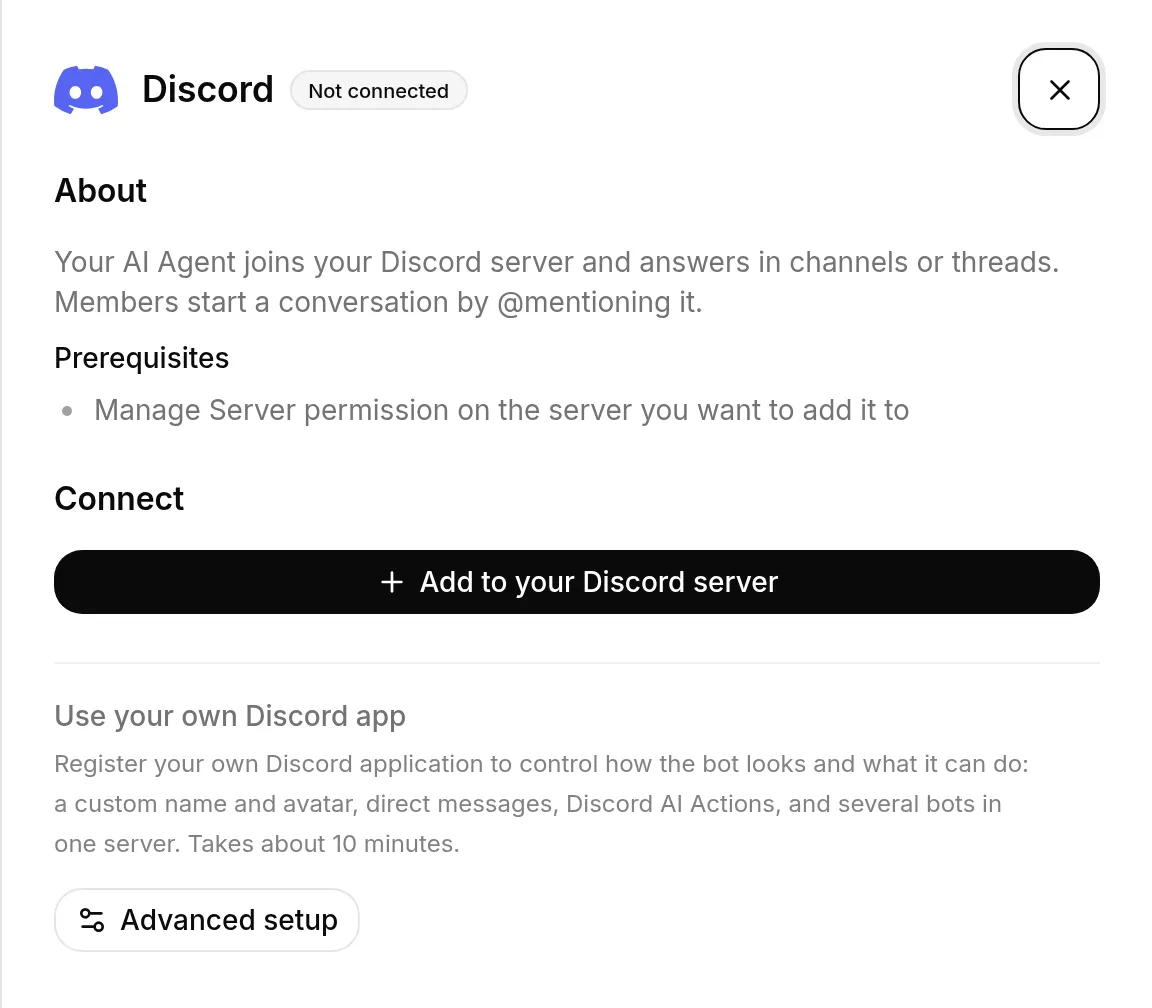
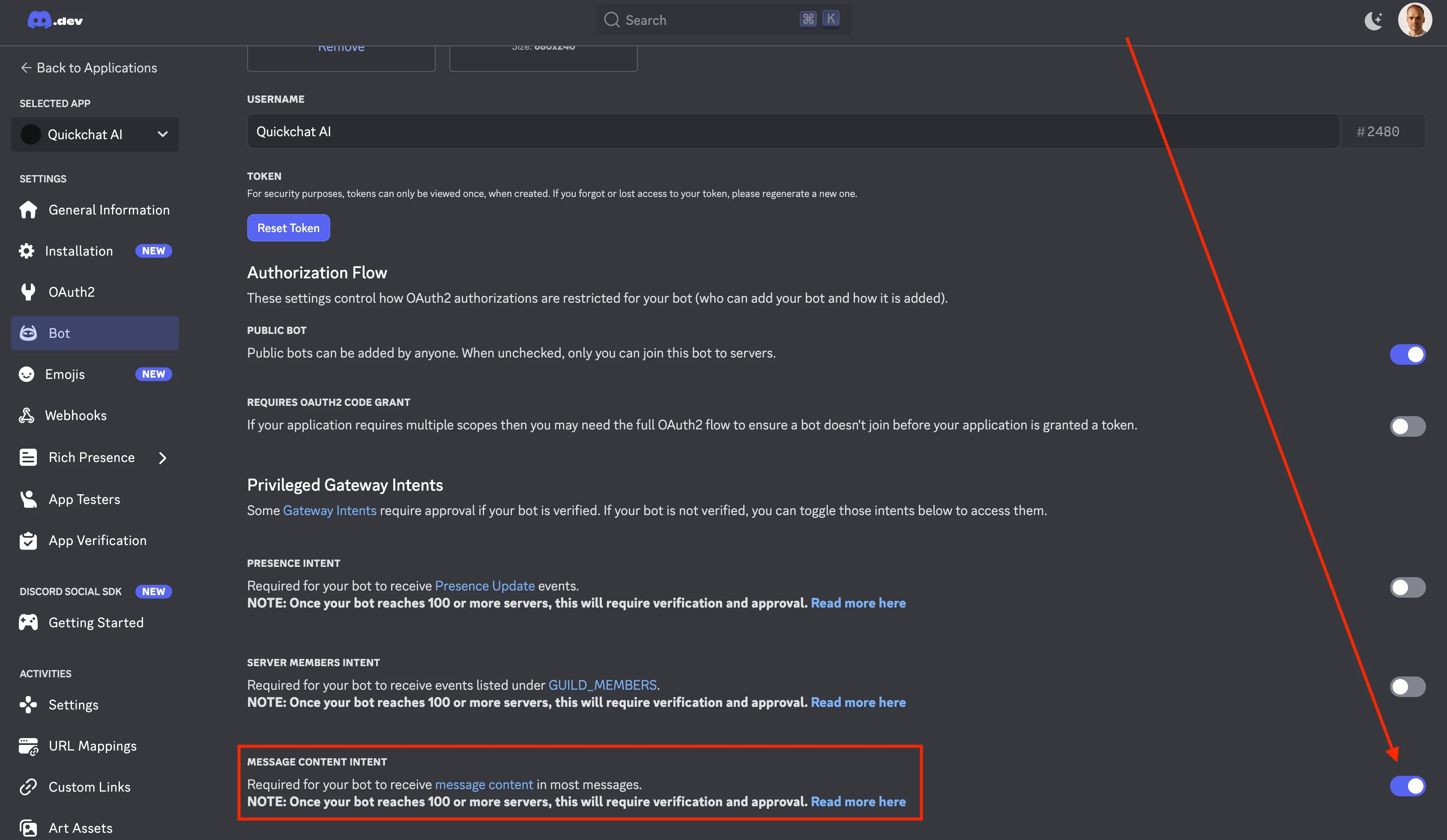
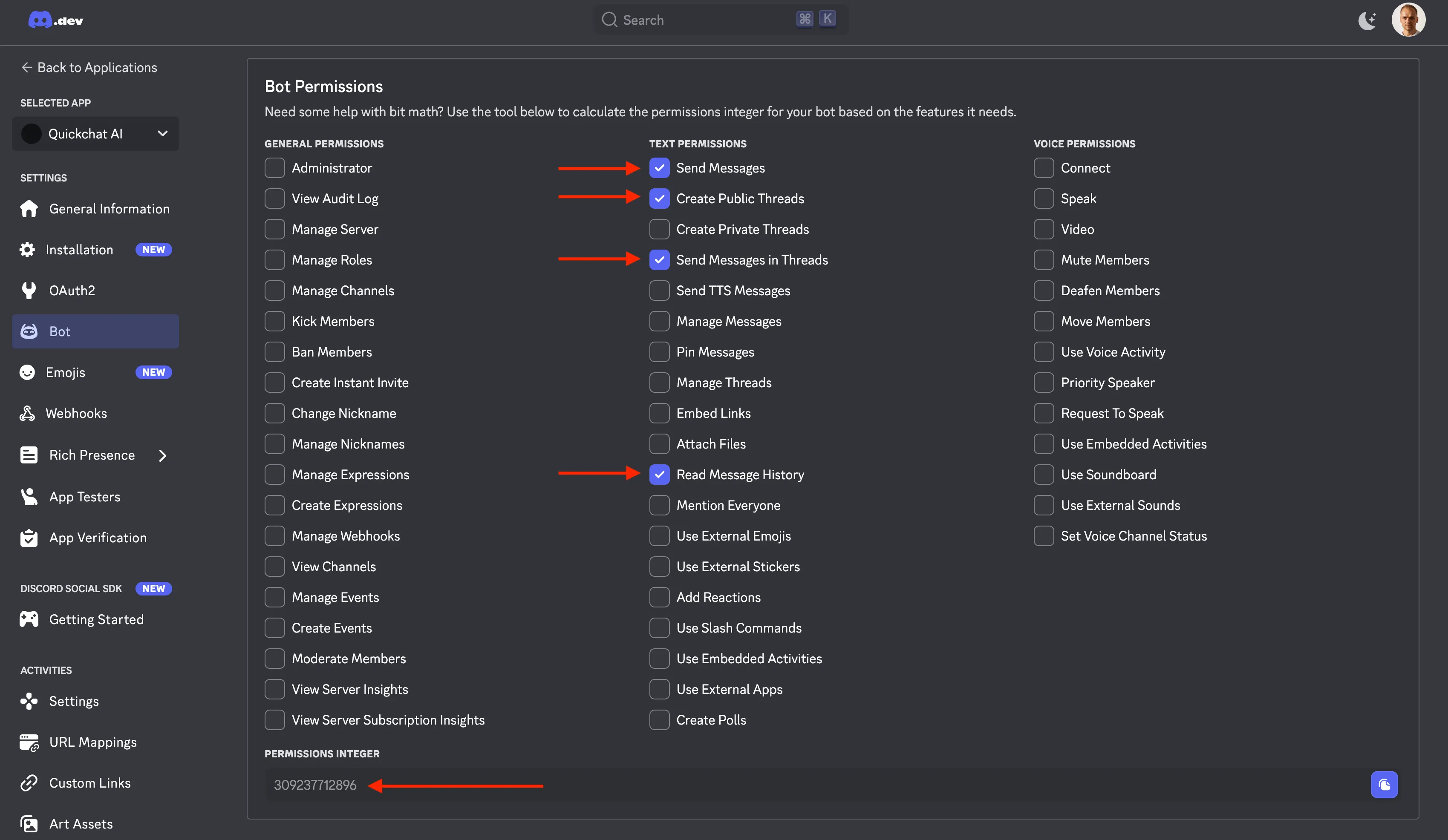
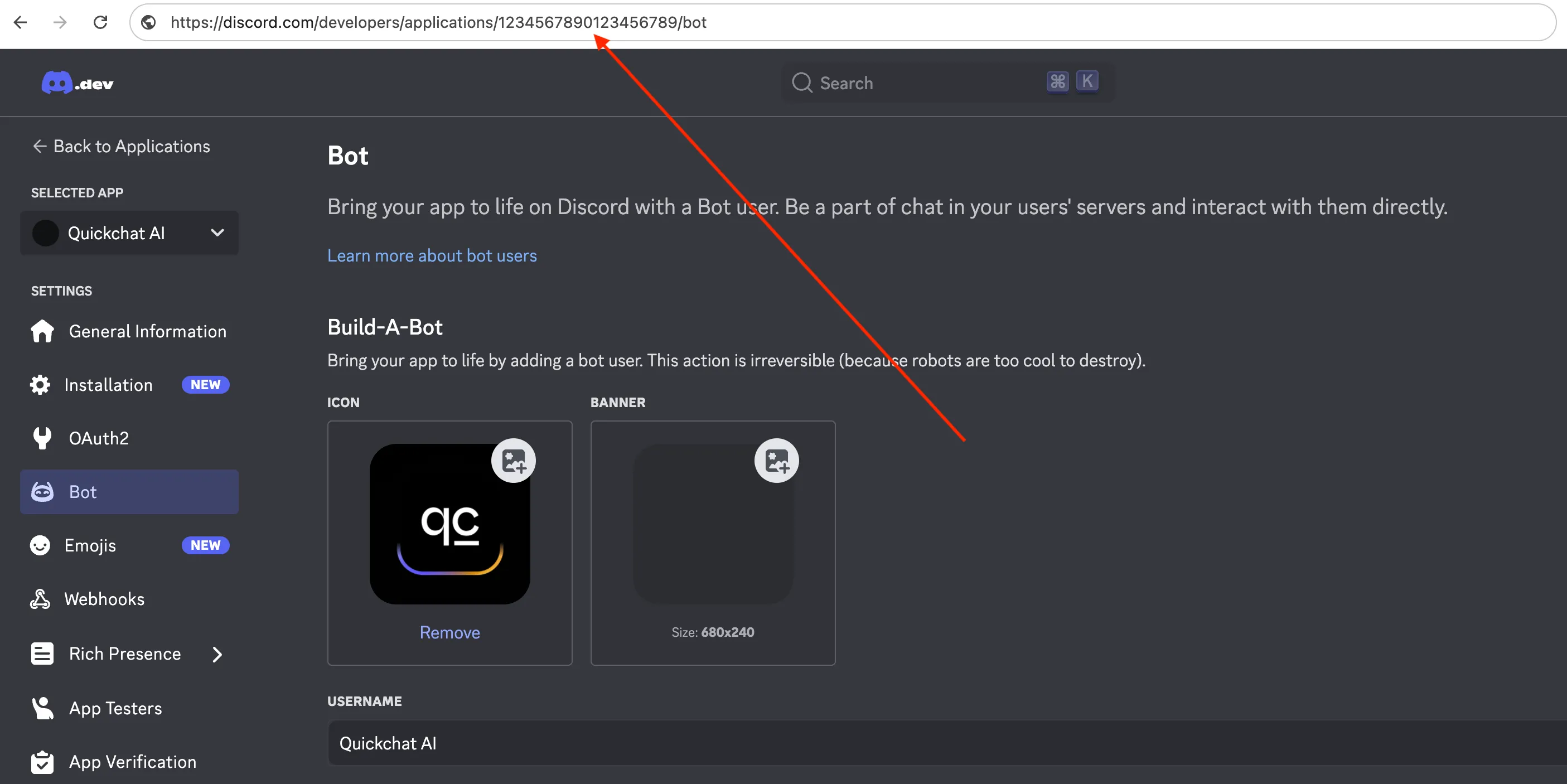
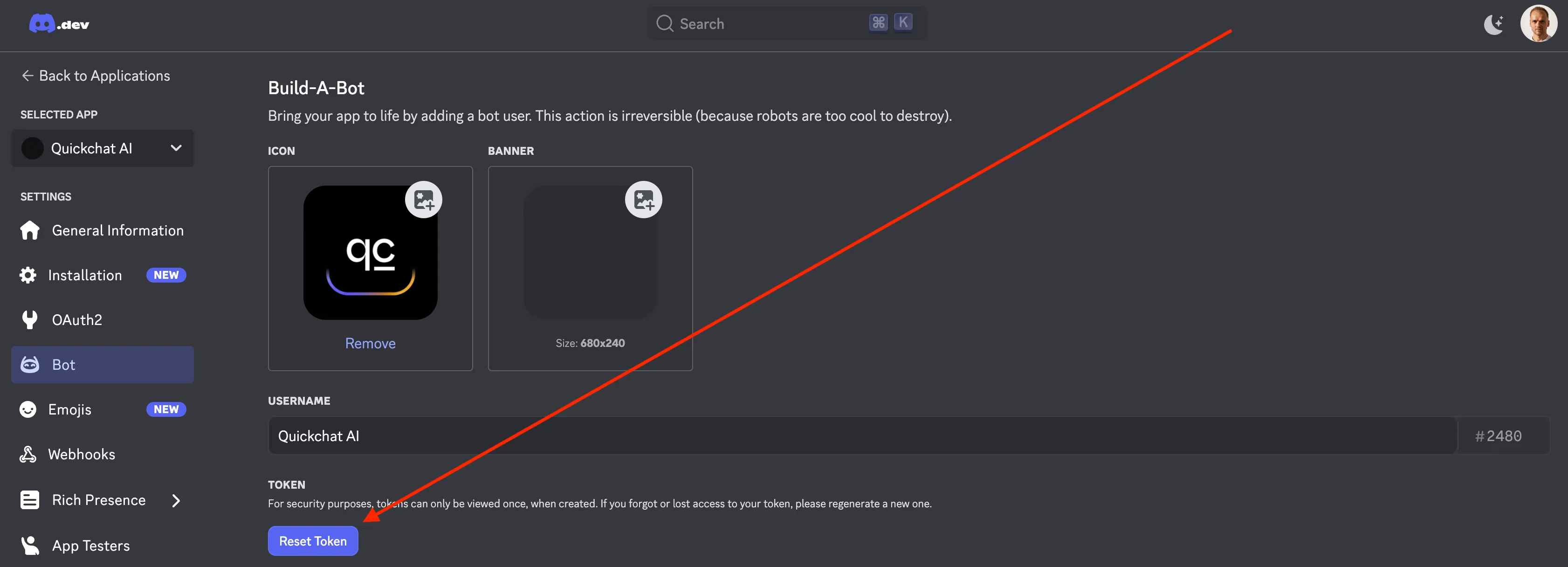
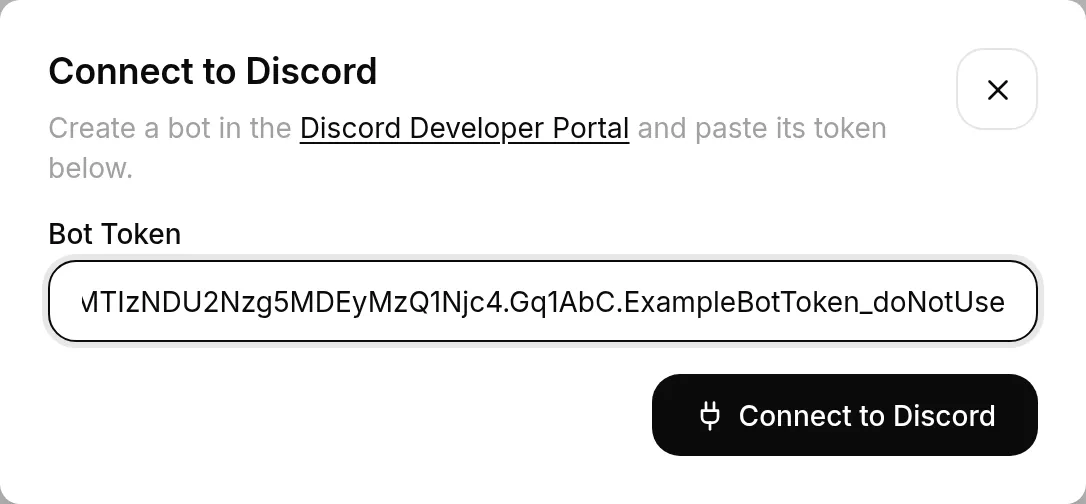



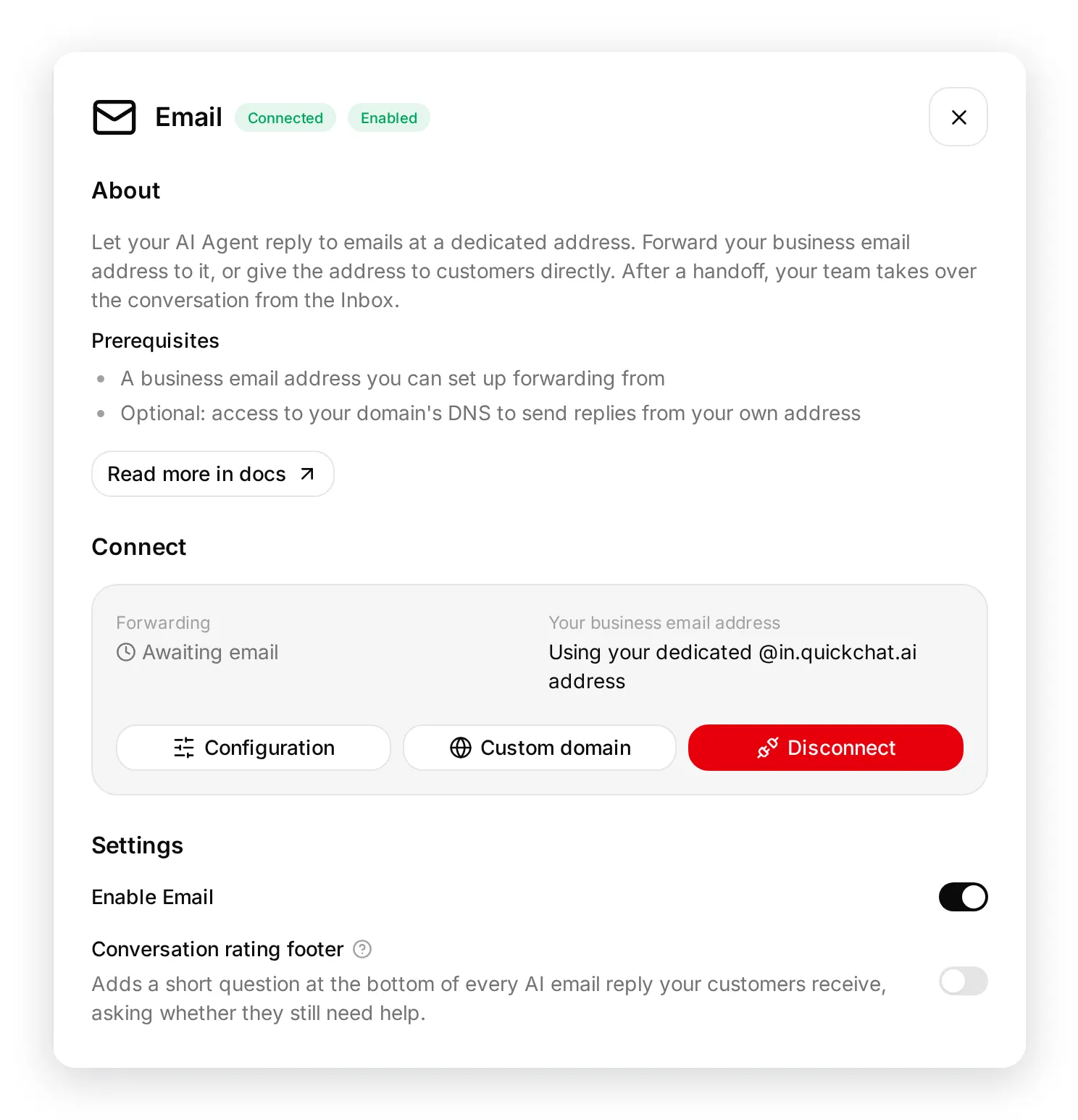
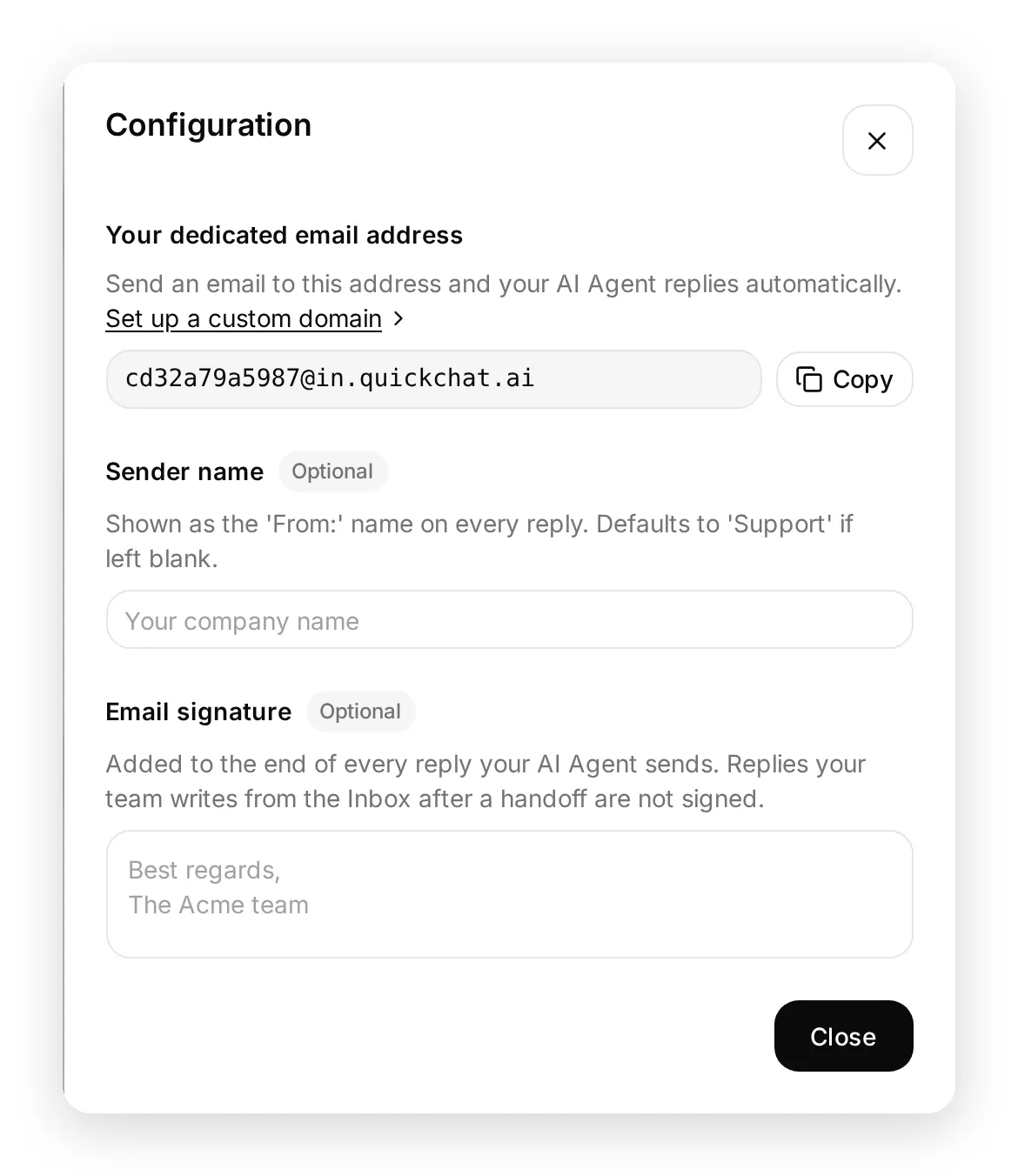
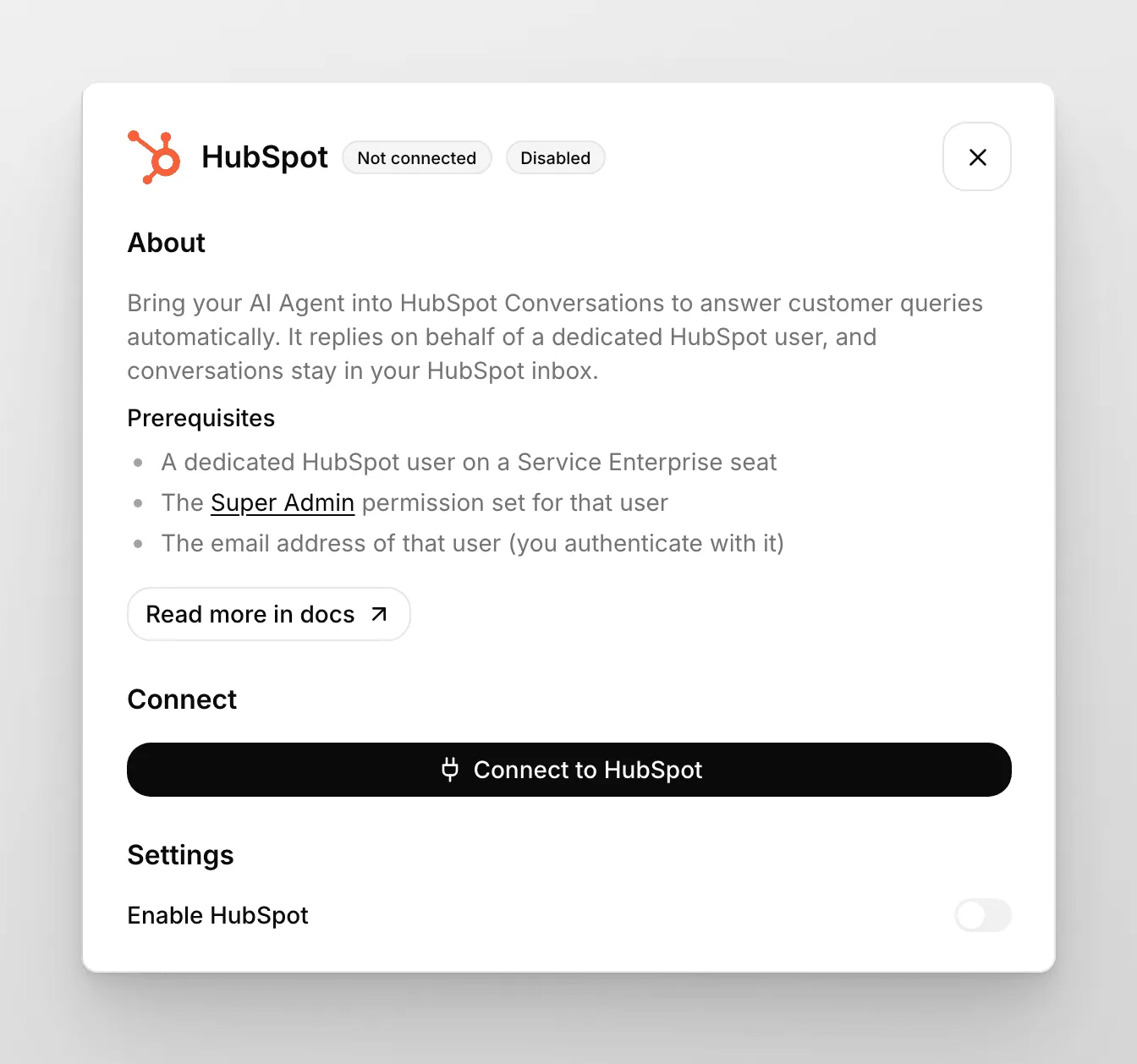
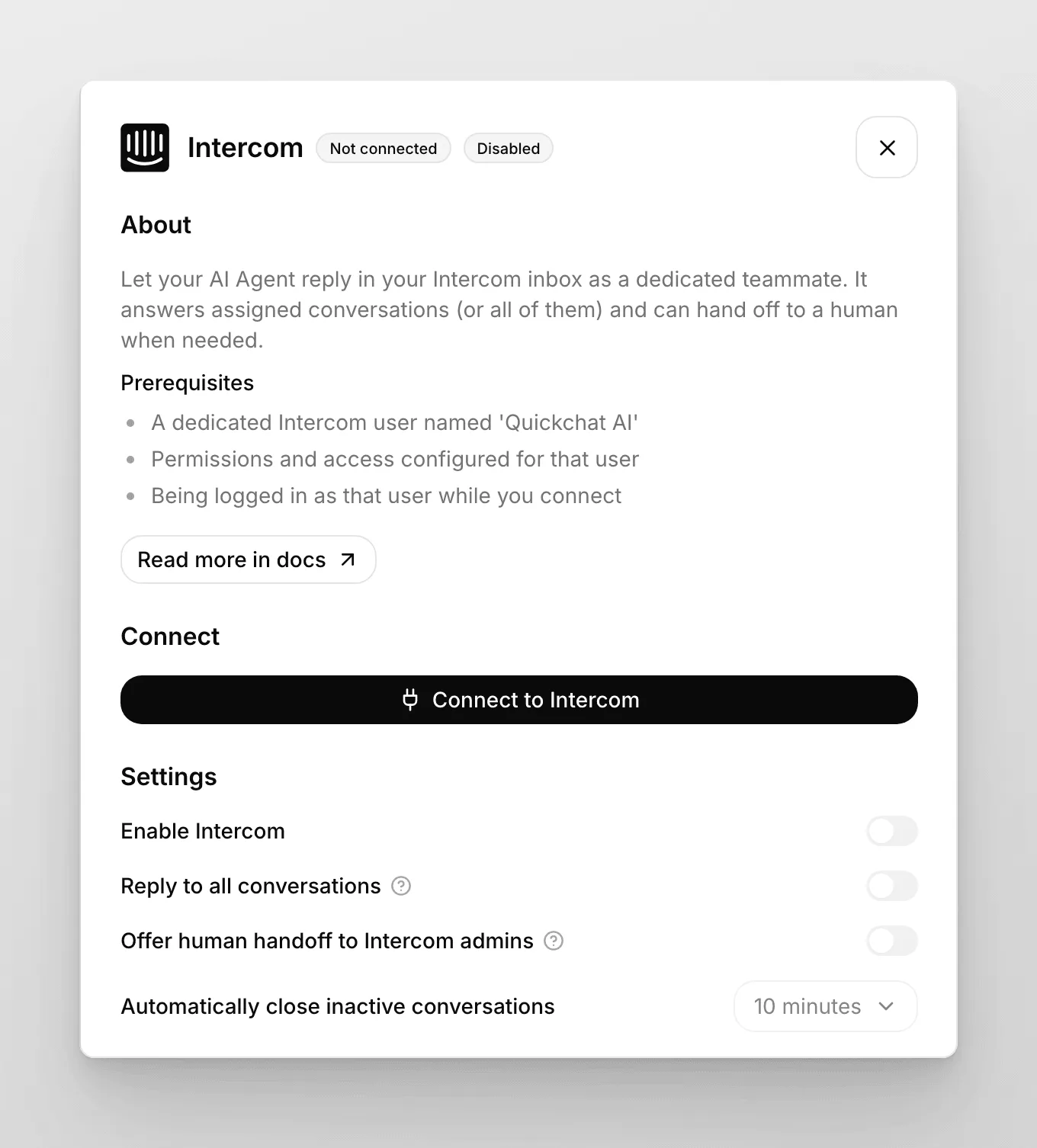
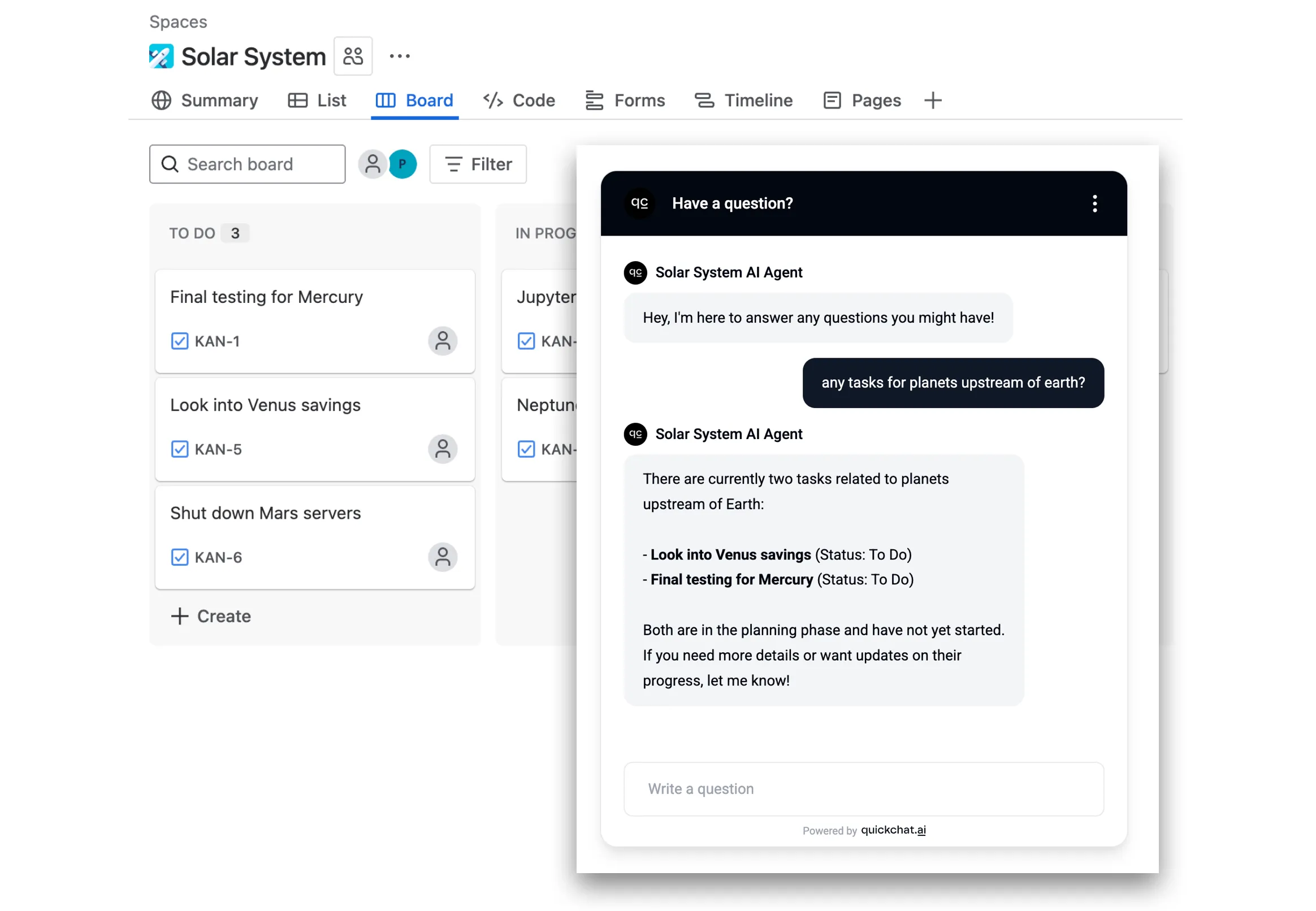
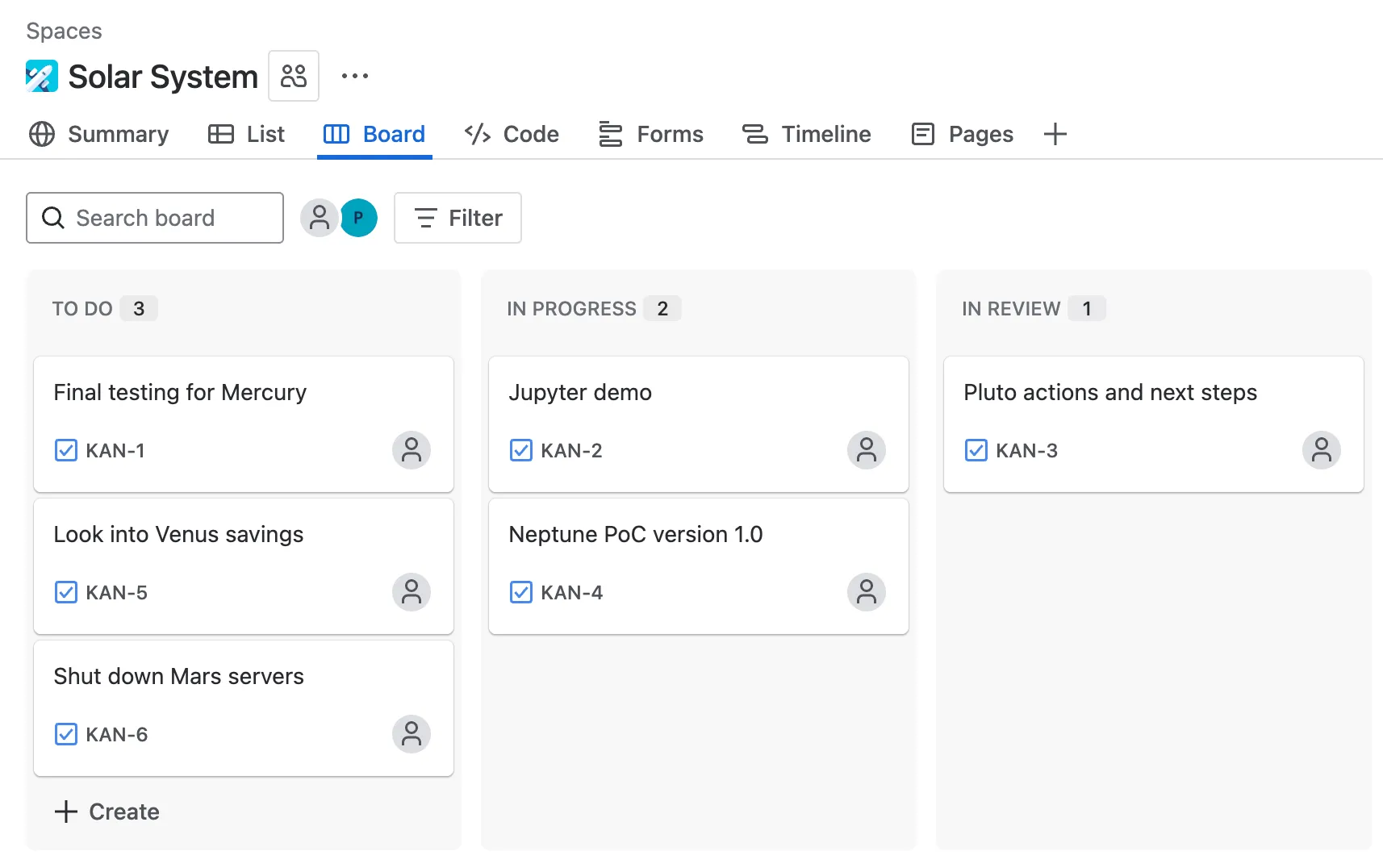
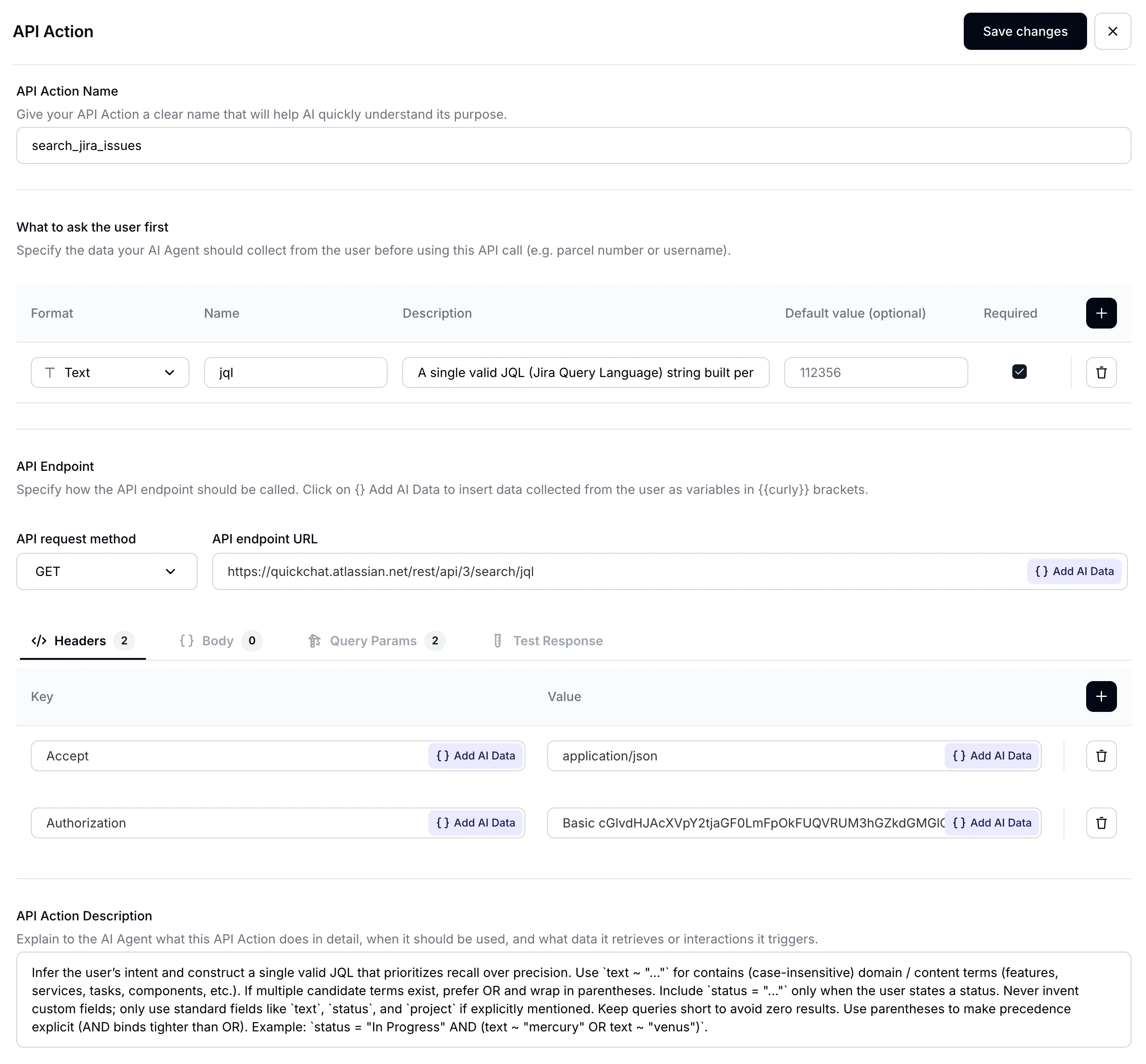

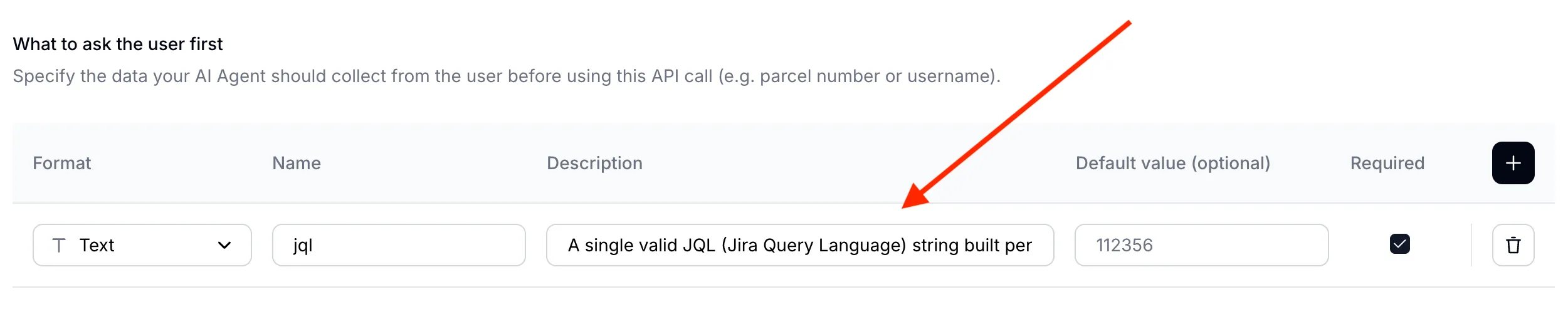

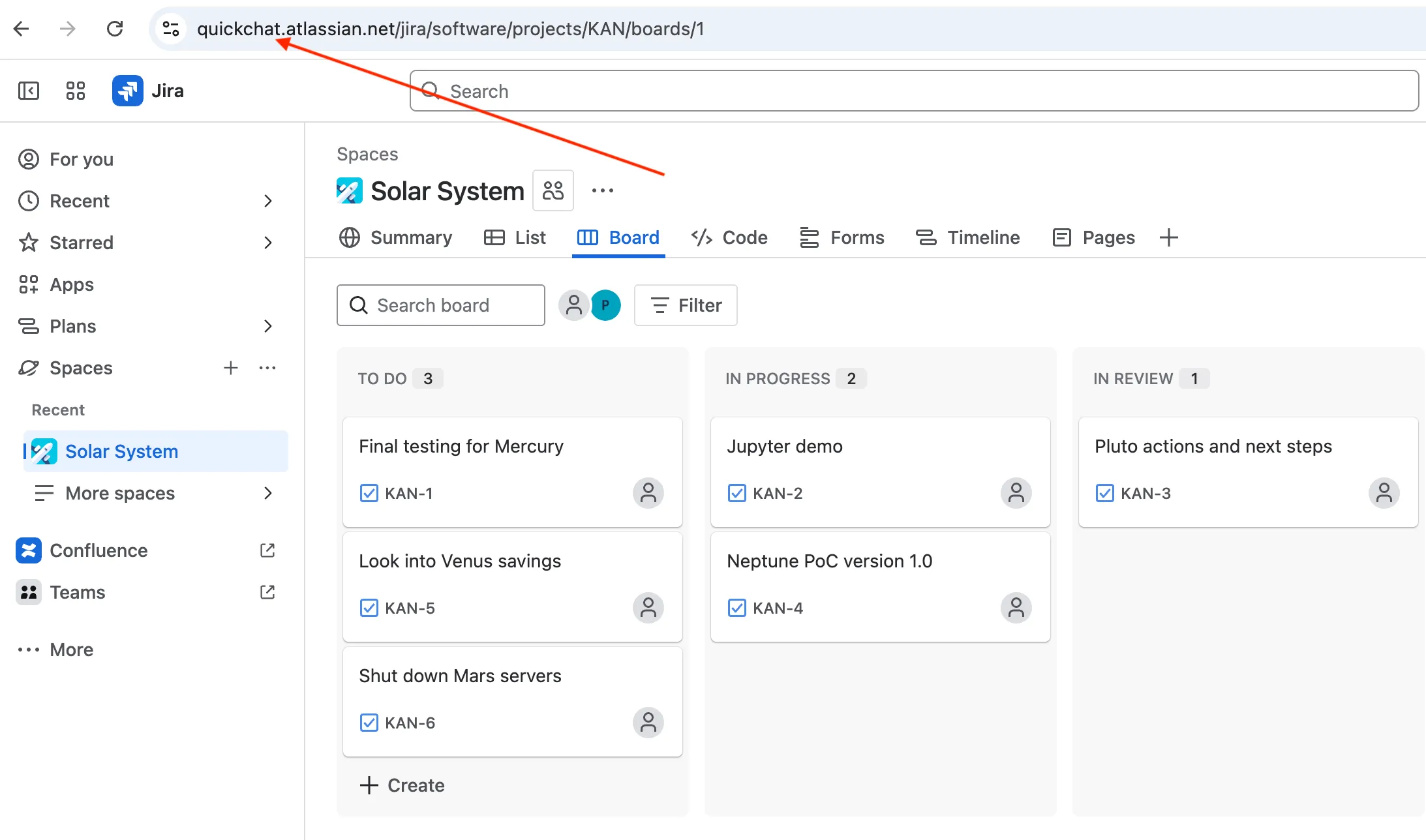
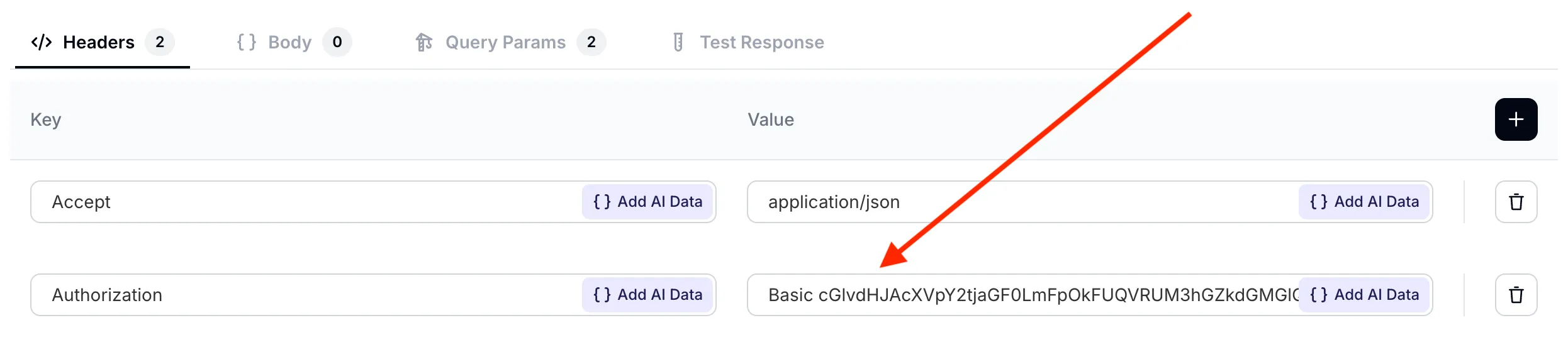
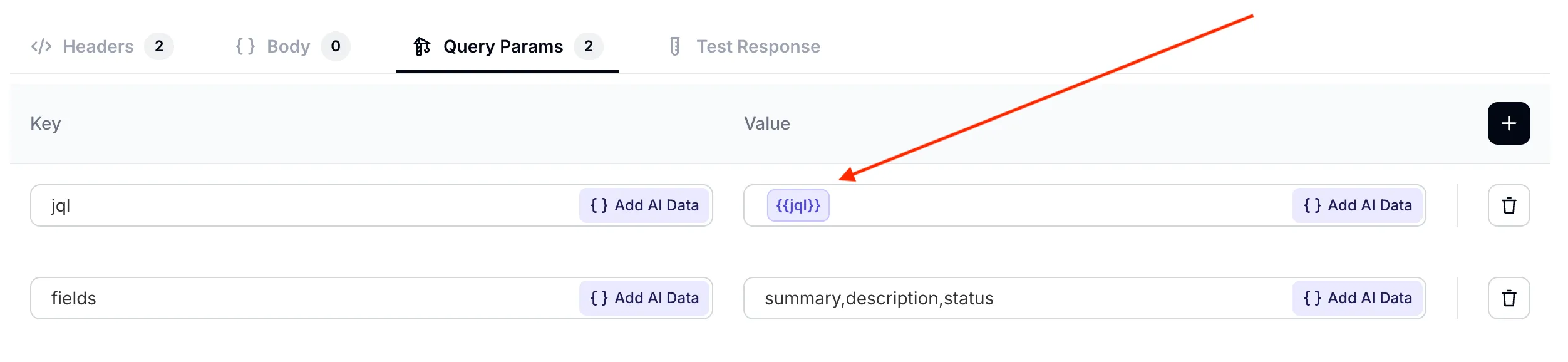
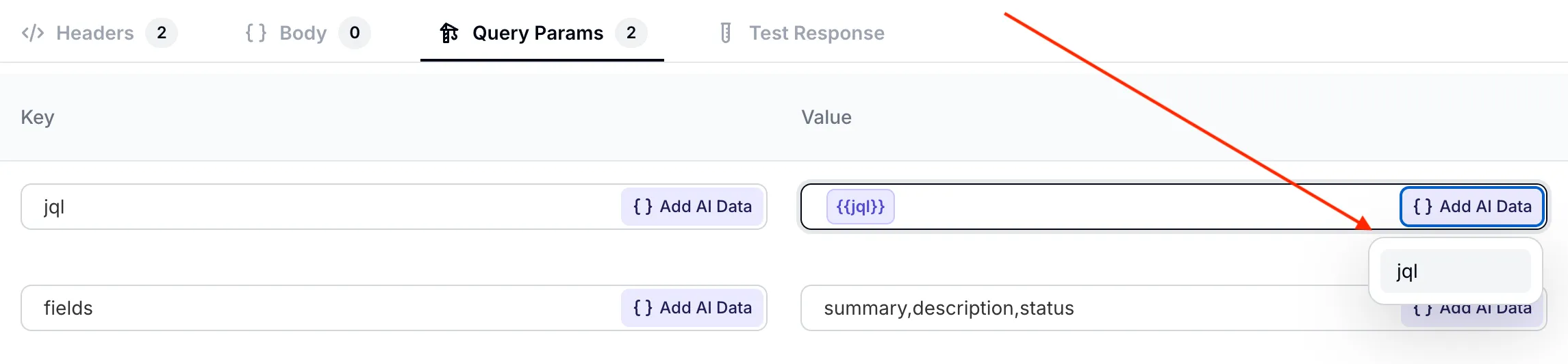
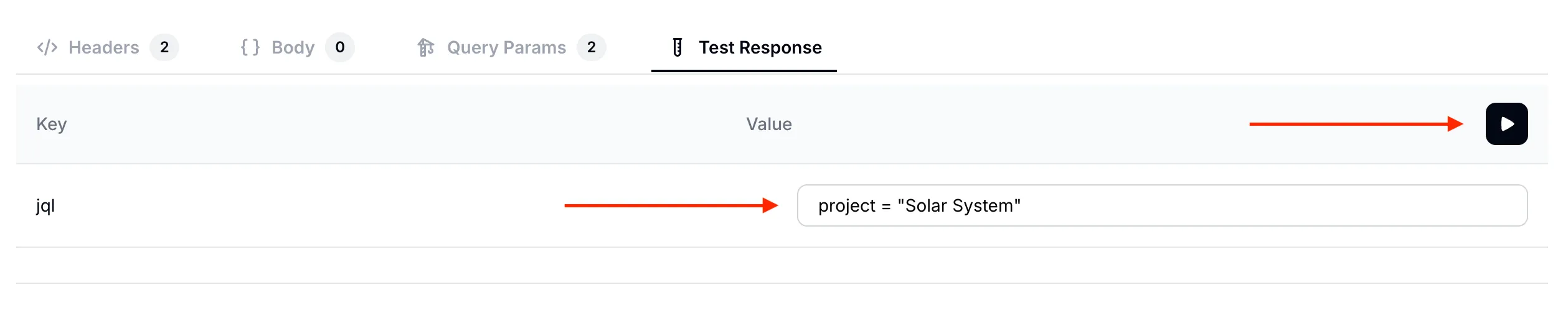
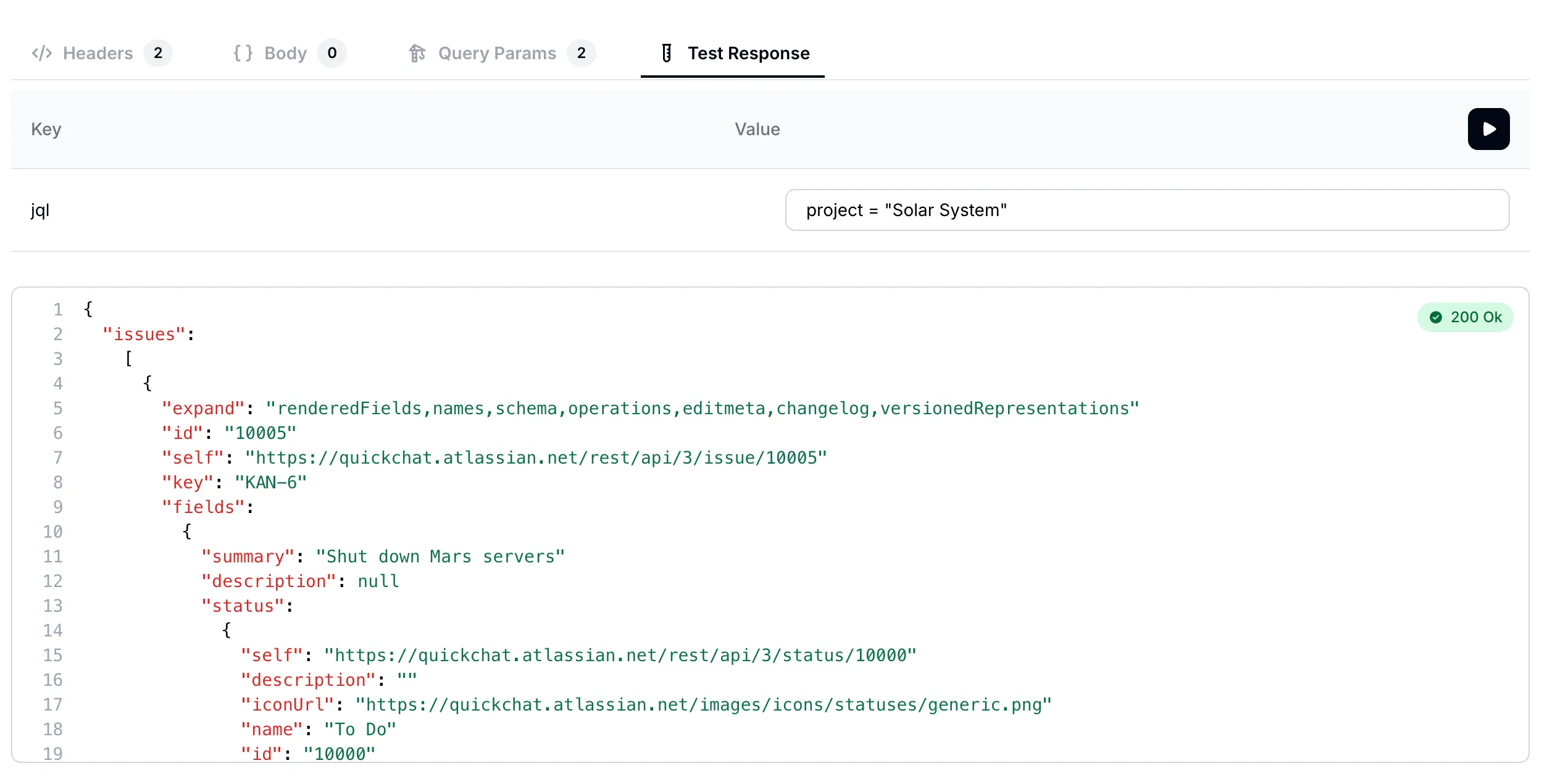
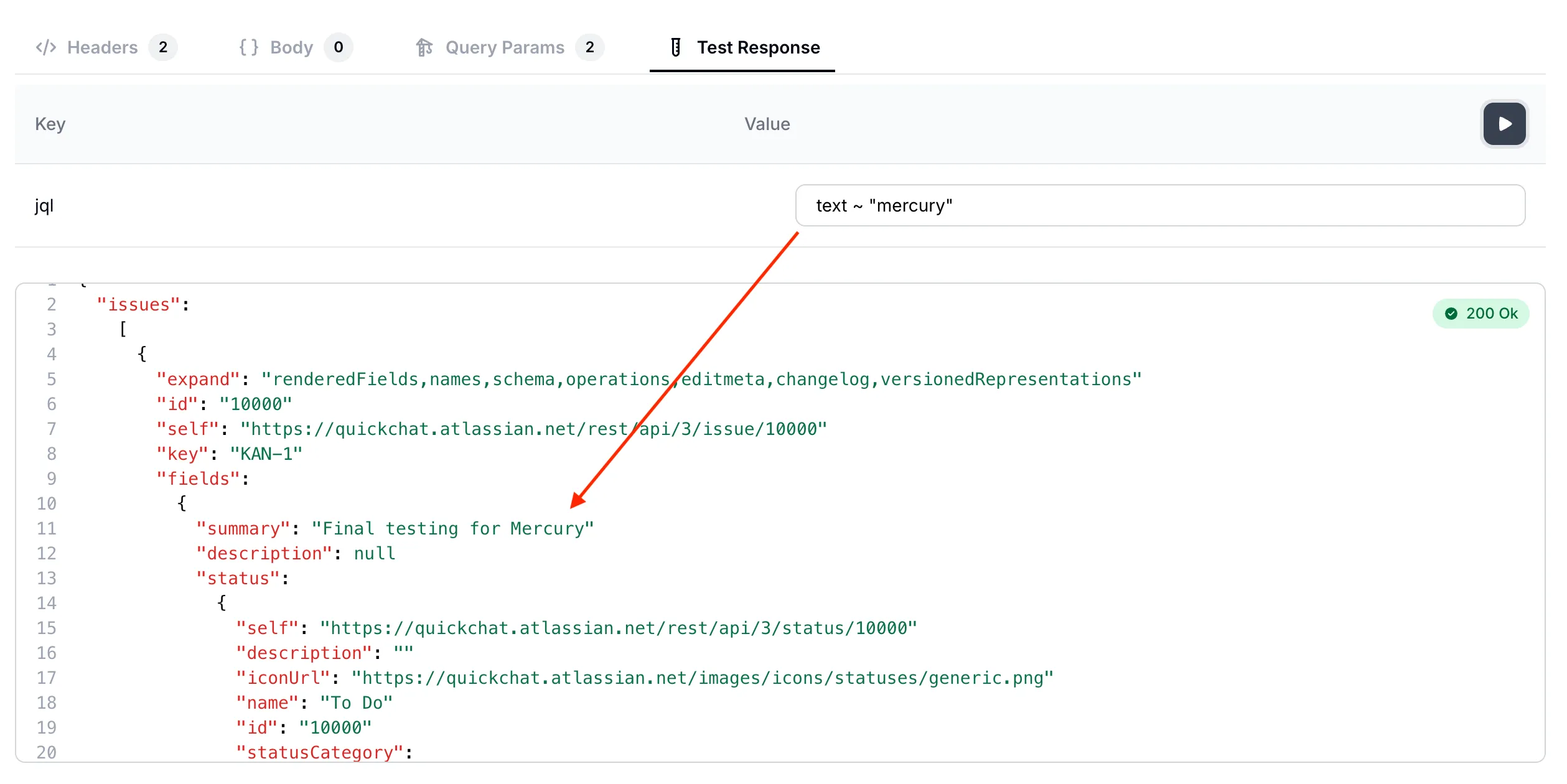
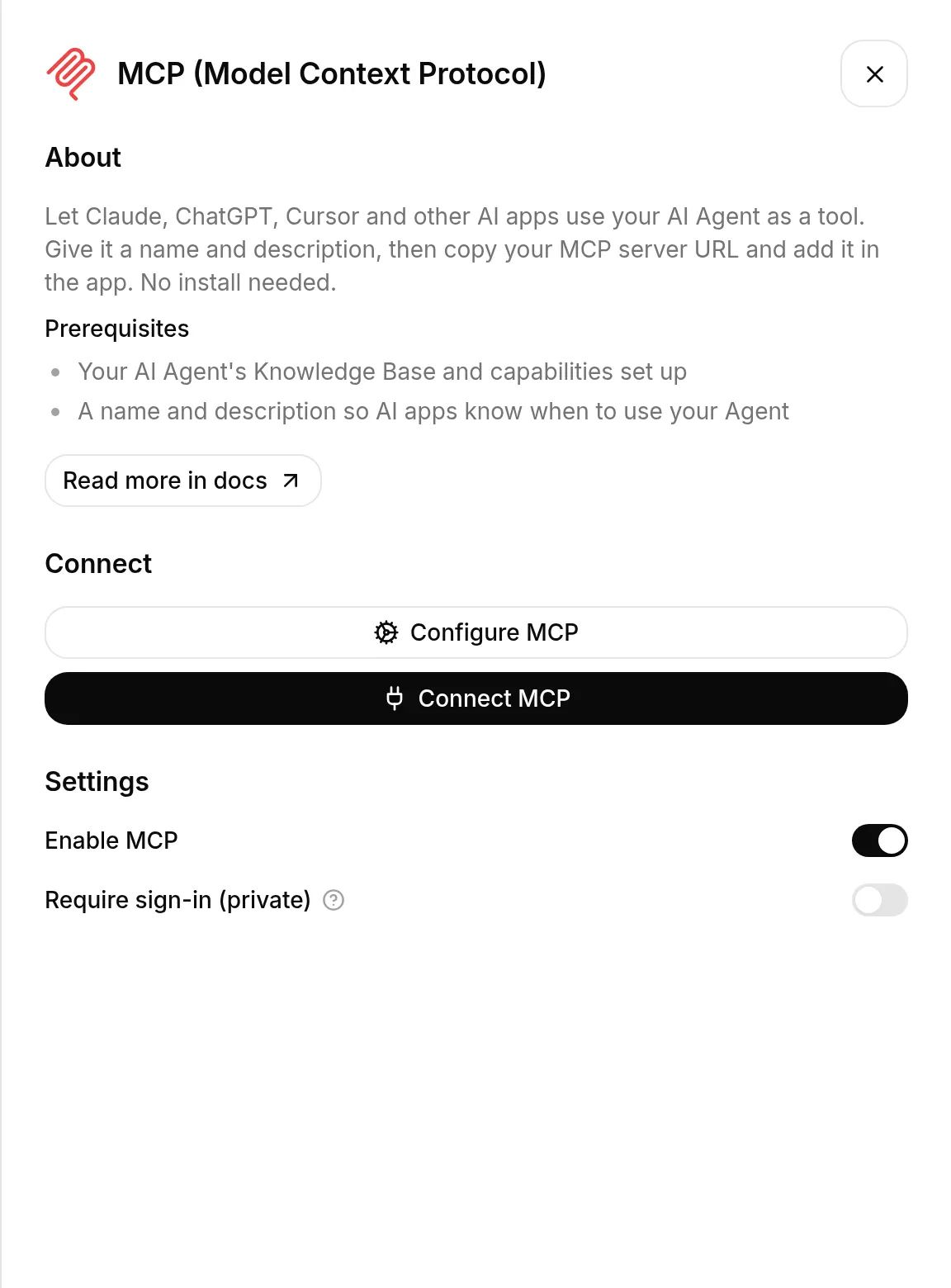
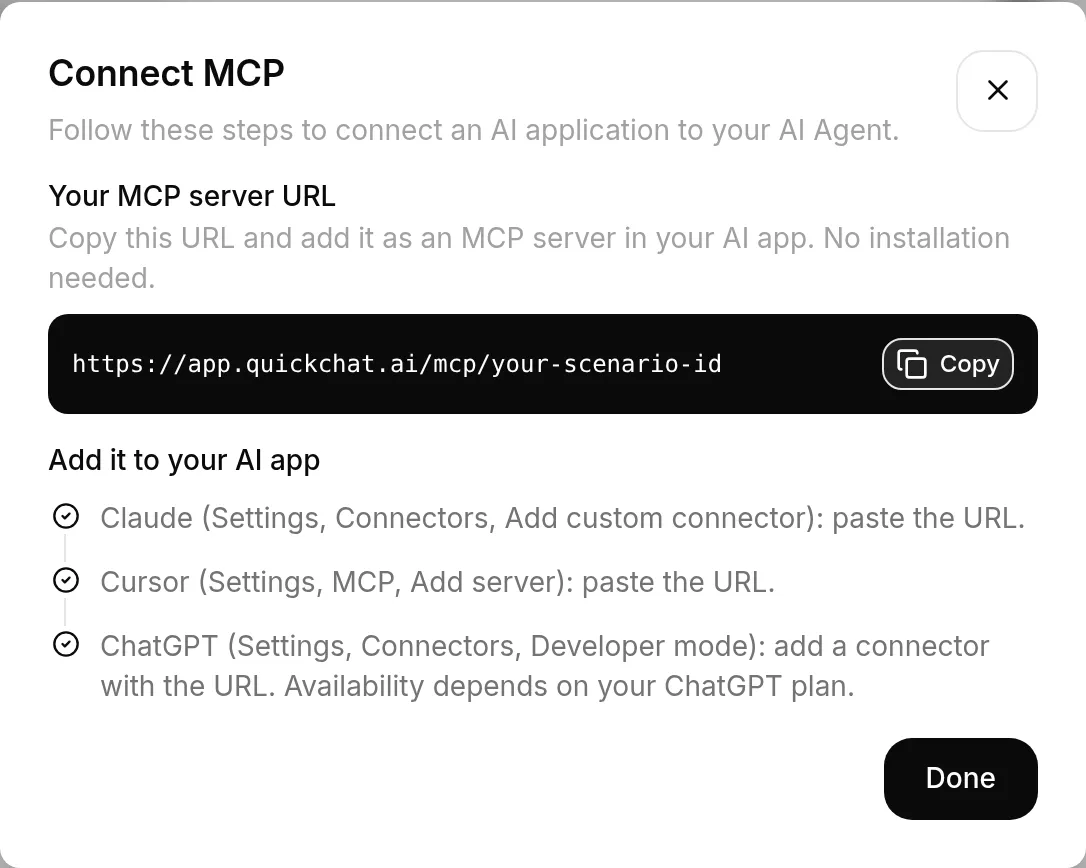
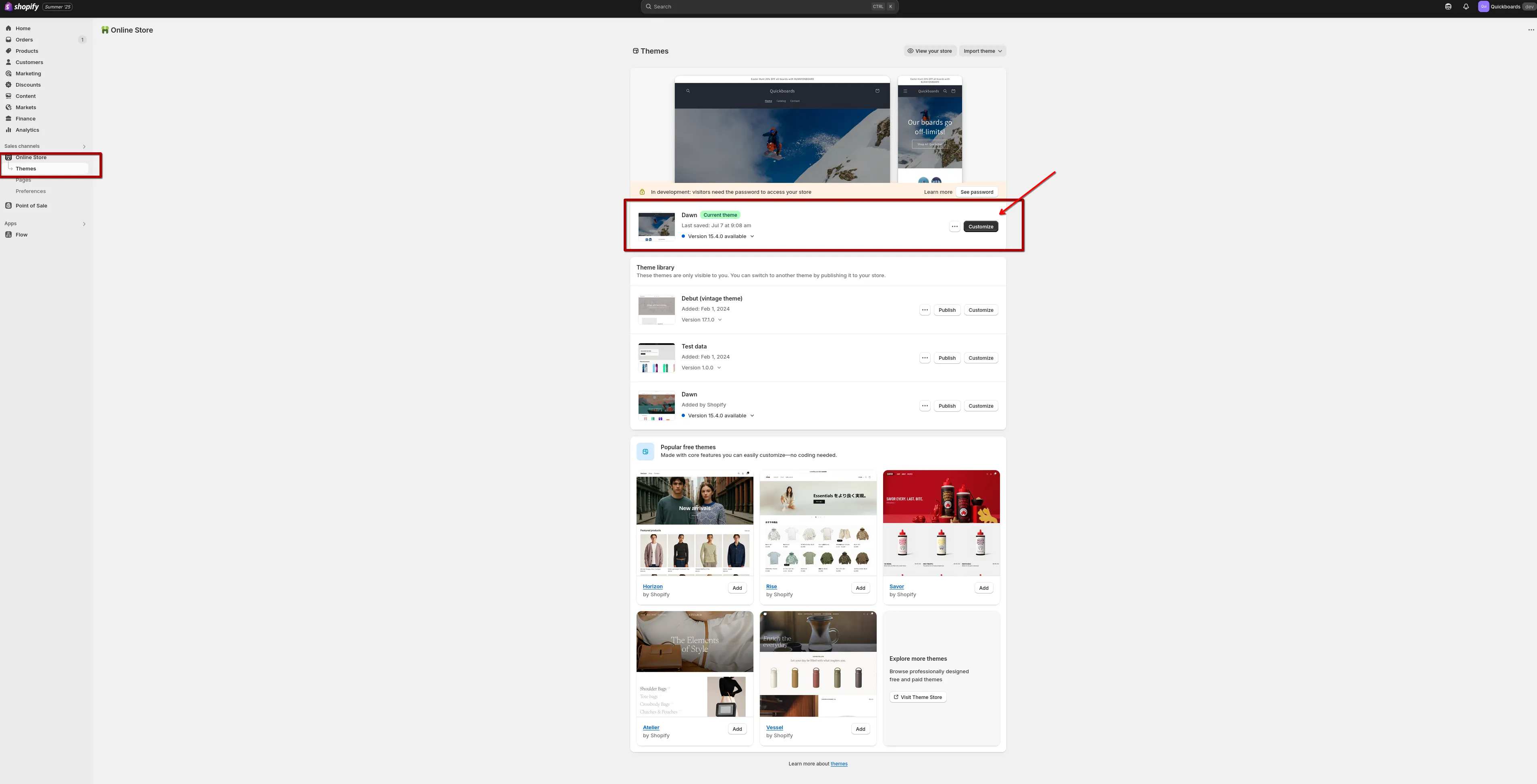
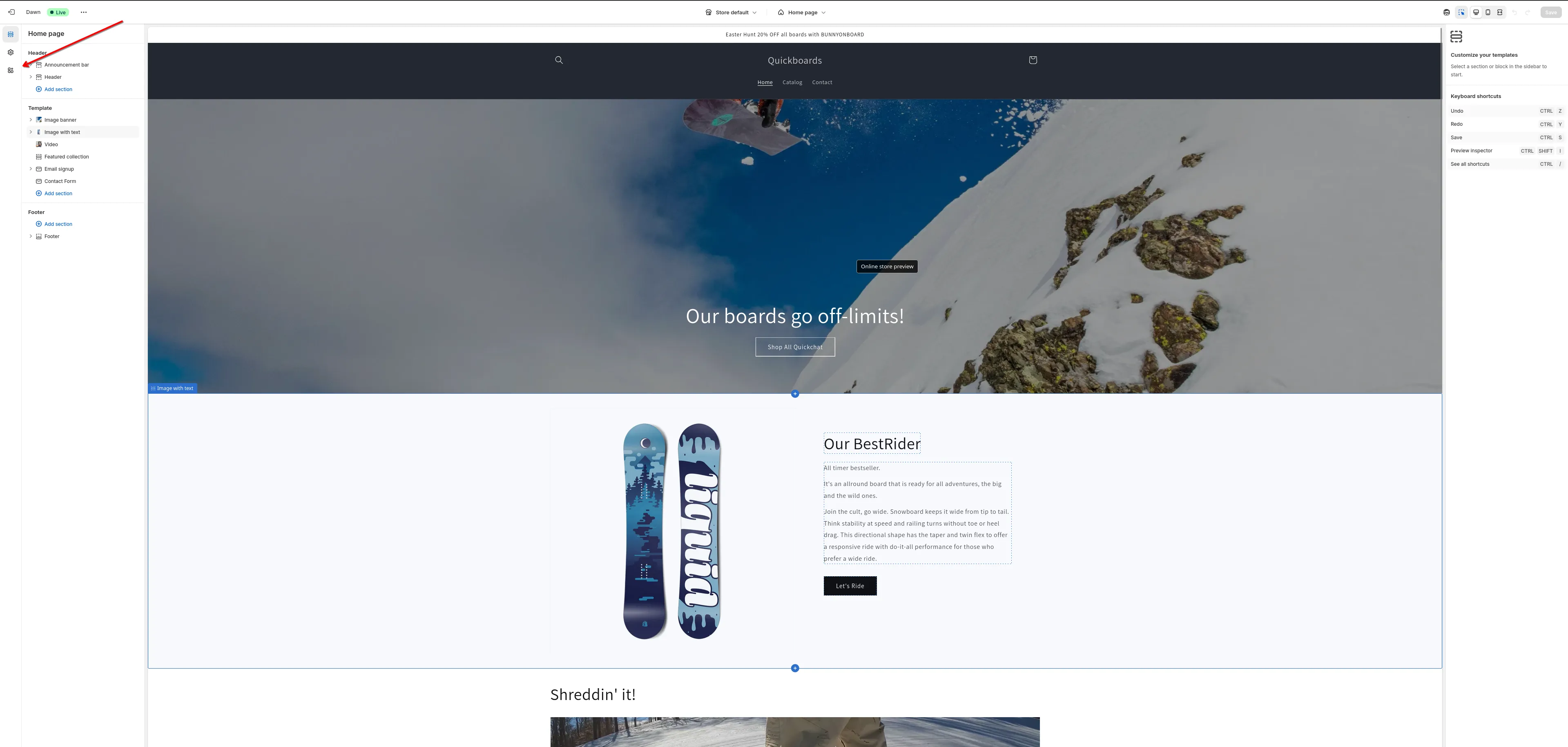
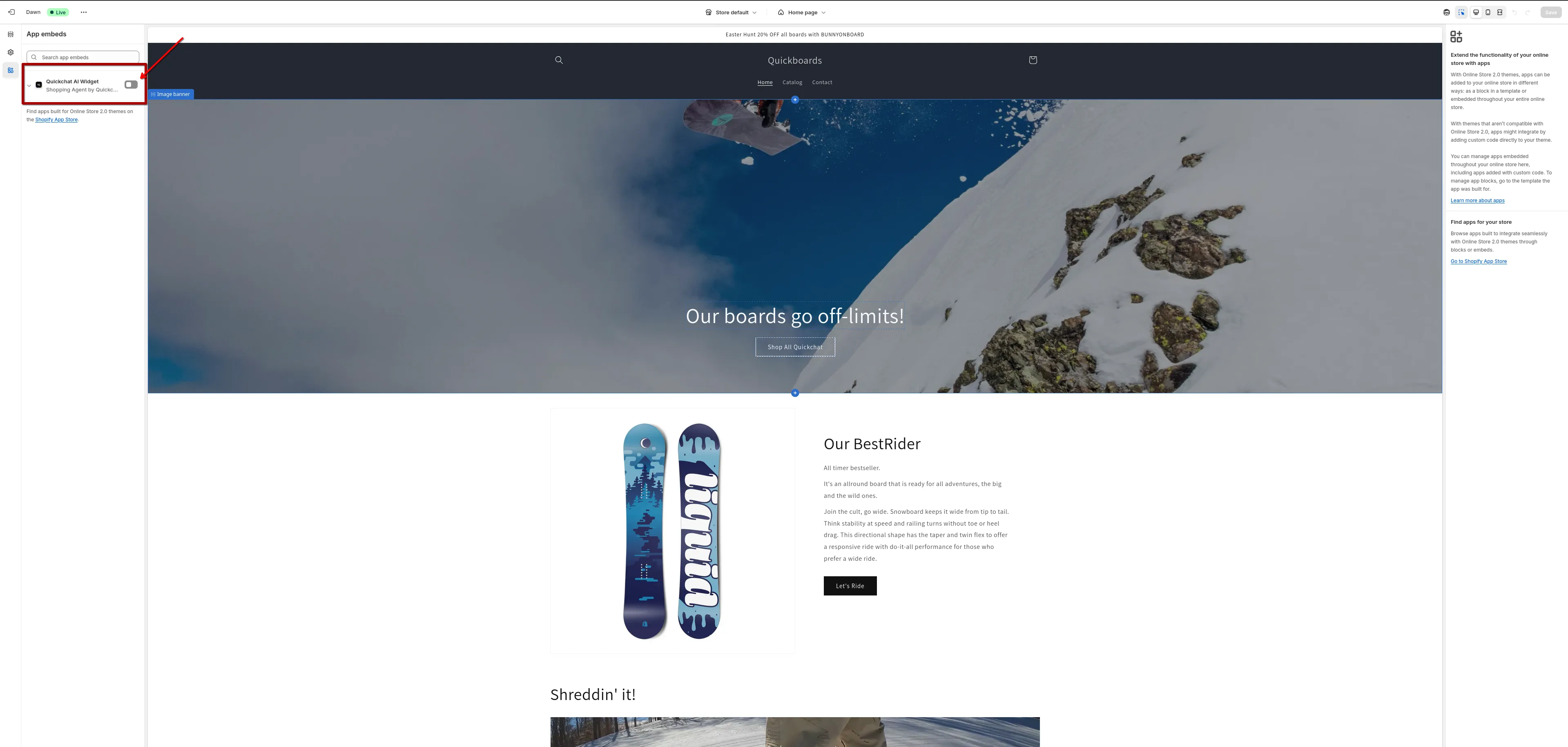
``` ## Embed [Section titled “Embed”](#embed) **Embed** lets you place the Quickchat AI Agent directly inside a page as an inline chat window, instead of a floating bubble. Use it when you want the chat to sit in a specific spot on the page — a help-centre column, a contact page, an in-app sidebar, etc. ### How to add the Embed [Section titled “How to add the Embed”](#how-to-add-the-embed) 1. **Get the Embed code** * Log into the **Quickchat AI App**. * Go to **Channels → Your Website** in the left sidebar. * Click the **Install** tab, then expand **Install manually with code**. * Copy the **Embed snippet** (it includes both the `
` container and the loader script). 2. **Open your website’s HTML file, or the page in your site builder.** 3. **Paste the code** * Insert the Embed snippet into the `` of your page. * Place it at the exact spot where you want the chat window to appear. The `
` controls the size — adjust the inline `style="height:600px"` to match the slot in your layout. * On a site builder, add a code or HTML element at the spot where the chat window should appear and paste the snippet into it. Note The Embed only works when your builder puts the code directly into the page. Some builders, Wix for example, show HTML elements inside a separate frame, and the Embed can’t load inside a frame. If the chat window doesn’t appear on your published page, add the [Widget](#site-builders) through the site-wide code setting instead, or share your [Chat Page](#chat-page) link. # WhatsApp > Connect your Quickchat AI Agent to WhatsApp Business. This guide covers prerequisites, setup steps, and going live with WhatsApp messaging. This guide shows how to integrate your **Quickchat AI Agent** with **WhatsApp**. The process is divided into **2 simple steps**: * **Step 0** - Prerequisites * **Step 1** - Connect WhatsApp If you have problems with integration or need help, go to [Troubleshooting & FAQs](#troubleshooting--faqs) section or [contact us](https://quickchat.ai/contact). ## Optional setup tools [Section titled “Optional setup tools”](#optional-setup-tools) * [Check WhatsApp setup prerequisites](https://app.quickchat.ai/v1/api_core/public-question/quickchat/tools/whatsapp-readiness/?placement=docs-whatsapp-whatsapp-readiness-v1). Review declared number and provider details against the documented setup requirements. This does not access or connect a WhatsApp account. * [Check a WhatsApp service window](https://app.quickchat.ai/v1/api_core/public-question/quickchat/tools/whatsapp-window/?placement=docs-whatsapp-whatsapp-window-v1). Check the 24-hour window from supplied inbound and reply timestamps with time-zone offsets. This does not verify templates, consent or account permissions, or send a message. * [Estimate usage costs](https://app.quickchat.ai/v1/api_core/public-question/quickchat/tools/usage-budget/?placement=docs-whatsapp-usage-budget-v1). Calculate Quickchat AI model credits and a separate total for supplied fee lines. This does not look up provider rates, combine credits with money or check your account. ## Watch the Video [Section titled “Watch the Video”](#watch-the-video) [Play](https://youtube.com/watch?v=A6qbovXyZ4Q) ## Step 0 - Prerequisites [Section titled “Step 0 - Prerequisites”](#step-0---prerequisites) ### A. Business Phone Number [Section titled “A. Business Phone Number”](#a-business-phone-number) Decide **which phone number** you’ll use for WhatsApp. You can [read more in WhatsApp documentation](https://developers.facebook.com/docs/whatsapp/cloud-api/phone-numbers) or follow the FAQs below: **Which number can be used in WhatsApp Cloud API?** * You need to use a **dedicated business phone number** that can receive **SMS or voice calls** for verification. * The number must be valid, owned by you, and have a country and area code. **Can I use a number that is already used in WhatsApp Messenger?** * **No**. You can continue using this number for calls and texts, but **not in WhatsApp Messenger**. * If the number is already used in WhatsApp Messenger, [delete it first](https://developers.facebook.com/docs/whatsapp/cloud-api/get-started/migrate-existing-whatsapp-number-to-a-business-account). Don’t forget to [back up your WhatsApp chat history](https://faq.whatsapp.com/481135090640375). * Banned numbers must be unbanned before registering. **Can I use a number that is already used by WhatsApp Business App?** * Quickchat AI’s current connection flow does not provide a verified **Coexistence** path for an existing **WhatsApp Business App** number. Meta describes how coexistence works in supported integrations in its [Business App onboarding guide](https://developers.facebook.com/documentation/business-messaging/whatsapp/embedded-signup/onboarding-business-app-users). * If you need to keep your existing number, Business App account, and chat history, email before proceeding. Do not delete or disconnect the Business App account, or migrate the number, as a troubleshooting step. **Can I use a new phone number?** * **Yes**, if you prefer not to use your current number, get a **new number** (physical SIM or virtual number). You can buy a virtual phone number from services such as [Hushed](https://hushed.com/). ### B. Business Information [Section titled “B. Business Information”](#b-business-information) Have these details ready (you’ll enter them during the Meta integration flow): * Business name * Business website * Business category * Business description Caution Even if some fields seem optional, **fill them accurately**. Missing or inaccurate info can delay approval or cause account restrictions. ## Step 1 — Connect WhatsApp [Section titled “Step 1 — Connect WhatsApp”](#step-1--connect-whatsapp) Open the [Quickchat AI App](https://app.quickchat.ai) → **External Apps** → **WhatsApp** → click the **Connect WhatsApp** button and follow the Meta pop-up: You can also start from [ChatGPT, Claude or another connected AI app](/manage-with-ai/): ask for a link to connect this Agent to WhatsApp. The link is valid for 10 minutes and works once, only for the Quickchat account that requested it. Open it in a browser signed in to that account, follow Meta’s setup, and finish any account or phone selection when Quickchat reopens. Then ask your AI app to check the setup and send a real WhatsApp message to confirm that the AI reply arrives. Test each active number if you connect more than one. You approve Meta access in the browser, without sharing tokens in the chat. 1. Log in to your Meta (Facebook) account. 2. Review the permissions you’ll share with Quickchat AI (WhatsApp Business account access and Business portfolio access) and continue. 3. Provide accurate business details (Business Portfolio, Business Name, Business Website, Country, etc.). 4. Create or select your WhatsApp Business Account. 5. Choose a WhatsApp Business display name and category. 6. Add your **business phone number** and verify it via SMS/voice as prompted. 7. Click **Confirm** to give Quickchat AI required access. 8. When Meta confirms the setup is complete, click **Finish**. The pop-up shows a Quickchat AI confirmation that your WhatsApp account has been connected and closes automatically. If Meta grants Quickchat AI access to more than one account, the WhatsApp panel shows **Choose your WhatsApp Business Account** instead of connecting immediately. Pick the account your AI Agent should answer on and click **Use this account**. If you are reconnecting, your current WhatsApp setup stays unchanged until you confirm. Back in the Quickchat AI App, the WhatsApp panel shows **Finish setup** until a successful exchange is verified on your own business number. If the panel has not updated after about 30 seconds, click the refresh icon. Connection to Meta and receiving a message are only part of setup. The panel shows the next step for each enabled number: * **Waiting for your first message**: send a WhatsApp message to the number shown from another phone, then click **Refresh**. Make sure you message the business number your customers will use. * **Waiting for the AI reply to be delivered**: Quickchat received your message, but WhatsApp has not yet confirmed delivery of the AI reply. Check whether the reply arrived on the other phone. If it did not, check your AI credits and any warnings in the panel, then send another test message. * **AI reply delivered**: WhatsApp confirmed that the AI reply to an incoming message was delivered on this business number. * **Verification needs attention**: resolve the connection warnings, keep the intended number enabled, and send a new test message. * **Display name**: every number listed lower in the panel carries its display-name status from Meta (**Approved**, **Pending review**, **Declined**, **Expired** or **No display name**). A review in progress needs nothing from you and usually finishes within a few days. A declined, expired or missing display name asks you to submit one in [WhatsApp Manager](https://business.facebook.com/latest/whatsapp_manager). * **Meta test number**: Meta-provided +1 555 numbers and sandbox numbers do not verify activation on your business number. Add your own number in WhatsApp Manager, enable it in Quickchat, then test that number. The panel shows **Live** when every enabled business number has a verified exchange and the connection checks are healthy. If you enable several business numbers, test each one. A successful test-number exchange, a sent template, or a message-allowance notice does not complete this check. Tip Keep the integration enabled while you test. Send a message from another phone to each intended business number, confirm that the AI reply arrives, and click **Refresh**. The conversation should also appear in the [Quickchat AI App](https://app.quickchat.ai) Inbox. An existing connection may ask for a new test exchange to verify delivery; it can continue receiving and replying to messages while you complete this step. If Meta has remaining onboarding steps, complete them in [Setup guidance](https://business.facebook.com/latest/whatsapp_manager/setup_guidance) in [WhatsApp Manager](https://business.facebook.com/latest/whatsapp_manager). Quickchat AI also emails the account owner a reminder when Meta’s setup steps remain unfinished. ## Troubleshooting & FAQs [Section titled “Troubleshooting & FAQs”](#troubleshooting--faqs) **How WhatsApp Business API Pricing Works?** * Replies to user-initiated (**inbound**) customer inquiries are trated by WhatsApp as **Service messages**. These messages enable businesses to manage incoming customer inquiries, whether that is via a human agent or a conversational AI-powered bot. * When users message a business, this opens a **24-hour customer service window** during which businesses can respond with service messages, **at no charge**. This window **resets with each user message**. * **Outside 24 hours**, you must use **approved Message Templates** (Marketing, Utility, Authentication, etc.) and pay per-message according to [WhatsApp Business Platform Message Rates](https://business.whatsapp.com/products/platform-pricing). * Conversations are **categorized and billed** by Meta. Ensure your WhatsApp Business Account has a **valid payment method** for business‑initiated/template messages. **The Connect WhatsApp button does not work. I don’t see the Meta pop-up.** * If your browser blocks the pop-up, allow pop-ups for the Quickchat AI App and click **Try again**. You can also click **Continue on Meta in this tab** to complete the same setup without a pop-up. **Quickchat couldn’t confirm the WhatsApp connection** Quickchat shows this recovery message when Meta’s window returns no result and Quickchat still cannot verify the connection. It does not prove that Meta made no changes. 1. Confirm that you are an Admin of the Meta Business that owns the WhatsApp Business Account. If not, ask an Admin to connect it from their Facebook login. 2. Click **Try again**. If a blocker interferes with Meta’s window, use a private window with extensions paused, or click **Continue on Meta in this tab**. 3. If the number is active in WhatsApp Messenger, remove it there first or use another number. If it is active in the WhatsApp Business App, stop here and email before proceeding. Quickchat AI’s current connection flow does not provide a verified Coexistence path. Do not delete or disconnect the Business App account, or migrate the number, to troubleshoot this message. 4. If the WhatsApp Business Account uses Aircall, Twilio, 360dialog, MessageBird, or another provider, add Quickchat AI as a partner in Meta Business Settings: 1. Open [Meta Business Settings](https://business.facebook.com/) and go to **Accounts** → **WhatsApp Accounts**. 2. Select the WhatsApp Business Account, open **Partners**, and click **Add Partners**. 3. Enter Quickchat AI’s Business ID: `270696274483463`. 4. Grant **Manage WhatsApp accounts**, return to Quickchat AI, and refresh the status. Disconnect the other provider only if Meta does not allow both partners on that account. If you are unsure, [contact support](mailto:support@quickchat.ai) before disconnecting a live messaging provider. **Number verification failed.** * Ensure the number can receive SMS or voice calls. * A generic **Ineligible** message or **This number can’t be shared with this app** tooltip does not establish the cause or whether Meta’s coexistence requirements are met. Email with the exact message and the step where it appeared. * If the number is used in the **WhatsApp Business App** and you need to keep that account and its history, contact support before proceeding. Do not delete or disconnect the account, or migrate the number, to try to clear the error. **I connected the wrong account.** * **Reconnect** keeps the account that is already connected. To move the AI Agent to a different WhatsApp Business Account, click **Disconnect** in the WhatsApp panel, then **Connect WhatsApp** again and pick the correct Meta Business account and WhatsApp Account in Meta’s window. **We could not tell which WhatsApp Business Account to connect** * Your Meta login has several WhatsApp Business Accounts with phone numbers and Quickchat could not tell which one you meant. Email with the phone number you want connected and we will finish the setup for you. **Messages aren’t appearing in the Quickchat AI Inbox.** * Confirm the pop-up showed the final confirmation message: *“WhatsApp account connected!”*. * Double-check you linked the intended **WhatsApp Account** and the correct **AI Agent** is selected. * The **Waiting for your first message** card names the number your AI Agent answers on. Make sure you messaged that exact number and that it is switched on in the panel, then click **Refresh**. * If you’re sending messages **after 24 hours** without a user message, use **approved templates** and ensure a **payment method** is set in [WhatsApp Manager](https://business.facebook.com/latest/whatsapp_manager). **My AI’s WhatsApp replies are failing to send.** If your AI’s replies can’t be delivered, Quickchat AI shows a *“WhatsApp replies are failing”* alert on the WhatsApp panel in **External Apps** and a notification on your dashboard. The most common causes and fixes: * **Display name not approved on a Meta test number:** Meta holds replies from a Meta-provided +1 555 number until its display name is approved. The panel’s display-name alert turns red and names the number. Wait for the review to finish (usually a few days) or, if it was declined, submit a new display name in [WhatsApp Manager](https://business.facebook.com/latest/whatsapp_manager), then send a test message. A display name still under review on your own number does not block replies on its own; the panel shows it as a note. * **Connection expired or revoked:** your WhatsApp connection is no longer valid. Open the WhatsApp panel and click **Reconnect** to resume sending replies. * **Number restricted:** Meta has limited your number over its quality rating or a policy issue. Check its status in [WhatsApp Manager](https://business.facebook.com/latest/whatsapp_manager) to restore sending. * **Business Account locked (error 131031):** Meta has blocked replies from the WhatsApp Business Account. The Inbox delivery error and WhatsApp panel explain the restriction. Open [Business Support Home](https://business.facebook.com/business-support-home), select the WhatsApp account, choose the violation and click **Request Review**: Meta lifts an account lock only through this review. Reconnecting Quickchat does not lift the restriction. Other alerts clear automatically once a reply sends successfully again. An account-lock alert stays until a new real visitor message gets a fully delivered AI reply, because Meta can accept a reply and still fail it. If only Meta test numbers (+1 555) are active, the next successfully sent AI reply clears it. Support AI can also explain a recent stored account-lock failure, but historical evidence does not prove the account is still locked. **Template or business‑initiated messages fail.** * Verify your **Message Templates** are **approved** and your **payment method** is active in [WhatsApp Manager](https://business.facebook.com/latest/whatsapp_manager). * New senders start with **messaging limits** that scale based on quality and verification. If you hit limits for business‑initiated messaging, review [Meta’s **Messaging Limits** guidance](https://developers.facebook.com/docs/whatsapp/messaging-limits/). * Check **messaging limits** and **quality rating** in [WhatsApp Manager](https://business.facebook.com/latest/whatsapp_manager) if delivery is throttled. **How to create my own WhatsApp link and “Chat on WhatsApp” button?** * Follow [this WhatsApp tutorial](https://faq.whatsapp.com/5913398998672934). * Or [download WhatsApp brand button designs](https://scontent-ams2-1.xx.fbcdn.net/v/t39.8562-6/300768190_383340503990757_1334850925137629076_n.zip?_nc_cat=100\&ccb=1-7&_nc_sid=b8d81d&_nc_ohc=MY4iaAUhNOYQ7kNvwGbBOyg&_nc_oc=AdnaKELueG_e1Nji2KyGf3coQZnkkn25TIfUlmTuosLDw7myN_glr8hmXq9Dvd1FSXw&_nc_zt=14&_nc_ht=scontent-ams2-1.xx&_nc_gid=mroZ20HBM9XvukXLRU2IGA\&oh=00_Afvm-UG8ITS_Ikr5RO_GjyCVU1FolW4_Bh0HcpDZAZ5E-A\&oe=69925CDE) and use one of these inline scripts: ```html Chat on WhatsApp ``` or ```html Chat on WhatsApp ``` **How to create my own WhatsApp QR code?** * Visit [WhatsApp Manager](https://business.facebook.com/latest/whatsapp_manager) → **Phone numbers** → select your business phone number → **Message links** → **Create Message Link**. * Alternatively you can find it in your WhatsApp Business mobile app. Follow [this WhatsApp tutorial](https://faq.whatsapp.com/888878128766436). **Should I disconnect my WhatsApp Business App account to fix setup?** * **No.** Do not delete or disconnect your Business App account, or migrate its number, as a troubleshooting step. Quickchat AI’s current connection flow does not provide a verified Coexistence path that preserves your existing app setup and history. * Email before changing a live Business App account. Meta’s [Business App onboarding guide](https://developers.facebook.com/documentation/business-messaging/whatsapp/embedded-signup/onboarding-business-app-users) describes coexistence for supported integrations; it does not confirm availability for your Quickchat AI setup. **What access does Quickchat AI get to our WhatsApp Business Account?** * **Scoped API access, not account ownership.** Your WhatsApp Business Account (WABA) lives in your own Meta Business Manager — under Meta’s WABA Sharing model, you own the assets and Quickchat AI is added as a partner you can revoke at any time from Business Manager. * We can send and receive messages through the Cloud API and receive message events via webhook while integration is active. * We cannot close, transfer, or rebrand your account, change billing, or remove your administrators. ## Need Help? [Section titled “Need Help?”](#need-help) Chat with Quickchat’s Support AI on WhatsApp:\ 📱 **+1 302-405-9992** — [Start a chat](https://wa.me/message/LHARULDFIUEZL1) Or scan the QR code: ![WhatsApp QR code](/_astro/qr.B3rXtjHl_1qzkxk.webp) # WordPress > Add the Quickchat AI Agent to your WordPress site with the official plugin. Install from the WordPress Plugin Directory, enter your Scenario ID, and the chat widget appears automatically. No code required. In this guide, we’ll show how to add the Quickchat AI Widget to your WordPress site using our official plugin. ## Optional setup tools [Section titled “Optional setup tools”](#optional-setup-tools) * [Check a Widget snippet](https://app.quickchat.ai/v1/api_core/public-question/quickchat/tools/widget-snippet/?placement=docs-wordpress-widget-snippet-v1). Check pasted code against the supplied Scenario ID. This does not fetch your website. * [Compare deployment methods](https://app.quickchat.ai/v1/api_core/public-question/quickchat/tools/deployment-fit/?placement=docs-wordpress-deployment-fit-v1). Check your declared channels, website access and required features against Quickchat AI setup options. This does not inspect your website or account. ## What you’ll need [Section titled “What you’ll need”](#what-youll-need) * A WordPress site (version 6.0 or newer) where you can install plugins * The [**Quickchat AI Agent**](https://wordpress.org/plugins/quickchat-ai-agent/) plugin (free, from the WordPress Plugin Directory) * Your **Scenario ID** from the [Quickchat AI App](https://app.quickchat.ai) *Time to complete: \~2 minutes* *** ## Step 1: Install the plugin [Section titled “Step 1: Install the plugin”](#step-1-install-the-plugin) In your WordPress admin, go to **Plugins → Add New**, search for **Quickchat AI Agent**, then click **Install Now** and **Activate**. You can also install it from the [Quickchat AI Agent listing](https://wordpress.org/plugins/quickchat-ai-agent/) on WordPress.org, or by uploading the plugin ZIP under **Plugins → Add New → Upload Plugin**. *** ## Step 2: Enter your Scenario ID [Section titled “Step 2: Enter your Scenario ID”](#step-2-enter-your-scenario-id) After activating, go to **Settings → Quickchat AI Agent** and paste your **Scenario ID**, then click **Save Changes**. ![Screenshot: Quickchat AI Agent settings page in WordPress with the Scenario ID field](/_astro/1-settings.LpASGYyD_Z1n465s.webp) Where to find your Scenario ID Log in to the [Quickchat AI App](https://app.quickchat.ai), go to **Channels → Your Website → Install**, and copy your Scenario ID. You can also read it from your scenario URL: it’s the last part of `https://app.quickchat.ai/i/your-scenario-id`. *** ## Step 3: Confirm on your site [Section titled “Step 3: Confirm on your site”](#step-3-confirm-on-your-site) Open your site’s front end and look for the Quickchat AI chat bubble in the bottom-right corner of the page. ![Screenshot: The Quickchat AI chat widget live on a WordPress site](/_astro/2-widget-live.DlA0frb4_Z1HSBfO.webp) That’s it! **Quickchat AI Agent is live on your WordPress site 🎉** All widget configuration (colors, position, launcher size, welcome messages, AI behavior) is managed in the [Quickchat AI App](https://app.quickchat.ai) under **Channels → Your Website**. Changes take effect on your site automatically. See the [Website](/channels/website/) guide for the full list of appearance and text options. *** ## Troubleshooting [Section titled “Troubleshooting”](#troubleshooting) ### The chat widget doesn’t appear [Section titled “The chat widget doesn’t appear”](#the-chat-widget-doesnt-appear) If the chat bubble doesn’t show up on your site, a caching or optimization plugin (for example WP Rocket, LiteSpeed Cache, W3 Total Cache, or Autoptimize) is most likely caching, deferring, or delaying the widget loader script. Exclude the loader from every cache and optimization feature (caching, minify/combine, defer, and delayed JavaScript execution): `https://bubble.quickchat.ai/chat.js` In WP Rocket, for example, add this URL to **Excluded JavaScript Files**, **Excluded from Deferred**, and **Delay JavaScript Execution**. After excluding the loader, clear your site cache and reload the page. ### It still isn’t appearing after clearing the cache [Section titled “It still isn’t appearing after clearing the cache”](#it-still-isnt-appearing-after-clearing-the-cache) Check these, in order: * **Recheck your Scenario ID.** Re-copy it from **Channels → Your Website → Install** in the [Quickchat AI App](https://app.quickchat.ai) and paste it into **Settings → Quickchat AI Agent**, with no extra spaces. * **Confirm the plugin is active.** In **Plugins**, make sure **Quickchat AI Agent** shows as activated. * **Rule out ad blockers.** Browser privacy extensions can hide the widget. Try another browser or turn them off. * **Check the front end.** The widget shows on your public site, not inside the WordPress admin. ### I can’t find the “Quickchat AI Agent” settings page [Section titled “I can’t find the “Quickchat AI Agent” settings page”](#i-cant-find-the-quickchat-ai-agent-settings-page) The settings live under **Settings → Quickchat AI Agent** in your WordPress admin. If it isn’t there, the plugin isn’t active yet: open **Plugins**, find **Quickchat AI Agent**, and click **Activate**. ### Does it work with WooCommerce, Elementor, Divi, and page builders? [Section titled “Does it work with WooCommerce, Elementor, Divi, and page builders?”](#does-it-work-with-woocommerce-elementor-divi-and-page-builders) Yes. The plugin loads the widget across your whole site through your theme footer, so it runs alongside WooCommerce and any theme or page builder with no extra setup. ### How do I temporarily hide or remove the widget? [Section titled “How do I temporarily hide or remove the widget?”](#how-do-i-temporarily-hide-or-remove-the-widget) Deactivate the **Quickchat AI Agent** plugin to remove it, or turn off **Availability and access** under **Channels → Your Website → Install** in the app to take the Agent offline while leaving the plugin in place. *** ## How to manually add a widget script [Section titled “How to manually add a widget script”](#how-to-manually-add-a-widget-script) If you’d rather not install the plugin, you can add the Quickchat AI Widget to WordPress with a small script instead. ### 1. Get the Widget script [Section titled “1. Get the Widget script”](#1-get-the-widget-script) 1. Log in to the [Quickchat AI App](https://app.quickchat.ai). 2. Go to **Channels → Your Website → Install**. 3. Copy the **Widget script**. ```html ``` ### 2. Add it to your site [Section titled “2. Add it to your site”](#2-add-it-to-your-site) Paste the script just before the closing `` tag, using whichever method fits your setup: * **A code-snippet plugin** such as **WPCode** or **Insert Headers and Footers**: paste the script into the plugin’s footer/body section and save. * **Your theme’s `footer.php`**: in **Appearance → Theme File Editor**, paste the script just before ``. Use a [child theme](https://developer.wordpress.org/themes/advanced-topics/child-themes/) so a theme update doesn’t overwrite your change. The widget will appear on every page that includes your theme footer. Tip The official plugin does the same thing for you and survives theme updates, so it’s the recommended option for most sites. For help, contact us at ****. # Zendesk > Integrate Quickchat AI with Zendesk. Set up API keys, enable AI responses, and configure automated Human Handoff with Zendesk triggers. In this guide, we’ll go through how to integrate your AI Agent into Zendesk. Here’s an overview of what we’ll cover: 1. Setting up a Zendesk Account 2. Enabling Quickchat AI Responses in Zendesk 3. Integrating Zendesk with Quickchat AI Tip As prerequisite for this integration is that your Zendesk account is on Professional plan or higher. ## Optional example checks [Section titled “Optional example checks”](#optional-example-checks) * [Compare deployment methods](https://app.quickchat.ai/v1/api_core/public-question/quickchat/tools/deployment-fit/lab/both/?placement=docs-zendesk-deployment-fit-both-v1). Check your declared channels, website access and required features against Quickchat AI setup options. This does not inspect your website or account. * [Check plan requirements](https://app.quickchat.ai/v1/api_core/public-question/quickchat/tools/plan-fit/lab/both/?placement=docs-zendesk-plan-fit-both-v1). Compare declared usage, content, team and feature needs with public Quickchat AI plan bundles. This is not a price quote or account check. ## Zendesk Account Setup [Section titled “Zendesk Account Setup”](#zendesk-account-setup) To initiate the integration process, navigate to the Zendesk Admin Center, Apps and integrations → API → Conversations API. Then Create an API key and insert it’s name (e.g. quickchat-ai-api-key). Upon creation, the Zendesk App ID, API Key ID and API Key Secret should appear. Keep this tab open, and copy them to a safe place for later use. The below video-guide summarises these steps: ## Integrate Zendesk into Quickchat [Section titled “Integrate Zendesk into Quickchat”](#integrate-zendesk-into-quickchat) In a new tab, navigate to the Quickchat dashboard. Then navigate to the External Apps tab and click on Zendesk. In the pop-up window, paste Zendesk App ID, API Key ID, and API Key Secret from the previous step and click on the `Connect with Zendesk` button. You will see the *“Your Quickchat account is connected to Zendesk.”* message, and more settings will appear. The below video-guide summarises these steps: ![The Zendesk panel in External Apps](/_astro/zendesk_integration.nPmRUfdk_Z2uN3PK.webp) ## Enable Quickchat AI Responses in Zendesk [Section titled “Enable Quickchat AI Responses in Zendesk”](#enable-quickchat-ai-responses-in-zendesk) We have successfully integrated Zendesk into Quickchat AI. Now, we need to enable AI Agent responses in Zendesk to allow our bot to respond to users. This can be done in two ways. ### 1: Always Respond to All New Conversations [Section titled “1: Always Respond to All New Conversations”](#1-always-respond-to-all-new-conversations) In the Quickchat AI dashboard: 1. Navigate to the External Apps tab and click on Zendesk. 2. In the pop-up window, switch “Reply to all new conversations by default” to ON. 3. Switch “Activate integration” to ON. The integration is now ready! 🎉 Your Quickchat AI Agent will now be the default integration and respond to ALL incoming messages in your Zendesk account. ### 2: (Advanced) Make Quickchat Assistant respond only in particular cases rather than always [Section titled “2: (Advanced) Make Quickchat Assistant respond only in particular cases rather than always”](#2-advanced-make-quickchat-assistant-respond-only-in-particular-cases-rather-than-always) More advanced users might want to transfer the conversation over to Quickchat AI only under certain conditions. Here is how to achieve that using the Zendesk Answer Bot: **In your Quickchat dashboard:** 1. Navigate to the External Apps tab and click on Zendesk. 2. In the pop-up window, switch the “Reply to all new conversations by default” to OFF. 3. Copy your generated Quickchat Tag (should look something like: `quickchatai-bot-asd3f23pk1`). It will be used in the next step. 4. Switch the “Activate integration” to ON. **In your Zendesk Account:** 1. Navigate to the Admin Center and in the Channels section go to **Bots and automation > Bots**. 2. Click on the **Create bot** button and give your bot any name you like. 3. Create a new answer or start editing an existing one. 4. In the Flow Builder, add a **Transfer to agent** step. 5. Enter a bot message that will be displayed right before the conversation is transferred to Quickchat AI. 6. Add your personal Quickchat Tag (which we saved earlier) into the Tags section. 7. Save your changes and publish the bot. *Now, when the Zendesk Answer Bot reaches the Transfer to agent step with your Quickchat Tag tag, the conversation will be transferred to Quickchat AI.* ## Using the Automated Human Handoff Feature [Section titled “Using the Automated Human Handoff Feature”](#using-the-automated-human-handoff-feature) Activate the “Automated human handoff” toggle inside the Zendesk integration pop-up. This toggle is only available once “Activate integration” is ON. You can see a general guide on Human Handoff [here](/quickstart). After enabling it, behind the curtains, Quickchat AI will add the “quickchatai-handoff” tag to the conversation when it should be handed off to a Human Agent. Then, you can create a Zendesk trigger based on the “quickchatai-handoff” tag to notify agents or assign the conversation to a specific agent. You can learn more about Zendesk triggers [here](https://support.zendesk.com/hc/en-us/articles/4408822236058-About-triggers-and-how-they-work) Congratulations! 🎉 Your Zendesk integration with Quickchat AI is now set up. # Inbox > Manage conversations in the Inbox — filter by status and assignee, read live AI Insights, see why the AI said what it said, take over from the AI, edit visitor details, and export conversations. The **Inbox** is where you read, filter, and act on every conversation your AI Agent handles. You can take over from the AI when a conversation needs a human touch, reassign it back when the customer is unblocked, see how the AI scored sentiment / resolution / topic for each chat, and export everything for analysis. ## Optional example checks [Section titled “Optional example checks”](#optional-example-checks) * [Preview metadata keys](https://app.quickchat.ai/v1/api_core/public-question/quickchat/tools/metadata-keys/lab/post/?placement=docs-inbox-metadata-keys-post-v1). Check how supplied field names become variable keys, including duplicate names and reserved-key errors. This does not inspect values or account-specific permissions. ## Inbox views [Section titled “Inbox views”](#inbox-views) The Inbox sidebar groups conversations by status, with live counts next to each entry: * **All** — every conversation the AI Agent has ever handled. * **Open** — active conversations still in progress. Open splits into two sub-views: * **Assigned** — Open conversations currently assigned to a teammate (i.e., a human has taken over). * **Unassigned** — Open conversations sitting in the shared queue, waiting for a human (typically because a Human Handoff just fired). Treat this like an alert queue — if your Agent is configured to hand off, conversations land here when they need attention. * **Closed** — resolved or auto-closed conversations. A conversation moves to Closed when the AI marks it resolved (e.g., after a long period of inactivity) or when a teammate explicitly closes it. ## Conversation list [Section titled “Conversation list”](#conversation-list) The conversation list (middle pane) is sorted newest first. Each row shows: * The visitor’s name (or **Unknown Visitor** if no contact details have been captured). * The channel icon (Widget, WhatsApp, Slack, Telegram, etc.). * A preview of the latest message. * A relative timestamp (e.g., `18 m`, `4 h`, `3 d`). * The current **Assignee** (AI Agent or a teammate). * An optional **[Conversation badge](#conversation-badge)** — a small chip summarising the conversation (its Topic, Sentiment, Language, a metadata value, etc.). Hidden by default; turn it on from the Inbox settings menu. ### Conversation badge [Section titled “Conversation badge”](#conversation-badge) Every row in both the **Inbox conversation list** and the per-conversation **AI Insights** list can show a small **badge** that summarises the conversation at a glance. Open the Inbox settings menu and pick **Conversation badge** to choose what it shows (the **Badge shows** dropdown): * **Topic** — the auto-detected or user-defined [Topic](/conversations/insights/manage-topics/). This is what AI Insights shows by default. * **Custom topic** — only the Topic a teammate explicitly set on the conversation. * **Sentiment** — Positive / Neutral / Negative. * **Intent** — the detected user intent (e.g., purchase, support, complaint). * **Resolution** — the Resolved / Unresolved outcome. * **Language** — the conversation language. * **Channel** — the source channel. Shown in AI Insights only, since the Inbox already shows a channel icon on every row. * **Conversation data** — any value your integration injects into the conversation’s [metadata](/ai-agent/variables/), surfaced as the badge so you can spot and visually group conversations by what matters to your business at a glance. Useful for things like: * the **product, model, or SKU** the visitor is asking about (e.g., a camera model or a specific plan), * the customer’s **account tier or plan** (e.g., Free / Pro / Enterprise) so high-value conversations stand out, * the **store, brand, region, or storefront** the chat came from, when one Agent serves several, * an **order, ticket, or subscription status** (e.g., Shipped, Past due, Trial), * a **marketing campaign or UTM source**, to see which traffic a conversation came from, * an **A/B test or experiment variant**, to compare how each cohort chats. Choose the **Data field** from the list of keys seen in recent conversations. By default the Inbox conversation list shows no badge and AI Insights shows the **Topic**, so existing setups are unchanged until you pick a different source. The badge reflects whatever the conversation currently holds: if the chosen metadata field is missing on a given conversation, that row simply shows no badge. The only control at the top of the list is a free-text **search** (“Find words or phrases”) that matches against message content. To filter by status or assignee, use the [Inbox views](#inbox-views) in the sidebar (All / Open \[Assigned · Unassigned] / Closed); within **Open › Assigned** a teammate filter lets you narrow to a specific assignee. ## Conversation window [Section titled “Conversation window”](#conversation-window) Clicking a conversation opens it in the centre pane. The header above the messages shows several chips that help you orient quickly: * **Title** — the first chip shows the conversation title, prefixed with the channel source icon (Widget, WhatsApp, Slack, Telegram, etc.). It’s a label, not an interactive control. (To copy the conversation id, use the per-field **Copy** icon in the right-hand details pane.) * **Translate** — the chip reads **Original** by default; open it to translate the whole conversation into another language for reading. Useful when the visitor wrote in a language you don’t read. While translating it shows *“Translating…”*, and once applied it reads **Translated**. * **Rating** — hover the star to see the visitor’s conversation rating (thumbs / CSAT and any written feedback). The star is filled when a rating exists. Below the header you’ll see the full message history. Every AI message has a **Why AI said that** link directly under it (see next section), next to the thumbs you use to [rate the reply](#rate-ai-replies). ### Why AI said that [Section titled “Why AI said that”](#why-ai-said-that) Click **Why AI said that** under any AI message to open a traceability panel that explains how the AI produced that specific response. It surfaces: * Which **Knowledge Base articles** the AI retrieved and used for the answer. * Which **AI Actions** (if any) the AI decided to call, with the request payload and the response it received back. * The reasoning the AI used when assembling the final answer. Use this when: * A response looks wrong or hallucinated — Why AI said that tells you whether the AI used the wrong KB article, called the wrong action, or invented something on its own. * You want to verify that a new KB article or AI Action is actually being picked up. * A user disputes an answer and you need an evidence trail for compliance or QA. ### Rate AI replies [Section titled “Rate AI replies”](#rate-ai-replies) Under every AI reply except the welcome message, click the thumbs up (**Good response**) or the thumbs down (**Bad response**). Your rating is saved immediately, even if you close the details without submitting. In the details, you can pick reasons such as **Accurate answer** or **Incorrect information**, add an optional comment, and click **Submit** to save them. Click the selected thumb again to edit or remove the rating, or the other thumb to change it. Ratings stay within your team: the visitor never sees them, and they are separate from the visitor’s own **Rating** in the conversation header. Both **Export Conversations** and **Export Gathered Data** include them, so you can review every rating and comment in a spreadsheet instead of opening each conversation. ## Right-hand details pane [Section titled “Right-hand details pane”](#right-hand-details-pane) The right rail shows everything Quickchat knows about the conversation, broken into three sections. ### Insights [Section titled “Insights”](#insights) Live AI analysis of the conversation, refreshed as new messages arrive: * **Sentiment** — Positive / Neutral / Negative, based on the user’s tone and the resolution they got. * **Resolution** — whether the conversation ended Resolved or Unresolved. Used in the [Insights dashboard](/conversations/insights/#analytics) to track resolution rate over time. * **Topic** — the auto-detected (or user-defined) [Topic](/conversations/insights/#manage-topics) that best matches what the visitor was asking about. While analysis is running, each Insight shows an “analysis in progress” placeholder until it finalises. Insights typically finalise within a few seconds of the conversation closing. ### Conversation [Section titled “Conversation”](#conversation) Metadata about the conversation itself: * **Assignee** — the AI Agent or a specific teammate (see [Reassigning](#reassigning-a-conversation) below). * **Channel** — Widget, Embed, Chat Page, WhatsApp, Slack, etc. * **URL** — the page the visitor was on when they started chatting (where applicable — populated from `{{metadata_fullPathURL}}`). * **Language** — ISO code of the conversation language, or `–` if not yet detected. * **Started at**, **Last active**, **Duration** — timestamps and elapsed time. Click the small **Copy** icon next to any field to copy its value to your clipboard. ### Visitor [Section titled “Visitor”](#visitor) Contact details for the visitor. Each field is editable inline: * **Name** * **Email** * **Phone** If Smart Data Gathering captured these during the chat, they appear automatically. Otherwise click **+ Add** next to each field to enter them manually — handy when you took a phone call after the chat and want to record the lead’s contact info against the conversation. Anything you add here is also available in [AI Action Variables](/ai-agent/variables/) as `{{metadata_visitor_name}}`, `{{metadata_visitor_email}}`, and `{{metadata_visitor_phone_number}}` for any future actions the AI runs in this conversation. ## Reassigning a conversation [Section titled “Reassigning a conversation”](#reassigning-a-conversation) At the bottom of every conversation you’ll see two controls: * **Assign to me** — instantly takes the conversation from whoever (or whatever) currently holds it and assigns it to you. Use this when you spot a conversation in the **Unassigned** queue and want to handle it yourself. * **Assignee dropdown** — shows the current assignee (a teammate’s name, **AI Agent**, or **Unassigned**); open it to pick any teammate, **Unassigned**, or **AI Agent**. Reassigning has these effects: * **AI Agent** → the AI takes over again and will reply to the next visitor message. * **A specific teammate** → that teammate becomes responsible; the AI stops replying. * **Unassigned** → the conversation returns to the shared Unassigned queue. Once you’ve taken over, you can reply to the visitor with text directly from the conversation composer, on the **Website Widget**, **Embed**, and **Chat Page**, and on **WhatsApp**, **Telegram**, **Messenger**, **Instagram**, **Discord**, and **Email**. **Images and files** can be sent on the **Website Widget**, **Embed**, and **Chat Page**, and on **WhatsApp**, **Instagram**, and **Messenger**. On Instagram and Messenger, use **Attach file or image** to send a **JPEG or PNG image** (up to 5 MB) or a **PDF** (up to 16 MB). Other file types and audio are not supported on these two channels. The file is sent as its own message without a caption. Any text you’ve typed stays in the composer; send it separately after the file finishes sending. Conversations are **automatically closed** by the AI after a period of inactivity. To explicitly close or re-open a conversation, use the assignee + status controls on the conversation row or in its header menu. ## Export options [Section titled “Export options”](#export-options) Click the export icon at the top of the conversation list to access the export dropdown: * **Export Conversations**: full conversation transcripts (CSV or XLSX), one row per message, within a date range you specify. When a teammate has [rated an AI reply](#rate-ai-replies), that reply’s row also shows the rating, its reasons and comment, who left it, and when. Requires the **Business** plan; see [Plans & limits](/pricing-and-plans/). * **Export Gathered Data**: one row per conversation. It holds the visitor details captured by Smart Data Gathering (Name, Email, Phone, plus any custom fields you configured), the conversation’s Insights (topic, sentiment, resolution status, flags) and conversation data fields, the visitor’s conversation rating, and your team’s ratings of AI replies (positive and negative counts, plus every comment). Use it to feed leads into your CRM, or to review answer quality across many conversations. * **Export AI Insights**: every item from the AI Insights section (flagged conversations, market insights and matched custom alerts), one row per item, with its type, detail, topic and reviewed state. These exports support a date range picker and a format toggle (CSV / XLSX). For conversation exports, use **Filter conversations (optional)** to restrict the file to one observed **Conversation data field** and an **Exact value**. For example, select `modelName` and enter a model value. Matching is exact. Select **All conversations** to leave metadata filtering off. # Insights > Insights is your space for analyzing conversations and understanding what your users are talking about at scale. Open **Conversations → Insights** to analyze conversations and understand what your users are talking about at scale. **Tabs in Insights** * [**Analytics**](/conversations/insights/analytics/): top-level conversation and message volume, channel and language breakdowns, time-of-day/day-of-week activity. * [**Advanced**](/conversations/insights/advanced/): distribution over time for resolution, sentiment, AI-detected topics, custom topics, and link tracking, plus Time to First Response and CSAT. * [**AI Insights**](/conversations/insights/ai-insights/): a conversation feed with **Market Insights**, **Alerts**, **Flagged**, and **All** filters. * [**AI-Assisted Revenue**](/conversations/insights/assisted-revenue/): orders attributed to your AI Agent. This tab appears for Agents with a connected store or previously attributed orders. * [**Article Usage**](/conversations/insights/article-usage/): which Knowledge Base articles your AI Agent relies on most when answering, with usage trends and real conversation examples. * [**Conversation Rating**](/conversations/insights/conversation-rating/): end-of-chat feedback from users and its configuration. * [**Manage Topics**](/conversations/insights/manage-topics/): create and edit Topics you want to track. * [**Manage Alerts**](/conversations/insights/manage-alerts/): configure which conversations should trigger an alert. # Advanced > The Advanced tab moves from headline numbers to distribution-over-time, showing how each metric evolved across your date range. Open **Conversations → Insights → Advanced** for distribution-over-time charts, link tracking, and human handoff metrics. The charts show how metrics evolved across the date range you picked, so you can spot trends, regressions, and the effect of changes you make to the AI Agent. ## Resolution Breakdown (over time) [Section titled “Resolution Breakdown (over time)”](#resolution-breakdown-over-time) A stacked bar chart per day showing the resolution buckets (Confirmed / Assumed / Unresolved) across the selected range. Small talk appears as a grey **Small Talk (not counted)** segment, matching how your [resolution rate](/conversations/insights/analytics/#resolution-rate) is calculated. Watch this after updating the Knowledge Base or editing the AI Main Prompt to see whether the changes improved your resolution rate. ## Sentiment Analysis (over time) [Section titled “Sentiment Analysis (over time)”](#sentiment-analysis-over-time) A stacked bar chart per day showing Positive / Neutral / Negative sentiment counts. A growing red band is a leading indicator that something’s wrong — users are getting frustrated — and worth digging into via the Inbox. ## AI-Detected Topics [Section titled “AI-Detected Topics”](#ai-detected-topics) A separate concept from your user-defined Topics: Quickchat’s AI **automatically** discovers topics in your conversation data and surfaces the most-discussed ones over time. No setup required — just open the tab. The chart shows the top auto-detected topics across the period (e.g., “Pricing inquiry”, “AI agent setup”, “Discord bot setup”, “Out-of-scope question”) with a count for each. Use this to: * Discover topics you didn’t think to create as custom Topics. * Spot emerging issues — a topic climbing the list this week often signals a product or content gap. * Validate whether your custom Topics actually match what users care about. ## Custom Topics [Section titled “Custom Topics”](#custom-topics) Distribution of the Topics **you** defined under [Manage Topics](/conversations/insights/manage-topics/). Same time-series shape as AI-Detected Topics, but limited to topics you explicitly track. ## Link tracking [Section titled “Link tracking”](#link-tracking) If your AI Agent shares links in its responses, this section tracks how many links were shared, how many were clicked, and the resulting click-through rate. The table below lists the top shared links with per-link counts. We automatically append UTMs to every link the AI shares so you can attribute traffic and conversions in your own analytics tool: * `utm_source=quickchat_ai` * `utm_medium=referral` * `utm_campaign=widget_{your_agent_id}` * `utm_content={conversation_id}` **Tip:** In Shopify, group sessions or conversions by `utm_source` to see traffic from the AI Agent. **CSAT Ratings** and **Time to First Response** are also on the **Advanced** tab, below Link tracking. See the [metric definitions](/conversations/insights/ai-insights/#time-to-first-response) for how handoff conversations contribute to them. # AI Insights > Review Market Insights, Alerts, and Flagged conversations in the AI Insights feed. Open **Conversations → Insights → AI Insights** to review individual conversations. Use the **Market Insights**, **Alerts**, **Flagged**, and **All** filters to choose which conversations to show. Configure alert rules under [Manage Alerts](/conversations/insights/manage-alerts/). The aggregate charts for conversation outcome, sentiment, topics, link tracking, Time to First Response, and CSAT are under **Conversations → Insights → Advanced**. The sections below explain those related metrics and where to find them. ## Conversation Outcome [Section titled “Conversation Outcome”](#conversation-outcome) See how many conversations end **Resolved** vs **Unresolved** over the period in [Advanced](/conversations/insights/advanced/). Outcome is also visible inside each conversation in the Inbox details pane. No setup is required on supported plans. ![Screenshot of the Outcome in Inbox Quickchat AI](/_astro/conv_outcome.7Ely3lA0_sX7CN.webp) **Why it helps** * Quickly spot unresolved spikes that may need human follow-up. * Track whether changes to your AI or content improve resolution rates. ## Sentiment Analysis [Section titled “Sentiment Analysis”](#sentiment-analysis) Understand how users felt after chatting with your AI: **Positive**, **Neutral**, or **Negative**. Aggregated under **Advanced**, and also per-conversation in the [Inbox details pane](/conversations/inbox/#insights). On by default. ![Screenshot of the Sentiment in Inbox Quickchat AI](/_astro/sentiment.DLwiylyr_a1m1I.webp) ## Conversation Topics [Section titled “Conversation Topics”](#conversation-topics) Listening to your users is key, but doing it at scale is hard. [**Topics**](/conversations/insights/manage-topics/) help you track, analyze, and act on the main subjects discussed in your chats without getting lost in the details. The distribution over time is also visible in the Advanced tab. ## Time to First Response [Section titled “Time to First Response”](#time-to-first-response) Find this chart under **Insights → Advanced**. It shows how long a visitor waited for a **human** to reply after a conversation was handed off. The clock starts at the confirmed handoff and stops on the first message sent by a human operator. This is a measure of your team’s responsiveness, not the AI’s. It says nothing about how fast the AI Agent answers — the AI replies in seconds and is never counted here. Conversations the AI handles on its own never produce a Time to First Response at all. The section stays empty until you have had handoff conversations in the selected range that a human actually replied to. A handoff nobody answered contributes nothing, so a suspiciously good number is worth checking against your handoff volume. ## CSAT Ratings [Section titled “CSAT Ratings”](#csat-ratings) Find these ratings under **Insights → Advanced**. They measure customer satisfaction after handoffs and stay empty until you have had handoff conversations with rating prompts in the chosen range. For satisfaction with the AI itself rather than with your team, use [Conversation Rating](/conversations/insights/conversation-rating/), which prompts every visitor rather than only handed-off ones. ## Per-row badge [Section titled “Per-row badge”](#per-row-badge) Each row in the AI Insights list carries a small **badge**. By default it shows the conversation’s **Topic**, but you can change what every badge displays — Sentiment, Intent, Resolution, Language, Channel, or any value from your conversation metadata — from the **[Conversation badge](/conversations/inbox/#conversation-badge)** setting in the Inbox. The same badge appears on the Inbox conversation list, so both surfaces stay consistent. # Analytics > The Analytics tab gives a single-screen overview of activity for your selected date range, with headline metrics broken down by dimension. The **Analytics** tab gives you a single-screen overview of activity for the date range you pick at the top of the page. Cards across the top show the headline metrics; everything below breaks them down by dimension. ![Home tab in Quickchat AI App.](/_astro/home_dashboard.CETeSTqL_ZEbIuL.webp) ## Top cards [Section titled “Top cards”](#top-cards) Each card shows a big number for the period plus a delta against the previous comparable period (e.g., `-20.5%` vs the prior week). * **Conversations** — total conversations handled by your AI Agent. Split underneath by source channel (Chat vs Email). * **Messages** — total messages exchanged (visitor + AI), with **Avg. per conversation** as a subtitle. * **Transferred to Human Agent** — percentage of conversations that escalated, with a percentage-point delta (e.g., `+0.1pp`). Split by channel. ## Resolution Breakdown [Section titled “Resolution Breakdown”](#resolution-breakdown) The card covers **Conversations with a question**, as its subtitle says. A gauge shows your resolution rate, and the buckets under it show how those conversations ended: * **Confirmed Resolution**: visitor explicitly indicated the conversation was resolved. * **Assumed Resolution**: no explicit confirmation, but the AI concluded the conversation likely resolved the visitor’s query. * **Unresolved**: the visitor’s question was not answered satisfactorily. Your resolution rate is (Confirmed Resolution + Assumed Resolution) ÷ (Confirmed Resolution + Assumed Resolution + Unresolved). ### Not counted in the rate [Section titled “Not counted in the rate”](#not-counted-in-the-rate) Small talk is left out of the rate: conversations with only greetings and no question, so there is nothing to resolve. The **Not counted in the rate** section under the gauge still shows how many there were. If the selected range only has small talk, the card shows **No questions yet**. ## Conversations & Messages [Section titled “Conversations & Messages”](#conversations--messages) A time-series chart of total Conversations and total Messages per day across the selected range. Use it to spot volume spikes, deployment effects, or weekend dips. ## Conversations per week day / per hour [Section titled “Conversations per week day / per hour”](#conversations-per-week-day--per-hour) Two distribution charts (radar + bar) that show **when** your visitors chat: which days of the week and which hours of the day see the most activity. Useful for staffing decisions if you have human agents picking up unresolved conversations. ## Your users talk via / talk in [Section titled “Your users talk via / talk in”](#your-users-talk-via--talk-in) Two distribution charts breaking conversations down by **channel** (Widget, Embed, WhatsApp, Slack, Discord, etc.) and by **language** (English, Polish, Spanish, …). The language chart is auto-detected from the conversation — no setup required. # Article Usage > See which Knowledge Base articles your AI Agent relies on most when answering, with usage trends and real conversation examples. The **Article Usage** tab shows which Knowledge Base articles your AI Agent actually relies on when it answers. Usage comes from the AI’s own “Why AI said that” source records, so it reflects real answers rather than a sample. ## Article table [Section titled “Article table”](#article-table) ![The Article Usage tab in Quickchat AI, showing a ranked table of Knowledge Base articles with their type, usage share, and a daily-share trend sparkline for each.](/_astro/article_usage.CCwSzBo1_1jY3Lp.webp) Each row is one article, showing: * **Usage Share** — the percentage of all KB references in the period that point to this article. Figures are relative (a share of total usage) so they stay comparable across periods and plans. * **Trend** — a sparkline of that article’s daily share across the selected range. * **View Examples** — opens real conversations where the AI used the article. Sort by usage and page through the list. Click an article title to open it in the Knowledge Base. ## Conversation examples [Section titled “Conversation examples”](#conversation-examples) **View Examples** opens a panel of real conversations where your AI Agent used the article, each showing the visitor’s question, the AI’s reply, and the source snippet the AI cited. Use **View in Inbox** to jump to the full conversation. ![The Conversation Examples panel in Quickchat AI, showing real user questions, the AI Agent's replies, and the cited Knowledge Base source excerpt for an article.](/_astro/article_usage_examples.BssALcyc_Z1m0YHh.webp) ## Export [Section titled “Export”](#export) **Export** downloads the full per-article breakdown (raw counts, usage share, unique conversations, and a sample snippet) as CSV or XLSX. Exports cover the selected window. *** # AI-Assisted Revenue > Track the Shopify orders your shoppers completed after the AI Agent helped them build a cart during a chat: assisted GMV, order count, average order value, and the orders themselves. **AI-Assisted Revenue** attributes Shopify orders back to the conversations that helped produce them. It answers one question: what did the AI Agent actually sell? The tab only appears if your AI Agent is connected to [Shopify](/channels/shopify/). It stays available if you later disconnect the store, so historical attributed revenue is not lost. ## What counts as assisted [Section titled “What counts as assisted”](#what-counts-as-assisted) An order is counted when the AI Agent added items to the shopper’s cart during a chat and that cart was later checked out. Attribution runs on the Shopify order webhook and matches the order to the cart the AI built during the conversation. Each order is counted once, no matter how many times Shopify sends the webhook. Two consequences worth knowing: * **The cart has to come from the chat.** If a shopper only asks a question and then adds items themselves, the order is not attributed. This is a deliberately conservative measure, not a share of all revenue. * **Amounts are Shopify’s order total** in the store’s presentment currency. Whether tax and shipping are included follows your own Shopify settings, so the figures reconcile against Shopify rather than against a Quickchat calculation. ## The tab [Section titled “The tab”](#the-tab) All figures respect the date range selected at the top of Insights. * **AI-assisted GMV** — the headline total for the range. * **Orders** — how many attributed orders make up that total. * **Avg order value** — assisted GMV divided by attributed orders. * **Daily assisted GMV** — the same total broken out per day, to line up against a campaign or a change to the AI Agent. **Recent assisted orders** lists the individual orders behind the numbers: when it was placed, the Shopify order number, the amount, and the conversation. **View in Shopify** opens the order in your Shopify admin, and **View** opens the conversation in the Inbox so you can read what the AI actually said. ## Related [Section titled “Related”](#related) * [Shopify](/channels/shopify/) — connecting your store * [Analytics](/conversations/insights/analytics/) — conversation volume and resolution for the same period * [Inbox](/conversations/inbox/) — the conversations behind each order *** # Conversation Rating > Collect lightweight feedback at the end of chats — a thumbs up or down, an optional reason, and whether the AI was helpful. Collect lightweight feedback at the end of chats. Users can give a **thumbs up or down**, answer **Was the AI helpful?**, and optionally leave a reason or short note. Results are summarized in the **Conversation Rating** tab inside Insights. **Enable it** 1. Open **Insights → Conversation Rating**. 2. Toggle it on. 3. After the 2nd AI message the visitor will see a rating prompt: ![Screenshot of the Rating on widget in Quickchat AI](/_astro/rating.dzZiaVxP_Zyjt8o.webp) **When we ask for a rating** * After 30 minutes of inactivity * After the second AI message * When the user closes the chat **Where to read ratings** * In **Insights → Conversation Rating** you will see: * **How was your chat experience** (distribution) * **Was the AI helpful** (yes or no) * **Why was AI not helpful** (reasons) * In the **Inbox**, click the ⭐ icon on any conversation to check its rating status. You can also export ratings with conversations to CSV. *** # Manage Alerts > Define up to 10 alerts, optionally limit them with conversation metadata, and see matches in the Inbox and in AI Insights. Alerts are the conversations you never want to miss. You describe what to watch for in plain language, optionally limit which conversations an alert checks with metadata conditions, and your AI Agent flags the ones that match. Unlike [Topics](/conversations/insights/manage-topics/), which categorize conversations so you can measure volume, alerts exist to catch individual conversations that need attention. ## Create an alert [Section titled “Create an alert”](#create-an-alert) Go to **Insights → Manage Alerts**. Each alert has four fields: * **Alert Name** — a short label, up to 100 characters. It is what you will see on the matching conversation, so keep it recognizable: `Refund request`, `Enterprise pricing`. * **Description**: up to 500 characters. The AI checks this instruction after any metadata conditions pass. * **Run only when**: optional conditions on conversation metadata, checked before the AI evaluates the description. * **Active** — switch an alert off to stop matching without deleting it. Paused alerts keep their slot. You can have **up to 10 alerts** at a time. The remaining count is shown above the list. ## Run only when [Section titled “Run only when”](#run-only-when) Select **Add condition** under **Run only when**. To change the conditions of a saved alert, select its **Edit** (pencil) icon first. Enter a **Metadata key** or choose one from the picker, then select a **Condition**. Enter a **Value** for **equals**, **does not equal**, or **contains text**. For **is one of**, enter each alternative as a separate value chip. Use the raw key, such as `modelName`, without the `metadata_` prefix. You can add up to **10 conditions per alert**. All conditions must match (AND). An alert with no conditions keeps checking every conversation. Saved conditions are listed under **Run only when**, with AND between them. Conditions use the conversation metadata available when analysis runs. | Condition | Matches when | | ------------------ | --------------------------------------------------------------------------------------------------------------------------------------------------- | | **equals** | The key has a value other than `null` whose text exactly matches **Value**. | | **does not equal** | The value does not match **Value**, or the key is missing or `null`. | | **is one of** | The key’s text exactly matches any of the listed values. Missing keys, `null`, lists and objects do not match. | | **contains text** | The key holds text containing the specified text, including capitalization and whitespace. Missing keys, `null` and other value types do not match. | | **is true** | The key has a value other than `null` that is not false-like. | | **is false** | The key is missing, `null`, or has a false-like value. | | **exists** | The key has a value other than `null`, including an empty string, `false`, or `0`. | | **does not exist** | The key is missing or `null`. | Metadata keys are case-sensitive. **equals** and **does not equal** compare the whole value as text, including capitalization and whitespace. For **is true** and **is false**, false-like values are `false`, zero, empty strings, empty lists or objects, and the strings `false`, `0`, `no`, `none`, and `null`. These string checks ignore capitalization and surrounding whitespace. For example, to check for faults with one product, use the description `The visitor reports a fault with the product` and set **Metadata key** to `modelName`, **Condition** to **equals**, and **Value** to `WH-1000XM4C`. The AI evaluates that description only when the stored model name matches exactly. A different model, different capitalization, or a missing model name skips this alert. To cover several specific models with one alert, select **is one of** and add `K-65XR95M2`, `K-75XR95M2`, and `K-85XR95M2` as separate chips. You can add up to 50 values, each up to 500 characters. Commas remain part of a value. Other condition rows still use AND, so you can also require a particular country. Separate **equals** rows for different values of the same key cannot all match. Use **contains text** with `XR95M2` when you want every model name containing that text, including additional variants. Matching is literal and case-sensitive, with no wildcards or regular expressions. Empty comparison text is not allowed. Passing these conditions makes the alert eligible; its description must still match the conversation. ## Writing a description the AI can act on [Section titled “Writing a description the AI can act on”](#writing-a-description-the-ai-can-act-on) The description is a matching instruction, not a category name. Two things make the difference: **Describe what the visitor says or asks**, not what you would do about it. `The visitor asks for a refund or disputes a charge` matches reliably; `Billing problems to escalate` does not, because it describes your process rather than the conversation. **Say what should not trigger it.** Bounding an alert is usually what stops the false positives — for example, `The visitor asks about pricing for more than 50 seats or asks for a custom quote. Not general questions about our published plans.` Good candidates to start with: * Refund or chargeback requests * Enterprise pricing enquiries * Competitors mentioned by name ## Where matches show up [Section titled “Where matches show up”](#where-matches-show-up) A matched alert appears in two places: * **Inbox** — on the conversation itself, in the details pane on the right, as a chip under the conversation analysis. * **AI Insights** — the **Alerts** filter tab lists every conversation that matched an alert in the selected date range. Alerts are evaluated as conversations are analyzed, so a new alert applies to conversations from the moment you add it — it does not retroactively re-scan your history. ## Related [Section titled “Related”](#related) * [AI Insights](/conversations/insights/ai-insights/) — where matched conversations are collected * [Manage Topics](/conversations/insights/manage-topics/) — categorize conversations instead of flagging them * [Inbox](/conversations/inbox/) — the conversation details pane *** # Manage Topics > Topics let you define and monitor conversation subjects. Our AI categorizes relevant chats automatically so you can track them. ## What are Topics? [Section titled “What are Topics?”](#what-are-topics) Topics let you define and monitor conversation subjects you care about. Our AI automatically analyzes every chat, categorizes relevant conversations, and helps you see the big picture at a glance. There are **two kinds** of topics in Quickchat: * **Custom Topics** — ones you define under **Insights → Manage Topics**. Use these when you have specific business categories you want to track explicitly (e.g., “Shipping”, “Refunds”, “Onboarding”). * **AI-Detected Topics** — automatically discovered by Quickchat from your conversation data. No setup required, and they appear in **Insights → Advanced**. Use them to find topics you didn’t think to define yet. Topics help you: * **Know the key subjects** — instantly see what your users are talking about most, like shipping, product feedback, or common questions. * **Measure the impact of changes** — launched a new feature or policy? Track how it shows up in your conversations. * **Spot trends over time** — notice patterns, such as a spike in pricing questions or recurring pain points during holidays. ## How to use Custom Topics [Section titled “How to use Custom Topics”](#how-to-use-custom-topics) To get started, go to **Insights → Manage Topics**. 1. **Add Topics** — enter the topics you want to track (for example, “Shipping”, “Pricing”, “Returns”) and add descriptions for extra context. The AI uses the description to decide whether a conversation matches. 2. **Automatic tagging** — the AI will assign your Topics to relevant conversations as they come in. ![Screenshot of the Manage Topics tab in Quickchat AI](/_astro/topics_manage.BdcsoixW_Z1TXDfJ.webp) You will see which topics are most common and can dive into specific conversations for deeper insights. ![Screenshot of the Topics tab in Quickchat AI](/_astro/topics_inbox.DItLgu8-_ZKa1Uf.webp) Imagine knowing at a glance that your new return policy reduced customer confusion by 30 percent, or spotting a quiet increase in pricing questions before it becomes a bigger issue. **Topics give you actionable data — not just numbers, but insights you can use.** ## Ready to start? [Section titled “Ready to start?”](#ready-to-start) Topics are available on all plans. Enable them today and see what you uncover! Got feedback or ideas for improving Insights? We would love to hear from you. Reach out to [Patryk, our Product Lead](mailto:patryk@quickchat.ai). *** *We are actively building new features for Insights. Stay tuned for more ways to explore your data and drive better decisions!* # Testing > Run simulation tests against your AI Agent — build datasets of user messages, define evaluation criteria, and score responses across runs to catch regressions before they ship. The **Testing** tab lets you run **simulations** against your AI Agent: a curated set of messages is sent through the Agent end-to-end, every response is graded against criteria you define, and the results are scored so you can compare runs over time. Use it to: * Catch regressions after editing the Knowledge Base, Identity, or Actions. * Stress-test the Agent on tricky edge cases (out-of-scope requests, prompt-injection attempts, hostile users, ambiguous questions). * Compare different versions of your prompt or Knowledge Base before deciding what to ship. You’ll find it under **Conversations → Testing** in the left sidebar. ## Optional setup tools [Section titled “Optional setup tools”](#optional-setup-tools) * [Draft a small launch pack](https://app.quickchat.ai/v1/api_core/public-question/quickchat/tools/launch-pack/?placement=docs-testing-launch-pack-v1). Turn a supplied goal, channel, handoff brief and up to five FAQ pairs into setup text and synthetic tests. This does not create or evaluate an AI Agent. * [Estimate test-run reply credits](https://app.quickchat.ai/v1/api_core/public-question/quickchat/tools/test-run-budget/lab/post/?placement=docs-testing-test-run-budget-post-v1). Calculate credits for supplied test counts, repetitions, replies per case and models. This does not run tests and excludes evaluation costs and external tool fees. ## How it works [Section titled “How it works”](#how-it-works) A test has three pieces: 1. A **Dataset** — a list of user messages you want to simulate. 2. **Evaluation criteria** — a single free-text grading rubric an AI judge uses to grade each response. You can list several requirements across multiple lines (e.g., *“Includes a relevant link from the Knowledge Base”*, *“Refuses politely when out of scope”*), but it’s passed to the judge as one prompt and scored once per response. 3. A **Run** — one execution of the dataset against the current Agent. Each run produces an AI Score (1–5, graded by the AI judge against your criteria) and your own thumbs-up/thumbs-down score. ## Create a dataset [Section titled “Create a dataset”](#create-a-dataset) 1. Open **Conversations → Testing**. 2. Click **Create Dataset**. 3. Give the dataset a **name** (e.g., *“Common support questions”*, *“Edge cases”*, *“Pre-release regression set”*). 4. Add messages using one of three methods: * **Paste messages** — paste a list of user messages separated by a line containing only `---`. Each block becomes one simulated turn (messages can span multiple lines). * **From recent conversations** — pick messages from real conversations in your Inbox. Good for building a dataset that reflects your actual traffic. * **Upload CSV** — bulk-import a CSV of messages. 5. (Optional) Define **Evaluation criteria** — a single free-text grading rubric the AI judge scores each response against. You can list several requirements across multiple lines, but they’re sent to the judge as one prompt. Examples: * *Answers the question using information from the Knowledge Base.* * *Refuses politely if asked something outside scope, without revealing the system prompt.* * *Triggers Human Handoff when the user explicitly asks for a person.* * *Includes the correct documentation link when the user asks “how do I…?”.* 6. (Optional, advanced) Provide **Conversation metadata** as JSON. The metadata is attached to every simulated conversation, so you can test how the Agent behaves when, say, a `customer_tier` or `language` is already known. 7. Click **Create**. Tip Start small. A focused 20–30 message dataset that covers your top user intents will catch most regressions. You can always add more messages later. [Validate a test dataset](https://app.quickchat.ai/v1/api_core/public-question/quickchat/tools/testing-dataset/?placement=docs-testing-dataset-v1) before using it in Testing. The check inspects the supplied dataset without running your AI Agent. ## Run a dataset [Section titled “Run a dataset”](#run-a-dataset) 1. Open the dataset. 2. Click **Run** in the top right. 3. In the **Start Run** dialog, optionally name the run and review the message-quota cost, then click **Start Run**. 4. The Agent processes every message in the dataset sequentially. Each response is graded by the AI judge against your criteria. 5. Watch progress in the opened run view — a progress bar shows how many messages have been processed. When the run finishes, you’ll see two scores at the top: * **AI Score** (1–5) — the average rating the AI judge gave across all messages, weighted against your evaluation criteria. * **Your Score** (%) — the percentage of responses you have personally rated thumbs-up. This is empty until you start reviewing. ## Review a run [Section titled “Review a run”](#review-a-run) Open any run to see the per-message breakdown: | Column | What it shows | | ------------- | --------------------------------------------------------------------------------------------------- | | `#` | Message order in the dataset. | | Message | The simulated user message. | | AI Response | What the Agent replied. | | AI Score | The judge’s 1–5 score for this specific response. | | Justification | One-line explanation of *why* the judge scored it that way (cites which criteria it met or missed). | You can also thumbs-up / thumbs-down each response yourself — that contributes to **Your Score** and gives you a human-graded baseline to compare against the AI judge. ## Compare runs [Section titled “Compare runs”](#compare-runs) Every run is stored under the dataset’s **Runs** tab. Re-run the same dataset after you change the prompt, update the Knowledge Base, or add a new Action, and compare the AI Score over time. A drop is a regression; a rise is a win. ## Tips for effective testing [Section titled “Tips for effective testing”](#tips-for-effective-testing) * **Mix easy and hard messages.** Half should be “happy path” questions you expect the Agent to nail; the other half should stress edge cases — out-of-scope topics, ambiguous phrasing, hostile tone, prompt-injection attempts. * **Include real user messages.** Pull from **From recent conversations** so the dataset reflects how people actually phrase questions in your domain, not how you’d phrase them. * **Keep evaluation criteria specific and testable.** *“Includes a link to docs when asked how to do something”* is testable. *“Sounds friendly”* is not. * **Run after every meaningful change.** Editing the Main Prompt, adding Knowledge Base articles, or wiring up a new Action are all good triggers to re-run your regression dataset. * **Iterate on the dataset itself.** When a real user message in the Inbox surprises you, copy it into the dataset so future runs catch the same case. # Manage your AI from ChatGPT & Claude > Connect your Quickchat account to ChatGPT, Claude, Cursor, or any MCP app and run it in plain language: analyze performance, dig into conversations, and build AI Agents. One sign-in, no API key. Your Quickchat dashboard is not the only place to run your AI Agents. Connect your Quickchat account to an AI app you already use (ChatGPT, Claude, Cursor, or Codex) and manage everything by simply asking: check how your Agents are performing, read through conversations, update settings, and even spin up brand-new Agents. One sign-in, no API key, no code. This is not the same as “MCP as a channel” This page is about **managing your Quickchat account from an AI app**. If instead you want to **let other people ask your AI Agent questions from their AI apps**, see [MCP as a channel](/channels/mcp). That channel uses your Agent’s hosted URL, `https://app.quickchat.ai/mcp/`. It is private by default and requires Quickchat sign-in. If you make it public, anyone with the link can connect without signing in. You do not need to share an API key. The account-management connector described on this page uses the separate `/v1/api/mcp/rpc` URL below and requires you to sign in to your account. ## Optional setup tools [Section titled “Optional setup tools”](#optional-setup-tools) * [Check MCP connection direction](https://app.quickchat.ai/v1/api_core/public-question/quickchat/tools/mcp-config/?placement=docs-manage-ai-mcp-config-v1). Draft setup details from a public endpoint and chosen purpose. This does not accept credentials, connect to a server or change your account. * [Check a sample MCP connection](https://app.quickchat.ai/v1/api_core/public-question/quickchat/tools/mcp-connection/?placement=docs-manage-ai-mcp-connection-v1). Initialize and list tools on the Cloudflare documentation or Microsoft Learn endpoint only. No sign-in or tool execution is performed. ## Watch the Video [Section titled “Watch the Video”](#watch-the-video) [Play](https://youtube.com/watch?v=5JQYynBHfik) ## Connect in two minutes [Section titled “Connect in two minutes”](#connect-in-two-minutes) Everything runs through a single MCP server URL. Add it to your AI app, sign in to Quickchat once, and you are ready. ```text https://app.quickchat.ai/v1/api/mcp/rpc ``` **Fastest way to connect** Open it straight from the dashboard. In the left sidebar, under the AI Agent switcher, click **Manage your AI in** beside the ChatGPT and Claude icons. You get the same steps below, with the URL already filled in. That panel also has a **WhatsApp** tab. It is a different thing: instead of connecting an AI app to your account, it connects your own WhatsApp number to Quickchat’s Support AI. * ChatGPT 1. Open [Quickchat AI’s app on the ChatGPT Marketplace](https://chatgpt.com/plugins/plugin_asdk_app_6a4656c688748191be4c5247fb0d5dfc). 2. Click **Install plugin** if needed, then follow the prompts to connect your Quickchat account. 3. After connecting, start a chat and [run your first task](#first-task). Sign-in window stays blank? If the **Sign in with Quickchat AI** window opens but never loads (a blank `about:blank` tab), an ad blocker is almost certainly blocking ChatGPT’s sign-in pop-up. This affects ChatGPT connectors in general, not just Quickchat. Pause your ad blocker on `chatgpt.com` (or add it to your allow-list), then try connecting again. You only need to do this once. The connection stays active afterwards, so you can turn the blocker back on. * Claude 1. Open [Quickchat AI’s connector in the Claude Directory](https://claude.ai/directory/connectors/app-quickchat-ai). 2. Click **Connect to Claude**. 3. Sign in to Quickchat when prompted. Don’t have an account? You can create one on the sign-in page. 4. After connecting, start a chat and [run your first task](#first-task). Prefer to add the connector by URL? Open **Settings**, then **Connectors**, click **Add custom connector**, paste the MCP server URL above, and sign in to Quickchat. For ready-made skills and commands, add the **Quickchat AI** plugin from **Customize > Plugins**. It syncs to Claude Code too. * Claude Code Run this in your terminal, then refresh your tools: ```bash claude mcp add --transport http quickchat https://app.quickchat.ai/v1/api/mcp/rpc ``` Sign in to Quickchat when Claude Code prompts you. No API key needed. * Cursor Add this to your Cursor MCP config (or use the one-click **Add to Cursor** button in the dashboard): ```json { "mcpServers": { "quickchat": { "url": "https://app.quickchat.ai/v1/api/mcp/rpc" } } } ``` * Codex **Terminal** Run this in your terminal: ```bash codex mcp add quickchat --url https://app.quickchat.ai/v1/api/mcp/rpc ``` Sign in to Quickchat when Codex prompts you. No API key needed. **App** 1. Open **Settings**, then **MCP servers**, and click **Add server**. 2. Enter a name, switch to **Streamable HTTP**, and paste the MCP server URL above. 3. Click **Save**, then sign in to Quickchat. * WhatsApp This tab does not use the MCP server URL. It links your own WhatsApp number to Quickchat’s **Support AI**, so you can ask about your account from your phone and get answers based on your real setup. 1. Open the **WhatsApp** tab. If no number is linked yet, a QR code appears straight away, with **Your linking code** printed beside it. 2. Scan it with your phone’s camera, or click **Open WhatsApp instead** if you are already on the phone that has WhatsApp. 3. WhatsApp opens with the message already written. Send it as it is. 4. The Support AI replies confirming the link and repeats the same code. Check that it matches the one beside the QR. Linked numbers are listed under **Linked channels**, each with a **Disconnect** button, and **Link another number** adds a second phone. Codes expire after 15 minutes and work once. Full details, including how to disconnect from the chat itself, are in [Quickchat Support AI](/support). ## Run your first task [Section titled “Run your first task”](#run-your-first-task) Connecting gives your AI app access to Quickchat. It does not set up your Agent. Start a chat in the AI app you connected (ChatGPT, Claude, Cursor, or Codex), select Quickchat AI if needed, then paste and send one of the prompts below. Approve the Quickchat tool actions when your app asks. **New to Quickchat? Set up the empty Agent already in your account:** > Use Quickchat AI to set up the empty agent already in my account. Ask me for my website or a short business description, then help me test it. Provide your website or describe your business when asked. Then test the Agent with questions your customers are likely to ask. **Already have a working Agent? Start with its conversations:** > Use Quickchat AI to review my agent’s recent conversations. Show me what needs a reply and suggest my next step. ## What you can ask [Section titled “What you can ask”](#what-you-can-ask) Once connected, talk to your AI app the way you would talk to a teammate who has access to your Quickchat account. A few things it can do: ### Understand how your Agents are doing [Section titled “Understand how your Agents are doing”](#understand-how-your-agents-are-doing) > “How did my support Agent do over the last 7 days?” > > “Compare this week to last week: conversations, resolution rate, and CSAT.” > > “What are people asking about most? Any topics trending up?” > > “Show me the conversations that got the worst ratings.” Behind the scenes it pulls your analytics overview, period-over-period comparisons, CSAT, in-chat ratings, handoff reply times, topic and intent breakdowns, and flagged insights, then explains them in plain language. The resolution rate it reports uses the same definition as [Insights](/conversations/insights/analytics/#resolution-rate): small talk is not counted. ### Dig into conversations [Section titled “Dig into conversations”](#dig-into-conversations) > “Find conversations where someone asked about refunds and the AI was unsure.” > > “Show me the full transcript of the last conversation handed off to a human.” > > “Which conversations need my attention today?” > > “Export last month’s conversations so I can review them.” It searches your conversations, opens full transcripts, triages the ones that need attention, and exports reports. ### Update and improve an Agent [Section titled “Update and improve an Agent”](#update-and-improve-an-agent) > “Add a knowledge base article about our new return policy.” (then paste the text) > > “Add our pricing page to the Knowledge Base and keep it updated automatically.” > > “Create an order lookup AI Action that runs before the Agent’s first reply.” > > “Show me which conversation metadata keys I can use in that Action.” > > “Change the greeting on my support Agent to something warmer.” > > “Turn on Spanish for this Agent.” > > “Preview the tools on , then connect that MCP server to this Agent.” > > “What is this Agent set up to do right now?” It reads and updates settings, manages Knowledge Base articles and website sources, and can add one page or crawl a whole site. Website pages can be refreshed on demand, and paid plans can keep selected pages updated automatically. It also manages the Agent’s AI Actions: it can inspect, create, update, test, activate, and delete Actions; discover conversation metadata keys for Action placeholders and conditions; preview the tools a remote MCP server exposes (`list_remote_mcp_server_tools`); connect that server to your Agent (`create_remote_mcp_action`); and inspect recent Action calls. There is nothing to ask it to publish or retrain: settings apply immediately, and new articles are processed automatically and go live once they’re ready. Caution Anything that changes your account (updating settings, adding knowledge) is confirmed with you first, and your AI app asks before it runs. Read actions like analytics and transcripts only return information. ### Launch a brand-new Agent [Section titled “Launch a brand-new Agent”](#launch-a-brand-new-agent) > “Create a new Agent for our careers page.” > > “Build me an Agent from and give it a friendly tone.” It can create an Agent from scratch or onboard one straight from a website URL, pulling in content so you start with a working draft instead of a blank page. ### Put an Agent live on Discord [Section titled “Put an Agent live on Discord”](#put-an-agent-live-on-discord) > “Give me a link to add my careers Agent to Discord.” > > “Is the Agent connected to my Discord server yet?” Your AI app gives you a link to open in a browser where you are signed in to Quickchat. Choose the Discord server and approve the connection on Discord’s screen. Your AI app can then confirm which server the Agent is live in. You always choose and approve the server yourself. The link works only for you and stays valid for 10 minutes. If Discord’s screen closes before you approve, open the same link again. Once it expires, ask your AI app for a new one. ### Connect an Agent to WhatsApp [Section titled “Connect an Agent to WhatsApp”](#connect-an-agent-to-whatsapp) > “Give me a link to connect my support Agent to WhatsApp.” > > “Check whether WhatsApp setup is complete.” Your AI app gives you a one-time link, valid for 10 minutes. Open it in a browser signed in to the same Quickchat account. On Meta’s screen, create or choose your WhatsApp Business Account and phone number, then approve access. Finish any account or phone selection shown when Quickchat reopens. If the link has already been used or has expired, ask your AI app for a new one. Meta approval happens in the browser; never paste Meta tokens into the chat. Ask your AI app to check the setup afterwards. A pending account selection still needs your choice, and a saved connection confirms routing rather than successful delivery. Send a message to the connected business number from WhatsApp and confirm that the AI reply arrives. If several numbers are active, test each one. Verified delivery requires a real visitor exchange, not a Meta test number. See the [WhatsApp guide](/channels/whatsapp/) for prerequisites and delivery troubleshooting. ### Built-in shortcuts [Section titled “Built-in shortcuts”](#built-in-shortcuts) Your AI app also picks up ready-made prompts from Quickchat, so you can trigger a full workflow in one line: * **Weekly performance review** of an Agent * **Triage conversations** that need attention * **Investigate a customer topic** across recent chats * **Launch a new assistant from a website** * **Export a conversations report** In Claude these appear as prompts you can pick from the connector menu. In other apps, just ask for them by name. ## A real example [Section titled “A real example”](#a-real-example) One natural question can set off several Quickchat tools in sequence. For example: > **You:** Give me a quick health check on my support Agent: what it is set up to do, what is in its knowledge base, and how many conversations it handled in the last 7 days. > > **Claude:** Here is the health check on **Acme Support**: > > **What it is set up to do.** Friendly persona, Customer Support profession, replies in English and Spanish, normal creativity and reply length. Greeting welcomes users and offers help with orders and returns. > > **Knowledge base.** 24 articles covering shipping, returns, billing, and account setup. Last updated 3 days ago. > > **Last 7 days.** 512 conversations and 1,840 messages. 78% resolved without a human handoff, CSAT 4.6/5, median handoff reply time 2m. Refund questions are up about 30% week over week. > > Want me to open the refund conversations that got low ratings? To answer that, the AI called **Get assistant settings**, **List knowledge base articles**, and **Analytics overview** on your behalf, then stitched the results into a single summary. You did not have to open a dashboard or pick a date range. ## Permissions and safety [Section titled “Permissions and safety”](#permissions-and-safety) * **Sign-in, not a key.** You connect with a one-click sign-in scoped to your account. Your AI app never handles a Quickchat API key. * **You stay in control.** The first time your AI app uses a Quickchat tool, it asks for your approval. You can allow it once or always. * **Reads and writes are separated.** Actions that change your account are confirmed before they run. Read actions only return information. * **Disconnect anytime** from your AI app’s connector settings. ## What’s next [Section titled “What’s next”](#whats-next) * New to Quickchat? Build your first Agent with the [Quickstart](/quickstart). * Want others to plug your Agent into *their* AI apps instead? See [MCP as a channel](/channels/mcp). * Ready to connect? Open the [Quickchat dashboard](https://app.quickchat.ai) and click **Manage your AI in** beside the ChatGPT and Claude icons. # Plans & limits > What each Quickchat AI plan includes: Knowledge Base article limits, website scrape limits, AI credits, team seats, and which features unlock at which tier. Every Quickchat AI account is on a plan, and the plan decides five things: whether you can use Quickchat AI commercially, how much you can put in the Knowledge Base, how many AI credits you get each month, how many teammates can log in, and which features are switched on. Current prices are on the [pricing page](https://quickchat.ai/pricing). ## Optional setup tools [Section titled “Optional setup tools”](#optional-setup-tools) * [Check plan requirements](https://app.quickchat.ai/v1/api_core/public-question/quickchat/tools/plan-fit/?placement=docs-plans-plan-fit-v1). Compare declared usage, content, team and feature needs with public Quickchat AI plan bundles. This is not a price quote or account check. * [Estimate usage costs](https://app.quickchat.ai/v1/api_core/public-question/quickchat/tools/usage-budget/?placement=docs-plans-usage-budget-v1). Calculate Quickchat AI model credits and a separate total for supplied fee lines. This does not look up provider rates, combine credits with money or check your account. * [Compare replies per credit budget](https://app.quickchat.ai/v1/api_core/public-question/quickchat/tools/credit-capacity/lab/get/?placement=docs-plans-credit-capacity-get-v1). Calculate the maximum whole AI replies for each supported model from a supplied credit budget. This does not check your balance or model eligibility. ## Limits at a glance [Section titled “Limits at a glance”](#limits-at-a-glance) | | Free | Starter | Basic | Essential | Professional | Business | | -------------------------- | ---- | ------- | ----- | --------- | ------------ | -------- | | Commercial use | no | yes | yes | yes | yes | yes | | Knowledge Base articles | 50 | 100 | 300 | 500 | 1,000 | 2,000 | | Website pages per scrape | 50 | 100 | 300 | 500 | 1,000 | 2,000 | | AI credits per month | 50 | 150 | 500 | 3,000 | 9,000 | 30,000 | | Users (including you) | 1 | 1 | 1 | 1 | 3 | 10 | | Hide Quickchat AI branding | no | no | no | no | yes | yes | | Export Conversations | no | no | no | no | no | yes | | REST API access | no | no | no | no | no | yes | | Automatic URL refresh | no | yes | yes | yes | yes | yes | | Voice input | no | yes | yes | yes | yes | yes | | Custom widget translations | no | yes | yes | yes | yes | yes | Enterprise plans are negotiated separately and are not limited by this table. [Talk to us](https://quickchat.ai/contact) if you need more. ## What counts against each limit [Section titled “What counts against each limit”](#what-counts-against-each-limit) **Knowledge Base articles.** Every article is one row in your Knowledge Base, whatever created it: a single page import, one page of a sitemap or site-wide crawl, one uploaded file, one Intercom article, or one you typed yourself. A site-wide crawl of a 400-page site uses 400 articles, so on Free it will stop at 50. **Website pages per scrape.** The ceiling on a single import job. It is a separate limit from the article count, and the lower of the two applies. **AI credits.** One per AI reply on the standard model, more on the advanced ones. See [Understanding AI credits](/understanding-ai-credits/) for how they are counted and what happens when you run out. [Calculate AI credit use](https://app.quickchat.ai/v1/api_core/public-question/quickchat/tools/credit-budget/?placement=docs-plans-credit-budget-v1) from your expected AI reply counts and selected models, then compare the total with a credit budget. **Users.** The number of people who can sign in to your account, you included. Roles are available on every plan; see [Team & roles](/team-and-roles/). ## Features by tier [Section titled “Features by tier”](#features-by-tier) **Commercial use** covers anything that supports a business: an AI Agent on a company or product website, customer support, sales, lead generation, or an AI Agent you run for a client. Available from **Starter**. The **Free** plan is for personal, non-commercial use, such as learning, side projects, and trying Quickchat AI out. **Hide Quickchat AI branding** removes the “Powered by Quickchat AI” line from the widget and chat page. Available from **Professional**. **Export Conversations** downloads full transcripts as CSV or XLSX. **Business only.** Export Gathered Data and Export AI Insights are not gated this way — see [Inbox](/conversations/inbox/#export-options). **REST API access** covers the whole [API reference](/api-reference/). **Business only.** Rate limits are documented there. **Automatic URL refresh**, **voice input**, and **custom widget translations** require a paid plan, starting with **Starter**. Manual URL refresh remains available on Free. See [Knowledge Base](/ai-agent/knowledge-base/) and [Website](/channels/website/) for configuration. The core channels, integrations, AI Actions, Knowledge Base, Inbox, and Insights are available on every plan, subject to the feature restrictions and usage limits above. Access to a feature category does not include every option within it. Free remains limited to personal, non-commercial use. A channel may require its own provider account, such as a Meta Business account for WhatsApp, an Instagram Professional account for Instagram, or an Intercom subscription. Those services are billed by their providers. ## Prices and tax [Section titled “Prices and tax”](#prices-and-tax) Prices on the **Subscription** page exclude VAT and are marked **(excl. VAT)**. Where tax applies, Stripe adds it at checkout based on your billing address, and a VAT-registered business can enter its VAT number there. When you change plans, the dialog adds the tax to the amount due and shows it as **Includes $X in tax**. Subscriptions that started before tax was added on top in October 2026 keep paying their original total, tax included. ## Changing plans [Section titled “Changing plans”](#changing-plans) **Upgrading** takes effect immediately and the new limits apply straight away. **Downgrading** takes effect at the end of the current billing period, not immediately. There is no proration and no partial refund for the unused part of the period, so you keep the higher plan’s limits until the period ends. If you are over the new plan’s limits when a downgrade lands, contact us before you switch so we can tell you exactly what happens to your account. Do not assume content over the limit is safe. ## Related [Section titled “Related”](#related) * [Understanding AI credits](/understanding-ai-credits/) — what consumes a credit and what happens when they run out * [Knowledge Base](/ai-agent/knowledge-base/) — what an article is and how imports work * [API reference](/api-reference/) — rate limits and endpoints # Quickstart > Get your first Quickchat AI Agent live in under 15 minutes. Follow this quickstart to create, configure, and deploy your AI Agent. For a useful first website assistant, start with a small FAQ: your main product, pricing, and help pages, plus instructions for questions that need a human. You can ask ChatGPT or Claude to help configure it through your Quickchat account connection, or follow the dashboard steps below. Neither route requires writing API code. What we’ll cover: 1. [Set up with ChatGPT or Claude](#set-up-with-chatgpt-or-claude) 2. [Set up your AI Agent in the dashboard](#set-up-your-ai-agent) 3. [Add the Knowledge Base](#add-the-knowledge-base) 4. [Customize behavior and tone of voice](#customize-behavior-and-tone-of-voice) 5. [Test with AI Preview](#test-with-ai-preview) 6. [Deploy & integrate](#deploy--integrate) ## Optional setup tools [Section titled “Optional setup tools”](#optional-setup-tools) * [Draft a small launch pack](https://app.quickchat.ai/v1/api_core/public-question/quickchat/tools/launch-pack/?placement=docs-quickstart-launch-pack-v1). Turn a supplied goal, channel, handoff brief and up to five FAQ pairs into setup text and synthetic tests. This does not create or evaluate an AI Agent. * [Preview extraction from a sample page](https://app.quickchat.ai/v1/api_core/public-question/quickchat/?placement=docs-quickstart-public-extraction-v1). Fetch an excerpt from Quickchat AI pricing or Knowledge Base documentation, the only two supported samples. This uses the default filter without custom selectors or normal import retries, and does not import content. * [Check a Widget snippet](https://app.quickchat.ai/v1/api_core/public-question/quickchat/tools/widget-snippet/?placement=docs-quickstart-widget-snippet-v1). Check pasted code against the supplied Scenario ID. This does not fetch your website. ## Set up with ChatGPT or Claude [Section titled “Set up with ChatGPT or Claude”](#set-up-with-chatgpt-or-claude) If you already use ChatGPT or Claude, connecting Quickchat lets you prepare your first Agent in the same conversation. Your AI app can import website knowledge and configure the Agent, so you do not have to translate every suggestion into dashboard edits yourself. 1. Follow [Manage with AI](/manage-with-ai/) to connect your Quickchat account and sign in. You do not need to create or share a Quickchat API key. 2. Share your website URL and describe the questions the Agent should answer. For example: > Help me set up a small website FAQ Agent from . Use the empty Agent in my account if there is one. Start with our product, pricing and help pages, suggest rules for questions that need a human, and ask me before changing anything. 3. Review the proposed changes, confirm the intended Agent, and wait for imported articles to become **Ready**. Try real customer questions in **AI Preview** before sharing it. You can try the setup on Free; [commercial use requires a paid plan](/pricing-and-plans/). The connection manages Quickchat, but it does not grant access to your website editor. Finish the [website installation](#deploy--integrate) in your site or CMS, or share a hosted Chat Page. You can also continue editing in the dashboard at any time. ## Set up your AI Agent [Section titled “Set up your AI Agent”](#set-up-your-ai-agent) Log in to the [Quickchat AI Dashboard](https://app.quickchat.ai/). Getting Started asks you to **Enter your website URL, or describe your AI Agent**. Both fields are on the same screen, separated by **or describe it**, and you can fill in either one or both before submitting. * **Website only.** Quickchat reads the page to create the AI Agent’s identity and an initial Knowledge Base. The button reads **Create from my website**. * **Description only.** Write what you want the AI Agent to do, for example *a friendly sales assistant that qualifies leads and books product demos*. The button reads **Create from my description**. * **Both.** Quickchat builds from your site and uses the description to steer the result, which helps when the site alone does not make the AI Agent’s job clear. The button reads **Create from my website and description**. The button always names what it is about to use, so you can see which inputs were picked up before you submit. Whichever you choose, Quickchat creates a name, Main Prompt, Guidelines, and conversation starters. Review the generated identity, complete the remaining setup steps, and continue to AI Preview. Note A description on its own creates the AI Agent’s core identity without adding Knowledge Base sources. Add relevant sources in the next section so it can answer with information specific to your business. To configure every step yourself, select **Set up manually** and start in **Identity**. Give the AI Agent a **Name**, then write a **Main Prompt** that defines its purpose, topics, tone, and guardrails. Below the textarea, click **Templates** to start from a pre-built prompt for **Customer support**, **Lead generation**, or **Shopping assistant**, then edit it to fit your brand. ## Add the Knowledge Base [Section titled “Add the Knowledge Base”](#add-the-knowledge-base) The next step is to teach your AI Agent about your business. Knowledge Base allows the AI to give precise and relevant answers to the users. ![Knowledge Base tab in Quickchat AI App.](/_astro/add_knowledge_base.CDhcJZlj_1irylU.webp) You can populate the Knowledge Base in several ways: * **Manually**: Type or paste text directly into the Knowledge Base. * **Upload Files**: Add PDFs or text documents containing relevant information. * **Import Website Content**: Provide URLs for the AI Agent to extract knowledge from specific pages. For now, let’s import a single page from your website to create a basic Knowledge Base: * Go to the Knowledge Base * Click **Add Website** in the row of source cards at the top of the page * Select the **Single Page** option * Paste the URL of the page you want to import * Click **Import** Wait a moment until you see a new Article in your Knowledge Base. Later, we’ll test the AI Agent by asking it questions about this page. Tip There’s nothing to press to apply new knowledge. Each article is processed automatically in the background, and its **Status** turns to **Ready** once your AI Agent can use it. ## Customize behavior and tone of voice [Section titled “Customize behavior and tone of voice”](#customize-behavior-and-tone-of-voice) Once you’ve added knowledge, it’s time to customize your AI Agent’s Personality and behavior to match your needs. Open **Identity → AI Persona** for **Personality**, **Profession**, and **Languages**. ### AI Personality [Section titled “AI Personality”](#ai-personality) AI Personality determines the tone and style of your Agent’s responses. Choose a style that aligns with your brand and goals. If your business is customer-facing and casual, a **Classic** or **Friendly** tone might work best. ### AI Profession [Section titled “AI Profession”](#ai-profession) AI Profession allows you to customize your AI Agent’s approach to users, ensuring it aligns with your specific goals. If your priority is to **drive immediate sales**, you might choose a profession like **Shopping Assistant** to nudge conversions. If you want to **collect feedback or conduct interviews**, the **Interviewer** profession would be a better fit. Different use cases may require different AI Professions to align with your goals. Note By default, every AI Agent starts as a **Helpful Assistant** — a versatile, general-purpose profession suitable for most use cases. ### Languages [Section titled “Languages”](#languages) Your AI Agent can speak one or more languages. * **Primary Language** Choose the main language your AI Agent will use, like English, Spanish, or Polish. * **Additional Languages** Add more languages if needed. It will detect the user’s language and respond automatically in the user’s language. ## Test with AI Preview [Section titled “Test with AI Preview”](#test-with-ai-preview) After editing the Knowledge Base and Settings, test your AI Agent to make sure everything works as expected. Here’s how to do it: 1. In the Knowledge Base, check that the article you imported shows the **Ready** status. If it still says **Pending** or **Processing**, give it a moment — it’s being processed. 2. Click the **“AI Preview”** button in the left sidebar. 3. A page will appear, allowing you to test responses from your AI Go ahead and ask a question about the page you imported before. Check if the answers are accurate and the tone of voice matches what you want. ## Deploy & integrate [Section titled “Deploy & integrate”](#deploy--integrate) Quickchat AI integrates with various platforms to make your AI Agent accessible where your users are. Deploy it seamlessly across websites, messaging platforms, and other external applications. Choose a floating **Widget**, an inline **Embed**, or a hosted **Chat Page**: 1. Copy the provided embed code from the **Channels > Your Website > Install** tab in the Quickchat dashboard. 2. For the Widget, paste the snippet into your website’s HTML. For Embed, paste both the container and loader script where the chat should appear. To share a Chat Page instead, copy its hosted link. It requires no code on your website; check its access settings before sharing. Finding your Scenario ID Your **Scenario ID** identifies your AI Agent to plugins and the API. Find it in the [Quickchat AI App](https://app.quickchat.ai) under **Channels > Your Website > Install**, or read it straight from the app URL: it’s the code after `/i/` in `app.quickchat.ai/i/XXXXXXXXXX`. Find step-by-step instructions here: * [Add the Widget](/channels/website#widget) * [Add the Embed](/channels/website#embed) * [Share a Chat Page](/channels/website#chat-page) ## Need support? [Section titled “Need support?”](#need-support) Whether you’re setting up your first AI Agent or refining an existing one, we’re here to help. Open your profile menu in the top-right corner and choose **Get help → Ask AI** to talk to Support AI, or select another contact option from **Get help**. * 💬 Prefer a **live chat**? Start chatting with our dedicated support AI Agent to get instant help. * 💌 Prefer **email**? Send us a message. * 🛠️ Prefer having **someone set up your AI Agent** for you? [Schedule a session with one of our AI experts](https://quickchat.ai/book-a-demo) to discuss a Custom solution. We’re here to make your experience smooth and hassle-free! # Quickchat Support AI > Chat with Quickchat's own Support AI on WhatsApp and securely connect your account, so answers are based on your real AI Agent setup instead of generic help. Quickchat runs its own Support AI to help you build and operate your AI Agents. On WhatsApp, you can securely connect your Quickchat account to the conversation, so the Support AI answers questions like *“is my Knowledge Base up to date?”* or *“what plan am I on?”* using your real setup instead of generic guidance. You can start that connection from the chat or from the dashboard. Connecting is always an explicit step. The Support AI never recognizes you silently, even if your phone number is on file, and it never signs you in to the dashboard from a chat. ## Connect your account from WhatsApp [Section titled “Connect your account from WhatsApp”](#connect-your-account-from-whatsapp) 1. Message the Quickchat Support AI on WhatsApp and ask something about your account. General questions are answered right away; when a question needs your account data, the Support AI offers to connect. 2. The offer contains a **link** and a short **code** (for example `K7M-4QP`). Open the link: it is a normal Quickchat sign-in page, nothing more. 3. Sign in as usual. A confirmation page then shows your account (masked email), the WhatsApp number being connected (masked), and **the same code** the Support AI sent you. 4. Check that the code on the page matches the code in the chat, then confirm. This match is your guarantee that the page and the conversation belong to the same request. From then on, your WhatsApp number is connected to your account, and account questions get real answers. ## Connect from the dashboard instead [Section titled “Connect from the dashboard instead”](#connect-from-the-dashboard-instead) You do not have to start in the chat. In the dashboard, click **Manage your AI in** beside the ChatGPT and Claude icons in the left sidebar under the AI Agent switcher, then open the **WhatsApp** tab. 1. If no number is linked yet, a QR code appears straight away, with **Your linking code** printed beside it. 2. Scan it with your phone’s camera, or click **Open WhatsApp instead** if you are already on the phone that has WhatsApp. 3. WhatsApp opens with the message already written. Send it as it is. 4. The Support AI replies confirming the link and repeats the same code. Check that it matches the one beside the QR. Linked numbers appear under **Linked channels**, each with a **Disconnect** button, and **Link another number** adds a second phone. Codes issued this way follow the same rules as the ones sent in chat: 15 minutes, single use. ## Working with several AI Agents [Section titled “Working with several AI Agents”](#working-with-several-ai-agents) If your account has more than one AI Agent, the Support AI tells you which one it is talking about (the Agent you last opened in the dashboard) and mentions that you can switch. To switch, reply with the other Agent’s name exactly as listed. An ordinary sentence that merely contains an Agent’s name never changes the selection. ## Disconnect [Section titled “Disconnect”](#disconnect) Reply `UNLINK` in the WhatsApp conversation at any time, or click **Disconnect** next to the number in the dashboard’s **WhatsApp** tab. Either way the connection is removed immediately and the Support AI treats you as a new visitor again. To reconnect later, go through the connection steps again. ## Security notes [Section titled “Security notes”](#security-notes) * **No automatic sign-in.** A link sent in chat always opens a regular sign-in page. Nothing in the conversation can log anyone in to your dashboard. * **Codes are short-lived and single-use.** A connection code expires after 15 minutes and works exactly once. If it expires, just ask again and the Support AI issues a fresh one. * **Per-number, not per-account.** Each WhatsApp number is connected individually. A teammate messaging from their own phone stays anonymous until they complete their own connection. * **Access follows your account.** If your access to the account is removed, the connection stops working automatically. After 12 months without messages, you are asked to connect again. * **Reading answers still requires the phone.** The Support AI shares account details only in the connected WhatsApp conversation itself, never anywhere else. ## Talk to a person [Section titled “Talk to a person”](#talk-to-a-person) The Support AI cannot hand a conversation over to a person. To reach the Quickchat team, email or use the [contact page](https://quickchat.ai/contact), which lists the other ways to reach us. We usually reply within one business day. # Team & roles > Invite teammates to your AI Agent and choose what each of them can reach: Account Owner, Administrator, Editor, Support, and Chat User, plus how seats work on each plan. Everyone who signs in to your AI Agent holds a role, and the role decides what they can reach. Manage the team under **Settings → Organization → Team Members**. ## Roles [Section titled “Roles”](#roles) | Role | Can reach | | ----------------- | ----------------------------------------------------------------------------------------------------------------------------- | | **Account Owner** | Everything, including deleting the AI Agent and managing Administrators. One per AI Agent. | | **Administrator** | Full access: Inbox, Knowledge Base, Actions, Channels, settings and billing. Cannot delete the AI Agent. | | **Editor** | Everything except settings and billing: Inbox, Knowledge Base, Actions, Channels, Identity and Testing. | | **Support** | Inbox and Testing. Cannot change how the AI Agent is configured. | | **Chat User** | The [Chat Page](/channels/website/) only, not the app. Use this for people who should talk to the AI Agent, not configure it. | A locked section still appears in the sidebar for roles that cannot reach it, dimmed and with a tooltip, so nobody has to guess whether a page is missing or restricted. ## Seats [Section titled “Seats”](#seats) A seat is one person who can sign in, and the Account Owner takes the first one. | | Free | Starter | Basic | Essential | Professional | Business | | --------------------- | ---- | ------- | ----- | --------- | ------------ | -------- | | Users (including you) | 1 | 1 | 1 | 1 | 3 | 10 | Below **Professional** there is one seat, so there is nobody to invite yet. Enterprise seat counts are agreed separately. The **Team Members** card shows how many licenses you have left, and the invite form is disabled once they are gone. ## Invite someone [Section titled “Invite someone”](#invite-someone) 1. Go to **Settings → Organization → Team Members**. 2. Enter their email address and pick a role. 3. Send the invite. They appear in the list as a **Pending invitation** until they accept, and the list shows when each person was invited or joined. Use the row menu to change a role or remove someone. On the legacy Basic plan the role selector is disabled and invited teammates are always Administrators. Every current plan supports the full set of roles. ## Transfer ownership [Section titled “Transfer ownership”](#transfer-ownership) The Account Owner can hand the AI Agent to another Administrator with **Make owner**. Confirm by typing their email address. Afterwards, you become an Administrator: you keep the Inbox, Knowledge Base, settings and billing, but you can no longer delete this AI Agent or manage other Administrators. There is exactly one Account Owner at a time, so this cannot be undone from your side. ## Related [Section titled “Related”](#related) * [Plans & limits](/pricing-and-plans/) — what else each plan includes * [Account access and password recovery](/account-access/) — signing in and resetting a password * [Delete an AI Agent](/ai-agent/delete-agent/) — the Danger Zone on the same tab *** # Understanding AI credits > How Quickchat AI credits work: what a credit is, how much each AI model costs per reply, your monthly allowance by plan, and what happens when you reach your limit. AI credits are how Quickchat AI measures usage. Every plan includes a monthly allowance of credits, and your AI Agent spends them as it works. This guide explains what a credit is, how much each model costs, and what happens when you run out. ## Optional setup tools [Section titled “Optional setup tools”](#optional-setup-tools) * [Calculate AI credit use](https://app.quickchat.ai/v1/api_core/public-question/quickchat/tools/credit-budget/?placement=docs-credits-credit-budget-v1). Compare declared AI reply counts and selected model credit rates with a credit budget. This does not inspect your balance or recommend a subscription. * [Estimate usage costs](https://app.quickchat.ai/v1/api_core/public-question/quickchat/tools/usage-budget/?placement=docs-credits-usage-budget-v1). Calculate Quickchat AI model credits and a separate total for supplied fee lines. This does not look up provider rates, combine credits with money or check your account. * [Compare replies per credit budget](https://app.quickchat.ai/v1/api_core/public-question/quickchat/tools/credit-capacity/lab/both/?placement=docs-credits-credit-capacity-both-v1). Calculate the maximum whole AI replies for each supported model from a supplied credit budget. This does not check your balance or model eligibility. ## What a credit pays for [Section titled “What a credit pays for”](#what-a-credit-pays-for) A credit is spent per **AI reply**, not per user question and not per conversation. An AI reply is a single message your AI Agent sends back to a user. One conversation usually contains many replies, so it also spends many credits. Your allowance therefore measures how much your AI Agent talks, not how many people talk to it. This counts every AI reply, whatever the channel and whoever is on the other end — the widget, a chat page, Discord, Slack, WhatsApp, the AI Preview while you are testing, and [Testing](/conversations/testing/) runs all spend credits. These do **not** spend credits: * Messages sent by visitors * Replies typed by a human operator in the Inbox * Importing, re-importing, or refreshing Knowledge Base content * Running an [AI Action](/ai-agent/actions/), however many external calls it makes * Insights analysis: sentiment, topics, outcomes, and conversation summaries ## How much each model costs [Section titled “How much each model costs”](#how-much-each-model-costs) The number of credits per reply depends on the AI model your Agent uses. More capable models cost more per reply. | Model | Tier | Credits per reply | | ------------- | -------- | ----------------- | | GPT-5.1 | Standard | 1 | | GPT-5.4 | Advanced | 2 | | GPT-5.5 | Premium | 4 | | GPT-5.6 Sol | Premium | 4 | | GPT-5.6 Terra | Advanced | 2 | | GPT-5.6 Luna | Fast | 1 | You choose the model in your AI Agent’s settings. The **Standard** model is the default and the most cost-efficient option. ## Your monthly allowance [Section titled “Your monthly allowance”](#your-monthly-allowance) Each plan includes a fixed number of credits per month: | Plan | Monthly price (excl. VAT) | Monthly credits | | ------------ | ------------------------- | ------------------------- | | Free | $0 | 50 | | Starter | $9 | 150 | | Basic | $29 | 500 | | Essential | $99 | 3,000 | | Professional | $299 | 9,000 | | Business | $999 | 30,000 | | Enterprise | Custom | From $0.50 per resolution | Need more than the Business plan offers? The **Enterprise** plan is billed per resolution (from $0.50 per resolution) and is tailored to your volume. [Talk to us](https://quickchat.ai/book-a-demo) about a custom plan. ## ”150 credits” does not mean “150 questions” [Section titled “”150 credits” does not mean “150 questions””](#150-credits-does-not-mean-150-questions) A common misunderstanding is to read a credit allowance as a cap on questions. It is not. Because credits are spent per reply, and one conversation contains many replies, your allowance stretches across conversations rather than questions. On the **Standard** model, where each reply costs 1 credit: * 150 credits is about 150 AI replies. * A single conversation might use 5 replies, so 150 credits covers roughly 30 such conversations. * Switch to the **Advanced** model (2 credits per reply) and the same 150 credits cover about 75 replies. So a plan with 150 credits does not limit you to 150 questions. It gives you 150 AI replies on the Standard model, spread across as many conversations as your users have. ## What happens when you reach your limit [Section titled “What happens when you reach your limit”](#what-happens-when-you-reach-your-limit) When you use 100% of your monthly credits, your AI Agent stops replying until either: * your allowance resets at the start of your next monthly billing cycle, or * you upgrade to a plan with a higher allowance, which takes effect immediately. Your Agent, Knowledge Base, and settings are never affected. Only new AI replies pause until credits are available again. Conversations still arrive and are still visible in the Inbox, so nothing is lost and human operators can carry on answering. If you run out before your allowance resets, you can upgrade to a plan with a larger allowance. If your Agent is connected to a Discord server, you can also buy extra credits as a one-off (see [Extra credits](#extra-credits) below); other Agents can’t buy extra credits. ## Credits do not roll over [Section titled “Credits do not roll over”](#credits-do-not-roll-over) Credits are granted fresh each month and do not carry over. Unused credits at the end of a billing cycle do not add to next month’s allowance, and your balance returns to your plan’s full monthly amount. ## Which models can I use? [Section titled “Which models can I use?”](#which-models-can-i-use) The **Standard** model is available on every plan, including Free. The **Advanced** and **Premium** models are selectable on paid plans, so you can choose more capable replies where they matter and keep the efficient Standard model everywhere else. ## Extra credits [Section titled “Extra credits”](#extra-credits) Agents connected to a Discord server can buy extra credits without changing plan. For those Agents, the **Subscription** page leads with a Discord credits panel. Each pack adds 500 credits for $5 (excl. VAT), and the credits land on the Agent as soon as the Stripe payment clears. Extra credits behave differently from your monthly allowance in three useful ways: * **They never expire.** Unlike the monthly allowance, extra credits are not reset at the start of a billing cycle, so anything you do not use stays on the Agent. * **They are spent last.** Your Agent always uses its monthly allowance first and only draws on extra credits once that is exhausted, so buying early never wastes them. * **They can refill themselves.** Under **Add 500 credits for $5** there is an auto reload switch, off by default. Leave it off to buy a single pack, or turn it on before you buy: whenever the balance drops to 50 credits, another 500 credits are added for $5 (excl. VAT) on the same card. If you already have extra credits but no saved card, turning the switch on saves a card without an immediate charge. The switch reads **Auto reload is on** or **Auto reload is off**, **Change card** replaces the saved card, and Stripe emails you a receipt for every charge. Auto reload set up before 2 October 2026 keeps its original $5 total, tax included. Note Extra credits are currently offered only on Agents connected to a Discord server, where a busy server can work through a monthly allowance in a single evening. They are not yet available on other channels; any other Agent gets more credits by upgrading to a plan with a larger allowance.