"},
)
data = response.json()
```
**Response** `200 OK`
```json
{
"personality": 0,
"profession": "helpful_assistant",
"creativity_level": 1,
"greeting": "Hello! How can I help you today?
",
"greeting2": "",
"header": "Support Assistant",
"header2": "",
"language_chosen": "en",
"reply_length": 1,
"one_word_description": "Support Agent",
"short_description": "A helpful customer support assistant.",
"ai_commands": ["Be polite", "Stay on topic"]
}
```
| Field | Description |
| -------------------------------- | ----------------------------------------------------------------------------------------------------------------------------------------------------------------------------------------------------------------------- |
| `one_word_description` string | AI Agent name. Dashboard: **Identity > AI Persona > Name**. The API accepts up to 200 characters; the in-app field limits it to 40. |
| `short_description` string | The Main Prompt (system prompt). Dashboard: **Identity > AI Persona > Main Prompt**. The API accepts up to 25,000 characters on every plan; the in-app editor limits it to your plan’s ceiling, which starts at 15,000. |
| `ai_commands` array of strings | Behavioral guidelines for the AI, one per array item. Dashboard: **Identity > AI Persona > Guidelines**. Up to 250 items, 5,000 characters per item and 10,000 characters across all items. |
| `personality` integer (0–13) | AI personality preset. Dashboard: **Identity > AI Persona > Personality**. See table below |
| `profession` string | AI profession/role. Dashboard: **Identity > AI Persona > Profession** (max 200 chars). See table below |
| `creativity_level` integer (0–2) | Dashboard: **Identity > AI Persona > Creativity**. `0` = Low, `1` = Normal, `2` = High |
| `reply_length` integer (0–2) | Dashboard: **Identity > AI Persona > Reply Length**. `0` = Short, `1` = Normal, `2` = Longer |
| `greeting` string | Primary greeting message (HTML). Dashboard: **Channels > Your Website > Text Content > Welcome message** (max 1000 chars). This is the same field as `welcome_message` in Widget Configuration. |
| `greeting2` string | Secondary greeting message (HTML). Available through the API; there is no editor field for it in the Dashboard. |
| `header` string | Chat header text. Dashboard: **Channels > Your Website > Text Content > Header text** (max 200 chars) |
| `header2` string | Secondary header text (max 200 chars). Available through the API as `header2`, or `subtitle` in Widget Configuration; there is no editor field for it in the Dashboard. |
| `language_chosen` string | Comma-separated language codes (e.g. `"en,es,de"`). Dashboard: **Identity > AI Persona > Languages** (max 200 chars total; codes past the 30-language limit are dropped) |
**Personality values:**
| Value | Label | Description |
| ----- | ----------- | ---------------------------------------------------------------------------- |
| 0 | Classic | Well-rounded, balanced between professionalism and approachability (default) |
| 1 | Humorous | Witty tone with puns and jokes for entertaining interactions |
| 2 | Formal | Formal and serious, concise factual information for business settings |
| 3 | Friendly | Casual conversations with a personal, approachable touch |
| 4 | Sassy | Confident and playful with humor |
| 5 | Intelligent | Detailed, accurate information for comprehensive understanding |
| 6 | Empathetic | Caring, compassionate interactions showing concern for feelings |
| 7 | Bold | Strong opinions and recommendations delivered with confidence |
| 9 | Excited | Lively and energetic engagement |
| 10 | Mysterious | Cryptic, intriguing responses for a unique experience |
| 11 | Inspiring | Promotes positive thinking and goal-reaching in a coach-like fashion |
| 12 | Adventurous | Encourages leaving comfort zones and exploring new opportunities |
| 13 | Elegant | Sophisticated experience for unique and exquisite brands |
**Profession values:**
| Value | Dashboard Label | Description |
| --------------------------------- | ------------------ | ------------------------------------------------------------------------------ |
| `helpful_assistant` | Helpful Assistant | Versatile, multi-purpose. Recommended for most use cases |
| `customer_support_representative` | Support Agent | Empathetic, provides step-by-step solutions and troubleshooting |
| `shopping_assistant` | Shopping Assistant | Proactively offers product recommendations with links |
| `field_expert` | Field Expert | Professional consultant, asks clarifying questions, provides expert guidance |
| `interviewer` | Interviewer | Asks questions instead of providing answers. For surveys, interviews, feedback |
Note
The `one_word_description`, `short_description`, and `ai_commands` fields are also available through the [Knowledge Base Settings](#get-settings) endpoint. These fields are shared — updating via either endpoint modifies the same underlying data.
### Update Chatbot Settings
[Section titled “Update Chatbot Settings”](#update-chatbot-settings)
Scope: write\_all
`PATCH https://app.quickchat.ai/v1/api/chatbot_settings`
**Request Body** — All fields are optional. Only include the fields you want to update.
| Parameter | Description |
| -------------------------------- | ---------------------------------------------------------------------------------------------------------------------------------------------------------------------------------------------------- |
| `personality` integer (0–13) | AI personality preset |
| `profession` string | AI profession/role (max 200 chars) |
| `creativity_level` integer (0–2) | `0` = Low, `1` = Normal, `2` = High |
| `greeting` string | Primary welcome message (HTML, max 1000 chars) |
| `greeting2` string | Secondary welcome message |
| `header` string | Chat header text (max 200 chars) |
| `header2` string | Secondary header text (max 200 chars) |
| `language_chosen` string | Comma-separated language codes (max 200 chars total; codes past the 30-language limit are dropped) |
| `reply_length` integer (0–2) | `0` = Short, `1` = Normal, `2` = Longer |
| `one_word_description` string | AI Agent name. API max 200 characters; the in-app field limits it to 40. |
| `short_description` string | AI Main Prompt (system prompt). The API accepts up to 25,000 characters on every plan; the in-app editor limits it to your plan’s ceiling, which starts at 15,000. An oversized value returns `422`. |
| `ai_commands` array of strings | AI Guidelines, one per array item. Up to 250 items, 5,000 characters per item and 10,000 characters across all items. An oversized value returns `422`. |
How guidelines are stored
Each array item is one guideline, saved exactly as you send it. Punctuation, semicolons included, is preserved. This endpoint used to strip `;` out of your text before saving, so if you removed or substituted semicolons to work around that, you can stop.
Omit `ai_commands`, or send `null`, to leave the guidelines untouched. Send `[]` to clear them.
* Shell
```shell
curl -X PATCH https://app.quickchat.ai/v1/api/chatbot_settings \
-H 'Authorization: Bearer ' \
-H 'Content-Type: application/json' \
-d '{
"greeting": "Welcome! Ask me anything.
",
"creativity_level": 2
}'
```
* Python
```python
import requests
response = requests.patch(
url="https://app.quickchat.ai/v1/api/chatbot_settings",
headers={"Authorization": "Bearer "},
json={
"greeting": "Welcome! Ask me anything.
",
"creativity_level": 2,
},
)
data = response.json()
```
**Response** `200 OK` — Returns the updated chatbot settings (same schema as [Get Chatbot Settings](#get-chatbot-settings) response).
***
# Conversations
> Quickchat AI captures every conversation across all channels. These endpoints let you list and retrieve them.
Quickchat AI automatically captures and analyzes every conversation your AI Agent has across all channels — widget, Slack, WhatsApp, Telegram, and more. The Conversations API gives you programmatic access to this rich dataset for building custom dashboards, feeding downstream analytics pipelines, triggering CRM workflows, or integrating with your existing business intelligence tools.
Every conversation includes AI-powered analysis: **sentiment detection**, **topic classification**, **resolution tracking**, and **automatic flagging** of conversations that may need human attention. Combined with full message history, tracked link clicks, and custom metadata, you have everything you need to understand how visitors interact with your AI Agent.
Conversation data is spread across several endpoints:
* **List Conversations** — Basic info, visitor details, status. Use for dashboards, overviews, and filtered queries
* **Get Conversation Details** — Full info including `unified_analysis` (AI-generated insights) and `client_metadata`
* **Get Conversation Events** — Complete message history, tracked link clicks, and log entries
* **Get/Set Metadata** — Custom key-value data you attach to conversations (see [Conversation Metadata](/api-reference/conversations/conversation-metadata/))
## List Conversations
[Section titled “List Conversations”](#list-conversations)
Scope: read\_all
`GET https://app.quickchat.ai/v1/api_core/conversations`
**Query Parameters**
| Parameter | Description |
| --------------------------------------- | ------------------------------------------------------------------------------------------------------------------------------------------------------------------------------ |
| `limit` integer | Items per page |
| `offset` integer | Items to skip |
| `query` string | Search by order number, UUID, or message text |
| `assignee_type` string | `"ai_assistant"`, `"human_operator"`, or `"unassigned"` |
| `source` string | `"widget"`, `"slack"`, `"telegram"`, `"whatsapp"`, etc. |
| `resolution_status` string | `"open"` or `"resolved"` |
| `created_timestamp_start_date` datetime | Filter by creation date (start) |
| `created_timestamp_end_date` datetime | Filter by creation date (end) |
| `last_message_at_start_date` datetime | Filter by last message date (start) |
| `last_message_at_end_date` datetime | Filter by last message date (end) |
| `most_frequent_language` string | Filter by detected language |
| `order` string | `"desc"` (default, newest first) or `"asc"` (oldest first). Ascending is intended for walking forwards from a known conversation, so pair it with `last_message_at_start_date` |
* Shell
```shell
curl 'https://app.quickchat.ai/v1/api_core/conversations?limit=10&resolution_status=open' \
-H 'Authorization: Bearer '
```
* Python
```python
import requests
response = requests.get(
url="https://app.quickchat.ai/v1/api_core/conversations",
headers={"Authorization": "Bearer "},
params={"limit": 10, "resolution_status": "open"},
)
data = response.json()
```
**Response** `200 OK`
```json
{
"items": [
{
"id": "conv-uuid-1234",
"ord": 42,
"created_at": "2026-01-15T10:30:00Z",
"last_message_at": "2026-01-15T10:35:00Z",
"title": "Return policy question",
"source": "widget",
"terminated": false,
"resolution_status": "open",
"has_unread_messages": true,
"supports_inbox_control": true,
"last_message_content": "What is your return policy?",
"most_frequent_language": "en",
"assignee": {
"type": "ai_assistant"
},
"visitor_name": "John",
"visitor_email": "john@example.com",
"visitor_phone_number": null,
"visitor_label": null
}
],
"offset": 0,
"limit": 10,
"count": 42
}
```
| Field | Description |
| ------------------------------------- | ------------------------------------------------------------------------------------ |
| `id` string | Conversation UUID |
| `ord` integer | Sequential conversation number |
| `created_at` string | Conversation creation timestamp |
| `last_message_at` string | Timestamp of the most recent message |
| `title` string | AI-generated conversation title |
| `source` string | Channel the conversation originated from (e.g., `"widget"`, `"slack"`, `"whatsapp"`) |
| `terminated` boolean | Whether the conversation has ended |
| `resolution_status` string | `"open"` or `"resolved"` |
| `has_unread_messages` boolean | Whether there are unread messages |
| `supports_inbox_control` boolean | Whether the conversation source supports inbox control (assign, handoff) |
| `last_message_content` string | Content of the last message in the conversation |
| `most_frequent_language` string | Most frequently detected language in the conversation |
| `assignee` object | Current assignee (`type`: `"ai_assistant"`, `"human_operator"`, or `"unassigned"`) |
| `visitor_name` string or null | Visitor’s name (from pre-chat form or channel profile) |
| `visitor_email` string or null | Visitor’s email address |
| `visitor_phone_number` string or null | Visitor’s phone number |
| `visitor_label` string or null | Custom label assigned to the visitor |
## Get Conversation Details
[Section titled “Get Conversation Details”](#get-conversation-details)
Scope: read\_all
`GET https://app.quickchat.ai/v1/api_core/conversations/{conversation_id}/`
* Shell
```shell
curl https://app.quickchat.ai/v1/api_core/conversations/conv-uuid-1234/ \
-H 'Authorization: Bearer '
```
* Python
```python
import requests
response = requests.get(
url="https://app.quickchat.ai/v1/api_core/conversations/conv-uuid-1234/",
headers={"Authorization": "Bearer "},
)
data = response.json()
```
**Response** `200 OK`
```json
{
"id": "conv-uuid-1234",
"ord": 42,
"created_at": "2026-01-15T10:30:00Z",
"last_message_at": "2026-01-15T10:35:00Z",
"title": "Return policy question",
"source": "widget",
"terminated": false,
"resolution_status": "open",
"has_unread_messages": true,
"supports_inbox_control": true,
"last_message_content": "What is your return policy?",
"most_frequent_language": "en",
"assignee": {
"type": "ai_assistant"
},
"url": null,
"client_metadata": {"userId": 12},
"last_visitor_message_at": "2026-01-15T10:34:00Z",
"unified_analysis": {
"sentiment": "neutral",
"resolution_status": "open",
"topic": "Return policy",
"is_flagged": false,
"flag_reason": null
},
"visitor_name": "John",
"visitor_email": "john@example.com",
"visitor_phone_number": null,
"visitor_label": null
}
```
The detail response includes all fields from the list response, plus:
| Field | Description |
| --------------------------------- | ------------------------------------------------------------ |
| `url` string or null | URL of the page where the conversation started (widget only) |
| `client_metadata` object or null | Custom key-value pairs attached to the conversation |
| `last_visitor_message_at` string | Timestamp of the last visitor message |
| `unified_analysis` object or null | AI-generated analysis of the conversation (see below) |
**`unified_analysis` fields:**
| Field | Description |
| ---------------------------- | ---------------------------------------------------------------------------------- |
| `sentiment` string | AI-detected conversation sentiment (e.g., `"positive"`, `"neutral"`, `"negative"`) |
| `resolution_status` string | AI-assessed resolution status (may differ from top-level `resolution_status`) |
| `topic` string | AI-detected conversation topic |
| `is_flagged` boolean | Whether the AI flagged this conversation for human review |
| `flag_reason` string or null | Reason the conversation was flagged |
resolution\_status vs unified\_analysis.resolution\_status
The top-level `resolution_status` field (`"open"` or `"resolved"`) is the canonical status set manually or by automation rules.
The `unified_analysis.resolution_status` is computed by AI analysis and may differ — for example, the AI might classify a conversation as resolved based on content analysis even though the top-level status is still `"open"`. Use the top-level field for filtering and workflow; use `unified_analysis` for analytics and insights.
## Get Conversation Events
[Section titled “Get Conversation Events”](#get-conversation-events)
Retrieve all events (messages, tracked links, logs) for a conversation.
Scope: read\_all
`GET https://app.quickchat.ai/v1/api_core/conversations/{conversation_id}/events/`
**Query Parameters**
| Parameter | Description |
| ---------------- | -------------- |
| `limit` integer | Items per page |
| `offset` integer | Items to skip |
* Shell
```shell
curl 'https://app.quickchat.ai/v1/api_core/conversations/conv-uuid-1234/events/?limit=20' \
-H 'Authorization: Bearer '
```
* Python
```python
import requests
response = requests.get(
url="https://app.quickchat.ai/v1/api_core/conversations/conv-uuid-1234/events/",
headers={"Authorization": "Bearer "},
params={"limit": 20},
)
data = response.json()
```
**Response** `200 OK`
```json
{
"items": [
{
"type": "message",
"data": {
"id": "msg-uuid-001",
"ord": 1,
"created_at": "2026-01-15T10:30:00Z",
"content": "Hello! How can I help you today?",
"author": "ai_assistant",
"handoff_state": null,
"message_insights": null,
"feedback": null,
"client_metadata": null,
"sources_generated": [],
"is_welcome": true,
"attachments": []
}
},
{
"type": "message",
"data": {
"id": "msg-uuid-002",
"ord": 2,
"created_at": "2026-01-15T10:31:00Z",
"content": "What is your return policy?",
"author": "visitor",
"handoff_state": null,
"message_insights": null,
"feedback": null,
"client_metadata": null,
"sources_generated": [],
"is_welcome": false,
"attachments": []
}
}
],
"offset": 0,
"limit": 20,
"count": 2
}
```
**Event types:** `message`, `tracked_link`, `log`
**Author types:** `ai_assistant`, `visitor`, `human_operator`
| Field | Description |
| -------------------------------------- | ---------------------------------------------------------------- |
| `type` string | Event type: `"message"`, `"tracked_link"`, or `"log"` |
| `data.id` string | Message unique identifier |
| `data.ord` integer | Sequential message number |
| `data.created_at` string | Timestamp of the event |
| `data.content` string | Message content |
| `data.author` string | `"ai_assistant"`, `"visitor"`, or `"human_operator"` |
| `data.handoff_state` string or null | Handoff state if applicable |
| `data.message_insights` object or null | AI-generated message insights |
| `data.feedback` object or null | User feedback on the message |
| `data.client_metadata` object or null | Custom metadata attached to the message |
| `data.sources_generated` array | Knowledge Base articles the AI used when generating its response |
| `data.is_welcome` boolean | Whether this is a welcome message |
| `data.attachments` array | File attachments |
***
# Conversation Metadata
> Attach custom key-value data to conversations, bridging your own systems and your AI Agent.
Conversation Metadata lets you attach custom key-value data to conversations, creating a powerful bridge between your systems and your AI Agent. Metadata flows through your entire Quickchat workflow:
* **Feed via API** — Use these endpoints to programmatically attach metadata to any conversation (e.g., from your CRM, helpdesk, or backend)
* **Feed via widget/embed** — Pass metadata as initialization parameters when loading the widget, or inject it dynamically during an active conversation using the JavaScript SDK
* **Visible in the Dashboard**: custom metadata appears in the Inbox’s conversation details. Internal keys are filtered, and captured contact details and Action memory have their own presentation
* **Included in exports** — Metadata is included when you export conversations from the Dashboard, making it available for offline analysis
* **Used in AI Actions** — Metadata values can be injected directly as `{{metadata_}}` placeholders into [AI Actions](/api-reference/ai-actions/). See [AI Action Variables](/ai-agent/variables/) for the full reference of available placeholders
* **Available to the AI Agent when permitted**: model context uses a filtered subset of metadata. Storing a key does not guarantee the model will receive it or mention it
Use metadata for customer references, account context, analytics, and Action inputs. Storage, Inbox display, Action substitution, and model context are separate uses of the same data.
Metadata is validated against a JSON schema if one is configured in the Dashboard.
## Optional example checks
[Section titled “Optional example checks”](#optional-example-checks)
* [Preview metadata keys](https://app.quickchat.ai/v1/api_core/public-question/quickchat/tools/metadata-keys/lab/webmcp/?placement=docs-metadata-api-metadata-keys-webmcp-v1). Check how supplied field names become variable keys, including duplicate names and reserved-key errors. This does not inspect values or account-specific permissions.
* [Check Action run conditions](https://app.quickchat.ai/v1/api_core/public-question/quickchat/tools/action-conditions/lab/webmcp/?placement=docs-metadata-api-action-conditions-webmcp-v1). Evaluate conditions against supplied sample metadata without running an Action.
In a compatible browser, these checks are also available as site tools. The links open the standard forms.
## Model context and authorization
[Section titled “Model context and authorization”](#model-context-and-authorization)
On visitor-controlled channels such as the website Widget and Embed, model context admits visitor contact keys (`visitor_name`, `visitor_email`, `visitor_phone_number`) and eligible keys referenced or captured by active Actions. Internal and reserved values are filtered; configuration and size limits also apply. Other integrations have channel-specific context rules. A custom `customer_tier` or `customer_id` key is not automatically model-visible just because you sent it.
An Action can substitute `{{metadata_}}` when building its request without asking the AI to generate that value. This does not make ordinary metadata secret: an eligible value may separately enter model context or appear in an Action response. Do not store API keys or passwords in custom metadata.
Browser-supplied metadata is not proof of identity or permission. Your receiving service must authenticate and authorize access to private records; a customer ID or plan tier sent by a browser is not sufficient. Test both the resulting Action request and the Agent’s reply for your configuration.
## Get Metadata
[Section titled “Get Metadata”](#get-metadata)
Scope: read\_all
`GET https://app.quickchat.ai/v1/api_core/conversations/{conv_id}/metadata`
* Shell
```shell
curl https://app.quickchat.ai/v1/api_core/conversations/conv-uuid-1234/metadata \
-H 'Authorization: Bearer '
```
* Python
```python
import requests
response = requests.get(
url="https://app.quickchat.ai/v1/api_core/conversations/conv-uuid-1234/metadata",
headers={"Authorization": "Bearer "},
)
data = response.json()
```
**Response** `200 OK`
```json
{
"metadata": {
"ticket_id": "T-1234",
"priority": "high"
}
}
```
## Set Metadata
[Section titled “Set Metadata”](#set-metadata)
Create or update metadata for a conversation.
Scope: write\_all
`POST https://app.quickchat.ai/v1/api_core/conversations/{conv_id}/metadata`
**Request Body**
| Parameter | Description |
| --------------------------- | --------------------------- |
| `metadata` object, required | Key-value metadata to store |
* Shell
```shell
curl -X POST https://app.quickchat.ai/v1/api_core/conversations/conv-uuid-1234/metadata \
-H 'Authorization: Bearer ' \
-H 'Content-Type: application/json' \
-d '{
"metadata": {
"ticket_id": "T-1234",
"priority": "high"
}
}'
```
* Python
```python
import requests
response = requests.post(
url="https://app.quickchat.ai/v1/api_core/conversations/conv-uuid-1234/metadata",
headers={"Authorization": "Bearer "},
json={
"metadata": {"ticket_id": "T-1234", "priority": "high"}
},
)
data = response.json()
```
**Response** `200 OK`
```json
{
"metadata": {
"ticket_id": "T-1234",
"priority": "high"
}
}
```
***
# Conversation Rating
> Collect visitor feedback on their AI Agent experience, with visitors prompted to rate the conversation at the end.
Conversation Rating lets you collect visitor feedback on their AI Agent experience. When enabled, visitors are prompted at the end of their conversation to rate their experience — providing direct, actionable signal on how well your AI Agent is performing.
Ratings appear in the Dashboard under **Conversations > Inbox** alongside each conversation, and are included in conversation exports. Use this data to identify knowledge gaps, refine your AI Agent’s configuration, and track satisfaction trends over time.
Configure this feature under **Conversations > Insights > Conversation Rating** in the Dashboard.
## Get Conversation Rating Configuration
[Section titled “Get Conversation Rating Configuration”](#get-conversation-rating-configuration)
Scope: read\_all
`GET https://app.quickchat.ai/v1/api/conversation_ratings/configuration`
* Shell
```shell
curl https://app.quickchat.ai/v1/api/conversation_ratings/configuration \
-H 'Authorization: Bearer '
```
* Python
```python
import requests
response = requests.get(
url="https://app.quickchat.ai/v1/api/conversation_ratings/configuration",
headers={"Authorization": "Bearer "},
)
data = response.json()
```
**Response** `200 OK`
```json
{
"conv_rating_active": true,
"conv_rating_popup_active": true,
"conv_rating_question_codes": ["HELPFUL_THUMBS", "EXPERIENCE_THUMBS"]
}
```
| Field | Description |
| --------------------------------------------- | ------------------------------------------------------------------------------------- |
| `conv_rating_active` boolean | Enable visitor feedback collection at the end of conversations |
| `conv_rating_popup_active` boolean | Show a popup prompt asking for feedback (must match `conv_rating_active`) |
| `conv_rating_question_codes` array of strings | Types of feedback questions shown. Default: `["HELPFUL_THUMBS", "EXPERIENCE_THUMBS"]` |
## Update Conversation Rating Configuration
[Section titled “Update Conversation Rating Configuration”](#update-conversation-rating-configuration)
Scope: write\_all
`PATCH https://app.quickchat.ai/v1/api/conversation_ratings/configuration`
Note
`conv_rating_active` and `conv_rating_popup_active` must be set to the same value.
* Shell
```shell
curl -X PATCH https://app.quickchat.ai/v1/api/conversation_ratings/configuration \
-H 'Authorization: Bearer ' \
-H 'Content-Type: application/json' \
-d '{
"conv_rating_active": true,
"conv_rating_popup_active": true
}'
```
* Python
```python
import requests
response = requests.patch(
url="https://app.quickchat.ai/v1/api/conversation_ratings/configuration",
headers={"Authorization": "Bearer "},
json={
"conv_rating_active": True,
"conv_rating_popup_active": True,
},
)
data = response.json()
```
**Response** `200 OK` — Returns the updated conversation rating configuration.
***
# Handoff Configuration
> Human Handoff transfers conversations to human operators when a personal touch is needed. Configure it via the API.
Human Handoff enables your AI Agent to automatically transfer conversations to human operators when it detects situations that need a personal touch. **Handoff is AI-driven** — the AI continuously evaluates the conversation against configurable guidelines and triggers a handoff when appropriate, without any manual intervention.
**How automatic handoff works:**
1. During a conversation, the AI evaluates each message against your **generic guidelines** (e.g., user frustration, lack of knowledge) and **custom guidelines** you define
2. When a guideline triggers, the AI shows the visitor a confirmation message asking if they’d like to speak with a human
3. If the visitor confirms, the conversation is transferred to a human operator, with an optional AI-generated summary of the conversation so far
4. If working hours are configured and the request falls outside them, a custom message is shown instead
**Additional handoff methods:**
* **Keyword triggers** — Visitors can type specific phrases (e.g., “speak to human”, “agent”) to request handoff directly
* **Manual handoff from Dashboard** — Operators can take over any conversation from the Inbox by changing the conversation assignee
**Topic-based routing** lets the AI assign a handoff to one teammate based on that teammate’s routing description. Each profile belongs to one user; it is separate from topic categories in Insights. Configure profiles through `routing_profiles` in the PUT request. Assignment and email notification recipients are separate settings.
## Optional example checks
[Section titled “Optional example checks”](#optional-example-checks)
* [Preview an API Action request](https://app.quickchat.ai/v1/api_core/public-question/quickchat/tools/action-request/lab/post/?placement=docs-handoff-api-action-request-post-v1). Render a supplied request template with synthetic sample values without sending it. Omit credential headers.
* [Validate a test dataset](https://app.quickchat.ai/v1/api_core/public-question/quickchat/tools/testing-dataset/lab/post/?placement=docs-handoff-api-testing-dataset-post-v1). Check a small supplied dataset against the supported format without running your AI Agent.
## Get Handoff Configuration
[Section titled “Get Handoff Configuration”](#get-handoff-configuration)
Scope: read\_all
`GET https://app.quickchat.ai/v1/api/human_handoff/configuration`
* Shell
```shell
curl https://app.quickchat.ai/v1/api/human_handoff/configuration \
-H 'Authorization: Bearer '
```
* Python
```python
import requests
response = requests.get(
url="https://app.quickchat.ai/v1/api/human_handoff/configuration",
headers={"Authorization": "Bearer "},
)
data = response.json()
```
**Response** `200 OK`
The response contains several nested objects:
**`settings`** — Core handoff configuration:
| Field | Description |
| --------------------------------------------------- | --------------------------------------------------------------------------------------------------------- |
| `is_active` boolean | Whether human handoff is enabled |
| `keywords` array of strings | Trigger keywords that prompt a handoff (e.g., `["speak to human", "agent"]`) |
| `ai_summary_active` boolean | Send an AI-generated conversation summary to the human operator when handoff occurs |
| `topic_based_routing_active` boolean | Whether topic-based routing to specific operators is enabled (read-only, configured via routing profiles) |
| `question_message` string | Message shown to the visitor asking if they want to be connected to a human |
| `confirmation_message` string | Message shown after the visitor confirms handoff (max 500 chars) |
| `confirmation_outside_working_hours_message` string | Message shown when handoff is requested outside working hours (max 500 chars) |
| `working_hours_active` boolean | Restrict handoff to working hours only |
| `timezone` string | Timezone for working hours (e.g., `"Europe/London"`) |
| `send_email_notification` boolean | Send email notifications to operators on handoff |
| `emails` array of strings | Email addresses to notify |
**`availability`** — Working hours schedule (array of slots):
| Field | Description |
| ------------------- | ------------------------------------------------------ |
| `id` integer | Availability slot ID |
| `day_span` string | Day or day range (e.g., `"monday"`, `"monday-friday"`) |
| `start_time` string | Start time in `"HH:MM"` format |
| `end_time` string | End time in `"HH:MM"` format |
**`generic_guidelines`** — Predefined handoff trigger rules (array):
| Field | Description |
| -------------------- | -------------------------------------------------------------------------------------------------------------------------------------- |
| `name` string | Guideline type: `"user_frustration"`, `"customer_support_suggestion"`, `"lack_of_knowledge"`, `"irrelevant_advice"`, `"media_message"` |
| `description` string | Description of when this guideline triggers |
| `is_active` boolean | Whether this guideline is enabled |
**`custom_guidelines`** — User-defined handoff trigger rules (array):
| Field | Description |
| -------------------- | ----------------------------------------------------------- |
| `id` integer | Guideline ID |
| `name` string | Custom guideline name (max 100 chars) |
| `description` string | When this guideline should trigger handoff (max 2000 chars) |
| `is_active` boolean | Whether this guideline is enabled |
**`routing_profiles`** — Topic-based routing directs handoffs to the right operators based on what the conversation is about.
When the AI initiates a handoff, it can select a teammate from the active routing profiles. The conversation is assigned to that user if the selection is valid; otherwise it remains unassigned. Other handoff triggers can also leave it unassigned. Email notifications use `settings.send_email_notification` and `settings.emails` independently of the routing choice.
**Example:** Give a finance teammate the routing description “Billing and invoice questions” and an engineer “Technical support”. For an invoice question, the AI can assign the handoff to the finance teammate. The configured email recipient list does not change because of that assignment.
Configure profiles under **Actions & MCPs > Human Handoff > Edit Action > Topic-based routing**, or through the [PUT request](/api-reference/conversations/handoff-configuration/#update-handoff-configuration).
| Field | Description |
| ------------------------------------------ | --------------------------------------------------------------------------------------------- |
| `user_id` integer | Teammate’s user ID; the user must have access to this AI Agent |
| `routing_description` string | Conversations this teammate should handle (max 150 characters; must be non-empty when active) |
| `is_active` boolean | Whether this routing profile is enabled |
| `email`, `first_name`, `last_name` strings | User details returned by GET; not required in PUT |
## Update Handoff Configuration
[Section titled “Update Handoff Configuration”](#update-handoff-configuration)
Scope: write\_all
`PUT https://app.quickchat.ai/v1/api/human_handoff/configuration`
Caution
PUT replaces the entire handoff configuration atomically. Include `settings`, `availability`, `generic_guidelines`, and `custom_guidelines`. Include `routing_profiles` to preserve routing: omitting it defaults to an empty list and removes the existing profiles. To make incremental changes, first GET the current configuration, modify the fields you need, and PUT the full object back. Each routing profile uses `user_id`, `routing_description`, and `is_active`.
* Shell
```shell
# First, fetch the current configuration
CONFIG=$(curl -s https://app.quickchat.ai/v1/api/human_handoff/configuration \
-H 'Authorization: Bearer ')
# Modify and PUT back (example: enable handoff)
echo "$CONFIG" | jq '.settings.is_active = true' | \
curl -X PUT https://app.quickchat.ai/v1/api/human_handoff/configuration \
-H 'Authorization: Bearer ' \
-H 'Content-Type: application/json' \
-d @-
```
* Python
```python
import requests
headers = {"Authorization": "Bearer "}
# Fetch current configuration
config = requests.get(
url="https://app.quickchat.ai/v1/api/human_handoff/configuration",
headers=headers,
).json()
# Modify and PUT back
config["settings"]["is_active"] = True
response = requests.put(
url="https://app.quickchat.ai/v1/api/human_handoff/configuration",
headers=headers,
json=config,
)
data = response.json()
```
**Response** `200 OK` — Returns the updated handoff configuration.
***
# Knowledge Base
> The Knowledge Base is the core of your AI Agent's expertise. These endpoints manage its settings and report content processing status.
The Knowledge Base is the core of your AI Agent’s expertise — it contains all the information your AI uses to answer questions. These endpoints let you manage the Knowledge Base configuration and track the processing status of its content.
The Knowledge Base draws from [Articles](/api-reference/knowledge-base/articles/) you create, import from websites, or upload as files. There is no retraining step: every article you create, update, or delete is processed automatically in the background, and takes effect in conversations as soon as it’s done.
## Get Settings
[Section titled “Get Settings”](#get-settings)
Retrieve your Knowledge Base configuration.
Scope: read\_all
`GET https://app.quickchat.ai/v1/api/knowledge_base/`
* Shell
```shell
curl https://app.quickchat.ai/v1/api/knowledge_base/ \
-H 'Authorization: Bearer '
```
* Python
```python
import requests
response = requests.get(
url="https://app.quickchat.ai/v1/api/knowledge_base/",
headers={"Authorization": "Bearer "},
)
data = response.json()
```
**Response** `200 OK`
```json
{
"one_word_description": "Support Agent",
"short_description": "A helpful customer support assistant.",
"ai_commands": ["Be polite", "Stay on topic"],
"pending_embed_count": 0,
"failed_embed_count": 0
}
```
| Field | Description |
| ------------------------------ | -------------------------------------------------------------------------------------------------------------------------------------------------------------------------------- |
| `one_word_description` string | AI Agent name. Dashboard: **Identity > AI Persona > Name** |
| `short_description` string | System prompt / Main Prompt. Dashboard: **Identity > AI Persona > Main Prompt** |
| `ai_commands` array of strings | Behavioral guidelines, one per array item. Dashboard: **Identity > AI Persona > Guidelines**. Up to 250 items, 5,000 characters per item and 10,000 characters across all items. |
| `pending_embed_count` integer | Articles still being processed. `0` means everything you’ve submitted is live |
| `failed_embed_count` integer | Articles whose processing failed. Retry them with [Retry Failed Articles](/api-reference/knowledge-base/#retry-failed-articles) |
Waiting for content to go live
Poll this endpoint after a write and wait for `pending_embed_count` to reach `0`. Per-article status is also available as the `embed_state` field on [Articles](/api-reference/knowledge-base/articles/).
Note
These three fields (`one_word_description`, `short_description`, `ai_commands`) are shared with [Chatbot Settings](/api-reference/chatbot-settings/). Updating via either endpoint modifies the same underlying data.
## Update Settings
[Section titled “Update Settings”](#update-settings)
Scope: write\_all
`PATCH https://app.quickchat.ai/v1/api/knowledge_base/`
**Request Body**
| Parameter | Description |
| ------------------------------ | ---------------------------------------------------------------------------------------------------------------------------------------------------------------------------------------------------------- |
| `one_word_description` string | AI Agent name |
| `short_description` string | System prompt / AI Agent description. The API accepts up to 25,000 characters on every plan; the in-app editor limits it to your plan’s ceiling, which starts at 15,000. An oversized value returns `422`. |
| `ai_commands` array of strings | AI Guidelines, one per array item. Up to 250 items, 5,000 characters per item and 10,000 characters across all items. An oversized value returns `422`. |
How guidelines are stored
Each array item is one guideline, saved exactly as you send it. Punctuation, semicolons included, is preserved. A guideline containing `;` used to come back as two separate guidelines, so if you avoided semicolons to work around that, you can stop.
This endpoint previously accepted guidelines of any length. The limits above are now enforced here too, and match [Chatbot Settings](/api-reference/chatbot-settings/) exactly.
Omit `ai_commands`, or send `null`, to leave the guidelines untouched. Send `[]` to clear them.
* Shell
```shell
curl -X PATCH https://app.quickchat.ai/v1/api/knowledge_base/ \
-H 'Authorization: Bearer ' \
-H 'Content-Type: application/json' \
-d '{
"one_word_description": "Sales Bot"
}'
```
* Python
```python
import requests
response = requests.patch(
url="https://app.quickchat.ai/v1/api/knowledge_base/",
headers={"Authorization": "Bearer "},
json={"one_word_description": "Sales Bot"},
)
data = response.json()
```
**Response** `200 OK` — Returns the updated Knowledge Base settings (same schema as [Get Settings](/api-reference/knowledge-base/#get-settings)).
## Retry Failed Articles
[Section titled “Retry Failed Articles”](#retry-failed-articles)
Reprocess every article whose processing failed. Articles that are already live or still in progress are left alone, and the call is safe to repeat.
Failed articles are also retried automatically, so this endpoint is only needed when you don’t want to wait for that.
Scope: write\_all
`POST https://app.quickchat.ai/v1/api/knowledge_base/retry_failed_embeds`
* Shell
```shell
curl -X POST https://app.quickchat.ai/v1/api/knowledge_base/retry_failed_embeds \
-H 'Authorization: Bearer '
```
* Python
```python
import requests
response = requests.post(
url="https://app.quickchat.ai/v1/api/knowledge_base/retry_failed_embeds",
headers={"Authorization": "Bearer "},
)
```
**Response** `200 OK`
```json
{
"retried": 2
}
```
| Field | Description |
| ----------------- | ----------------------------------------------------- |
| `retried` integer | How many failed articles were queued for reprocessing |
## Retrain Knowledge Base Deprecated
[Section titled “Retrain Knowledge Base ”](#retrain-knowledge-base-)
`POST https://app.quickchat.ai/v1/api/knowledge_base/retrain/`
Retraining no longer exists — article changes are processed automatically. This endpoint is kept only so existing integrations keep working: it accepts the request, does nothing, and returns `200 OK`.
You can remove the call from your integration. If you were polling until retraining finished, wait for `pending_embed_count` to reach `0` in [Get Settings](/api-reference/knowledge-base/#get-settings) instead.
***
# Article Language URLs
> Associate language-specific source links with articles so the chat widget can show the right URL for each language.
Language URLs let you associate language-specific source links with articles. When the AI references an article during a conversation, the chat widget displays the URL matching the conversation’s detected language (`most_frequent_language`). This is useful for multilingual deployments where the same content has different URLs per locale (e.g., `example.com/en/returns` vs `example.com/es/devoluciones`).
## Get Language URL
[Section titled “Get Language URL”](#get-language-url)
Scope: read\_all
`GET https://app.quickchat.ai/v1/api/knowledge_base/articles/{article_id}/lang_urls/{language}`
* Shell
```shell
curl https://app.quickchat.ai/v1/api/knowledge_base/articles/1234/lang_urls/en \
-H 'Authorization: Bearer '
```
* Python
```python
import requests
response = requests.get(
url="https://app.quickchat.ai/v1/api/knowledge_base/articles/1234/lang_urls/en",
headers={"Authorization": "Bearer "},
)
data = response.json()
```
**Response** `200 OK`
```json
{
"url": "https://example.com/en/return-policy"
}
```
## Create Language URL
[Section titled “Create Language URL”](#create-language-url)
Scope: write\_all
`POST https://app.quickchat.ai/v1/api/knowledge_base/articles/{article_id}/lang_urls/{language}`
**Request Body**
| Parameter | Description |
| ---------------------- | ------------------------------------- |
| `url` string, required | URL for the language-specific version |
* Shell
```shell
curl -X POST https://app.quickchat.ai/v1/api/knowledge_base/articles/1234/lang_urls/en \
-H 'Authorization: Bearer ' \
-H 'Content-Type: application/json' \
-d '{"url": "https://example.com/en/return-policy"}'
```
* Python
```python
import requests
response = requests.post(
url="https://app.quickchat.ai/v1/api/knowledge_base/articles/1234/lang_urls/en",
headers={"Authorization": "Bearer "},
json={"url": "https://example.com/en/return-policy"},
)
data = response.json()
```
**Response** `200 OK`
```json
{
"url": "https://example.com/en/return-policy"
}
```
## Update Language URL
[Section titled “Update Language URL”](#update-language-url)
Scope: write\_all
`PATCH https://app.quickchat.ai/v1/api/knowledge_base/articles/{article_id}/lang_urls/{language}`
**Request Body**
| Parameter | Description |
| ---------------------- | ----------- |
| `url` string, required | Updated URL |
**Response** `200 OK` — Returns the updated URL object.
## Delete Language URL
[Section titled “Delete Language URL”](#delete-language-url)
Scope: write\_all
`DELETE https://app.quickchat.ai/v1/api/knowledge_base/articles/{article_id}/lang_urls/{language}`
* Shell
```shell
curl -X DELETE https://app.quickchat.ai/v1/api/knowledge_base/articles/1234/lang_urls/en \
-H 'Authorization: Bearer '
```
* Python
```python
import requests
response = requests.delete(
url="https://app.quickchat.ai/v1/api/knowledge_base/articles/1234/lang_urls/en",
headers={"Authorization": "Bearer "},
)
```
**Response** `200 OK`
***
# Articles
> Articles are the building blocks of your Knowledge Base. Create, list, update, and delete the content your AI Agent uses to answer questions.
Articles are the building blocks of your AI Agent’s Knowledge Base. Each article represents a piece of knowledge — a help page, FAQ entry, product description, or any content your AI should know about.
There are three article types: **Articles** (full documents with title and body), **Paragraphs** (short standalone text entries), and **URL articles** (automatically created when importing web content). You can create articles manually via the API, import them from websites using [Import External Content](/api-reference/knowledge-base/import-external-content/), upload files via [File Upload](/api-reference/knowledge-base/file-upload/), or sync from [Intercom](/api-reference/knowledge-base/intercom-knowledge-base/).
There is no retraining step. Every article you create, update, or delete is processed automatically in the background and takes effect as soon as it’s done — usually within seconds. Track it with the `embed_state` field below, or with `pending_embed_count` in [Get Knowledge Base Settings](/api-reference/knowledge-base/#get-settings).
## Optional example checks
[Section titled “Optional example checks”](#optional-example-checks)
* [Preview an API Action request](https://app.quickchat.ai/v1/api_core/public-question/quickchat/tools/action-request/lab/post/?placement=docs-articles-api-action-request-post-v1). Render a supplied request template with synthetic sample values without sending it. Omit credential headers.
* [Preview JSONPath matches](https://app.quickchat.ai/v1/api_core/public-question/quickchat/tools/action-response/lab/post/?placement=docs-articles-api-action-response-post-v1). Check root, field, array-index and wildcard paths against supplied JSON. This does not run an Action or save conversation memory.
## Create Article
[Section titled “Create Article”](#create-article)
Scope: write\_all
`POST https://app.quickchat.ai/v1/api/knowledge_base/articles/`
**Request Body**
| Parameter | Description |
| -------------------------- | -------------------------------------- |
| `content` string, required | Article content |
| `type` string | `"Article"` (default) or `"Paragraph"` |
| `title` string | Article title |
Article Types
* **`"Article"`** — A full knowledge base document with title and content. Use for FAQ entries, help articles, product descriptions.
* **`"Paragraph"`** — A short standalone text entry without a title. Use for brief facts, one-liner answers, quick reference data.
* **`"URL"`** (read-only) — Created automatically when content is imported from a website. Contains the scraped page content with the source URL. Cannot be set on creation.
- Shell
```shell
curl -X POST https://app.quickchat.ai/v1/api/knowledge_base/articles/ \
-H 'Authorization: Bearer ' \
-H 'Content-Type: application/json' \
-d '{
"content": "Our return policy allows returns within 30 days.",
"title": "Return Policy"
}'
```
- Python
```python
import requests
response = requests.post(
url="https://app.quickchat.ai/v1/api/knowledge_base/articles/",
headers={"Authorization": "Bearer "},
json={
"content": "Our return policy allows returns within 30 days.",
"title": "Return Policy",
},
)
data = response.json()
```
**Response** `201 Created`
```json
{
"id": 1234,
"article_id": "abc-123",
"type": "Article",
"title": "Return Policy",
"description": "",
"content": "Our return policy allows returns within 30 days.",
"state": "draft",
"deploy_state": "draft",
"embed_state": "pending",
"refresh_failure_reason": "",
"version": null,
"max_available_version": null,
"url": null,
"tags": [],
"created_timestamp": "2026-01-15",
"last_modified_timestamp": "2026-01-15",
"downloaded_timestamp": "2026-01-15",
"last_updated_timestamp": "2026-01-15",
"last_updated_from_external_source_timestamp": null
}
```
| Field | Description |
| ------------------------------------------------------------ | ----------------------------------------------------------------------------------------------------- |
| `id` integer | Article numeric ID. This is the canonical identifier used in all URL paths |
| `article_id` string | Legacy string identifier. May be empty — use `id` instead |
| `type` string | `"Article"`, `"Paragraph"`, or `"URL"` |
| `title` string | Article title |
| `description` string | Article description |
| `content` string | Article content |
| `deploy_state` string | `"draft"` or `"published"` — a label only (see note below) |
| `embed_state` string or null | Whether the article is live: `"pending"`, `"embedding"`, `"embedded"`, or `"failed"` (see note below) |
| `state` string | Internal processing status (see note below) |
| `refresh_failure_reason` string | Why the latest URL refresh failed. Empty when no classified refresh failure is stored |
| `version` integer or null | Current version number |
| `max_available_version` integer or null | Highest available version |
| `url` string or null | Source URL (for URL-type articles) |
| `tags` array of strings | Associated tags |
| `created_timestamp` string | Creation date |
| `last_modified_timestamp` string | Last modification date |
| `downloaded_timestamp` string | Download date |
| `last_updated_timestamp` string | Last update date |
| `last_updated_from_external_source_timestamp` string or null | Last external source update |
Understanding Article States
Articles have three state fields. Only one of them tells you whether your AI Agent is using the article:
* **`embed_state`**: The one that matters. `"pending"` and `"embedding"` mean the article is still being processed; `"embedded"` means it is live and your AI Agent is using it; `"failed"` means processing didn’t complete and the article is not being used. This is the field to poll after a write.
* **`deploy_state`**: `"draft"` or `"published"`. A label for your own organisation only — it does **not** affect whether the AI uses the article.
* **`state`**: Internal content-fetching status. For most API users this can be ignored. On a URL article, `"refresh_failed"` means the latest refresh did not replace the saved content.
* **`refresh_failure_reason`**: A stable category for a classified URL refresh failure: `"http_error"`, `"soft_404"`, `"off_domain_redirect"`, `"auth_wall"`, `"error_page"`, `"empty_content"`, or `"thin_content"`. It can be empty when the scrape failed before Quickchat could classify the page. The last saved content remains live unless `embed_state` also failed.
## List Articles
[Section titled “List Articles”](#list-articles)
Scope: read\_all
`GET https://app.quickchat.ai/v1/api/knowledge_base/articles/`
**Query Parameters**
| Parameter | Description |
| ---------------- | --------------------------------------------- |
| `limit` integer | Items per page |
| `offset` integer | Items to skip |
| `types` string | Filter by type: `Article`, `Paragraph`, `URL` |
| `tags` string | Filter by tag |
| `url` string | Filter by URL |
| `title` string | Filter by title |
| `query` string | Search by content |
* Shell
```shell
curl 'https://app.quickchat.ai/v1/api/knowledge_base/articles/?limit=10&offset=0' \
-H 'Authorization: Bearer '
```
* Python
```python
import requests
response = requests.get(
url="https://app.quickchat.ai/v1/api/knowledge_base/articles/",
headers={"Authorization": "Bearer "},
params={"limit": 10, "offset": 0},
)
data = response.json()
```
**Response** `200 OK`
```json
{
"items": [
{
"id": 1234,
"article_id": "abc-123",
"type": "Article",
"title": "Return Policy",
"description": "",
"state": "published",
"deploy_state": "published",
"embed_state": "embedded",
"refresh_failure_reason": "",
"version": 1,
"max_available_version": 1,
"url": null,
"tags": ["policies"],
"created_timestamp": "2026-01-15",
"last_modified_timestamp": "2026-01-15",
"downloaded_timestamp": "2026-01-15",
"last_updated_timestamp": "2026-01-15",
"last_updated_from_external_source_timestamp": null
}
],
"offset": 0,
"limit": 10,
"count": 1
}
```
Note
The list response does **not** include the `content` field. Use [Get Article](/api-reference/knowledge-base/articles/#get-article) to retrieve the full content of a specific article.
## Get Article
[Section titled “Get Article”](#get-article)
Scope: read\_all
`GET https://app.quickchat.ai/v1/api/knowledge_base/articles/{article_id}`
* Shell
```shell
curl https://app.quickchat.ai/v1/api/knowledge_base/articles/1234 \
-H 'Authorization: Bearer '
```
* Python
```python
import requests
response = requests.get(
url="https://app.quickchat.ai/v1/api/knowledge_base/articles/1234",
headers={"Authorization": "Bearer "},
)
data = response.json()
```
**Response** `200 OK` — Returns the full article object (same schema as [Create Article](/api-reference/knowledge-base/articles/#create-article) response), including the `content` field.
## Update Article
[Section titled “Update Article”](#update-article)
Scope: write\_all
`PATCH https://app.quickchat.ai/v1/api/knowledge_base/articles/{article_id}`
**Request Body**
| Parameter | Description |
| ----------------------- | ---------------------------------- |
| `content` string | Updated article content |
| `title` string | Updated title |
| `tags` array of strings | Updated tags |
| `save_mode` string | `"draft"` (default) or `"publish"` |
Caution
The `save_mode: "draft"` option only sets the `deploy_state` flag — it does **not** hold the content back from the AI. A draft article is processed and used exactly like a published one. Don’t rely on it to stage content; only write an article once you’re ready for it to go live.
* Shell
```shell
curl -X PATCH https://app.quickchat.ai/v1/api/knowledge_base/articles/1234 \
-H 'Authorization: Bearer ' \
-H 'Content-Type: application/json' \
-d '{
"title": "Updated Return Policy",
"content": "Returns accepted within 60 days.",
"save_mode": "publish"
}'
```
* Python
```python
import requests
response = requests.patch(
url="https://app.quickchat.ai/v1/api/knowledge_base/articles/1234",
headers={"Authorization": "Bearer "},
json={
"title": "Updated Return Policy",
"content": "Returns accepted within 60 days.",
"save_mode": "publish",
},
)
data = response.json()
```
**Response** `200 OK` — Returns the updated article object.
## Delete Articles
[Section titled “Delete Articles”](#delete-articles)
Delete one or more articles by ID.
Scope: write\_all
`DELETE https://app.quickchat.ai/v1/api/knowledge_base/articles/`
**Request Body** — JSON array of article IDs.
* Shell
```shell
curl -X DELETE https://app.quickchat.ai/v1/api/knowledge_base/articles/ \
-H 'Authorization: Bearer ' \
-H 'Content-Type: application/json' \
-d '[1234, 5678]'
```
* Python
```python
import requests
response = requests.delete(
url="https://app.quickchat.ai/v1/api/knowledge_base/articles/",
headers={"Authorization": "Bearer "},
json=[1234, 5678],
)
```
**Response** `200 OK`
## Search Articles
[Section titled “Search Articles”](#search-articles)
Search through article content with text matching.
Scope: read\_all
`GET https://app.quickchat.ai/v1/api/knowledge_base/articles/search`
**Query Parameters**
| Parameter | Description |
| --------------------------------- | -------------------------------------------------- |
| `query` string, required | Search query |
| `is_case_insensitive` boolean | Case-insensitive search (default: `true`) |
| `with_title_url_and_tags` boolean | Include title/URL/tags in search (default: `true`) |
| `strict_search` boolean | Require exact match (default: `false`) |
| `num_of_display_articles` integer | Number of articles to display (default: `5`) |
| `num_of_data_articles` integer | Number of articles to search (default: `15`) |
* Shell
```shell
curl 'https://app.quickchat.ai/v1/api/knowledge_base/articles/search?query=return%20policy' \
-H 'Authorization: Bearer '
```
* Python
```python
import requests
response = requests.get(
url="https://app.quickchat.ai/v1/api/knowledge_base/articles/search",
headers={"Authorization": "Bearer "},
params={"query": "return policy"},
)
data = response.json()
```
**Response** `200 OK`
```json
{
"article_snippets": [
{
"article_id": 1234,
"expository_sentence": "Our return policy allows returns within 30 days.",
"query_words_ids": [
{"start_char": 4, "end_char": 10, "text": "return"}
]
}
],
"article_snapshots": {
"items": [],
"offset": 0,
"count": 1
}
}
```
## List Paragraphs
[Section titled “List Paragraphs”](#list-paragraphs)
List all Paragraph-type articles. Paragraphs are short standalone text entries without a title — as opposed to full Articles which have both a title and content body.
Scope: read\_all
`GET https://app.quickchat.ai/v1/api/knowledge_base/articles/paragraphs`
**Query Parameters**
| Parameter | Description |
| ---------------- | ----------------- |
| `limit` integer | Items per page |
| `offset` integer | Items to skip |
| `query` string | Filter by content |
* Shell
```shell
curl 'https://app.quickchat.ai/v1/api/knowledge_base/articles/paragraphs?limit=10' \
-H 'Authorization: Bearer '
```
* Python
```python
import requests
response = requests.get(
url="https://app.quickchat.ai/v1/api/knowledge_base/articles/paragraphs",
headers={"Authorization": "Bearer "},
params={"limit": 10},
)
data = response.json()
```
**Response** `200 OK`
```json
{
"items": [
{
"id": 1,
"content": "Our return policy allows returns within 30 days."
}
],
"offset": 0,
"count": 1
}
```
***
# File Upload
> Upload files such as PDFs to be processed and added to the Knowledge Base as articles.
Upload files to be processed and added to the Knowledge Base as articles.
## Upload PDF
[Section titled “Upload PDF”](#upload-pdf)
Scope: write\_all
`POST https://app.quickchat.ai/v1/api/knowledge_base/file_upload_api/pdf`
Upload a PDF file. The content is extracted and added as an article.
* Shell
```shell
curl -X POST https://app.quickchat.ai/v1/api/knowledge_base/file_upload_api/pdf \
-H 'Authorization: Bearer ' \
-F 'pdf_file=@document.pdf'
```
* Python
```python
import requests
with open("document.pdf", "rb") as f:
response = requests.post(
url="https://app.quickchat.ai/v1/api/knowledge_base/file_upload_api/pdf",
headers={"Authorization": "Bearer "},
files={"pdf_file": f},
)
data = response.json()
```
**Response** `200 OK`
```json
{
"status": "success",
"message": "File processed successfully.",
"article": {
"id": 1234,
"title": "document.pdf"
}
}
```
| Field | Description |
| ---------------- | ----------------------------- |
| `status` string | Processing status |
| `message` string | Human-readable result message |
| `article` object | The created article |
## Upload File
[Section titled “Upload File”](#upload-file)
Scope: write\_all
`POST https://app.quickchat.ai/v1/api/knowledge_base/file_upload_api/`
Upload a supported file (PDF, DOCX). The content is extracted and added as an article.
* Shell
```shell
curl -X POST https://app.quickchat.ai/v1/api/knowledge_base/file_upload_api/ \
-H 'Authorization: Bearer ' \
-F 'file=@document.docx'
```
* Python
```python
import requests
with open("document.docx", "rb") as f:
response = requests.post(
url="https://app.quickchat.ai/v1/api/knowledge_base/file_upload_api/",
headers={"Authorization": "Bearer "},
files={"file": f},
)
data = response.json()
```
**Response** `200 OK` — Same schema as [Upload PDF](/api-reference/knowledge-base/file-upload/#upload-pdf).
***
# Import External Content
> Import content from external sources into the Knowledge Base. These endpoints process content asynchronously.
Import content from external sources into the Knowledge Base. These endpoints process content asynchronously.
Async Processing
All import endpoints process content asynchronously. After submitting an import request, the content is scraped and added to the Knowledge Base in the background. Each imported article is then processed automatically and goes live on its own — there is no retraining step to trigger.
To monitor progress:
1. Use [List Articles](/api-reference/knowledge-base/articles/#list-articles) to verify imported articles appear
2. Wait for `pending_embed_count` to reach `0` in [Get Knowledge Base Settings](/api-reference/knowledge-base/#get-settings), or check each article’s `embed_state` until it reads `"embedded"`
Large imports go live gradually, article by article, rather than all at once.
## Scrape Website
[Section titled “Scrape Website”](#scrape-website)
Scrape a single webpage or an entire website and import the content.
Scope: write\_all
`POST https://app.quickchat.ai/v1/api/knowledge_base/import_external/website`
**Request Body**
| Parameter | Description |
| -------------------------- | ----------------------------------------------------------------------- |
| `url` string, required | URL to scrape |
| `mode` string | `"individual"` (default), `"site_wide"`, or `"individual_with_summary"` |
| `phrases` array of strings | Key phrases to extract |
| `html_selector` string | CSS selector to target specific content |
* Shell
```shell
curl -X POST https://app.quickchat.ai/v1/api/knowledge_base/import_external/website \
-H 'Authorization: Bearer ' \
-H 'Content-Type: application/json' \
-d '{
"url": "https://example.com/docs",
"mode": "individual"
}'
```
* Python
```python
import requests
response = requests.post(
url="https://app.quickchat.ai/v1/api/knowledge_base/import_external/website",
headers={"Authorization": "Bearer "},
json={"url": "https://example.com/docs", "mode": "individual"},
)
data = response.json()
```
**Response** `202 Accepted`
```json
{
"status": "success",
"url": "https://example.com/docs",
"article": {}
}
```
## Import YouTube Transcript
[Section titled “Import YouTube Transcript”](#import-youtube-transcript)
Import the transcript from a YouTube video.
Scope: write\_all
`POST https://app.quickchat.ai/v1/api/knowledge_base/import_external/youtube`
**Request Body**
| Parameter | Description |
| ------------------------------------- | --------------------------------------- |
| `url` string, required | YouTube video URL |
| `toast_process_uuid` string, required | UUID v4 for tracking the import process |
* Shell
```shell
curl -X POST https://app.quickchat.ai/v1/api/knowledge_base/import_external/youtube \
-H 'Authorization: Bearer ' \
-H 'Content-Type: application/json' \
-d '{
"url": "https://www.youtube.com/watch?v=dQw4w9WgXcQ",
"toast_process_uuid": "550e8400-e29b-41d4-a716-446655440000"
}'
```
* Python
```python
import uuid
import requests
response = requests.post(
url="https://app.quickchat.ai/v1/api/knowledge_base/import_external/youtube",
headers={"Authorization": "Bearer "},
json={
"url": "https://www.youtube.com/watch?v=dQw4w9WgXcQ",
"toast_process_uuid": str(uuid.uuid4()),
},
)
```
**Response** `202 Accepted` — The transcript is processed asynchronously.
## Import Sitemap
[Section titled “Import Sitemap”](#import-sitemap)
Import content from all links in an XML sitemap.
Scope: write\_all
`POST https://app.quickchat.ai/v1/api/knowledge_base/import_external/site-map`
**Request Body**
| Parameter | Description |
| --------------------------- | -------------------------------------------------------- |
| `site_map` string, required | URL to an XML sitemap |
| `link_filter_regex` string | Regex to filter which links to import (default: `".*"`) |
| `html_selector` string | CSS selector to target specific content |
| `summarize` boolean | Whether to summarize imported content (default: `false`) |
* Shell
```shell
curl -X POST https://app.quickchat.ai/v1/api/knowledge_base/import_external/site-map \
-H 'Authorization: Bearer ' \
-H 'Content-Type: application/json' \
-d '{
"site_map": "https://example.com/sitemap.xml"
}'
```
* Python
```python
import requests
response = requests.post(
url="https://app.quickchat.ai/v1/api/knowledge_base/import_external/site-map",
headers={"Authorization": "Bearer "},
json={"site_map": "https://example.com/sitemap.xml"},
)
data = response.json()
```
**Response** `202 Accepted`
```json
{
"status": "success",
"links": ["https://example.com/page1", "https://example.com/page2"]
}
```
## Scrape List of Links
[Section titled “Scrape List of Links”](#scrape-list-of-links)
Import content from a specific list of URLs.
Scope: write\_all
`POST https://app.quickchat.ai/v1/api/knowledge_base/import_external/scrape-list`
**Request Body**
| Parameter | Description |
| ---------------------------------- | -------------------------------------------------------- |
| `links` array of strings, required | List of URLs to scrape (non-empty) |
| `tags` array of strings | Tags to apply to imported articles |
| `html_selector` string | CSS selector to target specific content |
| `summarize` boolean | Whether to summarize imported content (default: `false`) |
* Shell
```shell
curl -X POST https://app.quickchat.ai/v1/api/knowledge_base/import_external/scrape-list \
-H 'Authorization: Bearer ' \
-H 'Content-Type: application/json' \
-d '{
"links": ["https://example.com/page1", "https://example.com/page2"],
"tags": ["imported"]
}'
```
* Python
```python
import requests
response = requests.post(
url="https://app.quickchat.ai/v1/api/knowledge_base/import_external/scrape-list",
headers={"Authorization": "Bearer "},
json={
"links": ["https://example.com/page1", "https://example.com/page2"],
"tags": ["imported"],
},
)
data = response.json()
```
**Response** `202 Accepted`
```json
{
"status": "success",
"links": ["https://example.com/page1", "https://example.com/page2"]
}
```
## Delete Links
[Section titled “Delete Links”](#delete-links)
Remove previously imported URL-type articles from the Knowledge Base.
Scope: write\_all
`DELETE https://app.quickchat.ai/v1/api/knowledge_base/import_external`
**Request Body**
| Parameter | Description |
| ---------------------------------- | ------------------------------ |
| `links` array of strings, required | List of URLs to remove (min 1) |
Note
All provided URLs must exist in the Knowledge Base as URL-type articles. If any URL doesn’t match an existing article, the request returns `404`.
* Shell
```shell
curl -X DELETE https://app.quickchat.ai/v1/api/knowledge_base/import_external \
-H 'Authorization: Bearer ' \
-H 'Content-Type: application/json' \
-d '{
"links": ["https://example.com/page1"]
}'
```
* Python
```python
import requests
response = requests.delete(
url="https://app.quickchat.ai/v1/api/knowledge_base/import_external",
headers={"Authorization": "Bearer "},
json={
"links": ["https://example.com/page1"],
},
)
```
**Response** `200 OK`
***
# Intercom Knowledge Base
> Migrate your Intercom knowledge to Quickchat AI, or run both side by side during a switch from Intercom's Fin AI.
**Migrate your Intercom knowledge to Quickchat AI in minutes.** If you’re using Intercom’s Fin AI and want to switch to Quickchat AI — or run both side by side — these endpoints make it seamless. Your entire Intercom Help Center (the articles that power Fin AI’s responses) can be synced to Quickchat’s Knowledge Base with a single API call.
**How it works:**
1. Connect your Intercom account via the [Quickchat Dashboard](https://app.quickchat.ai/) or the [Intercom App Store integration](https://www.intercom.com/app-store/apps/quickchat)
2. Use **Import Intercom Articles** to pull all your Help Center articles into Quickchat’s Knowledge Base
3. Use **Refresh Intercom Articles** to keep content in sync as you update articles in Intercom
4. If you decide to disconnect, **Delete Intercom Articles** cleanly removes all synced content
This means your AI Agent immediately has access to the same knowledge that Fin AI uses, with zero manual content migration. For a full walkthrough of the Intercom integration, see the [Intercom channel guide](/channels/intercom/). To learn more about switching from Fin AI, visit [Quickchat as a Fin AI alternative](https://quickchat.ai/intercom-fin-ai-alternative).
## Refresh Intercom Articles
[Section titled “Refresh Intercom Articles”](#refresh-intercom-articles)
Re-fetch content from Intercom for existing articles.
Scope: write\_all
`POST https://app.quickchat.ai/v1/api/knowledge_base/intercom/refresh_articles`
**Request Body**
| Parameter | Description |
| ------------------------------- | ----------------------------------------------- |
| `article_ids` array of integers | Specific article IDs to refresh (default: all) |
| `fetch_new_articles` boolean | Whether to fetch new articles (default: `true`) |
**Response** `204 No Content`
## Import Intercom Articles
[Section titled “Import Intercom Articles”](#import-intercom-articles)
Import all articles from Intercom.
Scope: write\_all
`POST https://app.quickchat.ai/v1/api/knowledge_base/intercom/import`
**Response** `200 OK` — Returns a list of imported article snapshots.
## Delete Intercom Articles
[Section titled “Delete Intercom Articles”](#delete-intercom-articles)
Remove all Intercom-sourced articles from the Knowledge Base.
Scope: write\_all
`POST https://app.quickchat.ai/v1/api/knowledge_base/intercom/delete`
**Response** `204 No Content`
***
# Tags
> Tags help you organize and categorize Knowledge Base articles. Create, list, and assign them via the API.
Tags help you organize and categorize your Knowledge Base articles. They serve three key purposes:
1. **Visual organization in the Inbox** — Tags appear as labels on articles in the Dashboard, making it easy to visually identify and filter content by topic, department, or category.
2. **AI Action targeting** — When you configure AI Actions in the Dashboard, you use tags to tell the AI which subset of articles to search. For example, a “Search Returns” action can target only articles tagged `returns`, giving the AI focused, relevant results instead of searching the entire Knowledge Base.
3. **Programmatic filtering** — Use the `tags` parameter in [List Articles](/api-reference/knowledge-base/articles/#list-articles) to retrieve only articles matching a specific tag, enabling targeted content management workflows.
4. **AI search relevance** — The AI Agent is tag-aware when searching the Knowledge Base for answers. Descriptive tags help the AI narrow down the most relevant articles, improving answer accuracy and response quality.
## List Tags
[Section titled “List Tags”](#list-tags)
Retrieve all tags used across Knowledge Base articles.
Scope: read\_all
`GET https://app.quickchat.ai/v1/api/knowledge_base/tags/`
* Shell
```shell
curl https://app.quickchat.ai/v1/api/knowledge_base/tags/ \
-H 'Authorization: Bearer '
```
* Python
```python
import requests
response = requests.get(
url="https://app.quickchat.ai/v1/api/knowledge_base/tags/",
headers={"Authorization": "Bearer "},
)
tags = response.json()
```
**Response** `200 OK`
```json
["policies", "faq", "product-info"]
```
***
# Widget Configuration
> Read and update the website widget configuration via the API.
## Optional example checks
[Section titled “Optional example checks”](#optional-example-checks)
* [Check a Widget snippet](https://app.quickchat.ai/v1/api_core/public-question/quickchat/tools/widget-snippet/lab/webmcp/?placement=docs-widget-api-widget-snippet-webmcp-v1). Check pasted code against the supplied Scenario ID. This does not fetch your website.
In a compatible browser, these checks are also available as site tools. The links open the standard forms.
## Widget Configuration
[Section titled “Widget Configuration”](#widget-configuration)
The **widget** is a chat interface that you embed on your website — it appears as a floating bubble in the corner of the page that visitors can click to open a conversation with your AI Agent. The widget is fully customizable: you control its colors, size, position, greeting messages, and behavior.
These settings also affect the **embed**, which is a full-page or inline version of the same chat interface that you can place directly into your webpage layout (as opposed to the floating bubble). Both the widget and embed share the same configuration for appearance, messaging, and behavior.
With these endpoints, you can programmatically customize how Quickchat AI appears on your website — match your brand colors, set up pre-chat forms to collect visitor information, configure typing indicators, enable voice input, and more. For setup instructions, see the [Website channel guide](/channels/website/).
### Get Widget Configuration
[Section titled “Get Widget Configuration”](#get-widget-configuration)
Scope: read\_all
`GET https://app.quickchat.ai/v1/api/widget/configuration`
* Shell
```shell
curl https://app.quickchat.ai/v1/api/widget/configuration \
-H 'Authorization: Bearer '
```
* Python
```python
import requests
response = requests.get(
url="https://app.quickchat.ai/v1/api/widget/configuration",
headers={"Authorization": "Bearer "},
)
data = response.json()
```
**Response** `200 OK`
```json
{
"welcome_message": "Hello! How can I help?
",
"welcome_message2": "",
"header": "Support",
"subtitle": "We typically reply within minutes",
"conversation_starters": ["What are your opening hours?", "How do I track my order?", "Talk to a human"],
"popup_active": true,
"input_placeholder": "Type your message...",
"primary_color": "rgb(0, 122, 255)",
"voice_active": false,
"attachments_active": true,
"header_color": "rgb(0, 122, 255)",
"header_collapse": false,
"header_text_color": true,
"typing": true,
"window_auto_open": false,
"white_label": false,
"prechat_active": false,
"prechat_header_text": null,
"prechat_button_text": null,
"prechat_message_text": null,
"background_disclaimer_text": null,
"streaming_active": true,
"link_tracking_active": false,
"window_height": 600,
"window_width": 400,
"size": "medium",
"location": "bottom-right",
"launcher_label": "Ask AI",
"launcher_draggable": false,
"avatar_image": "https://storage.googleapis.com/quickchat-files/appquickchat/media/chat_avatars/default_bubble.png",
"bubble_icon_image": "https://storage.googleapis.com/quickchat-files/appquickchat/media/chat_avatars/default_bubble.png",
"default_avatar_image": "https://storage.googleapis.com/quickchat-files/appquickchat/media/chat_avatars/default_bubble.png",
"theme": "light",
"widget_theme_custom": {
"colors": {
"background": "#ffffff",
"header": "#ffffff",
"header_text": "#030712",
"accent": "#27272a",
"accent_hover": "#374151",
"accent_text": "#ffffff",
"bubble": "#27272a",
"bubble_text": "#ffffff",
"ai_bubble_text": "#030712",
"tertiary": "#afafb2",
"link": null,
"input_background": "#ffffff",
"input_text": "#030712",
"input_placeholder": "#9ca3af",
"border": "#e5e7eb",
"sidebar": {
"background": "#f5f5f5",
"text": null,
"accent": "#e5e5e5",
"accent_text": null
}
},
"radius": { "bubble": "full", "input": "full", "button": "full" },
"font": { "size": "base" },
"transparency": { "style": "none", "opacity": 70 }
}
}
```
#### Content & Messaging
[Section titled “Content & Messaging”](#content--messaging)
| Field | Description |
| ------------------------------------------------ | ---------------------------------------------------------------------------------------------------------------------------------------- |
| `welcome_message` string | Primary welcome message displayed when widget opens (HTML). Dashboard: **Channels > Your Website > Text Content > Welcome message** |
| `welcome_message2` string | Secondary welcome message shown below the primary greeting. Available through the API; there is no editor field for it in the Dashboard. |
| `header` string | Text displayed in the widget header bar. Dashboard: **Channels > Your Website > Text Content > Header text** |
| `subtitle` string | Subtitle text shown below the header. Available through the API; there is no editor field for it in the Dashboard. |
| `input_placeholder` string | Placeholder text in the message input field (e.g., “Type your message…”) |
| `conversation_starters` array of strings or null | Suggested opening prompts shown as clickable buttons when the widget opens. Up to 3 entries, each up to \~100 characters |
| `background_disclaimer_text` string or null | Disclaimer text shown at the bottom of the chat window |
#### Appearance
[Section titled “Appearance”](#appearance)
| Field | Description |
| ---------------------------------- | ----------------------------------------------------------------------------------------------------------------------------------------------------------------------------------------------------------------------------------------------------------------------------------------------------------------------------------------------------------------------------------------------------------------------------------------------------------------------------------------------------------------------------------------------------------------------------------------------------------------------------------------------------------------------------------------------------------------------------------------------------------------------------------------------------------------------------------------------------------------------------------------------------------------------------------------------------------------------------------------------------------------------------------------------------------------------------------------------------------------------------------------------------------------------------------------------------------------------------------------------------------------------------------------------------------------------------------------------------------------------------------------------------------------------------------------------------------------------------------------------------------------------------------------------------------------------------------------------- |
| `primary_color` string | Widget accent color as CSS rgb value (e.g., `"rgb(0, 122, 255)"`). Used for buttons, links, and user message bubbles |
| `header_color` string | Header background color as CSS rgb value |
| `header_text_color` boolean | Header text brightness. `true` = white/light text (for dark headers), `false` = dark text (for light headers). **Note: despite the name, this is a boolean, not a color string** |
| `size` string | Launcher size preset: `"small"`, `"medium"`, or `"large"` (shown in the dashboard as Small, Input Only, and Classic) |
| `location` string | Widget position on the page: `"top-left"`, `"top-right"`, `"bottom-left"`, `"bottom-middle"`, or `"bottom-right"` |
| `launcher_label` string or null | Text on the **small** launcher button (`size: "small"`), max 25 characters. `null` uses the default (`"Ask AI"`); `""` shows an icon-only launcher |
| `launcher_draggable` boolean | Allow visitors to drag the launcher to a different position on the page |
| `window_height` integer | Widget height in pixels (400-1200) |
| `window_width` integer | Widget width in pixels (300-700) |
| `avatar_image` string or null | URL of the **AI Agent Avatar**, shown both in the chat header and as the floating bubble icon. Upload via PATCH as base64. `null` means the avatar was deleted and the widget shows no avatar |
| `bubble_icon_image` string or null | **Deprecated.** Always mirrors `avatar_image` — the bubble icon and the chat avatar are now one image (see [AI Agent Avatar unification](#ai-agent-avatar-unification)) |
| `default_avatar_image` string | Read-only. URL of the default AI Agent Avatar that `use_default_avatar` restores |
| `theme` string | Color theme mode: `"light"` or `"dark"` (fixed presets) or `"custom"` (applies the `widget_theme_custom` palette) |
| `widget_theme_custom` object | Theme customization. `colors` (header, accent, message bubble, AI text, `link`, input, border, and more, as hex or `rgb()`/`rgba()`) apply only when `theme` is `"custom"`; `radius` (`"sm"`/`"base"`/`"lg"`/`"full"` for bubbles, input, and buttons), `font.size` (`"sm"`/`"base"`/`"lg"`), and `transparency` apply in every theme mode. `transparency.style` is `"none"` (solid, the default) or `"glass"` (see-through with the page behind blurred); `transparency.opacity` (40–95, default 70) is the Glass tint in percent, and the widget never renders it thinner than the theme’s text needs over any website (50 in Light, 65 in Dark, derived from the colors in Custom). If no opacity keeps a Custom palette’s text readable, the widget renders solid, and the saved `transparency.style` stays `"glass"`. The Chat Page always renders solid. On PATCH, send the whole object: missing keys reset to defaults, so an older object without `transparency` turns it back to `"none"`. `widget_theme_custom` and each of its sections (`colors`, `radius`, `font`, `transparency`) must be an object; `null` takes the defaults of the whole theme or of that section, and any other value is rejected with 422. `colors.link` defaults to `null`, meaning links inherit the surrounding text color. `colors.sidebar` (`background`, `text`, `accent`, `accent_text`) themes the standalone Chat Page sidebar only (ignored by the bubble and embed views); its `text` and `accent_text` default to `null`, meaning a readable color is auto-derived from the matching background |
#### Behavior
[Section titled “Behavior”](#behavior)
| Field | Description |
| ------------------------------ | -------------------------------------------------------------------------------------------------------------------------------------------------- |
| `popup_active` boolean | Show a popup prompt near the widget bubble to encourage visitors to start a conversation |
| `window_auto_open` boolean | Automatically open the widget when the page loads (instead of showing just the bubble) |
| `header_collapse` boolean | Allow visitors to collapse the header area for more chat space |
| `typing` boolean | Show a typing indicator animation while the AI is generating a response |
| `streaming_active` boolean | Stream AI responses word-by-word instead of showing the complete message at once |
| `voice_active` boolean | Enable voice input — visitors can send messages using their microphone |
| `attachments_active` boolean | Allow visitors to attach an image or document to a message. Defaults to `true`; set to `false` to hide the attachment button and reject uploads |
| `link_tracking_active` boolean | Track when visitors click links in AI responses. Tracked clicks appear as `tracked_link` events in [Conversation Events](#get-conversation-events) |
| `white_label` boolean | Remove “Powered by Quickchat” branding from the widget |
#### Pre-chat Form
[Section titled “Pre-chat Form”](#pre-chat-form)
| Field | Description |
| ------------------------------------- | ------------------------------------------------------------------------------------- |
| `prechat_active` boolean | Enable the pre-chat form. When active, visitors must fill in the form before chatting |
| `prechat_header_text` string or null | Header text for the pre-chat form |
| `prechat_button_text` string or null | Label for the submit button on the pre-chat form |
| `prechat_message_text` string or null | Body text/instructions shown in the pre-chat form (HTML) |
### Update Widget Configuration
[Section titled “Update Widget Configuration”](#update-widget-configuration)
Scope: write\_all
`PATCH https://app.quickchat.ai/v1/api/widget/configuration`
**Request Body** — All fields are optional. Only include the fields you want to update.
Note
For `avatar_image`, send base64-encoded image data (max 5 MB). The response returns the stored image URL. Sending `avatar_image: null` deletes the avatar (the widget then shows no avatar), and sending `use_default_avatar: true` restores the default AI Agent Avatar.
#### AI Agent Avatar unification
[Section titled “AI Agent Avatar unification”](#ai-agent-avatar-unification)
The chat avatar (header logo) and the floating bubble icon (launcher) were merged into a single image, the **AI Agent Avatar**, stored in `avatar_image`. The bubble icon always mirrors it — there is no longer an independent launcher image. If you integrate with this endpoint directly, note the following behavior changes:
* Uploading via `bubble_icon_image` is **deprecated**: it now sets the unified AI Agent Avatar, which also replaces the image shown in the chat header. Use `avatar_image` instead.
* `bubble_icon_image: null` is a **no-op**. It used to clear the launcher icon; since the launcher mirrors the avatar, delete via `avatar_image: null` instead.
* Agents that never customized their avatar show the default AI Agent Avatar (see `default_avatar_image` in the response) in both the header and the launcher.
- Shell
```shell
curl -X PATCH https://app.quickchat.ai/v1/api/widget/configuration \
-H 'Authorization: Bearer ' \
-H 'Content-Type: application/json' \
-d '{
"primary_color": "rgb(255, 87, 34)",
"header": "Sales Assistant",
"window_auto_open": true
}'
```
- Python
```python
import requests
response = requests.patch(
url="https://app.quickchat.ai/v1/api/widget/configuration",
headers={"Authorization": "Bearer "},
json={
"primary_color": "rgb(255, 87, 34)",
"header": "Sales Assistant",
"window_auto_open": True,
},
)
data = response.json()
```
**Response** `200 OK` — Returns the updated widget configuration (same schema as [Get Widget Configuration](#get-widget-configuration) response).
***
# Discord
> Connect Quickchat AI to Discord. Add the shared Quickchat AI bot in one click, give it a name for each server, or use your own Discord app for a custom avatar, direct messages, and AI Actions. Includes what to do when both bots end up in the same server.
There are two ways to connect your AI Agent to Discord:
1. **Add to your Discord server**: the recommended one-click flow. No Developer Portal and no bot token, live in under a minute.
2. **Use your own Discord app**: the advanced flow where you create a Discord application and supply a bot token yourself.
We recommend the one-click flow. You can switch to your own app later if you need the advanced features.
New to Quickchat AI? [Create a free account](https://app.quickchat.ai/register) first, then come back here. You can also read more about [Quickchat AI for Discord](https://quickchat.ai/discord).
## Optional setup tools
[Section titled “Optional setup tools”](#optional-setup-tools)
* [Check Discord setup prerequisites](https://app.quickchat.ai/v1/api_core/public-question/quickchat/tools/discord-readiness/?placement=docs-discord-discord-readiness-v1). Review declared bot and channel settings for setup gaps. This does not inspect your Discord account or install a bot.
* [Draft a small launch pack](https://app.quickchat.ai/v1/api_core/public-question/quickchat/tools/launch-pack/?placement=docs-discord-launch-pack-v1). Turn a supplied goal, channel, handoff brief and up to five FAQ pairs into setup text and synthetic tests. This does not create or evaluate an AI Agent.
## Connect with Discord (recommended)
[Section titled “Connect with Discord (recommended)”](#connect-with-discord-recommended)
In the Quickchat AI dashboard, open **External Apps** in the left sidebar, find **Discord**, and open it. Under **Connect**, review **Bot name in the new server**, which is prefilled with your AI Agent’s name. You can edit it or leave it empty to use **Quickchat AI**, then click **Add to your Discord server**. You need the **Manage Server** permission on the target server.
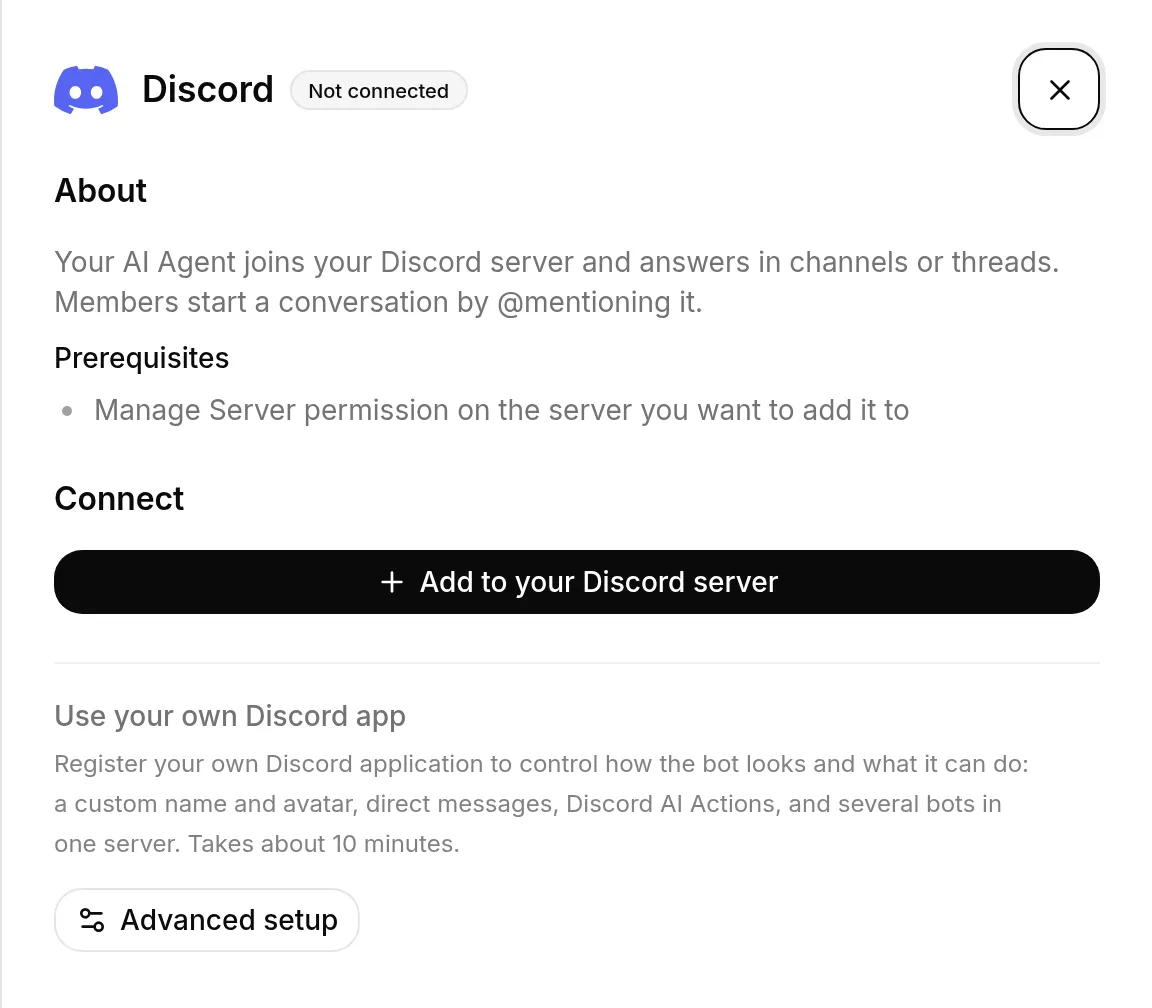
You are redirected to Discord to authorize the shared **Quickchat AI** app. Pick the server you want and click **Authorize**. Quickchat applies the name you chose before the bot posts its one-time introduction: **“Ready! @mention me or use /ask to chat. Powered by Quickchat AI.”** You are then brought back to Quickchat AI.
What happens next depends on your setup progress. If you are still setting up a new account, Quickchat confirms the connected server and shows **Describe the AI Agent you want to build**. Describe the bot’s purpose in one sentence, then click **Create my AI Agent**. Quickchat creates its name, Main Prompt, Guidelines, and conversation starters for you.
Once the core identity is ready, add sources to the Knowledge Base for more accurate answers and add Actions when you want the bot to perform tasks. Continue to **Choose your plan**. Because Discord is already connected, Quickchat does not ask you to deploy it again. If setup was already complete when you authorized Discord, you return to the dashboard instead.
Authorization is complete at this point. 🎉 **Your AI Agent is live on Discord.** Members start a conversation by **@mentioning** it in a channel, and it replies in channels or threads.
Every Discord conversation appears in the Quickchat AI Inbox. When your AI Agent hands a conversation to a teammate, they can take over in the Inbox and reply directly to the same Discord channel, thread, or DM.
New Quickchat AI signups get a Discord-branded setup where they can describe the Agent they want or add it to Discord first. Whichever action they choose first, setup guides them through the other before the plan step.
### How members talk to the bot
[Section titled “How members talk to the bot”](#how-members-talk-to-the-bot)
**The bot does not reply to every message in a channel.** It answers when it is @mentioned, when someone uses the `/ask` command, when someone replies to one of its messages, and inside threads it created. Everything else it ignores on purpose, so it stays quiet in a busy server.
This is worth telling your members, because a plain message that gets no answer looks like a broken bot rather than a bot waiting to be addressed.
`/ask` is often the easier one to discover: typing `/` in any channel lists **“Ask the Quickchat AI agent a question”**, and it works where message content is restricted. It is available on the one-click bot only, so if you run your own Discord app, use @mentions.
**Only people can talk to it.** On both setups, the bot ignores messages written by other bots, apps and webhooks, even when such a message @mentions it. A post from Zapier, n8n, Make or another bot never gets a reply, so another bot cannot hold a conversation with it. Automated messages work differently: they follow server events, such as a ticket bot opening a channel, not messages.
**It does not post on a schedule.** Everything the bot posts follows something that just happened: a member’s message, a teammate’s reply from the Inbox, or a Discord event that one of your [Automated messages](#automated-messages) rules watches, plus the one-time introduction the one-click bot posts when it joins a server. Nothing is posted on a timer or a recurring schedule.
### Mentioning the person in AI replies
[Section titled “Mentioning the person in AI replies”](#mentioning-the-person-in-ai-replies)
On Discord, your AI Agent knows who wrote the message it is answering and how to mention them, so a Guideline only has to say when. For example:
```plaintext
If the message is off topic, reply with "Invalid prompt!" and mention the member who wrote it.
```
The reply then contains a real Discord mention of that member, which Discord renders as a clickable mention chip. The bot never adds mentions on its own: it only does so when the Main Prompt or a Guideline asks it to mention or tag the member.
Good to know:
* Say “mention the member” rather than spelling out a format. In particular, do not ask for `<#...>` around the user ID: that is Discord’s channel syntax, it mentions nobody, and the bot follows such an instruction literally.
* The mention renders as a chip but does not notify the member yet. A later update to the Discord bot will add the ping.
* In AI Preview and on other channels there is no Discord member to mention, so the bot answers without one.
### Message allowance
[Section titled “Message allowance”](#message-allowance)
Every reply is generated by a language model and counts against your plan’s AI message allowance. A busy server gets through a free allowance quickly, and once it runs out the bot says so in the channel instead of answering. The allowance resets each month.
### Managing your servers
[Section titled “Managing your servers”](#managing-your-servers)
The Discord page lists every server the shared bot is active in under **Connected servers**. From there you can:
* Change the bot’s name later. Enter up to 32 characters under **Bot name in this server**, then click **Apply**. Clear it and click **Apply** to restore the shared **Quickchat AI** name.
* **Add to another server** with the same one-click flow. Review **Bot name in the new server** before authorizing, so one AI Agent can use a different name in each server.
* **Remove** the bot from a server. It leaves that server and stops replying, and you can add it again anytime.
Each connected server also has **Automated messages**, described in [Automated messages](#automated-messages) below.
With the one-click bot, a Discord server can be connected to one AI Agent at a time. If you see **“This server already has an AI Agent”** (or a message naming that Agent), the shared bot is already connected there. To keep both AI Agents in that server, click **Use Advanced setup** and follow [Run several AI Agents in one server](#several-ai-agents-one-server). To move the shared bot to this AI Agent instead, remove it from the first Agent before connecting again.
If Discord connects but does not apply the bot name, use **Apply** on that connected server to retry. If Discord reports a permission problem, click **Add to another server**, choose the same server, and authorize it again. This updates the bot’s permissions in place, so you do not need to remove it first.
### When to use your own Discord app
[Section titled “When to use your own Discord app”](#when-to-use-your-own-discord-app)
The one-click bot always uses the shared **Quickchat AI** application and its avatar. Quickchat AI has no avatar setting for it, and the **AI Agent Avatar** you set for your website chat is not used on Discord. The only thing you can change is the bot’s name in each server, with **Bot name in this server** and **Apply** (up to 32 characters, see above). Set up your own Discord app (see below) when you want:
* A custom bot avatar (see [Set your bot’s avatar](#bot-avatar))
* Direct messages
* **Discord AI Actions**. The shared bot does not expose its token as the `{{discord_bot_token}}` System Token that these Actions need, so they require your own app.
* Several bots on one server, for example one per character. See [Run several AI Agents in one server](#several-ai-agents-one-server).
The shared bot and your own bot can run side by side. Your own app only takes over a server once you remove the shared bot from that server.
## Use your own Discord app (Advanced setup)
[Section titled “Use your own Discord app (Advanced setup)”](#use-your-own-discord-app-advanced-setup)
This is the advanced path, and it takes about 10 minutes. In the dashboard, open **External Apps → Discord** and open **Use your own Discord app** through the **Advanced setup** link. You create your own Discord application, add it to your server, and connect it to Quickchat AI with a bot token.
[Play](https://youtube.com/watch?v=tNXuqBUZZ-4)
### Create a Discord Server
[Section titled “Create a Discord Server”](#create-a-discord-server)
To initiate the integration process, you’ll need a Discord Server. If you don’t have a Discord account, visit [discord.com](https://discord.com) and create one. Once logged in, follow [this guide to create your Discord server](https://support.discord.com/hc/en-us/articles/204849977-How-do-I-create-a-server-).
### Create a Discord Application
[Section titled “Create a Discord Application”](#create-a-discord-application)
Go to [discord.com/developers/applications](https://discord.com/developers/applications) while logged in to your Discord account and create a new application.
### Configure Your Discord Application
[Section titled “Configure Your Discord Application”](#configure-your-discord-application)
Before adding your bot to the server, enable the **Message Content Intent** for your application. This allows your bot to read messages sent by users on your server.
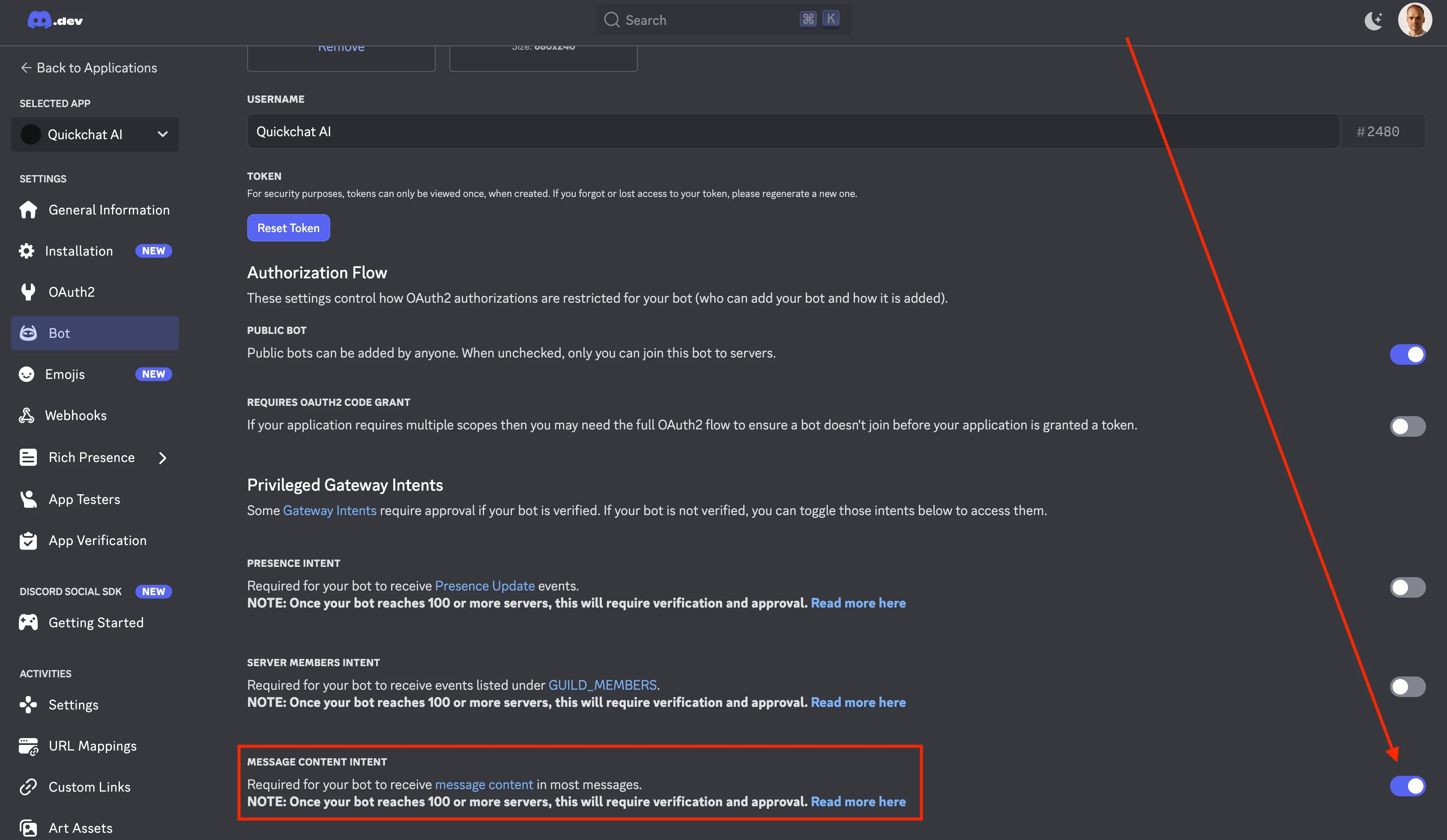
### Set your bot’s avatar
[Section titled “Set your bot’s avatar”](#set-your-bots-avatar)
With your own Discord app, the bot shows the avatar you give it in Discord. Open your application in the [Developer Portal](https://discord.com/developers/applications), go to **Bot**, upload the image you want as the bot’s icon, and save your changes. The app icon on **General Information** is a separate image: it is your app’s public icon, not the picture members see next to your bot’s messages. Quickchat AI does not change either one.
### Add the Bot to Your Discord Server
[Section titled “Add the Bot to Your Discord Server”](#add-the-bot-to-your-discord-server)
Now you need to add your bot to your server. The way to do it is to construct a Discord URL and paste it into your browser:
```plaintext
https://discord.com/api/oauth2/authorize?client_id=&permissions=309237713920&scope=bot
```
**Where does the permissions number come from?**
The permissions number (`309237713920`) comes from requesting the following permissions:
* `View Channels`
* `Send Messages`
* `Create Public Threads`
* `Send Messages in Threads`
* `Read Message History`
Those are the minimal set of permissions required for your bot to operate correctly. You can see it for yourself by going to [discord.com/developers/applications](https://discord.com/developers/applications), selecting your application, clicking on **Bot** on the left and scrolling down:
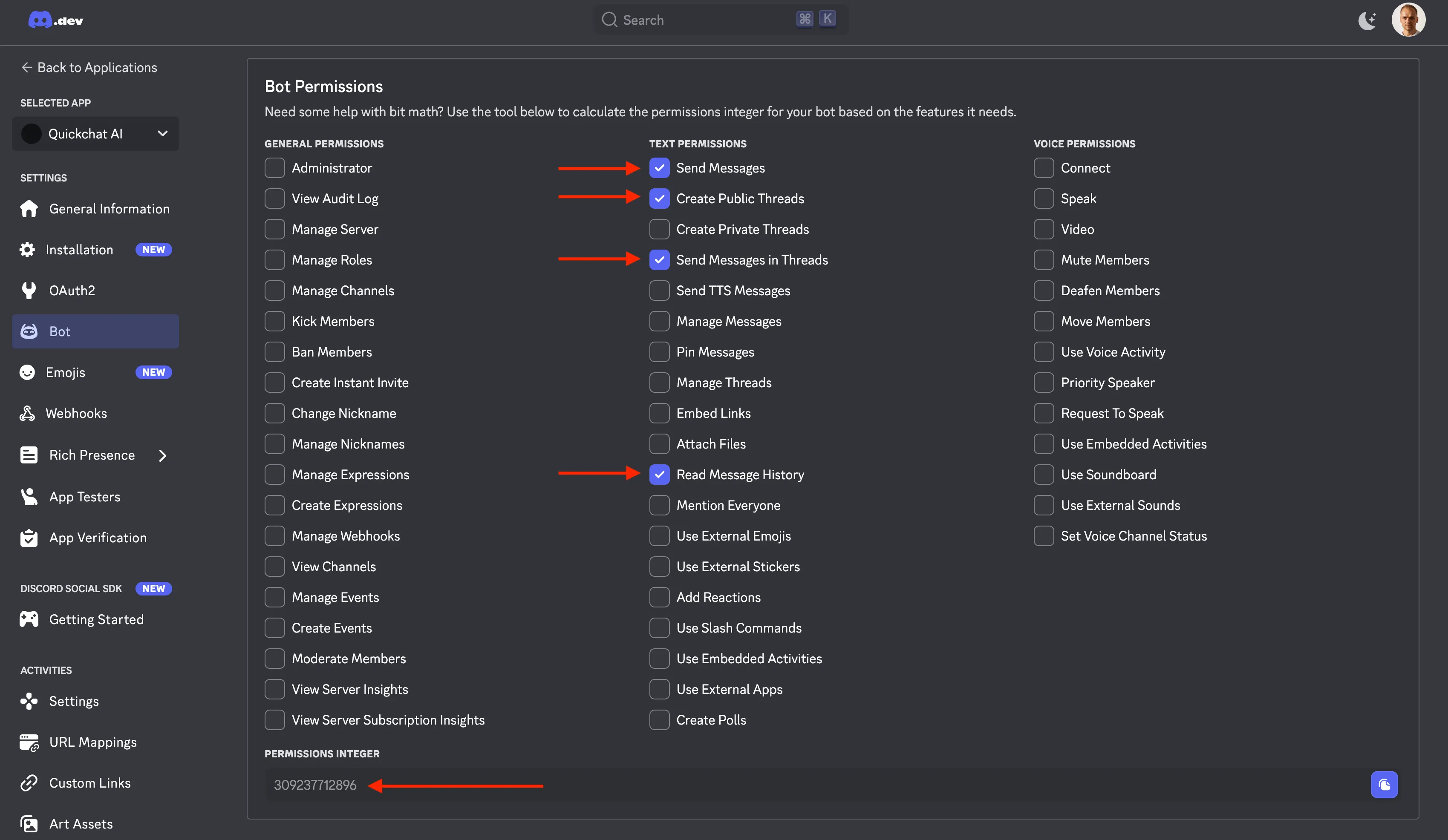
[Check Discord permissions](https://app.quickchat.ai/v1/api_core/public-question/quickchat/tools/discord-reply/?placement=docs-discord-permissions-v1) using the permissions and posting setup you supply. The check uses those declared values without accessing your Discord account.
**Where to find YOUR CLIENT ID?**
The easiest way will be to look at the address bar in your browser and copy the long number which is part of the address:
```plaintext
https://discord.com/developers/applications//bot
```
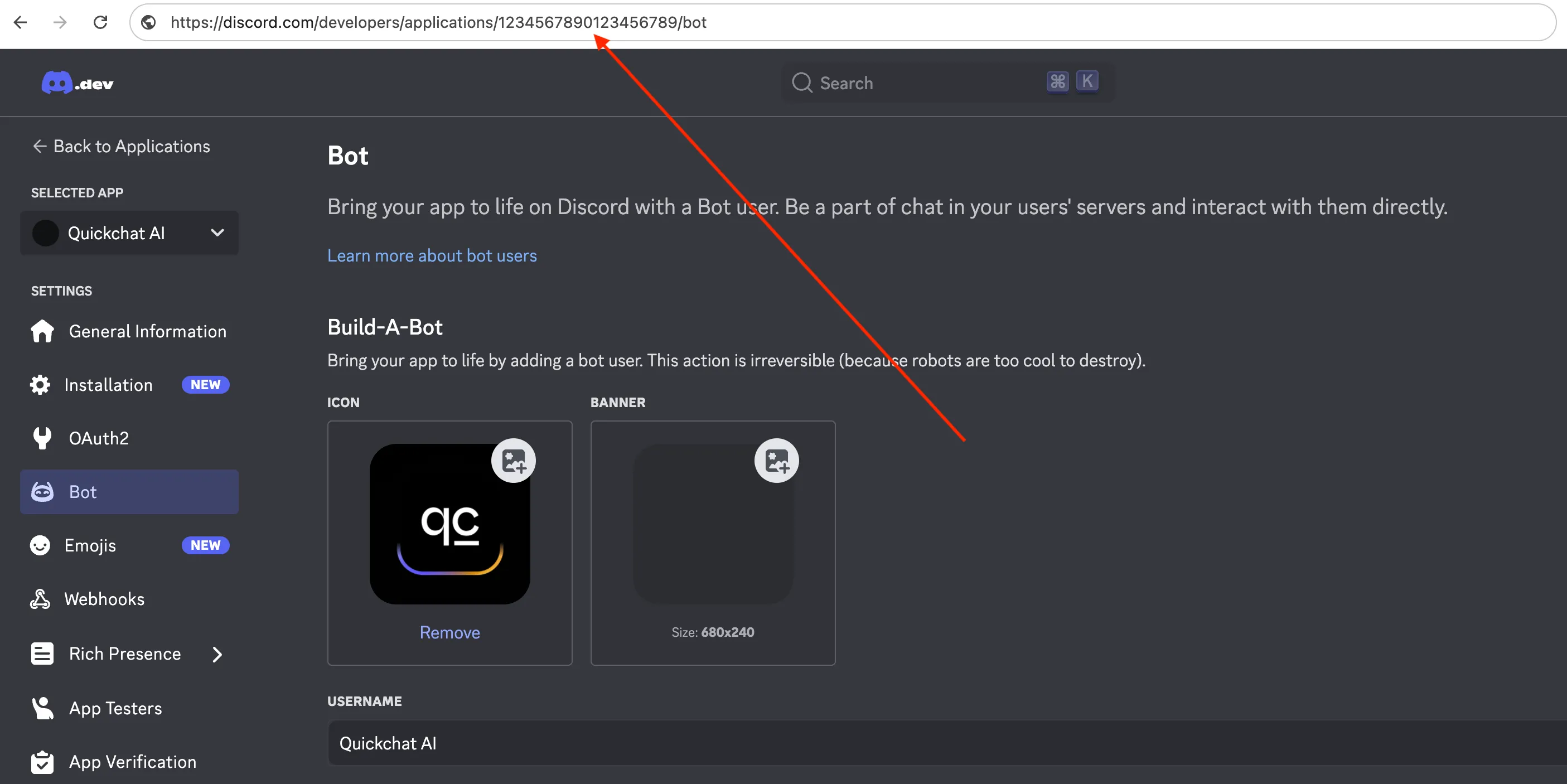
In this case the client id is **1234567890123456789** which means that the full URL you need to go to to add the server will be:
```plaintext
https://discord.com/api/oauth2/authorize?client_id=1234567890123456789&permissions=309237713920&scope=bot
```
### Connect Your Own Bot to Quickchat AI
[Section titled “Connect Your Own Bot to Quickchat AI”](#connect-your-own-bot-to-quickchat-ai)
To connect your bot with **Quickchat AI**, retrieve your **Discord Bot Token** from the [Developer Portal](https://discord.com/developers/applications).
1. Go to **Bot Settings** → **Reset Token** → **Copy Token**
2. In the **Quickchat AI Dashboard**, open **External Apps → Discord**, choose **Use your own Discord app** through **Advanced setup**, and paste your token. Quickchat AI turns the bot on and reports its status as it starts up.
One Discord app can be connected to only one AI Agent at a time. If you see **“This Discord app is already connected to another AI Agent.”**, disconnect it from that Agent before connecting it here.
### Your AI Bot is Live!
[Section titled “Your AI Bot is Live!”](#your-ai-bot-is-live)
Head back to **Discord** - your bot should be **online** and ready to chat! Just **@mention** it to start a conversation. 🤖💬
By default, when **@mentioned** the bot replies in the same channel. You can change this with the **Reply mode** setting in the integration: **Reply in channel** (the default) or **Reply in threads**. With **Reply in threads**, the bot answers inside a thread and users can continue the conversation there without mentioning it again.
## Run several AI Agents in one server
[Section titled “Run several AI Agents in one server”](#run-several-ai-agents-in-one-server)
Every one-click AI Agent answers through the same shared **Quickchat AI** bot, and that bot is a single member of your server. So a server can hold one one-click AI Agent at a time, and Quickchat refuses to connect a second one there.
To run several AI Agents in one server, for example a different character in each, give every extra AI Agent its own Discord app and connect it with **Advanced setup**:
1. In the [Developer Portal](https://discord.com/developers/applications), create one application per AI Agent and give each bot the name and avatar members should see.
2. For each one, follow [Use your own Discord app](#use-your-own-discord-app-advanced-setup) above: turn on **Message Content Intent**, add the bot to your server, and paste its token into that AI Agent’s **Advanced setup**.
A Discord app connects to one AI Agent only, so each AI Agent needs its own. An AI Agent you already connected with one click can stay in the server: the shared bot keeps answering for it, and each of your own bots answers for its own AI Agent.
How the bots share the server:
* Each bot answers only messages addressed to it: an @mention of that bot, a reply to one of its messages, or a message in a thread it opened. The other bots ignore them, and inside a thread only the bot that opened it answers.
* Bots never answer other bots, so your AI Agents do not talk to each other.
* All of them can use the same channels. To keep a bot out of a channel, remove its **View Channel** permission there.
* Each AI Agent has its own **Reply mode**. **Reply in threads** gives every conversation its own thread, which keeps the bots apart in a busy channel.
* Give each bot a distinct name. A bot answers any message that contains ”@” followed by its name, so a bot named Luna also answers a mention of Luna Prime.
## Character and roleplay bots
[Section titled “Character and roleplay bots”](#character-and-roleplay-bots)
A character is an AI Agent with its own persona. Write it in **Identity**: who the character is, how it talks, and what it never says belong in the [Main Prompt](/ai-agent/identity/#main-prompt) and **Guidelines**.
Each character needs its own AI Agent and its own bot. One character can use the one-click bot; to put several characters in one server, see [Run several AI Agents in one server](#several-ai-agents-one-server). To start a new character from an existing one, [duplicate the AI Agent](/ai-agent/duplicate-agent/): the copy keeps the persona but not the Discord connection.
Every AI Agent has its own plan. The Free plan is for personal, non-commercial use; see [Plans & limits](/pricing-and-plans/).
## Automated messages
[Section titled “Automated messages”](#automated-messages)
**Automated messages** post a fixed, editable message after a Discord event: a member joining, a new thread or forum post, or a new channel. They do not call the AI Agent and do not use conversation credits, and every rule is off until you turn it on. No rule runs at a set time or on a recurring schedule. They work on both setups:
* **One-click**: under **Connected servers**, select **Automated messages** on the server you want.
* **Your own Discord app**: open **Advanced setup**, find **Automated messages**, then select **Configure** on the server you want. Your bot must already be in the server for it to appear.
Three rules are available, each with its own switch:
* **New member joins**: pick a **Welcome channel** where the bot greets each new member. Other bots joining the server are ignored.
* **New thread or forum post**: pick a **Parent channel** (text, announcement, forum, or media). The bot posts inside each new public thread under it, and ignores private threads.
* **New channel**: the bot posts in every new text channel. To narrow it, change **Any category** to **Only in this category**. Pairing it with a ticket bot’s **Active Tickets** category is the common setup.
Select a rule to open it. Turning on a rule that has no destination yet opens it too, so you can choose one.
Inside a rule, edit the **Message template** and pick a **Delay**: **No delay**, or 2, 5, 10, or 30 seconds. The default 2-second delay lets a ticket or onboarding bot post first. Select any placeholder to insert it where the cursor is:
* `{display_name}`: the member’s server nickname, then global display name, then username.
* `{username}`: a backward-compatible alias for `{display_name}`, kept so existing templates continue to greet people the same way. Use `{display_name}` in new templates.
* `{user_handle}`: the member’s raw Discord username, such as `marta.nebula`.
* `{user_mention}`: a mention that notifies the member.
* `{user_id}`: the member’s numeric Discord user ID.
* `{bot_name}`: the bot’s display name on the server.
* `{server_name}`: the server name.
* `{channel_name}`: the channel name.
In a channel opened by another bot, the person is inferred from a single member-specific **View Channel** permission when possible. If the requester is ambiguous, `{display_name}`, `{username}`, `{user_handle}`, and `{user_mention}` become `there`, the mention notifies nobody, and `{user_id}` is empty. Write the message so it reads naturally in either case.
Each rule saves on its own. **Save** stores that rule and returns you to the list, and the switches on the list save the moment you flip one. Leaving a rule any other way discards the edits you made in it.
For the one-click bot, a saved change applies immediately. A bot connected through **Advanced setup** refreshes these rules within about one minute. Changing **New member joins** can also restart that bot to update **Server Members Intent**.
The bot must be able to view and send messages in every selected destination. If a category or channel is later deleted in Discord, saving the rule that points at it tells you which selection is gone; your other rules keep saving normally.
### Server Members Intent
[Section titled “Server Members Intent”](#server-members-intent)
**New member joins** is the only rule that needs anything from the Discord Developer Portal, and only if you use your own Discord app. Discord treats “who joined this server” as a privileged intent that is off by default, so without it your bot never sees a member arrive.
Quickchat AI checks this for you. When you open the rule, it tells you if the intent is off and says nothing once it is on. To enable it, open your application in the [Developer Portal](https://discord.com/developers/applications), go to **Bot → Privileged Gateway Intents**, turn on **Server Members Intent**, save, then save the rule again in Quickchat AI. Your bot keeps replying normally throughout; only this one rule waits.
If your own bot is in more than 100 servers, Discord requires your application to be verified before it will grant the intent.
The other two rules need nothing extra, and the one-click bot needs nothing at all: the shared **Quickchat AI** application already has the intent enabled.
## Discord AI Actions
[Section titled “Discord AI Actions”](#discord-ai-actions)
With your own Discord app connected, open **Actions & MCPs**, click **+ Add Action**, and choose **Discord Action**. The gallery installs complete support and moderation Actions:
* **Support & Tickets**: select a server and text channel, then optionally select a mentionable support role. One installation creates three editable Actions that open a private thread, add the requester, and optionally notify support.
* **Moderation**: timeout, kick, ban, unban, assign role, set slowmode, and send announcement. Each template creates one editable Action.
Quickchat fills in each Action’s method, URL, headers, body, parameters, description, response handling, and **Run only when** conditions on the backend. The resulting Actions use the normal editor and remain fully editable.
Every moderation template starts with `author_is_admin is true`. Discord supplies this value for the current message author, and Quickchat checks it before calling the Action. Public chat and API metadata cannot set it. Keep this condition unless you have designed another trusted authorization gate. The templates do not add confirmation messages, replay protection, retry handling, or a separate permission and role-hierarchy policy. Discord still checks the bot’s own permissions and role position.
What the moderation Actions do not do: they never act on their own. Timeout, kick and ban run only when a server administrator asks for them in the conversation (the Action descriptions tell the Agent to act when an admin asks). There is no strike counting or memory of earlier warnings across conversations, no scheduled or automatic sanctions, no confirmation step before kick or ban, and no verification of evidence: if a member posts a screenshot, the Agent cannot establish whether it is genuine. The shared one-click bot cannot run moderation Actions at all.
Caution
Discord Actions need the bot token from **Advanced setup** with your own Discord app. The shared one-click bot alone cannot supply it. Test moderation Actions in the Discord server with both an administrator and a non-administrator account; AI Preview does not supply an authorized Discord sender.
Support Ticket uses **Save to memory** and **Run only when** instead of a special workflow runtime. The first Action saves Discord’s returned thread ID as `discord_ticket_thread_id`. The next two read that value to add the requester and post the notification. Describe the same order in the Agent’s main prompt. If a result is uncertain, inspect Discord and the Action log before retrying. The saved thread ID is not cleared automatically, so the starter supports one ticket per Quickchat conversation. Start a new Discord conversation or thread for another ticket, or edit the Actions to add the memory lifecycle you need.
For Support Ticket, grant the bot **View Channels**, **Send Messages**, **Read Message History**, **Create Private Threads**, **Send Messages in Threads**, and **Manage Threads** in the selected ticket channel. Role notification is optional. If you select a support role, make it mentionable and give its members access to private threads. If no mentionable roles are available, tickets still open normally without notifying a role. The picker lists text channels and mentionable roles, but it does not verify all channel permission overrides.
See [Actions](/ai-agent/actions/#discord-actions) for the generated configuration and MVP limitations.
## Troubleshooting
[Section titled “Troubleshooting”](#troubleshooting)
If Quickchat AI reports an error on the Discord integration page, it links straight here to the matching section below.
### One-click connect
[Section titled “One-click connect”](#one-click-connect)
The one-click flow rarely errors. If the connection does not complete:
* **“This server already has an AI Agent”**: the shared bot is connected to a different Agent (the message names it when it is on your account). Click **Use Advanced setup** to connect the second Agent with its own Discord app: see [Run several AI Agents in one server](#several-ai-agents-one-server). To move the shared bot instead, remove it from the first Agent, then connect again.
* **“That Discord link has already been used”**: each authorization link works once, so going back or reloading after Discord returns you lands here. Nothing was connected. Click **Add to your Discord server** on this page to start again.
* **“You do not have permission to connect Discord for this AI Agent”**: connecting a channel is an editor action. Ask an admin or editor on the account to connect it, and make sure you have the **Manage Server** permission on the Discord server you picked.
* **“Discord authorization was cancelled”**: you closed Discord’s authorize screen before finishing. Nothing was connected, so click **Add to your Discord server** and try again.
### The bot is in my server but never replies
[Section titled “The bot is in my server but never replies”](#the-bot-is-in-my-server-but-never-replies)
Almost always this means nobody has addressed it yet. The bot answers @mentions, replies to its own messages, and messages inside threads it created, and ignores everything else. The one-click bot also answers `/ask`. @mention it and see whether it responds.
If it still does not reply, check that its role and the channel’s permission overrides allow **View Channel**, **Send Messages** and **Read Message History** in that specific channel.
If it replied before and has now gone quiet, check whether the AI message allowance for the month has run out.
### Posts from Zapier, n8n or another bot get no reply
[Section titled “Posts from Zapier, n8n or another bot get no reply”](#posts-from-zapier-n8n-or-another-bot-get-no-reply)
This is by design. On both setups the bot ignores every message written by a bot, an app or a webhook, so an automation cannot start a conversation by posting in a channel or @mentioning the bot. Only messages from people reach your AI Agent.
The bot cannot post on a schedule either, so a scheduled post has to come from the automation tool itself. To include an answer from your AI Agent, the tool can request one from the [Chat API](/api-reference/chat/), which needs the **Business** plan.
### `/ask` does not appear when I type `/`
[Section titled “/ask does not appear when I type /”](#ask-does-not-appear-when-i-type-)
Discord can take up to an hour to distribute commands to every client after a bot joins. Restarting your Discord client usually surfaces it sooner. In the meantime, @mention the bot instead.
### Both bots are in the same server
[Section titled “Both bots are in the same server”](#both-bots-are-in-the-same-server)
If you connect your own Discord app while the shared **Quickchat AI** bot is still in the same server, the shared bot keeps answering there and your own bot stays silent. Both bots can sit in one server, but only one of them replies, and the shared bot takes precedence.
**External Apps → Discord** flags this on both setups. To hand a server to your own bot, remove that server from **Connected servers** in the one-click setup. Your own bot takes over straight away, and nothing about its token or intents needs to change.
Running both on purpose is supported: keep the shared bot in the servers you want it to answer in, and let your own bot serve the rest.
The sections below apply to the **Use your own Discord app** path.
### Message Content Intent
[Section titled “Message Content Intent”](#message-content-intent)
**PrivilegedIntentsRequired**: your bot connected, but its **Message Content Intent** is off, so it cannot read messages. In the [Developer Portal](https://discord.com/developers/applications), open your application, go to **Bot → Privileged Gateway Intents**, turn on **Message Content Intent**, and save. The bot restarts automatically, so allow about a minute.

### Invalid bot token
[Section titled “Invalid bot token”](#invalid-bot-token)
**InvalidToken**: the token Quickchat AI has is wrong or was regenerated. A bot token is shown only once, and resetting it invalidates the old one. In the [Developer Portal](https://discord.com/developers/applications), open your application, go to **Bot**, click **Reset Token**, copy the new token, then click **Reconnect** in Quickchat AI and paste it.

### Require OAuth2 Code Grant
[Section titled “Require OAuth2 Code Grant”](#require-oauth2-code-grant)
If you see **“Integration requires code grant”** when adding the bot, your application has **Require OAuth2 Code Grant** enabled, which blocks the simple bot invite flow. In the [Developer Portal](https://discord.com/developers/applications), open your application, go to **Bot**, turn **Require OAuth2 Code Grant** off, save, and open the invite URL again.
### The authorization page shows a cake or “baked” message
[Section titled “The authorization page shows a cake or “baked” message”](#the-authorization-page-shows-a-cake-or-baked-message)
That quirky screen is Discord’s success page: the bot was added. To confirm, open your server’s **Server Settings → Integrations → Bots and Apps** and look for your bot in the list.
### Bot not responding after setup
[Section titled “Bot not responding after setup”](#bot-not-responding-after-setup)
The bot restarts whenever you change its token or settings, so give it up to a minute after saving. If it still does not come online or reply:
1. In the Quickchat AI dashboard, open **External Apps → Discord** and check the connection status. An invalid token or a missing intent is reported there, with a link to the exact fix.
2. Confirm **Message Content Intent** is on (see above) and the token is current (use **Reset Token** if in doubt).
3. @mention the bot in a channel it can access, and verify its role and channel permissions include **Send Messages**, **Create Public Threads**, **Send Messages in Threads**, and **Read Message History**.
4. Choose whether it answers in the channel or in a thread with the **Reply mode** setting under **External Apps → Discord**.
Tip
The Discord integration page in the Quickchat AI dashboard shows your **Connected servers** for the one-click bot and, under **Advanced setup**, your own app’s **Bot Token** field, a **Reply mode** selector (**Reply in channel** or **Reply in threads**), and a link to join our Discord community for help.
***
Join our Discord server to learn more about how to make the most of Quickchat AI 👉 [discord.gg/KqkHwvPRNH](https://discord.gg/KqkHwvPRNH)
# Drupal
> Integrate Quickchat AI with Drupal. Obtain API tokens, sync Knowledge Base items, and add the AI Agent chatbot to your Drupal site.
In this guide, we’ll go through how to integrate your AI Agent into your Drupal. Here’s an overview of what we’ll cover:
1. Obtaining a token for Drupal integration
2. Syncing Knowledge Base items
3. Adding the Quickchat AI Assitant to Drupal
## Optional example checks
[Section titled “Optional example checks”](#optional-example-checks)
* [Check a Widget snippet](https://app.quickchat.ai/v1/api_core/public-question/quickchat/tools/widget-snippet/lab/webmcp/?placement=docs-drupal-widget-snippet-webmcp-v1). Check pasted code against the supplied Scenario ID. This does not fetch your website.
* [Compare deployment methods](https://app.quickchat.ai/v1/api_core/public-question/quickchat/tools/deployment-fit/lab/webmcp/?placement=docs-drupal-deployment-fit-webmcp-v1). Check your declared channels, website access and required features against Quickchat AI setup options. This does not inspect your website or account.
In a compatible browser, these checks are also available as site tools. The links open the standard forms.
## Obtain token for Drupal integration
[Section titled “Obtain token for Drupal integration”](#obtain-token-for-drupal-integration)
1. Activate Drupal integration within the **External Apps** tab of the Quickchat AI app.
2. Copy your scenario\_id and token.
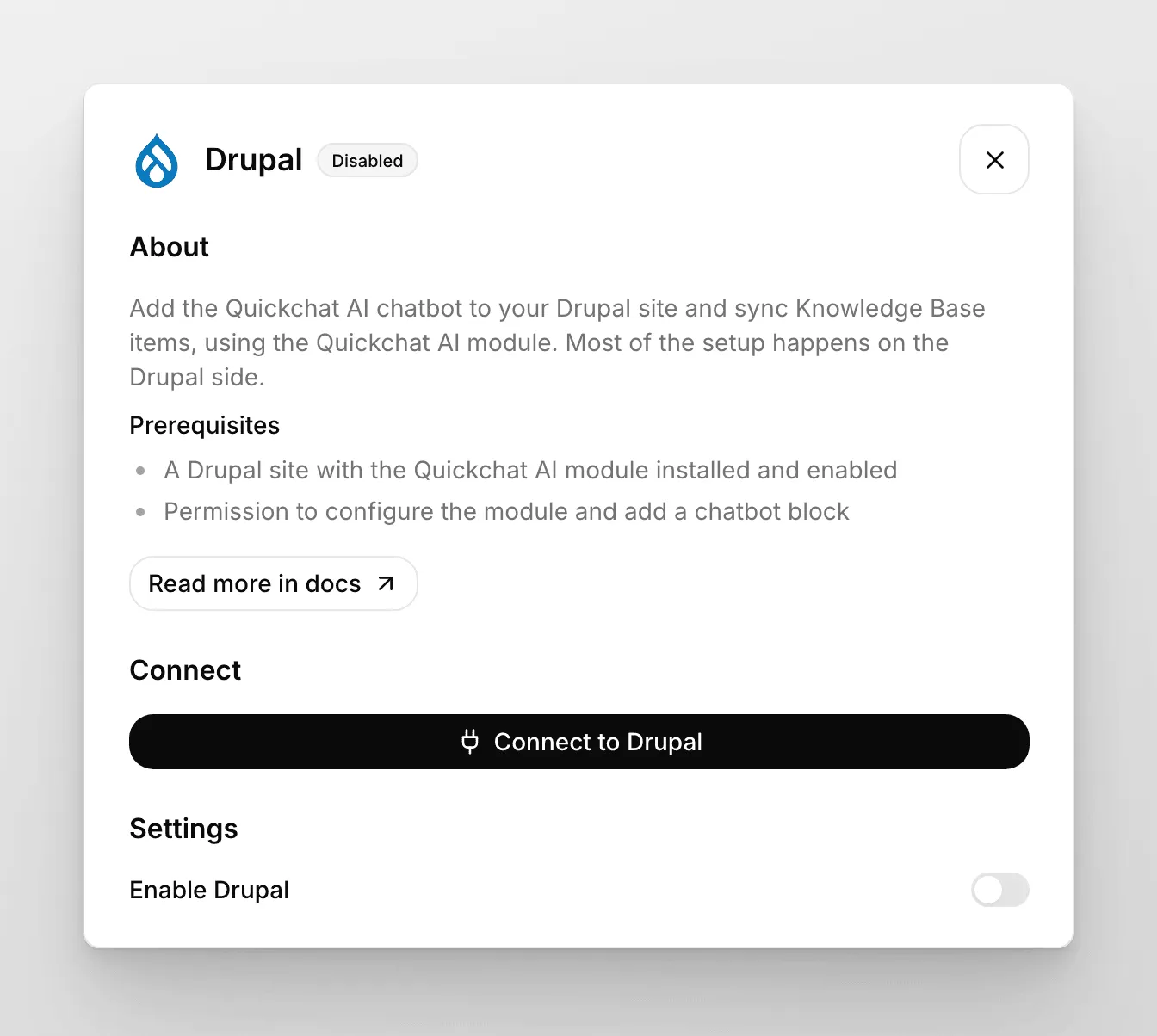
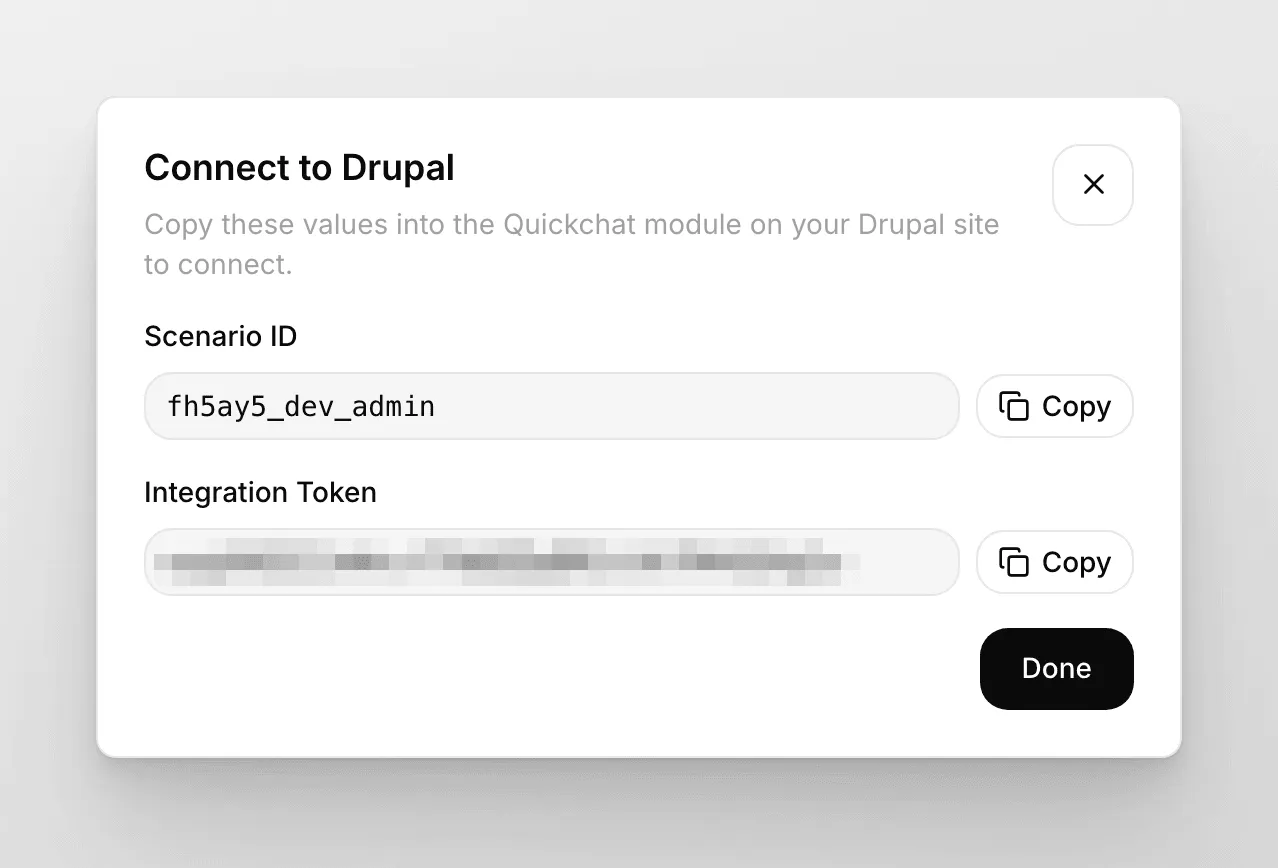
## Enable module
[Section titled “Enable module”](#enable-module)
Enable the Quickchat module to provide the API client used by the sub-modules. No configuration is needed at this point.

## Sync knowledge base items
[Section titled “Sync knowledge base items”](#sync-knowledge-base-items)
### Configuration
[Section titled “Configuration”](#configuration)
This module will add a new content type `quickchat_kb` (admin/structure/types/manage/quickchat\_kb) and a view `quickchat_kb` (/admin/structure/views/view/quickchat\_kb) so you can use them as a source to train your chatbot models.
You can configure the module from (/admin/config/services/quickchat-api/sync), defining:
* A model name
* A scenario\_id
* An API token
* A view name: the view to use as a source of knowledge base items (you can use the one provided by the module or a custom one).
* A view display: the display from the view name selected above.
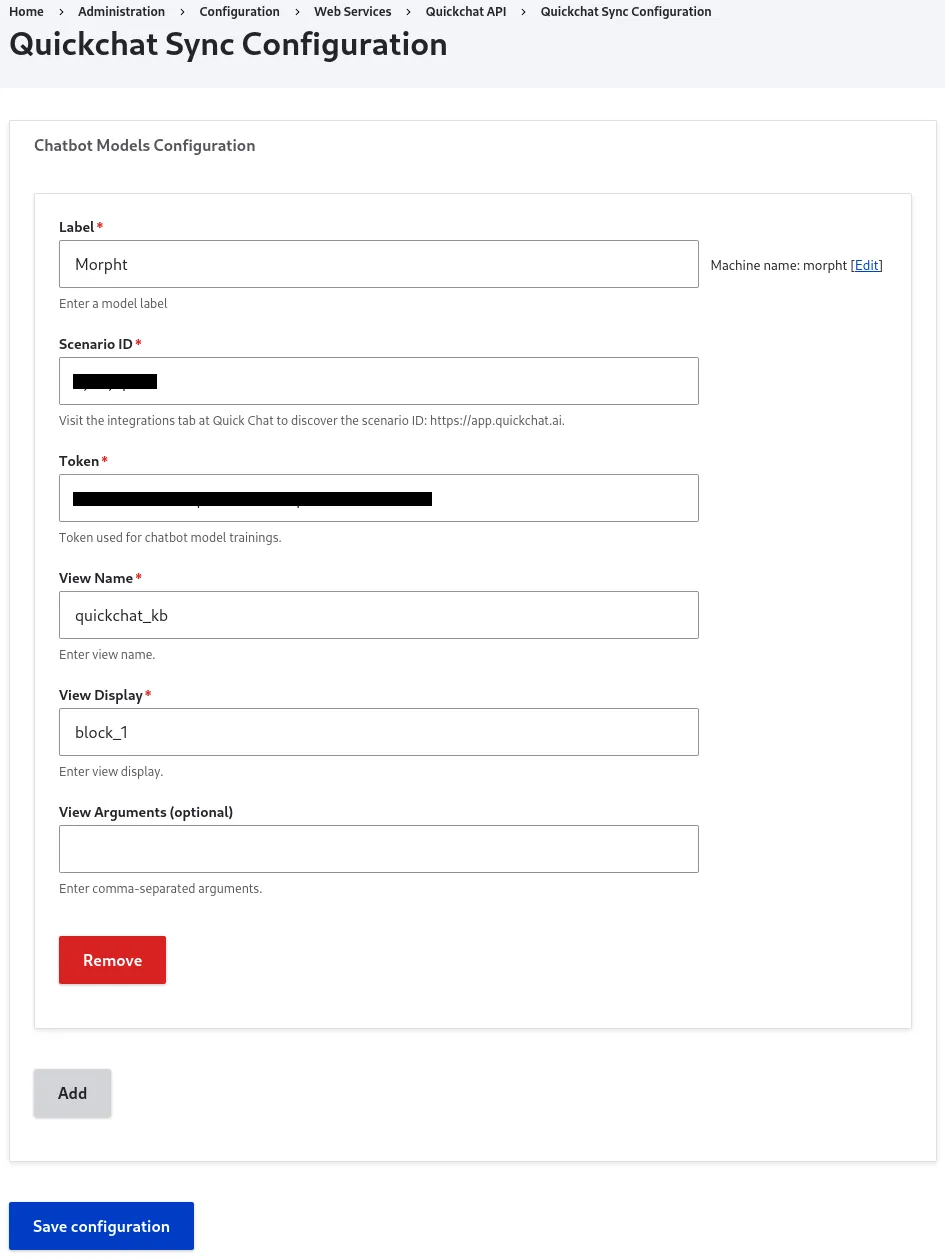
*From that screen, you can add multiple models with a different pair of token and scenario\_id and view source.*
### View
[Section titled “View”](#view)
In case you want to use a different view as the source of knowledge base items, be aware that if you want to split the results into different knowledge base items, you need to use the \n separator. Otherwise, the view results will be considered as only one knowledge base item.
### Operation
[Section titled “Operation”](#operation)
Once you have configured the sync model mappings, the next step is to sync the knowledge base items for your chatbot models. You can do this by navigating to `/admin/content/kb`.
In this section, you will see a list of the configured models:
If you click in the title of the model to sync you will see a page similar to this one:
In the preview section you can see the knowledge base items that you are about to sync. The values displayed there are the results of the view and view display that you selected under the model configuration section.
The available actions are Update and Rebuild:
The **Update** action will push the knowledge base items to the selected model (scenario\_id). Once pushed, the items are processed automatically and go live on their own, so the separate **Rebuild** action is no longer required.
## Add a Quickchat AI Agent
[Section titled “Add a Quickchat AI Agent”](#add-a-quickchat-ai-agent)
The `quickchat_chatbot` sub-module adds a new block type `chatbot_block` where you can set the `scenario_id`.
Also, you can add multiple chatbot blocks with a different scenario\_id for different type of pages, eg:
Once you enabled the block, visit the pages where the block should be available (visibility settings) so you can interact with the chatbot.
That’s it! 🎉 Your Drupal integration is now ready. If you have any questions or require a more complex solution with more functionality, please do not hesitate to get in touch.
# Email
> Connect Email as a channel so your AI Agent replies to forwarded support emails from a dedicated address, optionally sending from your own domain.
In this guide, we’ll go through how to let your AI Agent handle inbound email. Here’s an overview of what we’ll cover:
1. Connecting Email to get your dedicated Quickchat address
2. Forwarding your business email address to it
3. (Optional) Sending and receiving from your own domain
4. (Optional) Adding a signature
## Optional example checks
[Section titled “Optional example checks”](#optional-example-checks)
* [Compare replies per credit budget](https://app.quickchat.ai/v1/api_core/public-question/quickchat/tools/credit-capacity/lab/get/?placement=docs-email-credit-capacity-get-v1). Calculate the maximum whole AI replies for each supported model from a supplied credit budget. This does not check your balance or model eligibility.
## How it works
[Section titled “How it works”](#how-it-works)
Quickchat gives your AI Agent a dedicated address (for example `a1b2c3d4e5f6@in.quickchat.ai`). Email sent to that address is answered by your AI Agent, and the reply goes back to the sender as if it came from you. You can forward your business email address to it, or hand the dedicated address out directly.
Auto-responders, out-of-office notices, bounces, and `no-reply` senders are detected and skipped automatically, so replies never loop.
## Prerequisites
[Section titled “Prerequisites”](#prerequisites)
* Optional: a business email address you can set up forwarding from (for example `support@yourcompany.com`). Without one, customers write to your dedicated `@in.quickchat.ai` address directly.
* Optional: access to your domain’s DNS if you want replies to be sent from your own address.
## Connect the Email channel
[Section titled “Connect the Email channel”](#connect-the-email-channel)
Open the [Email channel in the Quickchat AI App](https://app.quickchat.ai/channels?open=email\&utm_source=docs\&utm_medium=referral\&utm_campaign=email_channel), or go to the **External Apps** tab and click the **Email** tile, then click **Connect to Email**. Quickchat creates your dedicated inbound address and turns the channel on straight away, so a message sent to that address is answered immediately.
Open **Configuration** on the Email tile to see the address, set a **Sender name** and an **Email signature**, and reach the custom domain setup.
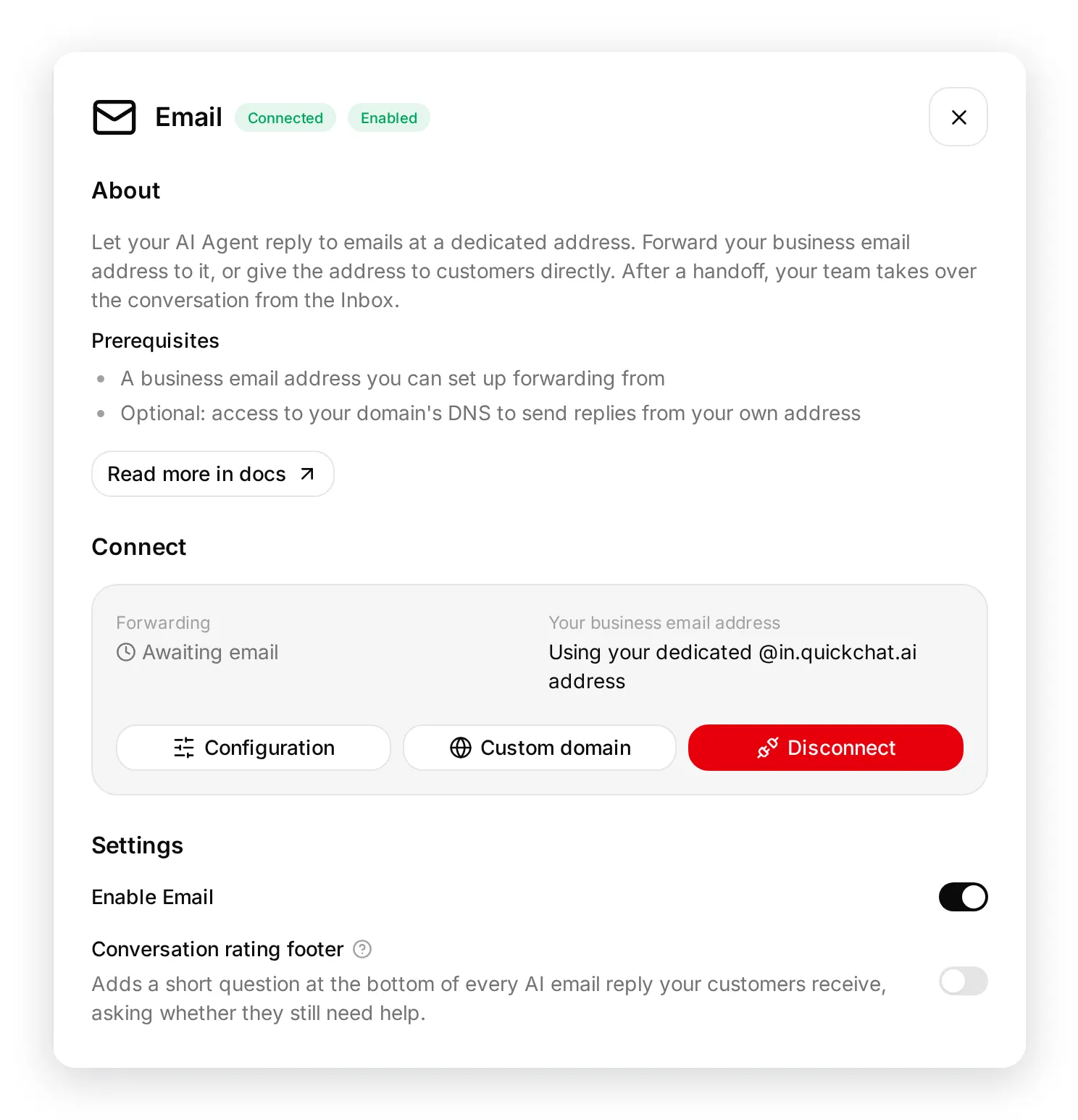
## Set up forwarding
[Section titled “Set up forwarding”](#set-up-forwarding)
Forwarding is optional. Set it up when you want customers to keep writing to your own address instead of the dedicated one.
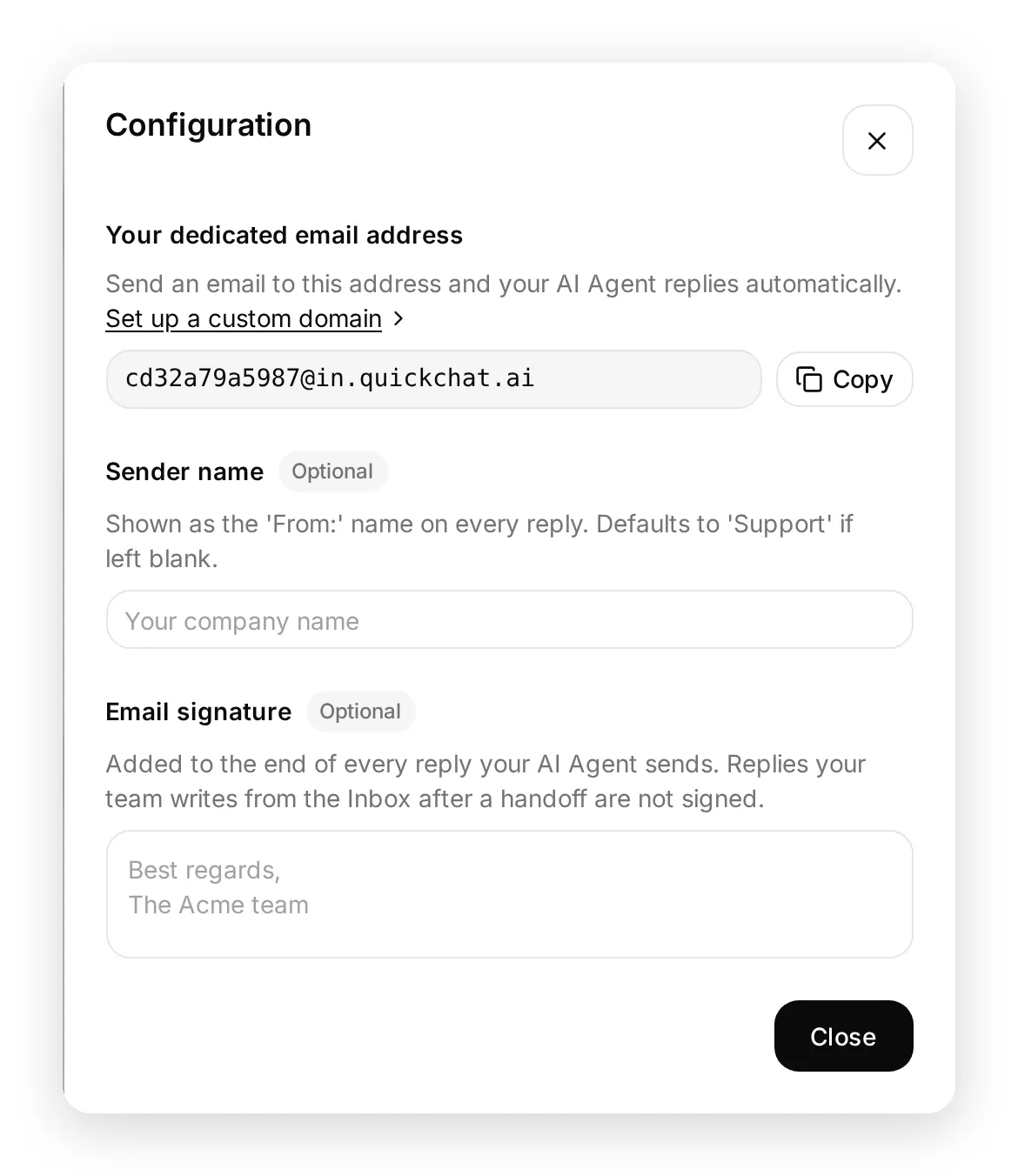
1. Copy your dedicated address from **Configuration**.
2. Open your email provider’s forwarding settings (Gmail, Outlook, Google Workspace, and so on).
3. Forward your business email address to the dedicated address.
4. If your provider asks you to confirm forwarding, the confirmation code or link is captured and shown in the **Custom domain** window under **Receiving**, so you can complete it without it reaching a customer.
The **Forwarding** status stays as **Awaiting email** until your first forwarded email lands at the address, then switches to **Active** automatically.
Tip
Send a test email to your dedicated address, or to the address you forward from. It should be answered by your AI Agent, and the conversation should appear in the [Quickchat AI App](https://app.quickchat.ai).
## Send replies from your own domain
[Section titled “Send replies from your own domain”](#send-replies-from-your-own-domain)
By default, replies are sent from your dedicated `@reply.quickchat.ai` address showing your **Sender name** (or “Support” if you leave it blank). This works with no extra setup, so this whole section is optional.
To send replies from your own address instead:
1. In **Configuration**, click **Set up a custom domain**.
2. Enter **Your business email address** on a company domain you control (for example `support@yourcompany.com`) and click **Save**.
3. Open the **Sending** tab. Quickchat starts domain authentication and shows a set of CNAME (SPF and DKIM) records.
4. Add those records to your domain’s DNS, then click **Verify domain**.
5. Once verified, replies are sent from your own address.
The **Custom domain** window has one tab per direction: **Receiving** covers forwarding into your dedicated address, **Sending** covers the DNS records that let replies leave from your own domain. Leave the business email address empty to keep the defaults: customers write to your dedicated `@in.quickchat.ai` address, and replies go out from your dedicated `@reply.quickchat.ai` address.
Caution
Personal email providers such as Gmail or Outlook.com cannot be authenticated, so replies for those addresses always come from your dedicated `@reply.quickchat.ai` address with your Sender name. Use a company domain you control to send replies from your own address.
DNS changes can take a while to propagate. If verification does not pass right away, wait a little and click **Verify domain** again.
## Add a signature (optional)
[Section titled “Add a signature (optional)”](#add-a-signature-optional)
Under **Email signature** in **Configuration**, add a signature to append to every reply (for example, your team name). Leave it blank to send replies without one.
The signature is added to replies your AI Agent sends. Replies your team writes from the Inbox after a human handoff are not signed with it, so a teammate can sign off in their own words.
## Conversation rating footer
[Section titled “Conversation rating footer”](#conversation-rating-footer)
Every AI reply can end with a short question asking whether the customer still needs help, so they can close the loop themselves. Turn it on or off with **Conversation rating footer** in the Email sheet. New Email integrations have it on by default; integrations connected before the setting existed stay off until you turn it on.
* **No** marks the conversation as resolved and offers a quick rating.
* **Yes** moves the conversation to your Chat Page and hands it to a human.
The footer is added to AI replies only, never to a handoff email, and each link works for the state of the thread at the time it was sent: once a newer email arrives, the older footer’s links stop working. Links also expire 30 days after the email that carried them.
Caution
The **Yes** route needs a public Chat Page. If yours is not public, the sheet warns you, and customers who ask for more help will not be able to open it. Set it to **Anyone** under [Install → Chat Page Access](/channels/website/#access-control), or turn the footer off.
## Delay every reply
[Section titled “Delay every reply”](#delay-every-reply)
By default your AI Agent answers the moment an email arrives. Under **Delay every reply** in the Email sheet you can hold each reply back instead: choose **No delay**, or 1, 2, 3, 5, 10, or 20 minutes.
* The delay applies to replies your AI Agent sends. Replies your team writes from the Inbox always go out immediately.
* If the customer writes again while a reply is waiting, both emails are answered together in one reply. The deadline does not move, so writing again never pushes the answer further away.
* If the conversation is handed to a human before the time is up, the waiting reply is dropped and your team answers instead.
* Disabling or disconnecting the channel drops any reply still waiting.
## Enable, disable, or remove
[Section titled “Enable, disable, or remove”](#enable-disable-or-remove)
Connecting turns the channel on. **Enable Email** pauses or resumes replies later without losing your setup. **Disconnect** removes the integration entirely: it releases the dedicated address and stops all replies. You can reconnect at any time.
## Human handoff
[Section titled “Human handoff”](#human-handoff)
When your AI Agent decides a conversation needs a person, it stops auto-replying to that email thread and hands it to your team in the [Inbox](/conversations/inbox/). Your teammate answers from there and the reply goes out as a normal email in the same thread, so the customer just sees the conversation continue. Anything the customer writes afterwards lands in the same conversation, marked unread, instead of going back to the AI.
## Troubleshooting & FAQs
[Section titled “Troubleshooting & FAQs”](#troubleshooting--faqs)
**I set up forwarding but nothing happens.**
* Confirm the forwarding rule targets your exact dedicated address.
* If your provider required a confirmation step, complete it. The code or link appears in the **Custom domain** window under **Receiving**.
* Check that the **Enable Email** toggle is on.
**Replies are sent from a Quickchat address, not mine.**
* Set **Your business email address** on a company domain you control and complete **Verify domain** under **Sending**. Public providers such as Gmail and Outlook.com cannot be authenticated.
**Will auto-replies loop with my other systems?**
* No. Auto-responders, out-of-office notices, bounces, and `no-reply` senders are detected and skipped.
## Need Help?
[Section titled “Need Help?”](#need-help)
If you have any questions, join our [Discord community](https://discord.gg/KqkHwvPRNH) or [contact us](https://quickchat.ai/contact).
# Facebook Messenger
> Connect your Quickchat AI Agent to Facebook Messenger. Link a Facebook Page and your AI Agent replies to Messenger conversations automatically.
This guide shows how to connect your **Quickchat AI Agent** to **Facebook Messenger**. Once a Facebook Page is linked, your AI Agent replies to people who message that Page on Messenger, and every conversation appears in your [Quickchat AI Inbox](https://app.quickchat.ai).
If you get stuck, jump to [Troubleshooting & FAQs](#troubleshooting--faqs) or [contact us](https://quickchat.ai/contact).
## Optional example checks
[Section titled “Optional example checks”](#optional-example-checks)
* [Compare replies per credit budget](https://app.quickchat.ai/v1/api_core/public-question/quickchat/tools/credit-capacity/lab/both/?placement=docs-messenger-credit-capacity-both-v1). Calculate the maximum whole AI replies for each supported model from a supplied credit budget. This does not check your balance or model eligibility.
* [Check plan requirements](https://app.quickchat.ai/v1/api_core/public-question/quickchat/tools/plan-fit/lab/both/?placement=docs-messenger-plan-fit-both-v1). Compare declared usage, content, team and feature needs with public Quickchat AI plan bundles. This is not a price quote or account check.
## Step 0 - Prerequisites
[Section titled “Step 0 - Prerequisites”](#step-0---prerequisites)
* A **Facebook Page** for your business. Messenger integrations connect to a Page, not to a personal profile.
* A **Page role that covers messages** for the Facebook account you connect with. On facebook.com this is **Settings > Page access**. Full control works, and so does a Meta Business role that includes messaging.
Caution
Pages owned by a Meta Business are supported. If you reach the Page through a Business role rather than administering it directly, Quickchat AI can still open it, as long as that role covers messages. If Facebook refuses the Page anyway, see [Troubleshooting & FAQs](#troubleshooting--faqs) below.
Caution
A Facebook Page can be connected to **one AI Agent** at a time. If you manage several Agents, use a separate Page for each.
## Step 1 - Authorize Quickchat AI on Facebook
[Section titled “Step 1 - Authorize Quickchat AI on Facebook”](#step-1---authorize-quickchat-ai-on-facebook)
1. Open the [Quickchat AI App](https://app.quickchat.ai) and go to **External Apps**.
2. Click **Messenger**, then click **Connect to Facebook Messenger**.
3. A Facebook pop-up opens. Log in if prompted and **continue as yourself**.
4. **Select the Page** you want your AI Agent to reply for, and review the requested permissions.
5. Click **Continue / Confirm** to grant Quickchat AI access.
6. The pop-up closes and returns you to Quickchat AI. While it works, the panel shows **Waiting for Facebook**.
Authorizing does not put your Agent live yet. The Messenger panel now shows a **Finish setup** badge and asks you to confirm the Page.
## Step 2 - Confirm which Page your AI Agent answers on
[Section titled “Step 2 - Confirm which Page your AI Agent answers on”](#step-2---confirm-which-page-your-ai-agent-answers-on)
1. In the Messenger panel, find **One step left: confirm your Facebook Page**.
2. Check the Page name and Page ID shown there. This is the Page your AI Agent will answer on.
3. Click **Connect** followed by the Page name, for example **Connect Acme Support**.
**Nothing goes live until you confirm.** If Facebook returned several Pages, pick the one you want and confirm it.
Two other options are available at this point:
* **Not the right Page? Connect a different Facebook account** starts the Facebook authorization again, so you can sign in with an account that administers the Page you want.
* **Cancel setup** discards the pending connection. It only appears while no Page is connected, so you cannot lose a working integration this way.
Once you confirm, the panel shows **Connected** with your **Page name** and **Page ID**.
That’s it. **Your AI Agent is now live on Messenger!** 🎉
## Step 3 - Enable the bot
[Section titled “Step 3 - Enable the bot”](#step-3---enable-the-bot)
Use the **Enable Messenger** toggle to switch the integration on or off without disconnecting the Page. When it’s on, your AI Agent replies to incoming Messenger messages; when it’s off, the Page stays connected but the Agent stops replying.
The toggle stays unavailable until you have confirmed a Page in Step 2.
## Try it out
[Section titled “Try it out”](#try-it-out)
Open your Page in Messenger (for example via `m.me/`) and send a message. Your AI Agent replies, and the conversation appears in your [Quickchat AI Inbox](https://app.quickchat.ai), where you can read the full transcript, see the visitor’s name, and take over from the AI at any time.
After taking over a conversation in the **Inbox**, use **Attach file or image** to send a **JPEG or PNG image** (up to 5 MB) or a **PDF** (up to 16 MB). Other file types and audio are not supported. Attachments are sent without captions. Any text you’ve typed stays in the composer; send it separately after the file finishes sending.
## Troubleshooting & FAQs
[Section titled “Troubleshooting & FAQs”](#troubleshooting--faqs)
**The pop-up doesn’t open.**
* Disable pop-up and tracker blockers in your browser, refresh the page and try again. If that doesn’t help, try a different browser.
**I authorized on Facebook but nothing seems connected.**
* Authorizing is only Step 1. Go back to the Messenger panel and look for the **Finish setup** badge, then confirm your Page as described in Step 2. Your AI Agent starts replying only after you confirm.
**I get “Facebook won’t let us open that Page”.**
* Facebook refused that specific Page. The account you signed in with does not hold a Page role that covers messages, either directly or through a Meta Business.
* Open the Page on facebook.com, go to **Settings > Page access**, give your account a role that includes managing messages, then connect again.
* If you cannot change that yourself, ask whoever administers the Page to connect it, or [contact us](https://quickchat.ai/contact).
**I get “Your Facebook session ended”.**
* Facebook signed you out before the setup finished. Nothing was changed on your Page.
* Start the connection again and stay signed in to Facebook until it completes.
**I get “A Facebook permission wasn’t granted”.**
* The Facebook login left out one of the permissions Quickchat AI needs to open your Page, usually because it was unticked on Facebook’s screen.
* Connect again and keep every requested permission switched on. They are only used to find your Page and reply to its messages.
**I get “We couldn’t open that Facebook Page”.**
* Facebook would not hand the Page over and did not say why. This is usually worth one retry.
* If it fails again, check under **Settings > Page access** that your account has a role on the Page which covers messages, then connect again.
**I get “No Facebook Page connected”.**
* The **Choose a Facebook Page** step in Facebook’s pop-up was not completed, or the account you signed in with does not administer any Page.
* Connect again and tick your Page on Facebook’s screen. If it is not listed there, sign in with the Facebook account that administers it.
**My AI Agent doesn’t reply.**
* Make sure you completed Step 2 and the panel shows the Page as **Connected**, not **Finish setup**.
* Make sure the **Enable Messenger** toggle is on.
* Confirm you connected the intended **Page** and that the correct **AI Agent** is selected.
* One Page connects to one AI Agent. Don’t connect the same Page to multiple Agents.
**I connected the wrong Page.**
* Click **Reconnect** in the integration panel, sign in on Facebook, and confirm the correct Page in Step 2.
**How do I change the welcome message?**
* The greeting is your AI Agent’s message, configured in the [Quickchat AI App](https://app.quickchat.ai). Update it there and it applies to every channel, including Messenger.
## Need Help?
[Section titled “Need Help?”](#need-help)
Still stuck? Reach out on [Discord](https://discord.gg/KqkHwvPRNH) or [contact us](https://quickchat.ai/contact) and we’ll help you get your Page connected.
# HubSpot
> Integrate Quickchat AI with HubSpot Conversations to automate customer support, streamline queries, and enhance your CRM workflows.
Integrating Quickchat AI Agent with HubSpot Conversations is a powerful customer service tool that enables businesses to interact with their customers by providing instant support, and build customer relationships, providing automated responses to customer queries and streamlining your customer support processes.
## Optional example checks
[Section titled “Optional example checks”](#optional-example-checks)
* [Compare deployment methods](https://app.quickchat.ai/v1/api_core/public-question/quickchat/tools/deployment-fit/lab/both/?placement=docs-hubspot-deployment-fit-both-v1). Check your declared channels, website access and required features against Quickchat AI setup options. This does not inspect your website or account.
* [Check plan requirements](https://app.quickchat.ai/v1/api_core/public-question/quickchat/tools/plan-fit/lab/both/?placement=docs-hubspot-plan-fit-both-v1). Compare declared usage, content, team and feature needs with public Quickchat AI plan bundles. This is not a price quote or account check.
## Watch the Video
[Section titled “Watch the Video”](#watch-the-video)
[Play](https://youtube.com/watch?v=Suc4_rxHMN0)
## Quickchat prerequisites:
[Section titled “Quickchat prerequisites:”](#quickchat-prerequisites)
* Create a Quickchat AI [account](https://app.quickchat.ai/)
## Create a dedicated HubSpot user
[Section titled “Create a dedicated HubSpot user”](#create-a-dedicated-hubspot-user)
Your AI Agent replies on behalf of a dedicated HubSpot user, so create that user first:
1. Create a new user in HubSpot. This seat will be assigned to the AI Agent.
2. Select the **Super Admin** permission set.
3. Ensure the *Service Enterprise* seat is enabled: hover over your newly created user and click *Edit permissions*.
4. Check if the user status is set to available: hover over your newly created user and click *Actions*, then *Edit user*.
## Option A: Install from the HubSpot App Marketplace
[Section titled “Option A: Install from the HubSpot App Marketplace”](#option-a-install-from-the-hubspot-app-marketplace)
1. Open the **Support AI Agent by Quickchat AI** listing in the HubSpot App Marketplace and click **Install**.
2. A Quickchat sign-in window opens. Click **Continue with Quickchat** and sign in to your Quickchat AI account (or create one if you don’t have one yet).
3. If you have more than one AI Agent, the **Choose an AI Agent** screen appears. Select the agent you want to connect and click **Connect**. If you only have one AI Agent, it is selected automatically.
4. You are returned to HubSpot and the installation completes.
5. To start answering conversations, open the Quickchat AI [dashboard](https://app.quickchat.ai/) and go to the **External Apps** tab. Click **Finish setup** on the **Finish your HubSpot setup** banner and enter the email address of the dedicated HubSpot user you created above in **HubSpot User Email**. Your AI Agent will respond to messages **on behalf of** that account.
## Option B: Connect from the Quickchat AI dashboard
[Section titled “Option B: Connect from the Quickchat AI dashboard”](#option-b-connect-from-the-quickchat-ai-dashboard)
1. Navigate to the Quickchat AI [dashboard](https://app.quickchat.ai/) and go to the **External Apps** tab.
2. On the list of available platforms, click **HubSpot**.
3. Provide the exact same email address you used to create the new HubSpot user. It will be responding to messages **on behalf of** that account.
4. Click on *Connect with HubSpot* and follow the on-screen prompts by choosing the appropriate HubSpot workspace. Please keep in mind that you **need** to have HubSpot [*Super Admin*](https://knowledge.hubspot.com/settings/hubspot-user-permissions-guide#super-admin) permissions in order to authenticate your account.
## Configure the HubSpot Chatflow
[Section titled “Configure the HubSpot Chatflow”](#configure-the-hubspot-chatflow)
1. Go to HubSpot. Create a new [*Chatflow*](https://knowledge.hubspot.com/chatflows/create-a-live-chat) on your HubSpot account. Go to the *Service* tab from the left sidebar and then click *Chatflows*.
2. Create a new *Chatflow* or edit an existing one.
3. Choose *Website* and then *Live chat*.
4. Select an *Inbox* and *Language*. (remember to set the same language in Quickchat AI settings)
5. Disable *Knowledge base search*. AI Agent’s Knowledge Base is handled in the Quickchat AI Platform.
6. Select *Automatically assign conversations*, select *Specific users* and select your Quickchat AI user (associated with the *email address* you provided earlier).
7. (Optional) Customize your *Welcome message*.
8. (Optional) Disable *Email capture*.
9. Click *Preview* and send a message. If the AI responds, everything’s set!
10. Save your *Chatflow*.
Caution
Ensure your Quickchat AI user is assigned as the “Owner” of a conversation; otherwise, the Quickchat AI Agent won’t respond. Additionally, check other HubSpot features you use, like “Automations,” as they may affect the assignment automatically.
The below video guide summarises these steps.
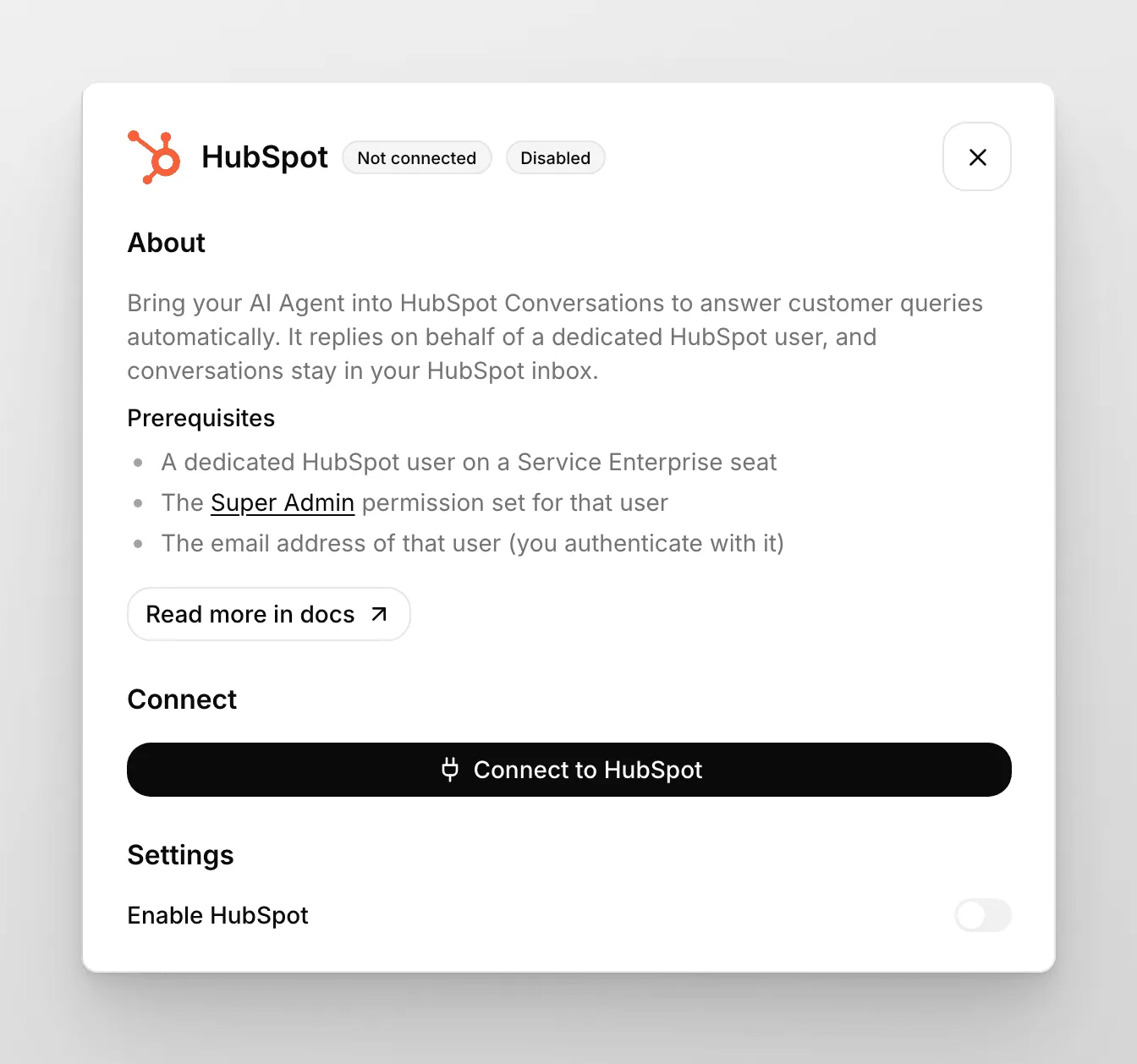
**Your integration is now complete!**
If you prefer not to use the HubSpot widget, use Quickchat! Go to *Website* > *Install*, and follow the instructions on the screen to add it to your website.
Tip
As a final verification of your integration, you can test the widget in the Preview section of the HubSpot Chatflow editor. You should get a reply from your AI Agent and the conversation should appear in the Inbox in the [Quickchat AI App](https://app.quickchat.ai). You can now share the HubSpot widget on your website and have Quickchat AI reply automatically!
## Human handoff and HubSpot tickets
[Section titled “Human handoff and HubSpot tickets”](#human-handoff-and-hubspot-tickets)
When your AI Agent hands a HubSpot conversation off to a person, Quickchat AI creates a HubSpot ticket so your team can pick it up. Choose the pipeline in the Quickchat AI [dashboard](https://app.quickchat.ai/) under **External Apps** → **HubSpot** → **Settings**. Both options appear once HubSpot is connected:
* **During Agent’s working hours, create a Ticket on this pipeline:** used when the AI Agent hands the conversation off to your team.
* **Outside Agent’s working hours, create a Ticket on this pipeline:** used when a handoff comes up outside the working hours set under **Human Agents’ availability** in [Human Handoff](/ai-agent/actions/human-handoff/). The AI Agent then tells the customer that nobody is available right now.
Both options start on HubSpot’s default *Support Pipeline*. Select **- None -** in an option to create no ticket in that case. If **Human Agents’ availability** is off, every handoff counts as during working hours.
Each handoff ticket is created in the first stage of the selected pipeline and associated with the HubSpot conversation. It is named `[Quickchat AI] Conversation is awaiting response.`, or `[Quickchat AI] Handoff detected outside working hours.` when it was created outside working hours. Quickchat AI creates at most one ticket per conversation, so a later handoff in the same conversation does not add another.
If you use HubSpot *Help Desk*, HubSpot already opens a ticket for every conversation, so the handoff ticket is a second one. Select **- None -** in both options if you only want HubSpot’s own ticket.
If **AI summary** is turned on in [Human Handoff](/ai-agent/actions/human-handoff/), your team also gets the AI Agent’s summary of the conversation in HubSpot: as an internal comment on the conversation in a *Conversations Inbox*, or as a note on the conversation’s ticket in *Help Desk*.
### No tickets after a handoff
[Section titled “No tickets after a handoff”](#no-tickets-after-a-handoff)
If conversations are handed off but no tickets appear in HubSpot:
1. In **External Apps** → **HubSpot** → **Settings**, check that both options above are set to a pipeline, not **- None -**.
2. If the pipeline lists only offer **- None -** or cannot be opened, Quickchat AI cannot read your HubSpot pipelines. Click **Reconnect** and sign in to HubSpot again.
3. If the conversation was handed off before, look for the ticket from that first handoff. Each conversation gets one ticket at most.
4. If tickets are still missing, [contact us](https://quickchat.ai/contact) and include the IDs of the affected conversations.
# Instagram
> Connect your Quickchat AI Agent to Instagram. Link an Instagram Professional account and your AI Agent replies to Instagram DMs automatically.
This guide shows how to connect your **Quickchat AI Agent** to **Instagram**. Once an Instagram Professional account is connected, your AI Agent replies to the DMs that account receives, and every conversation appears in your [Quickchat AI Inbox](https://app.quickchat.ai).
For an overview of what the Instagram channel does and what it costs, see [AI Agent for Instagram DMs](https://quickchat.ai/instagram).
If you get stuck, jump to [Troubleshooting & FAQs](#troubleshooting--faqs) or [contact us](https://quickchat.ai/contact).
## Optional example checks
[Section titled “Optional example checks”](#optional-example-checks)
* [Compare deployment methods](https://app.quickchat.ai/v1/api_core/public-question/quickchat/tools/deployment-fit/lab/get/?placement=docs-instagram-deployment-fit-get-v1). Check your declared channels, website access and required features against Quickchat AI setup options. This does not inspect your website or account.
* [Compare replies per credit budget](https://app.quickchat.ai/v1/api_core/public-question/quickchat/tools/credit-capacity/lab/get/?placement=docs-instagram-credit-capacity-get-v1). Calculate the maximum whole AI replies for each supported model from a supplied credit budget. This does not check your balance or model eligibility.
## Step 0 - Prerequisites
[Section titled “Step 0 - Prerequisites”](#step-0---prerequisites)
* An **Instagram Professional account** (Business or Creator). Personal accounts cannot receive messages from an app, so the connection will not work on one. You can switch an existing account to Professional in the Instagram app.
* **Access and manage messages** left switched on when Instagram asks for permission. Without it your AI Agent cannot reply to DMs.
* **Sign in as that account** when you connect. Instagram authorizes whichever account your browser is already signed into, and it does not offer an account picker.
Caution
An Instagram account connects to **one AI Agent** at a time. Inbound DMs resolve to exactly one Agent, so two Agents on the same account would take each other’s conversations.
## Step 1 - Connect your Instagram account
[Section titled “Step 1 - Connect your Instagram account”](#step-1---connect-your-instagram-account)
1. Open the [Quickchat AI App](https://app.quickchat.ai) and go to **External Apps**.
2. Click **Instagram**, then click **Connect to Instagram**.
3. An Instagram window opens. Sign in if prompted, and make sure you are signed in as the professional account you want to use.
4. Review the permissions and leave **Access and manage messages** switched on.
5. Confirm. Instagram shows **Instagram connected!**, the window closes, and the panel fills in your **@username** and a **Connected since** date.
That’s it. **Your AI Agent is now live on Instagram DMs!** 🎉
### If the login window does not open
[Section titled “If the login window does not open”](#if-the-login-window-does-not-open)
Some browsers block the pop-up, and mobile Safari blocks it by default. When that happens the panel shows *“Your browser blocked the Instagram login window”* and offers **Continue in this tab**. Click it and the same sign-in runs in the current tab. Quickchat brings you back to the app when Instagram is done.
### If you are signed in as the wrong account
[Section titled “If you are signed in as the wrong account”](#if-you-are-signed-in-as-the-wrong-account)
Instagram connects whichever account your browser is already signed into. If that turns out to be a personal account, Instagram shows a generic error before Quickchat ever sees the attempt. To avoid that, click **Sign in as a different account** under the Connect button before you connect. That sends you through Instagram’s sign-in again so you can pick the professional account.
## Step 2 - Enable the bot
[Section titled “Step 2 - Enable the bot”](#step-2---enable-the-bot)
Use the **Enable Instagram** toggle to switch the integration on or off without disconnecting the account. When it’s on, your AI Agent replies to incoming DMs; when it’s off, the account stays connected but the Agent stops replying.
## Try it out
[Section titled “Try it out”](#try-it-out)
Send a DM to your connected account from a different Instagram account. Your AI Agent replies, and the conversation appears in your [Quickchat AI Inbox](https://app.quickchat.ai) with the sender’s Instagram name, where you can read the full transcript and take over from the AI at any time.
Until the first DM arrives the panel shows a **Waiting for your first DM** note. That is not an error, it just means nothing has come in yet.
## What your AI Agent can receive
[Section titled “What your AI Agent can receive”](#what-your-ai-agent-can-receive)
Your AI Agent reads:
* **Text messages.**
* **Photos and videos**, which it can look at and answer questions about.
* **Files**, which it is told arrived and can refer to by name.
* **Voice notes**, which are transcribed to text before the Agent reads them. If a voice note cannot be transcribed, the Agent is told a voice message arrived rather than answering a message it never received.
* **Story replies.** The text someone types when replying to your story reaches the Agent, marked as a reply to a story. The Agent cannot see the story itself, so it answers from the text.
It ignores:
* **Story mentions.** Being tagged in someone’s story is not a conversation, so no reply is sent.
* **Its own messages.** Instagram echoes back everything your account sends, including your AI Agent’s replies. Those are dropped, otherwise the Agent would answer itself in a loop.
* **Deleted messages**, and message types Instagram itself marks as unsupported.
* **Shared posts and reels.** If someone shares a post along with a message, the Agent sees the message text but not the shared item.
Attachments above 25 MB are not downloaded. The Agent is told an attachment arrived that could not be opened, so it can ask the sender to describe it.
## The 24-hour reply window
[Section titled “The 24-hour reply window”](#the-24-hour-reply-window)
Instagram lets a business reply to a person **for 24 hours after that person’s last message**. Each new message from them starts the window again.
This is Instagram’s rule, not a Quickchat setting, and there is no way to reopen a closed window. Your AI Agent is almost never affected because it answers straight away. It matters when a human takes over hours later: if the window has closed, Instagram rejects the reply and the Inbox shows *“Instagram only lets businesses reply within 24 hours of the person’s last message. This conversation is outside that window.”*
## Replying yourself
[Section titled “Replying yourself”](#replying-yourself)
Open the conversation in the [Inbox](https://app.quickchat.ai) and take over from the AI, the same as on any other channel. Two things are specific to Instagram:
* You can send a **JPEG or PNG image** (up to 5 MB) or a **PDF** (up to 16 MB) from the Inbox composer. Instagram can’t carry text and a file in one message, so the file goes on its own: send it first, then type your message. Other file types and voice messages are not supported on Instagram.
* A reply must **fit in one Instagram message**: up to 900 characters. Instagram also caps a message at 1,000 bytes, so text that takes more bytes per character fits less: about 330 characters of Japanese, Chinese or Korean, or about 250 emoji. If your reply is too long the Inbox asks you to shorten it. Your AI Agent’s own replies are split automatically, so this only applies to messages you type.
## Staying connected
[Section titled “Staying connected”](#staying-connected)
Instagram issues an access token that lasts **60 days**. Quickchat renews it automatically, well before it runs out, so a healthy connection keeps working with nothing for you to do. The **Connected since** date on the panel is when you connected, not a deadline.
Messages you may see on the Instagram panel, and what to do:
* **“Instagram access has expired.”** The token lapsed, which usually means access was removed on the Instagram side. Click **Reconnect** and sign in again.
* **“Instagram is refusing replies from this account.”** Instagram rejected a reply sent with this connection. Click **Reconnect** and sign in again.
* **“Connected, but no message has arrived yet.”** The connection looks healthy but no DM has ever reached your Agent. This almost always means the message permission was never really granted, or was removed later.
* **“Instagram is refusing replies because message access is off.”** The same cause, confirmed by a rejected reply.
To check the permission in the Instagram mobile app, open **Settings and activity**, then **Your app and media**, then **App website permissions**, then **Apps and websites**. Quickchat AI should be listed under **Active**. If it is not, or if replies are still being refused, click **Reconnect** in Quickchat and leave the message permission on.
**Reconnect** keeps the connection in place and refreshes your access. **Disconnect** stops your account receiving AI Agent replies.
## What Quickchat AI can and cannot do with your account
[Section titled “What Quickchat AI can and cannot do with your account”](#what-quickchat-ai-can-and-cannot-do-with-your-account)
We only request the permissions needed to identify your account and reply to DMs. We never post to your feed, read your followers, or change your account settings.
## Troubleshooting & FAQs
[Section titled “Troubleshooting & FAQs”](#troubleshooting--faqs)
**That Instagram account is already connected.**
* Another AI Agent already answers on that account. Disconnect Instagram on that Agent first, or connect a different account.
**Instagram needs permission to manage your messages.**
* The sign-in completed without the message permission. Click **Reconnect** and leave **Access and manage messages** switched on.
**I get an error saying the sign-in link was already used.**
* Each connection attempt can be used once. Start a new one from the Instagram panel.
**Instagram would not enable messages.**
* Instagram accepted the sign-in but would not turn on message delivery. Try again, and [contact us](https://quickchat.ai/contact) if it keeps failing.
**My AI Agent doesn’t reply.**
* Check that the **Enable Instagram** toggle is on and the panel shows the account as connected.
* Confirm you connected the intended account and that the correct **AI Agent** is selected.
* Confirm the sender’s last message is less than 24 hours old.
* Check that Quickchat AI is still authorized under **Settings and activity → Your app and media → App website permissions → Apps and websites** in the Instagram app.
**I connected the wrong account.**
* Click **Reconnect** in the Instagram panel and sign in as the correct account, or use **Sign in as a different account** to go through Instagram’s sign-in from scratch.
**Can I connect a personal Instagram account?**
* No. Instagram does not deliver messages from a personal account to an app. Switch the account to Professional (Business or Creator) in the Instagram app, then connect it.
**Can two AI Agents share one Instagram account?**
* No. One Instagram account connects to one AI Agent.
**How do I change the welcome message?**
* The greeting is your AI Agent’s message, configured in the [Quickchat AI App](https://app.quickchat.ai). Update it there and it applies to every channel, including Instagram.
## Need Help?
[Section titled “Need Help?”](#need-help)
Still stuck? Reach out on [Discord](https://discord.gg/KqkHwvPRNH) or [contact us](https://quickchat.ai/contact) and we’ll help you get your account connected.
# Intercom
> Add an AI Agent to Intercom that resolves customer support in your inbox. Connect Quickchat AI, train it on your Help Center, and enable human handoff.
Quickchat AI adds a customizable AI Agent to your Intercom inbox. It answers and resolves customer conversations automatically, on both live chat and email, using your own knowledge, and hands off to a human agent when needed. Import your existing Intercom Help Center articles in one click and your AI Agent is ready to help from day one, in over 100 languages.
Installed from the Intercom App Store?
After installing, open **External Apps** → **Intercom** in Quickchat AI and check the connection card. If it shows **Connected as {name}**, continue to assigning conversations below and choose in Settings whether the AI replies to assigned conversations only or to all of them. If you are asked to sign in or the panel still shows **Connect with Intercom**, sign in and complete the connection steps below for the AI Agent you want to use. We recommend creating a dedicated “Quickchat AI” teammate in Intercom and connecting as that user, so replies come from your AI Agent rather than a person.
In this guide, we’ll go through how to integrate your AI Agent into Intercom. Here’s an overview of what we’ll cover:
1. Preparing the Intercom Account for integration
2. Integrating Quickchat AI with Intercom
3. Adding the Quickchat AI Agent to Intercom
## Optional example checks
[Section titled “Optional example checks”](#optional-example-checks)
* [Compare deployment methods](https://app.quickchat.ai/v1/api_core/public-question/quickchat/tools/deployment-fit/lab/get/?placement=docs-intercom-deployment-fit-get-v1). Check your declared channels, website access and required features against Quickchat AI setup options. This does not inspect your website or account.
* [Check plan requirements](https://app.quickchat.ai/v1/api_core/public-question/quickchat/tools/plan-fit/lab/get/?placement=docs-intercom-plan-fit-get-v1). Compare declared usage, content, team and feature needs with public Quickchat AI plan bundles. This is not a price quote or account check.
## Prepare your Intercom Account
[Section titled “Prepare your Intercom Account”](#prepare-your-intercom-account)
### Create an Intercom User dedicated to your AI
[Section titled “Create an Intercom User dedicated to your AI”](#create-an-intercom-user-dedicated-to-your-ai)
To initiate the integration process, you’ll need to designate an Intercom user who will be serving as the *persona* for **AI Agent**. Our AI will be replying as this user to all conversations that are assigned to it.
To ensure a seamless experience, we recommend creating a separate user named ‘Quickchat AI’ to handle automatic replies. This approach provides flexibility of choosing when the AI Agent is active and lets your team take over the conversation by assigning it to a different team member. Here’s how to do that:
1. **Create the Quickchat AI User:** Log in to your Intercom account and create a new user with the name ‘Quickchat AI.’
2. **Define Permissions/Access:** Configure specific permissions and access rights for the ‘Quickchat AI’ user to ensure it functions correctly.
Once you’ve completed this setup, you’re ready to move on to the next step.
Caution
Ensure that you are logged in as dedicated User while proceeding with the next steps of integration.
## Integrate Quickchat with Intercom
[Section titled “Integrate Quickchat with Intercom”](#integrate-quickchat-with-intercom)
### Navigation
[Section titled “Navigation”](#navigation)
Go to the **External Apps** tab, locate and click on the “Intercom” tile:
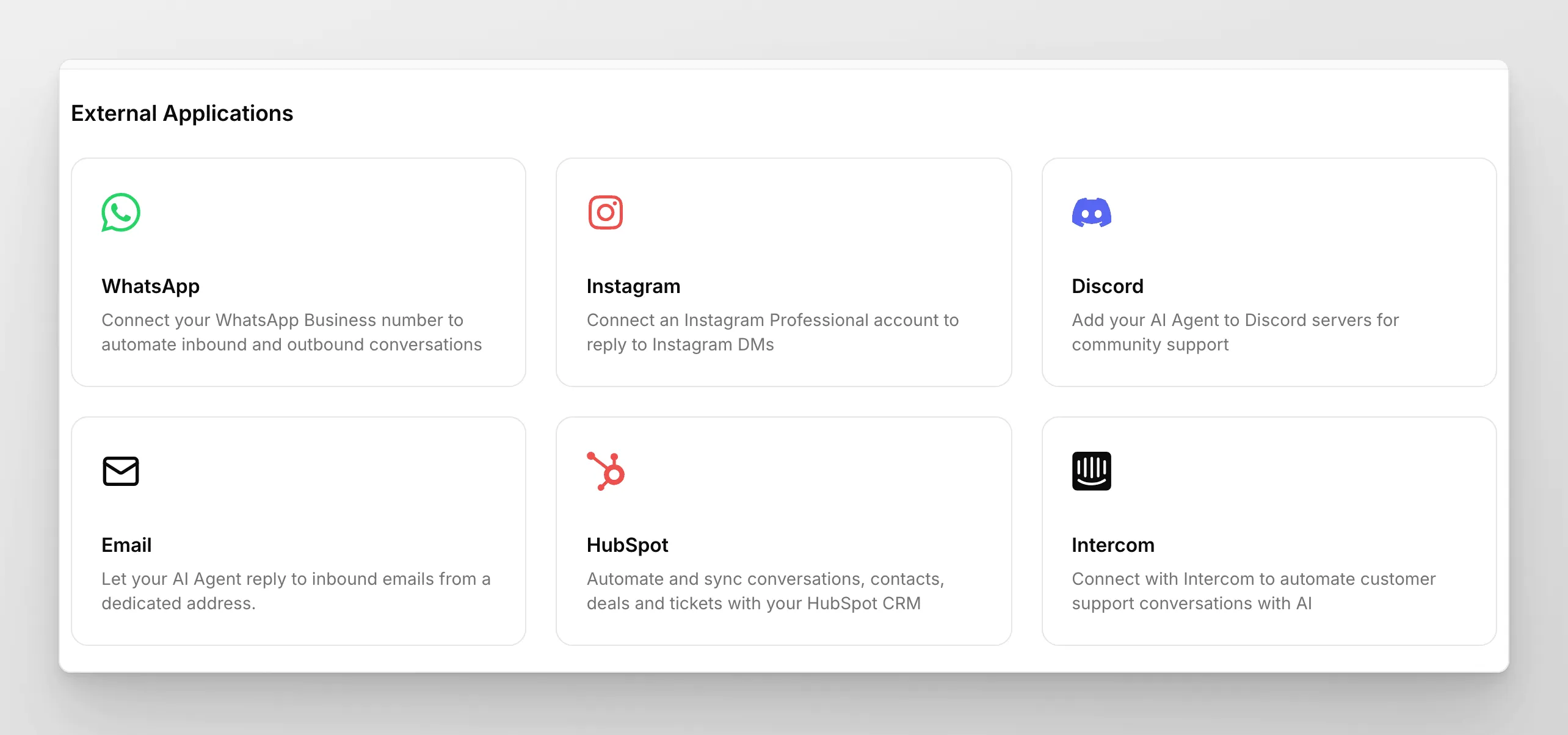
### Authentication
[Section titled “Authentication”](#authentication)
When Intercom is not yet connected, the panel shows a single **Connect with Intercom** button. Click it to start the OAuth flow. A popup window opens where you authorize the AI Agent to access your Intercom workspace. When you approve, the popup closes automatically and the connection is detected, so there is no separate “enable” step to do first.
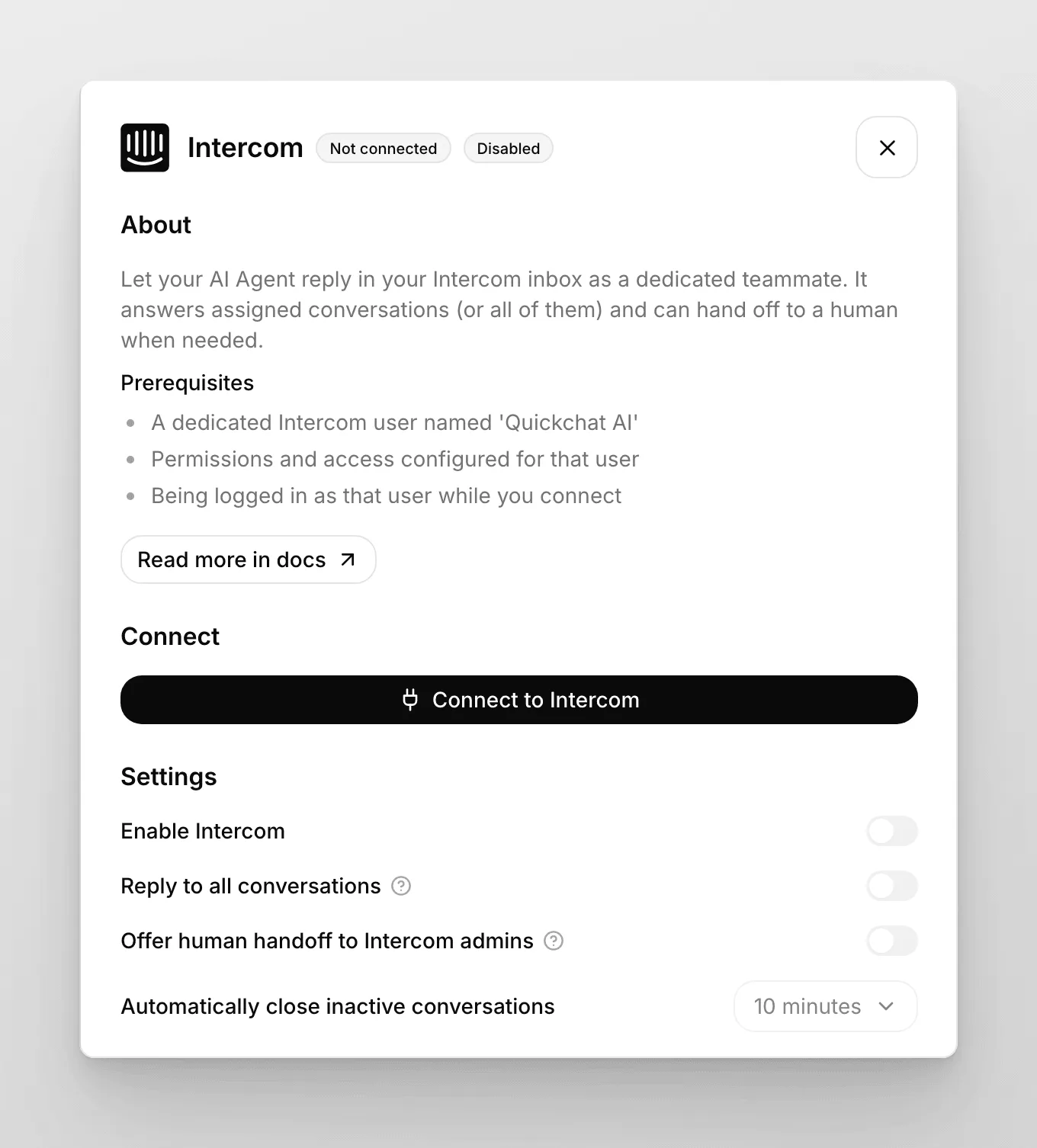
### Confirmation
[Section titled “Confirmation”](#confirmation)
Once connected, the panel shows a connection card with **Connected as {name}**, your **App ID**, and your **Admin ID**, along with **Re-authenticate**, **Test connection**, and **Remove** buttons. Click **Test connection** to verify the integration is working.
If the test succeeds, you did it! Congratulations! Your integration is now live, and you can proceed to the next step to assign conversations in Intercom to your AI Agent.
### Integration settings
[Section titled “Integration settings”](#integration-settings)
After connecting, the panel exposes a few settings. Use the **Enable Intercom** toggle to switch the integration on or off without removing it.
* **Reply to all conversations:** When enabled, the AI Agent replies to every conversation in your Intercom inbox, and the Workflow Automation assignment step below is not required. By default this is off (assigned-only mode), so the AI Agent only replies to conversations assigned to its admin user. In that default mode, complete both the Workload Management and Workflow Automation steps below.
* **Offer human handoff to Intercom admins:** Off by default. When enabled, the AI Agent can transfer a conversation to a human admin in Intercom when escalation is needed.
* **Automatically close inactive conversations:** Choose how long to wait before closing a conversation with no activity. Options are Never, 5 minutes, 10 minutes, or 30 minutes.
## Assign conversations in Intercom to Quickchat AI Agent
[Section titled “Assign conversations in Intercom to Quickchat AI Agent”](#assign-conversations-in-intercom-to-quickchat-ai-agent)
In the default assigned-only mode, there are two steps to assigning Intercom conversations to your Quickchat AI Agent for handling. (If you enabled **Reply to all conversations** above, you can skip the Workflow Automation step.)
### Workload Management
[Section titled “Workload Management”](#workload-management)
Navigate to Settings tab then to Inbox settings and add the Quickchat AI Agent to the Workload Management. 
### Workflow Automation
[Section titled “Workflow Automation”](#workflow-automation)
Navigate to the Automation tab, and click on **Create new workflow** (“Customer starts a new message”).
Once you’re at workflow, we set up a workflow automation. We assign it to the Intercom user you’ve created for Quickchat Assistant.
That’s it! 🎉 *Your integration is now complete!*
Tip
As a final verification of your integration, send a message to your Intercom chat window. You should get a reply from your AI Agent and the conversation should appear in the Inbox in the [Quickchat AI App](https://app.quickchat.ai).
# Search Jira tickets with a Custom Action
> Build a Custom API Action that lets your AI Agent search your Jira tickets and answer questions from them. Jira is not a built-in integration: this is a worked example of calling any third-party REST API.
Jira is not a built-in Quickchat AI integration. This page is a worked example of building a [Custom API Action](/ai-agent/actions/) against a third-party REST API, and the same pattern works for any other API.
In this post, I will show you how to connect your AI Agent to Jira. We will be using:
* a Jira account (**free**)
* a Quickchat’s AI Agent ([sign up here and use for **free**](https://app.quickchat.ai/register))
It will enable your Quickchat AI Agent to:
* be able to search through your Jira tickets, and
* be **smart** about answering questions based on them
We will use Quickchat’s **AI Actions** (custom HTTP actions) to let your Agent call the [Enhanced search for issues](https://developer.atlassian.com/cloud/jira/platform/rest/v3/api-group-issue-search/#api-rest-api-3-search-jql-get) endpoint of the Jira (Atlassian) API.
 *Craft an AI Agent creative about interpreting user inputs*
## Optional example checks
[Section titled “Optional example checks”](#optional-example-checks)
* [Preview an API Action request](https://app.quickchat.ai/v1/api_core/public-question/quickchat/tools/action-request/lab/webmcp/?placement=docs-jira-action-request-webmcp-v1). Render a supplied request template with synthetic sample values without sending it. Omit credential headers.
* [Preview JSONPath matches](https://app.quickchat.ai/v1/api_core/public-question/quickchat/tools/action-response/lab/webmcp/?placement=docs-jira-action-response-webmcp-v1). Check root, field, array-index and wildcard paths against supplied JSON. This does not run an Action or save conversation memory.
In a compatible browser, these checks are also available as site tools. The links open the standard forms.
## Watch the Video
[Section titled “Watch the Video”](#watch-the-video)
[Play](https://youtube.com/watch?v=D4NPTXQw-Qk)
## How it works
[Section titled “How it works”](#how-it-works)
Here is how your AI Agent will operate during conversations:
1. User asks a question like *“what’s up with issues to do with mercury?”*
2. AI Agent fetches relevant information from the **Jira API** using a query like *“mercury”*
3. AI Agent replies to the user based on the information **fetched from the API**
Please follow the steps below. The whole setup shouldn’t take longer than **10 minutes**!
## Step 0 - create a Jira account and project
[Section titled “Step 0 - create a Jira account and project”](#step-0---create-a-jira-account-and-project)
1. Go to [id.atlassian.com/signup](https://id.atlassian.com/signup), create and verify your account.
2. Add Jira to your Atlassian apps (the free plan will be enough to start).
3. Set up your first project and create tickets like in the example below.
 *Example board with Jira issues*
## Step 1 - Jira API authentication token
[Section titled “Step 1 - Jira API authentication token”](#step-1---jira-api-authentication-token)
Go to [id.atlassian.com/manage-profile/security/api-tokens](https://id.atlassian.com/manage-profile/security/api-tokens) and create your **API token** which will look something like this:
```plaintext
ATATT3xFfGF01sKUl0HEW2-_-u9umfLSz7jeblmeLzEHZ1DLcdLbKeVF137iTHGkKhPuNMSKX8mkbwLpHXT4-qXEn-xNEnfiK8_XDVW6XXvGd_SBV3HD4kJInGNjfg2_yEoJFN6uwy4NRqeuhV2tjmyzxozLBRn35OhXkDA6QGfLFvf2_PKuNtA=8DA704E4
```
In order to be able to use your Atlassian API token in Quickchat AI Actions, **you need to base64-encode it** along with your email address:
```plaintext
your_email@example.com:ATATT3xFfGF01sKUl0HEW2-_-u9umfLSz7jeblmeLzEHZ1DLcdLbKeVF137iTHGkKhPuNMSKX8mkbwLpHXT4-qXEn-xNEnfiK8_XDVW6XXvGd_SBV3HD4kJInGNjfg2_yEoJFN6uwy4NRqeuhV2tjmyzxozLBRn35OhXkDA6QGfLFvf2_PKuNtA=8DA704E4
```
> Make sure to include the exact **email address** you used to set up your Atlassian account
You can use a simple online tool like [base64encode.org](https://www.base64encode.org/).
> Make sure to use the **Live mode** which guarantees the encoding happens entirely in your browser.
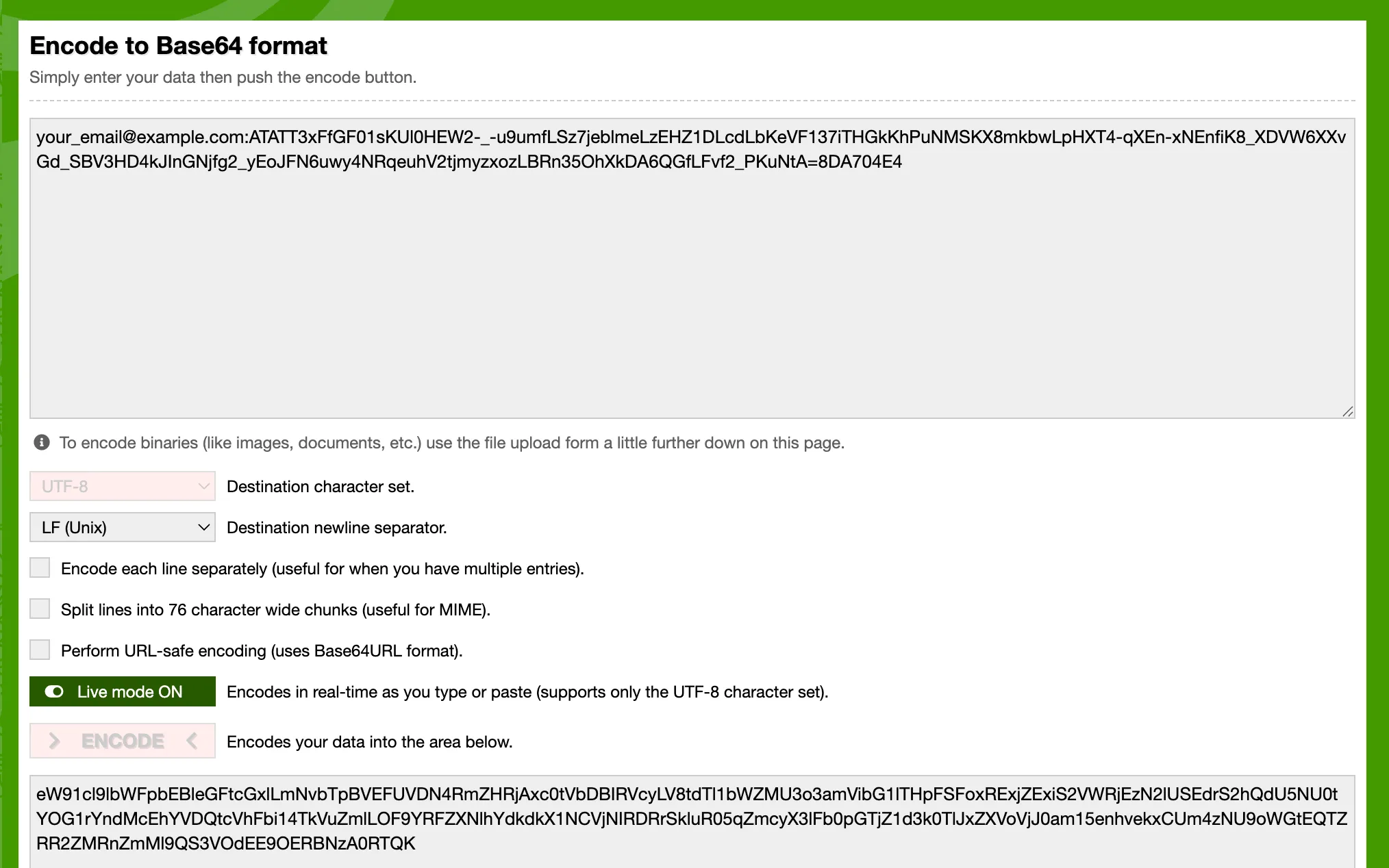 *You can use a free online tool to encode your API token*
Alternatively, here is how to do it on your machine in a simple **python script**:
```python
import base64
email = "your_email@example.com"
api_token = "ATATT3xFfGF01sKUl0HEW2-_-u9umfLSz7jeblmeLzEHZ1DLcdLbKeVF137iTHGkKhPuNMSKX8mkbwLpHXT4-qXEn-xNEnfiK8_XDVW6XXvGd_SBV3HD4kJInGNjfg2_yEoJFN6uwy4NRqeuhV2tjmyzxozLBRn35OhXkDA6QGfLFvf2_PKuNtA=8DA704E4"
credentials = f"{email}:{api_token}"
b64_credentials = base64.b64encode(credentials.encode("utf-8")).decode("utf-8")
print(f"Basic {b64_credentials}")
```
The above script will give you a **ready-to-use header** with the encoded token which looks something like this:
```plaintext
Basic eW91cl9lbWFpbEBleGFtcGxlLmNvbTpBVEFUVDN4RmZHRjAxc0tVbDBIRVcyLV8tdTl1bWZMU3o3amVibG1lTHpFSFoxRExjZExiS2VWRjEzN2lUSEdrS2hQdU5NU0tYOG1rYndMcEhYVDQtcVhFbi14TkVuZmlLOF9YRFZXNlhYdkdkX1NCVjNIRDRrSkluR05qZmcyX3lFb0pGTjZ1d3k0TlJxZXVoVjJ0am15enhvekxCUm4zNU9oWGtEQTZRR2ZMRnZmMl9QS3VOdEE9OERBNzA0RTQ=
```
## Step 2 - create a Quickchat AI Action
[Section titled “Step 2 - create a Quickchat AI Action”](#step-2---create-a-quickchat-ai-action)
In the [Quickchat AI app](https://app.quickchat.ai), go to **Actions & MCPs** and add an action:
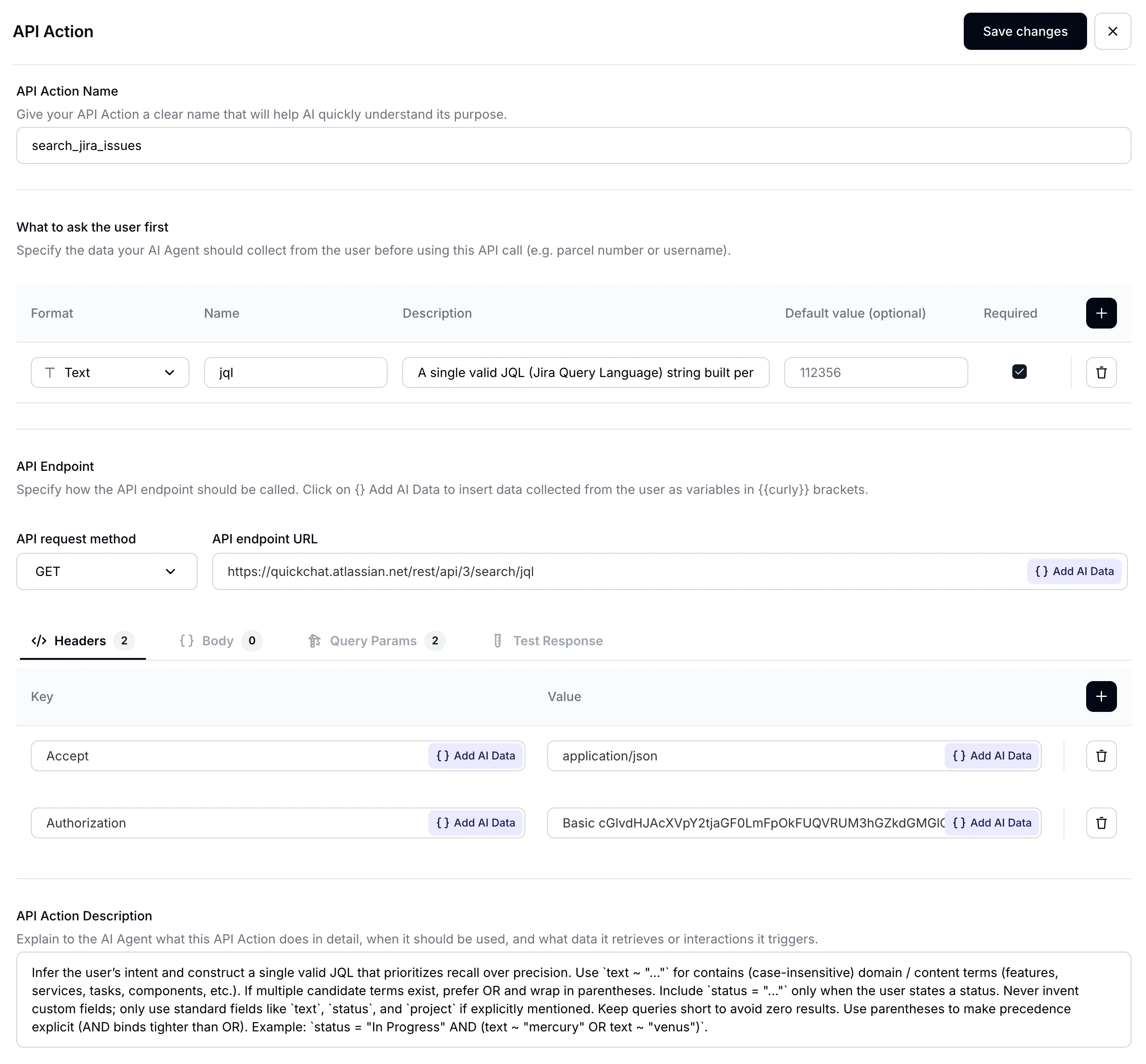 *AI Action page*
Give your AI Action an appropriate name:
**Name**: `Search Jira issues`
 *Insert AI Action name*
## Step 3 - set input parameters
[Section titled “Step 3 - set input parameters”](#step-3---set-input-parameters)
Your AI Agent’s main task will be to translate what the user is asking about into an exact query to use to search through Jira issues. When it comes to searching for issues Jira recently fully migrated to [JQL (Jira Query Language)](https://support.atlassian.com/jira-software-cloud/docs/what-is-advanced-search-in-jira-cloud/) to allow for performing more complicated search. This allows your AI Agent to be much more powerful. Set up your input parameters as follows:
| Format | Name | Description | Default value | Required |
| :----- | :---- | :---------- | :------------ | :------- |
| `Text` | `jql` | (see below) | - | ✅ |
In order to achieve great performance with your AI Agent, a **well-crafted description** is hugely important:
**Description:**
```plaintext
A single valid JQL (Jira Query Language) string built per the description. Favor recall: prefer `(text ~ "term1" OR text ~ "term2")` over chaining with AND, and use parentheses for grouping. For "not started / in progress / done" questions, filter on `statusCategory` ("To Do", "In Progress", "Done"), which is stable across projects; use `status = "..."` only when the user names a specific status that exists on the board. Avoid custom fields. Examples: `statusCategory = "In Progress" AND (text ~ "mercury" OR text ~ "venus")`, `(text ~ "planet*" OR text ~ "integration")`, `project = "Solar System" AND statusCategory = "To Do"`.
```
 *A well-crafted parameter description is key for AI Agent performance*
### A note on Jira statuses
[Section titled “A note on Jira statuses”](#a-note-on-jira-statuses)
Jira separates a status **name** from its **category**, and JQL treats them differently:
* The **status name** is whatever the board shows. One project uses `To Do` / `In Progress` / `Done`, another uses `Open` / `In Review` / `Closed`.
* The **status category** is one of three fixed buckets every status maps to: `To Do`, `In Progress`, `Done`.
`status = "To Do"` filters by name, so it returns nothing on a board whose first column is named `Open`. This is a common reason an agent confidently reports “no tickets to do” while the board is full of them. For “what has not started”, “what is in progress” and “what is done” questions, filter on the category instead:
```plaintext
statusCategory = "To Do"
statusCategory = "In Progress"
statusCategory = "Done"
```
Keep `status = "..."` for when the user names a specific status you know exists on the board. You can also list your board’s real status names in the Action description (Step 7) so the agent maps a request like “ready for QA” to the right one.
## Step 4 - set API endpoint URL
[Section titled “Step 4 - set API endpoint URL”](#step-4---set-api-endpoint-url)
1. Select **GET** as the API request method
2. Set the endpoint URL to the Jira [/rest/api/3/search/jql](https://developer.atlassian.com/cloud/jira/platform/rest/v3/api-group-issue-search/#api-rest-api-3-search-jql-get) endpoint
 *Set your API endpoint URL*
> Make sure to use **your Atlassian domain name**. You will find it in your Jira board URL.
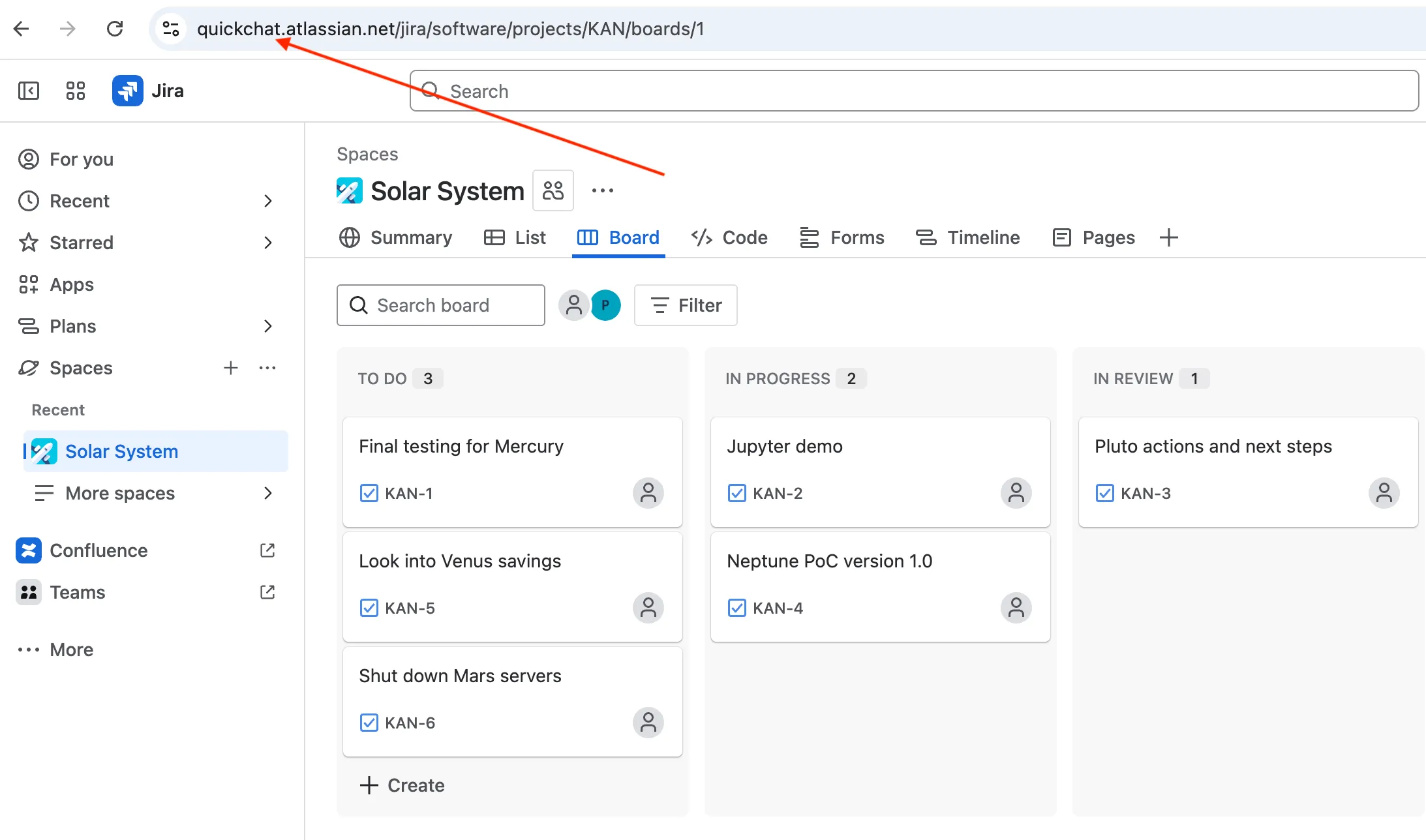 *Your Atlassian domain name*
## Step 5 - set API request headers
[Section titled “Step 5 - set API request headers”](#step-5---set-api-request-headers)
Define your API request **headers** as follows:
| Accept | Autorization |
| :----------------- | :--------------------------------------------------------------------------------------------------------------------------------------------------------------------------------------------------------------------------------------------------------------------------------------------------- |
| `application/json` | `Basic cGlvdHJAcXVpY2tjaGF0LmFpOkFUQVRUM3hGZkdGMGlQOVNacEhVZ1o5YUJfWGhmQjZJWjJId3MyaHlsMzEtTlNpYW90Z2tZVzRxQXEwQ3R4UVY1OXFTZkpWWVZNcXlxem42MWRkR0VobmJWNzdzaWtrb19ZWkhtLUgwazFOZGh4WlpQMnltYmZ1SzhBRmlFMnJEUmdqd182N1hkSFFUelFQY2I2U1lrNUFPRlRuVnZvaGxkZUd3djVpM2VrcEFyMVJ4QnJWRncyYz04MEZGQTcyMA==` |
> Pay special attention to correctly formatting your Authorization header: Basic ``
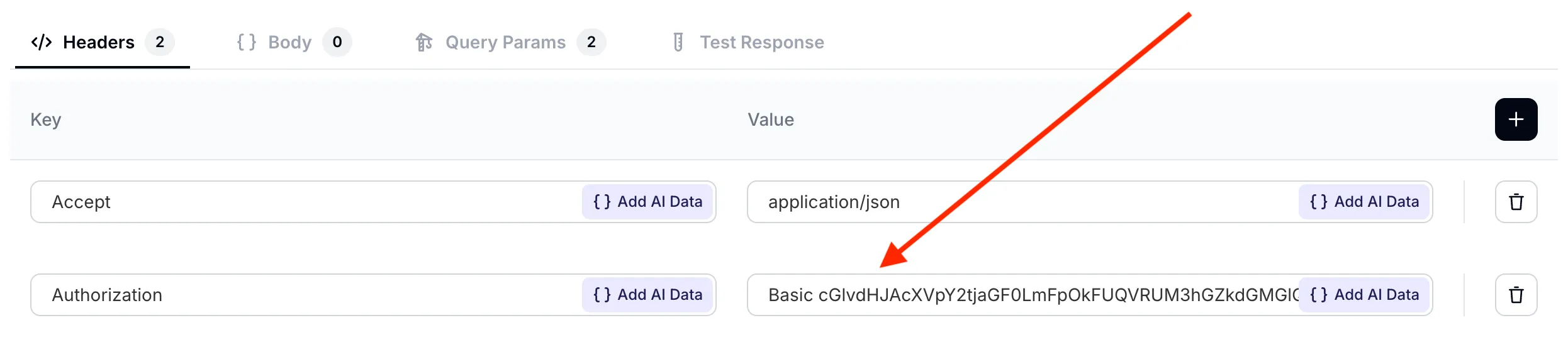 *Set your API request headers*
## Step 6 - set API request query parameters
[Section titled “Step 6 - set API request query parameters”](#step-6---set-api-request-query-parameters)
Set two query parameters for your AI request:
* `jql` is taking a dynamic value defined earlier in the *What to ask the user first* section. It is the AI Agent’s job to fill out the value of this parameter **based on what the user has said** in the conversation.
* `fields` is taking a fixed value. For each Jira issues, we are only interested in its *summary*, *description* and *status*.
| jql | fields |
| :-------- | :--------------------------- |
| `{{jql}}` | `summary,description,status` |
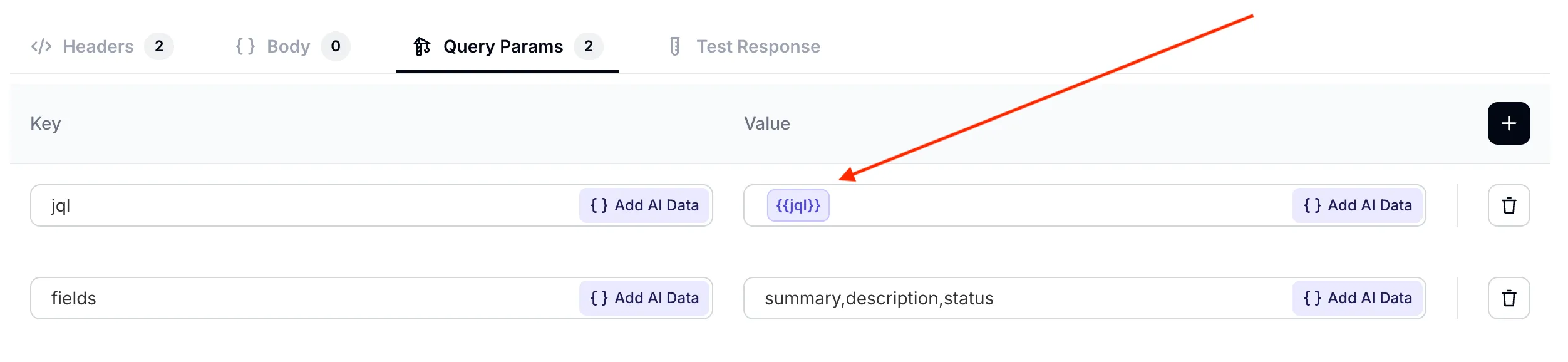 *Set your API request query parameters*
> Make sure the `jql` parameter correctly points to the value defined earlier. You can select it from the Add AI Data dropdown menu.
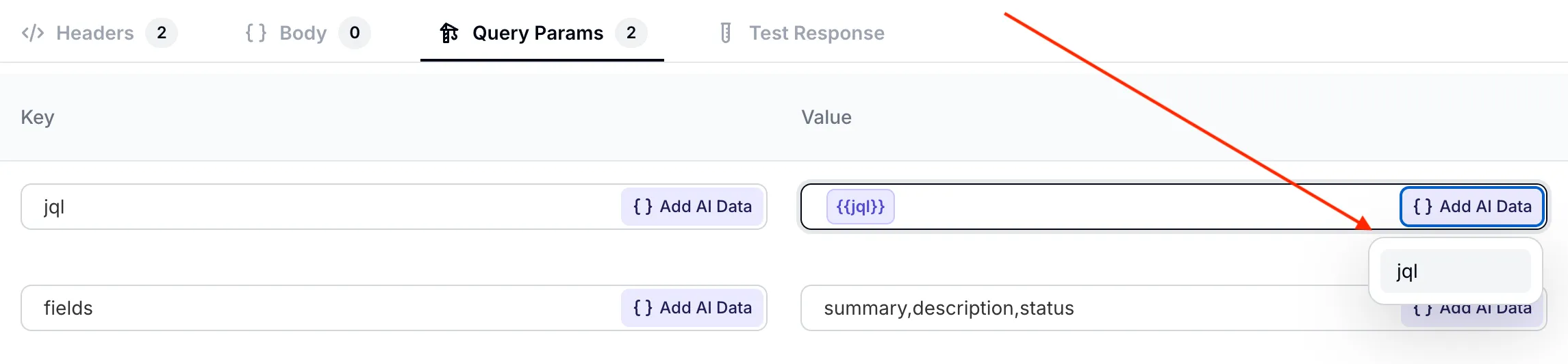 *Select the dynamic `jql` parameter from the dropdown menu*
## Step 7 - set API Action description
[Section titled “Step 7 - set API Action description”](#step-7---set-api-action-description)
The final crucial ingredient of a well set-up AI Action is its description. While the AI Agent has a good understanding of your API endpoint just from its URL and parameters, it is key to optimize its behaviour **for your use case**.
The three most important aspects included in the prompt are:
* **when** to invoke the action — listing every phrasing the user might pick (find / search / look for, as well as explain / tell me about / describe / what is / how is the status of) so the agent does not skip the call when the user does not say “search”
* suggestions on how to use the [advanced JQL syntax](https://support.atlassian.com/jira-software-cloud/docs/what-is-advanced-search-in-jira-cloud/) when searching for Jira issues
* how to handle empty results — the agent must say so explicitly rather than refuse access
Here is the resultant **API Action Description**:
```plaintext
Use this action whenever the user asks anything that could be answered by data in their Jira — projects, issues, statuses, sprints, test cycles, descriptions, owners, comments — regardless of how they phrase the request (find / search / look for / explain / tell me about / describe / what is / how is the status of, etc.). Do not refuse access; query Jira first.
Construct a JQL that prioritises recall over precision: prefer `(text ~ "term1" OR text ~ "term2")` over chaining with AND, and use parentheses for grouping. For lifecycle questions (not started, in progress, done) filter on `statusCategory` ("To Do" / "In Progress" / "Done") rather than `status`, because status names vary by board; use `status = "..."` only when the user names a specific status. Avoid custom fields.
If Jira returns no matches, say so explicitly to the user and suggest a refined query.
```
## Step 8 - test the API Action
[Section titled “Step 8 - test the API Action”](#step-8---test-the-api-action)
Before we test the AI Action in conversation, we can test how the API itself is being called in the **Test Response** tab. Let’s do a first test with the following query which should return all issues in the project: `project = "Solar System"`
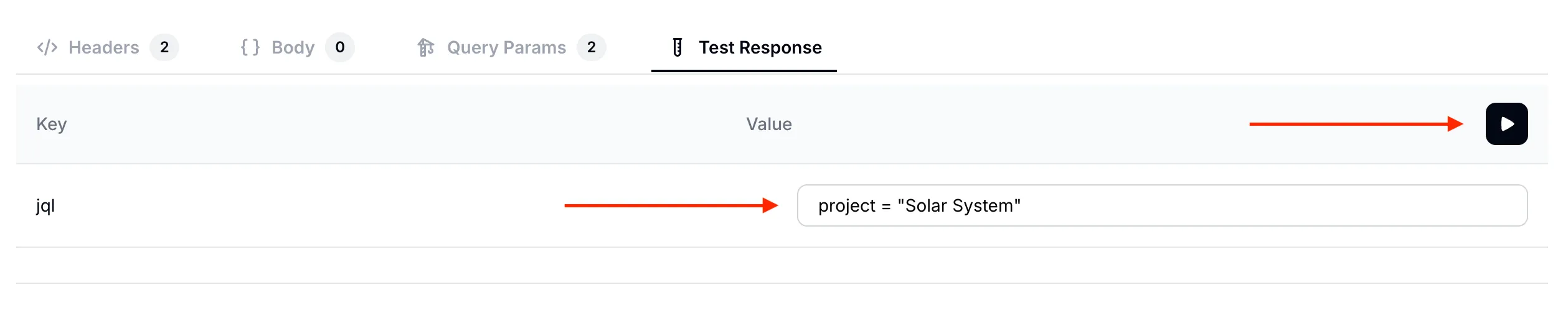 *Searching for all issues in the `Solar System` project*
Below is the test response we get. As expected, it lists the summary, description and status fields for all the 6 issues on our Jira board.
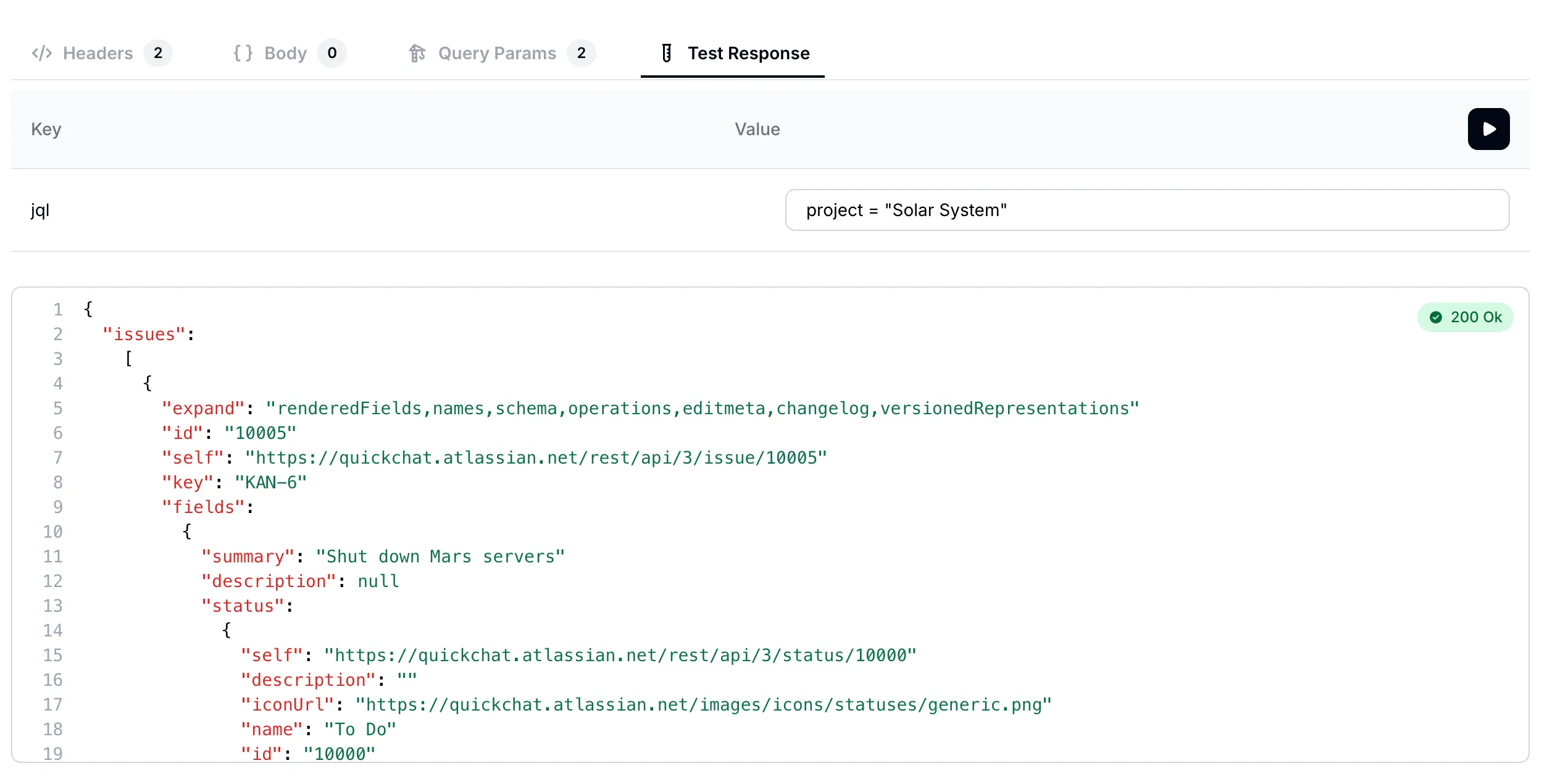 *Response lists all issues in the `Solar System` project*
Let’s try one more query. This time let’s search for all the issues which mention “mercury”: `text ~ "mercury"`
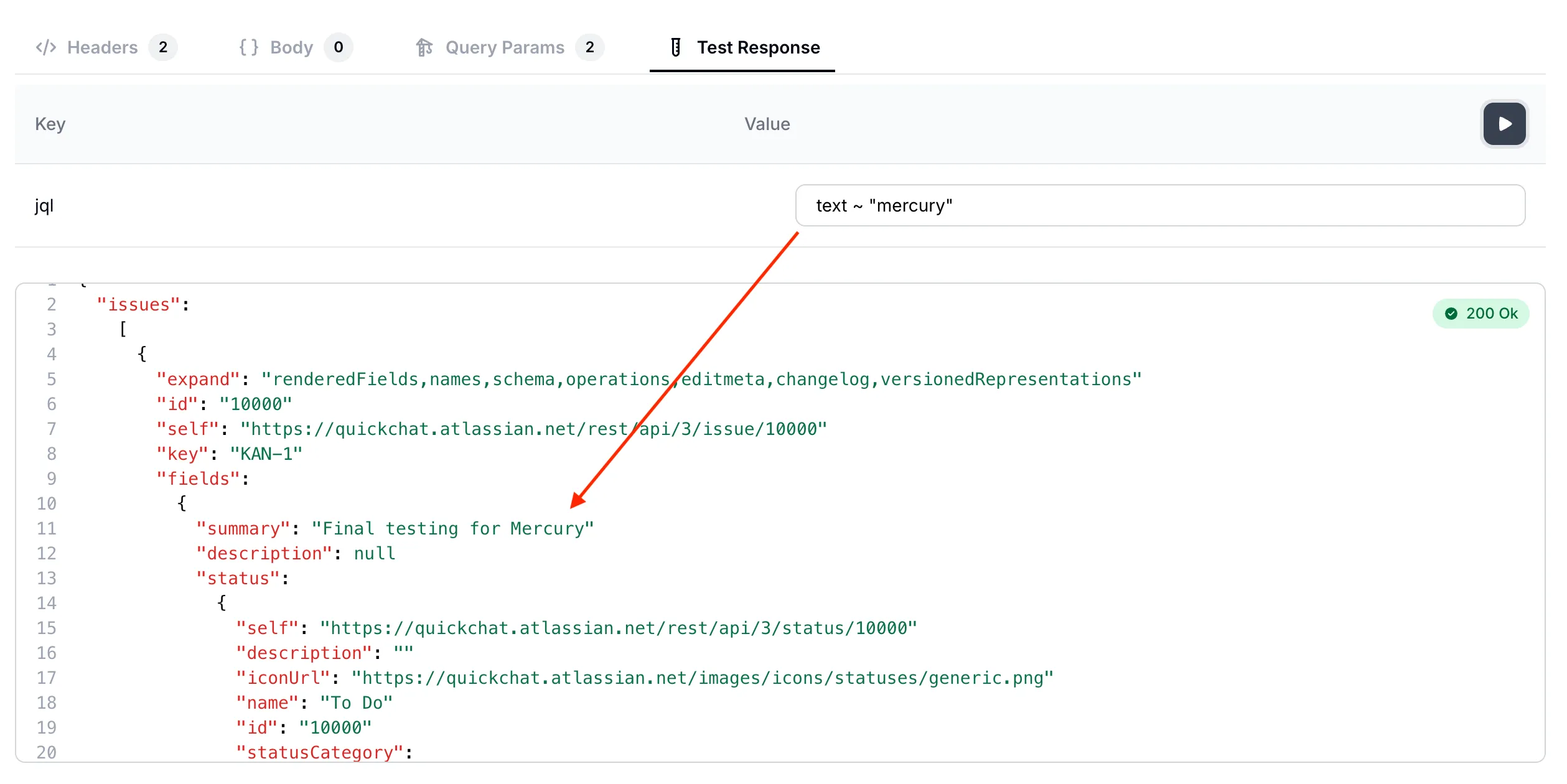 *Searching for issues which mention `mercury`*
We have now validated that the AI Action correctly calls our API endpoint. We can now move on to testing full conversations with the AI Agent!
## Step 9 - test the AI Agent in conversations
[Section titled “Step 9 - test the AI Agent in conversations”](#step-9---test-the-ai-agent-in-conversations)
Head back to the [Quickchat AI app](https://app.quickchat.ai) and test your AI Agent in conversation preview.
### Conversation #1
[Section titled “Conversation #1”](#conversation-1)
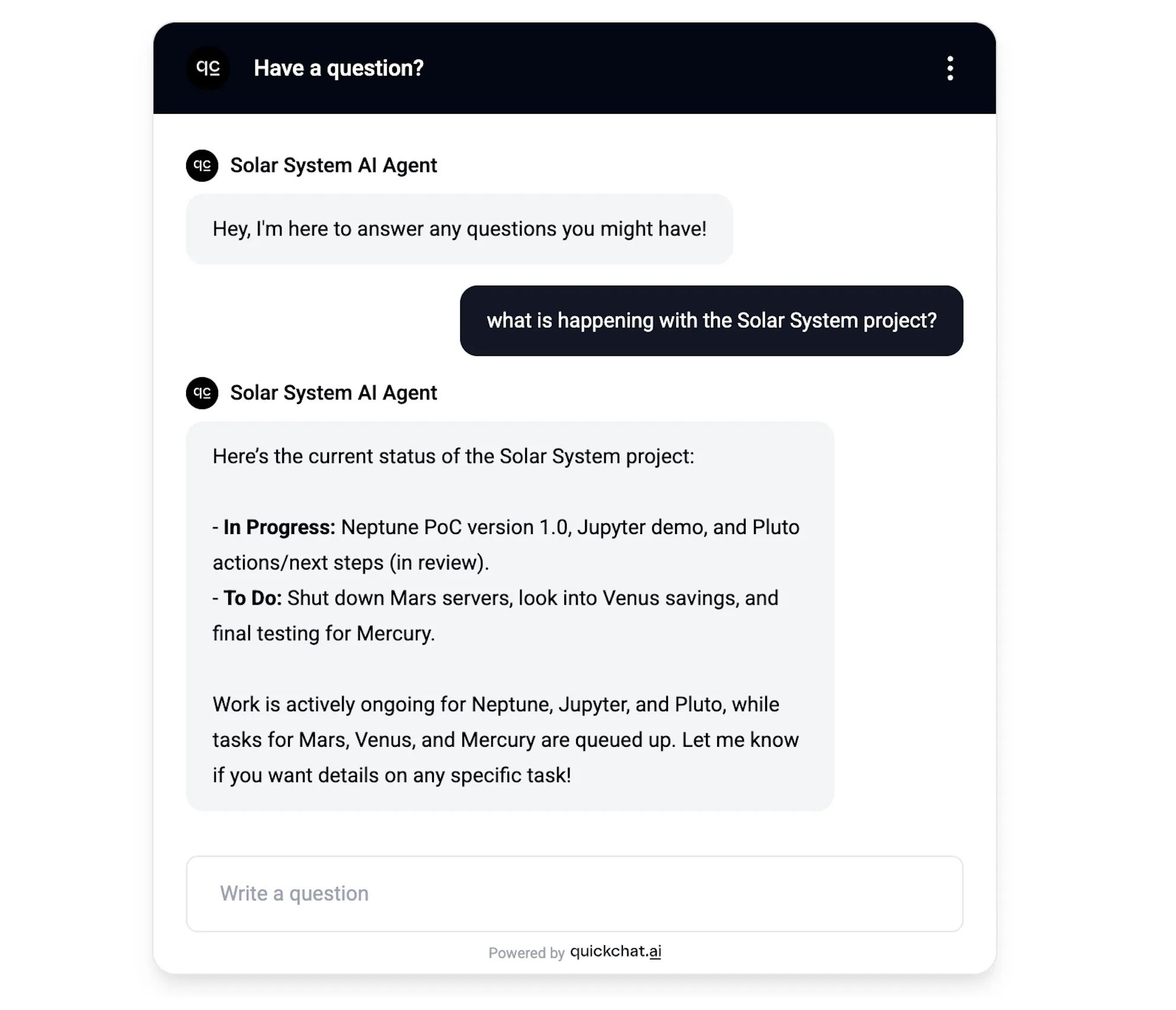 *AI Agent gives a summary of all issues within the project*
In this simple conversation the AI Agent gives an overview of all the issues within the project. A look behind the scenes tell us that the exact query it ran against the API endpoint was: `project = "Solar System"`
### Conversation #2
[Section titled “Conversation #2”](#conversation-2)
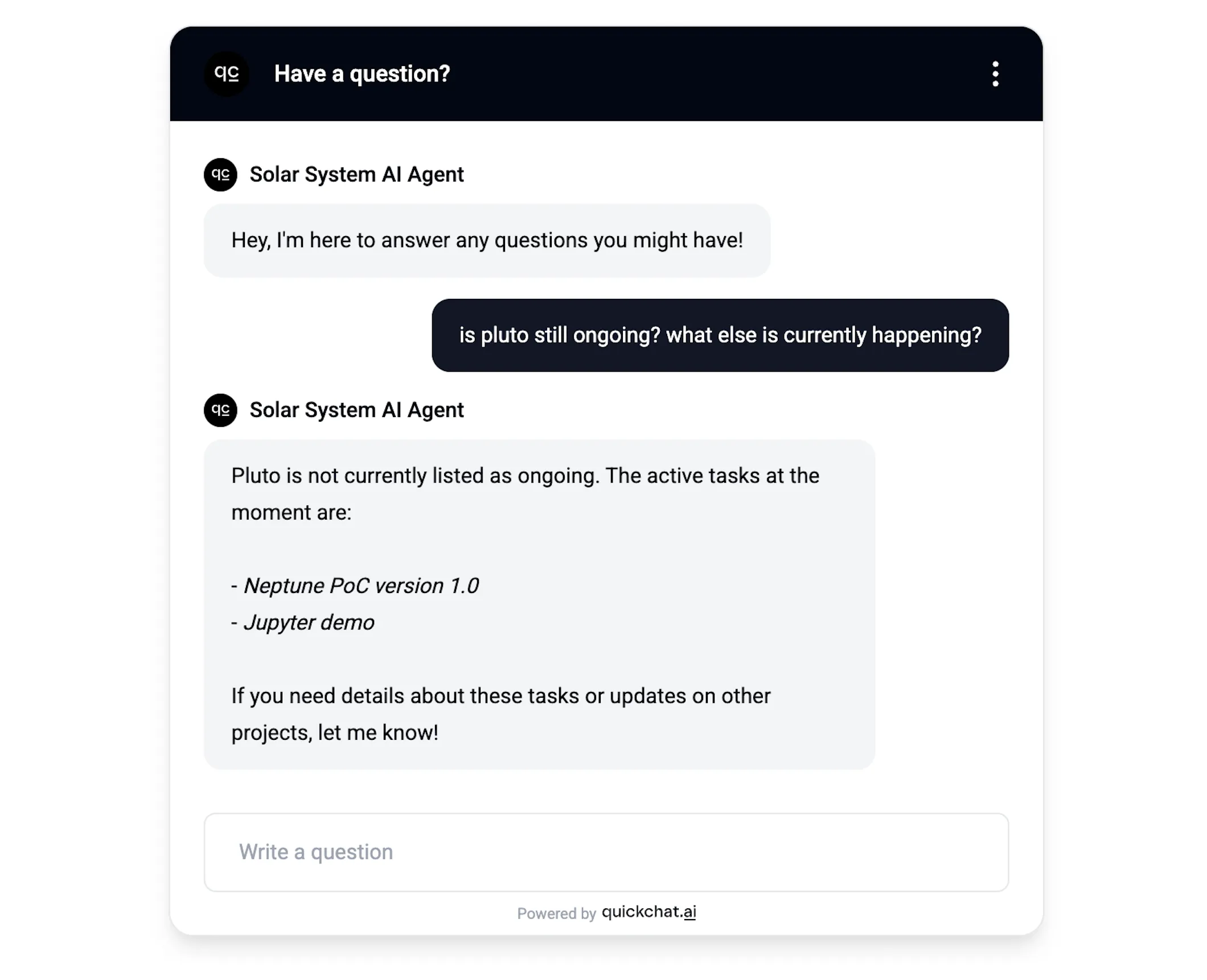 *AI Agent responds to questions about specific issues and statuses*
In this case, the AI Agent was asked about two separate aspects: a specific issue and issues ongoing in general. A look behind the scenes tells us that it decided to use the Jira API in a two-step process:
1. Check if `pluto` is ongoing:
```plaintext
status = "In Progress" AND (text ~ "pluto" OR text ~ "ongoing" OR text ~ "current" OR text ~ "active" OR text ~ "progress")
```
2. Check what else is ongoing:
```plaintext
status = "In Progress"
```
### Conversation #3
[Section titled “Conversation #3”](#conversation-3)
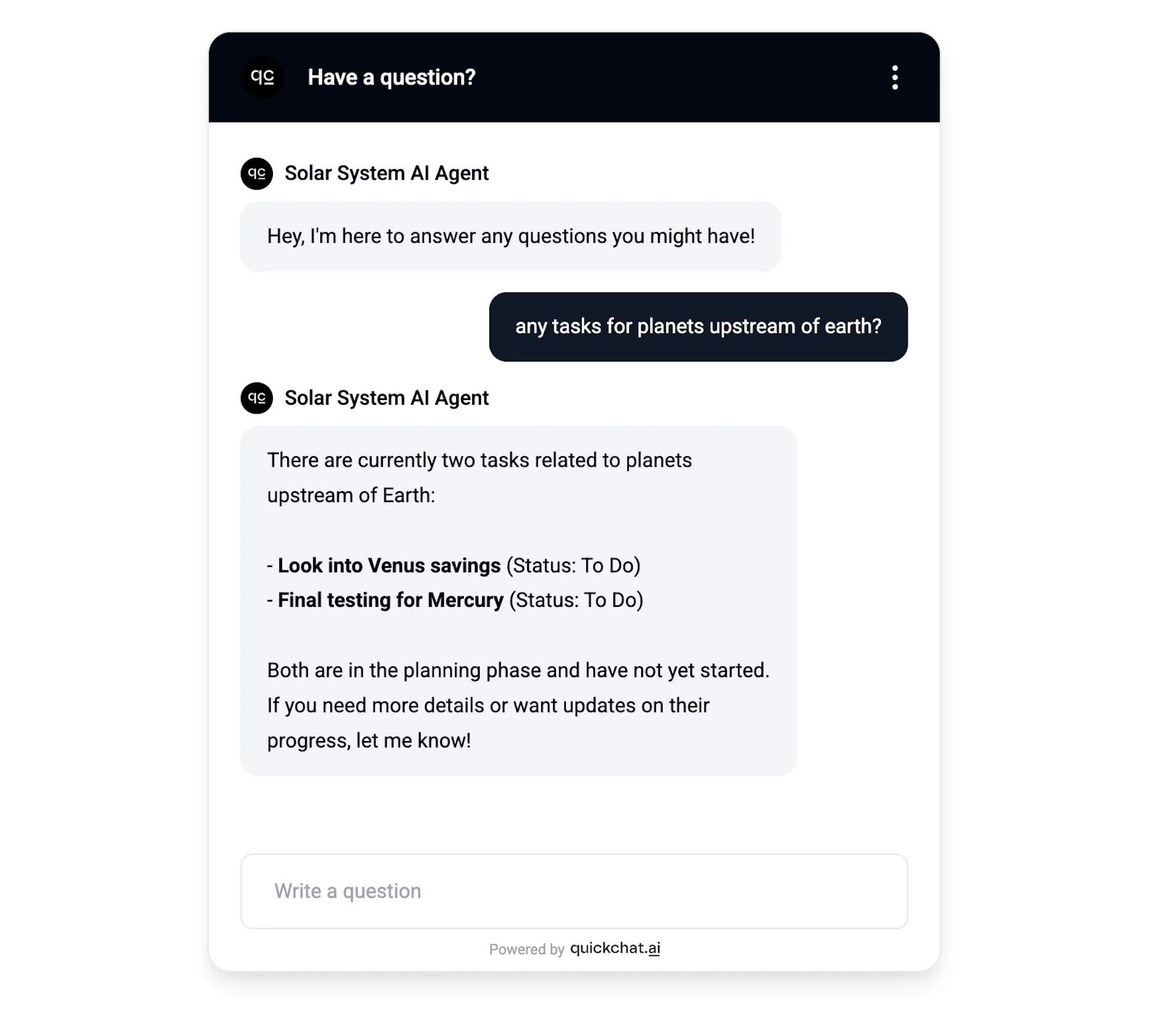 *AI Agent responds to a creative query 😉*
In this case I wanted to throw a curveball at the AI Agent and asked it a question that takes some creativity to interpret correctly. Here is how it got translated into a JQL query:
```plaintext
(text ~ "planet" OR text ~ "upstream" OR text ~ "mercury" OR text ~ "venus")
```
### Try these phrasings
[Section titled “Try these phrasings”](#try-these-phrasings)
To be confident the AI Action fires no matter how your end users phrase their request, run each of the prompts below against your test scenario. The agent should query Jira on every one of them, not just the search-style ones:
* *“find all open issues about live scores”*
* *“search for issues with `mercury`”*
* *“explain the Solar System project”*
* *“tell me about the open issues in this sprint”*
* *“describe what’s currently in progress”*
* *“what is the status of pluto?”*
If any of these phrasings does not invoke the AI Action, double-check that your API Action description (Step 7) lists those verbs explicitly.
What to expect when Jira has no matching issues
When Jira returns zero results, your AI Agent should say so explicitly — for example, *“I checked Jira and found no matching issues for your query — try a broader phrasing or remove the status filter.”*
If instead you see the agent reply with *“I don’t have direct access to your Jira”*, the AI Action did not fire at all. Re-check the description from Step 7 and confirm that it explicitly lists non-search verbs (`explain`, `tell me about`, `describe`, `what is`).
## Summary
[Section titled “Summary”](#summary)
In this post, we showed how an AI Agent can be set up to use a specific API endpoint in a creative way in conversations. The correct setup doesn’t come out of the box - it requires providing detailed extra information of the specific use case we have in mind. Please feel free to reuse the prompts and descriptions shown in this post for creating your own similar AI Agents!
> Prefer a long-form, narrated walkthrough? The same setup is also covered as a [blog post on quickchat.ai](https://quickchat.ai/post/search-jira-tickets-in-ai-conversation). This docs page is the canonical, continuously-updated reference.
## Going further
[Section titled “Going further”](#going-further)
A Jira action does not have to be a single fixed request. You can inject [built-in conversation variables and saved metadata](/ai-agent/variables/) (such as the visitor’s language or values captured earlier in the conversation) into any field, and you can add several actions so the agent picks the right one per question. See the [Actions reference](/ai-agent/actions/) for the full set of options.
## 🎁 BONUS
[Section titled “🎁 BONUS”](#bonus)
The above post was written by a *human* (yours truly) but could have just as well been written by AI. For example, by pasting a prompt like this one into ChatGPT:
```plaintext
I need an API endpoint that allows me to search through my Jira tickets.
Guide me through the process step by step so that it is accessible to a moderately technical person:
- Provide links to documentation describing the endpoint
- Any necessary account creation and initial setup
- If any paid account is needed, indicate that clearly
- If any authentication such as API tokens is needed, guide me through the process of creating them and show me exactly every step needed to be able to use them as an HTTP request header. For example, if base64 encoding is needed, show a script or another way of achieving that.
- Show to me exactly what header keys and values I need for the HTTP request (show me header keys and values in a table)
- Show to me exactly what payload parameters I need for the HTTP request (show me payload parameter name and example values in a table)
```
In the future, perhaps rather than search through Jira tickets you would like to:
* *send messages to a Slack channel?*
* *fetch information from a Notion page?*
* *perform an action via Zapier?*
Say that in the first sentence and run the prompt again! You will obtain perfectly good instructions to add the exact AI Action you need!
# MCP
> Let Claude, ChatGPT, Cursor and other AI apps use your Quickchat AI Agent as a tool. Connect with a hosted Model Context Protocol (MCP) server URL, no install needed.
When iPhones took off, every company needed an app in the App Store.
Now, as AI chat apps gain traction and MCP becomes the standard, every company will want an MCP so others can plug into their AI.
Note
This page covers exposing your Quickchat AI Agent as an MCP server. To connect external MCP servers so your Agent can use their tools, see [MCP Actions](/ai-agent/actions/mcp-actions/).
Most people describe MCP as the USB-C of AI: a universal, standardized way to add a tool to apps like Claude, ChatGPT or Cursor. Here is how we see it: MCP lets your favorite AI app message another AI on your behalf and bring back the answer. With Quickchat AI, anyone can plug your AI Agent into Claude, ChatGPT, Cursor, or any other app that supports the protocol.
**Every Quickchat AI Agent has its own hosted MCP server.** You copy one URL from the app and paste it into your AI app as a connector. There is nothing to install, no `uv`, no config file, and no API key to hand out. The AI app gets a single tool that asks your Agent a question and relays the answer from its Knowledge Base.
If you need a refresher on what MCP is, read our [step-by-step guide](https://www.quickchat.ai/post/mcp-explained).
## Optional setup tools
[Section titled “Optional setup tools”](#optional-setup-tools)
* [Check MCP connection direction](https://app.quickchat.ai/v1/api_core/public-question/quickchat/tools/mcp-config/?placement=docs-mcp-channel-mcp-config-v1). Draft setup details from a public endpoint and chosen purpose. This does not accept credentials, connect to a server or change your account.
* [Check a sample MCP connection](https://app.quickchat.ai/v1/api_core/public-question/quickchat/tools/mcp-connection/?placement=docs-mcp-channel-mcp-connection-v1). Initialize and list tools on the Cloudflare documentation or Microsoft Learn endpoint only. No sign-in or tool execution is performed.
## What you can do with it
[Section titled “What you can do with it”](#what-you-can-do-with-it)
* Let Claude, ChatGPT, Cursor and other MCP-capable apps ask your Agent questions and get answers grounded in its Knowledge Base.
* Share one URL. No install, no terminal, no `claude_desktop_config.json` to edit.
* Keep it private to your team, or make it public so anyone with the link can use it.
* See every conversation in your Quickchat Inbox, including the AI-to-AI exchanges.
## Get your MCP server URL
[Section titled “Get your MCP server URL”](#get-your-mcp-server-url)
1. Create a [Quickchat AI account](https://app.quickchat.ai/). The Free plan lets you get started right away.
2. Set up your Agent’s Knowledge Base, capabilities and settings.
3. Open **External Apps > MCP** and turn **Enable MCP** on.
4. Click **Configure MCP** and give your Agent a **Name**, **Description** and (optional) **Command**. These matter: an AI app reads them to decide when to call your Agent and what it can help with.
5. Click **Connect MCP** and copy your **MCP server URL**. It looks like this:
```text
https://app.quickchat.ai/mcp/
```
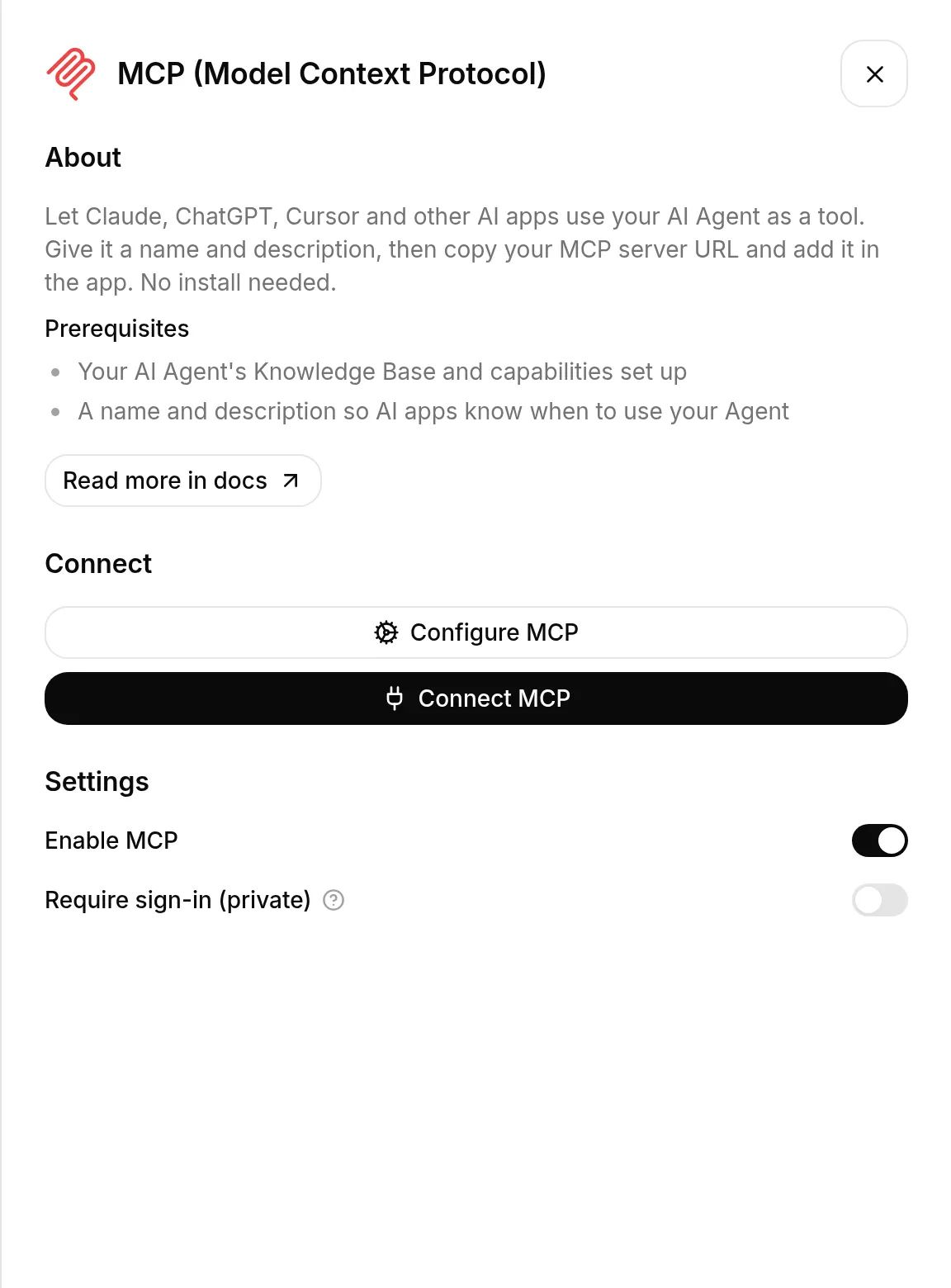
## Connect your AI app
[Section titled “Connect your AI app”](#connect-your-ai-app)
Add the URL as an MCP server (a “connector”) in your AI app. The exact menu differs per app, but the URL is the same.
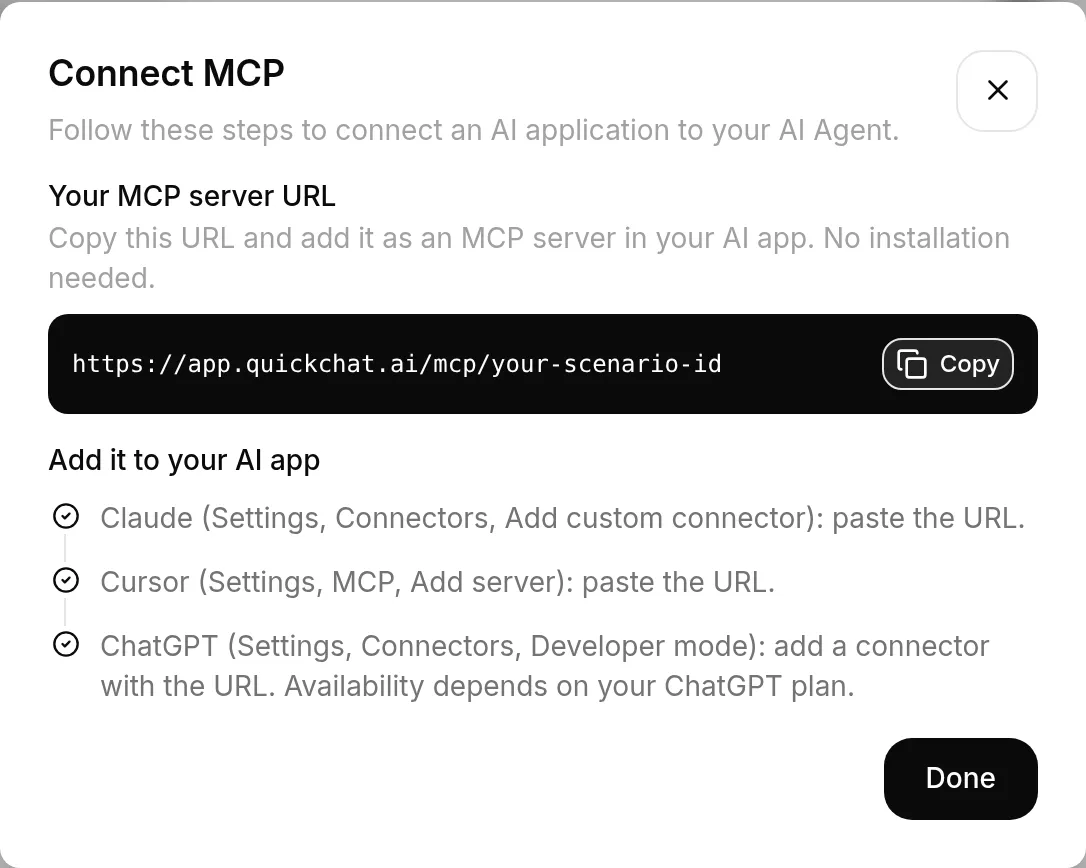
### Claude
[Section titled “Claude”](#claude)
Go to **Settings > Connectors > Add custom connector** and paste the URL.
### Cursor
[Section titled “Cursor”](#cursor)
Go to **Settings > MCP > Add server** and paste the URL.
### ChatGPT
[Section titled “ChatGPT”](#chatgpt)
Go to **Settings > Connectors > Developer mode** and add a connector with the URL. Availability depends on your ChatGPT plan.
### Other AI apps
[Section titled “Other AI apps”](#other-ai-apps)
Any app that supports remote MCP servers works the same way: find where it adds an MCP server or connector, and paste your URL. See the [MCP client directory](https://modelcontextprotocol.io/clients) for what each app supports.
## Public or private
[Section titled “Public or private”](#public-or-private)
Your Agent’s MCP is **private by default**. Only you and teammates with a role on the Agent can connect, and the AI app asks you to sign in with Quickchat once when you add it.
Flip **Require sign-in (private)** off to make it **public**. Anyone with the link can then use your Agent without signing in, so keep in mind:
* Every message is a Quickchat AI reply billed to you.
* Public callers share your Agent’s rate limit, so heavy use can eat into your allowance.
### Check the Agent’s knowledge and Actions
[Section titled “Check the Agent’s knowledge and Actions”](#check-the-agents-knowledge-and-actions)
An MCP question runs through the same reply pipeline as a website conversation. The Agent can answer from its Knowledge Base and run enabled [Actions](/ai-agent/actions/), including Actions that change an external system. A question-answering tool is not a guarantee of read-only behavior.
Before making the Agent public, review the knowledge and Actions available to it. Use public information and only capabilities intended for public callers. For a public FAQ, consider a separate Agent without privileged Actions. Enforce authorization in connected systems rather than relying on the Agent’s instructions to protect private data.
This channel does not expose the separate tools for editing your Quickchat account. To configure Agents, knowledge or settings from your own AI app, use the authenticated [account-management connection](/manage-with-ai/).
The `scenario_id` in the URL is not a secret (much like a public chat widget), but the private setting is what keeps access limited to your team.
## See the conversations
[Section titled “See the conversations”](#see-the-conversations)
Every MCP exchange shows up in your Quickchat Inbox. Note that these are the AI-to-AI transcripts between the calling app and your Agent, not the exact words the end user typed into Claude or ChatGPT.
Connected apps pick up changes to the MCP tool’s Name and Description when they refresh the connection. Knowledge Base changes are processed automatically and become available to the Agent when the article is **Ready**, just as on your website. There is no separate publish step. See [how knowledge changes go live](/ai-agent/knowledge-base/#how-your-changes-go-live).
## Useful links
[Section titled “Useful links”](#useful-links)
* [What is MCP?](https://www.quickchat.ai/post/mcp-explained)
* [MCP official website](https://modelcontextprotocol.io/)
* [MCP client directory](https://modelcontextprotocol.io/clients)
Go to the [Quickchat AI app](https://app.quickchat.ai) and let the world connect to your Agent. If you build something cool, share it with us on [X](https://x.com/quickchatai) or [LinkedIn](https://www.linkedin.com/company/quickchatai/).
# Shopify
> Add the Quickchat AI shopping assistant to your Shopify store. Install via the Shopify App Marketplace or embed the widget manually.
In this guide, we’ll show how to add Quickchat AI Widget to your Shopify store.
## Optional example checks
[Section titled “Optional example checks”](#optional-example-checks)
* [Check a Widget snippet](https://app.quickchat.ai/v1/api_core/public-question/quickchat/tools/widget-snippet/lab/webmcp/?placement=docs-shopify-widget-snippet-webmcp-v1). Check pasted code against the supplied Scenario ID. This does not fetch your website.
* [Compare deployment methods](https://app.quickchat.ai/v1/api_core/public-question/quickchat/tools/deployment-fit/lab/webmcp/?placement=docs-shopify-deployment-fit-webmcp-v1). Check your declared channels, website access and required features against Quickchat AI setup options. This does not inspect your website or account.
In a compatible browser, these checks are also available as site tools. The links open the standard forms.
## What you’ll need
[Section titled “What you’ll need”](#what-youll-need)
* A Shopify store
* The [**Shopping Agent by Quickchat AI**](https://apps.shopify.com/quickchat-ai) app installed from the Shopify App Marketplace (if you don’t want to install it and you’d rather connect it manually, [scroll down to the second part of the tutorial](#how-to-manually-add-a-widget-script))
* User permission to edit themes
*Time to complete: \~2 minutes*
***
## What are Shopping AI Agents?
[Section titled “What are Shopping AI Agents?”](#what-are-shopping-ai-agents)
In this short video you will learn the basics: how to turn your Shopify store into a Shopping AI Agent using Quickchat AI and Shopify MCP.
[Play](https://youtube.com/watch?v=NPZEg4OVSRE)
## Step 1: Open your Theme Editor
[Section titled “Step 1: Open your Theme Editor”](#step-1-open-your-theme-editor)
There are two ways to do it:
### Option A (recommended): from Quickchat AI App
[Section titled “Option A (recommended): from Quickchat AI App”](#option-a-recommended-from-quickchat-ai-app)
From the [Quickchat AI App](https://app.quickchat.ai) home/welcome page, click **Enable Widget in Shopify Theme Editor**.
This deep-links to your store’s Shopify Theme Editor directly in the App embeds context, where the app embed can be enabled.
Note
**Enable Widget in Shopify Theme Editor** only appears for stores already connected to Quickchat AI via the Shopify app (OAuth).
### Option B: from Shopify Admin
[Section titled “Option B: from Shopify Admin”](#option-b-from-shopify-admin)
Go to [Shopify Admin](https://admin.shopify.com/) → **Online Store → Themes** → on your current theme click **Customize**.
***
## Step 2: Enable the app embed
[Section titled “Step 2: Enable the app embed”](#step-2-enable-the-app-embed)
Inside the Theme Editor, open the left sidebar and go to **App embeds**.
Find **Quickchat AI Widget** and toggle it **on**.
Then click **Save** (top-right).
***
## Step 3: Confirm on your storefront
[Section titled “Step 3: Confirm on your storefront”](#step-3-confirm-on-your-storefront)
Open your storefront (preview or live site) and look for the Quickchat AI chat bubble in the bottom-right corner of the page.
That’s it!
**Quickchat AI Agent is live on Shopify Store 🎉**
***
## How to manually add a widget script
[Section titled “How to manually add a widget script”](#how-to-manually-add-a-widget-script)
If you don’t want to install our Shopify App because you already have an AI Agent built in Quickchat AI App, you can add a simple script that displays it on your Shopify Store.
Have you connected your AI to Shopify data already?
To connect your AI Agent to your Shopify store’s data such as product catalog and cart, please do the following:
1. Paste your store link on this page: [quickchat.ai/shopify](https://quickchat.ai/shopify)
2. Claim it, customize, and embed on your site
### 1. Open the theme code editor
[Section titled “1. Open the theme code editor”](#1-open-the-theme-code-editor)
1. Go to your [Shopify Admin Panel](https://admin.shopify.com/).
2. In the left menu, click **Online Store → Themes**.
3. In the “Current theme” section, click the **three dots (⋯)** next to the **Customize** button.
4. Select **Edit code** from the dropdown.
### 2. Find `theme.liquid`
[Section titled “2. Find theme.liquid”](#2-find-themeliquid)
1. In the code editor, expand the **layout** folder on the left.
2. Click on `theme.liquid` to open the main layout file of your theme.
### 3. Paste the script
[Section titled “3. Paste the script”](#3-paste-the-script)
1. In the [Quickchat App](https://app.quickchat.ai), navigate to **Your Website → Install**.
2. Copy the generated script.
3. Paste it just **above the `